Microsoft now has several ways to build AI agents. You can create prompt agents in Foundry, build agentic workflows with Logic Apps, or deploy your own agent code as a Foundry hosted agent.
There is another option that fits a different type of problem: the Azure Functions serverless agents runtime.
This runtime lets you define agents in Markdown files and run them as Azure Functions. Agents can be triggered by HTTP requests, timers, queues, blobs, database changes, or connector events. The runtime is currently in preview, so features can still change. See the Microsoft documentation for the latest information.
The sample in this post is a scheduled AI news digest. It searches for recent AI news and sends a card to Teams. The news digest is not the important part. It is just a small example that needs a timer, a model, tools, state, and an external notification.
What is the serverless agents runtime?
The serverless agents runtime is a programming model for event-driven agents.
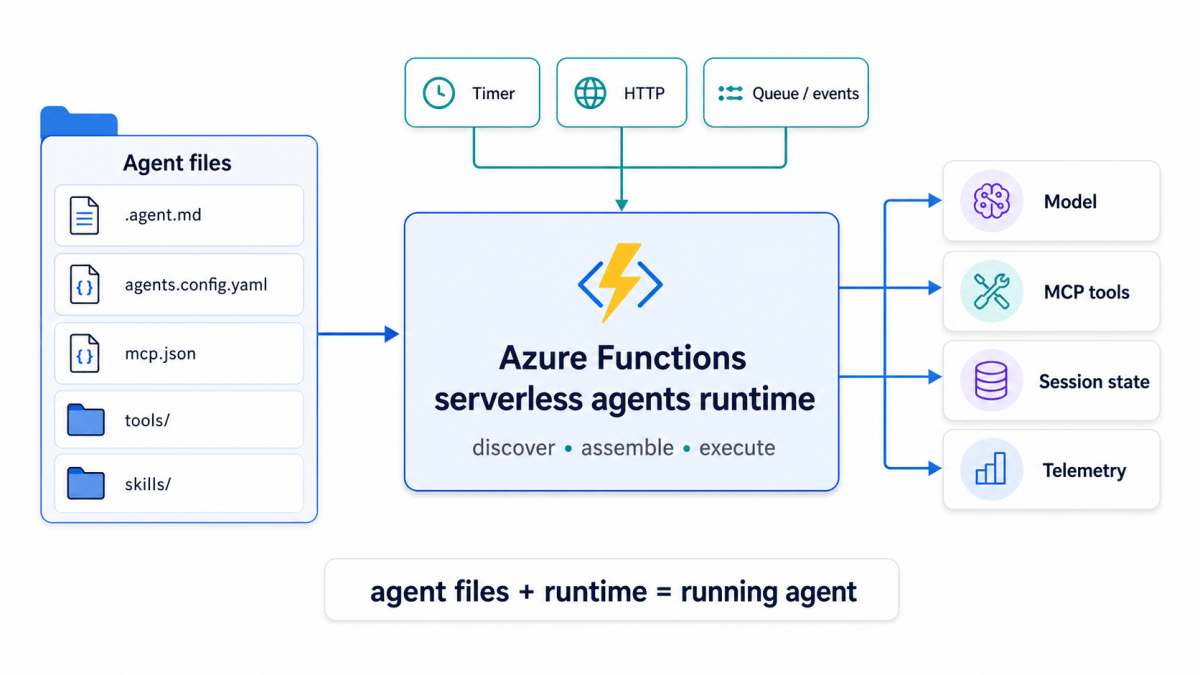
You define the agent, configure its capabilities, and deploy the project as a normal Python Function App. The runtime discovers the agents, registers their triggers, assembles their tools, and runs them using Microsoft Agent Framework.
The complete function_app.py in the sample is this:
from azure_functions_agents import create_function_app

app = create_function_app()
There is no timer registration or explicit agent construction here. The runtime finds that information in the project files when the Functions host starts.
This is the main idea:
event -> Azure Functions trigger -> runtime-built agent -> model and tools -> result
Defining an agent
The agent is defined in a markdown file: ai_news_digest.agent.md.
name: AI News Teams Digest Agentdescription: Finds recent AI news and posts a digest.model: $FOUNDRY_MODELtrigger: type: timer_trigger args: schedule: "0 0 6 * * *"
The Markdown below the front matter becomes the agent instructions:
You are a scheduled AI news digest agent.When this timer fires:1. Research recent AI news.2. Select at most five distinct articles.3. Call post_ai_news_digest exactly once.
The schedule uses the six-field Azure Functions NCRONTAB format. In this case, the agent runs every day at 06:00 UTC.
The important point is that the timer is part of the agent definition. The application does not need a separate timer function.
Note the the Foundry endpoint is set as an environment variable. It is not in the markdown file. The Function App gets a managed identity which can access the model referenced by $FOUNDRY_MODEL which is also an environment variable. I used gpt-5.6-luna here.
Check https://learn.microsoft.com/en-us/azure/azure-functions/functions-serverless-agents-runtime-reference to learn about the possible settings in the markdown file. I have used only a small subset here.
What happens at startup?
When create_function_app() runs, the runtime discovers:
- Agent files and their triggers.
- MCP servers in
mcp.json. - Custom Python tools in
tools/. - Reusable skills in
skills/, if present. - App-wide settings in
agents.config.yaml.
When a trigger fires, the runtime resolves the model and instructions, assembles the available tools, loads session information if needed, and executes the agent.
The app-wide configuration in this sample is small:
model: $FOUNDRY_MODELtimeout: 900
This keeps the model and timeout outside the Python code. Agent-specific settings can still override these defaults in the front matter. There are other settings like a management endpoint for the Azure Container Apps dynamic session pool used by sandbox tools. They are not used here.
An agent is becoming a directory
A useful pattern is emerging across agent runtimes: an agent is becoming a collection of files rather than one large class or prompt.
For example, this sample uses:
ai_news_digest.agent.mdagents.config.yamlmcp.jsontools/skills/
Vercel’s eve uses a similar filesystem-first approach with instructions, tools, skills, schedules, and subagents. LangChain’s Managed Deep Agents also uses files such as AGENTS.md, skills/, subagents/, and tools.json.
The files define the agent. The runtime provides the operational parts:
agent files + runtime = running agent
The runtime handles things such as tool execution, state, scheduling, sandboxes, and observability.
The Azure Functions runtime’s particular strength is its event model. An agent can start from a timer, HTTP request, queue message, blob event, or connector event.
Adding tools with MCP
The sample uses Tavily for web search through MCP:
{ "servers": { "tavily": { "type": "streamable-http", "url": "$TAVILY_MCP_SERVER_URL" } }}
The application does not contain Tavily client code. The runtime discovers the remote MCP server and makes its tools available to the agent.
The same model can be used with other remote MCP servers, Azure connector tools, custom Python tools, and sandboxed Python execution. The runtime reference describes these capabilities in more detail.
Custom Python tools are useful for application-specific logic. The sample exposes one tool for posting the digest:
from azure_functions_agents import tooltooldef post_ai_news_digest(digest: NewsDigest) -> str: """Post up to five articles as one Teams card.""" ...
The tool validates the articles, removes ones already sent, creates an Adaptive Card, and stores the article IDs in Blob Storage. That is normal application code. The runtime’s job is to discover the tool and make it available to the agent.
Why Azure Functions?
The runtime is useful because it brings the normal Azure Functions features to agents.
With Flex Consumption, the Function App can scale to zero, scale automatically, and use per-second billing. It also supports managed identity, Application Insights, and virtual network integration.
The runtime supports several event types:
- HTTP requests.
- Timer triggers.
- Queue and Service Bus messages.
- Blob and database events.
- Connector events.
This makes it a good fit for background agents, monitors, reports, and event processors.
The runtime also manages session history. In Azure, session data is stored through the Function App’s AzureWebJobsStorage account. The application can still keep its own state, as the news sample does with seen-articles.json.
These are two different things:
Runtime state: conversation and session historyApplication state: articles already posted by this sample
How does it compare with other agent options?
Microsoft’s comparison guide summarizes the main differences.
| Option | Main idea | Best fit |
|---|---|---|
| Serverless agents runtime | Markdown agents running as Functions | Event-driven agents |
| Foundry prompt agents | Declarative agents managed by Foundry | Agents without custom code |
| Foundry hosted agents | Your code packaged as a container | Custom agent servers and protocols |
| Logic Apps agent workflows | An Agent action inside a workflow | Business process automation |
Foundry prompt agents are useful when instructions and configured tools are enough. You do not need to manage a Function App or custom agent process. They were not a good fit for this agent because I needed a bit of custom code to ensure the agent returns unique links.
Foundry hosted agents are better when you need to bring your own code and container. Foundry manages the endpoint, identity, sessions, scaling, and lifecycle of that container. See the hosted agents documentation. A hosted agent would have been overkill for this agent.
Logic Apps is workflow-first. An autonomous workflow can start from a trigger, pass data to an Agent action, and let the agent use tools created from Logic Apps actions. This is useful when approvals, connectors, retries, and business steps are more important than the agent code itself. See the Logic Apps agent workflow documentation.
A simple way to remember the difference is:
Logic Apps: a workflow that contains an agentAzure Functions: an agent started by a Function triggerFoundry hosted: your agent running inside a managed container
Deploying the sample
Deployment is still normal Azure Functions deployment:
func azure functionapp publish <FUNCTION_APP_NAME> \ --python \ --build remote \ --force \ --subscription <SUBSCRIPTION_ID>
After deployment, the output should show the discovered timer function:
ai_news_digest - [timerTrigger]
Application Insights can then show the important parts of the run: MCP discovery, model tool calls, the custom Python tool, and the outbound Power Automate request.
Conclusion
The news digest is only a sample workload. The more interesting part is the hosting model.
The Azure Functions serverless agents runtime combines Markdown-based agent definitions with the event model of Azure Functions. It provides triggers, tool discovery, MCP integration, managed identity, session storage, telemetry, and serverless hosting.
Use it when the agent is naturally started by an event. Use Foundry hosted agents when you need a custom container and endpoint. Use Logic Apps when the main problem is business workflow orchestration.
The runtime gives you another useful choice: an agent can be a Function App workload without requiring you to build and operate a complete agent server yourself.






 baeke.info