Flux has a feature called manifest generation that works together with Kustomize. Instead of just picking YAML files from a git repo and applying them, customisation is performed with the kustomize build command. The resulting YAML then gets applied to your cluster.
If you don’t know how customisation works (without Flux), take a look at the article I wrote earlier. Or look at the core docs.
You need to be aware of a few things before you get started. In order for Flux to use this method, you need to turn on manifest generation. With the Flux Helm chart, just pass the following parameter:
--set manifestGeneration=true
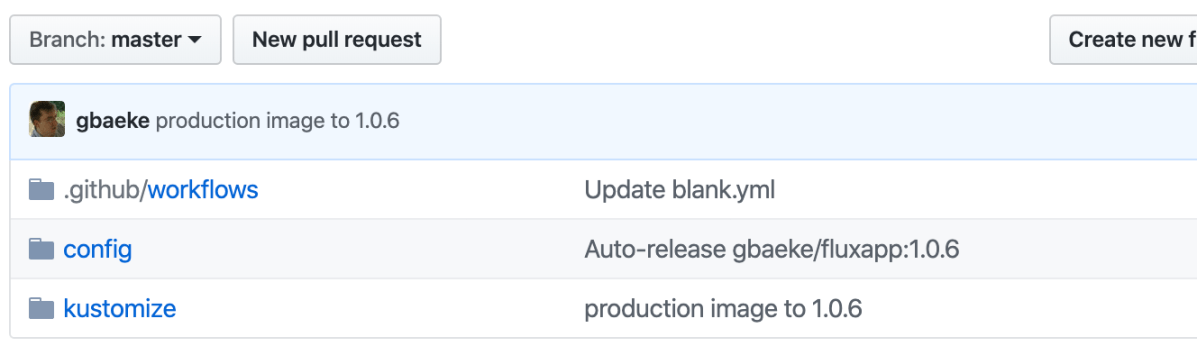
In my case, I have plain YAML files without customisation in a config folder. I want the files that use customisation in a different folder, say kustomize, like so:
Two folders to pass as git.path
To pass these folders to the Helm chart, use the following parameter:
--set git.path="config\,kustomize"
The kustomize folder contains the following files:
base files with environments dev and prod
There is nothing special about the base folder here. It is as explained in my previous post. The dev and prod folders are similar so I will focus only on dev.
The dev folder contains a .flux.yaml file, which is required by Flux. In this simple example, it contains the following:
The file specifies the generator to use, in this case Kustomize. The kustomize executable is in the Flux image. I specify one patchFile which contains patches for several resources separated by —:
Above, you see the patches for the dev environment:
the workload should be automated by Flux, installing new images based on the semantic version filter ~1
the ingress should use host realdev.baeke.info with a different name for the secret as well (the secret will be created by cert-manager)
The prod folder contains a similar configuration. Perhaps naively, I thought that specifying the kustomize folder in git.path was sufficient for Flux to scan the folders and run customisation wherever a .flux.yaml file was found. Sadly, that is not the case. ☹️With just the kustomization folder specified, Flux find conflicts between base, dev and prod folders because they contain similar files. That is expected behaviour for regular YAML files but , in my opinion, should not happen in this case. There is a bit of a clunky way to make this work though. Just specify the following as git.path:
With the above parameter, Flux will find no conflicts and will happily apply the customisations.
As a side note, you should also specify the namespace in the patch file explicitly. It is not added automatically even though kustomization.yaml contains the namespace.
Let’s look at the cluster when Flux has applied the changes.
Namespaces for dev and prod created via Flux & Kustomize
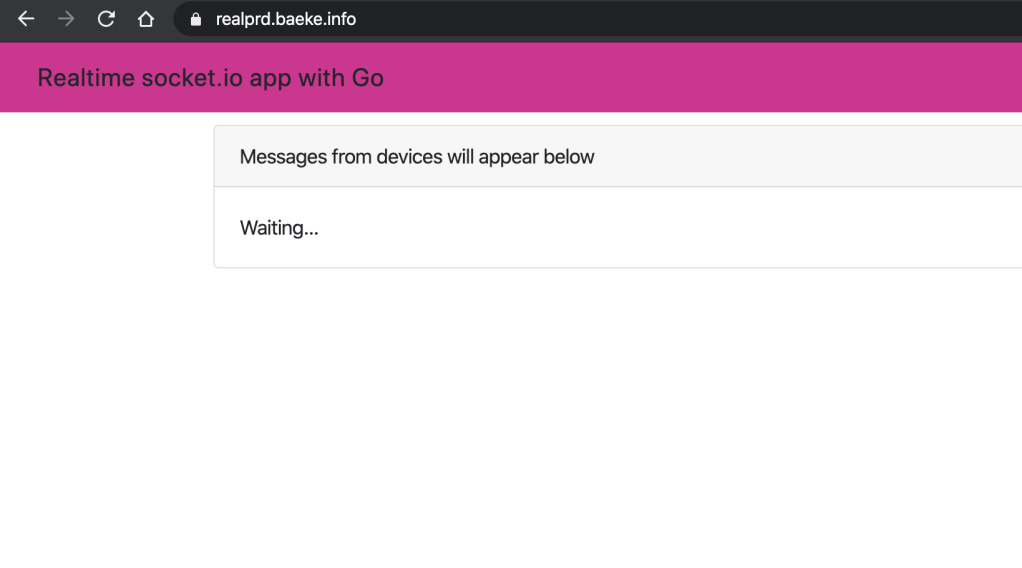
And here is the deployed “production app”:
Who chose that ugly colour!
The way customisations are handled could be improved. It’s unwieldy to specify every “customisation” folder in the git.path parameter. Just give me a –git-kustomize-path parameter and scan the paths in that parameter for .flux.yaml files. On the other hand, maybe I am missing something here so remarks are welcome.
When you have to deploy an application to multiple environments like dev, test and production there are many solutions available to you. You can manually deploy the app (Nooooooo! 😉), use a CI/CD system like Azure DevOps and its release pipelines (with or without Helm) or maybe even a “GitOps” approach where deployments are driven by a tool such as Flux or Argo based on a git repository.
In the latter case, you probably want to use a configuration management tool like Kustomize for environment management. Instead of explaining what it does, let’s take a look at an example. Suppose I have an app that can be deployed with the following yaml files:
redis-deployment.yaml: simple deployment of Redis
redis-service.yaml: service to connect to Redis on port 6379 (Cluster IP)
realtime-deployment.yaml: application that uses the socket.io library to display real-time updates coming from a Redis channel
realtime-service.yaml: service to connect to the socket.io application on port 80 (Cluster IP)
realtime-ingress.yaml: ingress resource that defines the hostname and TLS certificate for the socket.io application (works with nginx ingress controller)
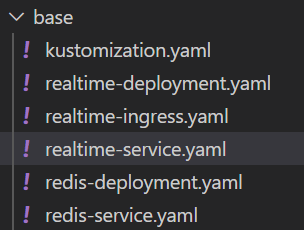
Let’s call this collection of files the base and put them all in a folder:
Base files for the application
Now I would like to modify these files just a bit, to install them in a dev namespace called realtime-dev. In the ingress definition I want to change the name of the host to realdev.baeke.info instead of real.baeke.info for production. We can use Kustomize to reach that goal.
In the base folder, we can add a kustomization.yaml file like so:
This lists all the resources we would like to deploy.
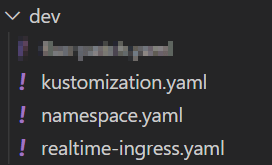
Now we can create a folder for our patches. The patches define the changes to the base. Create a folder called dev (next to base). We will add the following files (one file blurred because it’s not relevant to this post):
The namespace: realtime-dev ensures that our base resource definitions are updated with that namespace. In resources, we ensure that namespace gets created. The file namespace.yaml contains the following:
Note that we also use certmanager here to issue a certificate to use on the ingress. For dev environments, it is better to use the Let’s Encrypt staging issuer instead of the production issuer.
We are now ready to generate the manifests for the dev environment. From the parent folder of base and dev, run the following command:
kubectl kustomize dev
The above command generates the patched manifests like so:
Note that namespace realtime-dev is used everywhere and that the Ingress resource uses realdev.baeke.info. The original Ingress resource looked like below:
As you can see, Kustomize has updated the host in tls: and rules: and also modified the secret name (which will be created by certmanager).
You have probably seen that Kustomize is integrated with kubectl. It’s also available as a standalone executable.
To directly apply the patched manifests to your cluster, run kubectl apply -k dev. The result:
namespace/realtime-dev created
service/realtime created
service/redis created
deployment.apps/realtime created
deployment.apps/redis created
ingress.extensions/realtime-ingress created
In another post, we will look at using Kustomize with Flux. Stay tuned!
If you do any sort of development, you often have to deal with secrets. There are many ways to deal with secrets, one of them is retrieving the secrets from a secure system from your own code. When your application runs on Kubernetes and your code (or 3rd party code) cannot be configured to retrieve the secrets directly, you have several options. This post looks at one such solution: Azure Key Vault to Kubernetes from Sparebanken Vest, Norway.
In short, the solution connects to Azure Key Vault and does one of two things:
Create a regular Kubernetes secret with the controller
Inject the secrets in the pod with the Env Injector
In my scenario, I just wanted regular secrets to use in a KEDA project that processes IoT Hub messages. The following secrets were required:
Connection string to a storage account: AzureWebJobsStorage
Connection string to IoT Hub’s event hub: EventEndpoint
In the YAML that deploys the pods that are scaled by KEDA, the secrets are referenced as follows:
Because the YAML above is deployed with Flux from a git repo, we need to get the secrets from an external system. That external system in this case, is Azure Key Vault.
To make this work, we first need to install the controller that makes this happen. This is very easy to do with the Helm chart. By default, this Helm chart will work well on Azure Kubernetes Service as long as you give the AKS security principal read access to Key Vault:
Access policies in Key Vault (azure-cli-2019-… is the AKS service principal here)
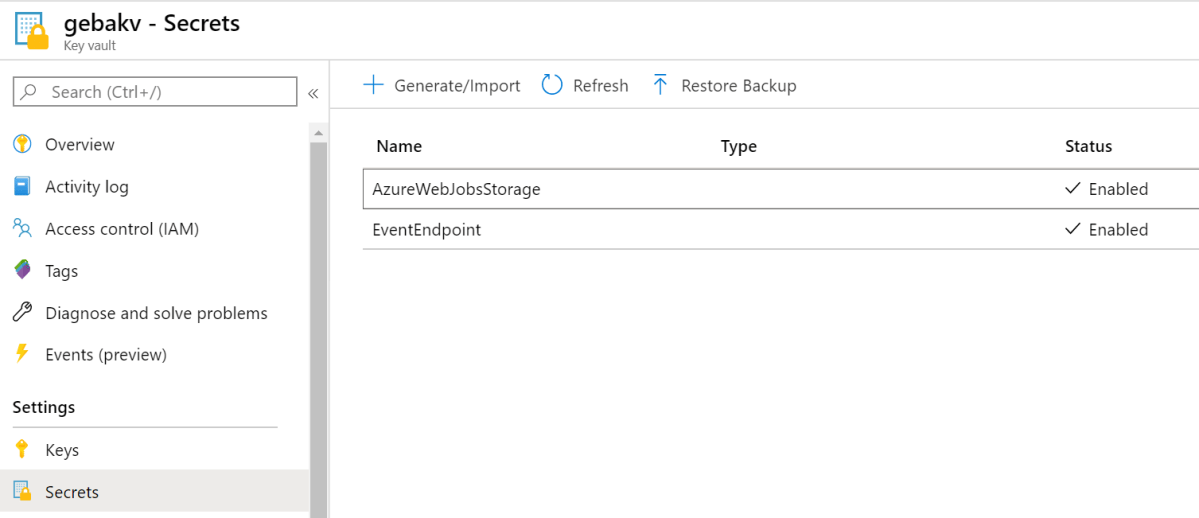
Next, define the secrets in Key Vault:
Secrets in Key Vault
With the access policies in place and the secrets defined in Key Vault, the controller installed by the Helm chart can do its work with the following YAML:
The above YAML defines two objects of kind AzureKeyVaultSecret. In each object we specify the Key Vault secret to read (vault) and the Kubernetes secret to create (output). The above YAML results in two Kubernetes secrets:
Two regular secrets
When you look inside such a secret, you will see:
Inside the secret
To double check the secret, just do echo RW5K… | base64 -d to see the decoded secret and that it matches the secret stored in Key Vault. You can now reference the secret with ValueFrom as shown earlier in this post.
Conclusion
If you want to turn Azure Key Vault secrets into regular Kubernetes secrets for use in your manifests, give the solution from Sparebanken Vest a go. It is very easy to use. If you do not want regular Kubernetes secrets, opt for the Env Injector instead, which injects the environment variables directly in your pod.
A while ago, I blogged about an Azure YAML pipeline to deploy AKS together with Traefik. As a variation on that theme, this post talks about deploying AKS together with Nginx, External DNS, a Helm Operator and Flux CD. I blogged about Flux before if you want to know what it does.
Let’s break the pipeline down a little. In what follows, replace AzureMPN with a reference to your own subscription. The first two tasks, AKS deployment and IP address deployment are ARM templates that deploy these resources in Azure. Nothing too special there. Note that the AKS cluster is one with default networking, no Azure AD integration and without VMSS (so no multiple node pools either).
Note: I modified the pipeline to deploy a VMSS-based cluster with a standard load balancer, which is recommended instead of a cluster based on an availability set with a basic load balancer.
The third task takes the output of the IP address deployment and parses out the IP address using jq (last echo statement on one line):
For External DNS to work, I found I had to set controller.publishService.enabled=true. As you can see, the Nginx service is configured to use the IP we created earlier. Azure will create a load balancer with a front end IP configuration that uses this address. This all happens automatically.
Note: controller.metrics.enabled enables a Prometheus scraping endpoint; that is not discussed further in this blog
External DNS
External DNS can automatically add DNS records for ingresses and services you add to Kubernetes. For instance, if I create an ingress for test.baeke.info, External DNS can create this record in the baeke.info zone and use the IP address of the Ingress Controller (nginx here). Installation is pretty straightforward but you need to provide credentials to your DNS provider. In my case, I use CloudFlare. Many others are available. Here is the task:
On CloudFlare, I created a token that has the required access rights to my zone (read, edit). I provide that token to the chart via the CFAPIToken variable defined as a secret on the pipeline. The valueFile looks like this:
In the beginning, it’s best to set the logLevel to debug in case things go wrong. With interval 1m, External DNS checks for ingresses and services every minute and syncs with your DNS zone. Note that External DNS only touches the records it created. It does so by creating TXT records that provide a record that External DNS is indeed the owner.
With External DNS in place, you just need to create an ingress like below to have the A record real.baeke.info created:
This installs the latest version of the operator at the time of this writing (image.repository and image.tag) and also sets Helm to v3. With this installed, you can install a Helm chart by submitting files like below:
You can create files that use kind HelmRelease (HR) because we installed the Helm Operator CRD before. To check installed Helm releases in a namespace, you can run kubectl get hr.
The Helm operator is useful if you want to install Helm charts from a git repository with the help of Flux CD.
The gitURL variable should be set to a git repo that contains your cluster configuration. For instance: gbaeke/demo-clu-flux. Flux will check the repo for changes every minute. Note that we are using a public repo here. Private repos and systems other than GitHub are supported.
Use fluxctl identity to obtain the public key from the key pair created by Flux (when you do not use your own)
Set the public key as a deploy key on the git repo
GitHub deploy key
By connecting the https://github.com/gbaeke/demo-clu-flux repo to Flux CD (as done here), the following is done based on the content of the repo (the complete repo is scanned:
Install InfluxDB Helm chart
Add a simple app that uses a Go socket.io implementation to provide realtime updates based on Redis channel content; this app is published via nginx and real.baeke.info is created in DNS (by External DNS)
Adds a ConfigMap that is used to configure Azure Monitor to enable Prometheus endpoint scraping (to show this can be used for any object you need to add to Kubernetes)
Note that the ingress of the Go app has an annotation (in realtime.yaml, in the git repo) to issue a certificate via cert-manager. If you want to make that work, add an extra task to the pipeline that installs cert-manager:
You will also need to create another namespace, cert-manager, just like we created the fluxcd namespace.
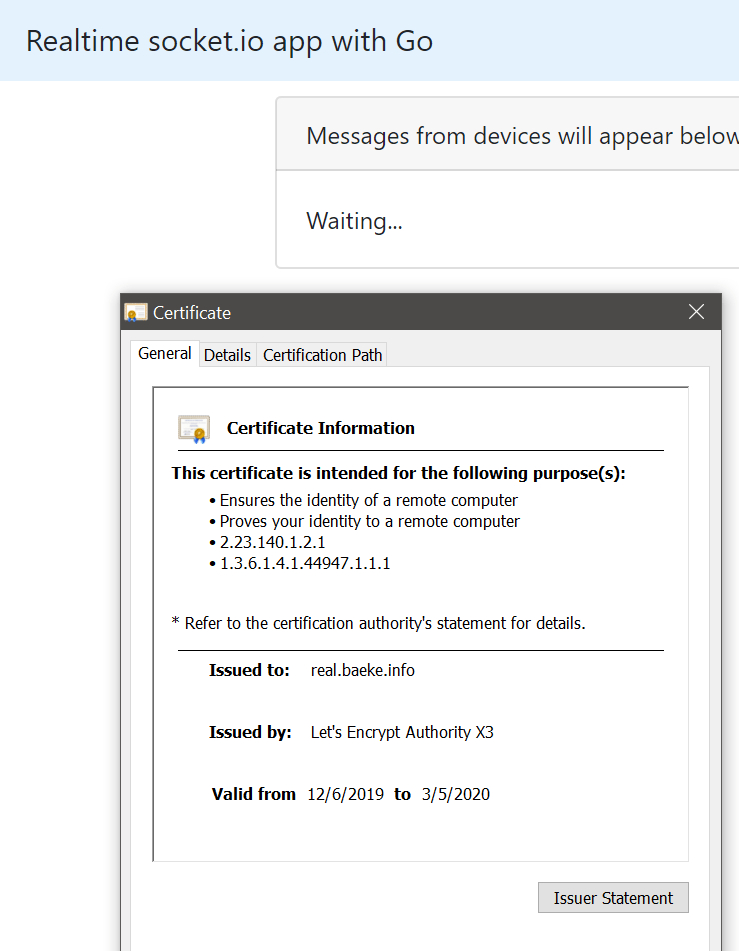
In order to make the above work, you will need Issuers or ClusterIssuers. The repo used by Flux CD contains two ClusterIssuers, one for Let’s Encrypt staging and one for production. The ingress resource uses the production issuer due to the following annotation:
Here’s a quick overview of the steps you need to take to put Front Door in front of an Azure Web App. In this case, the web app runs a WordPress site.
Step 1: DNS
Suppose you deployed the Web App and its name is gebawptest.azurewebsites.net and you want to reach the site via wp.baeke.info. Traffic will flow like this:
user types wp.baeke.info ---CNAME to xyz.azurefd.net--> Front Door --- connects to gebawptest.azurewebsites.net using wp.baeke.info host header
It’s clear that later, in Front Door, you will have to specify the host header (wp.baeke.info in this case). More on that later…
If you have worked with Azure Web App before, you probably know you need to configure the host header sent by the browser as a custom domain on the web app. Something like this:
Custom domain in Azure Web App (no https configured – hence the red warning)
In this case, we do not want to resolve wp.baeke.info to the web app but to Front Door. To make the custom domain assignment work (because the web app will verify the custom name), add the following TXT record to DNS:
TXT awverify.wp gebawptest.azurewebsites.net
For example in CloudFlare:
awverify txt record in CloudFlare DNS
With the above TXT record, I could easily add wp.baeke.info as a custom domain to the gebawptest.azurewebsites.net web app.
Note: wp.baeke.info is a CNAME to your Front Door domain (see below)
Step 2: Front Door
My Front Door designer looks like this:
Front Door designer
When you create a Front Door, you need to give it a name. In my case that is gebafd.azurefd.net. With wp.baeke.info as a CNAME for gebafd.azurefd.net, you can easily add wp.baeke.info as an additional Frontend host.
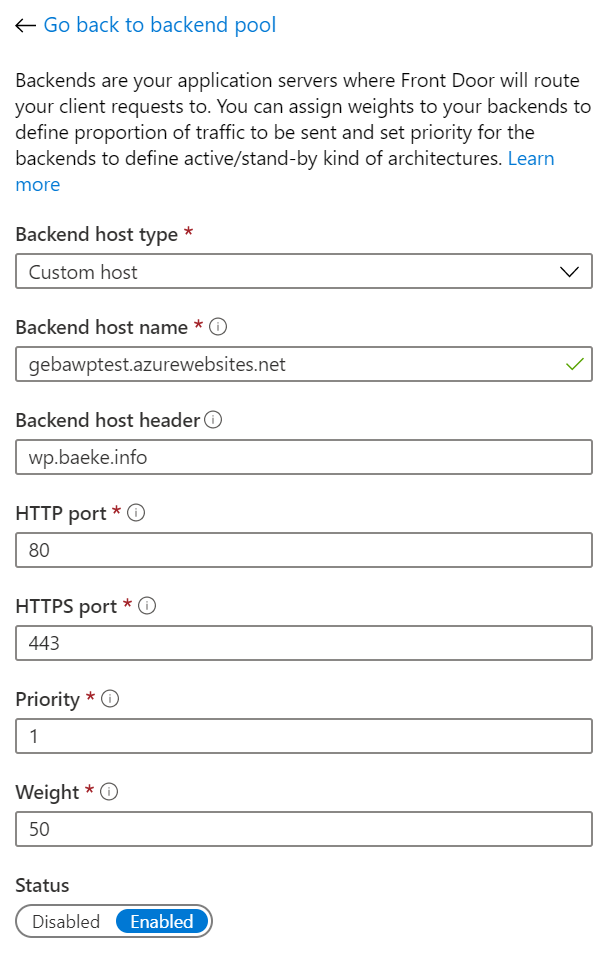
The backend pool is the Azure Web App. It’s configured as follows:
Front Door backend host (only one in the pool); could also have used the Azure App Service backend type
You should connect to the web app using its original name but send wp.baeke.info as the host header. This allows Front Door to connect to the web app correctly.
The last part of the Front Door config is a simple rule that connects the frontend wp.baeke.info to the backend pool using HTTP only.
Step 3: WordPress config
With the default Azure WordPress templates, you do not need to modify anything because wp-config.php contains the following settings:
If you have ever deployed applications to Kubernetes or other platforms, you are probably used to the following approach:
developers check in code which triggers CI (continuous integration) and eventually results in deployable artifacts
a release process deploys the artifacts to one or more environments such as a development and a production environment
In the case of Kubernetes, the artifact is usually a combination of a container image and a Helm chart. The release process then authenticates to the Kubernetes cluster and deploys the artifacts. Although this approach works, I have always found this deployment process overly complicated with many release pipelines configured to trigger on specific conditions.
What if you could store your entire cluster configuration in a git repository as the single source of truth and use simple git operations (is there such a thing? 😁) to change your configuration? Obviously, you would need some extra tooling that synchronizes the configuration with the cluster, which is exactly what Weaveworks Flux is designed to do. Also check the Flux git repo.
In this post, we will run through a simple example to illustrate the functionality. We will do the following over two posts:
Post one:
Create a git repo for our configuration
Install Flux and use the git repo as our configuration source
Install an Ingress Controller with a Helm chart
Post two:
Install an application using standard YAML (including ingress definition)
Update the application automatically when a new version of the application image is available
Let’s get started!
Create a git repository
To keep things simple, make sure you have an account on GitHub and create a new repository. You can also clone my demo repository. To clone it, use the following command:
Note: if you clone my repo and use it in later steps, the resources I defined will get created automatically; if you want to follow the steps, use your own empty repo
Install Flux
Flux needs to be installed on Kubernetes, so make sure you have a cluster at your disposal. In this post, I use Azure Kubernetes Services (AKS). Make sure kubectl points to that cluster. If you have kubectl installed, obtain the credentials to the cluster with the Azure CLI and then run kubectl get nodes or kubectl cluster-info to make sure you are connected to the right cluster.
az aks get-credentials -n CLUSTER_NAME -g RESOURCE_GROUP
It is easy to install Flux with Helm and in this post, I will use Helm v3 which is currently in beta. You will need to install Helm v3 on your system. I installed it in Windows 10’s Ubuntu shell. Use the following command to download and unpack it:
curl -sSL "https://get.helm.sh/helm-v3.0.0-beta.3-linux-amd64.tar.gz" | tar xvz
This results in a folder linux-amd64 which contains the helm executable. Make the file executable with chmod +x and copy it to your path as helmv3. Next, run helmv3. You should see the help text:
The Kubernetes package manager

Common actions for Helm:

- helm search:    search for charts
- helm fetch:     download a chart to your local directory to view
- helm install:   upload the chart to Kubernetes
- helm list:      list releases of charts
...
Now you are ready to install Flux. First, add the FLux Helm repository to allow helmv3 to find the chart:
The above command upgrades Flux but installs it if it is missing (-i). The chart to install is fluxcd/flux. With –wait, we wait until the installation is finished. We will not go into the first two –set options for now. The last option defines the git repository Flux should use to sync the configuration to the cluster. Currently, Flux supports one repository. Because we use a public repository, Flux can easily read its contents. At times, Flux needs to update the git repository. To support that, you can add a deploy key to the repository. First, install the fluxctl tool:
curl -sL https://fluxcd.io/install | sh
export PATH=$PATH:$HOME/.fluxcd/bin
Now run the following commands to obtain the public key to use as deploy key:
Copy and paste this key as a deploy key for your github repo:
git repo deploy key
Phew… Flux should now be installed on your cluster. Time to install some applications to the cluster from the git repo.
Note: Flux also supports private repos; it just so happens I used a public one here
Install an Ingress Controller
Let’s try to install Traefik via its Helm chart. Since I am not using traditional CD with pipelines that run helm commands, we will need something else. Luckily, there’s a Flux Helm Operator that allows us to declaratively install Helm charts. The Helm Operator installs a Helm chart when it detects a custom resource definition (CRD) of type helm.fluxcd.io/v1. Let’s first create the CRD for Helm v3:
Just add the above YAML to the GitHub repository. I added it to the ingress folder:
traefik.yaml added to the GitHub repo
If you wait a while, or run fluxctl sync, the repo gets synced and the resources created. When the helm.fluxcd.io/v1 object is created, the Helm Operator will install the chart in the default namespace. Traefik will be exposed via an Azure Load Balancer. You can check the release with the following command:
kubectl get helmreleases.helm.fluxcd.io

NAME      RELEASE   STATUS     MESSAGE                  AGE
traefik   traefik   deployed   helm install succeeded   15m
Also check that the Traefik pod is created in the default namespace (only 1 replica; the default):
kubectl get po

NAME                       READY   STATUS    RESTARTS   AGE
traefik-86f4c5f9c9-gcxdb   1/1     Running   0          21m
Also check the public IP of Traefik:
kubectl get svc

NAME                TYPE           CLUSTER-IP     EXTERNAL-IP
traefik             LoadBalancer   10.0.8.59      41.44.245.234
We will later use that IP when we define the ingress for our web application.
Conclusion
In this post, you learned a tiny bit about GitOps with WeaveWorks Flux. The concept is simple enough: store your cluster config in a git repo as the single source of truth and use git operations to initiate (or rollback) cluster operations. To start, we simply installed Traefik via the Flux Helm Operator. In a later post, we will add an application and look at image management. There’s much more you can do so stay tuned!
In today’s post, we will take a quick look at Azure Kubernetes Service (AKS) metrics and alerts for Azure Monitor. Out of the box, Microsoft offers two ways to obtain metrics:
Metrics that can easily be used with Azure Monitor to generate alerts; these metrics are written to the Azure Monitor metrics store
Metrics forwarded to Log Analytics; with Log Analytics queries (KQL), you can generate alerts as well
In this post, we will briefly look at the metrics in the Azure Monitor metrics store. In the past, the AKS metrics in the metrics store were pretty basic:
Basic Azure Monitor metrics for AKS
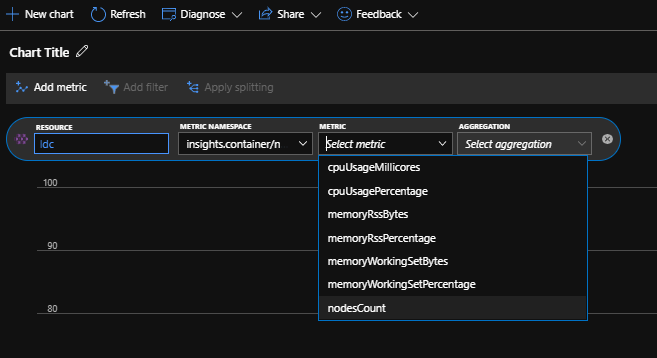
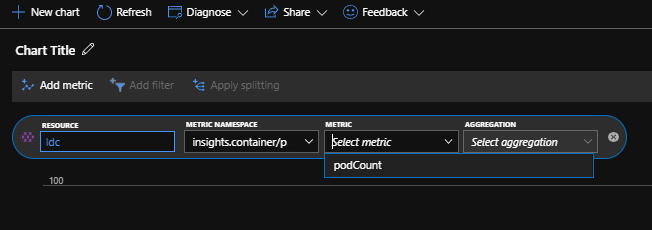
Some time ago however, support for additional metrics was introduced:
When the metrics are enabled, it is easy to visualize them from the Metrics pane. Note that metrics can be split. The screenshot below shows the nodes count, split in Ready and NotReady:
Pretty uneventful… 2 nodes in ready state
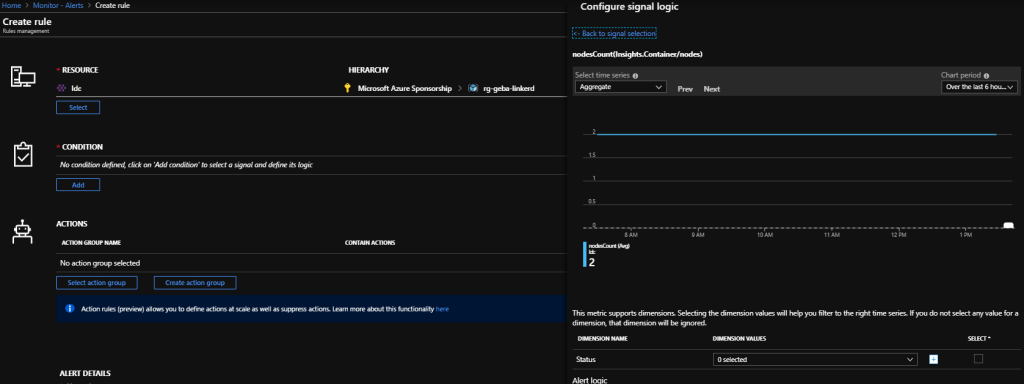
To generate an alert based on the above metrics, a new alert rule can be generated. Although the New alert rule link is greyed out, you can create the alert from Azure Monitor:
Creating a alert on node count from Azure Monitor
And of course, when this fires you will see this in Azure Monitor:
A few days ago, I had to map the domain inity.io to a Netlify domain. If you have only worked with DNS once in your life, you probably know about these two types of records:
CNAME: a CNAME record maps a name to another name; I can, for instance, create a CNAME record that maps http://www.inity.io to somedomain.netlify.com
With that knowledge in your bag, it would seem that a CNAME record is the way to map inity.io to somedomain.netlify.com. Sadly, that is not the case because CNAMEs cannot coexist with other records for the domain. In the case of the root or apex domain, there are existing records for the root domain such as the NS records.
If your DNS provider supports ALIAS records, you are in luck. From a high level, an ALIAS record works like a CNAME record although there are several lower level differences we won’t all go into.
Since I use namecheap.com and they support ALIAS records, it was easy to map inity.io to somedomain.netlify.com:
Namecheap ALIAS record
The ALIAS record only supports a 1 or 5 minute TTL. The host is @ which represents the root domain. Notice I also redirect http://www.inity.io to the Netlify domain with a regular CNAME.
What does dig say?
Let’s look at what dig returns for both the ALIAS and CNAME record. Here’s the dig output for ALIAS (with some lines removed):
λ geba:~  dig inity.io


;; ANSWER SECTION:
inity.io.               300     IN      A       167.99.129.42
The authoritative server does all the work here and returns the IP address directly to you. That does not happen for the CNAME:
λ geba:~  dig www.inity.io

;; ANSWER SECTION:
www.inity.io.           1799    IN      CNAME   optimistic-panini-9caddc.netlify.com.
optimistic-panini-9caddc.netlify.com. 20 IN A   167.99.129.42
Some more work needs to be done here since you get back the CNAME record which then needs to be resolved to the IP address.
What about Azure and Front Door?
If you work with Front Door and want to map the root or apex domain to a Front Door frontend such as my.azurefd.net, the same issue arises. The Microsoft docs contain a good article explaining the concepts: https://docs.microsoft.com/en-us/azure/frontdoor/front-door-how-to-onboard-apex-domain. From that document, you will learn that Azure DNS also supports “aliases” with an easy dropdown list to select your Front Door frontend host. If you want to use SSL for the frontend host, you will need to bring your own certificate because automatic certificates are not supported with APEX domains.
Note that you do not have to use Azure DNS. An ALIAS record at NameCheap or other providers would work equally well. CloudFlare also supports APEX domains via CNAME Flattening. Just don’t use GoDaddy. 😲
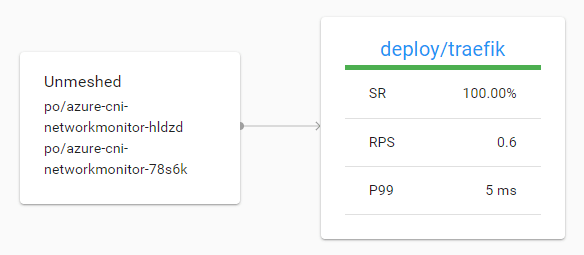
A while ago, I blogged about Linkerd 2.x. In that post, I used a simple calculator API, reachable via an Azure Load Balancer. When you look at that traffic in Linkerd, you see the following:
Incoming load balancer traffic to a meshed deployment (in this case Traefik 2.0)
Above, you do not see this is Azure Load Balancer traffic. The traffic reaches the meshed service via the Azure CNI pods.
In this post, we will install Traefik 2.0, mesh the Traefik deployment and make the calculator service reachable via Traefik and the new IngressRoute. Let’s get started!
Install Traefik 2.0
We will install Traefik 2.0 with http support only. There’s an excellent blog that covers the installation over here. In short, you do the following:
deploy prerequisites such as custom resource definitions (CRDs), ClusterRole, ClusterRoleBinding, ServiceAccount
deploy Traefik 2.0: it’s just a Kubernetes deployment
deploy a service to expose the Traefik HTTP endpoint via a Load Balancer; I used an Azure Load Balancer automatically deployed via Azure Kubernetes Service (AKS)
deploy a service to expose the Traefik admin endpoint via an IngressRoute
Here are the prerequisites for easy copy and pasting:
Here’s the service to expose Traefik’s web endpoint. This is different from the post I referred to because that post used DigitalOcean. I am using Azure here.
The above service definition will give you a public IP. Traffic destined to port 80 on that IP goes to the Traefik pods on port 8000.
Now we can expose the Traefik admin interface via Traefik itself. Note that I am not using any security here. Check the original post for basic auth config via middleware.
Traefik’s admin site is first exposed as a ClusterIP service on port 8080. Next, an object of kind IngressRoute is defined, which is new for Traefik 2.0. You don’t need to create standard Ingress objects and configure Traefik with custom annotations. This new approach is cleaner. Of course, substitute the host with a host that points to the public IP of the load balancer. Or use the IP address with the xip.io domain. If your IP would be 1.1.1.1 then you could use something like admin.1.1.1.1.xip.io. That name automatically resolves to the IP in the name.
Let’s see if we can reach the admin interface:
The new Traefik 2 admin UI
Traefik 2.0 is now installed in a basic way and working properly. We exposed the admin interface but now it is time to expose the calculator API.
Exposing the calculator API
The API is deployed as 5 pods in the add namespace:
Calculator API exposed
The API is exposed as a service of type ClusterIP with only an internal Kubernetes IP. To expose it via Traefik, we create the following object in the add namespace:
I am using xip.io above. Change 1.1.1.1 to the public IP of Traefik’s Azure Load Balancer. The add-svc that exposes the calculator API on port 80 is exposed via Traefik. We can easily call the service via:
curl http://calc.1.1.1.1.xip.io/add/10/10

20
Great! But what is that calcheader middleware? Middlewares modify the requests and responses to and from Traefik 2.0. There are all sorts of middelwares as explained here. You can set headers, configure authentication, perform rate limiting and much much more. In this case we create the following middleware object in the add namespace:
This middleware adds a header to the request before it comes in to Traefik. The header overrides the destination and sets it to the internal DNS name of the add-svc service that exposes the calculator API. This requirement is documented by Linkerd here.
Meshing the Traefik deployment
Because we want to mesh Traefik to get Linkerd metrics and more, we need to inject the Linkerd proxy in the Traefik pods. In my case, Traefik is deployed in the default namespace so the command below can be used:
Make sure you run the command on a system with the linkerd executable in your path and kubectl homed to the cluster that has Linkerd installed.
Checking the traffic in the Linkerd dashboard
With some traffic generated, this is what you should see when you check the meshed deployment that runs the calculator API (deploy/add):
Both the traffic generator (add-cli) and Traefik are meshed which results in a more detailed view of the traffic
If you are wondering what these services are and do, check this post. In the above diagram, we can clearly see we are receiving traffic to the calculator API from Traefik. When I click on Traefik, I see the following:
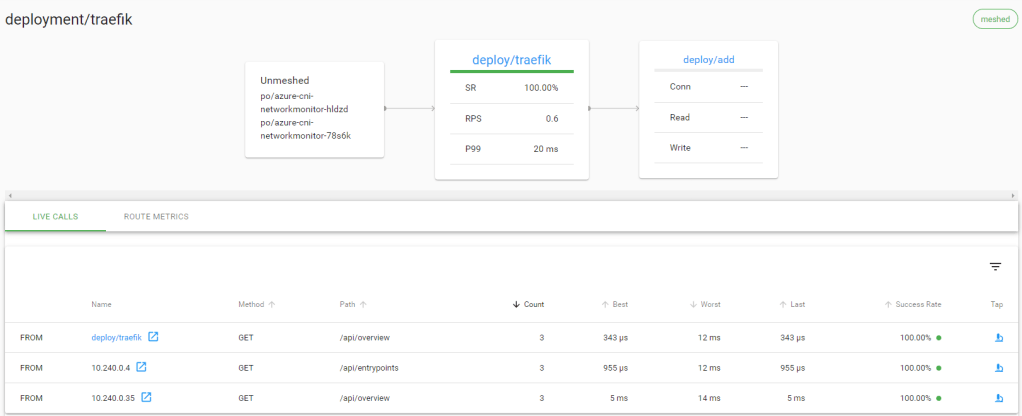
A view on the meshed Traefik deployment
From the above, we see Traefik receives traffic via the Azure Load Balancer and that it forwards traffic to the calculator service. The live calls are coming from the admin UI which refreshes regularly.
In Grafana, we can get more information about the Traefik deployment:
Linkerd metrics for Traefik in the Grafana dashboard that comes with LinkerdMore metrics
Conclusion
This was just a brief look at both Traefik 2 and “meshing” Traefik with Linkerd. There is much more to say and I have much more to explore. Hopefully, this can get you started!
I often get questions about protecting applications like APIs using OAuth. I guess you know the drill:
you have to obtain a token (typically a JWT or JSON Web Token)
the client submits the token to your backend (via a Authorization HTTP header)
the token needs to be verified (do you trust it?)
you need to grab some fields from the token to use in your application (claims).
When the client is a daemon or some server side process, you can use the client credentials grant flow to obtain the token from Azure AD. The flow works as follows:
OAuth Client Credentials Flow (image from Microsoft docs)
The client contacts the Azure AD token endpoint to obtain a token. The client request contains a client ID and client secret to properly authenticate to Azure AD as a known application. The token endpoint returns the token. In this post, I only focus on the access token which is used to access the resource web API. The client uses the access token in the Authorization header of requests to the API.
Let’s see how this works. Oh, and by the way, this flow should be done with Azure AD. Azure AD B2C does not support this type of flow (yet).
Create a client application in Azure AD
In Azure AD, create a new App Registration. This can be a standard app registration for Web APIs. You do not need a redirect URL or configure public clients or implicit grants.
Standard run of the mill app registration
In Certificates & secrets, create a client secret and write it down. It will not be shown anymore when you later come back to this page:
Yes, I set it to Never Expire!
From the Overview page, note the application ID (also client ID). You will need that later to request a token.
Why do we even create this application? It represents the client application that will call your APIs. With this application, you control the secret that the client application uses but also the access rights to the APIs as we will see later. The client application will request a token, specifying the client ID and the client secret. Let’s now create another application that represents the backend API.
Create an API application in Azure AD
This is another App Registration, just like the app registration for the client. In this case, it represents the API. Its settings are a bit different though. There is no need to specify redirect URIs or other settings in the Authentication setting. There is also no need for a client secret. We do want to use the Expose an API page though:
Expose API page
Make sure you get the application ID URI. In the example above, it is api://06b2a484-141c-42d3-9d73-32bec5910b06 but you can change that to something more descriptive.
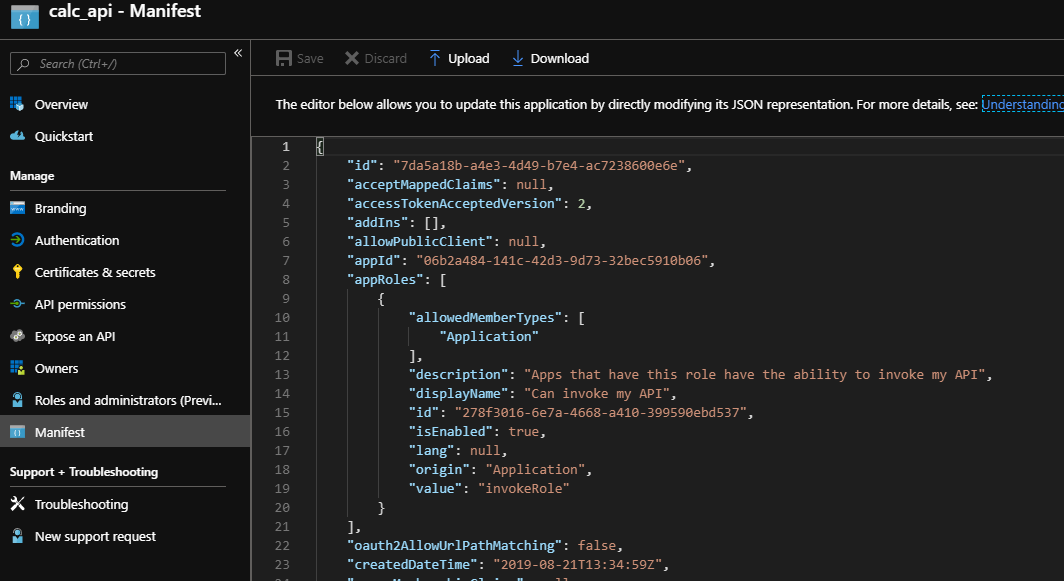
When you use the client credentials grant, you do not use user scopes. As such, the Scopes defined by this API list is empty. Instead, you want to use application roles which are defined in the manifest:
Application role in the manifest
There is one role here called invokeRole. You need to generate a GUID manually and use that as the id. Make sure allowedMemberTypes contains Application.
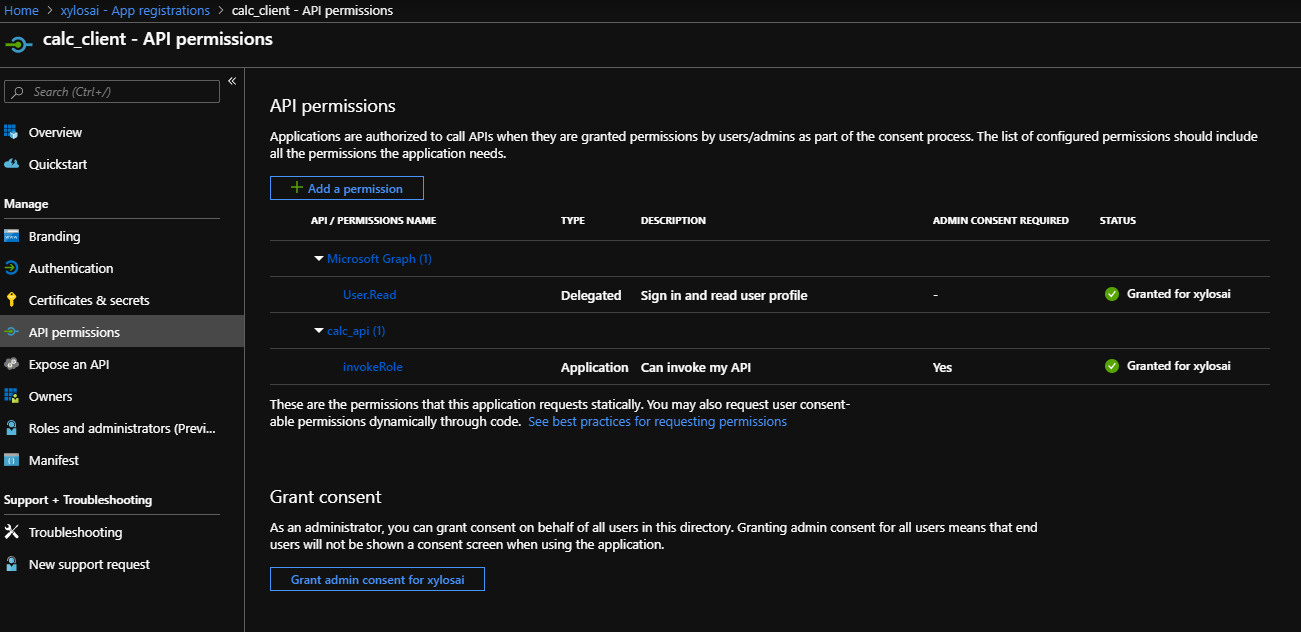
Great! But now we need to grant the client the right to obtain a token for one or more of the roles. You do that in the client application, in API Permissions:
Client application is granted access to the invokeRole application role of the API application
To grant the permission, just click Add a permission, select My APIs, click your API and select the role:
Selecting the role
Delegated permissions is greyed out because there are no user scopes. Application permissions is active because we defined an application role on the API application.
Obtaining a token
The server-side application only needs to do one call to the token endpoint to obtain the access token. Here is an example call with curl:
curl -d "grant_type=client_credentials&client_id=f1f695cb-2d00-4c0f-84a5-437282f3f3fd&client_secret=SECRET&audience=api%3A%2F%2F06b2a484-141c-42d3-9d73-32bec5910b06&scope=api%3A%2F%2F06b2a484-141c-42d3-9d73-32bec5910b06%2F.default" -X POST "https://login.microsoftonline.com/019486dd-8ffb-45a9-9232-4132babb1324/oauth2/v2.0/token"
Ouch, lots of gibberish here. Let’s break it down:
the POST needs to send URL encoded data in the body; curl’s -d takes care of that but you need to perform the URL encoding yourself
grant_type: client_credentials to indicate you want to use this flow
client_id: the application ID of the client app registration in Azure AD
client_secret: URL encoded secret that you generated when you created the client app registration
audience: the resource you want an access token for; it is the URL encoding of api://06b2a484-141c-42d3-9d73-32bec5910b06 as set in Expose an API
scope: this one is a bit special; for the v2 endpoint that we use here it needs to be api://06b2a484-141c-42d3-9d73-32bec5910b06/.default (but URL encoded); the scope (or roles) that the client application has access to will be included in the token
The POST goes to the Azure AD v2.0 token endpoint. There is also a v1 endpoint which would require other fields. See the Microsoft docs for more info. Note that I also updated the application manifests to issue v2 tokens via the accessTokenAcceptedVersion field (set to 2).
The result of the call only results in an access token (no refresh token in the client credentials flow). Something like below with the token shortened:
Note that the invokeRole is present because the client application was granted access to that role. We also know the application ID that represents the API, which is in the aud field. The azp field contains the application ID of the client application.
Great, we can now use this token to call our API. The raw HTTP request would be in this form.
GET https://somehost/calc/v1/add/1/1 HTTP/1.1
Host: somehost
Authorization: Bearer eyJ0e...
Of course, your application needs to verify the token somehow. This can be done in your application or in an intermediate layer such as API Management. We will take a look at how to do this with API Management in a later post.
Conclusion
Authentication, authorization and, on a broader scale, identity can be very challenging. Technically though, a flow such as the client credentials flow, is fairly simple to implement once you have done it a few times. Hopefully, if you are/were struggling with this type of flow, this post has given you some pointers!




















 baeke.info