Azure Content Understanding
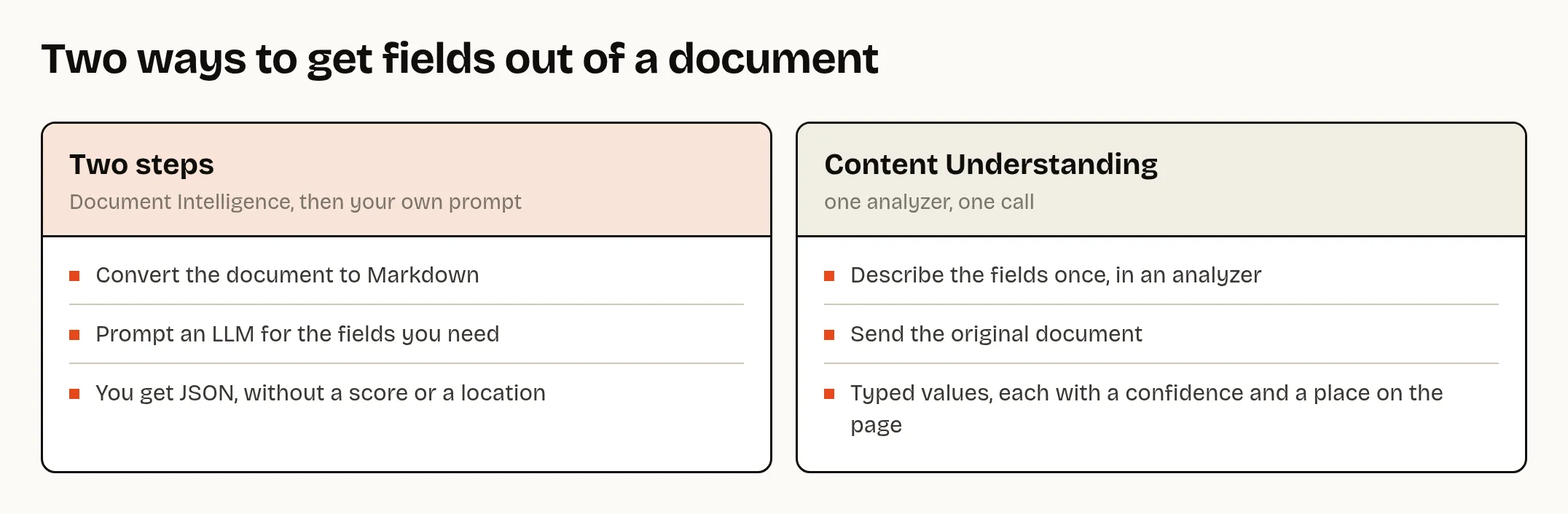
Many teams extract data from documents in two steps. They convert the document to Markdown with a service like Azure Document Intelligence, then prompt an LLM to pull the fields they need out of that Markdown. It works, but you run two services and write the prompt yourself. You also get no indication of how sure the answer is or where on the page a value came from.
Azure Content Understanding does this in one call. You describe the fields you want, send the original document, and get typed values back, each with a confidence score and its location on the page. To see how well that works, I built a small invoice explorer on top of it and ran a few experiments. The code is on GitHub: gbaeke/content-understanding-explorer.
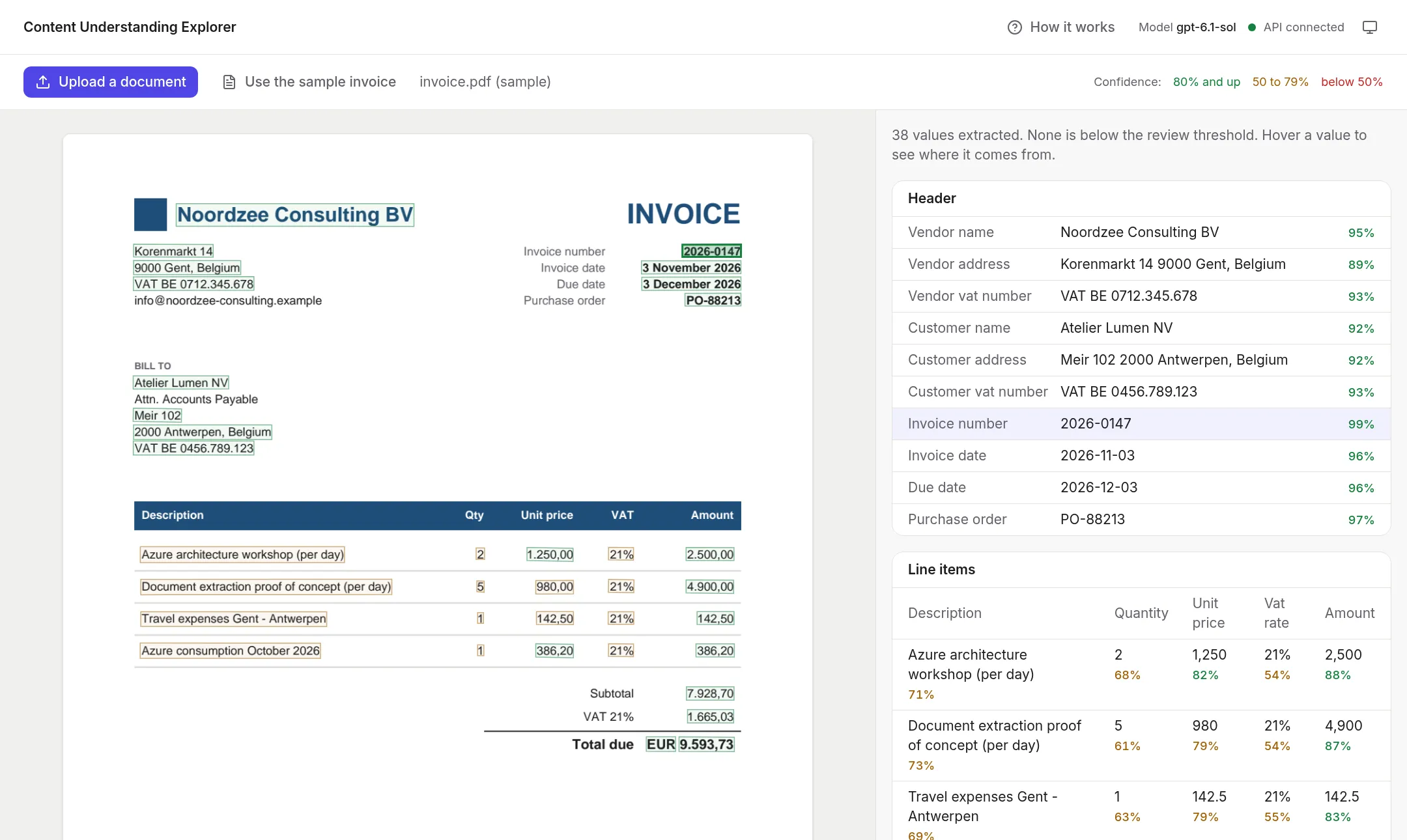
Here is the explorer with a sample invoice. The extracted values are on the right with their confidence, and the boxes on the page show where each value was found:
What is Content Understanding?
Azure Content Understanding in Foundry Tools, to use its full name, is a service that turns documents, images, audio and video into structured data with a generative model. For documents it combines what Document Intelligence does (OCR and layout) with an LLM that fills in the fields you ask for.
A few terms come back in the rest of this post:
- Foundry resource: Content Understanding lives in a Microsoft Foundry resource. There is no separate resource to create.
- Model deployment: the service calls a chat model that you deploy in that same resource, and you pay for its tokens.
- Analyzer: a definition you create once, with the fields you want. Each field has a type and a description in plain language.
- Confidence and source: per value, a score between 0 and 1 and the place on the page where the value was found.
The service is generally available with API version 2025-11-01, which is what I used.
A simple invoice explorer
The explorer is a FastAPI backend with a React frontend. You upload an invoice as a PDF, PNG or JPEG, or use the sample invoice that comes with the repository. The backend sends the file to Content Understanding and returns the header fields, the line items, the totals and the payment details. The frontend draws a box on the page for each value, so you can hover a value and see where it came from.
There are no keys in the app. It signs in with DefaultAzureCredential, so your az login is enough when your account has the Cognitive Services User role on the Foundry resource.
Defining the analyzer schema
Most of the work is in the schema, because that is how you tell the service what to extract. A field has a type, a description and a method. The description works as the prompt for that field. There are three methods:
extracttakes the value as it appears on the pagegeneratelets the model produce a value, for example a summaryclassifypicks a value from a list you provide
An invoice mostly needs literal values, so I use extract for every field. This helper creates such a field and asks for its confidence and source:
def _field(kind: str, description: str) -> dict[str, Any]:
    return {"type": kind, "method": "extract", "description": description, "estimateSourceAndConfidence": True}
The schema then becomes a list of names and descriptions. Line items are an array of objects, which the explorer shows as a table:
SECTIONS = {
    "Header": {
        "InvoiceNumber": _field("string", "The invoice number."),
        "InvoiceDate": _field("date", "Date the invoice was issued."),
        "DueDate": _field("date", "Date the payment is due."),
        # ...
    },
    "Line items": {
        "LineItems": {
            "type": "array",
            "description": "Every line of the invoice table: one item per product or service billed.",
            "items": {
                "type": "object",
                "properties": {
                    "Description": _field("string", "What was sold."),
                    "Quantity": _field("number", "Number of units."),
                    # ...
                },
            },
        },
    },
    # ...
}
The analyzer wraps that schema. It starts from prebuilt-document, the base for custom document analyzers, and names the models to use:
ANALYZER = {
    "baseAnalyzerId": "prebuilt-document",
    "models": {"completion": COMPLETION_MODEL, "embedding": EMBEDDING_MODEL},
    "config": {"returnDetails": True, "estimateFieldSourceAndConfidence": True},
    "fieldSchema": {
        "name": "Invoice",
        "fields": {name: schema for fields in SECTIONS.values() for name, schema in fields.items()},
    },
}
The analyzer reference on Microsoft Learn has all the options.
⚠️ Important: Content Understanding only works with OpenAI GPT models that you deploy yourself. I used gpt-6.1-sol. The docs list the GPT-6 models for the preview API only, but they worked for me on the GA version. The service also asks for an embedding model, which it uses when you add labeled sample documents.
ℹ️ Note: There is a prebuilt-invoice analyzer as well. I wrote my own schema to learn how analyzers work. If you want to start from the prebuilt one and add fields, Microsoft recommends that you copy its definition into your own analyzer, because prebuilt definitions can change between API versions.
How the API flow works
With the Python SDK (azure-ai-contentunderstanding), the backend needs four steps:
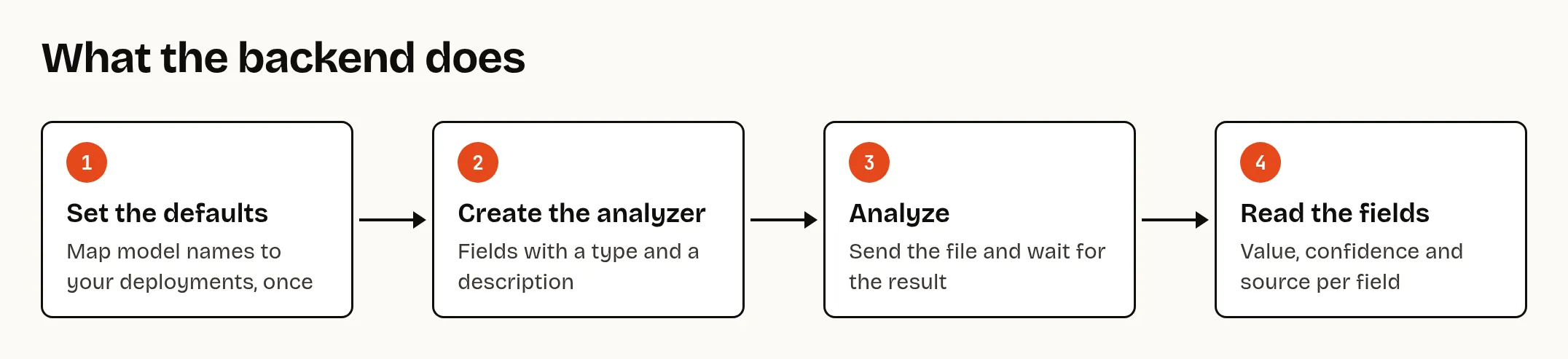
The first two steps run once, when the first document arrives. The defaults tell the service which of your deployments to use for a model name, and the analyzer is created or replaced:
client = ContentUnderstandingClient(endpoint, DefaultAzureCredential())

client.update_defaults(model_deployments={COMPLETION_MODEL: COMPLETION_MODEL, EMBEDDING_MODEL: EMBEDDING_MODEL})
client.begin_create_analyzer(ANALYZER_ID, ANALYZER, allow_replace=True).result()
After that, every upload is one call. It is a long-running operation, so you get a poller and wait for the result:
poller = client.begin_analyze_binary(ANALYZER_ID, data, content_type=content_type)
result = poller.result().as_dict()
The result contains the document as Markdown and the fields. This is the invoice number of the sample invoice, as the service returned it:
"InvoiceNumber": {
  "type": "string",
  "valueString": "2026-0147",
  "confidence": 0.989,
  "source": "D(1,6.8314,1.2192,7.4770,1.2183,7.4770,1.3542,6.8314,1.3535)"
}
The source is a page number followed by the four corners of the box around the value. The coordinates use the unit of the page: inches for a PDF, pixels for an image. Drawing the boxes takes little code. The frontend puts an SVG over the page image, in the page’s own width and height, and passes the eight numbers to a polygon.
Dates and numbers come back normalized. “3 November 2026” becomes 2026-11-03 and “1.250,00” becomes 1250.
What I measured
I generated a few invoices with known values, so I could compare the output with what it should be:
- A clean one-page invoice with 38 values: all correct, in about 15 seconds.
- A four-page invoice with 100 line items: all 500 cells and the totals correct, with every row in the right order across the page breaks. That took 106 seconds.
- A phone photo of the invoice on a screen, taken at an angle and scaled down: all 38 values correct.
Time grows with the number of values. On this model, a line item costs about a second.
Don’t rely on the confidence score alone
The confidence score is where I expected the most and learned the most. 😊 Microsoft suggests that you automate results with high confidence and send low ones to a person for review. My experiments show why you should measure first.
Correct values can score low. On the clean one-page invoice, the line item cells scored between 0.54 and 0.88 although every one of them was right. My first version of the app flagged everything below 0.8, which asked for a review of 14 correct values.
Wrong values can score high. I blurred the phone photo until the small print was hard to read. The service misread 8 of the 38 values, and 7 of those 8 still scored 0.8 or higher:
| Field | Extracted | Should be | Confidence |
|---|---|---|---|
| BIC | ОИССВEBS | GKCCBEBB | 0.92 |
| Customer name | Ateller Lumen NV | Atelier Lumen NV | 0.93 |
| IBAN | 8E68 5390 0754 7904 | BE68 5390 0754 7034 | 0.67 |
The BIC even contains Cyrillic letters. A correct quantity on the same page scored 0.55, so no threshold separates right from wrong on that picture.
A stronger model doesn’t change this. With three different chat models, the scores were nearly identical. My guess is that the service computes the score from how well a value matches the words it read on the page, and when it misreads the words, the value still matches them. Microsoft doesn’t document the calculation, so treat that as a guess.
This is one synthetic picture, so it’s a data point and no more than that. What I take from it: on poor images, add checks that don’t depend on the score. An IBAN has a checksum and so does a Belgian payment reference, and the line amounts of an invoice should add up to its total.
What you don’t get
- Other model providers. Claude models exist in Foundry, but Content Understanding only accepts OpenAI models.
- One simple price. You pay for content extraction per page, for contextualization per page (this is where confidence and source come from) and for the tokens of your own model deployment. The pricing explainer has the details.
- Identical output on every run. The same invoice gave
BE 0712.345.678in one run andVAT BE 0712.345.678in another. If the exact text matters, say so in the field description or clean the value up afterwards. - The speed of Document Intelligence. For high volumes of documents with a fixed layout, Microsoft still recommends Document Intelligence, which is cheaper and more predictable for that work.
I only used a small part of the service. I didn’t try classification, splitting a mixed PDF into separate documents, labeled samples or the agentic mode that is in preview.
Wrapping up
Content Understanding replaces the two-step flow with one call and adds what that flow never had: a confidence score and a location for every value. On clean documents the extraction was correct every time I checked. The confidence score needs testing on your own documents before you build a review process on it.
The code and my notes are in gbaeke/content-understanding-explorer. If you spot any errors or have questions, feel free to reach out!
#foundry#content-understanding#document-intelligence
If this post helped you, you can buy me a coffee ☕
Comments
Comments are stored as GitHub Discussions: sign in with GitHub to join in.