
Most agents live behind a chat box. You open a web app or Copilot, type a question, get an answer and close the tab. That’s fine for questions. It’s less fine for work that arrives by email at 7am, needs a look at a PDF, and should be answered in the same thread before anyone has had coffee.
Microsoft’s answer to that is the autopilot: an agent that joins your organization like a new hire. It has a name, an email address, a Teams account, a manager and a spot in the org chart. You don’t open it. You mail it, chat with it or @mention it, just like a colleague.
I wanted to know what it takes to build one, so I built DocHelper: a digital coworker that reads documents you send it, converts them, summarizes them and pulls out key fields. In this post we’ll look at what an autopilot is, why you’d want one, how to create one on Azure with Foundry hosted agents, and what the code has to do. Spoiler: more than you might expect. 😊
My code isn’t public (yet), but my host started from Microsoft’s Python autopilot sample, which is the best place to begin: https://github.com/microsoft-foundry/foundry-samples/tree/main/samples/python/foundry-autopilot-agent
What is an autopilot?
An autopilot is an agent with its own identity in Microsoft 365. When someone hires one, Entra creates an agent identity and an agent user for it. That agent user is a real account:
- A mailbox. People mail it, and it replies in the thread.
- Teams. You can chat with it 1:1, add it to a group chat or @mention it in a channel.
- Documents. @mention it in a Word, Excel or PowerPoint comment and it answers in the comment thread.
- A manager. Someone in the org is responsible for it, and it shows up in the org chart.
Behind every instance sits an agent identity blueprint in Entra. Think of it as the job description for a kind of agent, not the agent itself. It holds:
- The credentials. The blueprint gets tokens on behalf of each instance. Instances have no secrets of their own. On Azure, that credential is a managed identity.
- The permissions it asks for. For example
Mail.Read, so it can read the mail it’s sent. These are only a request. Nothing is granted until an admin consents. - Inheritable permissions. Once an admin consents, every instance created from the blueprint gets the same baseline permissions.
- Who published it, plus any app roles.
The code isn’t in the blueprint. It runs in the Foundry hosted agent, which is linked to its blueprint.
One blueprint can be hired many times. The finance team hires one, HR hires another. Each hire gets its own agent identity and user account, with its own mailbox, manager and access to team resources. Because they all share one blueprint, an admin can block them all, apply one Conditional Access policy to all of them, or revoke a permission for all of them in one step. Roll out a new version of the agent behind the blueprint and every instance runs it.
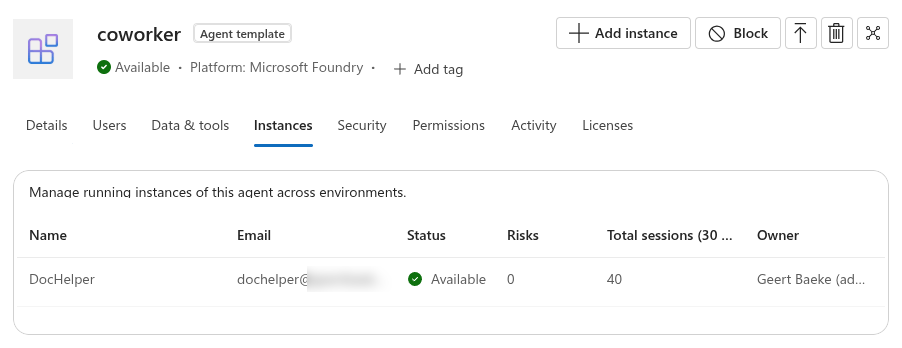
Admins see all of this in Agent 365, the control plane for agents in the Microsoft 365 admin center. Here’s my coworker blueprint, which the admin center shows as an agent template. The Instances tab lists DocHelper, the one instance I hired from it:
⚠️ Important: autopilots are a preview, available through the Microsoft 365 Frontier program. Expect things to move. Some of what I describe below will be out of date by the time you read it. 🤷
Why would you want one?
Because most work doesn’t start in a chat box. It starts in a mailbox, in a Teams thread or in a comment on a document. An autopilot meets people there:
- No new app. Nobody has to learn a portal or remember a URL. You forward a mail to DocHelper and that’s it.
- It works when you don’t. Mail is pushed to the agent the moment it arrives, so the answer can be waiting for you.
- It has a real identity. It reads and writes with its own account and its own permissions, not with yours. You can see exactly what it can touch and take that away again.
- Admins stay in control. An admin approves the blueprint, decides who may hire it, and can block it in one place. Activity and tool calls show up in Agent 365.
- One build, many hires. You build a capability once and let teams hire their own instance.
The trade-off: you’re now responsible for something that behaves like an employee. It needs clear instructions, limited access and a manager who keeps an eye on it. Just like a real new hire. 😎
Two ways to build one
You can create an autopilot in two places:
- Copilot Studio, low-code. A maker builds the agent in Copilot Studio, turns on Agent account before the first publish, and publishes. Instructions, tools and triggers are configured in the designer, and it runs on Copilot Credits. This is the quick route if the job fits what Copilot Studio offers, but there are limits: internal users only, no documents with protected sensitivity labels, and one shared memory for everyone it works with.
- Microsoft Foundry, pro-code. You write the agent yourself, ship it as a container, run it as a hosted agent and publish it as an autopilot. You pick the framework, the model and the tools.
I went with Foundry, because I wanted full control over the agent loop and the tools. The rest of this post is about that route.
Creating an autopilot on Foundry
The path from container to coworker has four steps, and three different people are involved:
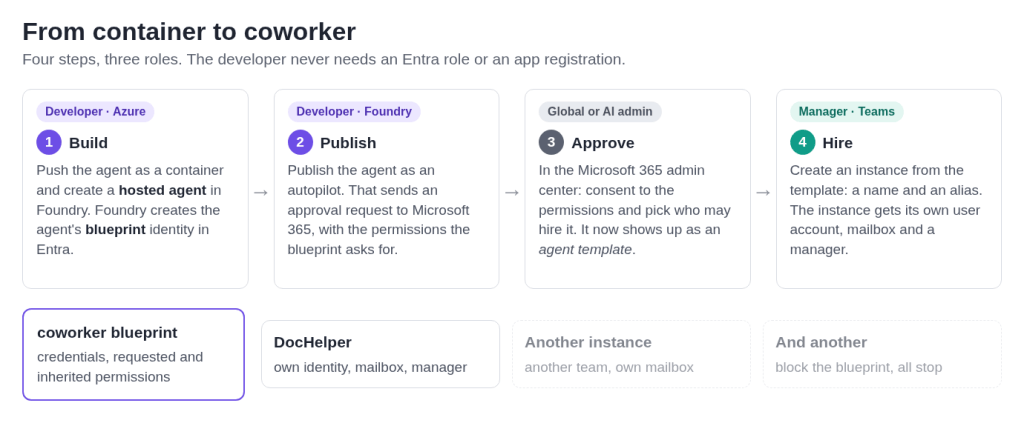
1. Build. You build the agent as a container image, push it to a registry and create a hosted agent in a Foundry project. Foundry creates the Entra agent identity blueprint and an agent identity for you. You don’t need an Entra role or an app registration for any of this, only Azure RBAC on the project.
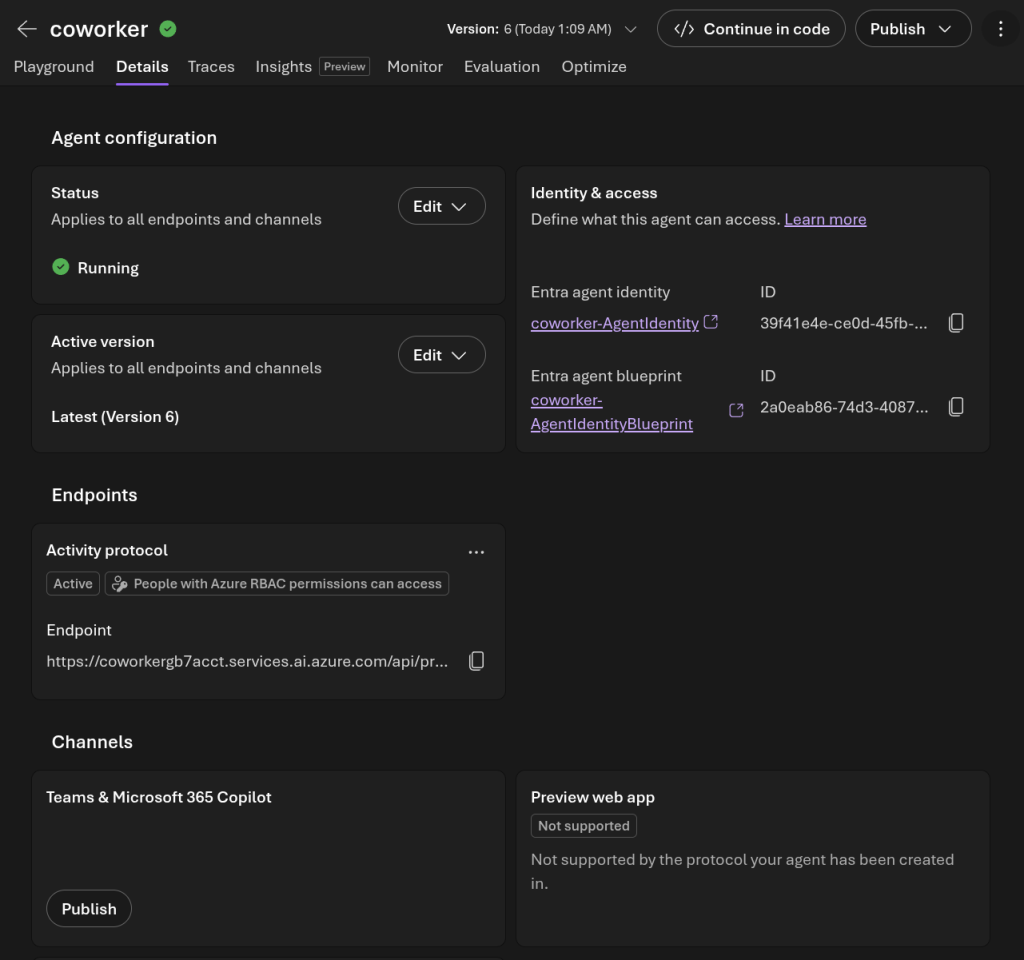
Here’s the coworker hosted agent in the Foundry portal. Notice the Activity protocol endpoint (that’s how Microsoft 365 talks to it, more on that below) and the Entra agent identity and blueprint on the right:
2. Publish. From the portal (the Publish button above) or through the publish API, you publish the agent as an autopilot. That creates an approval request in Microsoft 365, listing the permissions the blueprint asks for, such as Mail.Read to read the mail it’s sent.
3. Approve. A Global Admin or AI Admin approves the request in the Microsoft 365 admin center under Agents > All agents > Requests, consents to the permissions and decides who may hire it. Consent decides which calls the agent may make at all. It doesn’t open up any team’s data: that happens later, when the manager gives the instance access to sites and groups, just like for a new colleague.
4. Hire. Now anyone who’s allowed can find it in Teams under Apps (it was listed under Agent templates in my tenant) and create an instance. You give it a name and an alias, and you become its manager:
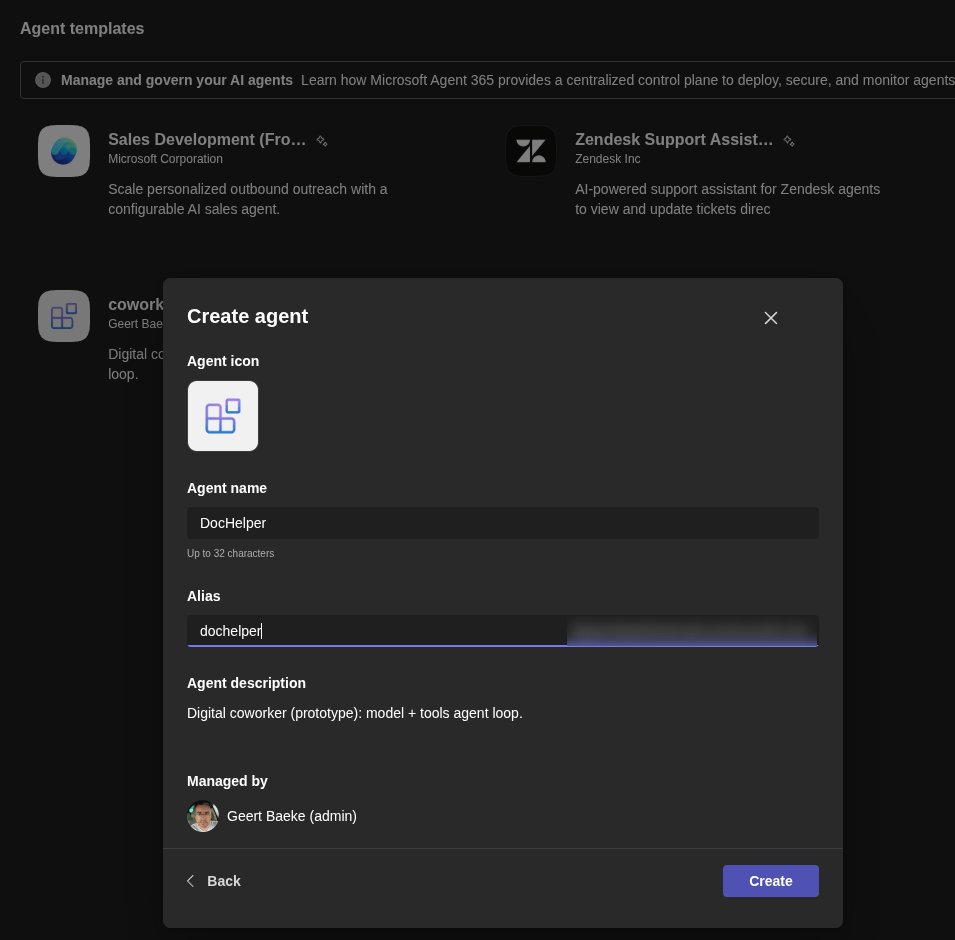
A few minutes later DocHelper has a mailbox and shows up in Teams. Time to send it some work.
What you need
On the Microsoft 365 side:
- The tenant in the Frontier program, with the Agent 365 terms accepted by a Global Admin.
- At least one Microsoft E7 license in the tenant, according to the Frontier docs. The Foundry quickstart is a bit looser (a Copilot or Agent 365 license), but in my test tenant nothing showed up until I assigned an E7: no Frontier banner, no seats.
- An agent seat per hired instance. Frontier gives the tenant 25 free Microsoft 365 Frontier for AI Teammates licenses. No free seat, no hire.
- An admin who approves the blueprint.
On the Azure side:
- A Foundry project in a region that supports hosted agents, with a model deployment.
- A container registry and, ideally, Application Insights for traces.
- Azure RBAC for the developer: Owner (or Contributor plus RBAC Administrator) to create the resources, then Foundry User on the project and AcrPush on the registry to build and publish.
⚠️ Important: keep Foundry and Microsoft 365 in the same Entra tenant. The agent identities live in Entra, and Microsoft 365 has to find them. Microsoft doesn’t spell this out, but it’s the only setup I’d try.
What’s inside the container?
This is where it gets interesting. A hosted agent for Microsoft 365 is a container that speaks the Activity Protocol: the same protocol Teams bots have used for years. Microsoft 365 sends every event as an activity (a JSON document) with a POST to one URL, /activity/messages, and the agent answers with activities of its own.
If all you need is a Teams chat, Foundry can bridge a normal Responses agent to Teams for you. For email and comment notifications I wanted the activities themselves, so my container hosts the Activity Protocol directly.
You don’t parse those by hand. Two Microsoft SDKs do the plumbing:
- The Microsoft 365 Agents SDK receives the activities, checks the token on every call, routes each activity to a handler, gets tokens for the agent user and sends replies.
- The Agent 365 notifications package adds handlers for the Agent 365 events: email, and comments in Word, Excel and PowerPoint. It also has a ready-made email reply.
Every event arrives on that same URL. They differ in only a few fields:
| Event | channelId | sub-channel | what’s in it |
|---|---|---|---|
| Teams chat or channel | msteams | the message text, file links | |
agents | email | an emailNotification: message id, conversation id, HTML body | |
| Word, Excel, PowerPoint comment | agents | word, excel, powerpoint | a wpxcomment: document id, comment id |
| Lifecycle | agents | e.g. agenticUserIdentityCreated when someone hires the agent |
In Python, the host boils down to a few handlers. This is simplified from my code:
app = AgentApplication[TurnState](storage=storage, adapter=CloudAdapter(...), authorization=auth, ...)
notifications = AgentNotification(app)

# email and Office comments: every Agent 365 notification
@notifications.on_agent_notification(ChannelId(channel="agents", sub_channel="*"), auth_handlers=["AGENTIC"])
async def on_notification(context, state, n):
    await handle_turn(context)

# Teams messages addressed to the agent user
@app.activity("message", is_agentic=True, auth_handlers=["AGENTIC"])
async def on_teams_message(context, state):
    await handle_turn(context)
handle_turn is where my own code starts. It turns the activity into a plain dict and hands it to a service with no SDK in it, which is much easier to test. The SDK only receives the event and sends the reply.
How an email reaches the agent
Let’s follow one email from start to finish:
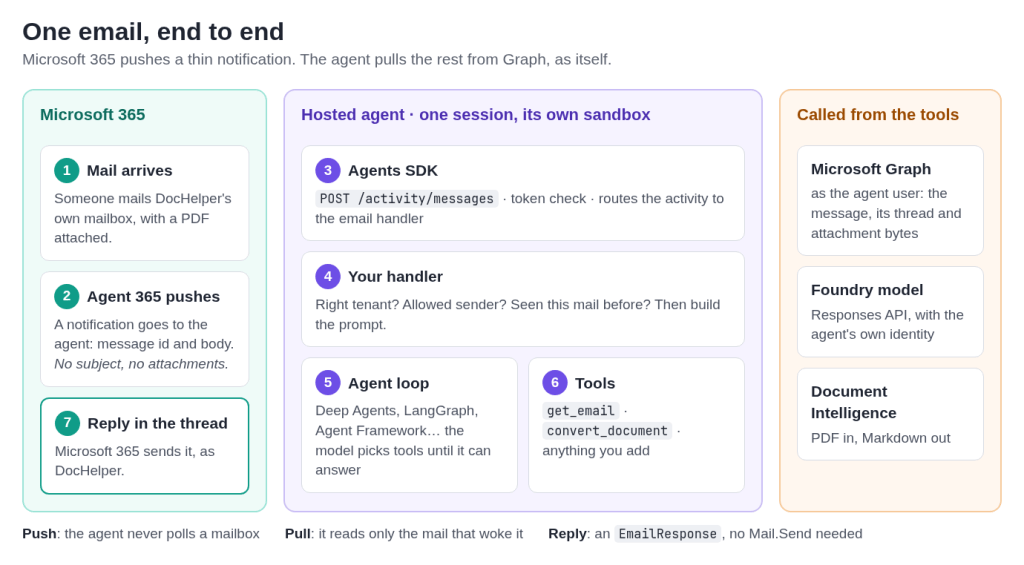
The important bit is push, then pull. Microsoft 365 pushes a notification to the agent the moment a mail lands in its mailbox, so the agent never polls. But that notification is thin on purpose. It has the message id and the HTML body. No subject, no attachments, no earlier messages in the thread.
So the agent pulls the rest itself, from Microsoft Graph, as its own agent user. The SDK exchanges a token for the agent user (that’s the AGENTIC auth handler above), and my tools call Graph with it:
async def provide(scopes: list[str]) -> str | None:
    result = await app.auth.exchange_token(context, scopes=scopes, auth_handler_id="AGENTIC")
    return result.token
With that token, the get_email tool does three Graph calls:
GET /me/messages/{id}for the subject, sender and the body. I useuniqueBody, which is only what this mail adds, so quoted replies don’t reach the model twice.GET /me/messages/{id}/attachmentsto list the attachments, and/attachments/{id}/$valueto download one when a tool needs it.GET /me/messages?$filter=conversationId eq '...'for the earlier messages in the thread, across all folders, so the agent also sees its own previous replies in Sent Items.
None of this comes for free. If you skip it, your agent answers a mail without knowing the subject, the attachment or what was said before. That’s a very confident colleague who never reads past the first line. 🤷
The reply is the easy part. You don’t need Mail.Send: you answer the activity with an EmailResponse and Microsoft 365 sends it as a reply in the thread, from DocHelper:
await context.send_activity(EmailResponse.create_email_response_activity(html))
Here’s the result. I mailed DocHelper an invoice and asked for a summary and the key fields. A minute later the answer was in my inbox:
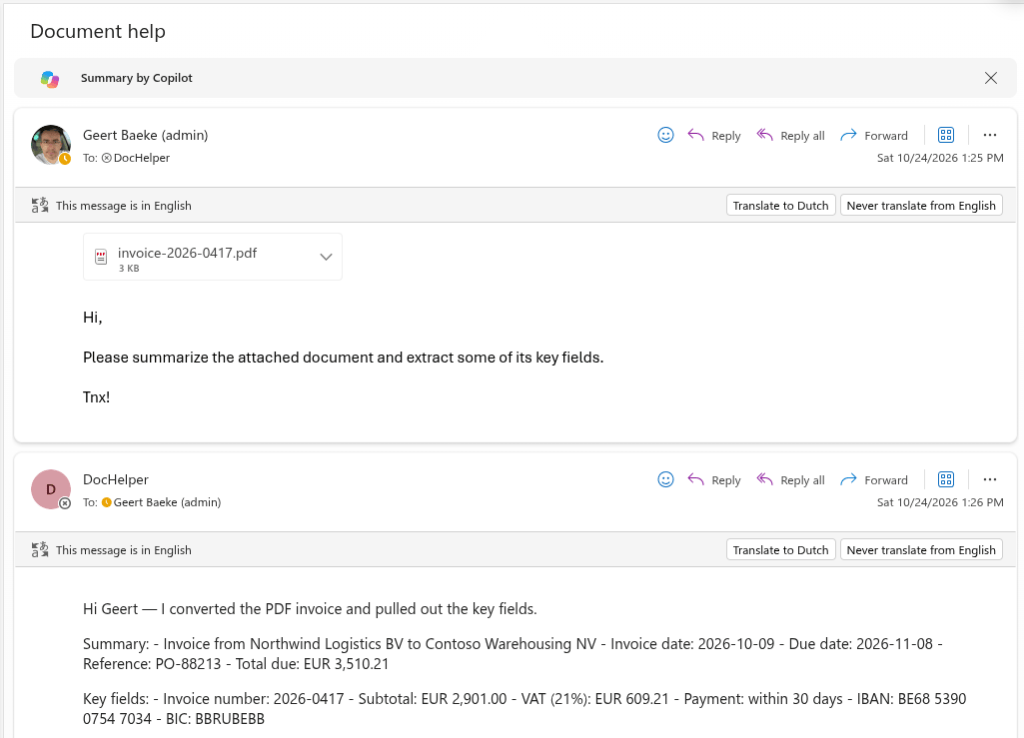
The PDF was converted to Markdown with Azure AI Document Intelligence first, and the model worked from that. Document Intelligence is just another tool the agent can call.
Teams files need code too
Teams is similar. A message to the agent arrives with the text in the activity, so a plain chat works right away. Files are another story. A file sent in a Teams chat arrives as a link, and for an agent user that link can’t be downloaded directly. Before I wrote the code for it, this happened:
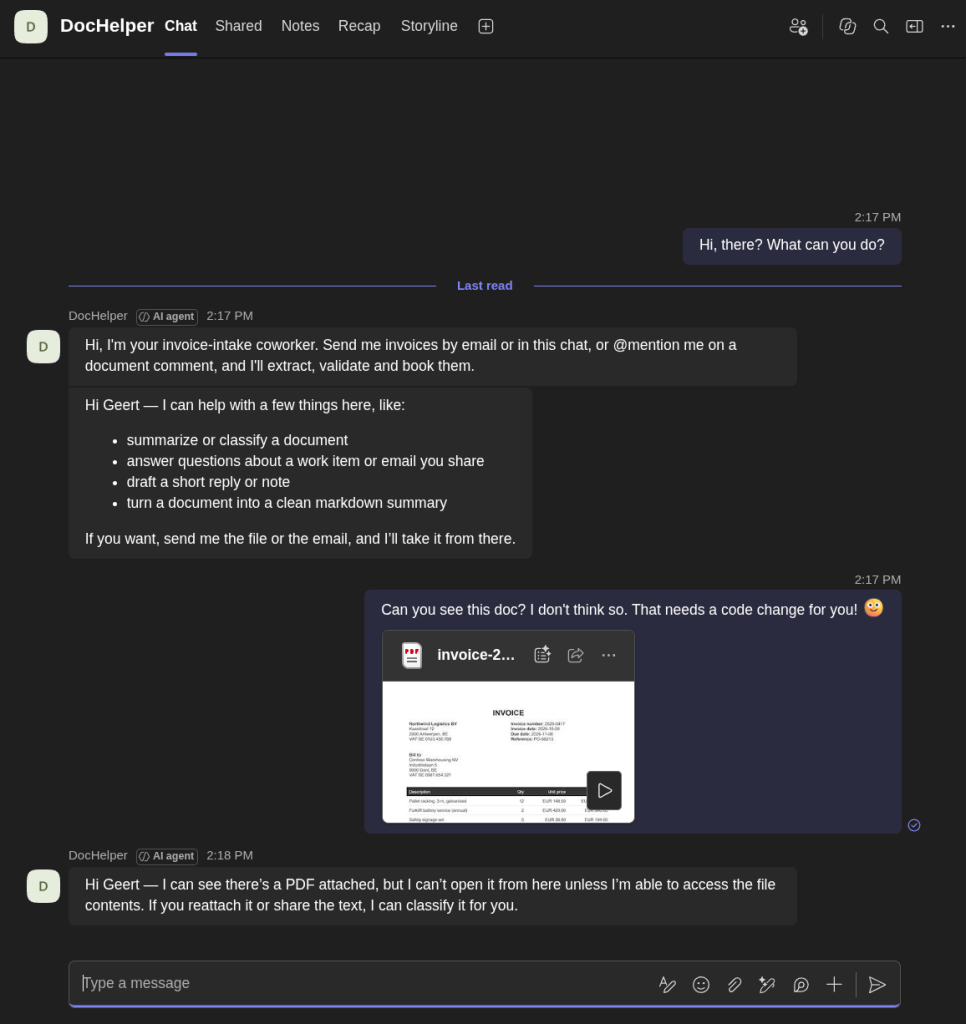
At least it’s honest about it. 😊 The fix is to read the file through Graph’s /shares endpoint as the agent user. It’s not hard, but it’s code you have to write, test and secure. Only download from hosts you trust, check the type and size, and treat the content as untrusted input.
The same goes for Word comments. The notification tells you which document and which comment, the comment text is in the activity, and a normal text reply ends up in the comment thread. Reading the document itself is a Graph call. Changing it is a whole other project, with more permissions.
Sessions: every conversation gets its own sandbox
Hosted agents don’t run as one long-lived container. Each session gets its own isolated sandbox, with its own CPU, memory and disk. When a session is idle (15 minutes by default) it goes to sleep and costs nothing. The next activity wakes it up, with its $HOME and /files still there. You pay for CPU and memory while sessions are active, plus model tokens.
Which activity lands in which session is up to Microsoft 365. Here’s what I saw:
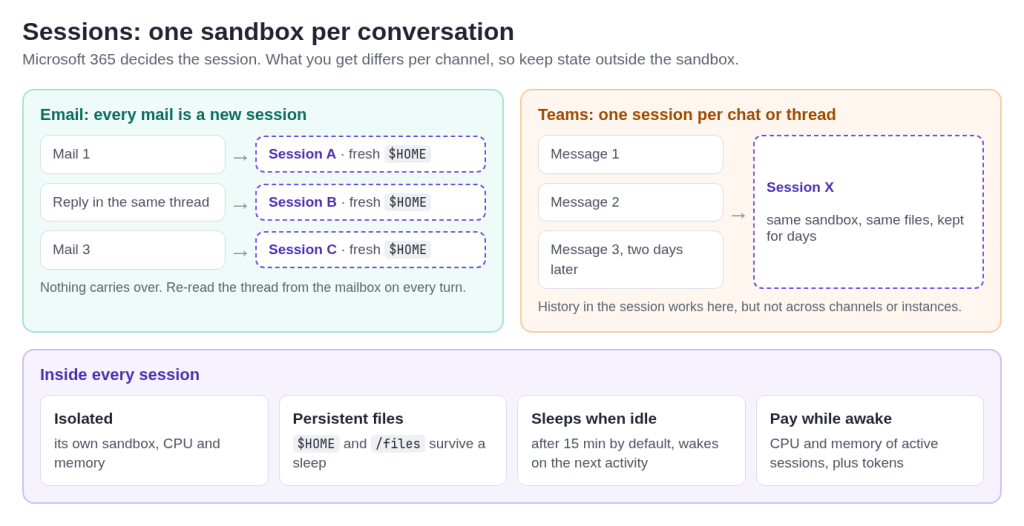
- Every email starts a new session, even a reply in the same thread.
- A Teams conversation keeps one session, a 1:1 chat or a channel thread, for days.
That has consequences:
- Don’t keep state in the sandbox. My first version kept work items and approvals in SQLite under
$HOME. That works for Teams, and does nothing for email. Real state belongs in a shared store, such as Azure Table Storage or Cosmos DB. - Re-read the thread. Because every mail starts fresh, the mailbox is the memory. That’s why
get_emailreads the earlier messages in the thread. - Handle every event once. A notification can be delivered again. I derive a work-item id from the email id or Teams activity id and claim it before doing anything, so a redelivery gets no second reply.
- Deploys don’t apply right away. A session is bound to the version that was current when its container started. A busy Teams chat can keep running the old version until it goes idle. 😎
Wait, isn’t this Dottie?
If you read my post about Dottie, some of this will sound familiar. Some of the ideas are the same:
- Asleep by default. Nothing runs until an event arrives. A dottie wakes up for a message, and an autopilot wakes up for an email, a chat or a comment.
- A small VM that sleeps. A dottie gets an Azure Container Apps sandbox, and a hosted agent session gets its own VM-isolated sandbox. In both cases the files survive the nap and you don’t pay while it sleeps.
The difference is what the agent is. A dottie is a personal assistant inside my own app, with no mailbox, no Teams account and no manager. I built the plumbing (messages, schedules, Telegram) myself. An autopilot is a teammate in Microsoft 365. Entra gives it an identity, people reach it in Outlook, Teams and Office, and admins govern it in Agent 365.
Handling events with an agent
So far, the SDK has received an event, and my code has checked it. Now something has to actually think. The nice thing about hosted agents is that this part is yours: any framework, any model you can reach.
Before the agent sees anything, my handler does three checks, in this order:
- Is this from our tenant, and from someone who may use this agent? Check the Entra object id, never the display name. An email from outside is dropped silently, so outsiders don’t learn that an agent is listening.
- Have we seen this event before? Claim the work item, or stop.
- Build the prompt. A short header the sender didn’t write (channel, sender, message id), then the message itself, fenced as untrusted content.
Then it hands over to the agent. In DocHelper, the loop is a small LangGraph graph: the model calls tools until it can answer, with a step limit so it can’t loop forever. But nothing ties you to that. Here’s the same idea with LangChain’s Deep Agents, which gives you planning, a virtual file system and sub-agents on top:
from deepagents import create_deep_agent

agent = create_deep_agent(
    model=model,                        # e.g. a Foundry deployment
    tools=[get_email, convert_document_to_markdown, list_files],
    system_prompt=INSTRUCTIONS,         # the job: "you are a document desk..."
)

async def run_agent(item, prompt: str) -> str:
    # ... tools get the per-turn Graph token and file handles through a context object
    result = await agent.ainvoke({"messages": [{"role": "user", "content": prompt}]})
    return result["messages"][-1].content
The job itself lives in the instructions and in the tools you switch on, not in the graph. DocHelper’s instructions say it’s a document desk: convert, summarize, extract and check documents. Swap the instructions and the tools, and the same container becomes a different coworker.
A few things I’d do whatever framework you pick:
- Tools are the only way the agent acts. Keep an allow list per deployment and validate arguments before running anything.
- Side effects wait for a human. A tool that changes something (book an invoice, update a record) is parked until a named approver says
approve WI-1234in Teams, and then it runs exactly once. - Scope the tools tightly.
get_emailonly reads the mail that triggered the turn and its own thread. It can’t search the mailbox, even though the token would allow it. - Return errors as text. A failing tool tells the model what went wrong instead of crashing the turn.
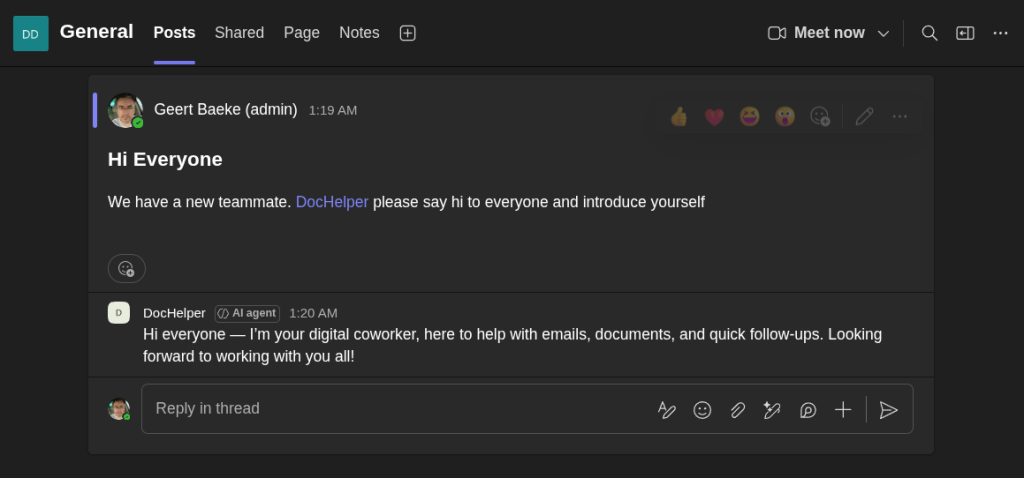
Here’s DocHelper answering an @mention in a Teams channel, the polite way:
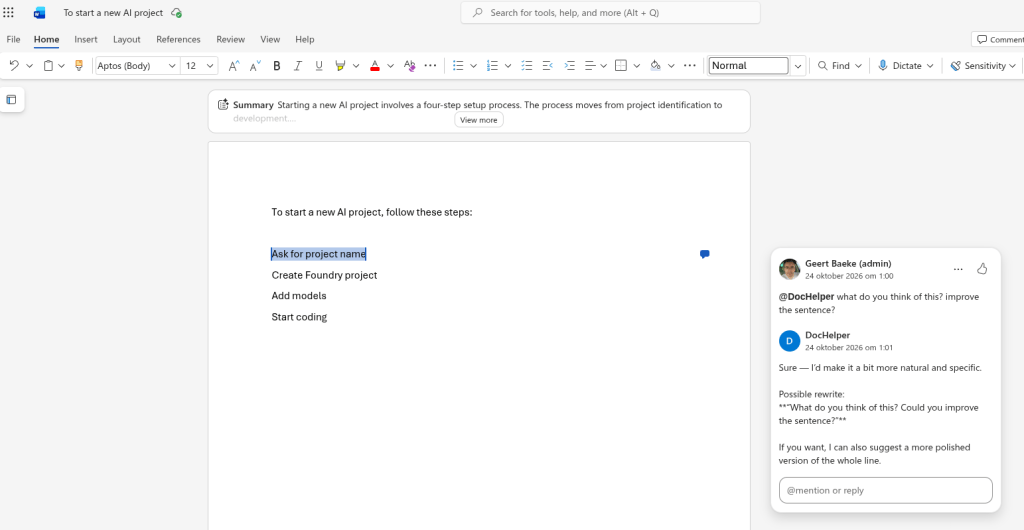
And here it is in a Word comment, where I asked it to improve a sentence:
Seeing what it does
Because an autopilot is a coworker and not just an API, admins want to see what it’s up to. The agent sends OpenTelemetry traces to Application Insights for the full picture. It can also send a subset to Agent 365: one span per turn (invoke_agent), one per model call and one per tool call. With that, the admin center shows who used the agent and which tools it called:
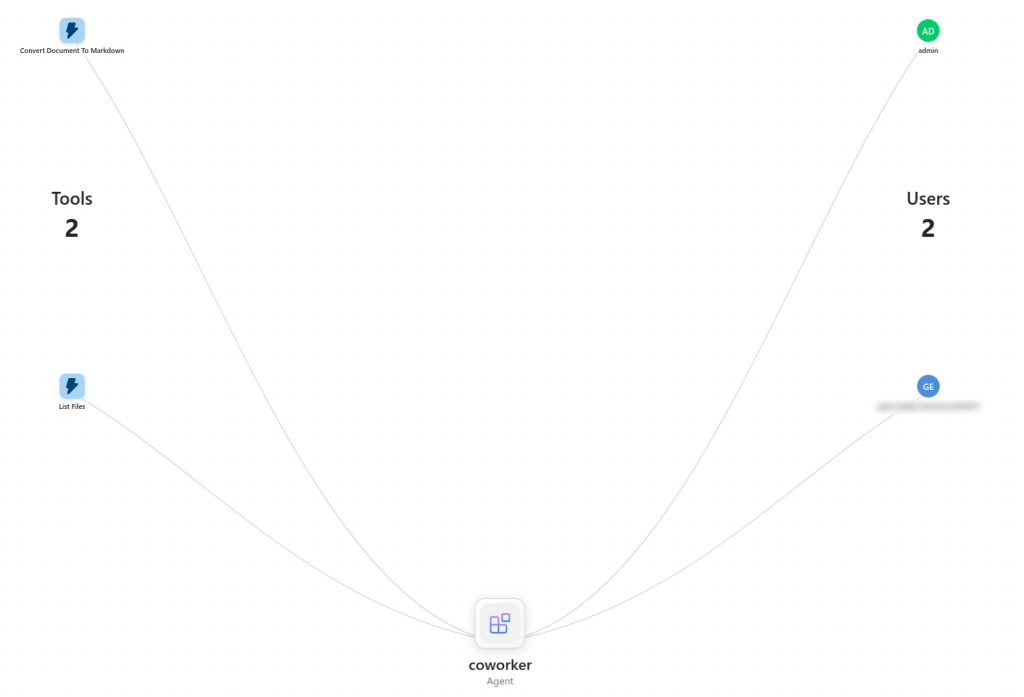
This is not automatic. It’s code in the agent (with the Microsoft OpenTelemetry Distro), and it’s picky about span names, attributes and parent ids. Get one wrong and the spans just don’t show up, without an error. One more gotcha: at least one user in the tenant needs an E7 or Agent 365 license, or the spans are dropped even though the export returns a 200. I won’t pretend all this took five minutes. 😊
⚠️ Important: telemetry should never carry message content. Mine records ids, tool names and bounded tool arguments, but no email bodies or document text.
What you don’t get
To be fair to the platform, it gives you a lot: an identity, a mailbox, Teams, a sandbox that sleeps, token exchange, an admin center and a control plane. But you still have to build quite a bit yourself:
- Reading the work. The full email, the thread, the attachments, Teams files and documents all need Graph calls and permissions on the blueprint.
- State. Work items, history and pending approvals need a shared store outside the sandbox.
- Exactly once. Redeliveries are your problem.
- Human in the loop. There’s no built-in approval flow for agent users yet. Adaptive Card approvals didn’t work for me as an agent user, so approvals are text commands in Teams.
- Security. Who may use it, what it may read, what’s fenced as untrusted input, which hosts it may download from.
- External mail. In my tests, mail from outside the tenant reached the agent, but the reply didn’t go out. Exchange’s rules for external senders apply to agents too.
⚠️ Important: this is a preview, with no SLA. Licensing in particular was the slowest part of the whole project. Plan for that before you plan the code.
Wrapping up
An autopilot is an agent that joins your organization as a coworker: its own account, mailbox, Teams presence and manager, hired from a blueprint and governed in Agent 365. On Foundry you build it as a hosted agent that speaks the Activity Protocol, publish it, get it approved and let teams hire it.
The platform pushes the events and gives you an identity to act with. Everything that makes the agent useful is still your code: reading the full mail thread and its attachments, keeping state outside the sandbox, handling each event once, and running an agent loop, with Deep Agents, LangGraph or whatever you like, that does the actual job. That’s more work than a chatbot, but the result is an agent people use without ever opening an app.
To build your own, start from Microsoft’s autopilot sample on GitHub: https://github.com/microsoft-foundry/foundry-samples/tree/main/samples/python/foundry-autopilot-agent
If you spot any errors or have questions, feel free to reach out!


Leave a Reply