Building an AI Agent Server with AG-UI and Microsoft Agent Framework

In this post, I want to talk about the Python backend I built for an AG-UI demo project. It is part of a larger project that also includes a frontend that uses CopilotKit:

This post discusses the Python AG-UI server that is built with Microsoft Agent Framework.

All code is on GitHub: https://github.com/gbaeke/agui. Most of the code for this demo was written with GitHub Copilot with the help of Microsoft Docs MCP and Context7. 🤷

What is AG-UI?

Before we dive into the code, let’s talk about AG-UI. AG-UI is a standardized protocol for building AI agent interfaces. Think of it as a common language that lets your frontend talk to any backend agent that supports it, no matter what technology you use.

The protocol gives you some nice features out of the box:

  • Remote Agent Hosting: deploy your agents as web services (e.g. FastAPI)
  • Real-time Streaming: stream responses using Server-Sent Events (SSE)
  • Standardized Communication: consistent message format for reliable interactions (e.g. tool started, tool arguments, tool end, …)
  • Thread Management: keep conversation context across multiple requests

Why does this matter? Well, without a standard like AG-UI, every frontend needs custom code to talk to different backends. With AG-UI, you build your frontend once and it works with any AG-UI compatible backend. The same goes for backends – build it once and any AG-UI client can use it.

Under the hood, AG-UI uses simple HTTP POST requests for sending messages and Server-Sent Events (SSE) for streaming responses back. It’s not complicated, but it’s standardized. And that’s the point.

AG-UI has many more features than the ones discussed in this post. Check https://docs.ag-ui.com/introduction for the full picture.

Microsoft Agent Framework

Now, you could implement AG-UI from scratch but that’s a lot of work. This is where Microsoft Agent Framework comes in. It’s a Python (and C#) framework that makes building AI agents really easy.

The framework handles the heavy lifting when it comes to agent building:

  • Managing chat with LLMs like Azure OpenAI
  • Function calling (tools)
  • Streaming responses
  • Multi-turn conversations
  • And a lot more

The key concept is the ChatAgent. You give it:

  1. chat client (like Azure OpenAI)
  2. Instructions (the system prompt)
  3. Tools (functions the agent can call)

And you’re done. The agent knows how to talk to the LLM, when to call tools, and how to stream responses back.

What’s nice about Agent Framework is that it integrates with AG-UI out of the box, similar to other frameworks like LangGraph, Google ADK and others. You write your agent code and expose it via AG-UI with basically one line of code. The framework translates everything automatically – your agent’s responses become AG-UI events, tool calls get streamed correctly, etc…

The integration with Microsoft Agent Framework was announced on the blog of CopilotKit, the team behind AG-UI. The blog included the diagram below to illustrate the capabilities:

From https://www.copilotkit.ai/blog/microsoft-agent-framework-is-now-ag-ui-compatible

The Code

Let’s look at how this actually works in practice. The code is pretty simple. Most of the code is Microsoft Agent Framework code. AG-UI gets exposed with one line of code.

The Server (server.py)

The main server file is really short:

import uvicorn
from api import app
from config import SERVER_HOST, SERVER_PORT

def main():
    print(f"🚀 Starting AG-UI server at http://{SERVER_HOST}:{SERVER_PORT}")
    uvicorn.run(app, host=SERVER_HOST, port=SERVER_PORT)

if __name__ == "__main__":
    main()

That’s it. We run a FastAPI server on port 8888. The interesting part is in api/app.py:

from fastapi import FastAPI
from agent_framework.ag_ui.fastapi import add_agent_framework_fastapi_endpoint
from agents.main_agent import agent

app = FastAPI(title="AG-UI Demo Server")

# This single line exposes your agent via AG-UI protocol
add_agent_framework_fastapi_endpoint(app, agent, "/")

See that add_agent_framework_fastapi_endpoint() call? That’s all you need. This function from Agent Framework takes your agent and exposes it as an AG-UI endpoint. It handles HTTP requests, SSE streaming, protocol translation – everything.

You just pass in your FastAPI app, your agent, and the route path. Done.

The Main Agent (agents/main_agent.py)

Here’s where we define the actual agent with standard Microsoft Agent Framework abstractions:

from agent_framework import ChatAgent
from agent_framework.azure import AzureOpenAIChatClient
from azure.identity import DefaultAzureCredential
from config import AZURE_OPENAI_ENDPOINT, AZURE_OPENAI_DEPLOYMENT_NAME
from tools import get_weather, get_current_time, calculate, bedtime_story_tool

# Create Azure OpenAI chat client
chat_client = AzureOpenAIChatClient(
    credential=DefaultAzureCredential(),
    endpoint=AZURE_OPENAI_ENDPOINT,
    deployment_name=AZURE_OPENAI_DEPLOYMENT_NAME,
)

# Create the AI agent with tools
agent = ChatAgent(
    name="AGUIAssistant",
    instructions="You are a helpful assistant with access to tools...",
    chat_client=chat_client,
    tools=[get_weather, get_current_time, calculate, bedtime_story_tool],
)

This is the heart of the backend. We create a ChatAgent with:

  1. A name: “AGUIAssistant”
  2. Instructions: the system prompt that tells the agent how to behave
  3. A chat clientAzureOpenAIChatClient that handles communication with Azure OpenAI
  4. Tools: a list of functions the agent can call

The code implements a few toy tools and a sub-agent to illustrate how AG-UI handels tool calls. The tools are discussed below:

The Tools (tools/)

In Agent Framework, tools can be Python functions with a decorator:

from agent_framework import ai_function
import httpx
import json

@ai_function(description="Get the current weather for a location")
def get_weather(location: str) -> str:
    """Get real weather information for a location using Open-Meteo API."""
    # Step 1: Geocode the location
    geocode_url = "https://geocoding-api.open-meteo.com/v1/search"
    # ... make HTTP request ...
    
    # Step 2: Get weather data
    weather_url = "https://api.open-meteo.com/v1/forecast"
    # ... make HTTP request ...
    
    # Return JSON string
    return json.dumps({
        "location": resolved_name,
        "temperature": current["temperature_2m"],
        "condition": condition,
        # ...
    })

The @ai_function decorator tells Agent Framework “this is a tool the LLM can use”. The framework automatically:

  • Generates a schema from the function signature
  • Makes it available to the LLM
  • Handles calling the function when needed
  • Passes the result back to the LLM

You just write normal Python code. The function takes typed parameters (location: str) and returns a string. Agent Framework does the rest.

The weather tool calls the Open-Meteo API to get real weather data. In an AG-UI compatible client, you can intercept the tool result and visualize it any way you want before the LLM generates an answer from the tool result:
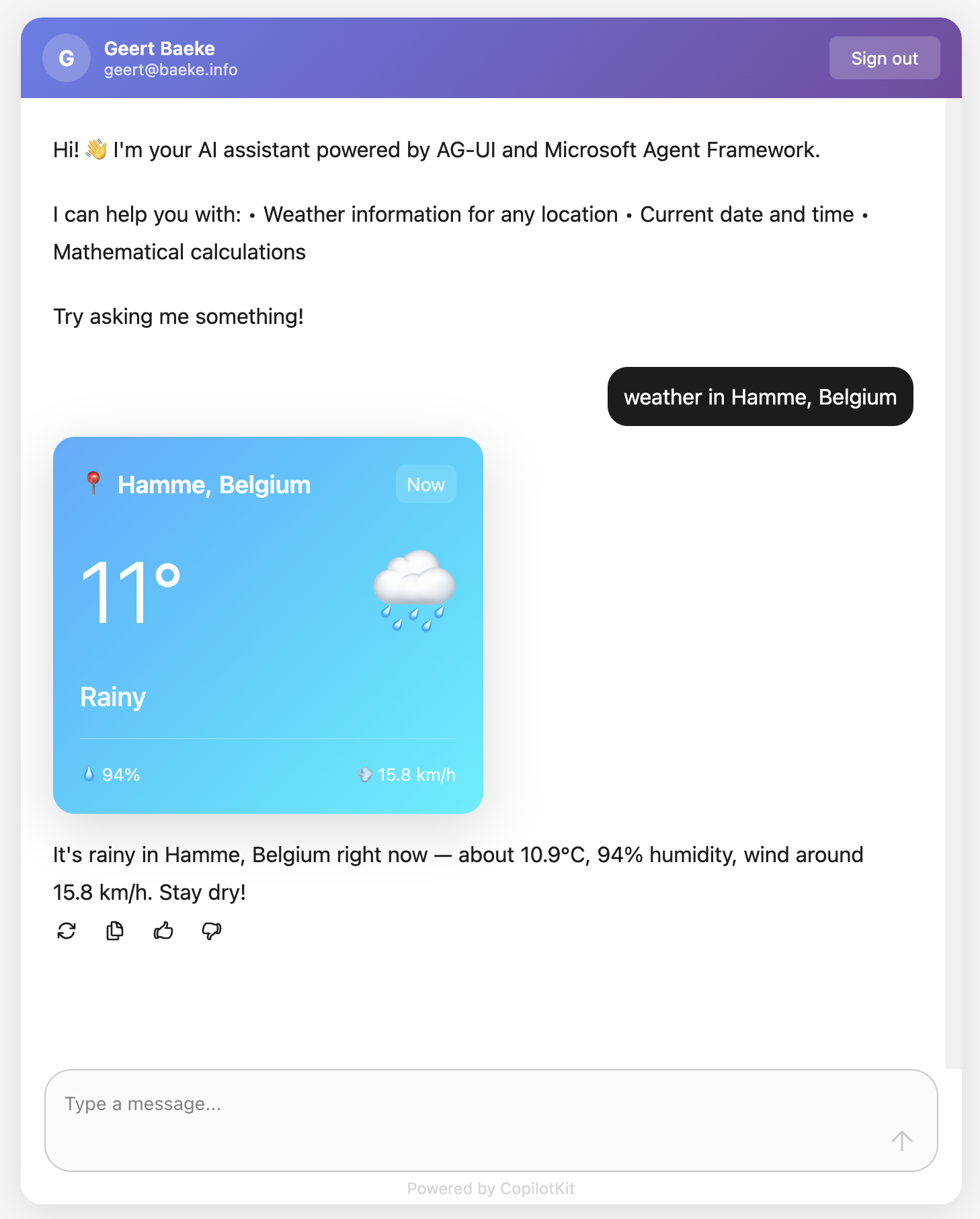
React client with CopilotKit

Above, when the user asks for weather information, AG-UI events inform the client that a tool call has started and ended. It also streams the tool result back to the client which uses a custom component to render the information. This happens before the chat client generates the answer based on the tool result.

The Subagent (tools/storyteller.py)

This is where it gets interesting. In Agent Framework, a ChatAgent can become a tool with .as_tool():

from agent_framework import ChatAgent
from agent_framework.azure import AzureOpenAIChatClient

# Create a specialized agent for bedtime stories
bedtime_story_agent = ChatAgent(
    name="BedTimeStoryTeller",
    description="A creative storyteller that writes engaging bedtime stories",
    instructions="""You are a gentle and creative bedtime story teller.
When given a topic, create a short, soothing bedtime story for children.
Your stories should be 3-5 paragraphs long, calming, and end peacefully.""",
    chat_client=chat_client,
)

# Convert the agent to a tool
bedtime_story_tool = bedtime_story_agent.as_tool(
    name="tell_bedtime_story",
    description="Generate a calming bedtime story based on a theme",
    arg_name="theme",
    arg_description="The theme for the story (e.g., 'a brave rabbit')",
)

This creates a subagent – another ChatAgent with different instructions. When the main agent needs to tell a bedtime story, it calls tell_bedtime_story which delegates to the subagent.

Why is this useful? Because you can give each agent specialized instructions. The main agent handles general questions and decides which tool to use. The storyteller agent focuses only on creating good stories. Clean separation of concerns.

The subagent has its own chat client and can have its own tools too if you want. It’s a full agent, just exposed as a tool.

And because it is a tool, you can render it with the standard AG-UI tool events:

Testing with a client

In src/backend there is a Python client client_raw.py. When you run that client against the server and invoke a tool, you will see something like below:

AG-UI client in Python

This client simply uses httpx to talk the AG-UI server and inspects and renders the AG-UI events as they come in.

Why This Works

Let me tell you what I like about this setup:

Separation of concerns: The frontend doesn’t know about Python, Azure OpenAI, or any backend details. It just speaks AG-UI. You could swap the backend for a C# implementation or something else entirely – the frontend wouldn’t care. Besides of course the handling of specific tool calls.

Standard protocol: Because we use AG-UI, any AG-UI client can talk to this backend. We use CopilotKit in the frontend but you could use anything that speaks AG-UI. Take the Python client as an example.

Framework handles complexity: Streaming, tool calls, conversation history, protocol translation – Agent Framework does all of this. You just write business logic.

Easy to extend: Want a new tool? Write a function with @ai_function. Want a specialized agent? Create a ChatAgent and call .as_tool(). That’s it.

The AG-UI documentation explains that the protocol supports 7 different features including human-in-the-loop, generative UI, and shared state. Our simple backend gets all of these capabilities because Agent Framework implements the protocol.

Note that there are many more capabilities. Check the AG-UI interactive Dojo to find out: https://dojo.ag-ui.com/microsoft-agent-framework-python

Wrap Up

This is a simple but powerful pattern for building AI agent backends. You write minimal code and get a lot of functionality. AG-UI gives you a standard way to expose your agent, and Microsoft Agent Framework handles the implementation details.

If you want to try this yourself, the code is in the repo. You’ll need an Azure OpenAI deployment and follow the OAuth setup. After that, just run the code as instructed in the repo README!

The beauty is in the simplicity. Sometimes the best code is the code you don’t have to write.

End-to-end authorization with Entra ID and MCP

Building an MCP server is really easy. Almost every language and framework has MCP support these days, both from a client and server perspective. For example: FastMCP (Python, Typescript), csharp-sdk and many more!

However, in an enterprise scenario where users use a web-based conversational agent that uses tools on an MCP server, those tools might need to connect to back-end systems using the identity of the user. Take a look at the following example:

A couple of things are important here:

  • The user logs on to the app and requests an access token that is valid for the MCP Server; you need app registrations in Entra ID to make this work
  • The MCP Server verifies that this token is from Entra ID and contains the correct audience; we will use FastMCP in Python which has some built-in functionality for token validation
  • When the user asks the agent a question that requires Azure AI Search, the agent decides to make a tool call; the tool on the MCP server does the actual work
  • The tool needs access to the token (there’s a helper in FastMCP for that); next it converts the token to a token valid for Azure AI Search
  • The tool can now perform a search in Azure AI Search using new functionality discussed here

⚠️ MCP is actually not that important here. This technique which uses OAuth 2.0 and OBO flows in Entra ID is a well established pattern that’s been in use for ages!

🧑‍💻 Full source code here: https://github.com/gbaeke/mcp-obo

Let’s get started and get this working!

Entra ID App Registrations

In this case, we will create two registrations: one for the front-end and one for the back-end, the MCP Server. Note that the front-end here will be a command-line app that uses a device flow to authenticate. It uses a simple token cache to prevent having to log on time and again.

Front-end app registration

We will create this in the Azure Portal. I assume you have some knowledge of this so I will not provide detailed step-by-step instructions:

  • Go to App Registrations
  • Create a new registration, FastMCP Auth Web
  • In Authentication, ensure you enable Allow public client flows

You will need the client ID of this app registration in the MCP client we will build later.

Back-end app registration

This is for the MCP server and needs more settings:

  • Create a new registration, FastMCP Auth API
  • In Certificates and secrets, add a secret. We will need this to implement the on-behalf-of flow to obtain the Azure AI Search token
  • In Expose an API, set the Application ID URI to https://CLIENTIDOFAPP. I also added a scope, execute. In addition, add the front-end app client Id to the list of Authorized client applications:
Expose API of MCP app registration

In order to exchange a token for this service for Azure AI Search, we also need to add API permissions:

Permissions for Azure Cognitive, ehhm, AI Search

When you add the above permission, find it in APIs my organization uses:

MCP Client

We can now write an MCP client that calls the MCP server with an access token for the API we created above. As noted before, this will be a command-line app written in Python.

The code simply uses MSAL to initiate a device flow. It also uses a token cache to avoid repeated logins. The code can be found here.

Once we have a token, we can construct an MCP client (with FastMCP) as follows:

token = get_jwt_token()

headers["Authorization"] = f"Bearer {token}"

transport_url = "http://localhost:8000/mcp/"

transport = StreamableHttpTransport(
        url=transport_url,
        headers=headers
    )

client = MCPClient(transport=transport)

This code ensures that requests to the MCP server have an Authorization header that contains the bearer token acquired by get_jwt_token(). The MCP server will validate this token strictly.

The code to connect to the MCP server looks like this:

try:
    logger.info("Connecting to the MCP server...")
    
    # Use the client as an async context manager
    async with client:
        # List available tools on the server
        tools = await client.list_tools()
        logger.info(f"Found {len(tools)} tools on the server")
        
        # Call search tool
        logger.info("Calling search tool...")
        search_result = await client.call_tool("get_documents", {"query": "*"})
        logger.info(f"Search Result: {search_result.structured_content}")
        documents = search_result.structured_content.get("documents", [])
        if documents:
            logger.info("Documents found:")
            for doc in documents:
                name = doc.get("name", "Unnamed Document")
                logger.info(f"  - {name}")
        else:
            logger.info("No documents found.")
    
except Exception as e:
    logger.error(f"Error connecting to MCP server: {e}")

Note that there is no AI Agent involved here. We simply call the tool directly. In my case the document search only lists three documents out of five in total because I only have access to those three. We will look at the MCP server code to see how this is implemented next.

⚠️ Example code of the client is here: https://github.com/gbaeke/mcp-obo/blob/main/mcp_client.py

MCP Server

We will write an MCP server that uses the streamable-http transport on port 8000. The URL to connect to from the client then becomes http://localhost:8000/mcp. That was the URL used by the MCP client above.

The server has one tool: get_documents that takes a query (string) as parameter. By default, the query is set to * which returns all documents. The tool does the following:

  • Obtains the access token with the get_access_token() helper function from FastMCP
  • Exchanges the token for a token with scope https://search.azure.com/.default
  • Creates a SearchClient for Azure AI Search that includes the AI Search endpoint, index name and credential. Note that that credential has nothing to do with the token obtained above. It’s simply a key provided by Azure AI Search to perform searches. The token is used in the actual search request to filter the results.
  • Performs the search, passing in the token via the x_ms_query_source_authorization parameter. You need to use this version of the Azure AI Search Python library: azure-search-documents==11.6.0b12

Here is the code:

# Get the access token from the context
access_token: AccessToken = get_access_token()
original_token = access_token.token

# Exchange token for Microsoft Search token
logger.info("Exchanging token for Microsoft Search access")
search_result = await exchange_token(original_token, scope="https://search.azure.com/.default")
if not search_result["success"]:
    return {"error": "Could not retrieve documents due to token exchange failure."}
else:
    logger.info("Search token exchange successful")
    search_token = search_result["access_token"]
    search_client = SearchClient(endpoint="https://srch-geba.search.windows.net", index_name="document-permissions-push-idx", credential=AzureKeyCredential(os.getenv("AZURE_SEARCH_KEY")))
    results = search_client.search(search_text="*", x_ms_query_source_authorization=search_token, select="name,oid,group", order_by="id asc")
    documents = [
        {
        "name": result.get("name"),
        "oid": result.get("oid"),
        "group": result.get("group")
        }
        for result in results
    ]
    return {"documents": documents}

The most important work is done by the exchange_token() function. It obtains an access token for Azure AI Search that contains the oid (object id) of the user.

Here’s that function:

async def exchange_token(original_token: str, scope: str = "https://graph.microsoft.com/.default") -> dict:
    
    obo_url = f"https://login.microsoftonline.com/{TENANT_ID}/oauth2/v2.0/token"
    
    data = {
        "grant_type": "urn:ietf:params:oauth:grant-type:jwt-bearer",
        "client_id": CLIENT_ID,
        "client_secret": CLIENT_SECRET,
        "assertion": original_token,
        "scope": scope,
        "requested_token_use": "on_behalf_of"
    }
    
    try:
        response = requests.post(obo_url, data=data)
        
        if response.status_code == 200:
            token_data = response.json()
            return {
                "success": True,
                "access_token": token_data["access_token"],
                "expires_in": token_data.get("expires_in"),
                "token_type": token_data.get("token_type"),
                "scope_used": scope,
                "method": "OBO"
            }
        else:
            return {
                "success": False,
                "error": response.text,
                "status_code": response.status_code,
                "scope_attempted": scope,
                "method": "OBO"
            }
    except Exception as e:
        return {
            "success": False,
            "error": str(e),
            "method": "OBO"
        }

Above, the core is in the call to the obo_url which presents the original token to obtain a new one. This will only work if the API permissions are correct on the FastMCP Auth API app registration. When the call is successful, we return a dictionary that contains the access token in the access_token key.

Full code of the server: https://github.com/gbaeke/mcp-obo/blob/main/mcp/main.py

You have now seen the entire flow from client login to calling a method (tool) on the MCP server to connecting to Azure AI Search downstream via an on-behalf-of flow.

But wait! How do we create the Azure AI Search index with support for the permission filter? Let’s take look…

Azure AI Search Configuration

When you want to use permission filtering with the x_ms_query_source_authorization parameter, do the following:

  • Create the index with support for permission filtering
  • Your index needs fields like oid (object Ids) and group (group object Ids) with the correct permission filter option
  • When you add documents to an index, for instance with the push APIs, you need to populate the oid and group fields with identifiers of users and groups that have access
  • Perform a search with the x_ms_query_source_authorization like show below:
results = search_client.search(
search_text="*",
x_ms_query_source_authorization=token_to_use,
select="name,oid,group",
order_by="id asc"
)

Above, token_to_use is the access token for Azure AI Search!

On GitHub, check this notebook from Microsoft to create and populate the index with your own user’s oid. You will need an Azure Subscription with an Azure AI Search instance. The free tier will do. If you use VS Code, use the Jupyter extension to run this notebook.

At the time of this writing, this feature was in preview. Ensure you use the correct version of the AI Search library for Python: azure-search-documents==11.6.0b12.

Wrapping up

I hope this post gives you some ideas on how to build agents that use MCP tools with end-to-end user authentication and authorization. This is just one possible approach. Authorization in the MCP specification has evolved significantly in early 2025 and works somewhat differently.

For most enterprise scenarios where you control both code and configuration (such as with Entra ID), bearer authentication with OBO is often sufficient.

Also consider whether you need MCP at all. If you aren’t sharing tools across multiple agents or projects, a simple API might be enough. For even less overhead, you can embed the tool code directly in your agent and run everything in the same process. Simple and effective.

If you spot any errors or have questions, feel free to reach out!

Creating a Copilot declarative agent with VS Code and the Teams Toolkit

If you are a Microsoft 365 Copilot user, you have probably seen that the words “agent” and “Copilot agent” are popping up here and there. For example, if you chat with Copilot there is an Agents section in the top right corner:

Copilot Chat with agents

Above, there is a Visual Creator agent that’s built-in. It’s an agent dedicated to generating images. Below Visual Creator, there are agents deployed to your organisation and ways to add and create agents.

A Copilot agent in this context, runs on top of Microsoft 365 Copilot and uses the Copilot orchestrator and underlying model. An agent is dedicated to a specific task and has the following properties. Some of these properties are optional:

  • Name: name of the agent
  • Description: you guessed it, the description of the agent
  • Instructions: instructions for the agent about how to do its work and respond to the user; you can compare this to a system prompt you give an LLM to guide its responses
  • Conversation starters: prompts to get started like the Learn More and Generate Ideas in the screenshot above
  • Documents: documents the agent can use to provide the user with answers; this will typically be a SharePoint site or a OneDrive location
  • Actions: actions the agents can take to provide the user with an answer; these actions will be API calls that can fetch information from databases, create tickets in a ticketing system and much more…

There are several ways to create these agents:

  • Start from SharePoint and create an agent based on the documents you select
  • Start from Microsoft 365 Copilot chat
  • Start from Copilot Studio
  • Start from Visual Studio Code

Whatever you choose, you are creating the agent declaratively. You do not have to write code to create the agent. Depending on the tool you use, not all capabilities are exposed. For example, if you want to add actions to your agent, you need Copilot Studio or Visual Studio Code. You could start creating the agent from SharePoint and then add actions with Copilot Studio.

In this post, we will focus on creating a declarative agent with Visual Studio Code.

Getting Started

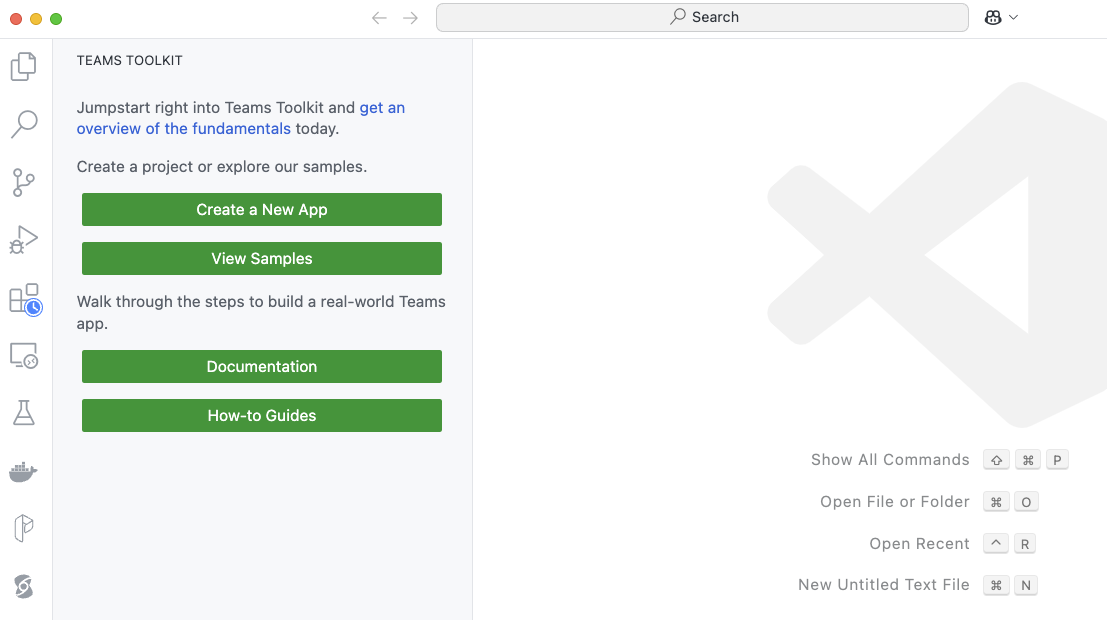
You need Visual Studio Code or a compatible editor and add the Teams Toolkit extension. Check Microsoft Learn to learn about all requirements. After installing it in VS Code, click the extension. You will be presented with the options below:

Teams Toolkit extension in VS Code

To create a declarative agent, click Create a New App. Select Copilot Agent.

Copilot Agent in Teams Toolkit

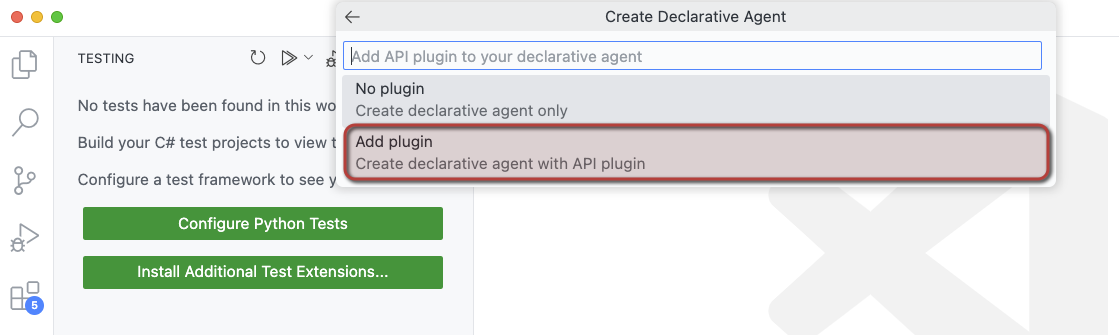
Next, select Declarative Agent. You will be presented with the choices below:

Creating an agent with API plugin so we can call APIs

To make this post more useful, we will add actions to the agent. Although the word “action” is not mentioned above, selecting Add plugin will give us that functionality.

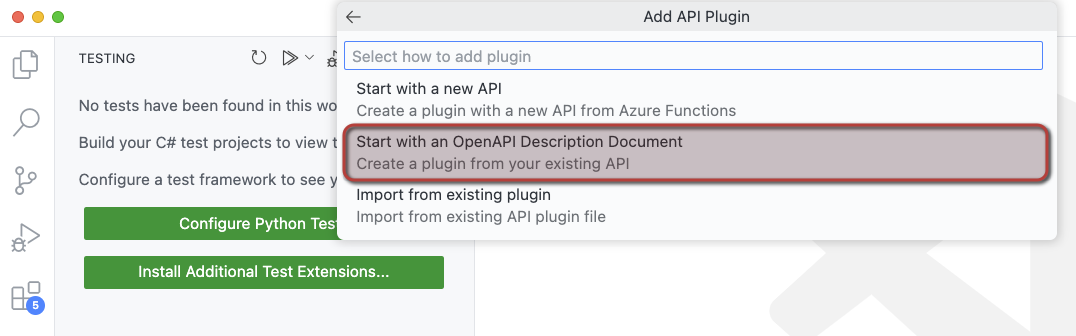
We will create our actions from an OpenAPI 3.0.x specification. Select Start with an OpenAPI Description Document as shown below.

When you select the above option, you can either:

  • Use a URL that returns the OpenAPI document
  • Browse for an OpenAPI file (json or yaml) on your file system

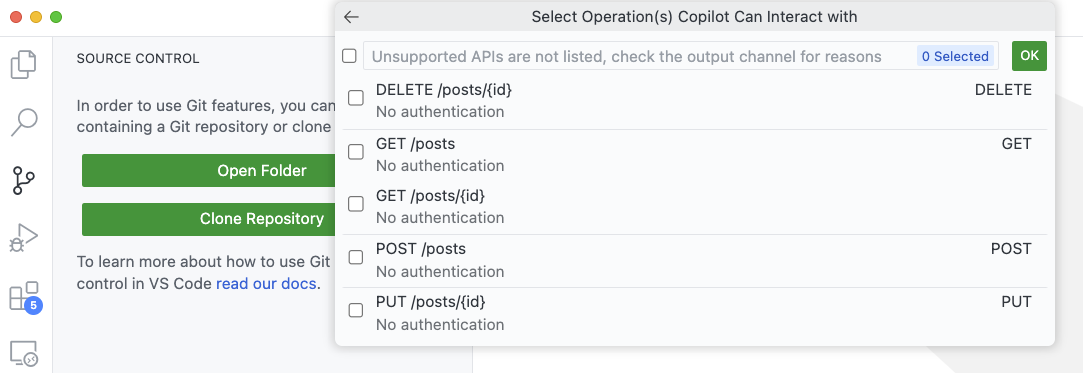
I downloaded the OpenAPI specification for JSON Placeholder from https://arnu515.github.io/jsonplaceholder-api-docs/. JSON Placeholder is an online dummy API that provides information about blog posts. After downloading the OpenAPI spec, browse for the swagger.json file via the Browse for an OpenAPI file option. In the next screen, you can select the API operations you want to expose:

Select the operations you want the agent to use

I only selected the GET /posts operation (getPosts). Next, you will be asked for a folder location and a name for your project. I called mine DemoAgent. After specifying the name, a new VS Code window will pop up:

Declarative Agent opens in a new Window

You might get questions about installing additional extensions and even to provision the app.

How does it work?

Before explaining some of the internals, let’s look at the end result in Copilot chat. Below is the provisioned app, provisioned only to my own account. This is the app as created by the extension, without modifications on my part.

Agent in Copilot Chat; sample API we use returns Latin 😉

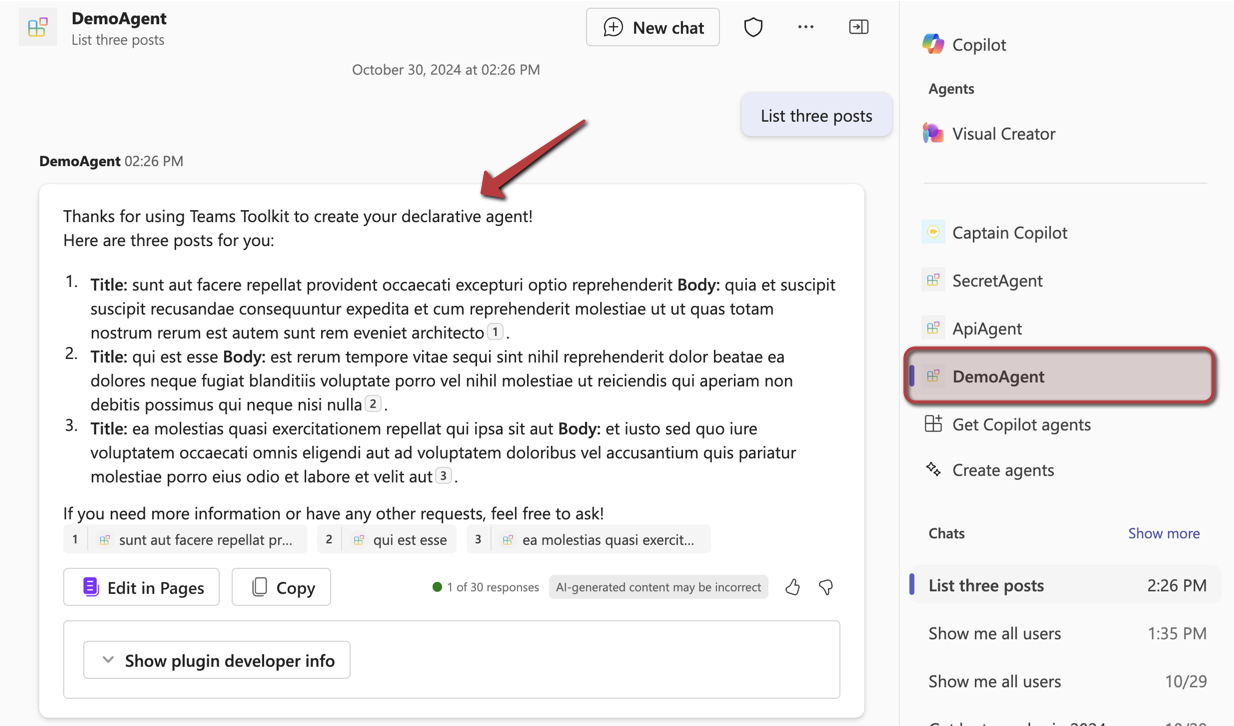
Above, I have asked for three posts. Copilot matches my intent to the GET /posts API call and makes the call. The JSONPlaceholder API does not require authentication so that’s easy. Authentication is supported but that’s for another post. If it’s the first time the API is used, you will be asked for permission to use it.

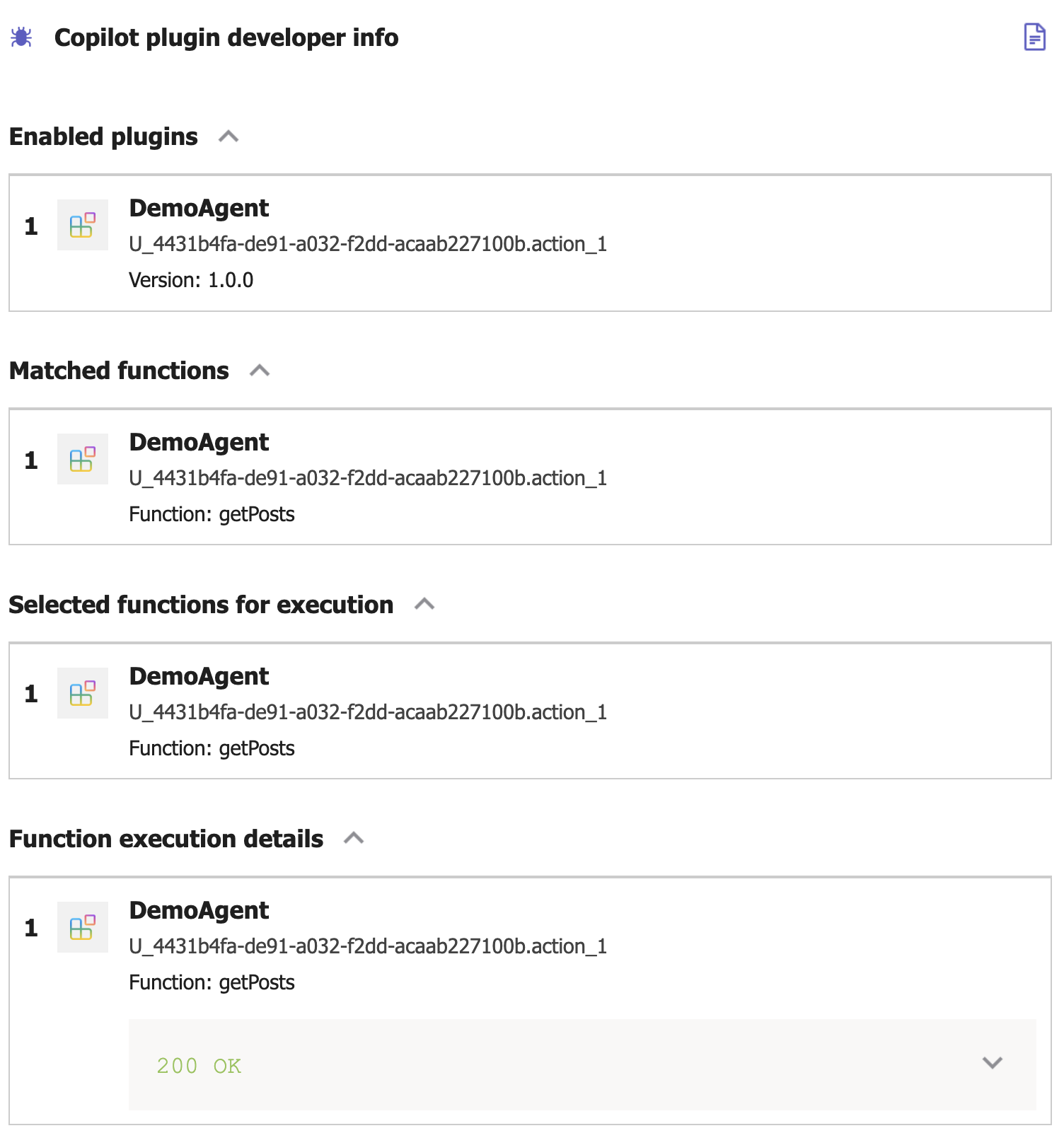
In Copilot, I turned on developer mode by typing -developer on in the chat box. When you click Show plugin developer info, you will see something like the below screenshot:

Copilot developer mode

Above, the Copilot orchestrator has matched the function getPosts from the DemoAgent plugin. Plugin is just the general name for Copilot extensions that can perform actions (or functions). Yes, naming is hard. The Copilot orchestrator selected the getPosts function to execute. The result was a 200 OK from the underlying API. If you click the 200 OK message, you see the raw results returned from the API.

Now let’s look at some of the files that are used to create this agent. The main file, from the agent’s point of view, is declarativeAgent.json in the appPackage folder. It contains the name, description, instructions and actions of the agent:

{
    "$schema": "https://developer.microsoft.com/json-schemas/copilot/declarative-agent/v1.0/schema.json",
    "version": "v1.0",
    "name": "DemoAgent",
    "description": "Declarative agent created with Teams Toolkit",
    "instructions": "$[file('instruction.txt')]",
    "actions": [
        {
            "id": "action_1",
            "file": "ai-plugin.json"
        }
    ]
}

The instructions property references another file which contains the instructions for the agent. One of the instructions is: You should start every response and answer to the user with “Thanks for using Teams Toolkit to create your declarative agent!”. That’s the reason why my question had that in the response to start with.

Of course, the actions are where the magic is. You can provide your agent with multiple actions. Here, we only have one. These actions are defined in a file that references the OpenAPI spec. Above, that file is ai-plugin.json. This file tells the agent what API call to make. It contains a functions array with only one function in this case: getPosts. It’s important you provide a good description for the function because Copilot selects the function to call based on its description. See the Matched functions list in the plugin developer info section.

Below the functions array is a runtimes array. It specifies what operation to call from the referenced OpenAPI specification. In here, you also specify the authentication to the API. In this case, the auth type is None but agents support HTTP bearer authentication with a simple key or OAuth.

Here’s the entire file:

{
    "$schema": "https://developer.microsoft.com/json-schemas/copilot/plugin/v2.1/schema.json",
    "schema_version": "v2.1",
    "name_for_human": "DemoAgent",
    "description_for_human": "Free fake API for testing and prototyping.",
    "namespace": "demoagent",
    "functions": [
        {
            "name": "getPosts",
            "description": "Returns all posts",
            "capabilities": {
                "response_semantics": {
                    "data_path": "$",
                    "properties": {
                        "title": "$.title",
                        "subtitle": "$.id"
                    },
                    "static_template": {
                        "type": "AdaptiveCard",
                        "$schema": "http://adaptivecards.io/schemas/adaptive-card.json",
                        "version": "1.5",
                        "body": [
                            {
                                "type": "TextBlock",
                                "text": "id: ${if(id, id, 'N/A')}",
                                "wrap": true
                            },
                            {
                                "type": "TextBlock",
                                "text": "title: ${if(title, title, 'N/A')}",
                                "wrap": true
                            },
                            {
                                "type": "TextBlock",
                                "text": "body: ${if(body, body, 'N/A')}",
                                "wrap": true
                            },
                            {
                                "type": "TextBlock",
                                "text": "userId: ${if(userId, userId, 'N/A')}",
                                "wrap": true
                            }
                        ]
                    }
                }
            }
        }
    ],
    "runtimes": [
        {
            "type": "OpenApi",
            "auth": {
                "type": "None"
            },
            "spec": {
                "url": "apiSpecificationFile/openapi.json"
            },
            "run_for_functions": [
                "getPosts"
            ]
        }
    ],
    "capabilities": {
        "localization": {},
        "conversation_starters": [
            {
                "text": "Returns all posts"
            }
        ]
    }
}

As you can see, you can also control how the agent responds by providing an adaptive card. Teams toolkit decided on the format above based on the API specification and the data returned by the getPosts operation. In this case, the card looks like this:

Addaptive card showing the response from the API: id, title, body and userId of the fake blog post

Adding extra capabilities

You can add conversation starters to the agent in declarativeAgent.json. They are shown in the opening screen of your agent:

Conversation Starters

These starters are added to declarativeAgent.json:

{
    "$schema": "https://developer.microsoft.com/json-schemas/copilot/declarative-agent/v1.0/schema.json",
    "version": "v1.0",
    "name": "DemoAgent",
    "description": "Declarative agent created with Teams Toolkit",
    "instructions": "$[file('instruction.txt')]",
    "actions": [
        ...
    ],
    "conversation_starters": [
    {
        "title": "Recent posts",
        "text": "Show me recent posts"
    },
    {
        "title": "Last post",
        "text": "Show me the last post"
    }
]
}

In addition to conversation starters, you can also enable web searches. Simply add the following to the file above,

"capabilities": [
    {
        "name": "WebSearch"
    }
]

With this feature enabled, the agent can search the web for answers via Bing. It will do so when it thinks it needs to or when you tell it to. For instance: “Search the web for recent news about AI” gets you something like this:

Agent with WebSearch turned on

In the plugin developer info, you will see that none of your functions were executed. Developer info does not provide additional information about the web search.

Next to starter prompts and WebSearch, here are some of the other things you can do:

  • Add OneDrive and SharePoint content: extra capability with name OneDriveAndSharePoint; the user using the agent needs access to these files or they cannot be used to generate an answer
  • Add Microsoft Graph Connectors content: extra capability with name GraphConnectors; Graph Connectors pull in data from other sources in Microsoft Graph; by specifying the connector Ids, that data can then be retrieved by the agent

More information about the above settings can be found here: https://learn.microsoft.com/en-us/microsoft-365-copilot/extensibility/declarative-agent-manifest.

Provisioning

To provision the agent just for you, open VS Code’s command palette and search for Teams: Provision. You will be asked to log on to Microsoft 365. When all goes well, you should see the messages below in the Output pane:

Output after provisioning an app

If you are familiar with app deployment to Teams in general, you will notice that this is the same.

When the app is provisioned, it should appear in the developer portal at https://dev.teams.microsoft.com/apps:

DemoAgent in the Teams dev portal

Note that the extension adds dev to the agent when you provision the app. When you publish the app, this is different. You can also see this in VS Code in the build folder:

App package for provisioning in VS Code

Note: we did not discuss the manifest.json file which is used to configure the Teams app as a whole. Use it to set developer info, icons, name, description and more.

There are more steps to take to publish the app and make it available to your organisation. See https://learn.microsoft.com/en-us/microsoftteams/platform/toolkit/publish for more information

Conclusion

The goal of this blogpost was to show how easy it is to create a declarative agent on top of Microsoft 365 Copilot in VS Code. Remember that these agents use the underlying Copilot orchestrator and model and that is something you cannot change. If you need more freedom (e.g., control over LLM, its parameters, advanced prompting techniques etc…) and you want to create such an app in Teams, there’s always the Custom Engine Agent.

Declarative agents don’t require you to code although you do need to edit multiple files to get it to work?

In a follow-up post, we will take a look at adding a custom API with authentication. I will also show you how to easily add additional actions to an agent without too much manual editing. Stay tuned!

Token consumption in Microsoft’s Graph RAG

In the previous post, we discussed Microsoft’s Graph RAG implementation. In this post, we will take a look at token consumption to query the knowledge graph, both for local and global queries.

Note: this test was performed with gpt-4o. A few days after this blog post, OpenAI released gpt-4o-mini. Initital tests with gpt-4o-mini show that index creation and querying work well with a significantly lower cost. You can replace gpt-4o with gpt-4o-mini in the setup below.

Setting up Langfuse logging

To make it easy to see the calls to the LLM, I used the following components:

  • LiteLLM: configured as a proxy; we configure Graph RAG to use this proxy instead of talking to OpenAI or Azure OpenAI directly; see https://www.litellm.ai/
  • Langfuse: an LLM engineering platform that can be used to trace LLM calls; see https://langfuse.com/

To setup LiteLLM, follow the instructions here: https://docs.litellm.ai/docs/proxy/quick_start. I created the following config.yaml for use with LiteLLM:

model_list:
 - model_name: gpt-4o
   litellm_params:
     model: gpt-4o
 - model_name: text-embedding-3-small
   litellm_params:
     model: text-embedding-3-small
litellm_settings:
  success_callback: ["langfuse"]

Before starting the proxy, set the following environment variables:

export OPENAI_API_KEY=my-api-key
export LANGFUSE_PUBLIC_KEY="pk_kk"
export LANGFUSE_SECRET_KEY="sk_ss"

You can obtain the values from both the OpenAI and Langfuse portals. Ensure you also install Langfuse with pip install langfuse.

Next, we can start the proxy with litellm --config config.yaml --debug.

To make Graph RAG work with the proxy, open Graph RAG’s settings.yaml and set the following value under the llm settings:

api_base: http://localhost:4000

LiteLLM is listening for incoming OpenAI requests on that port.

Running a local query

A local query creates an embedding of your question and finds related entities in the knowledge graph by doing a similarity search first. The embeddings are stored in LanceDB during indexing. Basically, the results of the similarity search are used as entrypoints into the graph.

That is the reason that you need to add the embedding model to LiteLLM’s config.yaml. Global queries do not require this setting.

After the similar entities have been found in LanceDB, they are put in a prompt to answer your original question together with related entities.

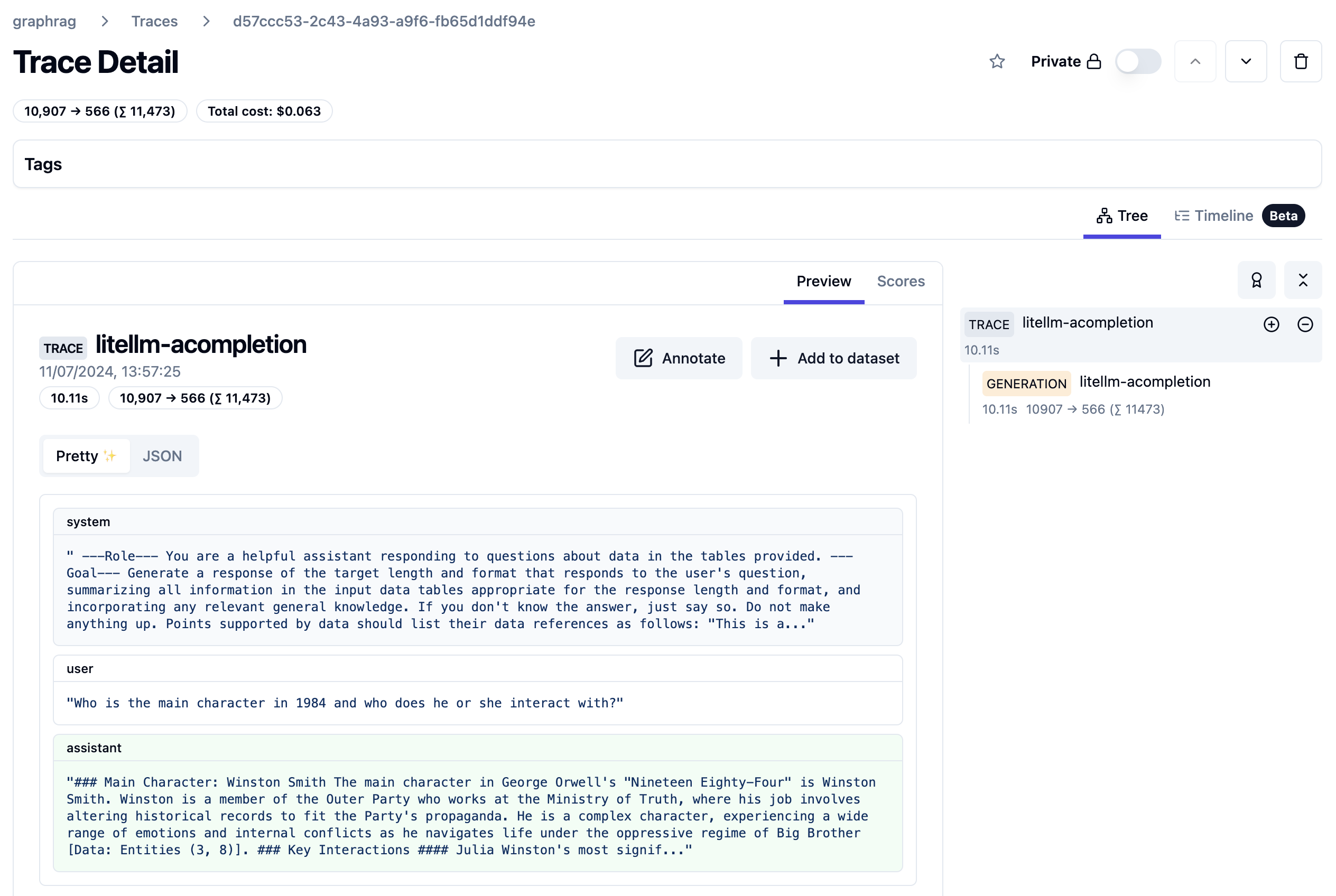
A local query can be handled with a single LLM call. Let’s look at the trace:

Trace from local query

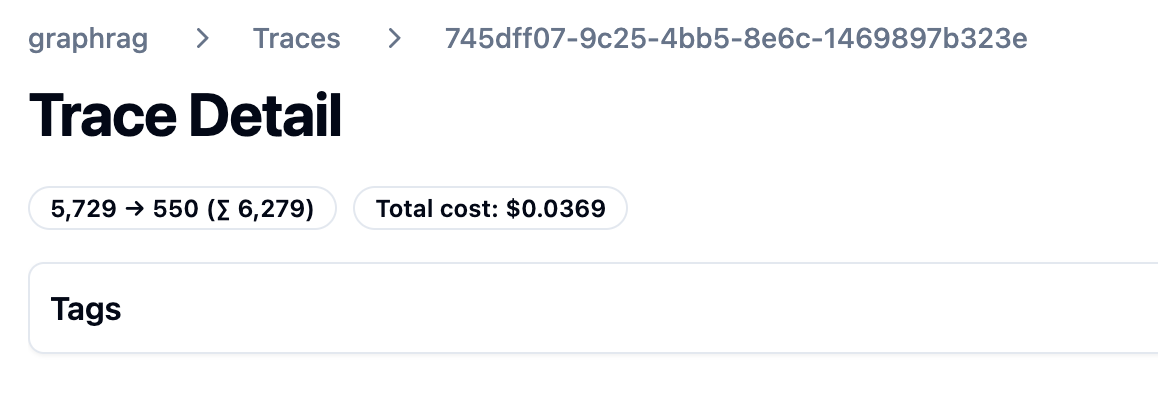
The query took about 10 seconds and 11500 tokens. The system prompt starts as follows:

First part of local query system prompt

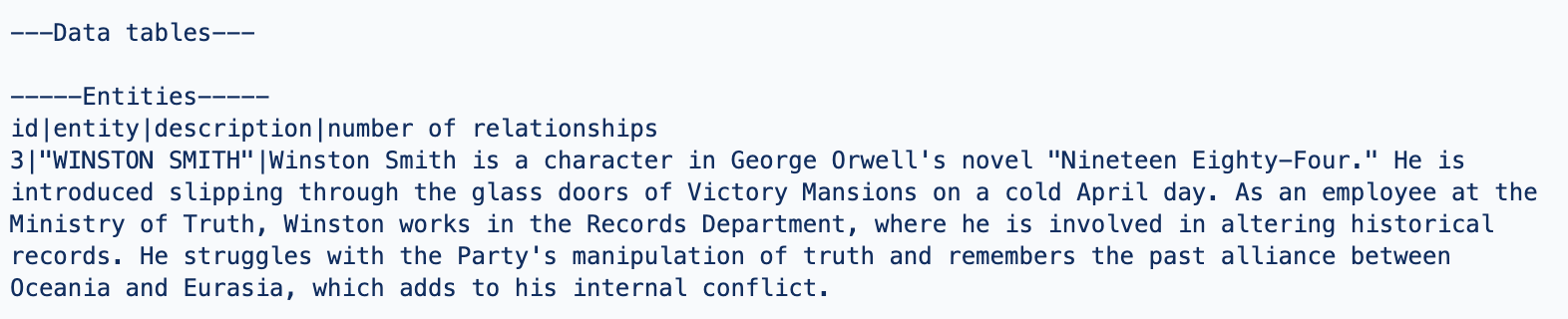
The actual data it works with (called data tables) are listed further in the prompt. You can find a few data points below:

Entity about Winston Smith, a character in the book 1984 (just a part of the text)
Entity for O’Brien, a character he interacts with

The prompt also contains sources from the book where the entities are mentioned. For example:

Relevant sources

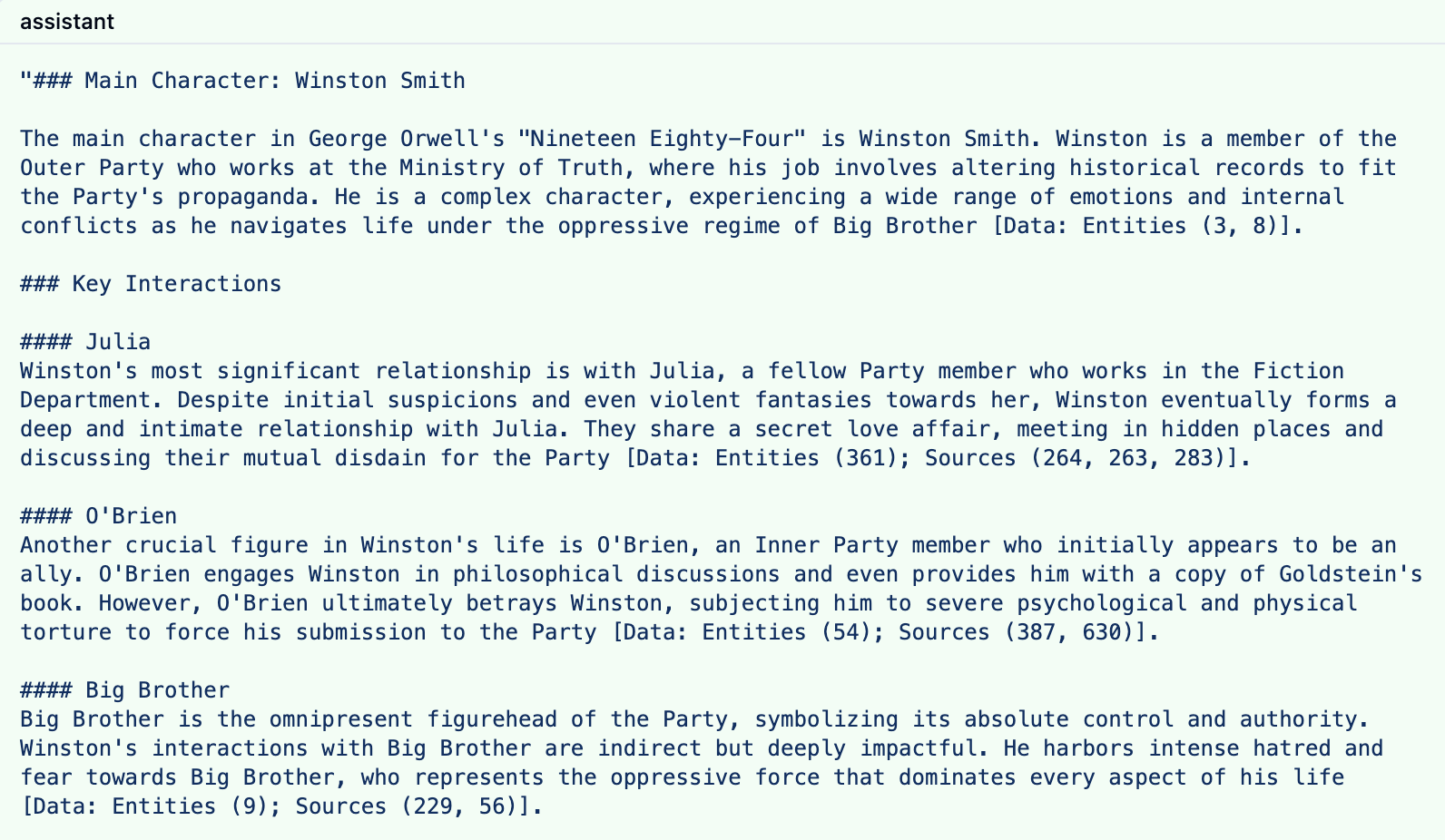
The response to this prompt is something like the response below:

LLM response to local query

The response contains references to both the entities and sources with their ids.

Note that you can influence the number of entities retrieved and the number of consumed tokens. In Graph RAG’s settings.yaml, I modified the local search settings as follows:

local_search:
  # text_unit_prop: 0.5
  # community_prop: 0.1
  # conversation_history_max_turns: 5
  top_k_mapped_entities: 5
  top_k_relationships: 5
  max_tokens: 6000

The trace results are clear: token consumption is lower and the latency is lower as well.

Lower token cost

Of course, there will be a bit less detail in the answer. You will have to experiment with these values to see what works best in your scenario.

Global Queries

Global queries are great for broad questions about your dataset. For example: “What are the top themes in 1984?”. A global query is not a single LLM call and is more expensive than a local query.

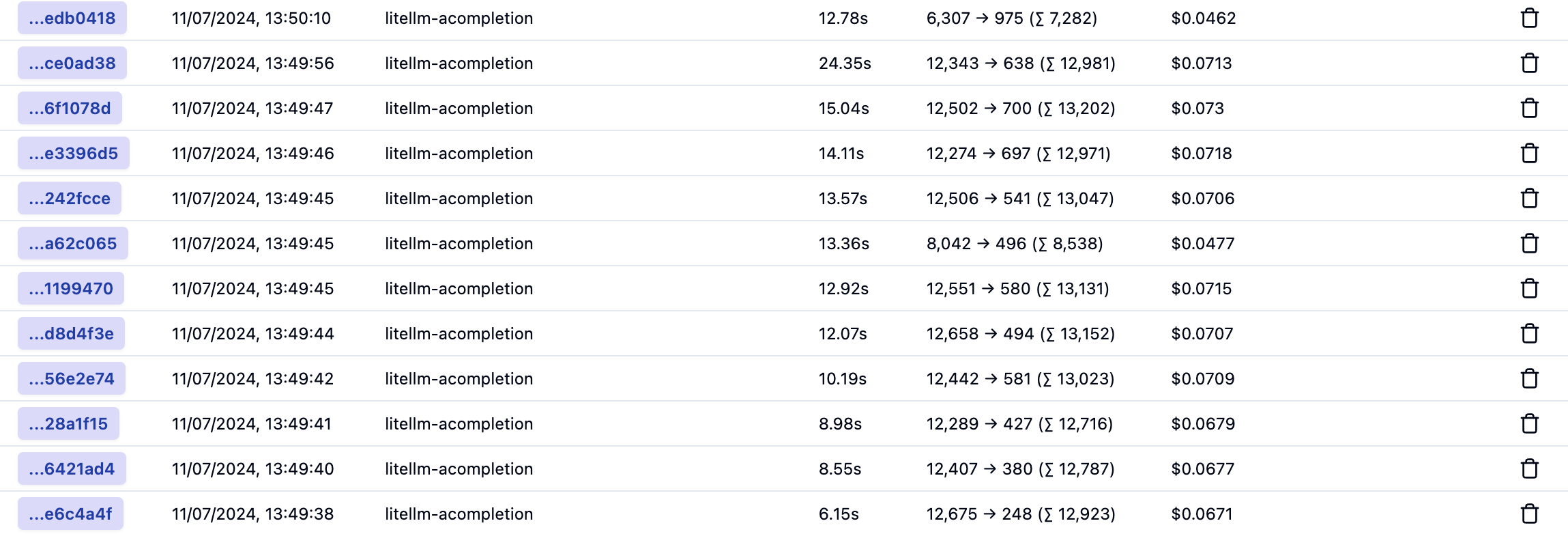
Let’s take a look at the traces for a global query. Every trace is an LLM call to answer the global query:

Traces for a global query

The last one in the list is where it starts:

First call of many to answer a global query

As you can probably tell, the call above is not returned directly to the user. The system prompt does not contain entities from the graph but community reports. Community reports are created during indexing. First, communities are detected using the Leiden algorithm and then summarized. You can have many communities and summaries in the dataset.

This first trace asks the LLM to answer the question: “What are the top themes in 1984?” to a first set of community reports and generates intermediate answers. These intermediate answers are saved until a last call used to answer the question based on all the intermediate answers. It is entirely possible that community reports are used that are not relevant to the query.

Here is that last call:

Answer the question based on the intermediate answers

I am not showing the whole prompt here. Above, you see the data that is fed to the final prompt: the intermediate answers from the community reports. This then results in the final answer:

Final answer to the global query

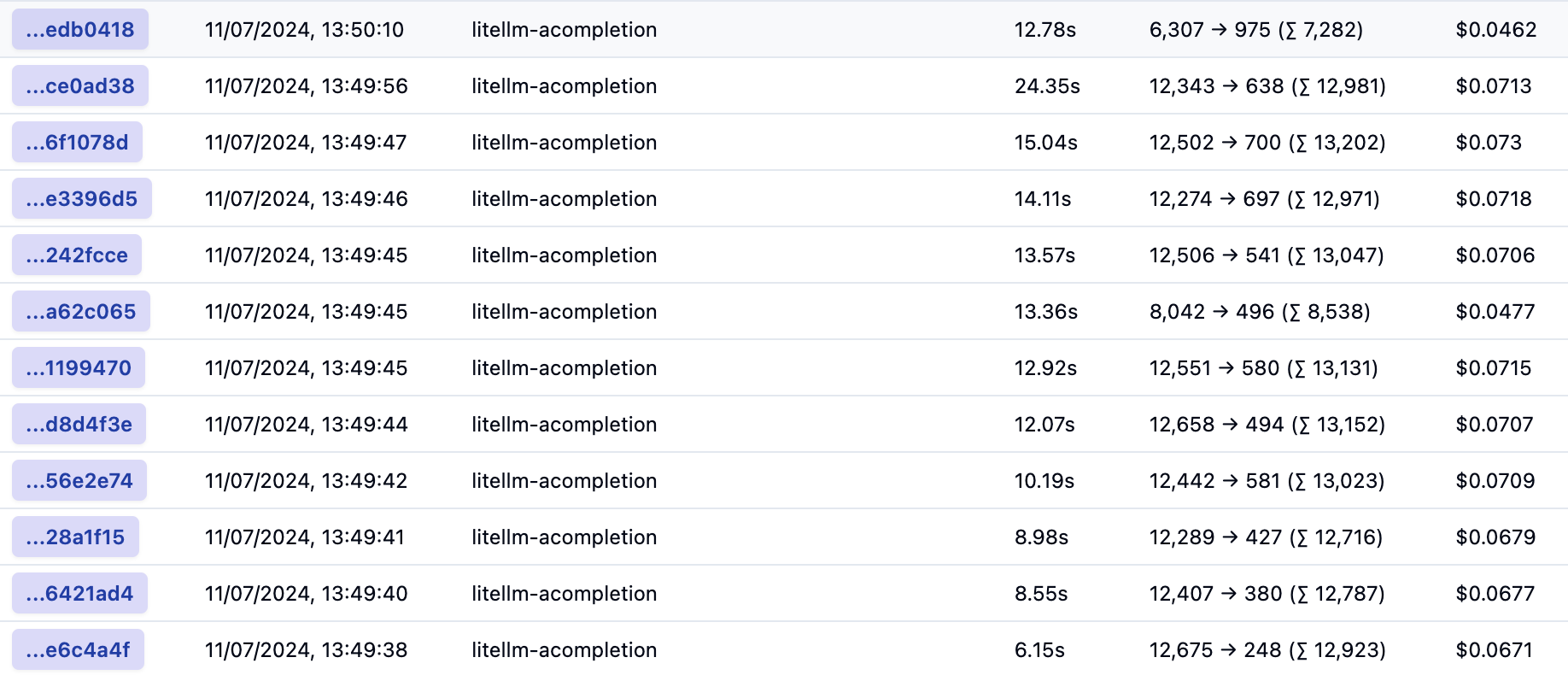
Below is the list with all calls again:

All calls to answer a global query

In total, and based on default settings, 12 LLM calls were made consuming around 150K tokens. The total latency cannot be calculated from this list because the calls are made in parallel. That total cost is around 80 cents.

The number of calls and token cost can be reduced by tweaking the default parameters in settings.yaml. For example, I made the following changes:

global_search:
  max_tokens: 6000 # was 12000
  data_max_tokens: 500 # was 1000
  map_max_tokens: 500 # was 1000
  # reduce_max_tokens: 2000
  # concurrency: 32

However, this resulted in more calls with around 140K tokens. Not a big reduction. I tried setting lower values but then I got Python errors and many more LLM calls due to retries. I would need to dig into that further to explain why this happens.

Conclusion

From the above, it is clear that local queries are less intensive and costly than global queries. By tweaking the local query settings, you can get pretty close to the baseline RAG cost where you return 3-5 chunks of text of about 500 tokens each. Latency is pretty good as well. Of course, depending on your data, it’s not guaranteed that the responses of local search will be better that baseline RAG.

Global queries are more costly but do allow you to ask broad questions about your dataset. I would not use these global queries in a chat assistant scenario consistently. However, you could start with a global query and then process follow-up questions with a local query or baseline RAG.

Embracing the Age of AI Transformation: A New Era for Innovation and Expertise

⚠️ This is an AI-generated article based on a video to transcript generator I created to summarise Microsoft Build sessions. This article is used as an example for a LinkedIn post.

This article is based on the Microsoft Build keynote delivered on Tuesday, May 21st, 2024. It was created with gpt-4o. The post is unedited and as such contains errors such as PHY models instead of Phi etc… Most errors come from errors in the transcription phase.

Here’s the generated content ⬇️

As the digital age advances, we’re witnessing an unprecedented transformation powered by artificial intelligence (AI). Three decades ago, the vision was “information at your fingertips.” Today, we stand on the cusp of a new era: “expertise at your fingertips.” This shift from mere access to information to access to actionable expertise is revolutionizing industries across the globe. From farms to classrooms, boardrooms to labs, AI is proving to be a universal tool for everyone, everywhere.

The Evolution of AI: From Information to Expertise

In the early days of computing, the primary challenge was to make computers understand us rather than us having to understand them. We dreamed of a world where vast amounts of data could be harnessed to help us reason, plan, and act more effectively. Fast forward 70 years, and we’re seeing those dreams realized through groundbreaking advancements in AI. This new generation of AI is reshaping every layer of technology, from data center infrastructures to edge devices, enabling distributed, synchronous data parallel workloads.

Scaling Laws: Driving the Intelligence Revolution

Much like Moore’s Law propelled the information revolution, the scaling laws of deep neural networks (DNNs) are now driving the intelligence revolution. These laws, combined with innovative model architectures and data utilization methods, are leading to rapid advancements in AI. The result is a natural, multimodal user interface that supports text, speech, images, and video, along with memory and reasoning capabilities that reduce cognitive load and enhance productivity.

AI in Action: Real-World Impact

The transformative power of AI is not just theoretical. Real-world applications are demonstrating its potential to change lives. Consider the rural Indian farmer who used AI to navigate government farm subsidies, or the developer in Thailand leveraging the latest AI models to optimize workflows. These examples highlight the democratization of AI, where cutting-edge technology developed on one side of the world can directly benefit individuals on the other.

Microsoft Copilot: Your Everyday AI Companion

One of the most exciting developments in this AI revolution is Microsoft Copilot. This platform brings knowledge and expertise directly to users, helping them act on it effectively. Microsoft has introduced several key components to enhance Copilot’s capabilities:

  1. Copilot Plus PCs: The fastest AI-first PCs, equipped with powerful NPUs for lightning-fast local inference, offering unprecedented speed and efficiency.
  2. Windows Copilot Runtime: Making Windows the best platform for building AI applications with local APIs, no-code integrations, and support for over 40 models out of the box.
  3. Azure AI Studio: An end-to-end development environment for building, training, and fine-tuning AI models, now generally available with built-in safety features.

Expanding Horizons: AI Infrastructure and Models

Microsoft is building the most comprehensive AI infrastructure with Azure, scaling AI capacity globally while ensuring sustainability. This includes partnerships with industry leaders like NVIDIA and AMD to provide the best performance and cost-efficiency for AI workloads. Additionally, Microsoft offers a broad selection of foundation models, including GPT-4, trained on Azure, and the new PHY family of small language models designed for efficient on-device inferencing.

Real-Time Intelligence and Fabric Integration

Microsoft Fabric is another game-changer, offering an integrated SaaS platform for data analytics and AI capabilities. With real-time intelligence, Fabric enables instant, actionable insights from streaming data, helping businesses stay proactive and make informed decisions. This platform’s seamless integration with tools like Esri for spatial analytics and Azure AI Search for retrieval-augmented generation (RAG) applications further extends its utility.

Empowering Developers: From Idea to Code

GitHub Copilot, the first major product of the generative AI age, is revolutionizing software development. With over 1.8 million subscribers, Copilot assists developers in their native languages, streamlining the coding process. The new GitHub Copilot extensions allow developers to customize and integrate third-party services, enhancing the overall development experience.

The Future of AI: A Call to Innovate

The advancements in AI are opening up new possibilities for innovation and transformation. As we continue to build and refine these platforms, the real impact will come from the developers and innovators who leverage this technology to create meaningful solutions. This is a call to all developers: embrace this special moment in history, take advantage of the tools at your disposal, and build the future.

Conclusion

The age of AI transformation is here, and it’s redefining how we interact with technology. From personal assistants to team collaborators, from education to healthcare, AI is poised to make a significant impact. Microsoft’s commitment to providing the infrastructure, tools, and platforms necessary for this revolution is clear. Now, it’s up to us to harness this power and drive the next wave of innovation. Welcome to the new era of AI.

Embedding flows created with Microsoft Prompt Flow in your own applications

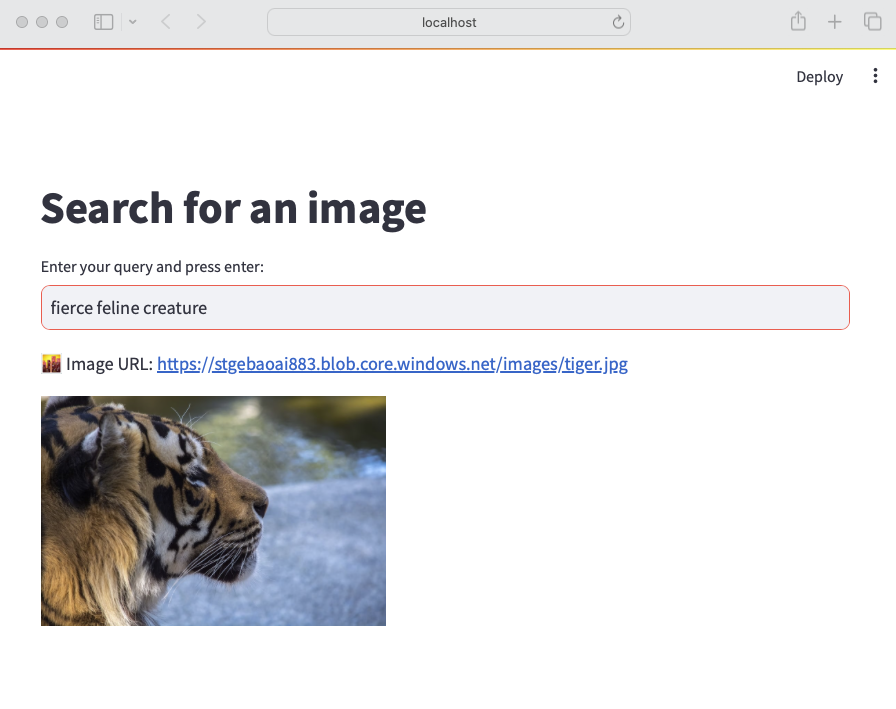
A while ago, I wrote about creating your first Prompt Flow in Visual Studio Code. In this post, we will embed such a flow in a Python application built with Streamlit. The application allows you to search for images based on a description. Check the screenshot below:

Streamlit app to search for images based on a description

There are a few things we need to make this work:

  • An index in Azure AI Search that contains descriptions of images, a vector of these descriptions and a link to the image
  • A flow in Prompt Flow that takes a description as input and returns the image link or the entire image as output
  • A Python application (the Streamlit app above) that uses the flow to return an image based on the description

Let’s look at each component in turn.

Azure AI Search Index

Azure AI Search is a search index that supports keyword search, vector search and semantic reranking. You can combine keyword and vector search in what is called a hybrid search. The hybrid search results can optionally be reranked further using a state-of-the-art semantic reranker.

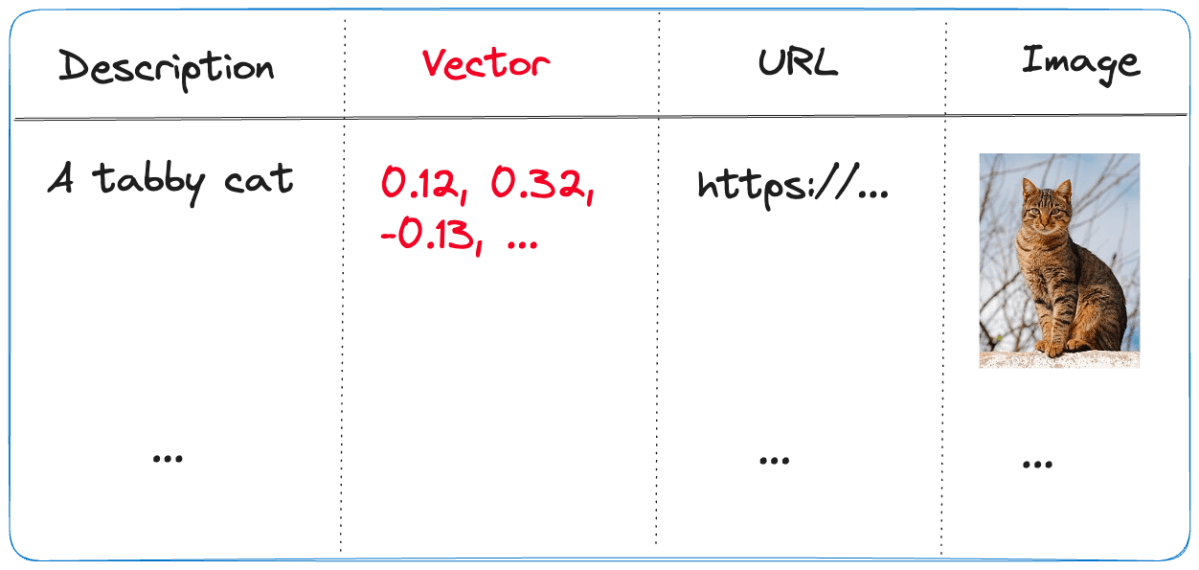
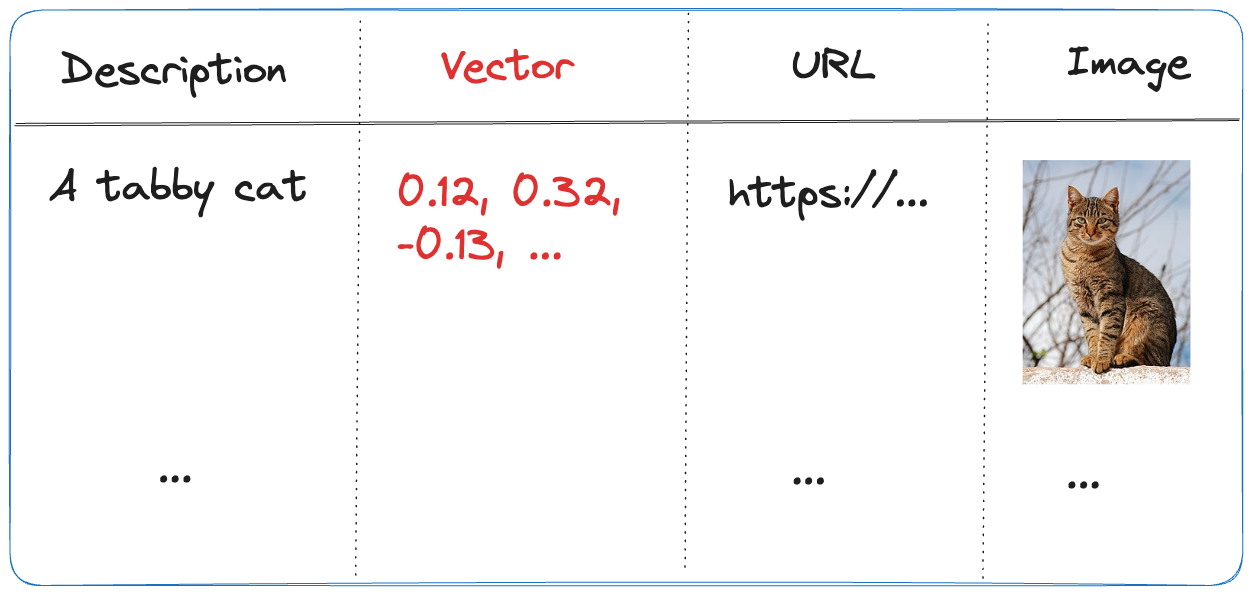
The index we use is represented below:

Index in Azure AI Search
  • Description: contains the description of the image; the image description was generated with the gpt-4-vision model and is larger than just a few words
  • URL: the link to the actual image; the image is not stored in the index, it’s just shown for reference
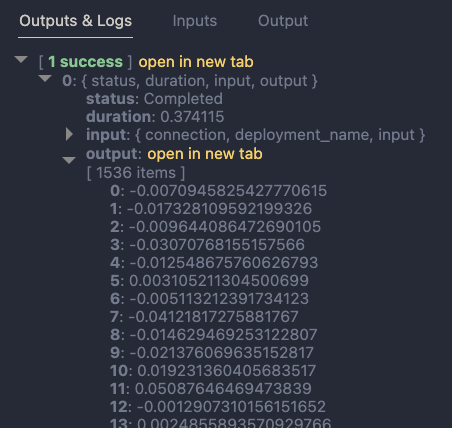
  • Vector: vector generated by the Azure OpenAI embedding model; it generates 1536 floating point numbers that represent the meaning of the description

Using vectors and vector search allows us to search not just for cat but also for words like kat (in Dutch) or even feline creature.

The flow we will create in Prompt Flow uses the Azure AI Search index to find the URL based on the description. However, because Azure AI Search might return images that are not relevant, we also use a GPT model to make the final call about what image to return.

Flow

In Prompt Flow in Visual Studio Code, we will create the flow below:

Flow we will embed in the Streamlit app

It all starts from the input node:

Input node

The flow takes one input: description. In order to search for this description, we need to convert it to a vector. Note that we could skip this and just do a text search. However, that will not get us the best results.

To embed the input, we use the embedding node:

Embedding node

The embedding node uses a connection called open_ai_connection. This connection contains connection information to an Azure OpenAI resource that hosts the embedding model. The model deployment’s name is embedding. The input to the embedding node is the description from the input. The output is a vector:

Output of embedding node

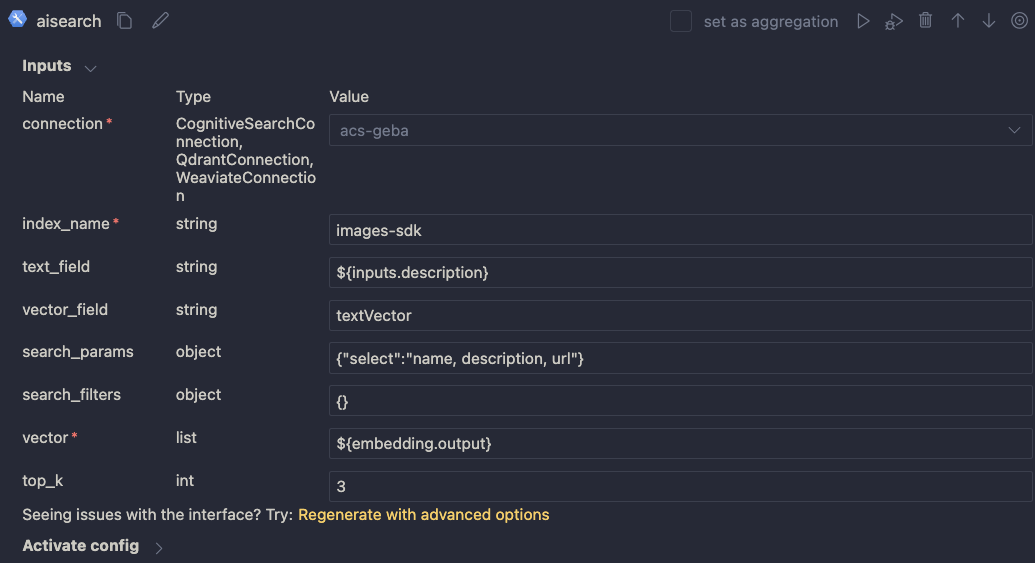
Now that we have the embedding, we can use a Vector DB Lookup node to perform a vector search in Azure AI Search:

Azure AI Search

Above, we use another connection (acs-geba) that holds the credentials to connect to the Azure AI Search resource. We specify the following to perform the search:

  • index name to search: images-sdk here
  • what text to put in the text_field: the description from the input; this search will be a hybrid search; we search with both text and a vector
  • vector field: the name of the field that holds the vector (textVector field in the images-sdk index)
  • search_params: here we specify the fields we want to return in the search results; name, description and url
  • vector to find similar vectors for: the output from the embedding node
  • the number of similar items to return: top_k is 3

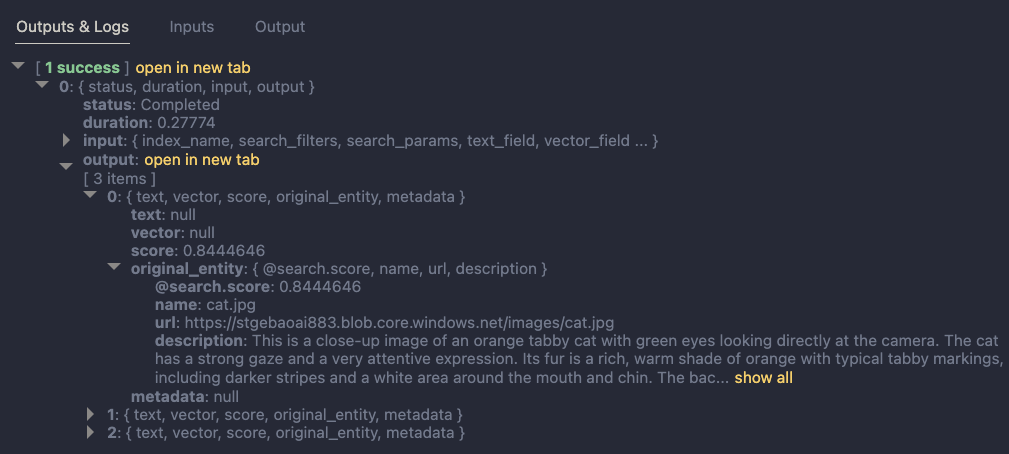
The result of the search node is shown below:

Search results

The result contains three entries from the search index. The first result is the closest to the description from our input node. In this case, we could just take the first result and be done with it. But what if we get results that do not match the description?

To make the final judgement about what picture to return, let’s add an LLM node:

LLM Node

The LLM node uses the same OpenAI connection and is configured to use the chat completions API with the gpt-4 model. We want this node to return proper JSON by setting the response_format to json_object. We also need a prompt, which is a ninja2 template best_image.jinja2:

system:
You return the url to an image that best matches the user's question. Use the provided context to select the image. Return the URL in JSON like so:
{ "url": "the_url_from_search" }

Only return an image when the user question matches the context. If not found, return JSON with the url empty like { "url": "" }

user question:
{{description}}

context : {{search_results}}

The template above sets the system prompt and specifically asks to return JSON. With the response format set to JSON, the word JSON (in uppercase) needs to be in the prompt or you will get an error.

The prompt defines two parameters:

  • description: we connect the description from the input to this parameter
  • search_results: we connect the results from the aisearch node to this parameter

In the screenshot above, you can see this mapping being made. It’s all done in the UI, no code required.

When this node returns an output, it will be in the JSON format we specified. However, that does still not mean that the URL will be correct. The model might still return an incorrect url, although we try to mitigate that in the prompt.

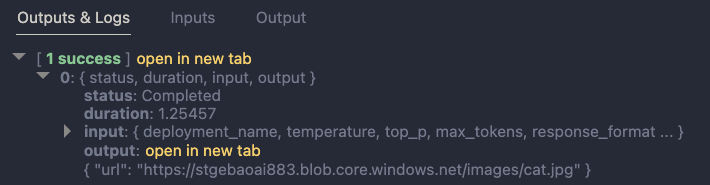
Below is an example of the LLM output when the description is cat:

Model picked the cat picture

Now that we have the URL, I want the flow to output two values:

  • the URL: the URL as a string, not wrapped in JSON
  • the base-64 representation of the image that can we used directly in an HTML IMG tag

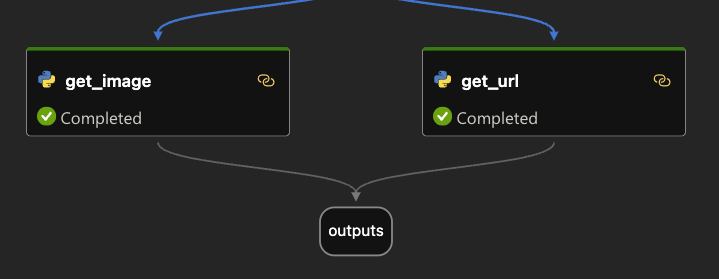
We use two Python tools for this and bring the results to the output node. Python tools use custom Python code:

Setting the output

The code in get_image is below:

from promptflow import tool
import json, base64, requests

def url_to_base64(image_url):
    response = requests.get(image_url)
    return 'data:image/jpg;base64,' + base64.b64encode(response.content).decode('utf-8')

@tool
def my_python_tool(image_json: str) -> str:
    url = json.loads(image_json)["url"]

    if url:
        base64_string = url_to_base64(url)
    else:
        base64_string = url_to_base64("https://placehold.co/400/jpg?text=No+image")

    return base64_string

The node executes the function that is marked with the @tool decorator and sends it the output from the LLM node. The code grabs the url and downloads and transforms the image to its base64 representation. You can see how the output from the LLM node is mapped to the image_json parameter below:

linking the function parameter to the LLM output

The code in get_url is similar. It just extracts the url as a string from the input JSON coming from the url.

The output node is the following:

Output node

The output has two properties: data (the base64-encoded image) and the url to the image. Later, in the Python code that uses this flow, the output will be a Python dict with a data and url entry.

Using the flow in your application

Although you can host this flow as an API using either an Azure Machine Learning endpoint or a Docker container, we will simply embed the flow in our Python application and call it like a regular Python function.

Here is the code, which uses Streamlit for the UI:

from promptflow import load_flow
import streamlit as st

# load Prompt Flow from parent folder
flow_path = "../."
f = load_flow(flow_path)

# Streamlit UI
st.title('Search for an image')

# User input
user_query = st.text_input('Enter your query and press enter:')

if user_query:
    # extract url from dict and wrap in img tag
    flow_result = f(description=user_query)
    image = flow_result["data"]
    url = flow_result["url"]

    img_tag = f'<a href="{url}"><img src="{image}" alt="image" width="300"></a>'
     
    # just use markdown to display the image
    st.markdown(f"🌆 Image URL: {url}")
    st.markdown(img_tag, unsafe_allow_html=True)

To load the flow in your Python app as a function:

  • import load_flow from the promptflow module
  • set a path to your flow (relative or absolute): here we load the flow that is in the parent directory that contains flow.dag.yaml.
  • use load_flow to create the function: above the function is called f

When the user enters the query, you can simply use f(description="user's query...") to obtain the output. The output is a Python dict with a data and url entry.

In Streamlit, we can use markdown to display HTML directly using unsafe_allow_html=True. The HTML is simply an <img> tag with the src attribute set to the base64 representation of the image.

Connections

Note that the flow on my system uses two connections: one to connect to OpenAI and one to connect to Azure AI Search. By default, Prompt Flow stores these connections in a SQLite database in the .promptflow folder of your home folder. This means that the Streamlit app work on my machine but will not work anywhere else.

To solve this, you can override the connections in your app. See https://github.com/microsoft/promptflow/blob/main/examples/tutorials/get-started/flow-as-function.ipynb for more information about these overrides.

Conclusion

Embedding a flow as a function in a Python app is one of the easiest ways to use a flow in your applications. Although we used a straightforward Streamlit app here, you could build a FastAPI server that provides endpoints to multiple flows from one API. Such an API can easily be hosted as a container on Container Apps or Kubernetes as part of a larger application.

Give it a try and let me know what you think! 😉