Building an AI Agent Server with AG-UI and Microsoft Agent Framework

In this post, I want to talk about the Python backend I built for an AG-UI demo project. It is part of a larger project that also includes a frontend that uses CopilotKit:

This post discusses the Python AG-UI server that is built with Microsoft Agent Framework.

All code is on GitHub: https://github.com/gbaeke/agui. Most of the code for this demo was written with GitHub Copilot with the help of Microsoft Docs MCP and Context7. 🤷

What is AG-UI?

Before we dive into the code, let’s talk about AG-UI. AG-UI is a standardized protocol for building AI agent interfaces. Think of it as a common language that lets your frontend talk to any backend agent that supports it, no matter what technology you use.

The protocol gives you some nice features out of the box:

  • Remote Agent Hosting: deploy your agents as web services (e.g. FastAPI)
  • Real-time Streaming: stream responses using Server-Sent Events (SSE)
  • Standardized Communication: consistent message format for reliable interactions (e.g. tool started, tool arguments, tool end, …)
  • Thread Management: keep conversation context across multiple requests

Why does this matter? Well, without a standard like AG-UI, every frontend needs custom code to talk to different backends. With AG-UI, you build your frontend once and it works with any AG-UI compatible backend. The same goes for backends – build it once and any AG-UI client can use it.

Under the hood, AG-UI uses simple HTTP POST requests for sending messages and Server-Sent Events (SSE) for streaming responses back. It’s not complicated, but it’s standardized. And that’s the point.

AG-UI has many more features than the ones discussed in this post. Check https://docs.ag-ui.com/introduction for the full picture.

Microsoft Agent Framework

Now, you could implement AG-UI from scratch but that’s a lot of work. This is where Microsoft Agent Framework comes in. It’s a Python (and C#) framework that makes building AI agents really easy.

The framework handles the heavy lifting when it comes to agent building:

  • Managing chat with LLMs like Azure OpenAI
  • Function calling (tools)
  • Streaming responses
  • Multi-turn conversations
  • And a lot more

The key concept is the ChatAgent. You give it:

  1. chat client (like Azure OpenAI)
  2. Instructions (the system prompt)
  3. Tools (functions the agent can call)

And you’re done. The agent knows how to talk to the LLM, when to call tools, and how to stream responses back.

What’s nice about Agent Framework is that it integrates with AG-UI out of the box, similar to other frameworks like LangGraph, Google ADK and others. You write your agent code and expose it via AG-UI with basically one line of code. The framework translates everything automatically – your agent’s responses become AG-UI events, tool calls get streamed correctly, etc…

The integration with Microsoft Agent Framework was announced on the blog of CopilotKit, the team behind AG-UI. The blog included the diagram below to illustrate the capabilities:

From https://www.copilotkit.ai/blog/microsoft-agent-framework-is-now-ag-ui-compatible

The Code

Let’s look at how this actually works in practice. The code is pretty simple. Most of the code is Microsoft Agent Framework code. AG-UI gets exposed with one line of code.

The Server (server.py)

The main server file is really short:

import uvicorn
from api import app
from config import SERVER_HOST, SERVER_PORT

def main():
    print(f"🚀 Starting AG-UI server at http://{SERVER_HOST}:{SERVER_PORT}")
    uvicorn.run(app, host=SERVER_HOST, port=SERVER_PORT)

if __name__ == "__main__":
    main()

That’s it. We run a FastAPI server on port 8888. The interesting part is in api/app.py:

from fastapi import FastAPI
from agent_framework.ag_ui.fastapi import add_agent_framework_fastapi_endpoint
from agents.main_agent import agent

app = FastAPI(title="AG-UI Demo Server")

# This single line exposes your agent via AG-UI protocol
add_agent_framework_fastapi_endpoint(app, agent, "/")

See that add_agent_framework_fastapi_endpoint() call? That’s all you need. This function from Agent Framework takes your agent and exposes it as an AG-UI endpoint. It handles HTTP requests, SSE streaming, protocol translation – everything.

You just pass in your FastAPI app, your agent, and the route path. Done.

The Main Agent (agents/main_agent.py)

Here’s where we define the actual agent with standard Microsoft Agent Framework abstractions:

from agent_framework import ChatAgent
from agent_framework.azure import AzureOpenAIChatClient
from azure.identity import DefaultAzureCredential
from config import AZURE_OPENAI_ENDPOINT, AZURE_OPENAI_DEPLOYMENT_NAME
from tools import get_weather, get_current_time, calculate, bedtime_story_tool

# Create Azure OpenAI chat client
chat_client = AzureOpenAIChatClient(
    credential=DefaultAzureCredential(),
    endpoint=AZURE_OPENAI_ENDPOINT,
    deployment_name=AZURE_OPENAI_DEPLOYMENT_NAME,
)

# Create the AI agent with tools
agent = ChatAgent(
    name="AGUIAssistant",
    instructions="You are a helpful assistant with access to tools...",
    chat_client=chat_client,
    tools=[get_weather, get_current_time, calculate, bedtime_story_tool],
)

This is the heart of the backend. We create a ChatAgent with:

  1. A name: “AGUIAssistant”
  2. Instructions: the system prompt that tells the agent how to behave
  3. A chat clientAzureOpenAIChatClient that handles communication with Azure OpenAI
  4. Tools: a list of functions the agent can call

The code implements a few toy tools and a sub-agent to illustrate how AG-UI handels tool calls. The tools are discussed below:

The Tools (tools/)

In Agent Framework, tools can be Python functions with a decorator:

from agent_framework import ai_function
import httpx
import json

@ai_function(description="Get the current weather for a location")
def get_weather(location: str) -> str:
    """Get real weather information for a location using Open-Meteo API."""
    # Step 1: Geocode the location
    geocode_url = "https://geocoding-api.open-meteo.com/v1/search"
    # ... make HTTP request ...
    
    # Step 2: Get weather data
    weather_url = "https://api.open-meteo.com/v1/forecast"
    # ... make HTTP request ...
    
    # Return JSON string
    return json.dumps({
        "location": resolved_name,
        "temperature": current["temperature_2m"],
        "condition": condition,
        # ...
    })

The @ai_function decorator tells Agent Framework “this is a tool the LLM can use”. The framework automatically:

  • Generates a schema from the function signature
  • Makes it available to the LLM
  • Handles calling the function when needed
  • Passes the result back to the LLM

You just write normal Python code. The function takes typed parameters (location: str) and returns a string. Agent Framework does the rest.

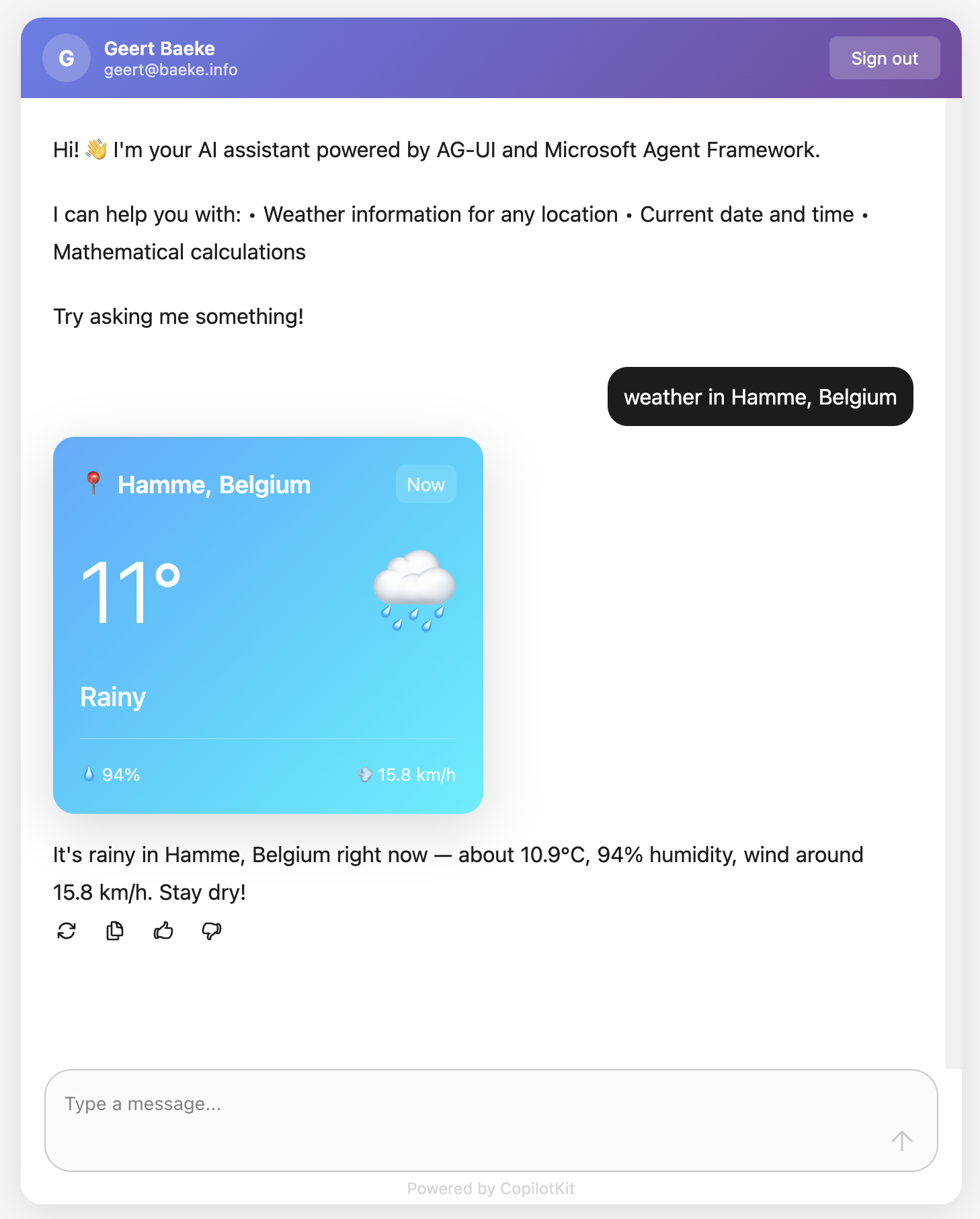
The weather tool calls the Open-Meteo API to get real weather data. In an AG-UI compatible client, you can intercept the tool result and visualize it any way you want before the LLM generates an answer from the tool result:
React client with CopilotKit

Above, when the user asks for weather information, AG-UI events inform the client that a tool call has started and ended. It also streams the tool result back to the client which uses a custom component to render the information. This happens before the chat client generates the answer based on the tool result.

The Subagent (tools/storyteller.py)

This is where it gets interesting. In Agent Framework, a ChatAgent can become a tool with .as_tool():

from agent_framework import ChatAgent
from agent_framework.azure import AzureOpenAIChatClient

# Create a specialized agent for bedtime stories
bedtime_story_agent = ChatAgent(
    name="BedTimeStoryTeller",
    description="A creative storyteller that writes engaging bedtime stories",
    instructions="""You are a gentle and creative bedtime story teller.
When given a topic, create a short, soothing bedtime story for children.
Your stories should be 3-5 paragraphs long, calming, and end peacefully.""",
    chat_client=chat_client,
)

# Convert the agent to a tool
bedtime_story_tool = bedtime_story_agent.as_tool(
    name="tell_bedtime_story",
    description="Generate a calming bedtime story based on a theme",
    arg_name="theme",
    arg_description="The theme for the story (e.g., 'a brave rabbit')",
)

This creates a subagent – another ChatAgent with different instructions. When the main agent needs to tell a bedtime story, it calls tell_bedtime_story which delegates to the subagent.

Why is this useful? Because you can give each agent specialized instructions. The main agent handles general questions and decides which tool to use. The storyteller agent focuses only on creating good stories. Clean separation of concerns.

The subagent has its own chat client and can have its own tools too if you want. It’s a full agent, just exposed as a tool.

And because it is a tool, you can render it with the standard AG-UI tool events:

Testing with a client

In src/backend there is a Python client client_raw.py. When you run that client against the server and invoke a tool, you will see something like below:

AG-UI client in Python

This client simply uses httpx to talk the AG-UI server and inspects and renders the AG-UI events as they come in.

Why This Works

Let me tell you what I like about this setup:

Separation of concerns: The frontend doesn’t know about Python, Azure OpenAI, or any backend details. It just speaks AG-UI. You could swap the backend for a C# implementation or something else entirely – the frontend wouldn’t care. Besides of course the handling of specific tool calls.

Standard protocol: Because we use AG-UI, any AG-UI client can talk to this backend. We use CopilotKit in the frontend but you could use anything that speaks AG-UI. Take the Python client as an example.

Framework handles complexity: Streaming, tool calls, conversation history, protocol translation – Agent Framework does all of this. You just write business logic.

Easy to extend: Want a new tool? Write a function with @ai_function. Want a specialized agent? Create a ChatAgent and call .as_tool(). That’s it.

The AG-UI documentation explains that the protocol supports 7 different features including human-in-the-loop, generative UI, and shared state. Our simple backend gets all of these capabilities because Agent Framework implements the protocol.

Note that there are many more capabilities. Check the AG-UI interactive Dojo to find out: https://dojo.ag-ui.com/microsoft-agent-framework-python

Wrap Up

This is a simple but powerful pattern for building AI agent backends. You write minimal code and get a lot of functionality. AG-UI gives you a standard way to expose your agent, and Microsoft Agent Framework handles the implementation details.

If you want to try this yourself, the code is in the repo. You’ll need an Azure OpenAI deployment and follow the OAuth setup. After that, just run the code as instructed in the repo README!

The beauty is in the simplicity. Sometimes the best code is the code you don’t have to write.

Using tasks with streaming in Google Agent2Agent (A2A)

In a previous post we created a simple A2A agent that uses synchronous message exchange. An A2A client sends a message and the A2A server, via the Agent Executor, responds with a message.

But what if you have a longer running task to perform and you want to inform the client that the task in ongoing? In that case, you can enable streaming on the A2A server and use a task that streams updates and the final result to the client.

The sequence diagram illustrates the flow of messages. It is based on the streaming example in the A2A specification.

A2A tasks with streaming updates

In this case, the A2A client needs to perform a streaming request which is sent to the /message/stream endpoint of the A2A server. The code in the AgentExecutor will need to create a task and provide updates to the client at regular intervals.

⚠️ If you want to skip directly to the code, check out the example on GitHub.

Let’s get into the details in the following order:

  • Writing an agent that provides updates while it is doing work: I will use the OpenAI Agents SDK with its support for agent hooks
  • Writing an AgentExecutor that accepts a message, creates a task and provides updates to the client
  • Updating the A2A Server to support streaming
  • Updating the A2A Client to support streaming

AI Agent that provides updates

Although streaming updates is an integral part of A2A, the agent that does the actual work needs to provide feedback about its progress. That work is up to you, the developer.

In my example, I use an agent created with the OpenAI Agents SDK. This SDK supports AgentHooks that execute at certain events:

  • Agent started/finished
  • Tool call started/finished

The agent class in agent.py on GitHub uses an asyncio queue to emit both the hook events and the agent’s reponse to the caller. The A2A AgentExecutor uses the invoke_stream() method which returns an AsyncGenerator.

You can run python agent.py independently. This should result in the following:

The agent has a tool that returns the current date. The hooks emit the events as shown above followed by the final result.

We can now use this agent from the AgentExecutor and stream the events and final result from the agent to the A2A Client.

AgentExecutor Tasks and Streaming

Instead of simply returning a message to the A2A client, we now need to initiate a long-running task that sends intermediate updates to the client.. Under the hood this uses SSE (Server Sent Events) between the A2A Client and A2A Server.

The file agent_executor.py on GitHub contains the code that makes this happen. Let’s step through it:

message_text = context.get_user_input()  # helper method to extract the user input from the context
        logger.info(f"Message text: {message_text}")

        task = context.current_task
        if not task:
            task = new_task(context.message)
            await event_queue.enqueue_event(task)

Above, we extract the user’s input from the incoming message and we check if the context already contains a task. If not, we create the task and we queue it. This informs the client a task was created and that sse can be used to obtain intermediate results.

Now that we have a task (a new or existing one), the following code is used:

updater = TaskUpdater(event_queue, task.id, task.contextId)
async for event in self.agent.invoke_stream(message_text):
    if event.event_type == StreamEventType.RESPONSE:
        # send the result as an artifact
        await updater.add_artifact(
            [Part(root=TextPart(text=event.data['response']))],
            name='calculator_result',
        )

        await updater.complete()
            
    else:
        await updater.update_status(
        TaskState.working,
        new_agent_text_message(
            event.data.get('message', ''),
            task.contextId,
            task.id,
        ),
    )

We first create a TaskUpdater instance that has the event queue, current task Id and contextId. The task updater is used to provide status updates, complete or even cancel a task.

We then call invoke_stream(query) on our agent and grab the events it emits. If we get a event type of RESPONSE, we create an artifact with the agent response as text and mask the task as complete. In all other cases, we send a status event with updater.update_status(). A status update contains a task state (working in this case) and a message about the state. The message we send is part of the event that is emitted from invoke_stream() and includes things like agent started, tool started, etc…

So in short, to send streaming updates:

  • Ensure your agents emit events of some sort
  • Use those events in the AgentExecutor and create a task that sends intermediate updates until the agent has finished

However, our work is not finished. The A2A Server needs to be updated to support streaming.

A2A Server streaming support

The A2A server code in is main.py on GitHub. To support streaming, we need to update the capabilities of the server:

capabilities = AgentCapabilities(streaming=True, pushNotifications=True)

⚠️ pushNotifications=True is not required for streaming. I include it here to show that sending a push notification to a web hook is also an option.

That’s it! The A2A Server now supports streaming. Easy! 😊

Streaming with the A2A Client

Instead of sending a message to the non-streaming endpoint, the client should now use the streaming endpoint. Here is the code to do that (check test_client.py for the full code):

message_payload = Message(
            role=Role.user,
            messageId=str(uuid.uuid4()),
            parts=[Part(root=TextPart(text=question))],
        )
        streaming_request = SendStreamingMessageRequest(
            id=str(uuid.uuid4()),
            params=MessageSendParams(
                message=message_payload,
            ),
        )
        print("Sending message")

        stream_response = client.send_message_streaming(streaming_request)

To send to the streaming endpoint, the SendStreamingMessageRequest() function is your friend, together with client.send_message_streaming()

We can now grab the responses as they come in:

async for chunk in stream_response:
            # Only print status updates and text responses
            chunk_dict = chunk.model_dump(mode='json', exclude_none=True)
            
            if 'result' in chunk_dict:
                result = chunk_dict['result']
                
                # Handle status updates
                if result.get('kind') == 'status-update':
                    status = result.get('status', {})
                    state = status.get('state', 'unknown')
                    
                    if 'message' in status:
                        message = status['message']
                        if 'parts' in message:
                            for part in message['parts']:
                                if part.get('kind') == 'text':
                                    print(f"[{state.upper()}] {part.get('text', '')}")
                    else:
                        print(f"[{state.upper()}]")
                
                # Handle artifact updates (contain actual responses)
                elif result.get('kind') == 'artifact-update':
                    artifact = result.get('artifact', {})
                    if 'parts' in artifact:
                        for part in artifact['parts']:
                            if part.get('kind') == 'text':
                                print(f"[RESPONSE] {part.get('text', '')}")
                
                # Handle initial task submission
                elif result.get('kind') == 'task':
                    print(f"[TASK SUBMITTED] ID: {result.get('id', 'unknown')}")
                    
                # Handle final completion
                elif result.get('final') is True:
                    print("[TASK COMPLETED]")

This code checks the the type of content coming in:

  • status-update: when AgentExecutor sends a status update
  • artifact-update: when AgentExecutor sends an artifact with the agent’s response
  • task: when tasks are submitted and completed

Running the client and asking what today’s date is, results in the following response:

Streaming is working as intended! But what if you use a client that does not support streaming? That actually works and results in a full response with the agent’s answer in the result field. You would also get a history field that contains the initial user question, including all the task updates.

Here’s a snippet of that result:

{
  "id": "...",
  "jsonrpc": "2.0",
  "result": {
    "artifacts": [
      {
        "artifactId": "...",
        "name": "calculator_result",
        "parts": [
          {
            "kind": "text",
            "text": "Today's date is July 13, 2025."
          }
        ]
      }
    ],
    "contextId": "...",
    "history": [
      {
        "role": "user",
        "parts": [
          {
            "kind": "text",
            "text": "What is today's date?"
          }
        ]
      },
      {
        "role": "agent",
        "parts": [
          {
            "kind": "text",
            "text": "Agent 'CalculatorAgent' is starting..."
          }
        ]
      }
    ],
    "id": "...",
    "kind": "task",
    "status": {
      "state": "completed"
    }
  }
}

Wrapping up

You have now seen how to run longer running tasks and provide updates along the way via streaming. As long as your agent code provides status updates, the AgentExecutor can create a task and provide task updates and the task result to the A2A Server which uses SSE to send them to the A2A Client.

In an upcoming post, we will take a look at running a multi-agent solution in the Azure cloud.

Google’s A2A: taking a closer look

In the previous post, I talked about options to build multi-agent solutions. The last option used Google’s A2A. A2A provides a wrapper around your agent, basically a JSON-RPC API, that standardizes how you talk to your agent. In this post we take a closer look at the basics of A2A with simple synchronous message exchange.

⚠️ A2A is still in development. We do not use it in production yet!

The idea is to build solutions that look like this (just one of the many possibilities):

The conversation agent is an agent that uses tools to get the job done. It wouldn’t be much of an agent without tools right? The tools are custom tools created by the developer that call other agents to do work. The other agents can be written in any framework and use any development language. How the agent works internally is irrelevant. When the conversation agent detects (via standard function calling) that the RAG tool needs to be executed, that tool will call the RAG agent over A2A and return the results.

A2A does not dictate how you build your agent. In the example below, an Azure AI Foundry Agent sits at the core. That agent can use any of its hosted tools or custom tools to get the job done. Because this is a RAG Agent, it might use the built-in Azure AI Search or SharePoint knowledge source. As a developer, you use the Azure AI Foundry SDK or Semantic Kernel to interact with your agent as you see fit. Although you do not have to, it is common to wrap your agent in a class and provide one or more methods to interact with it. For example, an invoke() method and an invoke_streaming() method.

Here is a minimal example for the AI Foundry Agent (the yellow box):

class RAGAgent:
    def __init__(self):
        # INITIALIZATION CODE NOT SHOWN
        self.project = AIProjectClient(
            credential=DefaultAzureCredential(),
            endpoint=endpoint)
        self.agent = self.project.agents.get_agent(agent_id)

    async def invoke(self, question: str) -> str:
        thread = self.project.agents.threads.create()

        message = self.project.agents.messages.create(
            thread_id=thread.id,
            role="user",
            content=question
        )
        run = self.project.agents.runs.create_and_process(
            thread_id=thread.id,
            agent_id=self.agent.id)
        messages = list(self.project.agents.messages.list(thread_id=thread.id, order=ListSortOrder.ASCENDING))

        # ...

This code has nothing to do with Google A2A and could be implemented in many other ways. This is about to change because we will now call the above agent from A2A’s AgentExecutor. The AgentExecutor is a key server‑side interface: when a client sends a message, the A2A server calls execute() on your AgentExecutor instance, and your implementation handles the logic and sends updates via an event queue. Here’s how your agent is used by A2A. When a client sends a message it works its way down to your agent via several A2A components:

It’s important to understand the different types of message exchange in A2A. This post will not look at all of them. You can find more information in the A2A documentation. This post uses synchronous messaging via message/send where the response is a simple message and not a, potentially longer running, task.

Let’s dive into the AgentExecutor (it processes the message we send) and work our way up to the A2A client.

AgentExecutor

Let’s take a look at a bare bones implementation of AgentExecutor that works with plain/text input and output messages and without streaming:

Client --message--> A2A Server --> Agent Executor --> Agent

and

Agent --> Agent Executor --> A2A Server --message--> Client
class RAGAgentExecutor(AgentExecutor):

    def __init__(self):
        self.agent = RAGAgent()

    async def execute(self, context: RequestContext, event_queue: EventQueue):
        message_text = context.get_user_input()
        
        result = await self.agent.invoke(message_text)

        await event_queue.enqueue_event(new_agent_text_message(result))
        
    async def cancel(self, context: RequestContext, event_queue: EventQueue):
        raise Exception("Cancel not supported")

When a message is sent to the A2A server via JSON-RPC, the execute() method of the RAGAgentExecutor is called. At server startup, __init__ creates our AI Foundry RAGAgent which does the actual work.

Inside the execute() method, we assume the context contains a message. We use the get_user_input() helper to extract the message text (user query). We then simply call our agent’s invoke() method with that query and return the result via the event_queue. The A2A server uses an event_queue to provide responses back to the caller. In this case, the response will be a simple plain/text message.

This is probably as simple as it gets and is useful to understand A2A’s basic operation. In many cases though, you might want to return a longer running task instead of a message and provide updates to the client via streaming. That would require creating the task and streaming the task updates to the client. The client would need to be modified to handle this.

But wait, we still need to create the server that uses this AgentExecutor. Let’s take a look!

A2A Server

The A2A Python SDK uses starlette and uvicorn to create the JSON-RPC server. You don’t really need to know anything about this because A2A does this under the covers for you. The server needs to do a couple of things:

  • Create one or more skills: skills represent a specific capability or function your agent offers—for instance, “currency conversion,” “document summary” or “meeting scheduling”.
  • Create an agent card: an agent card is like a business card for your agent; it tells others what the agent can do; the above skills are part of the agent card; the agent card is published at /.well-known/agent.json on the agents domain (e.g., localhost:9999 on your local machine)
  • Create a request handler: the request handler ties the server to the AgentExecutor you created earlier
  • Create the A2AStarletteApplication: it ties the agent card and the request handler together
  • Serve the A2AStarletteApplication with uvicorn on an address and port of your choosing

This is what it looks like in code:

import logging
import uvicorn
from a2a.server.apps import A2AStarletteApplication
from a2a.server.request_handlers import DefaultRequestHandler
from a2a.server.tasks import InMemoryTaskStore
from a2a.types import AgentCapabilities, AgentCard, AgentSkill
from agent_executor import RagAgentExecutor

def main():
    skill = AgentSkill(
        id="rag_skill",
        name="RAG Skill",
        description="Search knowledge base for project information",
        tags=["rag", "agent", "information"],
        examples=["What is project Astro and what tech is used in it?"],
    )
    agent_card = AgentCard(
        name="RAG Agent",
        description="A simple agent that searches the knowledge base for information",
        url="http://localhost:9998/",
        defaultInputModes=["text"],
        defaultOutputModes=["text"],
        skills=[skill],
        version="1.0.0",
        capabilities=AgentCapabilities(),
    )
    request_handler = DefaultRequestHandler(
        agent_executor=RagAgentExecutor(),
        task_store=InMemoryTaskStore(),
    )
    server = A2AStarletteApplication(
        http_handler=request_handler,
        agent_card=agent_card,
    )
    uvicorn.run(server.build(), host="0.0.0.0", port=9998)
if __name__ == "__main__":
    main()

Validating the agent card

When you run the A2A server on your local machine and expose it to the public with ngrok or other tools, you can use https://a2aprotocol.ai/a2a-protocol-validator to validate it. When I do this for the RAG Agent, I get the following:

In JSON, the agent card is as follows:

{
  "capabilities": {},
  "defaultInputModes": [
    "text"
  ],
  "defaultOutputModes": [
    "text"
  ],
  "description": "A simple agent that searches the knowledge base for information",
  "name": "RAG Agent",
  "protocolVersion": "0.2.5",
  "skills": [
    {
      "description": "Search knowledge base for project information",
      "examples": [
        "What is project Astro and what tech is used in it?"
      ],
      "id": "rag_agent",
      "name": "RAG Agent",
      "tags": [
        "rag",
        "agent",
        "information"
      ]
    }
  ],
  "url": "http://Geerts-MacBook-Air-2.local:9998/",
  "version": "1.0.0"
}

Now it is time to actually start talking to the agent.

Using the A2A client to talk to the agent

With the server up and running and the Agent Card verified, how do we exchange messages with the server?

In our case, where the server supports only text and there is no streaming, the client can be quite simple:

  • Create an httpx client and set timeout higher depending on how long it takes to get a response; this client is used by the A2ACardResolver and A2AClient
  • Retrieve the agent card with the A2ACardResolver
  • Create a client with A2AClient. It needs the agent card as input and will use the url in the agent card to connect to the A2A server
  • Create a Message, include it in a MessageRequest and send the MessageRequest with the client. We use the non-streaming message_send() method.
  • Handle the response from the client

The code below shows what this might look like:

import uuid

import httpx
from a2a.client import A2ACardResolver, A2AClient
from a2a.types import (
    AgentCard,
    Message,
    MessageSendParams,
    Part,
    Role,
    SendMessageRequest,
    TextPart,
)

PUBLIC_AGENT_CARD_PATH = "/.well-known/agent.json"
BASE_URL = "http://localhost:9998"


async def main() -> None:
    timeout = httpx.Timeout(200.0, read=200.0, write=30.0, connect=10.0)
    async with httpx.AsyncClient(timeout=timeout) as httpx_client:
        # Initialize A2ACardResolver
        resolver = A2ACardResolver(
            httpx_client=httpx_client,
            base_url=BASE_URL,
        )

        final_agent_card_to_use: AgentCard | None = None

        try:
            print(
                f"Fetching public agent card from: {BASE_URL}{PUBLIC_AGENT_CARD_PATH}"
            )
            _public_card = await resolver.get_agent_card()
            print("Fetched public agent card")
            print(_public_card.model_dump_json(indent=2))

            final_agent_card_to_use = _public_card

        except Exception as e:
            print(f"Error fetching public agent card: {e}")
            raise RuntimeError("Failed to fetch public agent card")

        client = A2AClient(
            httpx_client=httpx_client, agent_card=final_agent_card_to_use
        )
        print("A2AClient initialized")

        message_payload = Message(
            role=Role.user,
            messageId=str(uuid.uuid4()),
            parts=[Part(root=TextPart(text="Is there a project with the word Astro? If so, describe it."))],
        )
        request = SendMessageRequest(
            id=str(uuid.uuid4()),
            params=MessageSendParams(
                message=message_payload,
            ),
        )
        print("Sending message")

        response = await client.send_message(request)
        print("Response:")
        print(response.model_dump_json(indent=2))


if __name__ == "__main__":
    import asyncio

    asyncio.run(main())

Above, the entire response is printed as JSON. That is useful to learn what the responses look like. This is part of the response:

{
  "id": "6cc795d8-fa84-4734-8b5a-dccd3a22142d",
  "jsonrpc": "2.0",
  "result": {
    "contextId": null,
    "extensions": null,
    "kind": "message",
    "messageId": "fead200d-0ea4-4ccb-bf1c-ed507b38d79d",
    "metadata": null,
    "parts": [
      {
        "kind": "text",
        "metadata": null,
        "text": "RESPONSE FROM RAG AGENT"
      }
    ],
    "referenceTaskIds": null,
    "role": "agent",
    "taskId": null
  }
}

Simply sending the response as a string on the event queue results in a message with one text part. The result from the RAG agent is in the text property. For a longer running task with streaming updates, the response would be quite different.

You can now easily interact with your agent using this client. For example:

  • use the client in any application (need not be an agent)
  • use the client in a workflow engine like LangGraph
  • use the client in an agent tool; the agent can be written in any framework; when the agent identifies a tool call is needed, the tool is run which contains A2AClient code to interact with the A2A Agent

The entire flow

The diagram below shows the end-to-end flow:

Try it yourself

On GitHub, check https://github.com/gbaeke/multi_agent_aca/tree/main/a2a_simple for a skeleton implementation of a calculator agent. The CalculatorAgent class’s invoke() method always returns “I did not do anything!” It’s up to you to change that!

You can run this A2A server as-is and connect to it with test_client.py. To use an actual agent, update the CalculatorAgent class’s invoke() method with a real agent written in your preferred framework.

Check the README.md for more instructions.

That’s it for this post! In a next one, we will look at a more complex example that streams messages to the client. Stay tuned!

Building multi-agent solutions: what are your options?

When we meet with customers, the topic of a “multi-agent solution” often comes up. This isn’t surprising. There’s a lot of excitement around their potential to transform business processes, strengthen customer relationships, and more.

The first question you have to ask yourself though is this: “Do I really need a multi-agent solution?”. Often, we find that a single agent with a range of tools or a workflow is sufficient. If that’s the case, always go for that option!

On the other hand, if you do need a multi-agent solution, there are several things to think about. Suppose you want to build something like this:

Generic multi-agent setup

Users interact with a main agent that maintains the conversation with the user. When the user asks about a project, a RAG agent retrieves project information. If the user also asks to research or explain the technologies used in the project, the web agent is used to retrieve information from the Internet.

⚠️ If I were to follow my own advice, this would be a single agent with tools. There is no need for multiple agents here. However, let’s use this as an example because it’s easy to reason about.

What are some of your options to build this? The list below is not exhaustive but contains common patterns:

  • Choose a framework (or use the lower-level SDKs) and run everything in the same process
  • Choose an Agent PaaS like Azure AI Foundry Agents: the agents can be defined in the platform; they run independently and can be linked together using the connected agents feature
  • Create the agents in your framework of choice, run them as independent processes and establish a method of communication between these agents; in this post, we will use Google’s A2A (Agent-to-Agent) as an example. Other options are ACP (Agent Communication Protocol, IBM) or “roll your own”

Let’s look at these three in a bit more detail.

In-Process Agents

Running multiple agents in the same process and have them work together is relatively easy. Let’s look at how to do this with OpenAI Agents SDK. Other frameworks use similar approaches.

Multi-agent in-process using the OpenAI Agents SDK

Above, all agents are written using the OpenAI Agents SDK. In code, you first define the RAG and Web Agent as agents with their own tools. In the OpenAI Agents SDK, both the RAG tool and the web search tool are hosted tools provided by OpenAI. See https://openai.github.io/openai-agents-python/tools/ for more information about the FileSearchTool and the WebSearchTool.

Next, the Conversation Agent gets created using the same approach. This time however, two tools are addedd: the RAG Agent Tool and the Web Agent Tool. These tools get called by the Conversation Agent based on their description. This simply is tool calling in action where each tool calls another agent and returns the agent result. The way these agents interact with each other is hidden from you. The SDK simply takes care of it for you.

You can find an example of this in my agent_config GitHub repo. The sample code below shows how this works:

rag_agent = create_agent_from_config("rag")
web_agent = create_agent_from_config("web")

agent_as_tools = {
    "rag": {
        "agent": rag_agent,
        "name": "rag",
        "description": "Provides information about projects"
    },
    "web": {
        "agent": web_agent,
        "name": "web",
        "description": "Gets information about technologies"
    }
}

conversation_agent = create_agent_from_config("conversation", agent_as_tools)

result = await Runner.run(conversation_agent, user_question)

Note that I am using a helper function here that creates an agent from a configuration file that contains the agent instructions, model and tools. Check my previous post for more information. The repo used in this post uses slightly different agents but the concept is the same.

Creating a multi-agent solution in a single process, using a framework that supports calling other agents as tools, is relatively straightforward. However, what if you want to use the RAG Agent in other agents or workflows? In other words, you want reusability! Let’s see how to do this with the other approaches.

Using a Agent PaaS: Azure AI Foundry Agents

Azure AI Foundry Agents is a PaaS solution to create and run agents with enterprise-level features such as isolated networking. After creating an Azure AI Foundry resource and project, you can define agents in the portal:

Agents defined in Azure AI Foundry

⚠️ You can also create these agents from code (e.g., Foundry SDK or Semantic Kernel) which gives you extra flexibility in agent design.

The web and rag agents have their own tools, including hosted tools provided by Foundry, and can run on their own. This is already an improvement compared to the previous approach: agents can be reused from other agents, workflows or any other application.

Azure AI Foundry allows you to connect agents to each other. This uses the same approach as in the OpenAI Agents SDK: agents as tools. Below, the Conversation Agent is connected to the other two agents:

Connected Agents for the Conversation Agent

The configuration of a connected agent is shown below and has a name and description:

It all fits together like in the diagram below:

Multi-agent with Azure AI Foundry

As discussed above, each agent is a standalone entity. You can interact with these agents using the AI Foundry Agents protocol, which is an evolution of the OpenAI Assistant’s protocol. You can read more about it here. In short, to talk to an agent you do the following:

  • Create the agent in code or reference an existing agent (e.g., our conversation agent)
  • Create a thread
  • Put a message on the thread (e.g., the user’s question or a question from another agent via the connected agents principle)
  • Run the thread on the agent and grab the response

Below is an example in Python:

from azure.ai.projects import AIProjectClient
from azure.identity import DefaultAzureCredential
from azure.ai.agents.models import ListSortOrder

project = AIProjectClient(
    credential=DefaultAzureCredential(),
    endpoint="https://YOUR_FOUNDRY_ENDPOINT")

agent = project.agents.get_agent("YOUR_ASSISTANT_ID")

thread = project.agents.threads.create()
print(f"Created thread, ID: {thread.id}")

message = project.agents.messages.create(
    thread_id=thread.id,
    role="user",
    content="What tech is used in some of Contoso's projects?"
)

run = project.agents.runs.create_and_process(
    thread_id=thread.id,
    agent_id=agent.id)

if run.status == "failed":
    print(f"Run failed: {run.last_error}")
else:
    messages = project.agents.messages.list(thread_id=thread.id, order=ListSortOrder.ASCENDING)

    for message in messages:
        if message.text_messages:
            print(f"{message.role}: {message.text_messages[-1].text.value}")

The connected agents feature uses the same protocol under the hood. Like in the OpenAI Agents SDK, this is hidden from you.

When you mainly use Azure AI Foundry agents, there is no direct need for agent-to-agent protocols like A2A or ACP. In fact, even when you have an agent that is not created in Azure AI Foundry, you can simply create a tool in that agent. The tool can then use the thread/message/run approach to get a response from the agent hosted in Foundry. This can all run isolated in your own network if you wish.

You could argue that the protocol used by Azure AI Foundry is not an industry standard. You cannot simply use this protocol in combination with other frameworks. Unless you use something like https://pypi.org/project/llamphouse/, a project written by colleagues of mine which is protocol compatible with the OpenAI Assistants API.

Let’s take a look at the third approach which uses a protocol that aspires to be a standard and can be used together with any agent framework: Google’s A2A.

Using Google’s A2A in a multi-agent solution

The basic idea of Google’s A2A is the creation of a standard protocol for agent-to-agent communication. Without going into the details of A2A, that’s for another post, the solution looks like this:

A multi-agent solution with A2A

A2A allows you to wrap any agent, written in any framework, in a standard JSON-RPC API. With an A2A client, you can send messages to the API which uses an Agent Executor around your actual agent. Your agent provides the response and a message is sent back to the client.

Above, there are two A2A-based agents:

  • The RAG Agent uses Azure AI Foundry and its built-in vector store tool
  • The Web Agent uses OpenAI Agent SDK and its hosted web search tool

The conversation agent can be written in any framework as long as you define tools for that agent that use the A2A protocol (via an A2A client) to send messages to the other agents. This again is agents as tools in action.

To illustrate this standards-based approach, let’s use the A2A Inspector to send a message to the RAG Agent. As long as your agent has an A2A wrapper, this inspector will be able to talk to it. First, we connect to the agent to get its agent card:

Connecting to the RAG Agent with A2A

The agent card is defined in code and contains information about what the agent can do via skills. Once connected, I can send a message to the agent using the A2A protocol:

Sending a message which results in a task

The message that got sent was the following (JSON-RPC):

{
  "id": "msg-1752245905034-georiakp8",
  "jsonrpc": "2.0",
  "method": "message/send",
  "params": {
    "configuration": {
      "acceptedOutputModes": [
        "text/plain",
        "video/mp4"
      ]
    },
    "message": {
      "contextId": "27effaaa-98af-44c4-b15f-10d682fd6496",
      "kind": "message",
      "messageId": "60f95a30-535a-454f-8a8d-31f52d7957b5",
      "parts": [
        {
          "kind": "text",
          "text": "What is project Astro (I might have the name wrong though)"
        }
      ],
      "role": "user"
    }
  }
}

This was the response:

{
  "artifacts": [
    {
      "artifactId": "d912666b-f9ff-4fa6-8899-b656adf9f09c",
      "parts": [
        {
          "kind": "text",
          "text": "Project \"Astro\" appears to refer to \"Astro Events,\" which is a web platform designed for users to discover, share, and RSVP to astronomy-related events worldwide. The platform includes features such as interactive sky maps, event notifications, and a community forum for both amateur and professional astronomers. If you were thinking about astronomy or space-related projects, this may be the correct project you had in mind【4:0†astro_events.md】. If you're thinking of something else, let me know!"
        }
      ]
    }
  ],
  "contextId": "27effaaa-98af-44c4-b15f-10d682fd6496",
  "history": [
    HISTORY HERE
  ],
  "id": "d5af08b3-93a0-40ec-8236-4269c1ed866d",
  "kind": "task",
  "status": {
    "state": "completed",
    "timestamp": "2025-07-11T14:58:38.029960+00:00"
  },
  "validation_errors": []
}

If you are building complex multi-agent solutions, where multiple teams write their agents in different frameworks and development languages, establishing communication standards pays off in the long run.

However, this approach is much more complex than the other two approaches. We have only scratched the surface of A2A here and have not touched on the following aspects:

  • How to handle authentication?
  • How to handle long running tasks?
  • How to scale your agents to multiple instances and how to preserve state?
  • How to handle logging and tracing across agent boundaries?

⚠️ Most of the above is simply software engineering and has not much to do with LLM-based agents!

Conclusion

In this article, we discussed three approaches to building a multi-agent solution

ApproachComplexityReusabilityStandardizationBest For
In-processLowLimitedNoSimple, single-team use cases
Agent PaaSMediumGoodNo (vendor-specific)Org-wide, moderate complexity
A2A ProtocolHighExcellentYesCross-team, cross-platform needs

When you really need a multi-agent solution, I strongly believe that the first two approaches should cover 90% of use cases.

In complex cases, the last option can be considered although it should not be underestimated. To make this option a bit more clear, a follow-up article will discuss how to create and connect agents with A2A in more detail.

Create a Copilot declarative agent that calls an API with authentication

In a previous post, we looked at creating a Copilot declarative agent. The agent had one custom action that called the JSONPlaceholder API. Check that post for an introduction to what these agents can do. Using a dummy, unauthenticated API is not much fun so let’s take a look at doing the same for a custom API that requires authentication.

Python API with authentication

The API we will create has one endpoint: GET /sales. It’s implemented as follows:

@app.get("/sales/", dependencies=[Depends(verify_token)])
async def get_sales():
    """
    Retrieve sales data.
    Requires Bearer token authentication.
    """
    return {
        "status": "success",
        "data": generate_sample_sales_data()
    }

The data is generated by the generate_sample_sales_data function. It just generates random sales data. You can check the full code on GitHub. The important thing here is that we use bearer authentication with a key.

When I hit the /sales endpoint with a wrong key, a 401 Unauthorized is raised:

401 Unauthorized (via REST client VS Code plugin)

With the correct key, the /sales endpoint returns the random data:

GET /sales returns random data

Running the API

To make things easy, we will run the API on the local machine and expose it with ngrok. Install ngrok using the instructions on their website. If you cloned the repo, go to the api folder and run the commands below. Run the last command from a different terminal window.
pip install -r requirements.txt
python app.py
ngrok http 8000

Note: you can also use local port forwarding in VS Code. I prefer ngrok but if you do not want to install it, simply use the VS Code feature.

In the terminal where you ran ngrok, you should see something like below:

ngrok tunnel is active

Ngrok has a nice UI to inspect the calls via the web interface at http://localhost:4040:

ngrok web interface

Before continuing, ensure that the ngrok forwarding URL (https://xyz.ngrok-free.app) responds when you hit the /sales endpoint.

Getting the OpenAPI document

When you create a FastAPI API, it generates OpenAPI documentation that describes all the endpoints. The declarative agent needs that documentation to configure actions.

For the above API, that looks like below. Note that this is not the default document. It was changed in code.

{
  "openapi": "3.0.0",
  "info": {
    "title": "Sales API",
    "description": "API for retrieving sales data",
    "version": "1.0.0"
  },
  "paths": {
    "/sales/": {
      "get": {
        "summary": "Get Sales",
        "description": "Retrieve sales data.\nRequires Bearer token authentication.",
        "operationId": "get_sales_sales__get",
        "responses": {
          "200": {
            "description": "Successful Response",
            "content": {
              "application/json": {
                "schema": {

                }
              }
            }
          }
        }
      }
    },
    "/": {
      "get": {
        "summary": "Root",
        "description": "Root endpoint - provides API information",
        "operationId": "root__get",
        "responses": {
          "200": {
            "description": "Successful Response",
            "content": {
              "application/json": {
                "schema": {

                }
              }
            }
          }
        }
      }
    }
  },
  "components": {
    "securitySchemes": {
      "BearerAuth": {
        "type": "http",
        "scheme": "bearer"
      }
    }
  },
  "servers": [
    {
      "url": "https://627d-94-143-189-241.ngrok-free.app",
      "description": "Production server"
    }
  ]
}

The Teams Toolkit requires OpenAPI 3.0.x instead of 3.1.x. By default, recent versions of FastAPI generate 3.1.x docs. You can change that in the API’s code by adding the following:

def custom_openapi():
    if app.openapi_schema:
        return app.openapi_schema
    
    openapi_schema = get_openapi(
        title="Sales API",
        version="1.0.0",
        description="API for retrieving sales data",
        routes=app.routes,
    )
    
    # Set OpenAPI version
    openapi_schema["openapi"] = "3.0.0"
    
    # Add servers
    openapi_schema["servers"] = [
        {
            "url": "https://REPLACE_THIS.ngrok-free.app",  # Replace with your production URL
            "description": "Production server"
        }
    ]
    
    # Add security scheme
    openapi_schema["components"] = {
        "securitySchemes": {
            "BearerAuth": {
                "type": "http",
                "scheme": "bearer"
            }
        }
    }
    
    # Remove endpoint-specific security requirements
    for path in openapi_schema["paths"].values():
        for operation in path.values():
            if "security" in operation:
                del operation["security"]
    
    app.openapi_schema = openapi_schema
    return app.openapi_schema

app.openapi = custom_openapi

In the code, we switch to OpenAPI 3.0.0, add our server (the ngrok forwarding URL), add the security scheme and more. Now, when you go to https://your_ngrok_url/openapi.json, the JSON shown above should be returned.

Creating the Copilot Agent

Now we can create a new declarative agent like we did in the previous post. When you are asked for the OpenAPI document, you can retrieve it from the live server via the ngrok forwarding URL.

After creating the agent, declarativeAgent.json should contain the following action:

"actions": [
    {
        "id": "action_1",
        "file": "ai-plugin.json"
    }

In ai-plugin.json, in functions and runtimes, you should see the function description and a reference to the OpenAPI operation.

That’s all fine but of course, but the API will not work because a key needs to be provided. You create the key in the Teams developer portal at https://dev.teams.microsoft.com/tools:

Adding an API key for Bearer auth

You create the key by clicking New API key and filling in the form. Ensure you add a key that matches the key in the API. Also ensure that the URL to your API is correct (the ngrok forwarding URL). With an incorrect URL, the key will not be accepted.

Now we need to add a reference to the key. The agent can use that reference to retrieve the key and use it when it calls your API. Copy the key’s registration ID and then open ai-plugin.json. Add the following to the runtimes array:

"runtimes": [
    {
        "type": "OpenApi",
        "auth": {
            "type": "ApiKeyPluginVault",
            "reference_id": "KEY_REGISTRATION_ID"
        },
        "spec": {
            "url": "apiSpecificationFile/openapi.json"
        },
        "run_for_functions": [
            "get_sales_sales__get"
        ]
    }
]

The above code ensures that HTTP bearer authentication is used with the stored key when the agent calls the get_sales_sales__get endpoint.

Now you are ready to provision your agent. After provisioning, locate the agent in Teams:

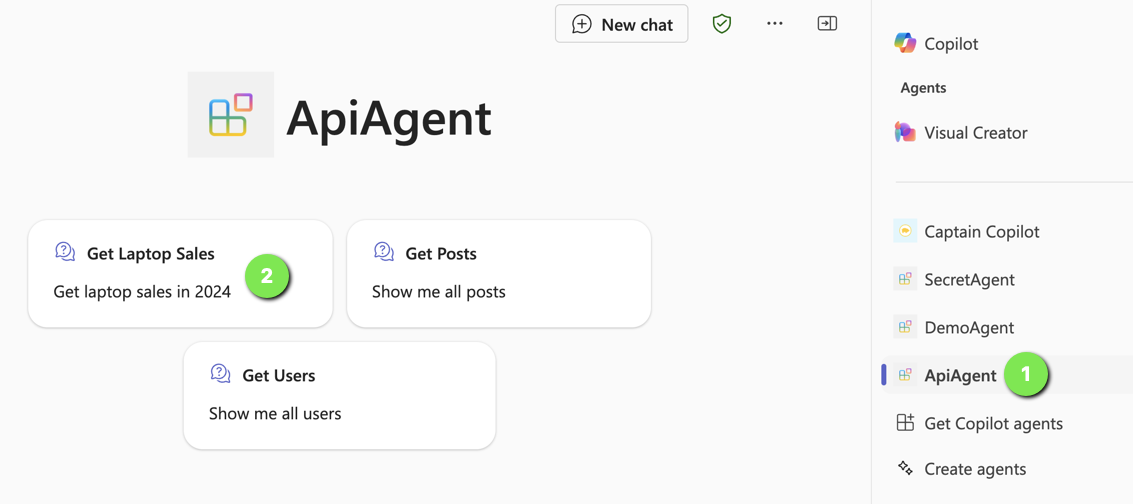
Find the agent

Now either use a starter (if you added some; above that is (2)) or type the question in the chat box.

Getting laptop sales in 2024

Note that I did not do anything fancy with the adaptive card. It just says success.

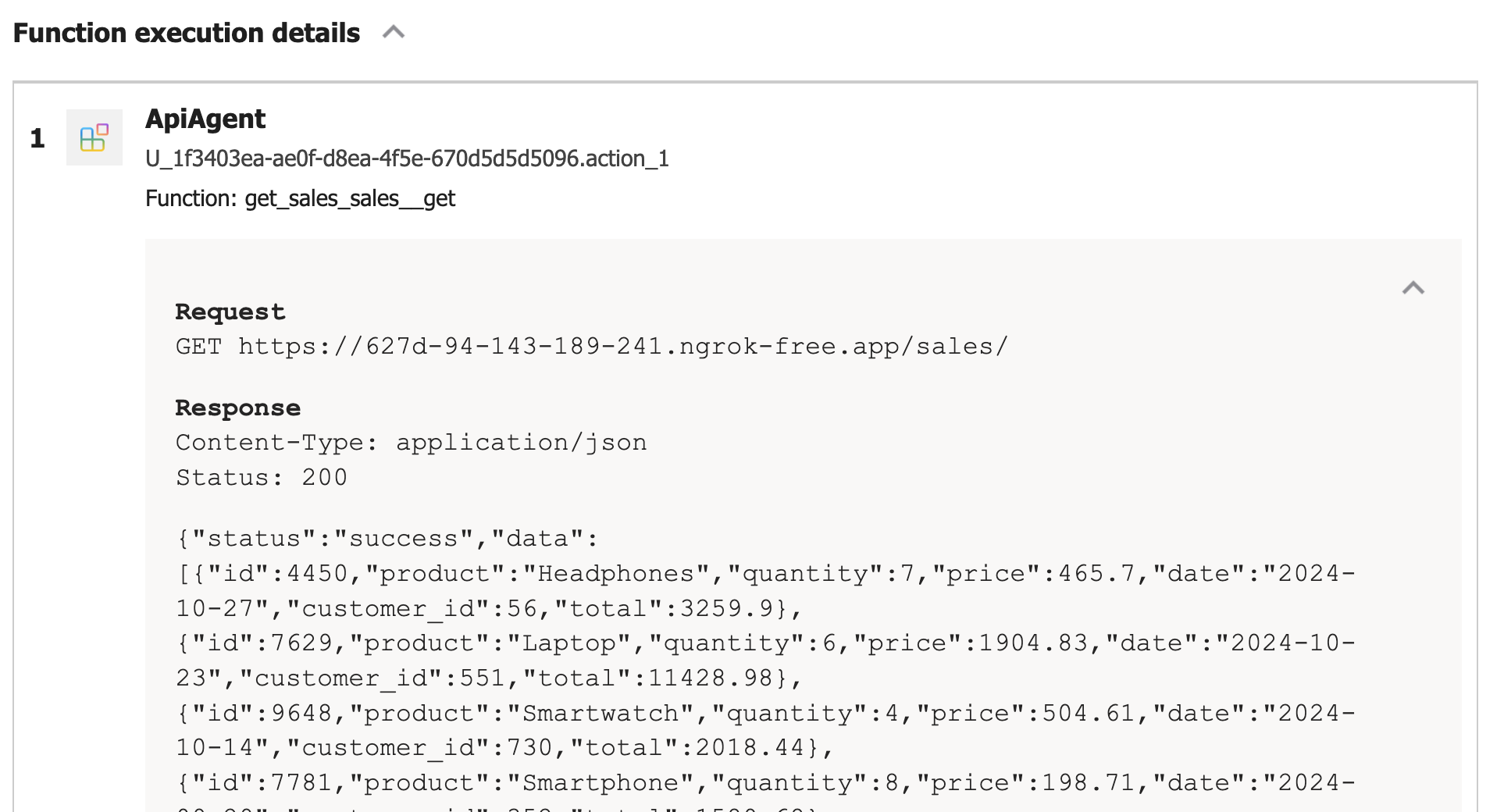
If you turned on developer mode in Copilot, you can check the raw response:

Viewing the raw response, right from within Microsoft 365 Chat

Conclusion

In this post, we created a Copilot agent that calls a custom API secured with HTTP bearer authentication. The “trick” to get this to work is to add the key to the Teams dev portal and reference it in the json file that defines the API call.

HTTP bearer authentication is the easiest to implement. In another post, we will look at using OAuth to protect the API. There’s a bit more to that, as expected.

Creating a Copilot declarative agent with VS Code and the Teams Toolkit

If you are a Microsoft 365 Copilot user, you have probably seen that the words “agent” and “Copilot agent” are popping up here and there. For example, if you chat with Copilot there is an Agents section in the top right corner:

Copilot Chat with agents

Above, there is a Visual Creator agent that’s built-in. It’s an agent dedicated to generating images. Below Visual Creator, there are agents deployed to your organisation and ways to add and create agents.

A Copilot agent in this context, runs on top of Microsoft 365 Copilot and uses the Copilot orchestrator and underlying model. An agent is dedicated to a specific task and has the following properties. Some of these properties are optional:

  • Name: name of the agent
  • Description: you guessed it, the description of the agent
  • Instructions: instructions for the agent about how to do its work and respond to the user; you can compare this to a system prompt you give an LLM to guide its responses
  • Conversation starters: prompts to get started like the Learn More and Generate Ideas in the screenshot above
  • Documents: documents the agent can use to provide the user with answers; this will typically be a SharePoint site or a OneDrive location
  • Actions: actions the agents can take to provide the user with an answer; these actions will be API calls that can fetch information from databases, create tickets in a ticketing system and much more…

There are several ways to create these agents:

  • Start from SharePoint and create an agent based on the documents you select
  • Start from Microsoft 365 Copilot chat
  • Start from Copilot Studio
  • Start from Visual Studio Code

Whatever you choose, you are creating the agent declaratively. You do not have to write code to create the agent. Depending on the tool you use, not all capabilities are exposed. For example, if you want to add actions to your agent, you need Copilot Studio or Visual Studio Code. You could start creating the agent from SharePoint and then add actions with Copilot Studio.

In this post, we will focus on creating a declarative agent with Visual Studio Code.

Getting Started

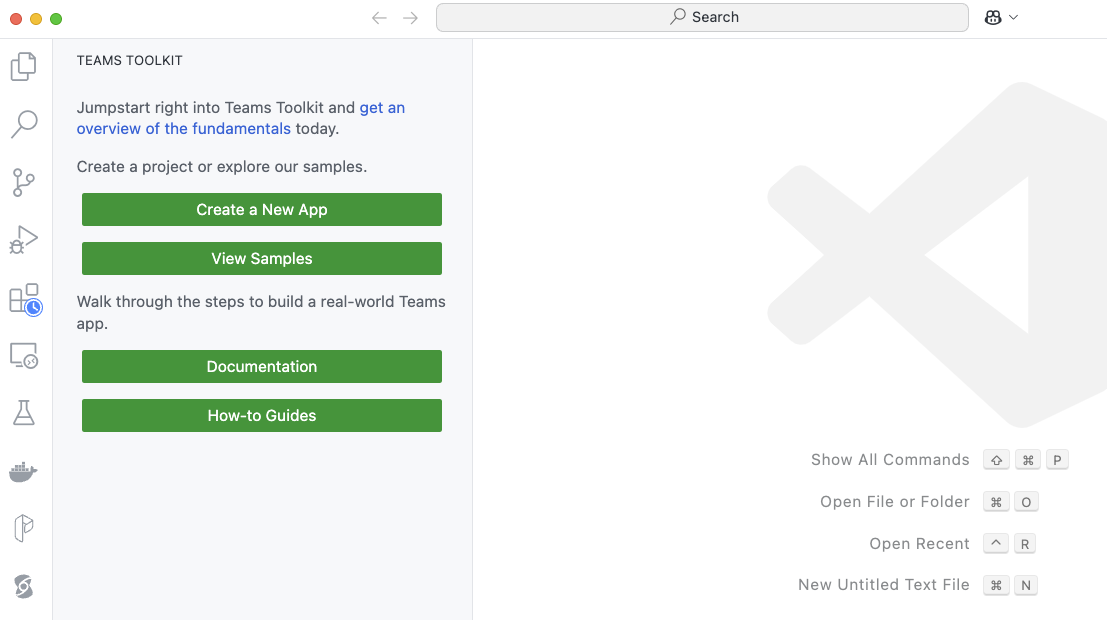
You need Visual Studio Code or a compatible editor and add the Teams Toolkit extension. Check Microsoft Learn to learn about all requirements. After installing it in VS Code, click the extension. You will be presented with the options below:

Teams Toolkit extension in VS Code

To create a declarative agent, click Create a New App. Select Copilot Agent.

Copilot Agent in Teams Toolkit

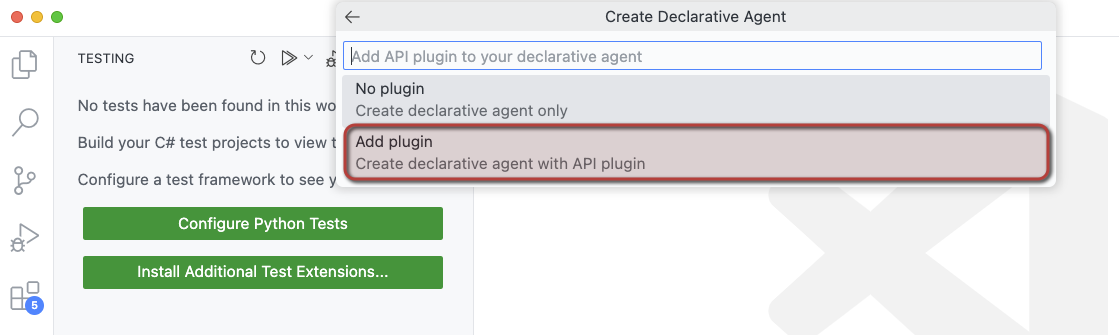
Next, select Declarative Agent. You will be presented with the choices below:

Creating an agent with API plugin so we can call APIs

To make this post more useful, we will add actions to the agent. Although the word “action” is not mentioned above, selecting Add plugin will give us that functionality.

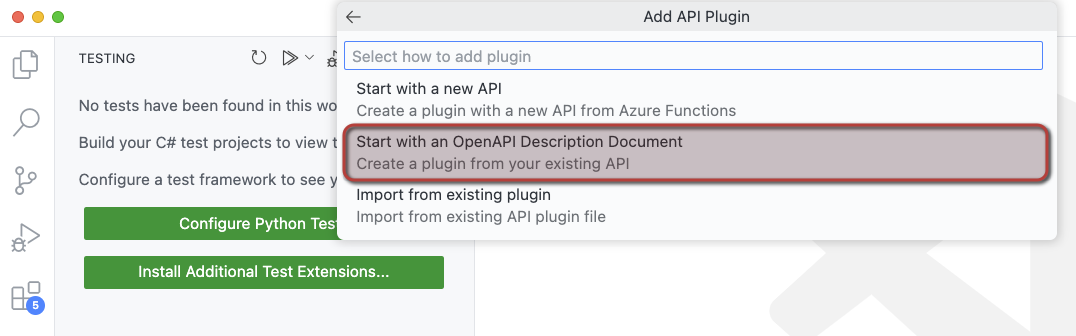
We will create our actions from an OpenAPI 3.0.x specification. Select Start with an OpenAPI Description Document as shown below.

When you select the above option, you can either:

  • Use a URL that returns the OpenAPI document
  • Browse for an OpenAPI file (json or yaml) on your file system

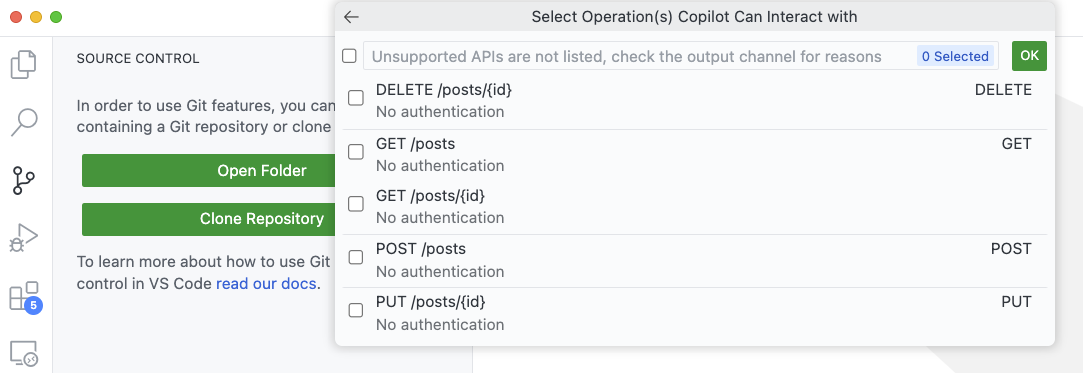
I downloaded the OpenAPI specification for JSON Placeholder from https://arnu515.github.io/jsonplaceholder-api-docs/. JSON Placeholder is an online dummy API that provides information about blog posts. After downloading the OpenAPI spec, browse for the swagger.json file via the Browse for an OpenAPI file option. In the next screen, you can select the API operations you want to expose:

Select the operations you want the agent to use

I only selected the GET /posts operation (getPosts). Next, you will be asked for a folder location and a name for your project. I called mine DemoAgent. After specifying the name, a new VS Code window will pop up:

Declarative Agent opens in a new Window

You might get questions about installing additional extensions and even to provision the app.

How does it work?

Before explaining some of the internals, let’s look at the end result in Copilot chat. Below is the provisioned app, provisioned only to my own account. This is the app as created by the extension, without modifications on my part.

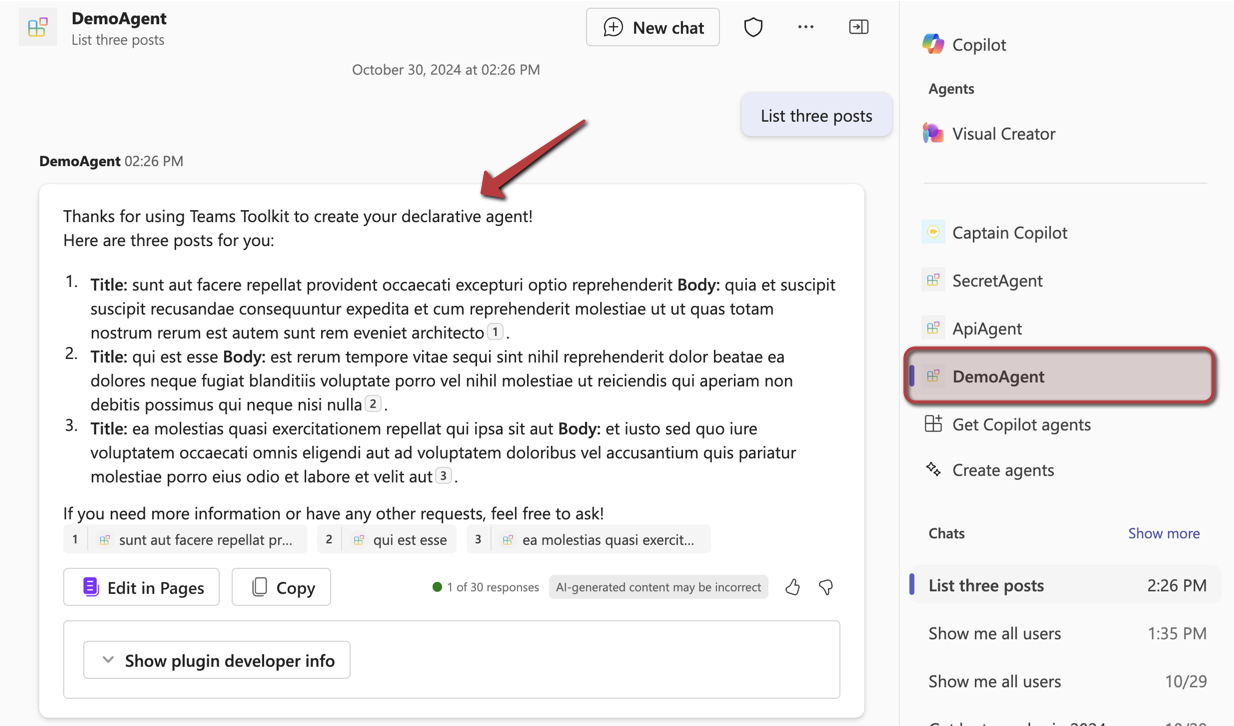
Agent in Copilot Chat; sample API we use returns Latin 😉

Above, I have asked for three posts. Copilot matches my intent to the GET /posts API call and makes the call. The JSONPlaceholder API does not require authentication so that’s easy. Authentication is supported but that’s for another post. If it’s the first time the API is used, you will be asked for permission to use it.

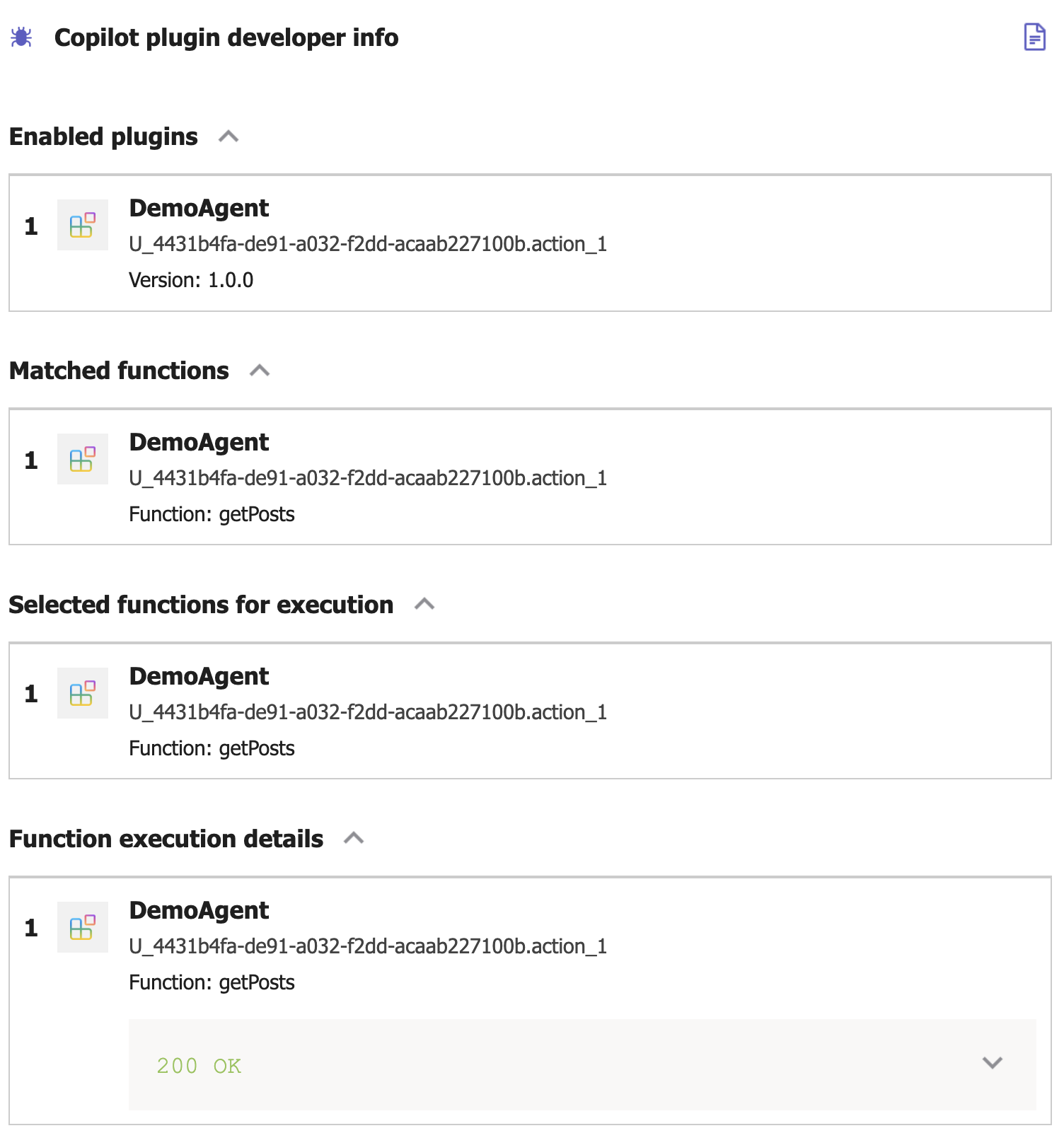
In Copilot, I turned on developer mode by typing -developer on in the chat box. When you click Show plugin developer info, you will see something like the below screenshot:

Copilot developer mode

Above, the Copilot orchestrator has matched the function getPosts from the DemoAgent plugin. Plugin is just the general name for Copilot extensions that can perform actions (or functions). Yes, naming is hard. The Copilot orchestrator selected the getPosts function to execute. The result was a 200 OK from the underlying API. If you click the 200 OK message, you see the raw results returned from the API.
Now let’s look at some of the files that are used to create this agent. The main file, from the agent’s point of view, is declarativeAgent.json in the appPackage folder. It contains the name, description, instructions and actions of the agent:

{
    "$schema": "https://developer.microsoft.com/json-schemas/copilot/declarative-agent/v1.0/schema.json",
    "version": "v1.0",
    "name": "DemoAgent",
    "description": "Declarative agent created with Teams Toolkit",
    "instructions": "$[file('instruction.txt')]",
    "actions": [
        {
            "id": "action_1",
            "file": "ai-plugin.json"
        }
    ]
}

The instructions property references another file which contains the instructions for the agent. One of the instructions is: You should start every response and answer to the user with “Thanks for using Teams Toolkit to create your declarative agent!”. That’s the reason why my question had that in the response to start with.

Of course, the actions are where the magic is. You can provide your agent with multiple actions. Here, we only have one. These actions are defined in a file that references the OpenAPI spec. Above, that file is ai-plugin.json. This file tells the agent what API call to make. It contains a functions array with only one function in this case: getPosts. It’s important you provide a good description for the function because Copilot selects the function to call based on its description. See the Matched functions list in the plugin developer info section.
Below the functions array is a runtimes array. It specifies what operation to call from the referenced OpenAPI specification. In here, you also specify the authentication to the API. In this case, the auth type is None but agents support HTTP bearer authentication with a simple key or OAuth.

Here’s the entire file:

{
    "$schema": "https://developer.microsoft.com/json-schemas/copilot/plugin/v2.1/schema.json",
    "schema_version": "v2.1",
    "name_for_human": "DemoAgent",
    "description_for_human": "Free fake API for testing and prototyping.",
    "namespace": "demoagent",
    "functions": [
        {
            "name": "getPosts",
            "description": "Returns all posts",
            "capabilities": {
                "response_semantics": {
                    "data_path": "$",
                    "properties": {
                        "title": "$.title",
                        "subtitle": "$.id"
                    },
                    "static_template": {
                        "type": "AdaptiveCard",
                        "$schema": "http://adaptivecards.io/schemas/adaptive-card.json",
                        "version": "1.5",
                        "body": [
                            {
                                "type": "TextBlock",
                                "text": "id: ${if(id, id, 'N/A')}",
                                "wrap": true
                            },
                            {
                                "type": "TextBlock",
                                "text": "title: ${if(title, title, 'N/A')}",
                                "wrap": true
                            },
                            {
                                "type": "TextBlock",
                                "text": "body: ${if(body, body, 'N/A')}",
                                "wrap": true
                            },
                            {
                                "type": "TextBlock",
                                "text": "userId: ${if(userId, userId, 'N/A')}",
                                "wrap": true
                            }
                        ]
                    }
                }
            }
        }
    ],
    "runtimes": [
        {
            "type": "OpenApi",
            "auth": {
                "type": "None"
            },
            "spec": {
                "url": "apiSpecificationFile/openapi.json"
            },
            "run_for_functions": [
                "getPosts"
            ]
        }
    ],
    "capabilities": {
        "localization": {},
        "conversation_starters": [
            {
                "text": "Returns all posts"
            }
        ]
    }
}

As you can see, you can also control how the agent responds by providing an adaptive card. Teams toolkit decided on the format above based on the API specification and the data returned by the getPosts operation. In this case, the card looks like this:

Addaptive card showing the response from the API: id, title, body and userId of the fake blog post

Adding extra capabilities

You can add conversation starters to the agent in declarativeAgent.json. They are shown in the opening screen of your agent:

Conversation Starters

These starters are added to declarativeAgent.json:

{
    "$schema": "https://developer.microsoft.com/json-schemas/copilot/declarative-agent/v1.0/schema.json",
    "version": "v1.0",
    "name": "DemoAgent",
    "description": "Declarative agent created with Teams Toolkit",
    "instructions": "$[file('instruction.txt')]",
    "actions": [
        ...
    ],
    "conversation_starters": [
    {
        "title": "Recent posts",
        "text": "Show me recent posts"
    },
    {
        "title": "Last post",
        "text": "Show me the last post"
    }
]
}

In addition to conversation starters, you can also enable web searches. Simply add the following to the file above,

"capabilities": [
    {
        "name": "WebSearch"
    }
]

With this feature enabled, the agent can search the web for answers via Bing. It will do so when it thinks it needs to or when you tell it to. For instance: “Search the web for recent news about AI” gets you something like this:

Agent with WebSearch turned on

In the plugin developer info, you will see that none of your functions were executed. Developer info does not provide additional information about the web search.

Next to starter prompts and WebSearch, here are some of the other things you can do:

  • Add OneDrive and SharePoint content: extra capability with name OneDriveAndSharePoint; the user using the agent needs access to these files or they cannot be used to generate an answer
  • Add Microsoft Graph Connectors content: extra capability with name GraphConnectors; Graph Connectors pull in data from other sources in Microsoft Graph; by specifying the connector Ids, that data can then be retrieved by the agent

More information about the above settings can be found here: https://learn.microsoft.com/en-us/microsoft-365-copilot/extensibility/declarative-agent-manifest.

Provisioning

To provision the agent just for you, open VS Code’s command palette and search for Teams: Provision. You will be asked to log on to Microsoft 365. When all goes well, you should see the messages below in the Output pane:

Output after provisioning an app

If you are familiar with app deployment to Teams in general, you will notice that this is the same.

When the app is provisioned, it should appear in the developer portal at https://dev.teams.microsoft.com/apps:

DemoAgent in the Teams dev portal

Note that the extension adds dev to the agent when you provision the app. When you publish the app, this is different. You can also see this in VS Code in the build folder:

App package for provisioning in VS Code

Note: we did not discuss the manifest.json file which is used to configure the Teams app as a whole. Use it to set developer info, icons, name, description and more.

There are more steps to take to publish the app and make it available to your organisation. See https://learn.microsoft.com/en-us/microsoftteams/platform/toolkit/publish for more information

Conclusion

The goal of this blogpost was to show how easy it is to create a declarative agent on top of Microsoft 365 Copilot in VS Code. Remember that these agents use the underlying Copilot orchestrator and model and that is something you cannot change. If you need more freedom (e.g., control over LLM, its parameters, advanced prompting techniques etc…) and you want to create such an app in Teams, there’s always the Custom Engine Agent.

Declarative agents don’t require you to code although you do need to edit multiple files to get it to work?

In a follow-up post, we will take a look at adding a custom API with authentication. I will also show you how to easily add additional actions to an agent without too much manual editing. Stay tuned!

Using your own message broker with Diagrid Catalyst

In a previous post, I wrote about Diagrid Catalyst. Catalyst provides services like pub/sub and state stores to support the developer in writing distributed applications. In the post, we discussed a sample application that processes documents and extracts fields with an LLM (gpt-4o structured extraction). Two services, upload and process, communicate via the pub/sub pattern.

In that post, we used a pub/sub broker built-in to Catalyst. Using the built-in broker makes it extremely easy to get started. You simply create the service and topic subscription and write code to wire it all up using the Dapr APIs.

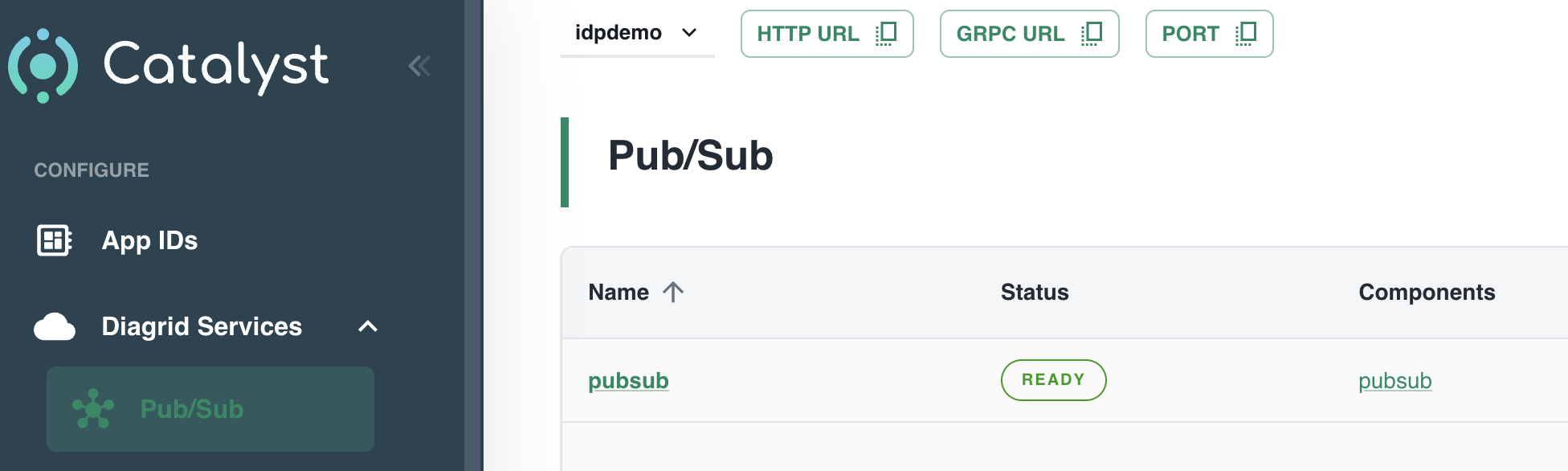
Catalyst built-in pub/sub service

But what if you want to use your own broker? Read on to learn how that works.

Using Azure Service Bus as the broker

To use Azure Service Bus, simply deploy an instance in a region of your choice. Ensure you use the standard tier because you need topics, not queues:

Azure Service Bus Standard Tier deployed in Sweden; public endpoint

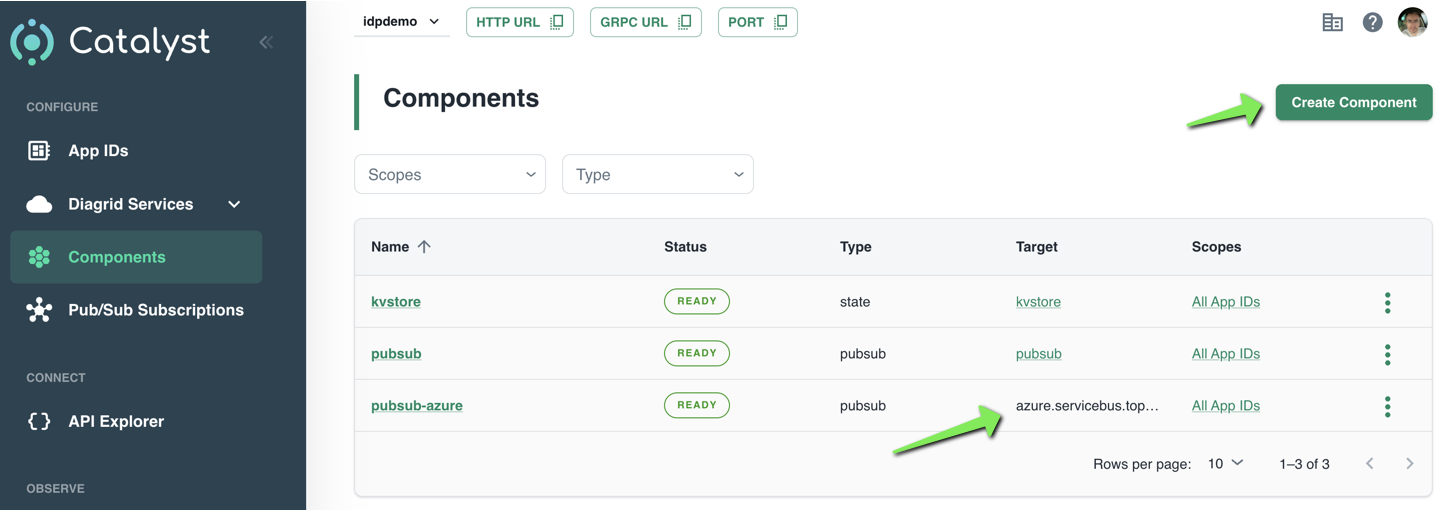
With Service Bus deployed, we can now tell Catalyst about it. You do so in Components in the Catalyst portal:

Creating an Azure Service Bus component

Simply click Create Component to start a wizard. After completion of the wizard, your component will appear in the list. Above, at the bottom, a component with Azure Service Bus as the target is in the list.

The wizard itself is fairly straightforward. The first screen is shown below:

Component wizard

Above, in the first step, I clicked Pub/Sub and selected Azure Service Bus Topics. As you can see, several other pub/sub brokers are supported. The above list is not complete.

In the next steps, the following is set:

  • Assign access: configure the services that can access this component; in my case, that is the upload and process service
  • Authentication profile: decide how to authenticate to Azure Service Bus; I used a connection string
  • Configure component: set the component name and properties such as timeouts. These properties are specific to Service Bus. I only set the name and left the properties at their default.

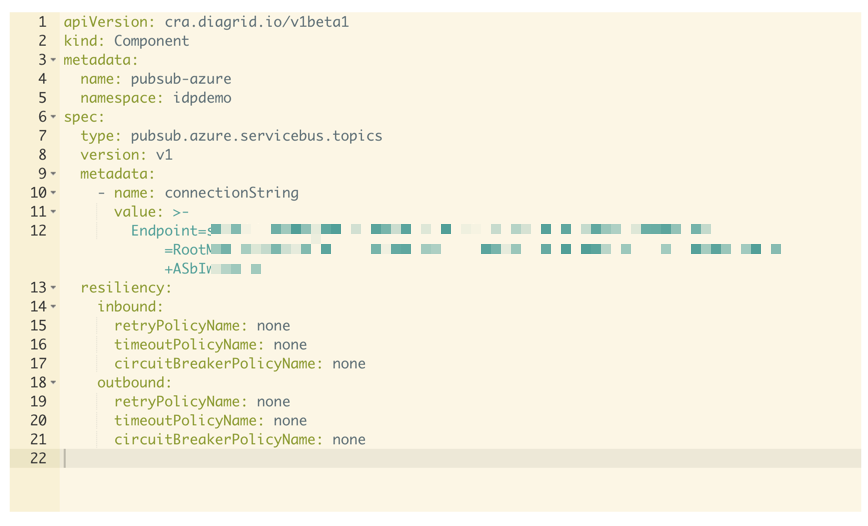
That’s it. You now have defined a component that can be used by your applications. When you click the component, you can also inspect its YAML definition:

YAML representation of the component

You can use these YAML files from the diagrid CLI to create components. In the CLI they are called connections but it’s essentially the same from what I can tell at this point:

Listing connections

Showing the call graph

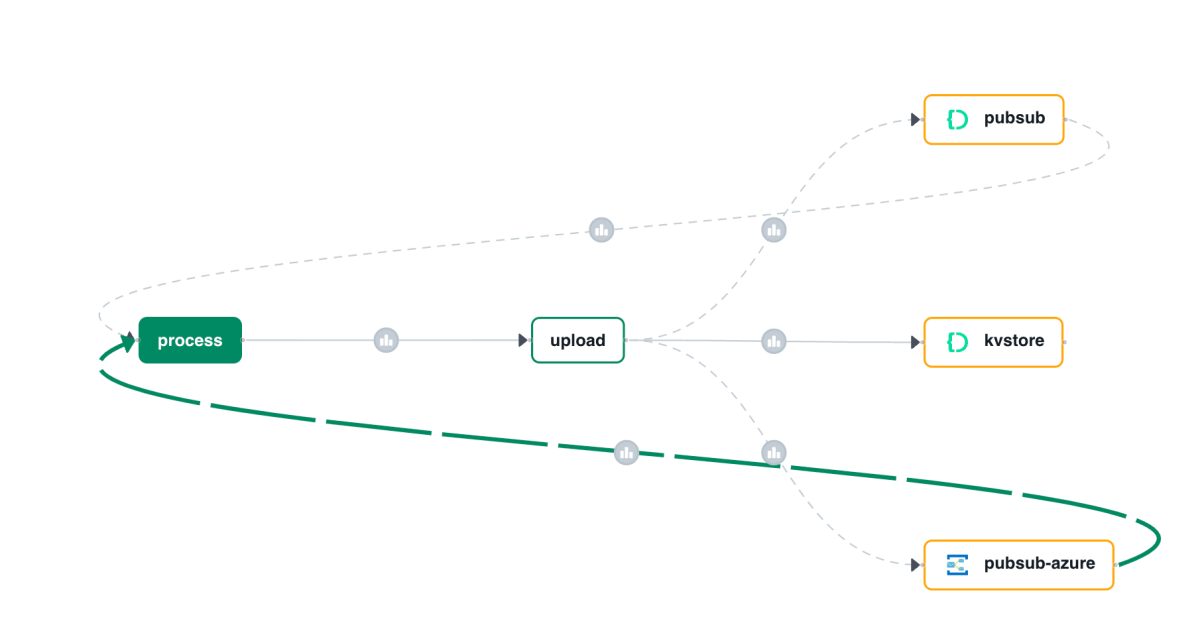
With Catalyst, all activity is logged and can be used to visualize a call graph like the one below:

Call Graph

Above, I clicked on the subscription that delivers messages to the process service. The messages come from our Azure pub/sub broker.

Note: you can also see the older pub/sub Catalyst broker in the call graph. It will be removed from the call graph some time after it is not used anymore.

Creating a subscription

A subscription to an Azure Service Bus topic looks the same as a subscription to the built-in Pub/Sub broker:

Subscription to topic invoices

The only difference with the previous blog post is the component. It’s the one we just created. The /process handler in your code will stay the same.

Code changes

The code from the previous post does not have to change a lot. That code uses an environment variable, PUBSUB_NAME, that needs to be set to pubsub-azure now. That’s it. The Dapr SDK code is unchanged:

with DaprClient() as d:
    try:
        result = d.publish_event(
            pubsub_name=pubsub_name,
            topic_name=topic_name,
            data=invoice.model_dump_json(),
            data_content_type='application/json',
        )
        logging.info('Publish Successful. Invoice published: %s' %
                        invoice.path)
        logging.info(f"Invoice model: {invoice.model_dump()}")
        return True
    except grpc.RpcError as err:
        logging.error(f"Failed to publish invoice: {err}")
        return False

Conclusion

Instead of using the default Catalyst pub/sub broker, we switched the underlying broker to a broker of our choice. This is just configuration. You code, besides maybe an environment variable, does not need to change.

In this post, we only changed the pub/sub broker. You can also easily change the underlying state store to Azure Blob Storage or Azure Cosmos DB.

Writing an multi-service document extractor with the help of Diagrid’s Catalyst

Many enterprises have systems in place that take documents, possibly handwritten, that contain data that needs to be extracted. In this post, we will create an application that can extract data from documents that you upload. We will make use of an LLM, in this case gpt-4o. We will use model version 2024-08-06 and its new structured output capabilities. Other LLMs can be used as well.

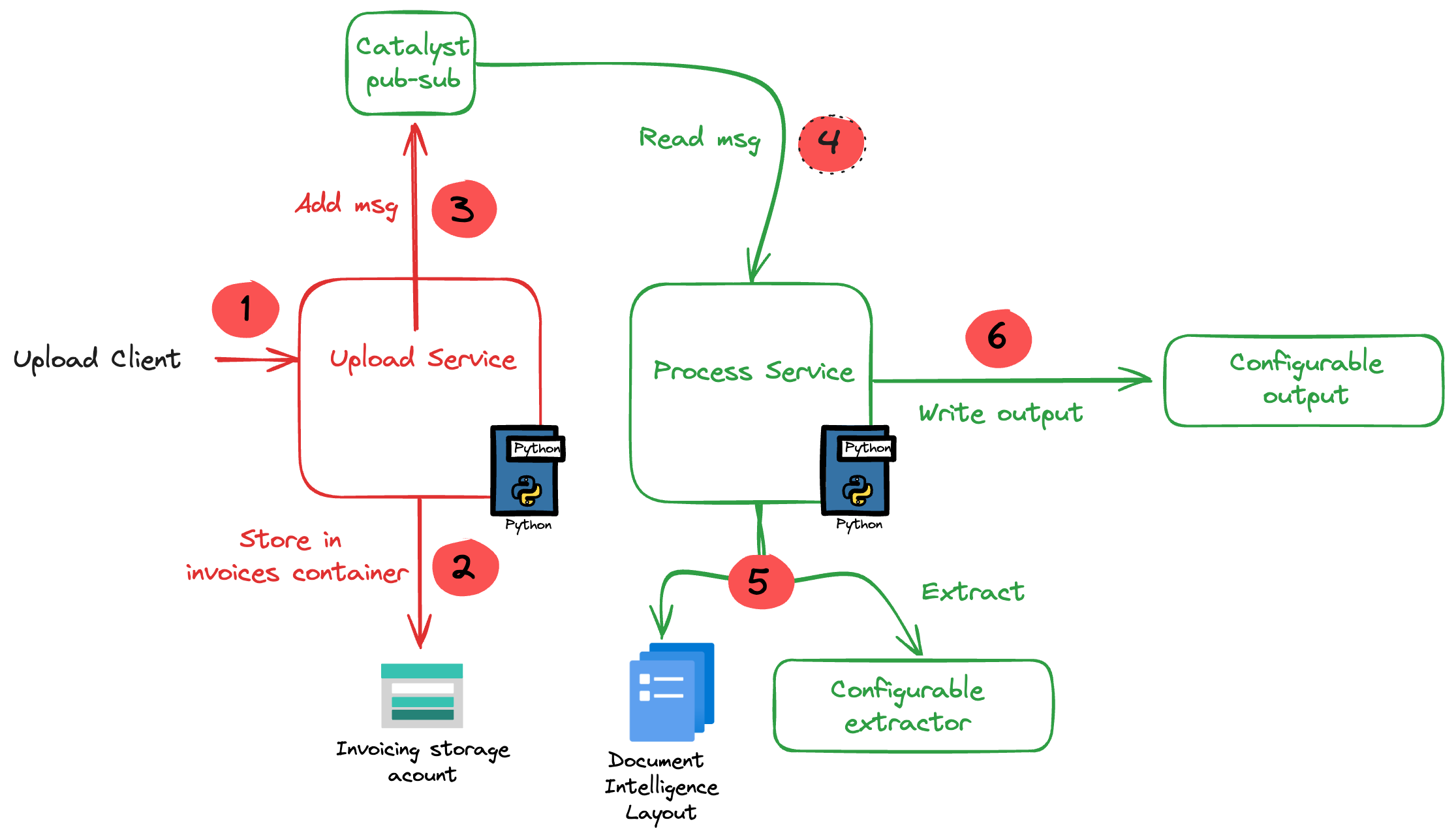
The core of the application is illustrated in the diagram below. The application uses more services than in the diagram. We will get to them later in this post.

Application Diagram

Note: the LLM-based extraction logic in this project is pretty basic. In production, you need to do quite a bit more to get the extraction just right.

The flow of the application is as follows:

  • A user or process submits a document to the upload service. This can be a pdf but other formats are supported as well.
  • In addition to the document, a template is specified by name. A template contains the fields to extract, together with their type (str, bool, float). For example: customer_name (str), invoice_total (float).
  • The upload service uploads the document to an Azure Storage account using a unique filename and preserves the extension.
  • The upload service publishes a message to a topic on a pub/sub message broker. The message contains data such as the document url and the name of the template.
  • The process service subscribes to the topic on the message broker and retrieves the message.
  • It downloads the file from the storage account and sends it to Azure Document Intelligence to convert it to plain text.
  • Using a configurable extractor, an LLM is used to extract the fields in the template from the document text. The sample code contains an OpenAI and a Groq extractor.
  • The extracted fields are written to a configurable output handler. The sample code contains a CSV and JSONL handler.

In addition to a pub-sub broker, templates are stored in a state store. The upload service is the only service that interfaces with the state store. It provides an HTTP method that the process service can use to retrieve a template from the state store.

To implement pub-sub, the state store and method invocations, we will use Diagrid’s Catalyst instead of doing this all by ourselves.

What is Catalyst?

If you are familiar with Dapr, the distributed application runtime, Catalyst will be easy to understand. Catalyst provides you with a set of APIs, hosted in the cloud and compatible with Dapr to support you in building cloud-native, distributed applications. It provides several building blocks. The ones we use are below:

  • request/reply: to support synchronous communication between services in a secure fashion
  • publish/subscribe: to support asynchronous communication between services using either a broker provided by Catalyst or other supported brokers like Azure Service Bus
  • key/value: allows services to save state in a key/value store. You can use the state store provided by Catalyst or other supported state stores like Azure Cosmos DB or an Azure Storage Account

The key to these building blocks is that your code stays the same if you swap the underlying message broker or key/value store. For example, you can start with Catalyst’s key/value store and later switch to Cosmos DB very easily. There is no need to add Cosmos DB libraries to your code. Catalyst will handle the Cosmos DB connectivity for you.

Important: I am referring mainly to Azure services here but Catalyst (and Dapr) support many services in other clouds as well!

Note that you do not need to install Dapr on your local machine or on platforms like Kubernetes when you use Catalyst. You only use the Dapr SDKs in your code and, when configured to do so, the SDK will connect to the proper APIs hosted in the cloud by Catalyst. In fact, you do not even need an SDK because the APIs can be used with plain HTTP or GRPC. Of course, using an SDK makes things a lot easier.

If you want to learn more about Catalyst, take a look at the following playlist: https://www.youtube.com/watch?v=7D7rMwJEMsk&list=PLdl4NkEiMsJscq00RLRrN4ip_VpzvuwUC. Lots of good stuff in there!

By doing all of the above in Catalyst we have a standardised approach that remains the same no matter the service behind it. We also get implementation best practices, for example for pub/sub. In addition, we are also provided with golden metrics and a UI to see how the application performs. All API calls are logged to aid in troubleshooting.

Let’s now take a look at the inner loop development process!

Scaffolding a new project

You need to sign up for Catalyst first. At the time of writing, Catalyst was in preview and not supported for production workloads. When you have an account, you should install the Diagrid CLI. The CLI is not just for Catalyst. It’s also used with Diagrid’s other products, such as Conductor.

With the CLI, you can create a new project, create services and application identities. For this post, we will use the UI instead.

In the Catalyst dashboard, I created a project called idpdemo:

List of projects; use Create Project to create a new one

Next, for each of my services (upload and process), we create an App ID. Each App ID has its own token. Services use the token to authenticate to the Catalyst APIs and use the services they are allowed to use.

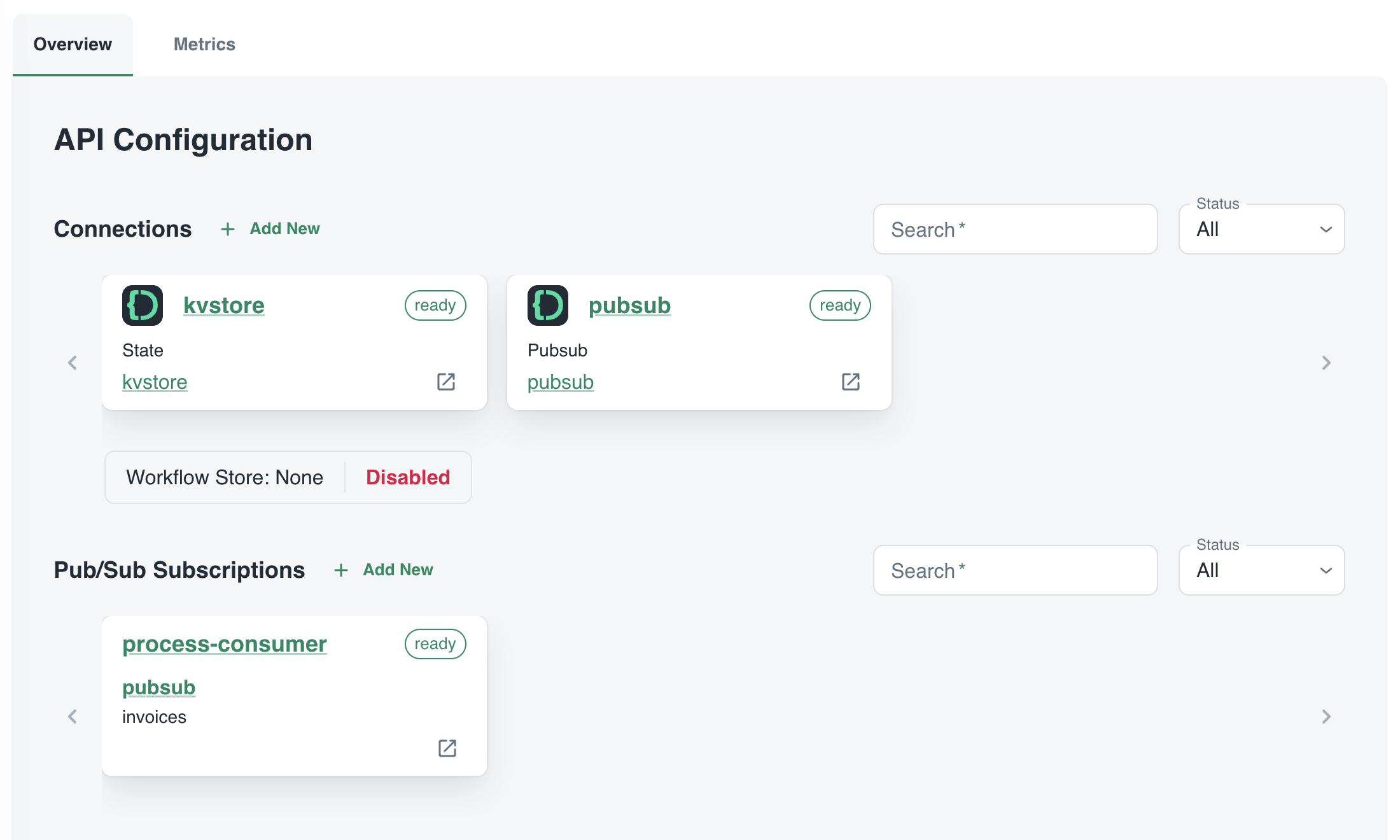
The process App ID has the following configuration (partial view):

process App ID API configuration

The process service interacts with both the Catalyst key/value store (kvstore) and the pub/sub broker (pubsub). These services need to be enabled as well. We will show that later. We can also see that the process service has a pub/sub subscription called process-consumer. Via that subscription, we have pub/sub messages delivered to the process service whenever the upload service sends a message to the pub/sub topic.

In Diagrid Services, you can click on the pub/sub and key/value store to see what is going on. For example, in the pub/sub service you can see the topics, the subscribers to these topics and the message count.

pub/sub topics

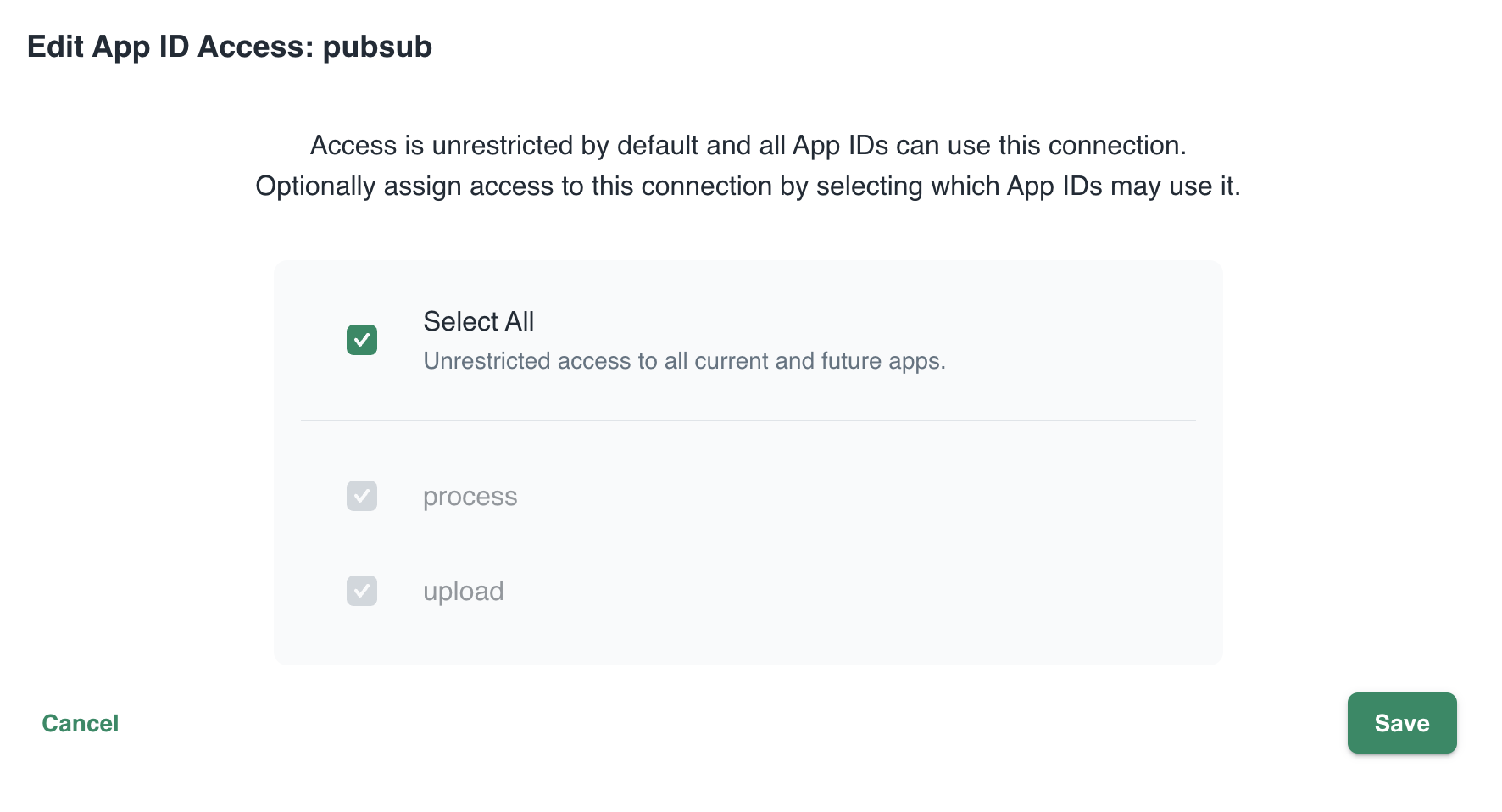
In Connections, you can see your services (represented by App ID upload and process) and their scope. In this case, all App IDs have access to all services. That can easily be changed:

changing the scope: access by App IDs to the pubsub service; default All

Now that we have some understanding of App IDs, Diagrid services and connections, we can take a look at how to connect to Catalyst from code.

Important: in this post we only look at using request/reply, Diagrid pub/sub and key/value. Catalyst also supports workflow and bindings but they are not used in this post.

Connecting your code

All code is available on GitHub: https://github.com/gbaeke/catalyst

The upload service needs to connect to both the pub/sub broker and key/value store:

  • Whenever a document is uploaded, it is uploaded to Azure Storage. When that succeeds, a message is put on the broker with the path of the file and a template name.
  • Templates are created and validated by the upload service so that you can only upload files with a template that exists. Templates are written and read in the key/value store.

Before we write code, we need to provide the Dapr SDK for Python (we’ll only use the Python SDK here) the necessary connection information. It needs to know it should not connect to a Dapr sidecar but to Catalyst. You set these via environment variables:

These environment variables are automatically picked up and used by SDK to interact with the Catalyst APIs. The following code can be used to put a message on the pub/sub broker:

with DaprClient() as d:
    try:
        result = d.publish_event(
            pubsub_name=pubsub_name,
            topic_name=topic_name,
            data=invoice.model_dump_json(),
            data_content_type='application/json',
        )
        logging.info('Publish Successful. Invoice published: %s' %
                        invoice.path)
        return True
    except grpc.RpcError as err:
        logging.error(f"Failed to publish invoice: {err}")
        return False

This is the same code that you would use with Dapr on your local machine or in Kubernetes or Azure Container Apps. Like with Dapr, you need to specify the pubsub name and topic. Here that is pubsub and invoices as previously shown in the Catalyst UI. The data in the message is an instance of a Pydantic class that holds the path and template but converted to JSON.

The code below shows how to write to the state store (key/value store):

with DaprClient() as d:
    try:
        d.save_state(store_name=kvstore_name,
                        key=template_name, value=str(invoice_data))
    except grpc.RpcError as err:
        logging.error(f"Dapr state store error: {err.details()}")
        raise HTTPException(status_code=500, detail="Failed to save template")

This is of course very similar. We use the save_state method here and provide the store name (kvstore), key (template name) and value.

Let’s now turn to the process service. It needs to:

  • be notified when there is a new message on the invoices topic
    • check and retrieve the template by calling a method on the upload service

We only use two building blocks here: pub/sub and request/reply. The process service does not interact directly with the state store.

To receive a message, Catalyst needs a handler to call. In the pub/sub subscription, the handler (default route to be correct) is configured to be /process:

Configuration of default route on subscription

Our code that implements the handler is as follows (FastAPI):

@app.post('/process')  # called by pub/sub when a new invoice is uploaded
async def consume_orders(event: CloudEvent):
    # your code here

As you can see, when Catalyst calls the handler, it passes in a CloudEvent. The event has a data field that holds the path to our document and the template name. The CloudEvent type is defined as follows:

# pub/sub uses CloudEvent; Invoice above is the data
class CloudEvent(BaseModel):
    datacontenttype: str
    source: str
    topic: str
    pubsubname: str
    data: dict
    id: str
    specversion: str
    tracestate: str
    type: str
    traceid: str

In the handler, you simply extract the expected data and use it to process the event. In our case:

  • extract path and template from the data field
  • download the file from blob storage
  • send the file to Azure Document Intelligence to convert to text
  • extract the details from the document based on the template; if the template contains fields like customer_name and invoice_total, the LLM will try to extract that and return that content in JSON.
  • write the extracted values to JSON or CSV or any other output handler

Of course, we do need to extract the full template because we only have the template name. Let’s use the request/reply APIs to do that and call the template GET endpoint of the upload service via Catalyst:

def retrieve_template_from_kvstore(template_name: str):

    headers = {'dapr-app-id': invoke_target_appid, 'dapr-api-token': dapr_api_token,
               'content-type': 'application/json'}  
    try:
        result = requests.get(
            url='%s/template/%s' % (base_url, template_name),
            headers=headers
        )

        if result.ok:
            logging.info('Invocation successful with status code: %s' %
                         result.status_code)
            logging.info(f"Template retrieved: {result.json()}")
            return result.json()

    except Exception as e:
        logging.error(f"An error occurred while retrieving template from Dapr KV store: {str(e)}")
        return None

As an example, we use the HTTP API here instead of the Dapr invoke API. It might not be immediately clear but Catalyst is involved in this process and will have information and metrics about these calls:

Call Graph

The full line represents request/reply (invoke) from process to upload as just explained. The dotted line represents pub/sub traffic where upload creates messages to be consumed by process.

Running the app

You can easily run your application locally using the Diagrid Dev CLI. Ensure you are logged in by running diagrid login. In the preview, with only one project, the default project should already be that one. Then simply run diagrid dev scaffold to generate a yaml file.

In my case, after some modification, my dev-{project-name}.yaml file looked like below:

project: idpdemo
apps:
- appId: process
  disabled: true
  appPort: 8001
  env:
    DAPR_API_TOKEN: ...
    DAPR_APP_ID: process
    DAPR_CLIENT_TIMEOUT_SECONDS: 10
    DAPR_GRPC_ENDPOINT: https://XYZ.api.cloud.diagrid.io:443
    DAPR_HTTP_ENDPOINT: https://XYZ.api.cloud.diagrid.io
    OTHER ENV VARS HERE

  workDir: process
  command: ["python", "app.py"]
- appId: upload
  appPort: 8000
  env:
    ... similar
  workDir: upload
  command: ["python", "app.py"]
appLogDestination: ""

Of course, the file was modified with environment variables required by the code. For example the storage account key, Azure Document Intelligence key, etc…

All you need to do now is to run diagrid dev start to start the apps. The result should be like below:

Local project startup

By default, your service logs are written to the console with a prefix for each service.

If you use the code in GitHub, check the README.md to configure the project and run the code properly. If you would rather run the code with Dapr on your local machine (e.g., if you do not have access to Catalyst) you can do that as well.

Conclusion

In this post, we have taken a look at Catalyst, a set of cloud APIs that help you to write distributed applications in a standard and secure fashion. These APIs are compatible with Dapr, a toolkit that has already gained quite some traction in the community. With Catalyst, we quickly built an application that can be used as a starter to implement an asynchronous LLM-based document extraction pipeline. I did not have to worry too much about pub/sub and key/value services because that’s all part of Catalyst.

What will you build with Catalyst?

Creating a custom GPT to query any knowledge base with actions

A while ago, OpenAI introduced GPTs. A GPT is a custom version of ChatGPT that combine instructions, extra knowledge, and any combination of skills.

In this tutorial, we are going to create a custom GPT that can answer questions about articles on this blog. In order to achieve that, we will do the following:

  • create an Azure AI Search index
  • populate the index with content of the last 50 blog posts (via its RSS feed)
  • create a custom API with FastAPI (Python) that uses the Azure OpenAI “add your data” APIs to provide relevant content to the user’s query
  • add the custom API as an action to the custom GPT

The image below shows the properties of the GPT. You need to be a ChatGPT Plus subscriber to create a GPT.

Part of the custom GPT definition

To implement a custom action for the GPT, you need an API with an OpenAPI spec. When you use FastAPI, an OpenAPI JSON document can easily be downloaded and provided to the GPT. You will need to modify the JSON document with a servers section to specify the URL the GPT has to use.

In what follows, we will look at all of the different pieces that make this work. Beware: long post! 😀

Azure AI Search Index

Azure AI Search is a search service you create in Azure. Although there is a free tier, I used the basic tier. The basic tiers allows you to use its semantic reranker to optimise search results.

To create the index and populate it with content, I used the following notebook: https://github.com/gbaeke/custom-gpt/blob/main/blog-index/website-index.ipynb.

The result is an index like below:

Index in Azure AI Search

The index contains 292 documents although I only retrieve the last 50 blog posts. This is the result of chunking each post into smaller pieces of about 500 tokens with 100 tokens of overlap for each chunk. We use smaller chunks because we do not want to send entire blog posts as content to the large language model (LLM).

Note that the index supports similarity searches using vectors. The contentVector field contains the OpenAI embedding of the text in the content field.

Although vectors are available, we do not have to use vector search. Azure AI search supports simple keyword search as well. Together with the semantic ranker, it can provide more relevant results than keyword search on its own.

Note: in general, vector search will provide better results, especially when combined with keyword search and the semantic ranker

Use the index with Azure OpenAI “add your data”

I have written about the Azure OpenAI “add your data” features before. It provides a wizard experience to add an Azure AI Search index to the Azure OpenAI playground and directly test your index with the model of your choice.

From you Azure OpenAI instance, first open Azure OpenAI Studio:

Go to OpenAI Studio from the Overview page of your Azure OpenAI instance

Note: you still need to complete a form to get access to Azure OpenAI. Currently, it can take around a day before you are allowed to create Azure OpenAI instances in your subscription.

In Azure OpenAI Studio, click Bring your own data from the Home screen:

Bring your own data

Select the Azure AI Search index and click Next.

Azure AI Search index selection

Note: I created the index using the generally available API that supports vector search. The Add your data wizard, at the time of writing, was not updated yet to support these new indexes. That is the reason why vector search cannot be enabled. We will use keyword + semantic search instead. I expect this functionality to be available soon (November/December 2023).

Next, provide field mappings:

Field Mappings

These mappings are required because the Add your data feature excepts these standard fields. You should have at least a content field to search. Above, I do not have a file name field because I have indexed blog posts. It’s ok to leave that field blank.

After clicking Next, we get to data management:

Data Management

Here, we specify the type of search. Semantic means keyword + semantic. In the dropdown list, you can also select keyword search on its own. However, that might give you less relevant results.

Note: for Semantic to work, you need to turn on the Semantic ranker on the Azure AI Search resource. Additionally, you need to create a semantic profile on the index.

Now you can click Next, followed by Save and close. The Azure OpenAI Chat Playground appears with the index added:

Index added as a data source

You can now start chatting with your data. Select a chat model like gpt-4 or gpt-35-turbo. In Azure OpenAI, you have to deploy these models first and give the deployment a name.

Chat session with your data

Above, I asked about the OpenAI Assistants API, which is one of the posts on my blog. In the background, the playground performs a search on the Azure AI Search index and provides the results as context to the model. The gpt-35-turbo model answers the user’s question, based on the context coming from the index.

When you are happy with the result, you can export this experience to an Azure Web App of CoPilot Studio (Power Virtual Agents):

Export the “chat with data” experience

In our case, we want to use this configuration from code and provide an API we can add to the custom GPT.

⚠️ It’s import to realise that, with this approach, we will send the final answer, generated by an Azure OpenAI model, to the custom GPT. An alternate approach would be to hand the results of the Azure AI Search query to the custom GPT and let it formulate the answer on its own. That would be faster and less costly. If you also provide the blog post’s URL, ChatGPT can refer to it. However, the focus here is on using any API with a custom GPT so let’s continue with the API that uses the “add your data” APIs.

If you want to hand over Azure AI search results directly to ChatGPT, check out the code in the azure-ai-search folder in the Github repo.

Creating the API

To create an API that uses the index with the model, as configured in the playground, we can use some code. In fact, the playground provides sample code to work with:

Sample code from the playground

‼️ Sadly, this code will not work due to changes to the openai Python package. However, the principle is still the same:

  • call the chat completion extension API which is specific to Azure; in the code you will see this is as a Python f-string: f"{openai.api_base}/openai/deployments/{deployment_id}/extensions/chat/completions?api-version={openai.api_version}"
  • the JSON payload for this API needs to include the Azure AI Search configuration in a dataSources array.

The extension API will query Azure AI Search for you and create the prompt for the chat completion with context from the search result.

To create a FastAPI API that does this for the custom GPT, I decided to not use the openai package and simply use the REST API. Here is the code:

from fastapi import FastAPI, HTTPException, Depends, Header
from pydantic import BaseModel
import httpx, os
import dotenv
import re

# Load environment variables
dotenv.load_dotenv()

# Initialize FastAPI app
app = FastAPI()

# Constants (replace with your actual values)
api_base = "https://oa-geba-france.openai.azure.com/"
api_key = os.getenv("OPENAI_API_KEY")
deployment_id = "gpt-35-turbo"
search_endpoint = "https://acs-geba.search.windows.net"
search_key = os.getenv("SEARCH_KEY")
search_index = "blog"
api_version = "2023-08-01-preview"

# Pydantic model for request body
class RequestBody(BaseModel):
    query: str

# Define the API key dependency
def get_api_key(api_key: str = Header(None)):
    if api_key is None or api_key != os.getenv("API_KEY"):
        raise HTTPException(status_code=401, detail="Invalid API Key")
    return api_key

# Endpoint to generate response
@app.post("/generate_response", dependencies=[Depends(get_api_key)])
async def generate_response(request_body: RequestBody):
    url = f"{api_base}openai/deployments/{deployment_id}/extensions/chat/completions?api-version={api_version}"
    headers = {
        "Content-Type": "application/json",
        "api-key": api_key
    }
    data = {
        "dataSources": [
            {
                "type": "AzureCognitiveSearch",
                "parameters": {
                    "endpoint": search_endpoint,
                    "key": search_key,
                    "indexName": search_index
                }
            }
        ],
        "messages": [
            {
                "role": "system",
                "content": "You are a helpful assistant"
            },
            {
                "role": "user",
                "content": request_body.query
            }
        ]
    }

    async with httpx.AsyncClient() as client:
        response = await client.post(url, json=data, headers=headers, timeout=60)

    if response.status_code != 200:
        raise HTTPException(status_code=response.status_code, detail=response.text)

    response_json = response.json()

    # get the assistant response
    assistant_content = response_json['choices'][0]['message']['content']
    assistant_content = re.sub(r'\[doc.\]', '', assistant_content)
    
    # return assistant_content as json
    return {
        "response": assistant_content
    }

# Run the server
if __name__ == "__main__":
    import uvicorn
    uvicorn.run(app, host="0.0.0.0", port=8000, timeout_keep_alive=60)

This API has one endpoint: /generate_response that takes { "query": "your query" }as input and returns { "response": assistant_content }as output. Note that the original response from the model contains references like [doc1], [doc2], etc… The regex in the code removes those references. I don not particularly like how the references are handled by the API so I decided to not include them and simplify the response.

The endpoint expects an api-key header. It it is not present, it returns an error.

The endpoint does a call to the Azure OpenAI chat completion extension API which looks very similar to a regular OpenAI chat completion. The request does however, contain a dataSources field with the Azure AI Search information.

The environment variables like the OPENAI_API_KEY and the SEARCH_KEY are retrieved from a .env file.

Note: to stress this again, this API returns the answer to the query as generated by the chosen Azure OpenAI model. This allows it to be used in any application, not just a custom GPT. For a custom GPT in ChatGPT, an alternate approach would be to hand over the search results from Azure AI search directly, allowing the model in the custom GPT to generate the response. It would be faster and avoid Azure OpenAI costs. We are effectively using the custom GPT as a UI and as a way to maintain history between action calls. 😀

If you want to see the code in GitHub, check this URL: https://github.com/gbaeke/custom-gpt.

Running the API in Azure Container Apps

To run the API in the cloud, I decided to use Azure Container Apps. That means we need a Dockerfile to build the container image locally or in the cloud:

# Use an official Python runtime as a parent image
FROM python:3.9-slim-buster

# Set the working directory in the container to /app
WORKDIR /app

# Add the current directory contents into the container at /app
ADD . /app

# Install any needed packages specified in requirements.txt
RUN pip install --no-cache-dir -r requirements.txt

# Run app.py when the container launches
CMD ["python3", "app.py"]

We also need a requirements.txt file:

fastapi==0.104.1
pydantic==2.5.2
pydantic_core==2.14.5
httpx==0.25.2
python-dotenv==1.0.0
uvicorn==0.24.0.post1

I use the following shell script to build and run the container locally. The script can also push the container to Azure Container Apps.

#!/bin/bash

# Load environment variables from .env file
export $(grep -v '^#' .env | xargs)

# Check the command line argument
if [ "$1" == "build" ]; then
    # Build the Docker image
    docker build -t myblog .
elif [ "$1" == "run" ]; then
    # Run the Docker container, mapping port 8000 to 8000 and setting environment variables
    docker run -p 8000:8000 -e OPENAI_API_KEY=$OPENAI_API_KEY -e SEARCH_KEY=$SEARCH_KEY -e API_KEY=$API_KEY myblog
elif [ "$1" == "up" ]; then
    az containerapp up -n myblog --ingress external --target-port 8000 \
        --env-vars OPENAI_API_KEY=$OPENAI_API_KEY SEARCH_KEY=$SEARCH_KEY API_KEY=$API_KEY \
        --source .
else
    echo "Usage: $0 {build|run|up}"
fi

The shell script extracts the environment variables defined in .env and sets them in the session. Next, we check the first parameter given to the script (Docker is required on your machine for build and run):

  • build: build the Docker image
  • run: run the Docker image locally on port 8000 and specify the environment variables to authenticate to Azure OpenAI and Azure AI Search
  • up: build the Docker image in the cloud and run it in Container Apps; if you do not have a Container Apps Environment or Azure Container Registry, they will be created for you. In the end, you will get an https endpoint to your API in the cloud.

Note: you should not put secrets in environment variables in Azure Container Apps directly; use Container Apps secrets or Key Vault instead; the above is just quick and easy to simplify the deployment

To test the API locally, use the REST Client extension in VS Code with an .http file:

POST http://localhost:8000/generate_response HTTP/1.1
Host: localhost:8000
Content-Type: application/json
api-key: API_KEY_FROM_DOTENV

{
  "query": "what is the openai assistants api?"
}

###

POST https://AZURE_CONTAINER_APPS_ENDPOINT/generate_response HTTP/1.1
Host: AZURE_CONTAINER_APPS_ENDPOINT
Content-Type: application/json
api-key: API_KEY_FROM_DOTENV

{
  "query": "Can I use Redis as a vector db?"
}

When you get something like below, you are good to go. Note again that we return a final answer and not the relevant chunks from Azure AI search.

Successful response from .http file

Getting the OpenAPI spec and adding it to the GPT

With your API running, you can go to its URL, like this one if the API runs locally: http://localhost:8000/openapi.json. The result is a JSON document you can copy to your GPT. I recommend to copy the JSON to VS Code and format it before you paste it in the GPT.

In the GPT, modify the OpenAPI spec with a servers section that includes your Azure Container Apps ingress URL:

Adding the URL to the GPT Action definition

If you want to give the ability to the user to trust the action to be called without approval (after a first call), also add the following:

Allowing the user to say Always Allow when action is used the first time

Take a look at the video below that shows how to create the GPT, including the configuration of the action and testing it.

Conclusion

Custom GPTs in ChatGPT open up a world of possibilities to offer personalised ChatGPT experiences. With custom actions, you can let the GPT do anything you want. In this tutorial, the custom action is an API call that answers the user’s question using Azure OpenAI with Azure AI Search as the provider of relevant context.

As long as you build and host an API and have an OpenAPI spec for your API, the possibilities are virtually limitless.

Note that custom GPTs with actions are not available in the ChatGPT app on mobile yet (end November, 2023). When that happens, it will open up all these capabilities on the go, including enabling voice chat. Fun stuff! 😀

Giving Microsoft’s Radius a spin

Microsoft recently announced Radius. As stated in their inaugural blog post, it is “a tool to describe, deploy, and manage your entire application”. With Radius, you describe your application in a bicep file. This can include containers, databases, the connections between those and much more. Radius is an open-source solution started from within Microsoft. The name is somewhat confusing because of RADIUS, a network authentication solution developed in 1991!

Starting point: app running locally

Instead of talking about it, let’s start with an application that runs locally on a development workstation and uses Dapr:

The ui is a Flask app that presents a text area and a button. When the user clicks the button, the code that handles the event calls the api using Dapr invoke. If you do not know what Dapr is, have a look at docs.dapr.io. The api saves the user’s question and a fake response to Redis. If Redis cannot be found, the api will simply log it could not save the data. The response is returned to the ui.

To run the application with Dapr on a development machine, I use a dapr.yaml file in combination with dapr run -f . See multi-app run for more details.

Here’s the yaml file:

version: 1
apps:
  - appID: ui
    appDirPath: ./ui
    appPort: 8001
    daprHTTPPort: 3510
    env:
      DAPR_APP: api
    command: ["python3","app.py"]
  - appID: api
    appDirPath: ./api
    appPort: 8000
    daprHTTPPort: 3511
    env:
      REDIS_HOST: localhost
      REDIS_PORT: 6379
      REDIS_DB: 0
    command: ["python3","app.py"]

Note that the api needs a couple of environment variables to find the Redis instance. The ui needs one environment variable DAPR_APP that holds the Dapr appId of the api. The Dapr invoke call needs this appId in order to find the api on the network.

In Python, the Dapr invoke call looks like this:

with DaprClient() as d:
        log.info(f"Making call to {dapr_app}")
        resp = d.invoke_method(dapr_app, 'generate', data=bytes_data,
                                 http_verb='POST', content_type='application/json')
        log.info(f"Response from API: {resp}")

The app runs fine locally if you have Python and the dependencies as listed in both the ui’s and api’s requirements.txt file. Let’s try to deploy the app with Radius.

Deploying the app with Radius

Before we can deploy the app with Radius, you need to install a couple of things:

  • rad CLI: I installed the CLI on MacOS; see the installation instructions for more details
  • VS Code extension: Radius uses a forked version of Bicep that is older than the current version of Bicep. The two will eventually converge but for now, you need to disable the official Bicep extension in VS Code and install the Radius Bicep extension. This is needed to support code like import radius as radius, which is not supported in the current version of Bicep.
  • Kubernetes cluster: Radius uses Kubernetes and requires the installation of the Radius control plane on that cluster. I deployed a test & dev AKS cluster in Azure and ensured it was set as my current context. Use kubectl config current-context to check that.
  • Install Dapr: our app uses Dapr and Radius supports it; however, Dapr needs to be manually installed on the cluster; if you have Dapr on your local machine, run dapr init -k to install it on Kubernetes

Now you can clone my raddemo repo. Use git clone https://github.com/gbaeke/raddemo.git. In the raddemo folder, you will see two folders: api and ui. In the root folder, run the following command:

rad init

Select Yes to use the current folder.

Running rad init does the following:

  • Installs Radius to the cluster in the radius-system namespace
  • Creates a new environment and workspace (called default)
  • Sets up a local-dev recipe pack: recipes allow you to install resources your app needs like Redis, MySQL, etc…

After installation, this is the view on the radius-system Kubernetes namespace with k9s:

Pods in the radius-system namespace

There should also be a .rad folder with a rad.yaml file:

workspace:
  application: "raddemo"

The file defines a workspace with our application name raddemo. raddemo is the name of the folder where I ran rad init. You can have multiple workspaces defined with one selected as the default. For instance, you could have a dev and prod workspace where each workspace uses a different Kubernetes cluster and environment. The default could be set to dev but you can easily switch to prod using the rad CLI. Check this overview of workspaces for more information. I am going to work with just one workspace called default, which uses an environment called default. When you just run rad init, those are the defaults.

You also get a default app.bicep file:

import radius as radius
param application string

resource demo 'Applications.Core/containers@2023-10-01-preview' = {
  name: 'demo'
  properties: {
    application: application
    container: {
      image: 'radius.azurecr.io/samples/demo:latest'
      ports: {
        web: {
          containerPort: 3000
        }
      }
    }
  }
}

This is deployable code. If you run rad run app.bicep, a Kubernetes pod will be deployed to your cluster, using the image above. Radius would also setup port forwarding to access the app on it’s containerPort (3000).

We will change this file to deploy the ui. We will remove the application parameter and define our own application. That application needs an environment which we will pass in via a parameter:

import radius as radius

@description('Specifies the environment for resources.')
param environment string

resource app 'Applications.Core/applications@2023-10-01-preview' = {
  name: 'raddemo'
  properties: {
    environment: environment
  }
}

resource ui 'Applications.Core/containers@2023-10-01-preview' = {
  name: 'ui'
  properties: {
    application: app.id
    container: {
      image: 'gbaeke/radius-ui:latest'
      ports: {
        web: {
          containerPort: 8001
        }
      }
    }
    extensions: [
      {
        kind: 'daprSidecar'
        appId: 'ui'
      }
    ]
  }
}

Above, we define the following:

  • a resource of type Applications.Core/applications: because applications run on Kubernetes, you can use a different namespace than the default and also set labels and annotations. All labels and annotations would be set on all resources belonging to the app, such as containers
  • the app resource needs an environment: the environment parameter is defined in the Bicep file and is set automatically by the rad CLI; it will match the environment used by your current workspace; environments can also have cloud credentials attached to deploy resources in Azure or AWS; we are not using that here
  • a resource of type Applications.Core/containers: this will create a pod in a Kubernetes namespace; the container belongs to the app we defined (application property) and uses the image gbaeke/ui-radius:latest on Docker Hub. Radius supports Dapr via extensions. The Dapr sidecar is added via these extensions with the app Id of ui.

In Kubernetes, this results in a pod with two containers: the ui container and the Dapr sidecar.

ui and Dapr sidecar

When you run rad run app.bicep, you should see the resources in namespace default-raddemo. The logs of all containers should stream to your console and local port 8001 should be mapped to the pod’s port 8001. http://localhost:8001 should show:

ui accessed via http://localhost:8001

We will end this post by also deploying the api. It also needs Dapr and we need to update the definition of the ui container by adding an environment variable:

import radius as radius

@description('Specifies the environment for resources.')
param environment string

resource app 'Applications.Core/applications@2023-10-01-preview' = {
  name: 'raddemo'
  properties: {
    environment: environment
  }
}

resource ui 'Applications.Core/containers@2023-10-01-preview' = {
  name: 'ui'
  properties: {
    application: app.id
    container: {
      image: 'gbaeke/radius-ui:latest'
      ports: {
        web: {
          containerPort: 8001
        }
      }
      env: {
        DAPR_APP: api.name  // api name is the same as the Dapr app id here
      }
    }
    extensions: [
      {
        kind: 'daprSidecar'
        appId: 'ui'
      }
    ]
  }
}

resource api 'Applications.Core/containers@2023-10-01-preview' = {
  name: 'api'
  properties: {
    application: app.id
    container: {
      image: 'gbaeke/radius-api:latest'
      ports: {
        web: {
          containerPort: 8000
        }
      }
    }
    extensions: [
      {
        kind: 'daprSidecar'
        appId: 'api'
        appPort: 8000
      }
    ]
  }
}

Above, we added the api container, enabled Dapr, and set the Dapr appId to api. In the ui, we set environment variable DAPR_APP to api.name. We can do this because the name of the api resource is the same as the appId. This also makes Radius deploy the api before the ui. Note that the api does not have Redis environment variables. It will default to finding Redis at localhost, which will fail. But that’s ok.

You now have two pods in your namespace:

Yes, there are three here but Redis will be added in a later post.

Note that instead of running rad run app.bicep, you can also run rad deploy app.bicep. The latter simply deploys the application. It does not forward ports or stream logs.

Summary

In this post, we touched on the basics of using Radius to deploy an application that uses Dapr. Under the hood, Radius uses Kubernetes to deploy container resources specified in the Bicep file. To run the application, simply run rad run app.bicep to deploy the app, stream all logs and set up port forwarding.

We barely scratched the surface here so in a next post, we will add Redis via a recipe, and make the application available publicly via a gateway. Stay tuned!