Building an AI Agent Server with AG-UI and Microsoft Agent Framework

In this post, I want to talk about the Python backend I built for an AG-UI demo project. It is part of a larger project that also includes a frontend that uses CopilotKit:

This post discusses the Python AG-UI server that is built with Microsoft Agent Framework.

All code is on GitHub: https://github.com/gbaeke/agui. Most of the code for this demo was written with GitHub Copilot with the help of Microsoft Docs MCP and Context7. 🤷

What is AG-UI?

Before we dive into the code, let’s talk about AG-UI. AG-UI is a standardized protocol for building AI agent interfaces. Think of it as a common language that lets your frontend talk to any backend agent that supports it, no matter what technology you use.

The protocol gives you some nice features out of the box:

  • Remote Agent Hosting: deploy your agents as web services (e.g. FastAPI)
  • Real-time Streaming: stream responses using Server-Sent Events (SSE)
  • Standardized Communication: consistent message format for reliable interactions (e.g. tool started, tool arguments, tool end, …)
  • Thread Management: keep conversation context across multiple requests

Why does this matter? Well, without a standard like AG-UI, every frontend needs custom code to talk to different backends. With AG-UI, you build your frontend once and it works with any AG-UI compatible backend. The same goes for backends – build it once and any AG-UI client can use it.

Under the hood, AG-UI uses simple HTTP POST requests for sending messages and Server-Sent Events (SSE) for streaming responses back. It’s not complicated, but it’s standardized. And that’s the point.

AG-UI has many more features than the ones discussed in this post. Check https://docs.ag-ui.com/introduction for the full picture.

Microsoft Agent Framework

Now, you could implement AG-UI from scratch but that’s a lot of work. This is where Microsoft Agent Framework comes in. It’s a Python (and C#) framework that makes building AI agents really easy.

The framework handles the heavy lifting when it comes to agent building:

  • Managing chat with LLMs like Azure OpenAI
  • Function calling (tools)
  • Streaming responses
  • Multi-turn conversations
  • And a lot more

The key concept is the ChatAgent. You give it:

  1. chat client (like Azure OpenAI)
  2. Instructions (the system prompt)
  3. Tools (functions the agent can call)

And you’re done. The agent knows how to talk to the LLM, when to call tools, and how to stream responses back.

What’s nice about Agent Framework is that it integrates with AG-UI out of the box, similar to other frameworks like LangGraph, Google ADK and others. You write your agent code and expose it via AG-UI with basically one line of code. The framework translates everything automatically – your agent’s responses become AG-UI events, tool calls get streamed correctly, etc…

The integration with Microsoft Agent Framework was announced on the blog of CopilotKit, the team behind AG-UI. The blog included the diagram below to illustrate the capabilities:

From https://www.copilotkit.ai/blog/microsoft-agent-framework-is-now-ag-ui-compatible

The Code

Let’s look at how this actually works in practice. The code is pretty simple. Most of the code is Microsoft Agent Framework code. AG-UI gets exposed with one line of code.

The Server (server.py)

The main server file is really short:

import uvicorn
from api import app
from config import SERVER_HOST, SERVER_PORT

def main():
    print(f"🚀 Starting AG-UI server at http://{SERVER_HOST}:{SERVER_PORT}")
    uvicorn.run(app, host=SERVER_HOST, port=SERVER_PORT)

if __name__ == "__main__":
    main()

That’s it. We run a FastAPI server on port 8888. The interesting part is in api/app.py:

from fastapi import FastAPI
from agent_framework.ag_ui.fastapi import add_agent_framework_fastapi_endpoint
from agents.main_agent import agent

app = FastAPI(title="AG-UI Demo Server")

# This single line exposes your agent via AG-UI protocol
add_agent_framework_fastapi_endpoint(app, agent, "/")

See that add_agent_framework_fastapi_endpoint() call? That’s all you need. This function from Agent Framework takes your agent and exposes it as an AG-UI endpoint. It handles HTTP requests, SSE streaming, protocol translation – everything.

You just pass in your FastAPI app, your agent, and the route path. Done.

The Main Agent (agents/main_agent.py)

Here’s where we define the actual agent with standard Microsoft Agent Framework abstractions:

from agent_framework import ChatAgent
from agent_framework.azure import AzureOpenAIChatClient
from azure.identity import DefaultAzureCredential
from config import AZURE_OPENAI_ENDPOINT, AZURE_OPENAI_DEPLOYMENT_NAME
from tools import get_weather, get_current_time, calculate, bedtime_story_tool

# Create Azure OpenAI chat client
chat_client = AzureOpenAIChatClient(
    credential=DefaultAzureCredential(),
    endpoint=AZURE_OPENAI_ENDPOINT,
    deployment_name=AZURE_OPENAI_DEPLOYMENT_NAME,
)

# Create the AI agent with tools
agent = ChatAgent(
    name="AGUIAssistant",
    instructions="You are a helpful assistant with access to tools...",
    chat_client=chat_client,
    tools=[get_weather, get_current_time, calculate, bedtime_story_tool],
)

This is the heart of the backend. We create a ChatAgent with:

  1. A name: “AGUIAssistant”
  2. Instructions: the system prompt that tells the agent how to behave
  3. A chat clientAzureOpenAIChatClient that handles communication with Azure OpenAI
  4. Tools: a list of functions the agent can call

The code implements a few toy tools and a sub-agent to illustrate how AG-UI handels tool calls. The tools are discussed below:

The Tools (tools/)

In Agent Framework, tools can be Python functions with a decorator:

from agent_framework import ai_function
import httpx
import json

@ai_function(description="Get the current weather for a location")
def get_weather(location: str) -> str:
    """Get real weather information for a location using Open-Meteo API."""
    # Step 1: Geocode the location
    geocode_url = "https://geocoding-api.open-meteo.com/v1/search"
    # ... make HTTP request ...
    
    # Step 2: Get weather data
    weather_url = "https://api.open-meteo.com/v1/forecast"
    # ... make HTTP request ...
    
    # Return JSON string
    return json.dumps({
        "location": resolved_name,
        "temperature": current["temperature_2m"],
        "condition": condition,
        # ...
    })

The @ai_function decorator tells Agent Framework “this is a tool the LLM can use”. The framework automatically:

  • Generates a schema from the function signature
  • Makes it available to the LLM
  • Handles calling the function when needed
  • Passes the result back to the LLM

You just write normal Python code. The function takes typed parameters (location: str) and returns a string. Agent Framework does the rest.

The weather tool calls the Open-Meteo API to get real weather data. In an AG-UI compatible client, you can intercept the tool result and visualize it any way you want before the LLM generates an answer from the tool result:
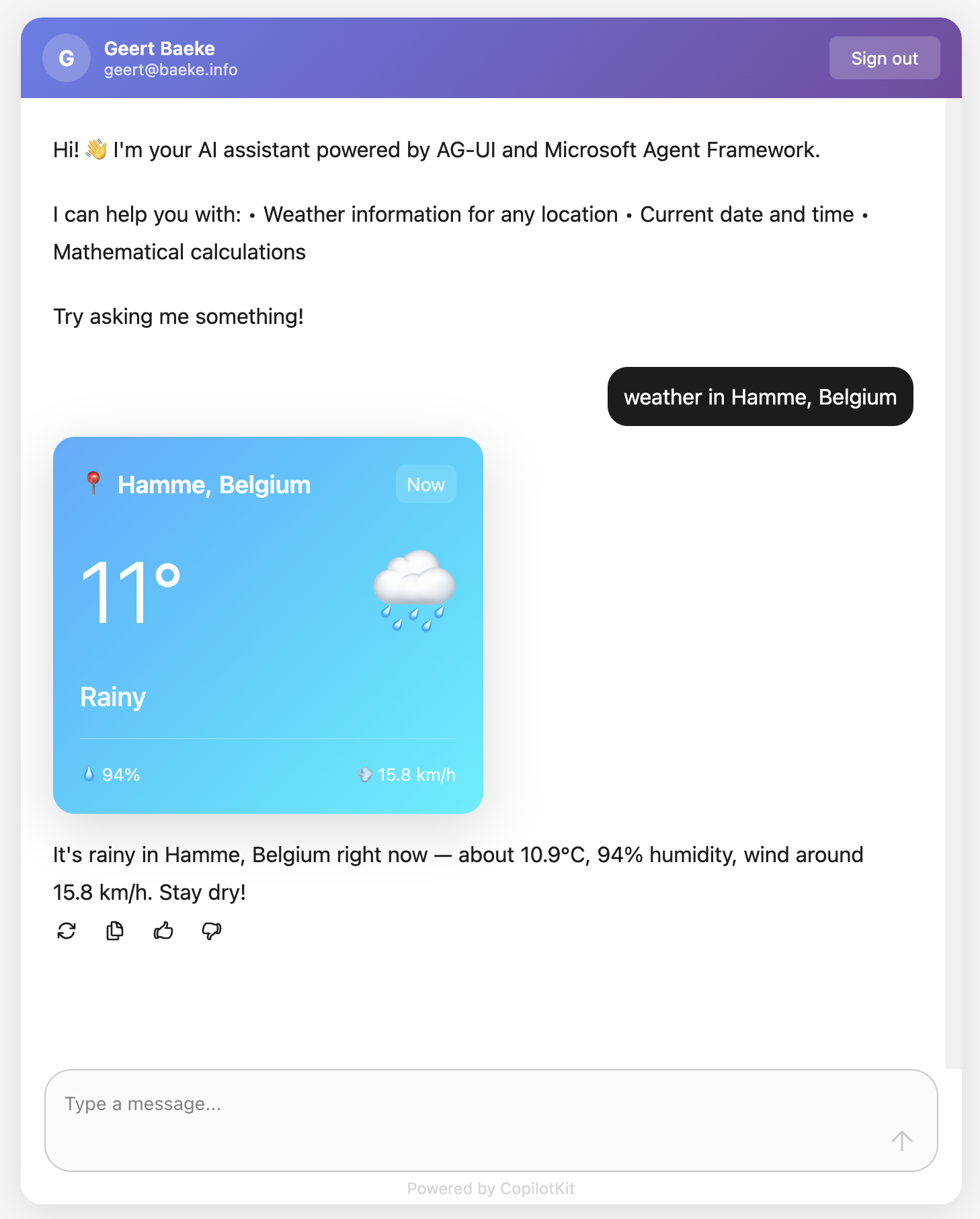
React client with CopilotKit

Above, when the user asks for weather information, AG-UI events inform the client that a tool call has started and ended. It also streams the tool result back to the client which uses a custom component to render the information. This happens before the chat client generates the answer based on the tool result.

The Subagent (tools/storyteller.py)

This is where it gets interesting. In Agent Framework, a ChatAgent can become a tool with .as_tool():

from agent_framework import ChatAgent
from agent_framework.azure import AzureOpenAIChatClient

# Create a specialized agent for bedtime stories
bedtime_story_agent = ChatAgent(
    name="BedTimeStoryTeller",
    description="A creative storyteller that writes engaging bedtime stories",
    instructions="""You are a gentle and creative bedtime story teller.
When given a topic, create a short, soothing bedtime story for children.
Your stories should be 3-5 paragraphs long, calming, and end peacefully.""",
    chat_client=chat_client,
)

# Convert the agent to a tool
bedtime_story_tool = bedtime_story_agent.as_tool(
    name="tell_bedtime_story",
    description="Generate a calming bedtime story based on a theme",
    arg_name="theme",
    arg_description="The theme for the story (e.g., 'a brave rabbit')",
)

This creates a subagent – another ChatAgent with different instructions. When the main agent needs to tell a bedtime story, it calls tell_bedtime_story which delegates to the subagent.

Why is this useful? Because you can give each agent specialized instructions. The main agent handles general questions and decides which tool to use. The storyteller agent focuses only on creating good stories. Clean separation of concerns.

The subagent has its own chat client and can have its own tools too if you want. It’s a full agent, just exposed as a tool.

And because it is a tool, you can render it with the standard AG-UI tool events:

Testing with a client

In src/backend there is a Python client client_raw.py. When you run that client against the server and invoke a tool, you will see something like below:

AG-UI client in Python

This client simply uses httpx to talk the AG-UI server and inspects and renders the AG-UI events as they come in.

Why This Works

Let me tell you what I like about this setup:

Separation of concerns: The frontend doesn’t know about Python, Azure OpenAI, or any backend details. It just speaks AG-UI. You could swap the backend for a C# implementation or something else entirely – the frontend wouldn’t care. Besides of course the handling of specific tool calls.

Standard protocol: Because we use AG-UI, any AG-UI client can talk to this backend. We use CopilotKit in the frontend but you could use anything that speaks AG-UI. Take the Python client as an example.

Framework handles complexity: Streaming, tool calls, conversation history, protocol translation – Agent Framework does all of this. You just write business logic.

Easy to extend: Want a new tool? Write a function with @ai_function. Want a specialized agent? Create a ChatAgent and call .as_tool(). That’s it.

The AG-UI documentation explains that the protocol supports 7 different features including human-in-the-loop, generative UI, and shared state. Our simple backend gets all of these capabilities because Agent Framework implements the protocol.

Note that there are many more capabilities. Check the AG-UI interactive Dojo to find out: https://dojo.ag-ui.com/microsoft-agent-framework-python

Wrap Up

This is a simple but powerful pattern for building AI agent backends. You write minimal code and get a lot of functionality. AG-UI gives you a standard way to expose your agent, and Microsoft Agent Framework handles the implementation details.

If you want to try this yourself, the code is in the repo. You’ll need an Azure OpenAI deployment and follow the OAuth setup. After that, just run the code as instructed in the repo README!

The beauty is in the simplicity. Sometimes the best code is the code you don’t have to write.

Google’s A2A: taking a closer look

In the previous post, I talked about options to build multi-agent solutions. The last option used Google’s A2A. A2A provides a wrapper around your agent, basically a JSON-RPC API, that standardizes how you talk to your agent. In this post we take a closer look at the basics of A2A with simple synchronous message exchange.

⚠️ A2A is still in development. We do not use it in production yet!

The idea is to build solutions that look like this (just one of the many possibilities):

The conversation agent is an agent that uses tools to get the job done. It wouldn’t be much of an agent without tools right? The tools are custom tools created by the developer that call other agents to do work. The other agents can be written in any framework and use any development language. How the agent works internally is irrelevant. When the conversation agent detects (via standard function calling) that the RAG tool needs to be executed, that tool will call the RAG agent over A2A and return the results.

A2A does not dictate how you build your agent. In the example below, an Azure AI Foundry Agent sits at the core. That agent can use any of its hosted tools or custom tools to get the job done. Because this is a RAG Agent, it might use the built-in Azure AI Search or SharePoint knowledge source. As a developer, you use the Azure AI Foundry SDK or Semantic Kernel to interact with your agent as you see fit. Although you do not have to, it is common to wrap your agent in a class and provide one or more methods to interact with it. For example, an invoke() method and an invoke_streaming() method.

Here is a minimal example for the AI Foundry Agent (the yellow box):

class RAGAgent:
    def __init__(self):
        # INITIALIZATION CODE NOT SHOWN
        self.project = AIProjectClient(
            credential=DefaultAzureCredential(),
            endpoint=endpoint)
        self.agent = self.project.agents.get_agent(agent_id)

    async def invoke(self, question: str) -> str:
        thread = self.project.agents.threads.create()

        message = self.project.agents.messages.create(
            thread_id=thread.id,
            role="user",
            content=question
        )
        run = self.project.agents.runs.create_and_process(
            thread_id=thread.id,
            agent_id=self.agent.id)
        messages = list(self.project.agents.messages.list(thread_id=thread.id, order=ListSortOrder.ASCENDING))

        # ...

This code has nothing to do with Google A2A and could be implemented in many other ways. This is about to change because we will now call the above agent from A2A’s AgentExecutor. The AgentExecutor is a key server‑side interface: when a client sends a message, the A2A server calls execute() on your AgentExecutor instance, and your implementation handles the logic and sends updates via an event queue. Here’s how your agent is used by A2A. When a client sends a message it works its way down to your agent via several A2A components:

It’s important to understand the different types of message exchange in A2A. This post will not look at all of them. You can find more information in the A2A documentation. This post uses synchronous messaging via message/send where the response is a simple message and not a, potentially longer running, task.

Let’s dive into the AgentExecutor (it processes the message we send) and work our way up to the A2A client.

AgentExecutor

Let’s take a look at a bare bones implementation of AgentExecutor that works with plain/text input and output messages and without streaming:

Client --message--> A2A Server --> Agent Executor --> Agent

and

Agent --> Agent Executor --> A2A Server --message--> Client
class RAGAgentExecutor(AgentExecutor):

    def __init__(self):
        self.agent = RAGAgent()

    async def execute(self, context: RequestContext, event_queue: EventQueue):
        message_text = context.get_user_input()
        
        result = await self.agent.invoke(message_text)

        await event_queue.enqueue_event(new_agent_text_message(result))
        
    async def cancel(self, context: RequestContext, event_queue: EventQueue):
        raise Exception("Cancel not supported")

When a message is sent to the A2A server via JSON-RPC, the execute() method of the RAGAgentExecutor is called. At server startup, __init__ creates our AI Foundry RAGAgent which does the actual work.

Inside the execute() method, we assume the context contains a message. We use the get_user_input() helper to extract the message text (user query). We then simply call our agent’s invoke() method with that query and return the result via the event_queue. The A2A server uses an event_queue to provide responses back to the caller. In this case, the response will be a simple plain/text message.

This is probably as simple as it gets and is useful to understand A2A’s basic operation. In many cases though, you might want to return a longer running task instead of a message and provide updates to the client via streaming. That would require creating the task and streaming the task updates to the client. The client would need to be modified to handle this.

But wait, we still need to create the server that uses this AgentExecutor. Let’s take a look!

A2A Server

The A2A Python SDK uses starlette and uvicorn to create the JSON-RPC server. You don’t really need to know anything about this because A2A does this under the covers for you. The server needs to do a couple of things:

  • Create one or more skills: skills represent a specific capability or function your agent offers—for instance, “currency conversion,” “document summary” or “meeting scheduling”.
  • Create an agent card: an agent card is like a business card for your agent; it tells others what the agent can do; the above skills are part of the agent card; the agent card is published at /.well-known/agent.json on the agents domain (e.g., localhost:9999 on your local machine)
  • Create a request handler: the request handler ties the server to the AgentExecutor you created earlier
  • Create the A2AStarletteApplication: it ties the agent card and the request handler together
  • Serve the A2AStarletteApplication with uvicorn on an address and port of your choosing

This is what it looks like in code:

import logging
import uvicorn
from a2a.server.apps import A2AStarletteApplication
from a2a.server.request_handlers import DefaultRequestHandler
from a2a.server.tasks import InMemoryTaskStore
from a2a.types import AgentCapabilities, AgentCard, AgentSkill
from agent_executor import RagAgentExecutor

def main():
    skill = AgentSkill(
        id="rag_skill",
        name="RAG Skill",
        description="Search knowledge base for project information",
        tags=["rag", "agent", "information"],
        examples=["What is project Astro and what tech is used in it?"],
    )
    agent_card = AgentCard(
        name="RAG Agent",
        description="A simple agent that searches the knowledge base for information",
        url="http://localhost:9998/",
        defaultInputModes=["text"],
        defaultOutputModes=["text"],
        skills=[skill],
        version="1.0.0",
        capabilities=AgentCapabilities(),
    )
    request_handler = DefaultRequestHandler(
        agent_executor=RagAgentExecutor(),
        task_store=InMemoryTaskStore(),
    )
    server = A2AStarletteApplication(
        http_handler=request_handler,
        agent_card=agent_card,
    )
    uvicorn.run(server.build(), host="0.0.0.0", port=9998)
if __name__ == "__main__":
    main()

Validating the agent card

When you run the A2A server on your local machine and expose it to the public with ngrok or other tools, you can use https://a2aprotocol.ai/a2a-protocol-validator to validate it. When I do this for the RAG Agent, I get the following:

In JSON, the agent card is as follows:

{
  "capabilities": {},
  "defaultInputModes": [
    "text"
  ],
  "defaultOutputModes": [
    "text"
  ],
  "description": "A simple agent that searches the knowledge base for information",
  "name": "RAG Agent",
  "protocolVersion": "0.2.5",
  "skills": [
    {
      "description": "Search knowledge base for project information",
      "examples": [
        "What is project Astro and what tech is used in it?"
      ],
      "id": "rag_agent",
      "name": "RAG Agent",
      "tags": [
        "rag",
        "agent",
        "information"
      ]
    }
  ],
  "url": "http://Geerts-MacBook-Air-2.local:9998/",
  "version": "1.0.0"
}

Now it is time to actually start talking to the agent.

Using the A2A client to talk to the agent

With the server up and running and the Agent Card verified, how do we exchange messages with the server?

In our case, where the server supports only text and there is no streaming, the client can be quite simple:

  • Create an httpx client and set timeout higher depending on how long it takes to get a response; this client is used by the A2ACardResolver and A2AClient
  • Retrieve the agent card with the A2ACardResolver
  • Create a client with A2AClient. It needs the agent card as input and will use the url in the agent card to connect to the A2A server
  • Create a Message, include it in a MessageRequest and send the MessageRequest with the client. We use the non-streaming message_send() method.
  • Handle the response from the client

The code below shows what this might look like:

import uuid

import httpx
from a2a.client import A2ACardResolver, A2AClient
from a2a.types import (
    AgentCard,
    Message,
    MessageSendParams,
    Part,
    Role,
    SendMessageRequest,
    TextPart,
)

PUBLIC_AGENT_CARD_PATH = "/.well-known/agent.json"
BASE_URL = "http://localhost:9998"


async def main() -> None:
    timeout = httpx.Timeout(200.0, read=200.0, write=30.0, connect=10.0)
    async with httpx.AsyncClient(timeout=timeout) as httpx_client:
        # Initialize A2ACardResolver
        resolver = A2ACardResolver(
            httpx_client=httpx_client,
            base_url=BASE_URL,
        )

        final_agent_card_to_use: AgentCard | None = None

        try:
            print(
                f"Fetching public agent card from: {BASE_URL}{PUBLIC_AGENT_CARD_PATH}"
            )
            _public_card = await resolver.get_agent_card()
            print("Fetched public agent card")
            print(_public_card.model_dump_json(indent=2))

            final_agent_card_to_use = _public_card

        except Exception as e:
            print(f"Error fetching public agent card: {e}")
            raise RuntimeError("Failed to fetch public agent card")

        client = A2AClient(
            httpx_client=httpx_client, agent_card=final_agent_card_to_use
        )
        print("A2AClient initialized")

        message_payload = Message(
            role=Role.user,
            messageId=str(uuid.uuid4()),
            parts=[Part(root=TextPart(text="Is there a project with the word Astro? If so, describe it."))],
        )
        request = SendMessageRequest(
            id=str(uuid.uuid4()),
            params=MessageSendParams(
                message=message_payload,
            ),
        )
        print("Sending message")

        response = await client.send_message(request)
        print("Response:")
        print(response.model_dump_json(indent=2))


if __name__ == "__main__":
    import asyncio

    asyncio.run(main())

Above, the entire response is printed as JSON. That is useful to learn what the responses look like. This is part of the response:

{
  "id": "6cc795d8-fa84-4734-8b5a-dccd3a22142d",
  "jsonrpc": "2.0",
  "result": {
    "contextId": null,
    "extensions": null,
    "kind": "message",
    "messageId": "fead200d-0ea4-4ccb-bf1c-ed507b38d79d",
    "metadata": null,
    "parts": [
      {
        "kind": "text",
        "metadata": null,
        "text": "RESPONSE FROM RAG AGENT"
      }
    ],
    "referenceTaskIds": null,
    "role": "agent",
    "taskId": null
  }
}

Simply sending the response as a string on the event queue results in a message with one text part. The result from the RAG agent is in the text property. For a longer running task with streaming updates, the response would be quite different.

You can now easily interact with your agent using this client. For example:

  • use the client in any application (need not be an agent)
  • use the client in a workflow engine like LangGraph
  • use the client in an agent tool; the agent can be written in any framework; when the agent identifies a tool call is needed, the tool is run which contains A2AClient code to interact with the A2A Agent

The entire flow

The diagram below shows the end-to-end flow:

Try it yourself

On GitHub, check https://github.com/gbaeke/multi_agent_aca/tree/main/a2a_simple for a skeleton implementation of a calculator agent. The CalculatorAgent class’s invoke() method always returns “I did not do anything!” It’s up to you to change that!

You can run this A2A server as-is and connect to it with test_client.py. To use an actual agent, update the CalculatorAgent class’s invoke() method with a real agent written in your preferred framework.

Check the README.md for more instructions.

That’s it for this post! In a next one, we will look at a more complex example that streams messages to the client. Stay tuned!

Building multi-agent solutions: what are your options?

When we meet with customers, the topic of a “multi-agent solution” often comes up. This isn’t surprising. There’s a lot of excitement around their potential to transform business processes, strengthen customer relationships, and more.

The first question you have to ask yourself though is this: “Do I really need a multi-agent solution?”. Often, we find that a single agent with a range of tools or a workflow is sufficient. If that’s the case, always go for that option!

On the other hand, if you do need a multi-agent solution, there are several things to think about. Suppose you want to build something like this:

Generic multi-agent setup

Users interact with a main agent that maintains the conversation with the user. When the user asks about a project, a RAG agent retrieves project information. If the user also asks to research or explain the technologies used in the project, the web agent is used to retrieve information from the Internet.

⚠️ If I were to follow my own advice, this would be a single agent with tools. There is no need for multiple agents here. However, let’s use this as an example because it’s easy to reason about.

What are some of your options to build this? The list below is not exhaustive but contains common patterns:

  • Choose a framework (or use the lower-level SDKs) and run everything in the same process
  • Choose an Agent PaaS like Azure AI Foundry Agents: the agents can be defined in the platform; they run independently and can be linked together using the connected agents feature
  • Create the agents in your framework of choice, run them as independent processes and establish a method of communication between these agents; in this post, we will use Google’s A2A (Agent-to-Agent) as an example. Other options are ACP (Agent Communication Protocol, IBM) or “roll your own”

Let’s look at these three in a bit more detail.

In-Process Agents

Running multiple agents in the same process and have them work together is relatively easy. Let’s look at how to do this with OpenAI Agents SDK. Other frameworks use similar approaches.

Multi-agent in-process using the OpenAI Agents SDK

Above, all agents are written using the OpenAI Agents SDK. In code, you first define the RAG and Web Agent as agents with their own tools. In the OpenAI Agents SDK, both the RAG tool and the web search tool are hosted tools provided by OpenAI. See https://openai.github.io/openai-agents-python/tools/ for more information about the FileSearchTool and the WebSearchTool.

Next, the Conversation Agent gets created using the same approach. This time however, two tools are addedd: the RAG Agent Tool and the Web Agent Tool. These tools get called by the Conversation Agent based on their description. This simply is tool calling in action where each tool calls another agent and returns the agent result. The way these agents interact with each other is hidden from you. The SDK simply takes care of it for you.

You can find an example of this in my agent_config GitHub repo. The sample code below shows how this works:

rag_agent = create_agent_from_config("rag")
web_agent = create_agent_from_config("web")

agent_as_tools = {
    "rag": {
        "agent": rag_agent,
        "name": "rag",
        "description": "Provides information about projects"
    },
    "web": {
        "agent": web_agent,
        "name": "web",
        "description": "Gets information about technologies"
    }
}

conversation_agent = create_agent_from_config("conversation", agent_as_tools)

result = await Runner.run(conversation_agent, user_question)

Note that I am using a helper function here that creates an agent from a configuration file that contains the agent instructions, model and tools. Check my previous post for more information. The repo used in this post uses slightly different agents but the concept is the same.

Creating a multi-agent solution in a single process, using a framework that supports calling other agents as tools, is relatively straightforward. However, what if you want to use the RAG Agent in other agents or workflows? In other words, you want reusability! Let’s see how to do this with the other approaches.

Using a Agent PaaS: Azure AI Foundry Agents

Azure AI Foundry Agents is a PaaS solution to create and run agents with enterprise-level features such as isolated networking. After creating an Azure AI Foundry resource and project, you can define agents in the portal:

Agents defined in Azure AI Foundry

⚠️ You can also create these agents from code (e.g., Foundry SDK or Semantic Kernel) which gives you extra flexibility in agent design.

The web and rag agents have their own tools, including hosted tools provided by Foundry, and can run on their own. This is already an improvement compared to the previous approach: agents can be reused from other agents, workflows or any other application.

Azure AI Foundry allows you to connect agents to each other. This uses the same approach as in the OpenAI Agents SDK: agents as tools. Below, the Conversation Agent is connected to the other two agents:

Connected Agents for the Conversation Agent

The configuration of a connected agent is shown below and has a name and description:

It all fits together like in the diagram below:

Multi-agent with Azure AI Foundry

As discussed above, each agent is a standalone entity. You can interact with these agents using the AI Foundry Agents protocol, which is an evolution of the OpenAI Assistant’s protocol. You can read more about it here. In short, to talk to an agent you do the following:

  • Create the agent in code or reference an existing agent (e.g., our conversation agent)
  • Create a thread
  • Put a message on the thread (e.g., the user’s question or a question from another agent via the connected agents principle)
  • Run the thread on the agent and grab the response

Below is an example in Python:

from azure.ai.projects import AIProjectClient
from azure.identity import DefaultAzureCredential
from azure.ai.agents.models import ListSortOrder

project = AIProjectClient(
    credential=DefaultAzureCredential(),
    endpoint="https://YOUR_FOUNDRY_ENDPOINT")

agent = project.agents.get_agent("YOUR_ASSISTANT_ID")

thread = project.agents.threads.create()
print(f"Created thread, ID: {thread.id}")

message = project.agents.messages.create(
    thread_id=thread.id,
    role="user",
    content="What tech is used in some of Contoso's projects?"
)

run = project.agents.runs.create_and_process(
    thread_id=thread.id,
    agent_id=agent.id)

if run.status == "failed":
    print(f"Run failed: {run.last_error}")
else:
    messages = project.agents.messages.list(thread_id=thread.id, order=ListSortOrder.ASCENDING)

    for message in messages:
        if message.text_messages:
            print(f"{message.role}: {message.text_messages[-1].text.value}")

The connected agents feature uses the same protocol under the hood. Like in the OpenAI Agents SDK, this is hidden from you.

When you mainly use Azure AI Foundry agents, there is no direct need for agent-to-agent protocols like A2A or ACP. In fact, even when you have an agent that is not created in Azure AI Foundry, you can simply create a tool in that agent. The tool can then use the thread/message/run approach to get a response from the agent hosted in Foundry. This can all run isolated in your own network if you wish.

You could argue that the protocol used by Azure AI Foundry is not an industry standard. You cannot simply use this protocol in combination with other frameworks. Unless you use something like https://pypi.org/project/llamphouse/, a project written by colleagues of mine which is protocol compatible with the OpenAI Assistants API.

Let’s take a look at the third approach which uses a protocol that aspires to be a standard and can be used together with any agent framework: Google’s A2A.

Using Google’s A2A in a multi-agent solution

The basic idea of Google’s A2A is the creation of a standard protocol for agent-to-agent communication. Without going into the details of A2A, that’s for another post, the solution looks like this:

A multi-agent solution with A2A

A2A allows you to wrap any agent, written in any framework, in a standard JSON-RPC API. With an A2A client, you can send messages to the API which uses an Agent Executor around your actual agent. Your agent provides the response and a message is sent back to the client.

Above, there are two A2A-based agents:

  • The RAG Agent uses Azure AI Foundry and its built-in vector store tool
  • The Web Agent uses OpenAI Agent SDK and its hosted web search tool

The conversation agent can be written in any framework as long as you define tools for that agent that use the A2A protocol (via an A2A client) to send messages to the other agents. This again is agents as tools in action.

To illustrate this standards-based approach, let’s use the A2A Inspector to send a message to the RAG Agent. As long as your agent has an A2A wrapper, this inspector will be able to talk to it. First, we connect to the agent to get its agent card:

Connecting to the RAG Agent with A2A

The agent card is defined in code and contains information about what the agent can do via skills. Once connected, I can send a message to the agent using the A2A protocol:

Sending a message which results in a task

The message that got sent was the following (JSON-RPC):

{
  "id": "msg-1752245905034-georiakp8",
  "jsonrpc": "2.0",
  "method": "message/send",
  "params": {
    "configuration": {
      "acceptedOutputModes": [
        "text/plain",
        "video/mp4"
      ]
    },
    "message": {
      "contextId": "27effaaa-98af-44c4-b15f-10d682fd6496",
      "kind": "message",
      "messageId": "60f95a30-535a-454f-8a8d-31f52d7957b5",
      "parts": [
        {
          "kind": "text",
          "text": "What is project Astro (I might have the name wrong though)"
        }
      ],
      "role": "user"
    }
  }
}

This was the response:

{
  "artifacts": [
    {
      "artifactId": "d912666b-f9ff-4fa6-8899-b656adf9f09c",
      "parts": [
        {
          "kind": "text",
          "text": "Project \"Astro\" appears to refer to \"Astro Events,\" which is a web platform designed for users to discover, share, and RSVP to astronomy-related events worldwide. The platform includes features such as interactive sky maps, event notifications, and a community forum for both amateur and professional astronomers. If you were thinking about astronomy or space-related projects, this may be the correct project you had in mind【4:0†astro_events.md】. If you're thinking of something else, let me know!"
        }
      ]
    }
  ],
  "contextId": "27effaaa-98af-44c4-b15f-10d682fd6496",
  "history": [
    HISTORY HERE
  ],
  "id": "d5af08b3-93a0-40ec-8236-4269c1ed866d",
  "kind": "task",
  "status": {
    "state": "completed",
    "timestamp": "2025-07-11T14:58:38.029960+00:00"
  },
  "validation_errors": []
}

If you are building complex multi-agent solutions, where multiple teams write their agents in different frameworks and development languages, establishing communication standards pays off in the long run.

However, this approach is much more complex than the other two approaches. We have only scratched the surface of A2A here and have not touched on the following aspects:

  • How to handle authentication?
  • How to handle long running tasks?
  • How to scale your agents to multiple instances and how to preserve state?
  • How to handle logging and tracing across agent boundaries?

⚠️ Most of the above is simply software engineering and has not much to do with LLM-based agents!

Conclusion

In this article, we discussed three approaches to building a multi-agent solution

ApproachComplexityReusabilityStandardizationBest For
In-processLowLimitedNoSimple, single-team use cases
Agent PaaSMediumGoodNo (vendor-specific)Org-wide, moderate complexity
A2A ProtocolHighExcellentYesCross-team, cross-platform needs

When you really need a multi-agent solution, I strongly believe that the first two approaches should cover 90% of use cases.

In complex cases, the last option can be considered although it should not be underestimated. To make this option a bit more clear, a follow-up article will discuss how to create and connect agents with A2A in more detail.

Creating an agent with Hugging Face smolagents and Azure OpenAI

Artificial Intelligence (AI) agents have garnered significant attention, with numerous posts discussing them on platforms such as LinkedIn and X/Twitter. In that sense, this post is not different. Instead of theory though, let’s look at building an agent that has a reasoning loop in a very simple way.

Although you can build an agent from scratch, I decided to use the smolagents library from Hugging Face for several reasons:

  • It is very easy to use
  • It uses a reasoning loop similar to ReAct: when it receives a question, it thinks about how to solve it (thought), it performs one or more actions and then observes these actions. These thought-actions-observations steps get repeated until the agent decides the answer is correct or when the maximum amount of steps is reached
  • It is very easy to add tools to the agent
  • There are multiple agent types to choose from, depending on your use case. A Code Agent is the agent of choice.

The reasoning loop is important here. There is no fixed path the agent will take to answer your question or reach its goal. That’s what makes it an agent versus a workflow, which has a predefined path. There is more to that but let’s focus on building the agent.

The agent uses an LLM to reason, act and observe. We will use Azure OpenAI gpt-4o in this post. I assume you have access to Azure and that you are able to deploy an Azure OpenAI services. I use an Azure OpenAI service in the Sweden Central region. To use the service, you need the following:

  • The model endpoint
  • The Azure OpenAI API key

Getting started

Clone the repository at https://github.com/gbaeke/smolagents_post into a folder. In that folder, create a Python virtual environment and run the following command:

pip install -r requirements.txt

This will install several packages in the virtual environement:

  • smolagents: the Hugging Face library
  • litellm: used to support OpenAI, Anthropic and many other LLMs in smolagents
  • arize-phoenix: used to create OpenTelemetry bases traces and spans to inspect the different agent steps

Add a .env file with the following content:

AZURE_OPENAI_API_KEY=your_azure_openai_key
AZURE_API_BASE=https://your_service_name.openai.azure.com/
AZURE_MODEL=name_of_your_deployed_model

In the cloned repo, there is a get_started.py. Before running it, start Phoenix Arize with python -m phoenix.server.main serve in another terminal. This gives you a UI to inspect OpenTelemetry traces at http://localhost:6006/projects. Traces will be in the default project.

Now run get_started.py as follows:

python get_started.py "How to make cookies"

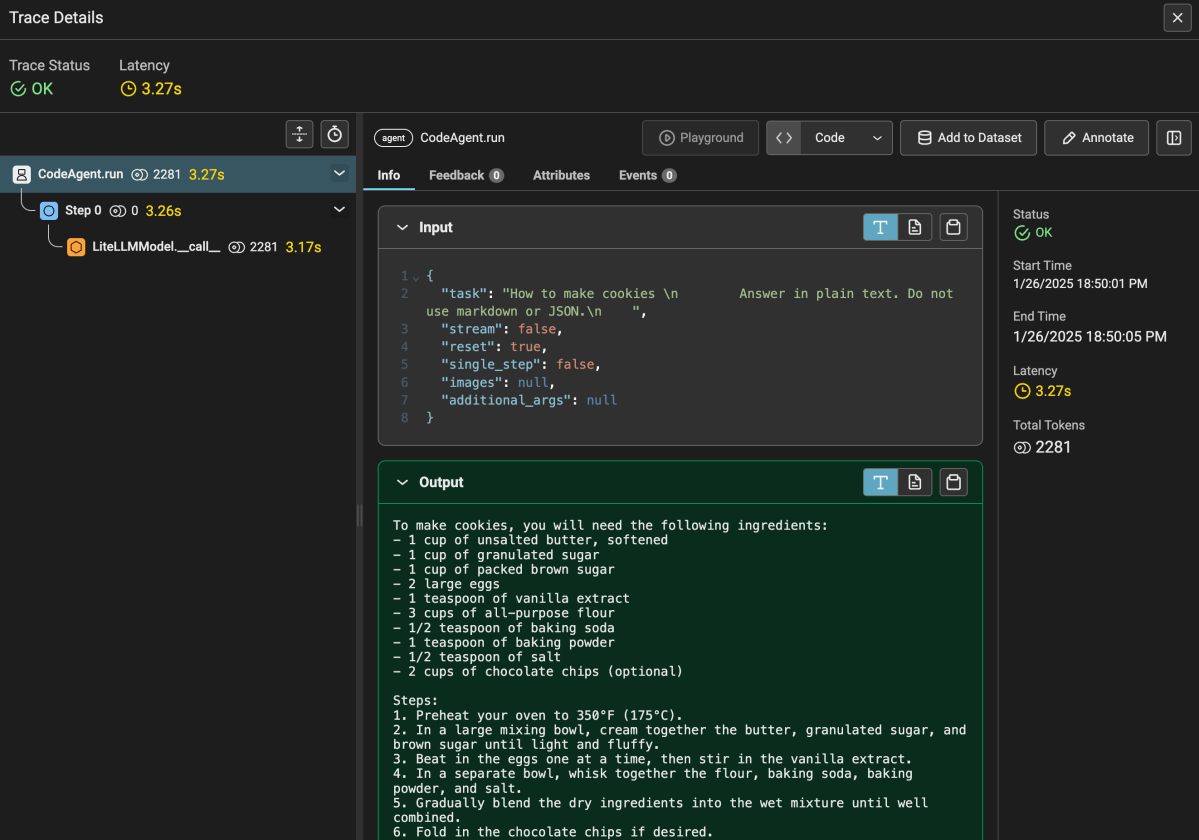
The result is not too exciting. But it does show that the agent works and is able to respond with the help of the Azure OpenAI model that you used. You should find a trace in Phoenix Arize as well:

How to make cookies trace

Above, the agent needed only one step. It’s important to know that we use a CodeAgent here. Such an agent writes code to provide you with an answer. The code it wrote was as follows:

Thought: I will write the answer in plain text detailing the steps to make cookies.

Code:
```py
cookie_recipe = """\
To make cookies, you will need the following ingredients:
- 1 cup of unsalted butter, softened
- 1 cup of granulated sugar
- 1 cup of packed brown sugar
- 2 large eggs
- 1 teaspoon of vanilla extract
- 3 cups of all-purpose flour
- 1/2 teaspoon of baking soda
- 1 teaspoon of baking powder
- 1/2 teaspoon of salt
- 2 cups of chocolate chips (optional)

Steps:
1. Preheat your oven to 350°F (175°C).
2. In a large mixing bowl, cream together the butter, granulated sugar, and brown sugar until light and fluffy.
3. Beat in the eggs one at a time, then stir in the vanilla extract.
4. In a separate bowl, whisk together the flour, baking soda, baking powder, and salt.
5. Gradually blend the dry ingredients into the wet mixture until well combined.
6. Fold in the chocolate chips if desired.
7. Drop spoonfuls of dough onto ungreased baking sheets, spacing them about 2 inches apart.
8. Bake in the preheated oven for about 10-12 minutes, or until the edges are golden brown.
9. Let the cookies cool on the baking sheets for a few minutes before transferring to wire racks to cool completely.

Enjoy your homemade cookies!
"""

final_answer(cookie_recipe)
```

Of course, smolagents uses a prompt to tell the model and specifically the Code Agent how to behave. The code generates a final answer which will be the answer the user sees.

Let’s take a look at get_started.py:

from smolagents import CodeAgent, LiteLLMModel
import os
import sys
from dotenv import load_dotenv

# instrumentation
from opentelemetry import trace
from opentelemetry.sdk.trace import TracerProvider
from opentelemetry.sdk.trace.export import BatchSpanProcessor

from openinference.instrumentation.smolagents import SmolagentsInstrumentor
from opentelemetry.exporter.otlp.proto.http.trace_exporter import OTLPSpanExporter
from opentelemetry.sdk.trace.export import ConsoleSpanExporter, SimpleSpanProcessor

endpoint = "http://0.0.0.0:6006/v1/traces"
trace_provider = TracerProvider()
trace_provider.add_span_processor(SimpleSpanProcessor(OTLPSpanExporter(endpoint)))

SmolagentsInstrumentor().instrument(tracer_provider=trace_provider)


def print_usage():
    print("\nUsage: python app.py \"your question in quotes\"")
    print("\nExample:")
    print("  python app.py \"Find the cheapest laptop\"")
    print("  python app.py \"Find a Python tutorial to write a FastAPI API\"")
    sys.exit(1)

def main():
    # Check if a question was provided
    if len(sys.argv) != 2:
        print("\nError: Please provide a question as a command-line argument.")
        print_usage()

    # Get the question from command line
    question = sys.argv[1]

    # Load environment variables from .env file
    load_dotenv()

    # Check for required environment variables
    if not os.getenv("AZURE_OPENAI_API_KEY"):
        print("\nError: OPENAI_API_KEY not found in .env file")
        sys.exit(1)
    if not os.getenv("BING_SUBSCRIPTION_KEY"):
        print("\nError: BING_SUBSCRIPTION_KEY not found in .env file")
        sys.exit(1)
    if not os.getenv("AZURE_API_BASE"):
        print("\nError: AZURE_API_BASE not found in .env file")
        sys.exit(1)
    if not os.getenv("AZURE_MODEL"):
        print("\nError: AZURE_MODEL not found in .env file")
        sys.exit(1)

    # get keys from .env
    azure_openai_api_key = os.getenv("AZURE_OPENAI_API_KEY")
    azure_api_base = os.getenv("AZURE_API_BASE")
    azure_model = os.getenv("AZURE_MODEL")
    # refer to Azure model as azure/NAME_OF_YOUR_DEPLOYED_MODEL
    model = LiteLLMModel(model_id=f"azure/{azure_model}", api_key=azure_openai_api_key, api_base=azure_api_base, max_tokens=4096)
    
    agent = CodeAgent(
        model=model,
        max_steps=10,
        verbosity_level=2,
        tools=[],
        # additional_authorized_imports=["requests", "bs4"]
    )

    extra_instructions="""
        Answer in plain text. Do not use markdown or JSON.
    """

    result = agent.run(question + " " + extra_instructions)

if __name__ == "__main__":
    main()
    

Most of the code is imports, getting environment variables etc… Let’s focus on the core:

  • Specifying the model the agent should use: smolagents relies on LiteLLM to give you access to many models. One of those is Azure OpenAI. To tell LiteLLM what model we use, we prefix the model name with azure/. You can also use models directly from Hugging Face or local models.
  • Creating the agent: in this case we use a CodeAgent instead of a ToolCallingAgent; as you have seen above, a CodeAgent writes Python code to provide answers and executes that Python code; you will see later how it handles tools
  • Doing an agent run: simply call the run method with your question; append extra instructions to your question as needed

The verbosity level ensures we can see what happens in the console:

Console logging by the agent

In just a few lines of code, you have an agent that can use code to answer your questions. There is no predefined path it takes.

Try asking “What is the last post on https://atomic-temporary-16150886.wpcomstaging.com“. It will try to write code that uses Python libraries that are not allowed by default. By uncommenting the additional_authorized_imports line, the agent will probably be able to answer the question anyway:

Answering “What is the last post on https://atomic-temporary-16150886.wpcomstaging.com?”

The agent decides to use the requests and BeatifulSoup libraries to scrape this blog and retrieve the latest post. How cool is that? 😉

Adding tools

Although you can let the agent run arbitrary code, you will probably want to give the agent extra tools. Those tools might require API keys and other parameters that the Code Agent will not know how to use. They might query internal knowledge bases or databases and much, much more.

As an example, we will give the agent a Bing Search tool. It can use the tool to search for information on the web. If you enable the additional imports, it can also scrape those URLs for extra content.

Note: smolagents has a default Google Search tool that uses the Serper API.

Note: scraping will not work for dynamically loaded content; use tools such as https://firecrawl.dev or https://jina.ai with those websites; alternatively, write a tool that uses a headless browser

If you cloned the repository, you have the following:

  • search.py: the same code as get_started.py but with the Bing tool included
  • a tools folder: contains bing_search.py that implements the tool

In search.py, you will find the following extra lines throughout the code:

from tools import bing_search  # import the tool

# add the tool to a list of tools
tools = [
  bing_search.BingSearchTool(api_key=bing_subscription_key)
]

# agent with tools
agent = CodeAgent(
     model=model,
     max_steps=10,
     verbosity_level=2,
     tools=tools,
     additional_authorized_imports=["requests", "bs4"]
)

A tool is either a Python class based on the smolagents Tool class, or a function decorated with the @tool decorator. Here, we are using a class:

  • The description field in the class is used by the agent to know what the tool can do
  • The inputs field describes the parameter the tool can accept
  • The output fields sets the type of the output, e.g., string

The most important method of the class is the forward method. When the agent uses the tool, it executes that method. Implement the tool’s behavior in that method. The code below is the Bing tool:

from smolagents import Tool
import requests
from typing import Dict, List

class BingSearchTool(Tool):
    name = "bing_search"
    description = """
    This tool performs a Bing web and image search and returns the top search results for a given query.
    It returns a string containing formatted search results including web pages and images.
    It is best for overview information or to find a url to scrape."""
    
    inputs = {
        "query": {
            "type": "string",
            "description": "The search query to look up on Bing",
        },
        "num_results": {
            "type": "integer",
            "description": "Number of search results to return (default: 5)",
            "default": 5,
            "nullable": True
        },
        "include_images": {
            "type": "boolean",
            "description": "Whether to include image results (default: False)",
            "default": False,
            "nullable": True
        }
    }
    output_type = "string"

    def __init__(self, api_key: str):
        super().__init__()
        self.api_key = api_key
        self.web_endpoint = "https://api.bing.microsoft.com/v7.0/search"
        self.image_endpoint = "https://api.bing.microsoft.com/v7.0/images/search"
        
    def _get_web_results(self, query: str, num_results: int) -> List[str]:
        headers = {"Ocp-Apim-Subscription-Key": self.api_key}
        params = {
            "q": query,
            "count": num_results,
            "textDecorations": False,
            "textFormat": "Raw"
        }
        
        response = requests.get(self.web_endpoint, headers=headers, params=params)
        response.raise_for_status()
        search_results = response.json()
        
        formatted_results = []
        for item in search_results.get("webPages", {}).get("value", []):
            result = f"Title: {item['name']}\nSnippet: {item['snippet']}\nURL: {item['url']}\n"
            formatted_results.append(result)
            
        return formatted_results

    def _get_image_results(self, query: str, num_results: int) -> List[str]:
        headers = {"Ocp-Apim-Subscription-Key": self.api_key}
        params = {
            "q": query,
            "count": num_results,
            "textDecorations": False,
            "textFormat": "Raw"
        }
        
        response = requests.get(self.image_endpoint, headers=headers, params=params)
        response.raise_for_status()
        image_results = response.json()
        
        formatted_results = []
        for item in image_results.get("value", []):
            result = f"Image Title: {item['name']}\nImage URL: {item['contentUrl']}\nThumbnail URL: {item['thumbnailUrl']}\nSource: {item['hostPageDisplayUrl']}\n"
            formatted_results.append(result)
            
        return formatted_results
        
    def forward(self, query: str, num_results: int = 5, include_images: bool = True) -> str:
        try:
            results = []
            
            # Get web results
            web_results = self._get_web_results(query, num_results)
            if web_results:
                results.append("=== Web Results ===")
                results.extend(web_results)
            
            # Get image results if requested
            if include_images:
                image_results = self._get_image_results(query, num_results)
                if image_results:
                    results.append("\n=== Image Results ===")
                    results.extend(image_results)
            
            return "\n".join(results) if results else "No results found."
            
        except requests.exceptions.RequestException as e:
            raise Exception(f"Bing search failed: {str(e)}") 

To try the tool, make sure you create a Bing Search resource in Azure and grab its key. Note that we are using Bing Search and not Bing Custom Search here. When you have the key, add it to the .env file:

BING_SUBSCRIPTION_KEY=your_bing_search_api_key

Now run the following command (or similar):

python search.py "Search the web for information about DeepSeek R1. Summarize and provide links"

The agent should use multiple steps before reaching the final answer:

Trace of the search

In step 0, the agent decides to use the BingSearchTool. It writes the following code and executes it (remember it is a CodeAgent):

results = bing_search(query="DeepSeek R1", num_results=5)
print(results)

The response is a list of web and images results.

Sometimes, there are steps that do not have code to execute. Step 1 and 2 provide LLM output which the CodeAgent cannot execute. In your case, it might not happen or it might be a different number of steps. In Step 3, that is solved as the assistant output is code that uses the final_answer call to provide the final answer and stop. It basically self corrects at the expense of some extra tokens:
Thought: I will correctly format the plain text summary in the code block to ensure it handles the string properly, and then provide the final answer.

Code:

summary = """
DeepSeek R1 is an advanced AI model developed by DeepSeek-AI. It uses large-scale reinforcement learning (RL) directly on the base model without relying on supervised fine-tuning (SFT) as a preliminary step. The model has been designed to perform a variety of reasoning tasks with high accuracy and speed. DeepSeek R1 and its variants, such as DeepSeek R1-Zero and DeepSeek R1-Lite-Preview, have been launched for web, app, and API usage, competing with other leading AI models like OpenAI's Model o1.

Key Highlights:
1. DeepSeek R1 GitHub Repository: https://github.com/deepseek-ai/DeepSeek-R1
2. DeepSeek Official Website: https://www.deepseek.com/
3. DeepSeek R1 Research Paper on arXiv: https://arxiv.org/abs/2501.12948
4. DeepSeek R1 API Documentation: https://api-docs.deepseek.com/news/news1120
5. Article on Nature about DeepSeek R1: https://www.nature.com/articles/d41586-025-00229-6

DeepSeek R1 is positioned as a powerful AI model with significant advancements in reasoning and inference capabilities, making it a competitive alternative to other leading models in the AI community.
"""
final_answer(summary)

Note: I feel those errors are a bug that might be related to the system prompt of the Code Agent.

Running code securely

Our Code Agent runs the code on the same system as the agent. For extra security, it is recommended to use secure code execution in a remote sandbox environment. To that end, smolagents supports E2B. Check the smolagents docs for more information.

E2B is similar to Azure Container Apps Dynamic Sessions. Sadly, smolagents does not support that yet.

Conclusion

We have barely scratched the surface of what is possible with smolagents. It is a small and simple library with which you can quickly build an agent that reasons, acts and observes in multiple steps until it reaches an answer. It supports a wide range of LLMs and has first-class support for Code Agents. We used the Code Agent in this post. There is another agent, the ToolCallingAgent, which uses the LLM to generate the tool calls using JSON. However, using the Code Agent is the recommended approach and is more flexible.

If you need to build applications where you want the LLM to decide on the course of actions, smolagents is an easy to use library to get started. Give it a go and try it out!

Creating a Copilot declarative agent with VS Code and the Teams Toolkit

If you are a Microsoft 365 Copilot user, you have probably seen that the words “agent” and “Copilot agent” are popping up here and there. For example, if you chat with Copilot there is an Agents section in the top right corner:

Copilot Chat with agents

Above, there is a Visual Creator agent that’s built-in. It’s an agent dedicated to generating images. Below Visual Creator, there are agents deployed to your organisation and ways to add and create agents.

A Copilot agent in this context, runs on top of Microsoft 365 Copilot and uses the Copilot orchestrator and underlying model. An agent is dedicated to a specific task and has the following properties. Some of these properties are optional:

  • Name: name of the agent
  • Description: you guessed it, the description of the agent
  • Instructions: instructions for the agent about how to do its work and respond to the user; you can compare this to a system prompt you give an LLM to guide its responses
  • Conversation starters: prompts to get started like the Learn More and Generate Ideas in the screenshot above
  • Documents: documents the agent can use to provide the user with answers; this will typically be a SharePoint site or a OneDrive location
  • Actions: actions the agents can take to provide the user with an answer; these actions will be API calls that can fetch information from databases, create tickets in a ticketing system and much more…

There are several ways to create these agents:

  • Start from SharePoint and create an agent based on the documents you select
  • Start from Microsoft 365 Copilot chat
  • Start from Copilot Studio
  • Start from Visual Studio Code

Whatever you choose, you are creating the agent declaratively. You do not have to write code to create the agent. Depending on the tool you use, not all capabilities are exposed. For example, if you want to add actions to your agent, you need Copilot Studio or Visual Studio Code. You could start creating the agent from SharePoint and then add actions with Copilot Studio.

In this post, we will focus on creating a declarative agent with Visual Studio Code.

Getting Started

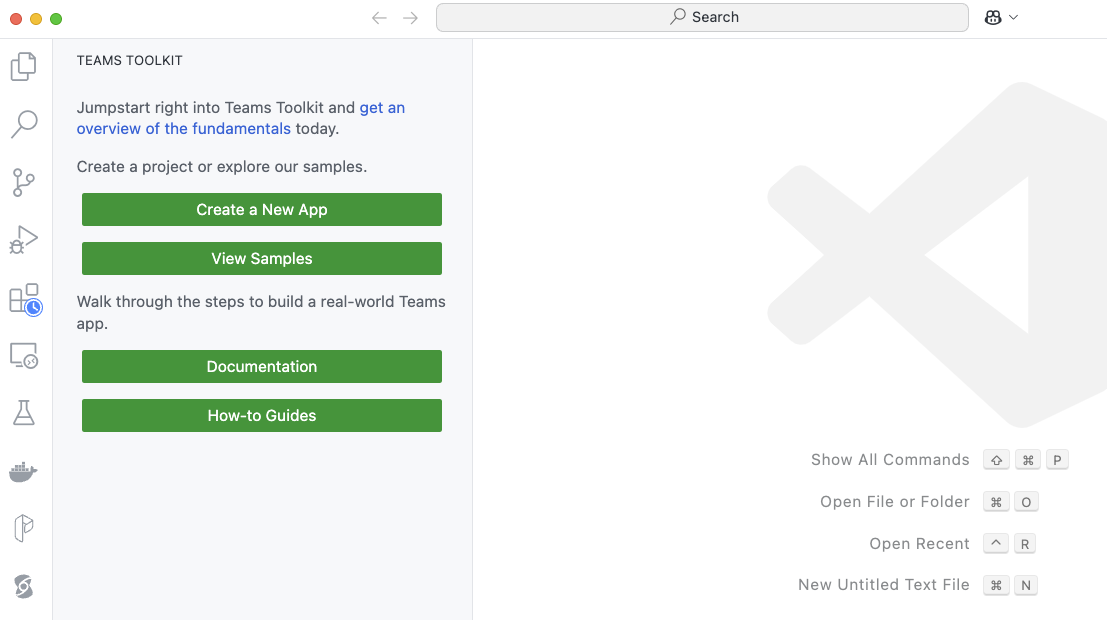
You need Visual Studio Code or a compatible editor and add the Teams Toolkit extension. Check Microsoft Learn to learn about all requirements. After installing it in VS Code, click the extension. You will be presented with the options below:

Teams Toolkit extension in VS Code

To create a declarative agent, click Create a New App. Select Copilot Agent.

Copilot Agent in Teams Toolkit

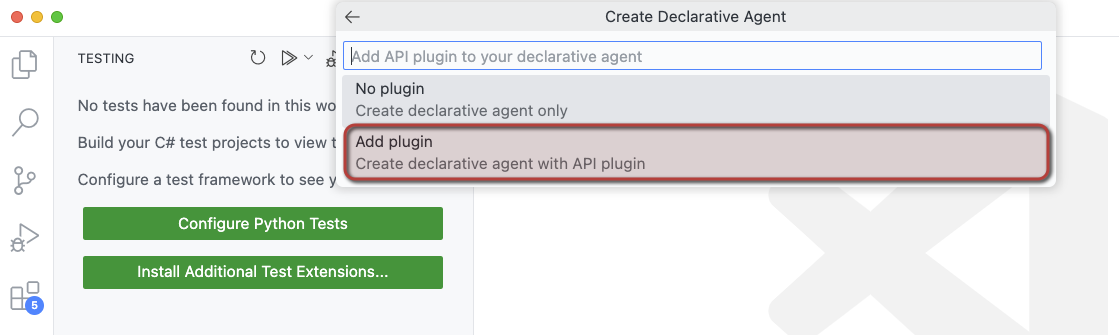
Next, select Declarative Agent. You will be presented with the choices below:

Creating an agent with API plugin so we can call APIs

To make this post more useful, we will add actions to the agent. Although the word “action” is not mentioned above, selecting Add plugin will give us that functionality.

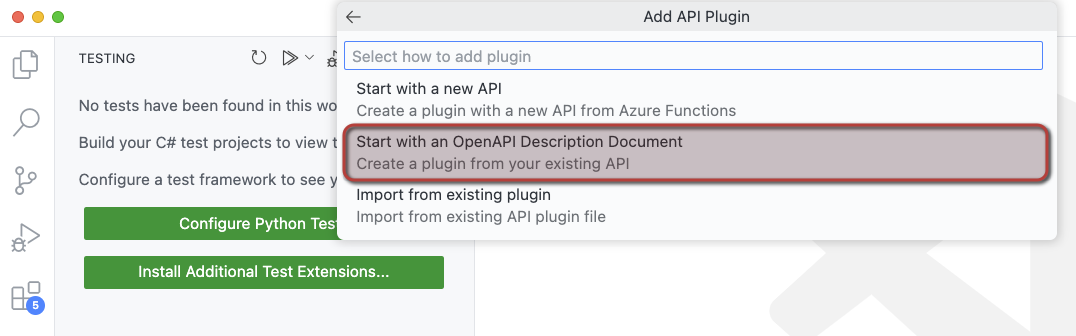
We will create our actions from an OpenAPI 3.0.x specification. Select Start with an OpenAPI Description Document as shown below.

When you select the above option, you can either:

  • Use a URL that returns the OpenAPI document
  • Browse for an OpenAPI file (json or yaml) on your file system

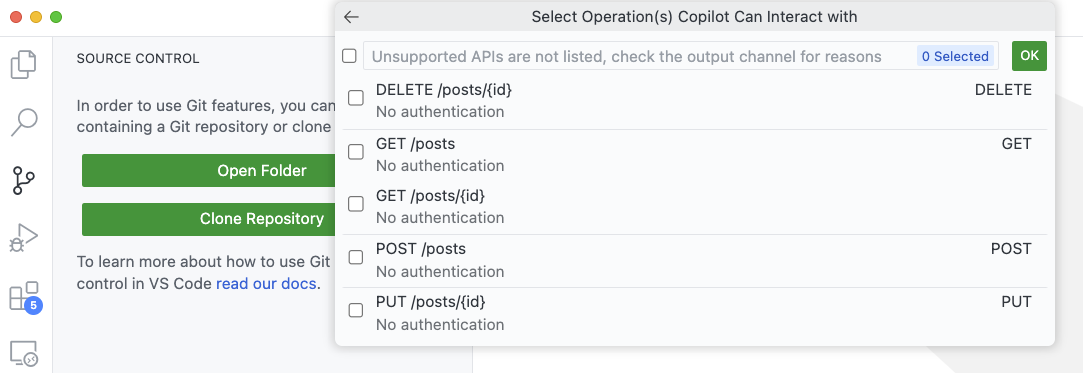
I downloaded the OpenAPI specification for JSON Placeholder from https://arnu515.github.io/jsonplaceholder-api-docs/. JSON Placeholder is an online dummy API that provides information about blog posts. After downloading the OpenAPI spec, browse for the swagger.json file via the Browse for an OpenAPI file option. In the next screen, you can select the API operations you want to expose:

Select the operations you want the agent to use

I only selected the GET /posts operation (getPosts). Next, you will be asked for a folder location and a name for your project. I called mine DemoAgent. After specifying the name, a new VS Code window will pop up:

Declarative Agent opens in a new Window

You might get questions about installing additional extensions and even to provision the app.

How does it work?

Before explaining some of the internals, let’s look at the end result in Copilot chat. Below is the provisioned app, provisioned only to my own account. This is the app as created by the extension, without modifications on my part.

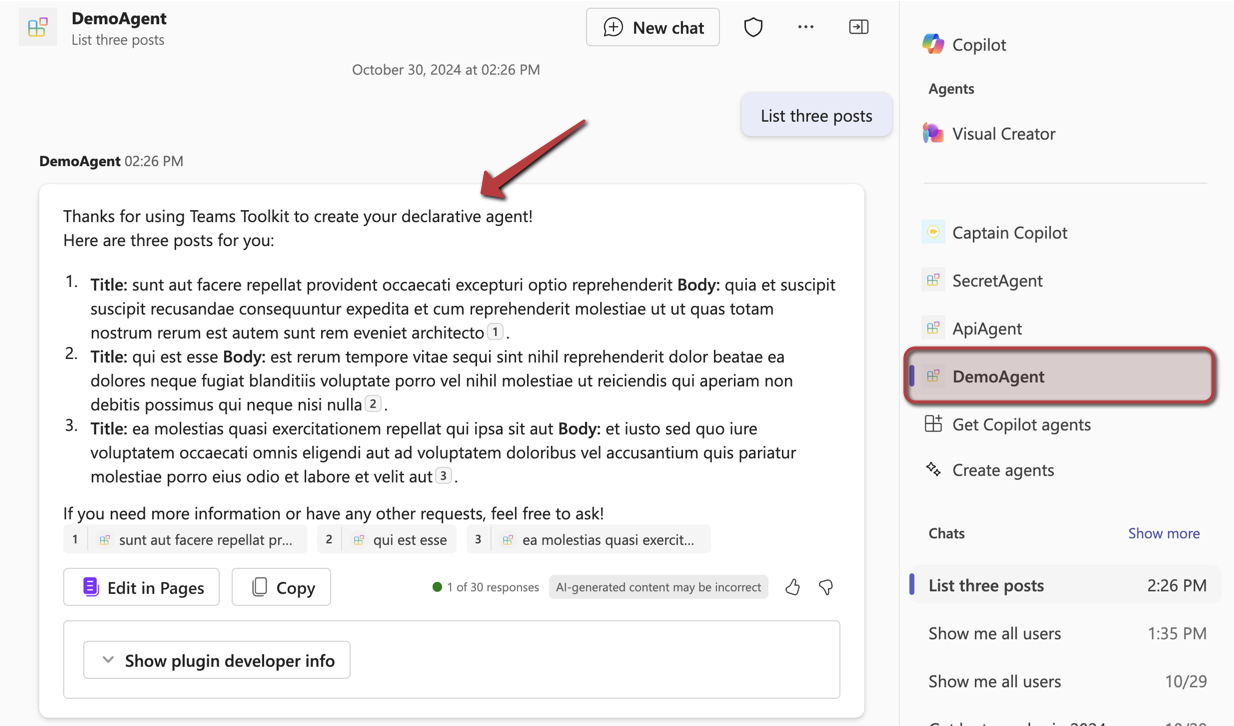
Agent in Copilot Chat; sample API we use returns Latin 😉

Above, I have asked for three posts. Copilot matches my intent to the GET /posts API call and makes the call. The JSONPlaceholder API does not require authentication so that’s easy. Authentication is supported but that’s for another post. If it’s the first time the API is used, you will be asked for permission to use it.

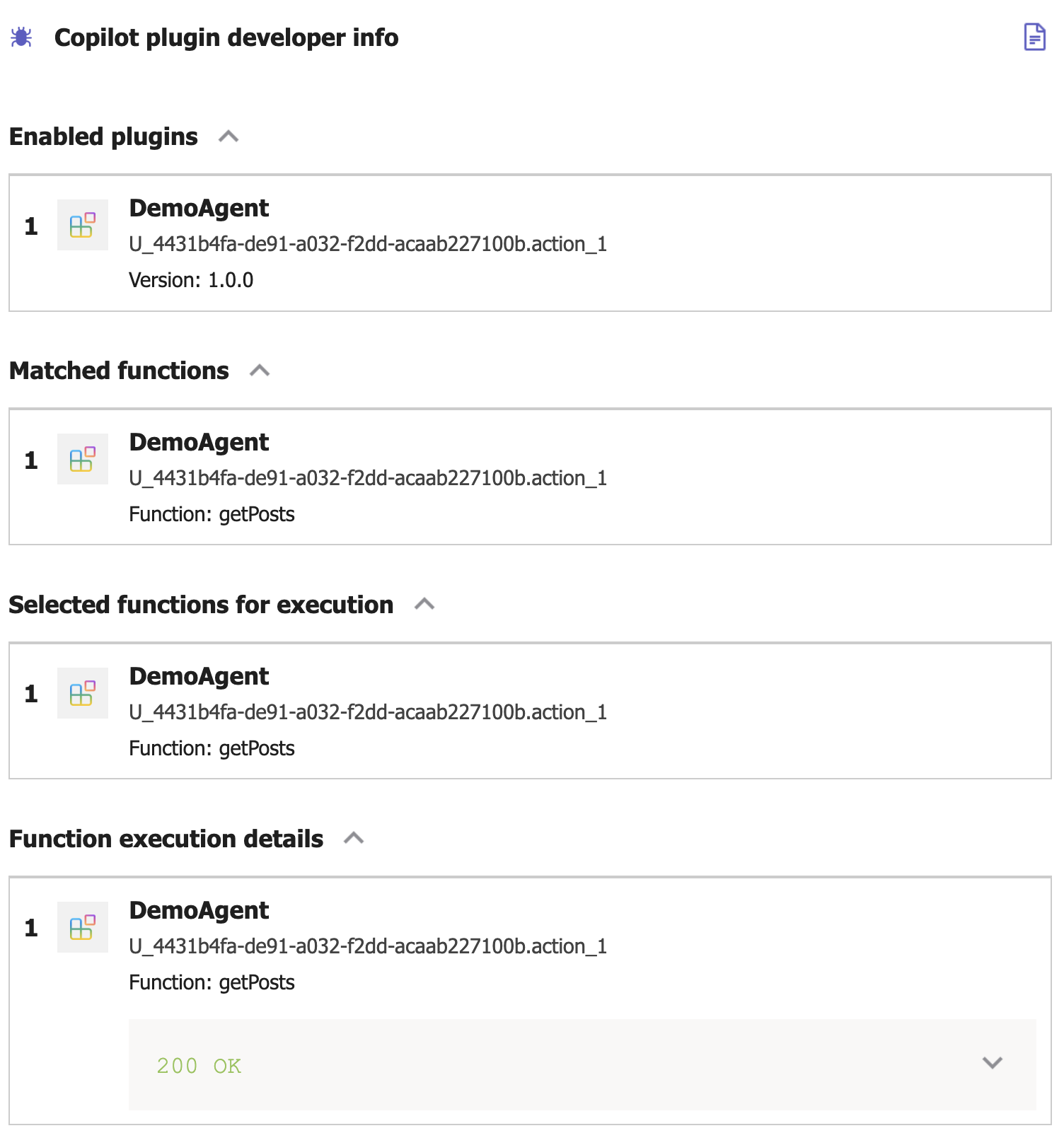
In Copilot, I turned on developer mode by typing -developer on in the chat box. When you click Show plugin developer info, you will see something like the below screenshot:

Copilot developer mode

Above, the Copilot orchestrator has matched the function getPosts from the DemoAgent plugin. Plugin is just the general name for Copilot extensions that can perform actions (or functions). Yes, naming is hard. The Copilot orchestrator selected the getPosts function to execute. The result was a 200 OK from the underlying API. If you click the 200 OK message, you see the raw results returned from the API.

Now let’s look at some of the files that are used to create this agent. The main file, from the agent’s point of view, is declarativeAgent.json in the appPackage folder. It contains the name, description, instructions and actions of the agent:

{
    "$schema": "https://developer.microsoft.com/json-schemas/copilot/declarative-agent/v1.0/schema.json",
    "version": "v1.0",
    "name": "DemoAgent",
    "description": "Declarative agent created with Teams Toolkit",
    "instructions": "$[file('instruction.txt')]",
    "actions": [
        {
            "id": "action_1",
            "file": "ai-plugin.json"
        }
    ]
}

The instructions property references another file which contains the instructions for the agent. One of the instructions is: You should start every response and answer to the user with “Thanks for using Teams Toolkit to create your declarative agent!”. That’s the reason why my question had that in the response to start with.

Of course, the actions are where the magic is. You can provide your agent with multiple actions. Here, we only have one. These actions are defined in a file that references the OpenAPI spec. Above, that file is ai-plugin.json. This file tells the agent what API call to make. It contains a functions array with only one function in this case: getPosts. It’s important you provide a good description for the function because Copilot selects the function to call based on its description. See the Matched functions list in the plugin developer info section.

Below the functions array is a runtimes array. It specifies what operation to call from the referenced OpenAPI specification. In here, you also specify the authentication to the API. In this case, the auth type is None but agents support HTTP bearer authentication with a simple key or OAuth.

Here’s the entire file:

{
    "$schema": "https://developer.microsoft.com/json-schemas/copilot/plugin/v2.1/schema.json",
    "schema_version": "v2.1",
    "name_for_human": "DemoAgent",
    "description_for_human": "Free fake API for testing and prototyping.",
    "namespace": "demoagent",
    "functions": [
        {
            "name": "getPosts",
            "description": "Returns all posts",
            "capabilities": {
                "response_semantics": {
                    "data_path": "$",
                    "properties": {
                        "title": "$.title",
                        "subtitle": "$.id"
                    },
                    "static_template": {
                        "type": "AdaptiveCard",
                        "$schema": "http://adaptivecards.io/schemas/adaptive-card.json",
                        "version": "1.5",
                        "body": [
                            {
                                "type": "TextBlock",
                                "text": "id: ${if(id, id, 'N/A')}",
                                "wrap": true
                            },
                            {
                                "type": "TextBlock",
                                "text": "title: ${if(title, title, 'N/A')}",
                                "wrap": true
                            },
                            {
                                "type": "TextBlock",
                                "text": "body: ${if(body, body, 'N/A')}",
                                "wrap": true
                            },
                            {
                                "type": "TextBlock",
                                "text": "userId: ${if(userId, userId, 'N/A')}",
                                "wrap": true
                            }
                        ]
                    }
                }
            }
        }
    ],
    "runtimes": [
        {
            "type": "OpenApi",
            "auth": {
                "type": "None"
            },
            "spec": {
                "url": "apiSpecificationFile/openapi.json"
            },
            "run_for_functions": [
                "getPosts"
            ]
        }
    ],
    "capabilities": {
        "localization": {},
        "conversation_starters": [
            {
                "text": "Returns all posts"
            }
        ]
    }
}

As you can see, you can also control how the agent responds by providing an adaptive card. Teams toolkit decided on the format above based on the API specification and the data returned by the getPosts operation. In this case, the card looks like this:

Addaptive card showing the response from the API: id, title, body and userId of the fake blog post

Adding extra capabilities

You can add conversation starters to the agent in declarativeAgent.json. They are shown in the opening screen of your agent:

Conversation Starters

These starters are added to declarativeAgent.json:

{
    "$schema": "https://developer.microsoft.com/json-schemas/copilot/declarative-agent/v1.0/schema.json",
    "version": "v1.0",
    "name": "DemoAgent",
    "description": "Declarative agent created with Teams Toolkit",
    "instructions": "$[file('instruction.txt')]",
    "actions": [
        ...
    ],
    "conversation_starters": [
    {
        "title": "Recent posts",
        "text": "Show me recent posts"
    },
    {
        "title": "Last post",
        "text": "Show me the last post"
    }
]
}

In addition to conversation starters, you can also enable web searches. Simply add the following to the file above,

"capabilities": [
    {
        "name": "WebSearch"
    }
]

With this feature enabled, the agent can search the web for answers via Bing. It will do so when it thinks it needs to or when you tell it to. For instance: “Search the web for recent news about AI” gets you something like this:

Agent with WebSearch turned on

In the plugin developer info, you will see that none of your functions were executed. Developer info does not provide additional information about the web search.

Next to starter prompts and WebSearch, here are some of the other things you can do:

  • Add OneDrive and SharePoint content: extra capability with name OneDriveAndSharePoint; the user using the agent needs access to these files or they cannot be used to generate an answer
  • Add Microsoft Graph Connectors content: extra capability with name GraphConnectors; Graph Connectors pull in data from other sources in Microsoft Graph; by specifying the connector Ids, that data can then be retrieved by the agent

More information about the above settings can be found here: https://learn.microsoft.com/en-us/microsoft-365-copilot/extensibility/declarative-agent-manifest.

Provisioning

To provision the agent just for you, open VS Code’s command palette and search for Teams: Provision. You will be asked to log on to Microsoft 365. When all goes well, you should see the messages below in the Output pane:

Output after provisioning an app

If you are familiar with app deployment to Teams in general, you will notice that this is the same.

When the app is provisioned, it should appear in the developer portal at https://dev.teams.microsoft.com/apps:

DemoAgent in the Teams dev portal

Note that the extension adds dev to the agent when you provision the app. When you publish the app, this is different. You can also see this in VS Code in the build folder:

App package for provisioning in VS Code

Note: we did not discuss the manifest.json file which is used to configure the Teams app as a whole. Use it to set developer info, icons, name, description and more.

There are more steps to take to publish the app and make it available to your organisation. See https://learn.microsoft.com/en-us/microsoftteams/platform/toolkit/publish for more information

Conclusion

The goal of this blogpost was to show how easy it is to create a declarative agent on top of Microsoft 365 Copilot in VS Code. Remember that these agents use the underlying Copilot orchestrator and model and that is something you cannot change. If you need more freedom (e.g., control over LLM, its parameters, advanced prompting techniques etc…) and you want to create such an app in Teams, there’s always the Custom Engine Agent.

Declarative agents don’t require you to code although you do need to edit multiple files to get it to work?

In a follow-up post, we will take a look at adding a custom API with authentication. I will also show you how to easily add additional actions to an agent without too much manual editing. Stay tuned!

Using your own message broker with Diagrid Catalyst

In a previous post, I wrote about Diagrid Catalyst. Catalyst provides services like pub/sub and state stores to support the developer in writing distributed applications. In the post, we discussed a sample application that processes documents and extracts fields with an LLM (gpt-4o structured extraction). Two services, upload and process, communicate via the pub/sub pattern.

In that post, we used a pub/sub broker built-in to Catalyst. Using the built-in broker makes it extremely easy to get started. You simply create the service and topic subscription and write code to wire it all up using the Dapr APIs.

Catalyst built-in pub/sub service

But what if you want to use your own broker? Read on to learn how that works.

Using Azure Service Bus as the broker

To use Azure Service Bus, simply deploy an instance in a region of your choice. Ensure you use the standard tier because you need topics, not queues:

Azure Service Bus Standard Tier deployed in Sweden; public endpoint

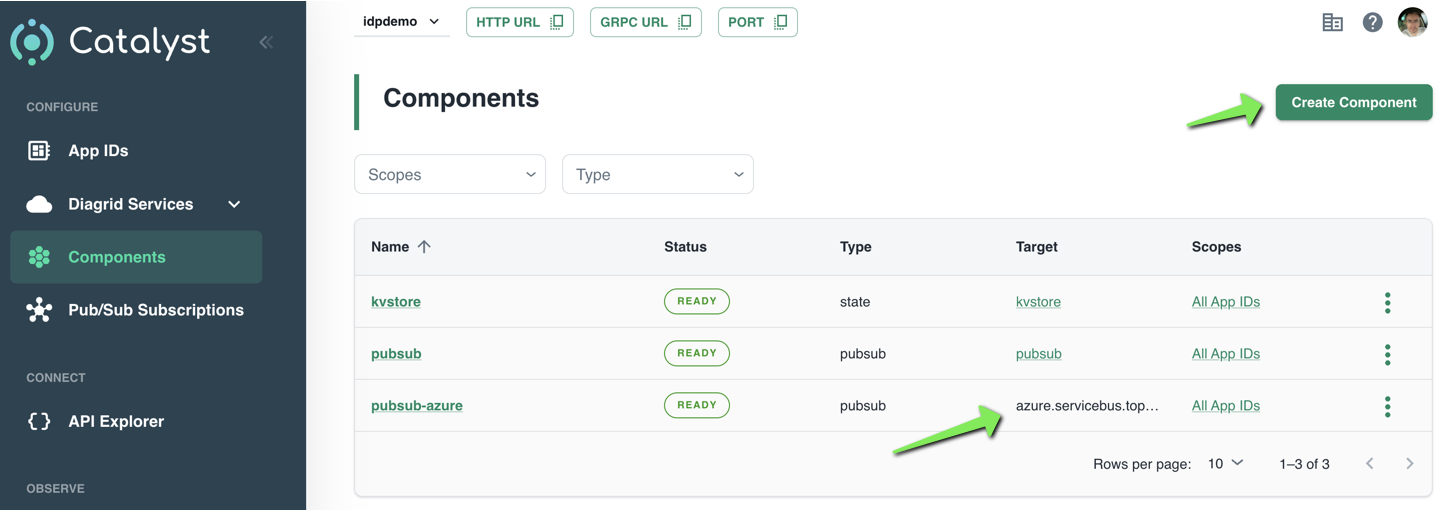
With Service Bus deployed, we can now tell Catalyst about it. You do so in Components in the Catalyst portal:

Creating an Azure Service Bus component

Simply click Create Component to start a wizard. After completion of the wizard, your component will appear in the list. Above, at the bottom, a component with Azure Service Bus as the target is in the list.

The wizard itself is fairly straightforward. The first screen is shown below:

Component wizard

Above, in the first step, I clicked Pub/Sub and selected Azure Service Bus Topics. As you can see, several other pub/sub brokers are supported. The above list is not complete.

In the next steps, the following is set:

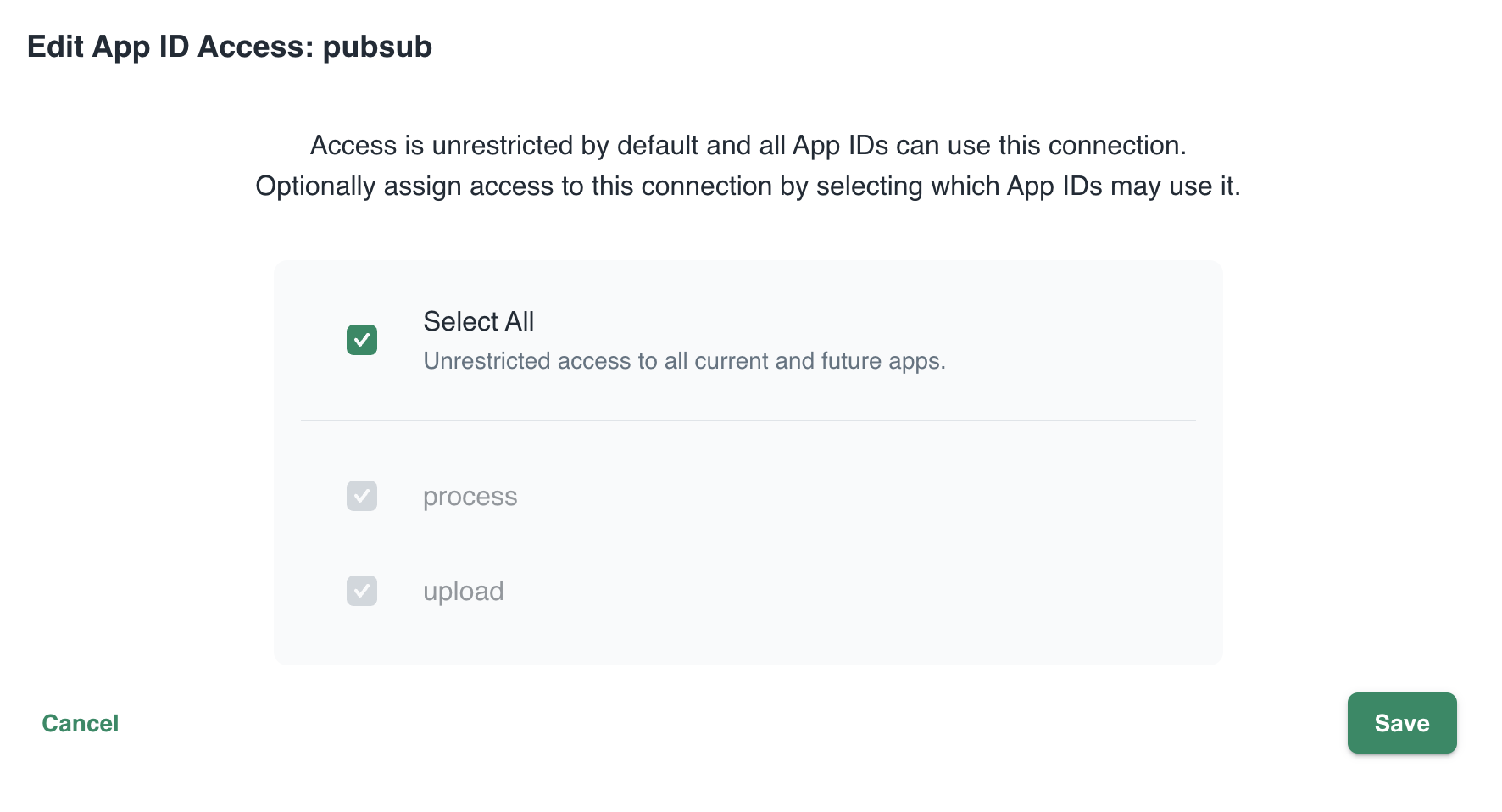
  • Assign access: configure the services that can access this component; in my case, that is the upload and process service
  • Authentication profile: decide how to authenticate to Azure Service Bus; I used a connection string
  • Configure component: set the component name and properties such as timeouts. These properties are specific to Service Bus. I only set the name and left the properties at their default.

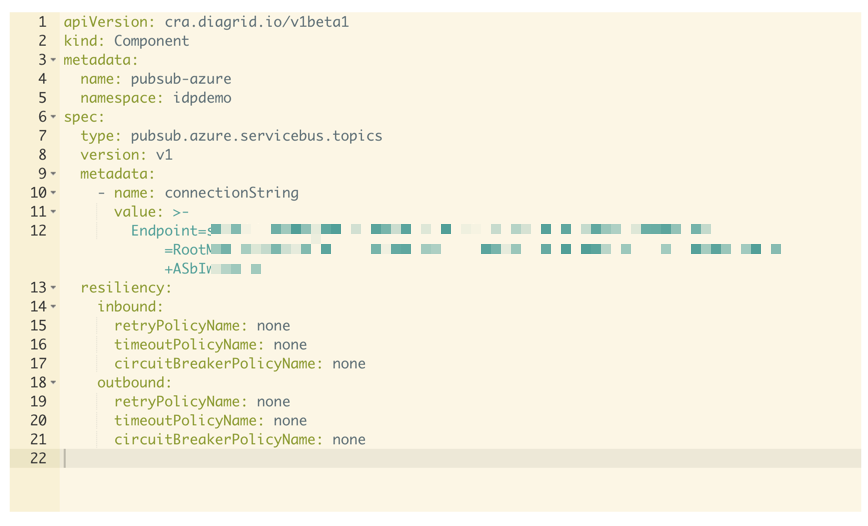
That’s it. You now have defined a component that can be used by your applications. When you click the component, you can also inspect its YAML definition:

YAML representation of the component

You can use these YAML files from the diagrid CLI to create components. In the CLI they are called connections but it’s essentially the same from what I can tell at this point:

Listing connections

Showing the call graph

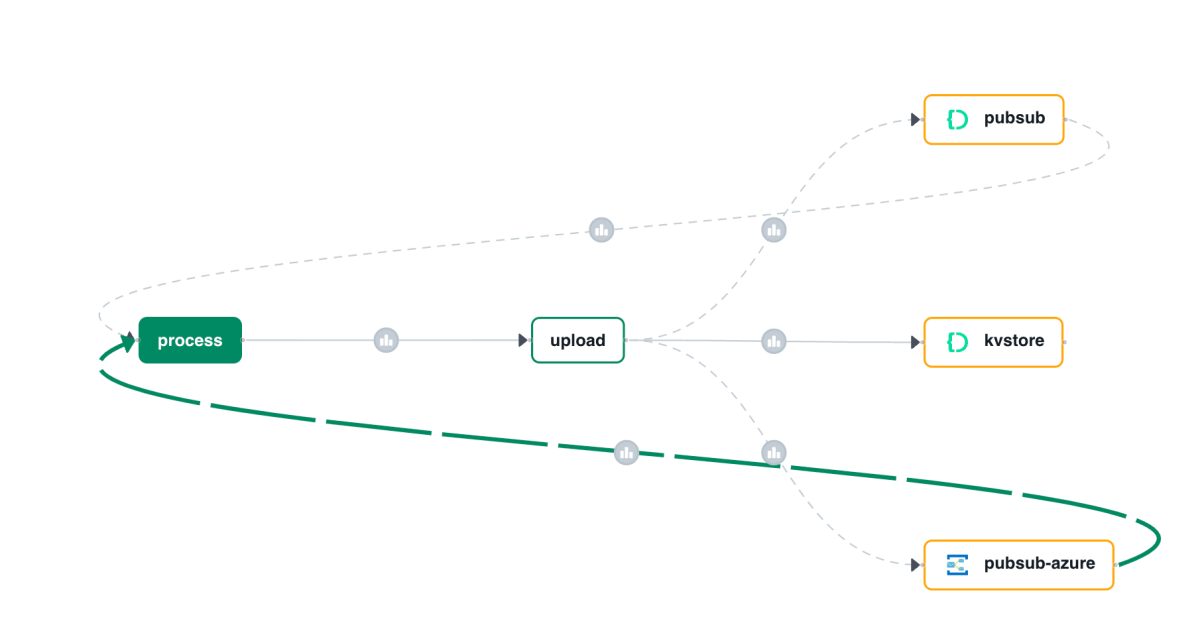
With Catalyst, all activity is logged and can be used to visualize a call graph like the one below:

Call Graph

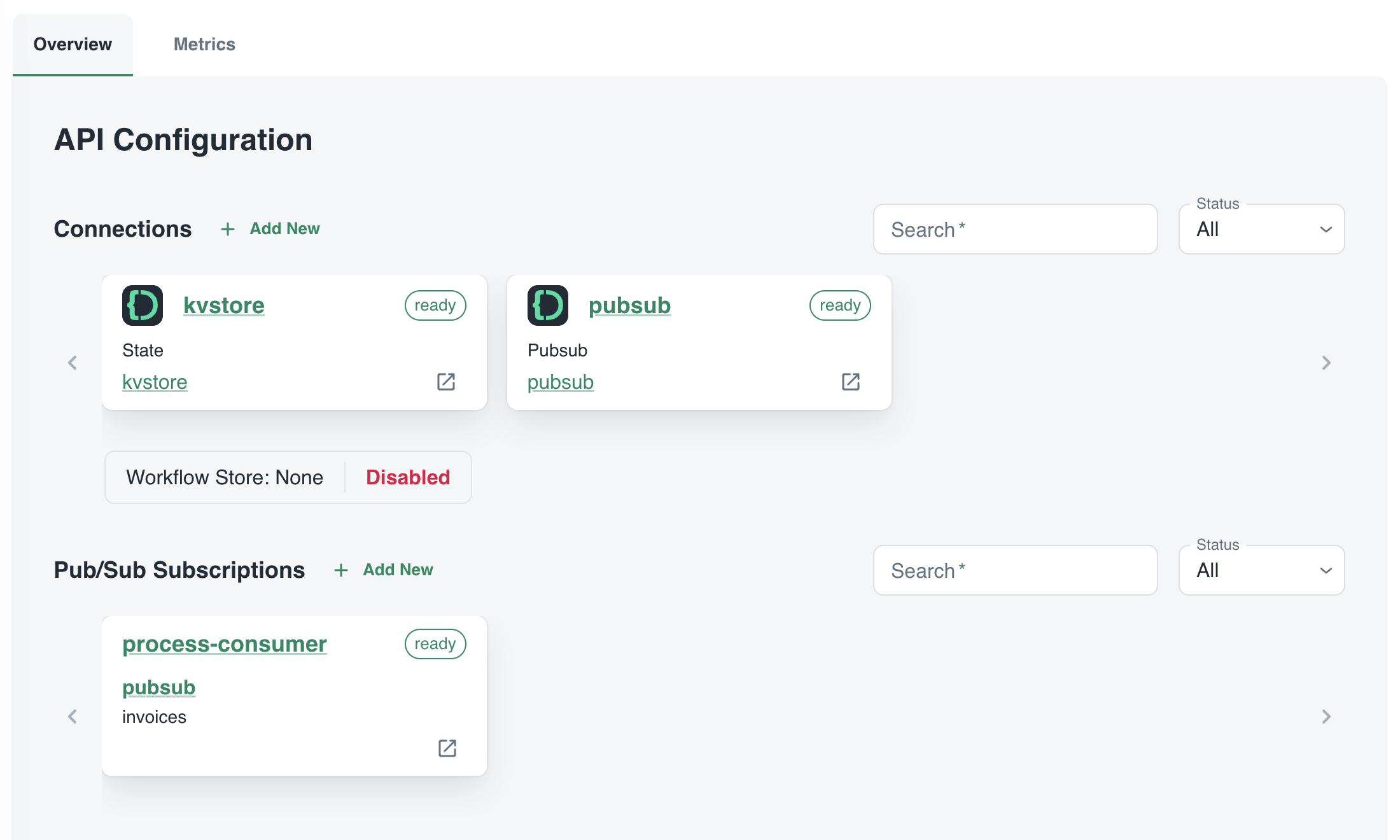
Above, I clicked on the subscription that delivers messages to the process service. The messages come from our Azure pub/sub broker.

Note: you can also see the older pub/sub Catalyst broker in the call graph. It will be removed from the call graph some time after it is not used anymore.

Creating a subscription

A subscription to an Azure Service Bus topic looks the same as a subscription to the built-in Pub/Sub broker:

Subscription to topic invoices

The only difference with the previous blog post is the component. It’s the one we just created. The /process handler in your code will stay the same.

Code changes

The code from the previous post does not have to change a lot. That code uses an environment variable, PUBSUB_NAME, that needs to be set to pubsub-azure now. That’s it. The Dapr SDK code is unchanged:

with DaprClient() as d:
    try:
        result = d.publish_event(
            pubsub_name=pubsub_name,
            topic_name=topic_name,
            data=invoice.model_dump_json(),
            data_content_type='application/json',
        )
        logging.info('Publish Successful. Invoice published: %s' %
                        invoice.path)
        logging.info(f"Invoice model: {invoice.model_dump()}")
        return True
    except grpc.RpcError as err:
        logging.error(f"Failed to publish invoice: {err}")
        return False

Conclusion

Instead of using the default Catalyst pub/sub broker, we switched the underlying broker to a broker of our choice. This is just configuration. You code, besides maybe an environment variable, does not need to change.

In this post, we only changed the pub/sub broker. You can also easily change the underlying state store to Azure Blob Storage or Azure Cosmos DB.

Writing an multi-service document extractor with the help of Diagrid’s Catalyst

Many enterprises have systems in place that take documents, possibly handwritten, that contain data that needs to be extracted. In this post, we will create an application that can extract data from documents that you upload. We will make use of an LLM, in this case gpt-4o. We will use model version 2024-08-06 and its new structured output capabilities. Other LLMs can be used as well.

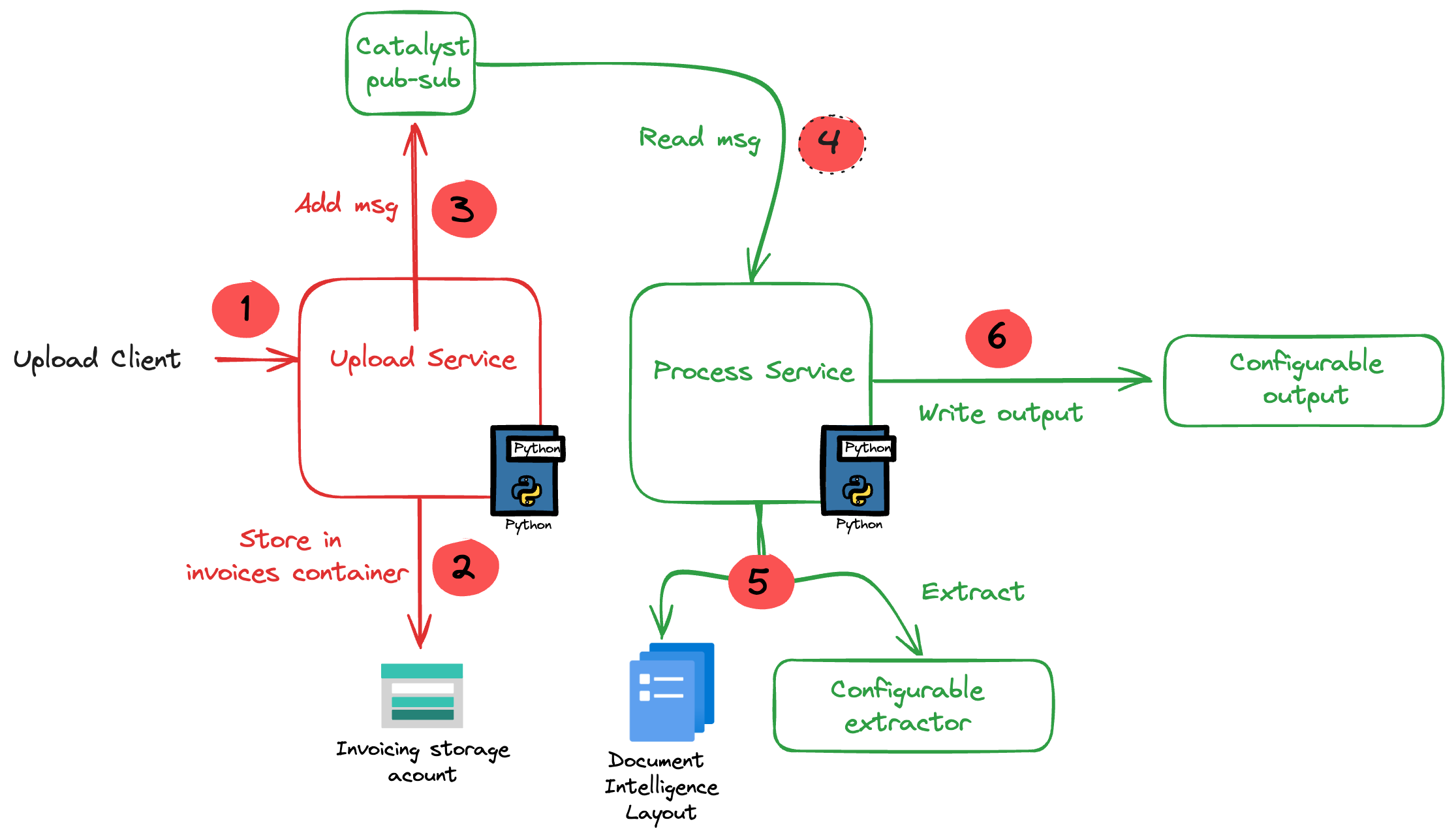
The core of the application is illustrated in the diagram below. The application uses more services than in the diagram. We will get to them later in this post.

Application Diagram

Note: the LLM-based extraction logic in this project is pretty basic. In production, you need to do quite a bit more to get the extraction just right.

The flow of the application is as follows:

  • A user or process submits a document to the upload service. This can be a pdf but other formats are supported as well.
  • In addition to the document, a template is specified by name. A template contains the fields to extract, together with their type (str, bool, float). For example: customer_name (str), invoice_total (float).
  • The upload service uploads the document to an Azure Storage account using a unique filename and preserves the extension.
  • The upload service publishes a message to a topic on a pub/sub message broker. The message contains data such as the document url and the name of the template.
  • The process service subscribes to the topic on the message broker and retrieves the message.
  • It downloads the file from the storage account and sends it to Azure Document Intelligence to convert it to plain text.
  • Using a configurable extractor, an LLM is used to extract the fields in the template from the document text. The sample code contains an OpenAI and a Groq extractor.
  • The extracted fields are written to a configurable output handler. The sample code contains a CSV and JSONL handler.

In addition to a pub-sub broker, templates are stored in a state store. The upload service is the only service that interfaces with the state store. It provides an HTTP method that the process service can use to retrieve a template from the state store.

To implement pub-sub, the state store and method invocations, we will use Diagrid’s Catalyst instead of doing this all by ourselves.

What is Catalyst?

If you are familiar with Dapr, the distributed application runtime, Catalyst will be easy to understand. Catalyst provides you with a set of APIs, hosted in the cloud and compatible with Dapr to support you in building cloud-native, distributed applications. It provides several building blocks. The ones we use are below:

  • request/reply: to support synchronous communication between services in a secure fashion
  • publish/subscribe: to support asynchronous communication between services using either a broker provided by Catalyst or other supported brokers like Azure Service Bus
  • key/value: allows services to save state in a key/value store. You can use the state store provided by Catalyst or other supported state stores like Azure Cosmos DB or an Azure Storage Account

The key to these building blocks is that your code stays the same if you swap the underlying message broker or key/value store. For example, you can start with Catalyst’s key/value store and later switch to Cosmos DB very easily. There is no need to add Cosmos DB libraries to your code. Catalyst will handle the Cosmos DB connectivity for you.

Important: I am referring mainly to Azure services here but Catalyst (and Dapr) support many services in other clouds as well!

Note that you do not need to install Dapr on your local machine or on platforms like Kubernetes when you use Catalyst. You only use the Dapr SDKs in your code and, when configured to do so, the SDK will connect to the proper APIs hosted in the cloud by Catalyst. In fact, you do not even need an SDK because the APIs can be used with plain HTTP or GRPC. Of course, using an SDK makes things a lot easier.

If you want to learn more about Catalyst, take a look at the following playlist: https://www.youtube.com/watch?v=7D7rMwJEMsk&list=PLdl4NkEiMsJscq00RLRrN4ip_VpzvuwUC. Lots of good stuff in there!

By doing all of the above in Catalyst we have a standardised approach that remains the same no matter the service behind it. We also get implementation best practices, for example for pub/sub. In addition, we are also provided with golden metrics and a UI to see how the application performs. All API calls are logged to aid in troubleshooting.

Let’s now take a look at the inner loop development process!

Scaffolding a new project

You need to sign up for Catalyst first. At the time of writing, Catalyst was in preview and not supported for production workloads. When you have an account, you should install the Diagrid CLI. The CLI is not just for Catalyst. It’s also used with Diagrid’s other products, such as Conductor.

With the CLI, you can create a new project, create services and application identities. For this post, we will use the UI instead.

In the Catalyst dashboard, I created a project called idpdemo:

List of projects; use Create Project to create a new one

Next, for each of my services (upload and process), we create an App ID. Each App ID has its own token. Services use the token to authenticate to the Catalyst APIs and use the services they are allowed to use.

The process App ID has the following configuration (partial view):

process App ID API configuration

The process service interacts with both the Catalyst key/value store (kvstore) and the pub/sub broker (pubsub). These services need to be enabled as well. We will show that later. We can also see that the process service has a pub/sub subscription called process-consumer. Via that subscription, we have pub/sub messages delivered to the process service whenever the upload service sends a message to the pub/sub topic.

In Diagrid Services, you can click on the pub/sub and key/value store to see what is going on. For example, in the pub/sub service you can see the topics, the subscribers to these topics and the message count.

pub/sub topics

In Connections, you can see your services (represented by App ID upload and process) and their scope. In this case, all App IDs have access to all services. That can easily be changed:

changing the scope: access by App IDs to the pubsub service; default All

Now that we have some understanding of App IDs, Diagrid services and connections, we can take a look at how to connect to Catalyst from code.

Important: in this post we only look at using request/reply, Diagrid pub/sub and key/value. Catalyst also supports workflow and bindings but they are not used in this post.

Connecting your code

All code is available on GitHub: https://github.com/gbaeke/catalyst

The upload service needs to connect to both the pub/sub broker and key/value store:

  • Whenever a document is uploaded, it is uploaded to Azure Storage. When that succeeds, a message is put on the broker with the path of the file and a template name.
  • Templates are created and validated by the upload service so that you can only upload files with a template that exists. Templates are written and read in the key/value store.

Before we write code, we need to provide the Dapr SDK for Python (we’ll only use the Python SDK here) the necessary connection information. It needs to know it should not connect to a Dapr sidecar but to Catalyst. You set these via environment variables:

These environment variables are automatically picked up and used by SDK to interact with the Catalyst APIs. The following code can be used to put a message on the pub/sub broker:

with DaprClient() as d:
    try:
        result = d.publish_event(
            pubsub_name=pubsub_name,
            topic_name=topic_name,
            data=invoice.model_dump_json(),
            data_content_type='application/json',
        )
        logging.info('Publish Successful. Invoice published: %s' %
                        invoice.path)
        return True
    except grpc.RpcError as err:
        logging.error(f"Failed to publish invoice: {err}")
        return False

This is the same code that you would use with Dapr on your local machine or in Kubernetes or Azure Container Apps. Like with Dapr, you need to specify the pubsub name and topic. Here that is pubsub and invoices as previously shown in the Catalyst UI. The data in the message is an instance of a Pydantic class that holds the path and template but converted to JSON.

The code below shows how to write to the state store (key/value store):

with DaprClient() as d:
    try:
        d.save_state(store_name=kvstore_name,
                        key=template_name, value=str(invoice_data))
    except grpc.RpcError as err:
        logging.error(f"Dapr state store error: {err.details()}")
        raise HTTPException(status_code=500, detail="Failed to save template")

This is of course very similar. We use the save_state method here and provide the store name (kvstore), key (template name) and value.

Let’s now turn to the process service. It needs to:

  • be notified when there is a new message on the invoices topic
    • check and retrieve the template by calling a method on the upload service

We only use two building blocks here: pub/sub and request/reply. The process service does not interact directly with the state store.

To receive a message, Catalyst needs a handler to call. In the pub/sub subscription, the handler (default route to be correct) is configured to be /process:

Configuration of default route on subscription

Our code that implements the handler is as follows (FastAPI):

@app.post('/process')  # called by pub/sub when a new invoice is uploaded
async def consume_orders(event: CloudEvent):
    # your code here

As you can see, when Catalyst calls the handler, it passes in a CloudEvent. The event has a data field that holds the path to our document and the template name. The CloudEvent type is defined as follows:

# pub/sub uses CloudEvent; Invoice above is the data
class CloudEvent(BaseModel):
    datacontenttype: str
    source: str
    topic: str
    pubsubname: str
    data: dict
    id: str
    specversion: str
    tracestate: str
    type: str
    traceid: str

In the handler, you simply extract the expected data and use it to process the event. In our case:

  • extract path and template from the data field
  • download the file from blob storage
  • send the file to Azure Document Intelligence to convert to text
  • extract the details from the document based on the template; if the template contains fields like customer_name and invoice_total, the LLM will try to extract that and return that content in JSON.
  • write the extracted values to JSON or CSV or any other output handler

Of course, we do need to extract the full template because we only have the template name. Let’s use the request/reply APIs to do that and call the template GET endpoint of the upload service via Catalyst:

def retrieve_template_from_kvstore(template_name: str):

    headers = {'dapr-app-id': invoke_target_appid, 'dapr-api-token': dapr_api_token,
               'content-type': 'application/json'}  
    try:
        result = requests.get(
            url='%s/template/%s' % (base_url, template_name),
            headers=headers
        )

        if result.ok:
            logging.info('Invocation successful with status code: %s' %
                         result.status_code)
            logging.info(f"Template retrieved: {result.json()}")
            return result.json()

    except Exception as e:
        logging.error(f"An error occurred while retrieving template from Dapr KV store: {str(e)}")
        return None

As an example, we use the HTTP API here instead of the Dapr invoke API. It might not be immediately clear but Catalyst is involved in this process and will have information and metrics about these calls:

Call Graph

The full line represents request/reply (invoke) from process to upload as just explained. The dotted line represents pub/sub traffic where upload creates messages to be consumed by process.

Running the app

You can easily run your application locally using the Diagrid Dev CLI. Ensure you are logged in by running diagrid login. In the preview, with only one project, the default project should already be that one. Then simply run diagrid dev scaffold to generate a yaml file.

In my case, after some modification, my dev-{project-name}.yaml file looked like below:

project: idpdemo
apps:
- appId: process
  disabled: true
  appPort: 8001
  env:
    DAPR_API_TOKEN: ...
    DAPR_APP_ID: process
    DAPR_CLIENT_TIMEOUT_SECONDS: 10
    DAPR_GRPC_ENDPOINT: https://XYZ.api.cloud.diagrid.io:443
    DAPR_HTTP_ENDPOINT: https://XYZ.api.cloud.diagrid.io
    OTHER ENV VARS HERE

  workDir: process
  command: ["python", "app.py"]
- appId: upload
  appPort: 8000
  env:
    ... similar
  workDir: upload
  command: ["python", "app.py"]
appLogDestination: ""

Of course, the file was modified with environment variables required by the code. For example the storage account key, Azure Document Intelligence key, etc…

All you need to do now is to run diagrid dev start to start the apps. The result should be like below:

Local project startup

By default, your service logs are written to the console with a prefix for each service.

If you use the code in GitHub, check the README.md to configure the project and run the code properly. If you would rather run the code with Dapr on your local machine (e.g., if you do not have access to Catalyst) you can do that as well.

Conclusion

In this post, we have taken a look at Catalyst, a set of cloud APIs that help you to write distributed applications in a standard and secure fashion. These APIs are compatible with Dapr, a toolkit that has already gained quite some traction in the community. With Catalyst, we quickly built an application that can be used as a starter to implement an asynchronous LLM-based document extraction pipeline. I did not have to worry too much about pub/sub and key/value services because that’s all part of Catalyst.

What will you build with Catalyst?

Load balancing OpenAI API calls with LiteLLM

If you have ever created an application that makes calls to Azure OpenAI models, you know there are limits to the amount of calls you can make per minute. Take a look at the settings of a GPT model below:

GPT deployment settings

Above, the tokens per minute (TPM) rate limit is set to 60 000 tokens. This translates to about 360 requests per minute. When you exceed these limits, you get 429 Too Many Requests errors.

There are many ways to deal with these limits. A few of the main ones are listed below:

  • You can ask for a PAYGO quota increase: remember that high quotas do not necessarily lead to consistent lower-latency responses
  • You can use PTUs (provisioned throughput units): highly recommended if you want consistently quick responses with the lowest latency. Don’t we all? 😉
  • Your application can use retries with backoffs. Note that OpenAI libraries use automatic retries by default. For Python, it is set to two but that is configurable.
  • You can use multiple Azure OpenAI instances and load balance between them

In this post, we will take a look at implementing load balancing between OpenAI resources with an open source solution called LiteLLM. Note that, in Azure, you can also use Azure API Management. One example is discussed here. Use it if you must but know it is not simple to configure.

A look at LiteLLM

LiteLLM has many features. In this post, I will be implementing it as a standalone proxy, running as a container in Azure Kubernetes Service (AKS). The proxy is part of a larger application illustrated in the diagram below:

LLM-based document processor

The application above has an upload service that allows users to upload a PDF or other supported document. After storing the document in an Azure Storage Account container, the upload service sends a message to an Azure Service Bus topic. The process service uses those messages to process each file. One part of the process is the use of Azure OpenAI to extract fields from the document. For example, a supplier, document number or anything else.

To support the processing of many documents, multiple Azure OpenAI resources are used: one in France and one in Sweden. Both regions have the gpt-4-turbo model that we require.

The process service uses the Python OpenAI library in combination with the instructor library. Instructor is great for getting structured output from documents based on Pydantic classes. Below is a snippet of code:

from openai import OpenAI
import instructor

client = instructor.from_openai(OpenAI(
        base_url=azure_openai_endpoint,
        api_key=azure_openai_key
))

The only thing we need to do is to set the base_url to the LiteLLM proxy. The api_key is configurable. By default it is empty but you can configure a master key or even virtual keys for different teams and report on the use of these keys. More about that later.

The key point here is that LiteLLM is a transparent proxy that fully supports the OpenAI API. Your code does not have to change. The actual LLM does not have to be an OpenAI LLM. It can be Gemini, Claude and many others.

Let’s take a look at deploying the proxy in AKS.

Deploying LiteLLM on Kubernetes

Before deploying LiteLLM, we need to configure it via a config file. In true Kubernetes style, let’s do that with a ConfigMap:

apiVersion: v1
kind: ConfigMap
metadata:
  name: litellm-config-file
data:
  config.yaml: |
      model_list: 
        - model_name: gpt-4-preview
          litellm_params:
            model: azure/gpt-4-preview
            api_base: os.environ/SWE_AZURE_OPENAI_ENDPOINT
            api_key: os.environ/SWE_AZURE_OPENAI_KEY
          rpm: 300
        - model_name: gpt-4-preview
          litellm_params:
            model: azure/gpt-4-preview
            api_base: os.environ/FRA_AZURE_OPENAI_ENDPOINT
            api_key: os.environ/FRA_AZURE_OPENAI_KEY
          rpm: 360
      router_settings:
        routing_strategy: least-busy
        num_retries: 2
        timeout: 60                                  
        redis_host: redis
        redis_password: os.environ/REDIS_PASSWORD
        redis_port: 6379
      general_settings:
        master_key: os.environ/MASTER_KEY

The configuration contains a list of models. Above, there are two models with the same name: gpt-4-preview. Each model points to a deployed model in Azure with the same name (can be different) and its own API base and key. For example, the first model uses an API base and API key for my instance in Sweden. However, by using os.environ/ and appending an environment variable, we can tell LiteLLM to use an environment variable. Of course, that means we have to set these environment variables in the LiteLLM container. We will do that later.

When the code in the process service uses the gpt-4-preview model via the proxy, the proxy will perform load balancing based on the router settings.

To spin up more than one instance of LiteLLM, a Redis instance is required. Redis is used to share information between the instances to make routing decisions. The routing strategy is set to least-busy.

Note that retries is set to 2. You can turn off retries in your code and let the proxy handle this for you.

To support mounting the secrets as environment variables, I use a .env file in combination with a secretGenerator in Kustomize:

STORAGE_CONNECTION_STRING=<placeholder for storage connection string>
CONTAINER=<placeholder for container name>
AZURE_AI_ENDPOINT=<placeholder for Azure AI endpoint>
AZURE_AI_KEY=<placeholder for Azure AI key>
AZURE_OPENAI_ENDPOINT=<placeholder for Azure OpenAI endpoint>
AZURE_OPENAI_KEY=<placeholder for Azure OpenAI key>

LLM_LITE_SWE_AZURE_OPENAI_ENDPOINT=<placeholder for LLM Lite SWE Azure OpenAI endpoint>
LLM_LITE_SWE_AZURE_OPENAI_KEY=<placeholder for LLM Lite SWE Azure OpenAI key>

LLM_LITE_FRA_AZURE_OPENAI_ENDPOINT=<placeholder for LLM Lite FRA Azure OpenAI endpoint>
LLM_LITE_FRA_AZURE_OPENAI_KEY=<placeholder for LLM Lite FRA Azure OpenAI key>

TOPIC_KEY=<placeholder for topic key>
TOPIC_ENDPOINT=<placeholder for topic endpoint>
PUBSUB_NAME=<placeholder for pubsub name>
TOPIC_NAME=<placeholder for topic name>
SB_CONNECTION_STRING=<placeholder for Service Bus connection string>

REDIS_PASSWORD=<placeholder for Redis password>
MASTER_KEY=<placeholder for Cosmos DB master key>

POSTGRES_DB_URL=postgresql://USER:PASSWORD@SERVERNAME-pg.postgres.database.azure.com:5432/postgres

There are many secrets here. Some are for LiteLLM, although weirdly prefixed with LLM_LITE instead. I do that sometimes! The others are to support the upload and process services.

To get these values into secrets, I use the following kustomization.yaml:

apiVersion: kustomize.config.k8s.io/v1beta1
kind: Kustomization
namespace: inv-demo


resources:
- namespace.yaml
- pubsub.yaml
- upload.yaml
- process.yaml
- llmproxy.yaml
- redis.yaml

secretGenerator:
- name: invoices-secrets
  envs:
  - .env
  
generatorOptions:
  disableNameSuffixHash: true

The secretGenerator will create a secret called invoices-secrets in the inv-demo namespace. We can reference the secrets in the LiteLLM Kubernetes deployment:

apiVersion: apps/v1
kind: Deployment
metadata:
  name: litellm-deployment
  labels:
    app: litellm
spec:
  replicas: 2
  selector:
    matchLabels:
      app: litellm
  template:
    metadata:
      labels:
        app: litellm
    spec:
      containers:
      - name: litellm
        image: ghcr.io/berriai/litellm:main-latest
        args:
        - "--config"
        - "/app/proxy_server_config.yaml"
        ports:
        - containerPort: 4000
        volumeMounts:
        - name: config-volume
          mountPath: /app/proxy_server_config.yaml
          subPath: config.yaml
        env:
        - name: SWE_AZURE_OPENAI_ENDPOINT
          valueFrom:
            secretKeyRef:
              name: invoices-secrets
              key: LLM_LITE_SWE_AZURE_OPENAI_ENDPOINT
        - name: SWE_AZURE_OPENAI_KEY
          valueFrom:
            secretKeyRef:
              name: invoices-secrets
              key: LLM_LITE_SWE_AZURE_OPENAI_KEY
        - name: FRA_AZURE_OPENAI_ENDPOINT
          valueFrom:
            secretKeyRef:
              name: invoices-secrets
              key: LLM_LITE_FRA_AZURE_OPENAI_ENDPOINT
        - name: FRA_AZURE_OPENAI_KEY
          valueFrom:
            secretKeyRef:
              name: invoices-secrets
              key: LLM_LITE_FRA_AZURE_OPENAI_KEY
        - name: MASTER_KEY
          valueFrom:
            secretKeyRef:
              name: invoices-secrets
              key: MASTER_KEY
        - name: DATABASE_URL
          valueFrom:
            secretKeyRef:
              name: invoices-secrets
              key: POSTGRES_DB_URL
      volumes:
        - name: config-volume
          configMap:
            name: litellm-config-file

The ConfigMap content is mounted as /app/proxy_server_config.yaml. You need to specify the config file via the --config parameter, supplied in args.

Next, we simply mount all the environment variables that we need. The LiteLLM ConfigMap uses several of those via the os.environ references. There is also a DATABASE_URL that is not mentioned in the ConfigMap. The URL points to a PostgreSQL instance in Azure where information is kept to support the LiteLLM dashboard and other settings. If you do not want the dashboard feature, you can omit the database URL.

There’s one last thing: the process service needs to connect to LiteLLM via Kubernetes internal networking. Of course, that means we need a service:

apiVersion: v1
kind: Service
metadata:
  name: litellm-service
spec:
  selector:
    app: litellm
  ports:
  - protocol: TCP
    port: 80
    targetPort: 4000
  type: ClusterIP

With this service definition, the process service can set the OpenAI base URL as http://litellm-service to route all requests to the proxy via its internal IP address.

As you can probably tell from the kustomization.yaml file, the ConfigMap, Deployment and Service are in llmproxy.yaml. The other YAML files do the following:

  • namespace.yaml: creates the inv-demo namespace
  • upload.yaml: deploys the upload service (written in Python and uses FastAPI, 1 replica))
  • process.yaml: deploys the process service (written in Python as a Dapr grpc service, 2 replicas)
  • pubsub.yaml: creates a Dapr pubsub component that uses Azure Service Bus
  • redis.yaml: creates a standalone Redis instance to support multiple replicas of the LiteLLM proxy

To deploy all of the above, you just need to run the command below:

kubectl apply -k .

⚠️ Although this can be used in production, several shortcuts are taken. One thing that would be different is secrets management. Secrets would be in a Key Vault and made available to applications via the Secret Store CSI driver or other solutions.

With everything deployed, I see the following in k9s:

The view from k9s

As a side note, I also use Diagrid to provide insights about the use of Dapr on the cluster:

upload and process are communicating via pubsub (Service Bus)

Dapr is only used between process and upload. The other services do not use Dapr and, as a result, are not visible here. The above is from Diagrid Conductor Free. As I said…. total side note! 🤷‍♂️

Back to the main topic…

The proxy in action

Let’s see if the proxy uses both Azure OpenAI instances. The dashboard below presents a view of the metrics after processing several documents:

OpenAI usage in France and Sweden

It’s clear that the proxy uses both resources. Remember that this is the least-busy routing option. It picks the deployment with the least number of ongoing calls. Both these instances are only used by the process service so the expectation is a more or less even distribution.

LiteLLM Dashboard

If you configured authentication in combination with providing a URL to a PostGreSQL database, you can access the dashboard. To see the dashboard in action without deploying it, see https://litellm.vercel.app/docs/proxy/demo.

One of the things you can do is creating teams. Below, you see a team called dev which has access to only the gpt-4-preview model with unlimited TPM and RPM:

dev team in LiteLLM

In addition to the team, a virtual key is created and assigned to the team. This virtual key starts with sk- and is used as the OpenAI API key in the process service:

LiteLLM virtual key for the dev team

We can now report on the use of OpenAI by the dev team:

Usage for the dev team

Above, there’s a small section that’s unassigned because I used LiteLLM without a key and a master key before switching to a team-based key.

The idea here is that you can deploy the LiteLLM proxy centrally and hand out virtual keys to teams so they can all access their models via the proxy. We have not tested this in a production setting yet but it is certainly something worth exploring.

Conclusion

I have only scratched the surface of LiteLLM here but my experience with it so far is pretty good. If you want to deploy it as a central proxy server that developers can use to access models, deployment to Kubernetes and other environments with the container image is straightforward.

In this post I used Kubernetes but that is not required. It runs in Container Apps and other container runtimes as well. In fact, you do not need to run it in a container at all. It also works as a standalone application or can be used directly in your Python apps.

There is much more to explore but for now, if you need a transparent OpenAI-based proxy that works with many different models, take a look at LiteLLM.

Use Azure OpenAI on your data with Semantic Kernel

I have written before about Azure OpenAI on your data. For a refresher, see Microsoft Learn. In short, Azure OpenAI on your data tries to make it easy to create an Azure AI Search index that supports advanced search mechanisms like vector search, potentially enhanced with semantic reranking.

On of the things you can do is simply upload your documents and start asking questions about these documents, right from within the Azure OpenAI Chat playground. The screenshot below shows the starting screen of a step-by-step wizard to get your documents into an index:

Upload your documents to Azure OpenAI on your data

Note that whatever option you choose in the wizard, you will always end up with an index in Azure AI Search. When the index is created, you can start asking questions about your data:

Your questions are answered with links to source documents (citations)

Instead of uploading your documents, you can use any Azure AI Search index. You will have the ability to map the fields from your index to the fields Azure OpenAI expects. You will see an example in the Semantic Kernel code later and in the next section.

Extensions to the OpenAI APIs

To make this feature work, Microsoft extended the OpenAI APIs. By providing extra information to the API about Azure AI Search, mapped fields, type of search, etc… the APIs retrieve relevant content, add that to the prompt and let the model answer. It is retrieval augmented generation (RAG) but completely API driven.

The question I asked in the last screenshot was: “Does Redis on Azure support vector queries?”. The API creates an embedding for that question to find similar vectors. The vectors are stored together with their source text (from your documents). That text is added as context to the prompt, allowing the chosen model to answer as shown above.

Under the hood, the UI makes a call to the URL below:

{openai.api_base}/openai/deployments/{deployment_id}/extensions/chat/completions?api-version={openai.api_version}

This looks similar to a regular chat completions call except for the extensions part. When you use this extension API, you can supply extra information. Using the Python OpenAI packages, the extra information looks like below:

dataSources=[
  {
    "type": "AzureCognitiveSearch",
    "parameters": {
      "endpoint": "'$search_endpoint'",
      "indexName": "'$search_index'",
      "semanticConfiguration": "default",
      "queryType": "vectorSimpleHybrid",
      "fieldsMapping": {
        "contentFieldsSeparator": "\n",
        "contentFields": [
          "Content"
        ],
        "filepathField": null,
        "titleField": "Title",
        "urlField": "Url",
        "vectorFields": [
          "contentVector"
        ]
   ... many more settings (shortened here)

The dataSources section is used by the extension API to learn about the Azure AI Search resource, the API key to use (not shown above), the type of search to perform (hybrid) and how to map the fields in your index to the fields this API expects. For example, we can tell the API about one or more contentFields. Above, there is only one such field named Content. That’s the name of a field in your chosen index.

You can easily get a Python code example to use this API from the Chat Completions playground:

Get sample code by clicking View code in the playground

How to do this in Semantic Kernel?

In what follows, I will show snippets of a full sample you can find on GitHub. The sample uses Streamlit to provide the following UI:

Sample Streamlit app

Above, (1) is the original user questions. Using Azure OpenAI on your data, we use Semantic Kernel to provide a response with citations (2). As an extra, all URLs returned by the vector search are shown in (3). They are not reflected in the response because not all retrieved results are relevant.

Let’s look at the code now…

st.session_state.kernel = sk.Kernel()

# Azure AI Search integration
azure_ai_search_settings = sk.azure_aisearch_settings_from_dot_env_as_dict()
azure_ai_search_settings["fieldsMapping"] = {
    "titleField": "Title",
    "urlField": "Url",
    "contentFields": ["Content"],
    "vectorFields": ["contentVector"], 
}
azure_ai_search_settings["embeddingDependency"] = {
    "type": "DeploymentName",
    "deploymentName": "embedding"  # you need an embedding model with this deployment name is same region as AOAI
}
az_source = AzureAISearchDataSources(**azure_ai_search_settings, queryType="vectorSimpleHybrid", system_message=system_message) # set to simple for text only and vector for vector
az_data = AzureDataSources(type="AzureCognitiveSearch", parameters=az_source)
extra = ExtraBody(dataSources=[az_data]) if search_data else None

Above we create a (semantic) kernel. Don’t bother with the session state stuff, that’s specific to Streamlit. After that, the code effectively puts together the Azure AI Search information to be added to the extension API:

  • get Azure AI Search settings from a .env file: contains the Azure AI Search endpoint, API key and index name
  • add fieldsMapping to the Azure AI Search settings: contentFields and vectorFields are arrays; we need to map the fields in our index to the fields that the API expects
  • add embedding information: the deploymentName is set to embedding; you need an embedding model with that name in the same region as the OpenAI model you will use
  • create an instance of class AzureAISearchDataSources: creates the Azure AI Search settings and add additional settings such as queryType (hybrid search here)
  • create an instance of class AzureDataSources: this will tell the extension API that the data source is AzureCognitiveSearch with the settings provided via the AzureAISearchDataSources class; other datasources are supported
  • the call to the extension API needs the dataSources field as discussed earlier: the ExtraBody class allows us to define what needs to be added to the POST body of a chat completions call; multiple dataSources can be provided but here, we have only one datasource (of type AzureCognitiveSearch); we will need this extra variable later in our request settings

Note: I have a parameter in my code, search_data. Only if search_data is True, Azure OpenAI on your data should be enabled. If it is false, the variable extra should be None. You will see this variable pop up in other places as well

In Semantic Kernel, you can add one or more services to the kernel. In this case, we only add a chat completions service that points to a gpt-4-preview deployment. A .env file is used to get the Azure OpenAI endpoint, key and deployment.

service_id = "gpt"
deployment, api_key, endpoint = azure_openai_settings_from_dot_env(include_api_version=False)
chat_service = sk_oai.AzureChatCompletion(
    service_id=service_id,
    deployment_name=deployment,
    api_key=api_key,
    endpoint=endpoint,
    api_version="2023-12-01-preview" if search_data else "2024-02-01",  # azure openai on your data in SK only supports 2023-12-01-preview
    use_extensions=True if search_data else False # extensions are required for data search
)
st.session_state.kernel.add_service(chat_service)

Above, there are two important settings to make Azure OpenAI on your data work:

  • api_version: needs to be set to 2023-12-01-preview; Semantic Kernel does not support the newer versions at the time of this writing (end of March, 2024). However, this will be resolved soon.
  • use_extensions: required to use the extension API; without it the call to the chat completions API will not have the extension part.

We are not finished yet. We also need to supply the ExtraBody data (extra variable) to the call. That is done via the AzureChatPromptExecutionSettings:

req_settings = AzureChatPromptExecutionSettings(
    service_id=service_id,
    extra_body=extra,
    tool_choice="none" if search_data else "auto", # no tool calling for data search
    temperature=0,
    max_tokens=1000
)

In Semantic Kernel, we can create a function from a prompt with chat history and use that prompt to effectively create the chat experience:

prompt_template_config = PromptTemplateConfig(
    template="{{$chat_history}}{{$user_input}}",
    name="chat",
    template_format="semantic-kernel",
    input_variables=[
        InputVariable(name="chat_history", description="The history of the conversation", is_required=True),
        InputVariable(name="user_input", description="The user input", is_required=True),
    ],
)

# create the chat function
if "chat_function" not in st.session_state:
    st.session_state.chat_function = st.session_state.kernel.create_function_from_prompt(
        plugin_name="chat",
        function_name="chat",
        prompt_template_config=prompt_template_config,
    )

Later, we can call our chat function and provide KernelArguments that contain the request settings we defined earlier, plus the user input and the chat history:

arguments = KernelArguments(settings=req_settings)

arguments["chat_history"] = history
arguments["user_input"] = prompt
response = await st.session_state.kernel.invoke(st.session_state.chat_function, arguments=arguments)

The important part here is that we invoke our chat function. With the kernel’s chat completion service configured to use extensions, and the extra request body field added to the request settings, you effectively use the Azure OpenAI on your data APIs as mentioned earlier.

Conclusion

Semantic Kernel supports Azure OpenAI on your data. To use the feature effectively, you need to:

  • Prepare the extra configuration (ExtraBody) to send to the extension API
  • Enable the extension API in your Azure chat completion service and ensure you use the supported API version
  • Add the ExtraBody data to your AzureChatPromptExecutionSettings together with settings like temperature etc…

Although it should be possible to use Azure OpenAI on your data together with function calling, I could not get that to work. Function calling requires a higher API version, which is not supported by Semantic Kernel in combination with Azure OpenAI on your data yet!

The code on GitHub can be toggled to function mode by setting MODE in .env to anything but search. In that case though, add your data is not used. Be sure to restart the Streamlit app after you change that setting in the .env file. In function mode you can ask about the current time and date. If you provide a Bing api key, you can also ask questions that require a web search.

A look at the Azure OpenAI Assistants API

Introduction

A while ago, I looked at the OpenAI Assistants API. In February of 2024, Microsoft have released their Assistants API in public preview. It works in the same way as the OpenAI Assistants API while being able to use it with Azure OpenAI models, deployed to a region of your choice.

The goal of the Assistants API is to make it easier for developers to create applications with copilot-like experiences. It should be easier to provide the assistant with extra knowledge or allow the assistant to interact with the world by calling external APIs.

If you have ever created a chat-based copilot with the standard Azure OpenAI chat completions API, you know that it is stateless. It does not know about the conversation history. As a developer, you have to maintain and manage conversation history and pass it to the completions API. With the Assistants API, that is not necessary. The API is stateful. Conversation history is automatically managed via threads. There is no need to manage conversation state to ensure you do not break the model’s context window limits.

In addition to threads, the Assistants API also supports tools. One of these tools is Code Interpreter, a sandboxed Python environment that can help solving complex questions. If you are a ChatGPT Plus subscriber, you should know that tool already. Code Interpreter is often used to solve math questions, something that LLMs are not terribly good at. However, it is not limited to math. Next to Code Interpreter, you can define your own functions. A function could call an API that queries a database that returns the results to the assistant.

Before diving into a code example you should understand the following components:

  • Assistant: custom AI with Azure OpenAI models that have access to files and tools
  • Thread: conversation between the assistant and the user
  • Message: message created by the assistant or a user; a message does not have to be text; it could be an image or a file; messages are stored on a thread
  • Run: you run a thread to illicit a response from the model; for instance if you just placed a user question on the thread and you run the thread, the model can respond with text or perform a tool call
  • Run Step: detailed list of steps the assistant took as part of a run; this could include a tools call

Enough talk, let’s look at some code. The code can be found on GitHub in a Python notebook: https://github.com/gbaeke/azure-assistants-api/blob/main/getting-started.ipynb

Initialising the OpenAI client and creating the assistant

We will use a .env file to load the Azure OpenAI API key, the endpoint and the API version. You will need an Azure OpenAI resource in a supported region such as Sweden Central. The API version should be 2024-02-15-preview.

import os
from dotenv import load_dotenv
from openai import AzureOpenAI

load_dotenv()

# Create Azure OpenAI client
client = AzureOpenAI(
    api_key=os.getenv('AZURE_OPENAI_API_KEY'),
    azure_endpoint=os.getenv('AZURE_OPENAI_ENDPOINT'),
    api_version=os.getenv('AZURE_OPENAI_API_VERSION')
)

assistant = client.beta.assistants.create(
    name="Math Tutor",
    instructions="""You are a math tutor that helps users solve math problems. 
    You have access to a sandboxed environment for writing and testing code. 
    Explain to the user why you used the code and how it works
    """,
    tools=[{"type": "code_interpreter"}],
    model="gpt-4-preview" # ensure you have a deployment in the region you are using
)

Above, we create an assistant with the client.beta.assistant.create method. Indeed, OpenAI Assistants as developed by OpenAI are still in beta so the OpenAI library reflects that.

Note that an assistant is given specific instructions and, in this case, a tool. We will use the built-in Code Interpreter tool. It can help us solving math questions, including the generation of plots.

Ensure that the model refers to a deployed model in your region. I use the gpt-4-turbo preview here.

Note that the assistants you create are shown in the Azure OpenAI Assistant Playground. For example, I created the Math Assistant a few times by running the same code:

Assistants in Azure Open AI Studio

When you click on one of the assistants, it opens in the Assistant Playground. In that playground, you can start chatting right away. For example:

Chatting with the Assistant

In the screenshot above, I have asked the assistant to plot a sinus wave. It explains how it did that because that is what the Instructions tell the assistant to do. At the end, Code Interpreter creates the plot and generates an image file. That image file is picked up in the playground and displayed.

Also note the panel on the right with API instructions. You can click on those instructions to execute them and see the JSON response.

Note that you can reuse an assistant by simply using its id. You can also create the assistant directly in the portal. You do not have to create it in code, like we are doing.

Let’s now create a thread in code and ask some math questions.

Creating a thread and adding a message

Below, a thread is created which results in a thread id. Subsequently, a message is added to the thread with role set to user. This is the first user question in the thread.

# Create a thread
thread = client.beta.threads.create()

# print the thread id
print("Thread id: ", thread.id)

message = client.beta.threads.messages.create(
    thread_id=thread.id,
    role="user",
    content="Solve the equation y = x^2 + 3 for x = 3 and plot the function graph."
)

# Show the messages
thread_messages = client.beta.threads.messages.list(thread.id)
print(thread_messages.model_dump_json(indent=2))

The JSON dump of the messages contains a data array. In our case the single item in the data array contains a content array next to other information such as role, the thread id, the creation timestamp and more. The content array can contain multiple pieces of content of different types. In this case, we simply have the user question which is of type text.

"content": [
        {
          "text": {
            "annotations": [],
            "value": "Solve the equation y = x^2 + 3 for x = 3 and plot the function graph."
          },
          "type": "text"
        }
      ]

Running the thread

A message on a thread is great but does not do all that much. We want a response from the assistant. In order to get a response, we need to run the thread:

run = client.beta.threads.runs.create(
  thread_id=thread.id,
  assistant_id=assistant.id
)

status = run.status

while status not in ["completed", "cancelled", "expired", "failed"]:
    time.sleep(2)
    run = client.beta.threads.runs.retrieve(thread_id=thread.id,run_id=run.id)
    status = run.status
    print(f'Status: {status}')
    clear_output(wait=True)

print(f'Status: {status}')

The run is where the assistant and the thread come together via their ids. As you can probably tell, the run does not directly return the result. You need to check the run status yourself and act accordingly.

When the status is completed, the run was successful. That means that there should be some response from the assistant.

Interpreting the messages after the run

After a completed run in response to a message with role = user, there should be a response from the model. There are all sorts of responses, including responses that indicate you should run a function. Our assistant does not have custom functions defined so the response can be one of the following:

  • a response from the model without using Code Interpreter
  • a response from the model, interpreting the response from Code Interpreter and possibly including images and text

Note that you do not have to call Code Interpreter specifically. The assistant will decide to use Code Interpreter (you can also be explicit) and use the Code Interpreter response in its final answer.

The code below shows one way of dealing with the assistant response:

messages = client.beta.threads.messages.list(
    thread_id=thread.id
)

messages_json = json.loads(messages.model_dump_json())

for item in reversed(messages_json['data']):
    # Check the content array
    for content in reversed(item['content']):
        # If there is text in the content array, print it as Markdown
        if 'text' in content:
            display(Markdown(content['text']['value']))
        # If there is an image_file in the content, print the file_id
        if 'image_file' in content:
            file_id = content['image_file']['file_id']
            file_content = client.files.content(file_id)
            # use PIL with the file_content
            img = Image.open(file_content)
            img = img.resize((400, 400))
            display(img)

Above, the following happens:

  • all messages from the thread are retrieved: this includes the original user question in addition to the assistant response; the later responses are first in the array
  • we loop through the reversed array and check for a content field: if there is a content field (an array) we loop over that and check for a text or image_file field
  • if we find content of type text, we display it with markdown (we are using a Notebook here)
  • if we find content of type image_file, we retrieve the image from Azure OpenAI using its files API and display it in the notebook with some help of PIL.

Here is the response I got in my notebook. Note that there are only two messages. The assistant response contains two pieces of content.

All messages in the thread visualised from 1st to last

Follow-up questions

One of the advantages of the Assistants API is that we do not have to maintain chat history. We only have to add follow-up questions to the thread and run it again. Below is the model response after adding this question: “Is this a concave function?”:

Response to a follow-up question

Above, I print the entire thread in reverse order again. The answer of the assistant is that this is clearly not a concave function but a convex one.

You should know that at present (February 2024), the Assistants API simply tries to fit the messages in the model’s context window. If the context window is large, long conversations might cost you a lot in tokens. At present, there is no way that I know of to change this mechanism. OpenAI, and Microsoft, are planning to add some extra capabilities. For example:

  • control token count regardless of the chosen model (e.g. set token count to 2000 even if the model allows for 8000)
  • generate summaries of previous messages and pass the summaries as context during a thread run

In most production applications that are used at scale, you really need to control token usage by managing chat history meticulously. Today, that is only possible with the chat completions API and/or abstractions on top of it like LangChain.

Conclusion

With the arrival of the Assistants API in Azure OpenAI, it is easier to write assistants that work with tools like Code Interpreter or custom functions. This post has focused on the basics of using the API with only the Code Interpreter tool.

In follow-up posts, we will look at custom functions and how to work with uploaded files.

Keep in mind that this is all in public preview and should not be used in production.