In the previous post, we discussed Microsoft’s Graph RAG implementation. In this post, we will take a look at token consumption to query the knowledge graph, both for local and global queries.
Note: this test was performed with gpt-4o. A few days after this blog post, OpenAI released gpt-4o-mini. Initital tests with gpt-4o-mini show that index creation and querying work well with a significantly lower cost. You can replace gpt-4o with gpt-4o-mini in the setup below.
Setting up Langfuse logging
To make it easy to see the calls to the LLM, I used the following components:
LiteLLM: configured as a proxy; we configure Graph RAG to use this proxy instead of talking to OpenAI or Azure OpenAI directly; see https://www.litellm.ai/
Langfuse: an LLM engineering platform that can be used to trace LLM calls; see https://langfuse.com/
You can obtain the values from both the OpenAI and Langfuse portals. Ensure you also install Langfuse with pip install langfuse.
Next, we can start the proxy with litellm --config config.yaml --debug.
To make Graph RAG work with the proxy, open Graph RAG’s settings.yaml and set the following value under the llm settings:
api_base: http://localhost:4000
LiteLLM is listening for incoming OpenAI requests on that port.
Running a local query
A local query creates an embedding of your question and finds related entities in the knowledge graph by doing a similarity search first. The embeddings are stored in LanceDB during indexing. Basically, the results of the similarity search are used as entrypoints into the graph.
That is the reason that you need to add the embedding model to LiteLLM’s config.yaml. Global queries do not require this setting.
After the similar entities have been found in LanceDB, they are put in a prompt to answer your original question together with related entities.
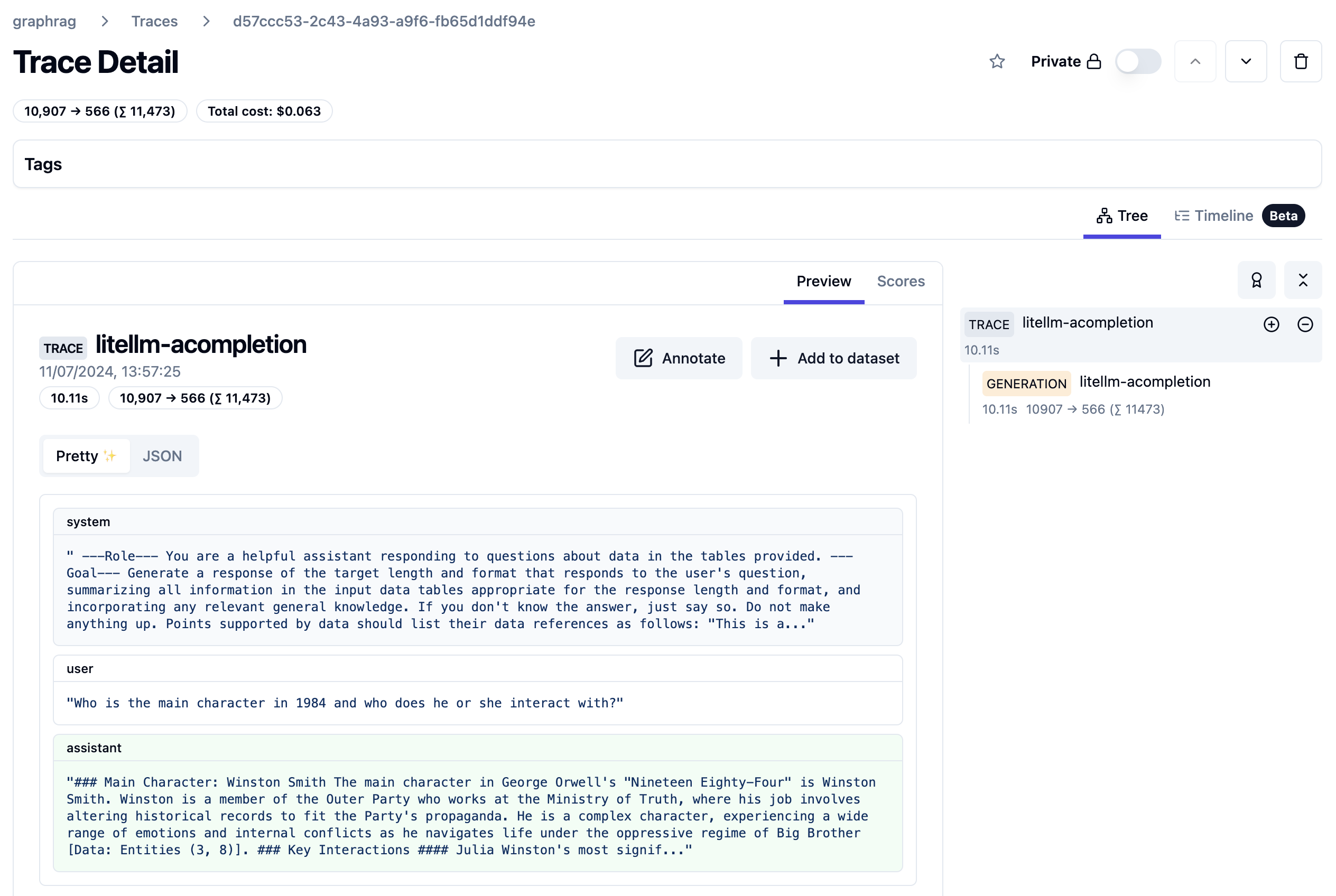
A local query can be handled with a single LLM call. Let’s look at the trace:
Trace from local query
The query took about 10 seconds and 11500 tokens. The system prompt starts as follows:
First part of local query system prompt
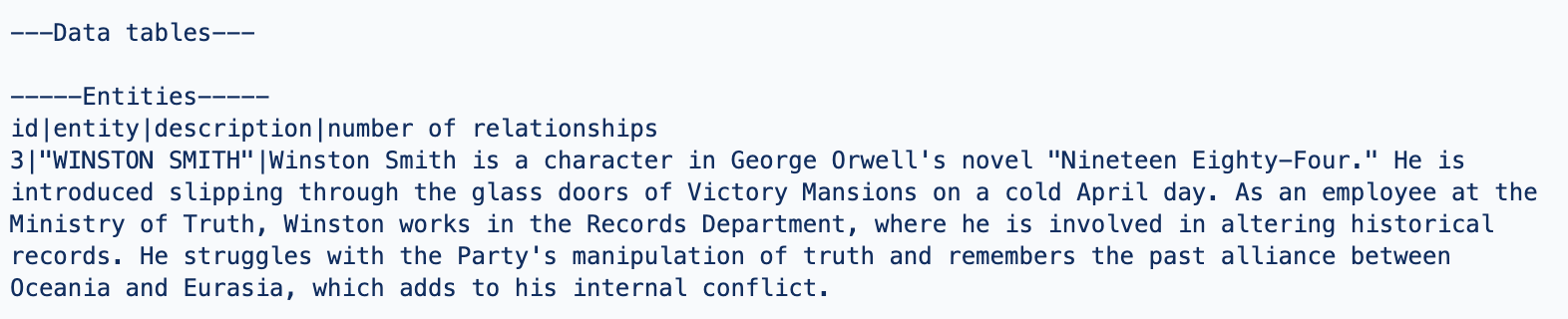
The actual data it works with (called data tables) are listed further in the prompt. You can find a few data points below:
Entity about Winston Smith, a character in the book 1984 (just a part of the text)Entity for O’Brien, a character he interacts with
The prompt also contains sources from the book where the entities are mentioned. For example:
Relevant sources
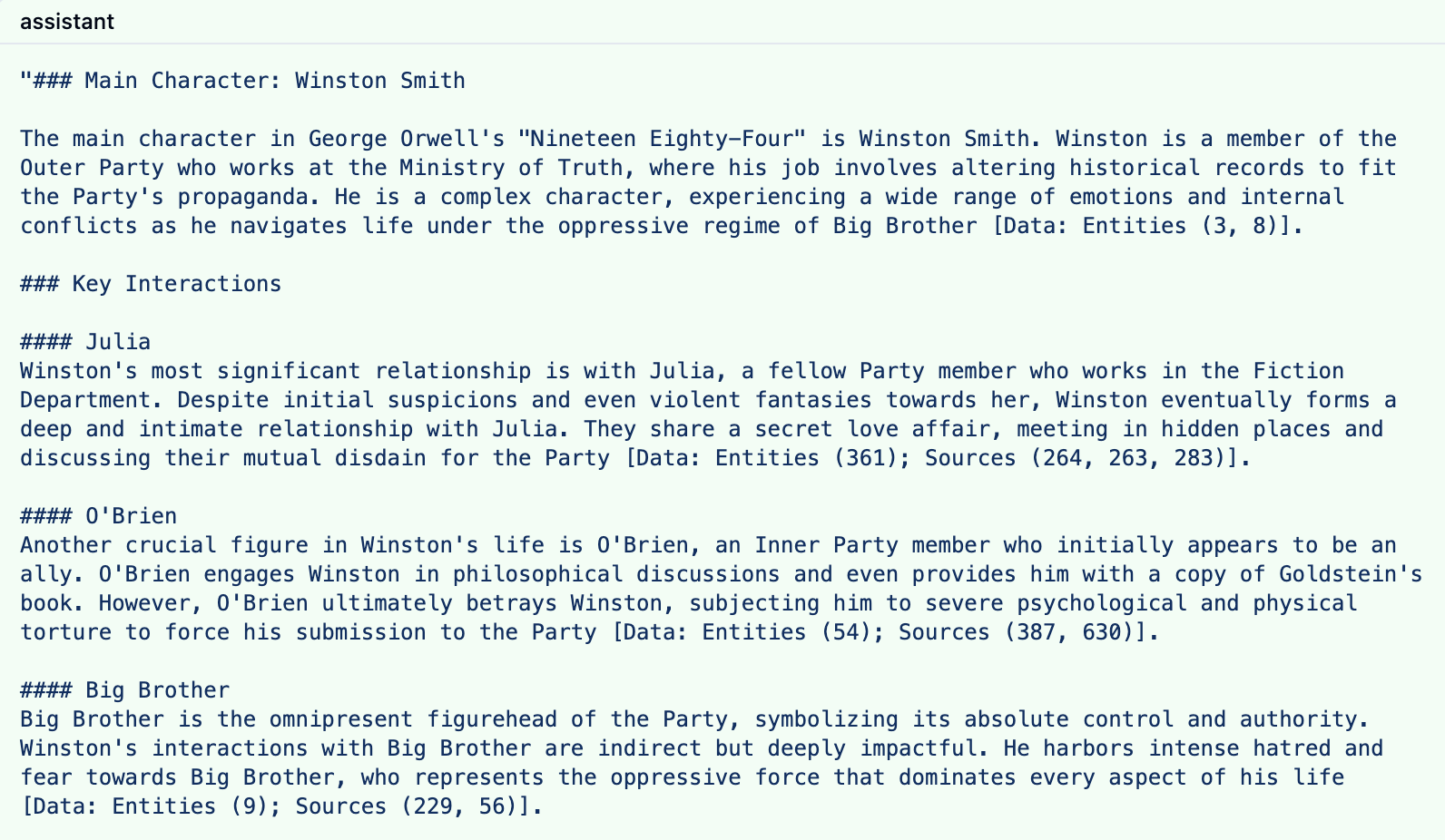
The response to this prompt is something like the response below:
LLM response to local query
The response contains references to both the entities and sources with their ids.
Note that you can influence the number of entities retrieved and the number of consumed tokens. In Graph RAG’s settings.yaml, I modified the local search settings as follows:
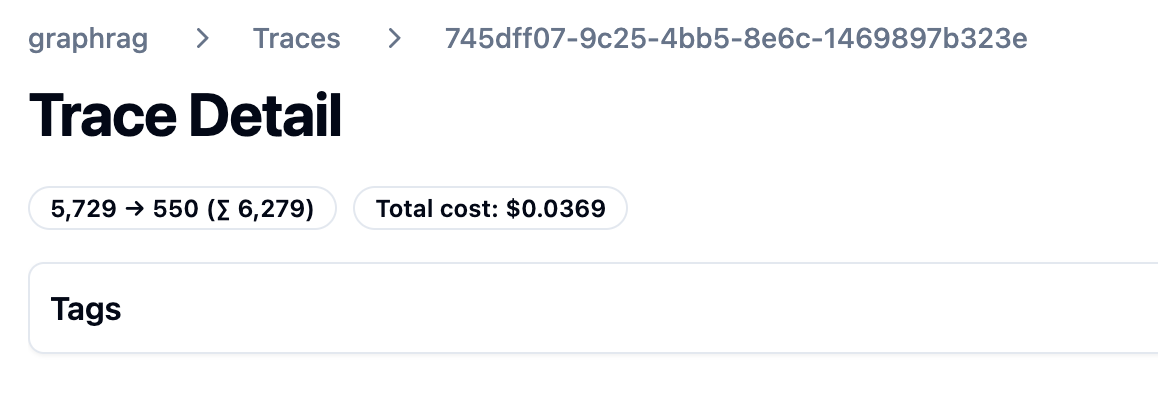
The trace results are clear: token consumption is lower and the latency is lower as well.
Lower token cost
Of course, there will be a bit less detail in the answer. You will have to experiment with these values to see what works best in your scenario.
Global Queries
Global queries are great for broad questions about your dataset. For example: “What are the top themes in 1984?”. A global query is not a single LLM call and is more expensive than a local query.
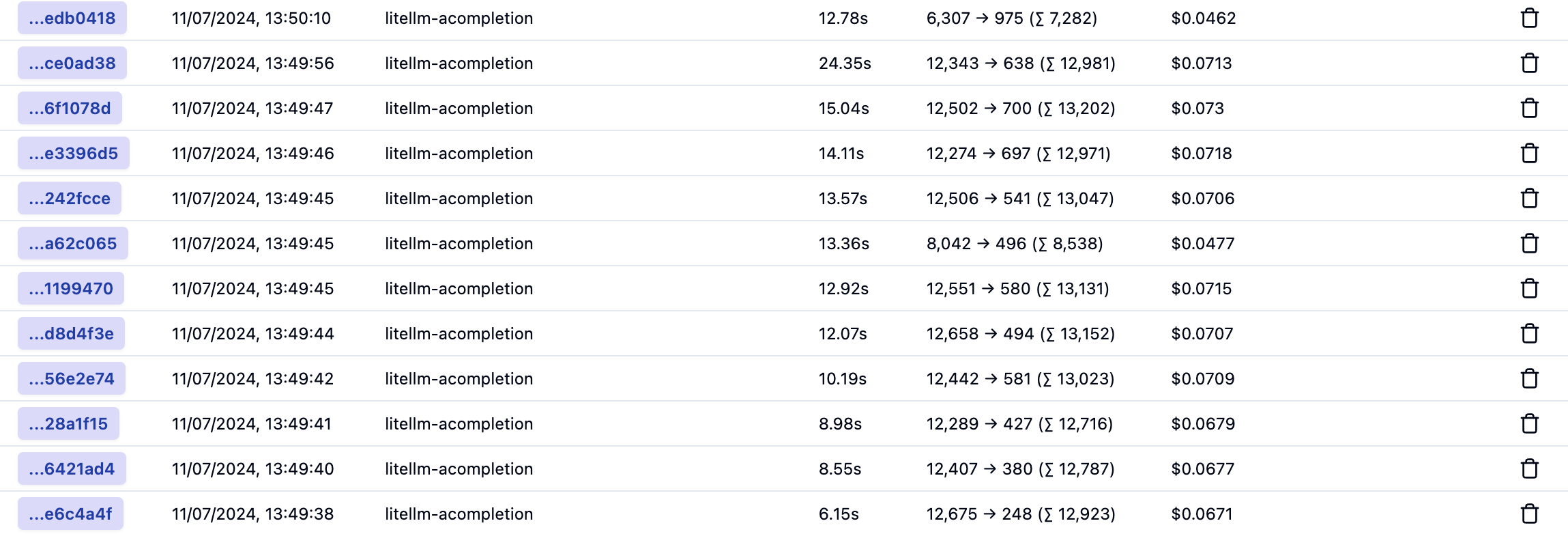
Let’s take a look at the traces for a global query. Every trace is an LLM call to answer the global query:
Traces for a global query
The last one in the list is where it starts:
First call of many to answer a global query
As you can probably tell, the call above is not returned directly to the user. The system prompt does not contain entities from the graph but community reports. Community reports are created during indexing. First, communities are detected using the Leiden algorithm and then summarized. You can have many communities and summaries in the dataset.
This first trace asks the LLM to answer the question: “What are the top themes in 1984?” to a first set of community reports and generates intermediate answers. These intermediate answers are saved until a last call used to answer the question based on all the intermediate answers. It is entirely possible that community reports are used that are not relevant to the query.
Here is that last call:
Answer the question based on the intermediate answers
I am not showing the whole prompt here. Above, you see the data that is fed to the final prompt: the intermediate answers from the community reports. This then results in the final answer:
Final answer to the global query
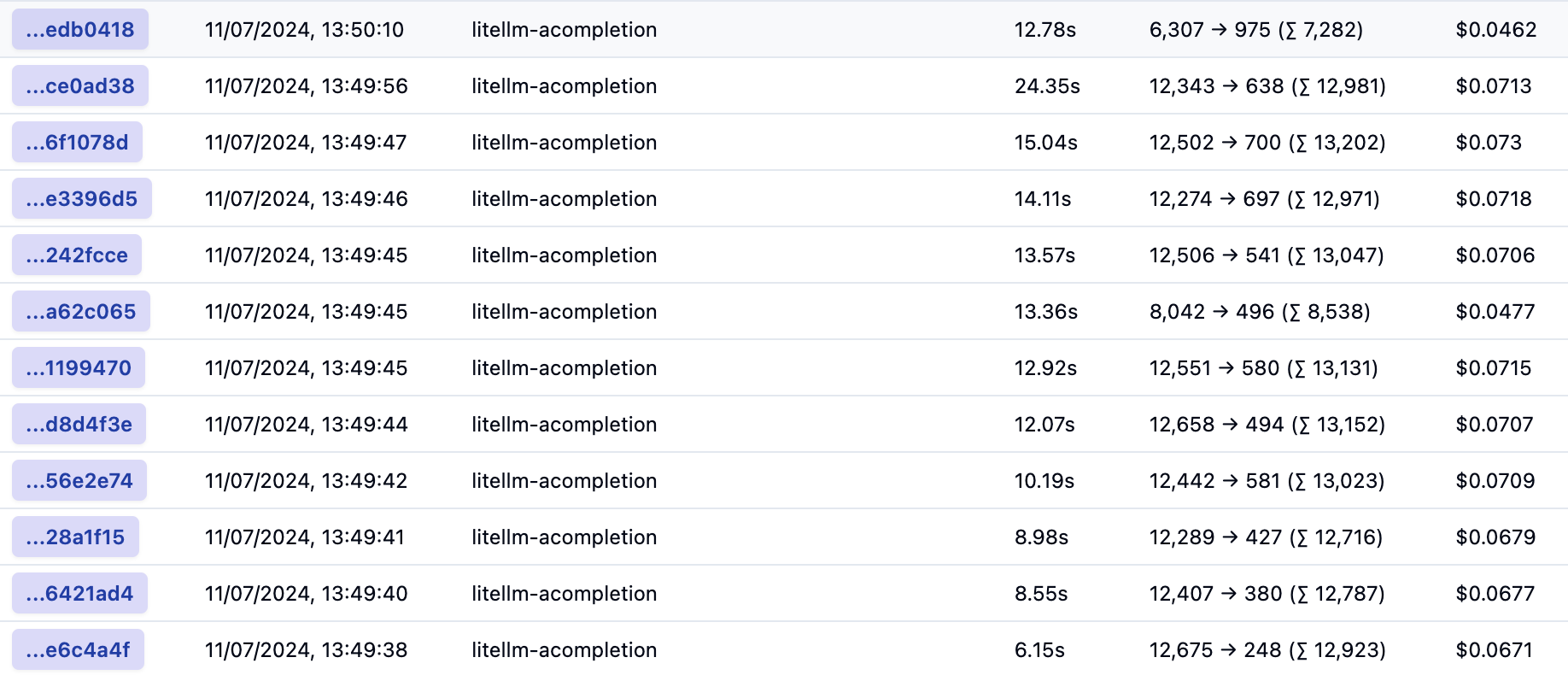
Below is the list with all calls again:
All calls to answer a global query
In total, and based on default settings, 12 LLM calls were made consuming around 150K tokens. The total latency cannot be calculated from this list because the calls are made in parallel. That total cost is around 80 cents.
The number of calls and token cost can be reduced by tweaking the default parameters in settings.yaml. For example, I made the following changes:
global_search:
  max_tokens: 6000 # was 12000
  data_max_tokens: 500 # was 1000
  map_max_tokens: 500 # was 1000
  # reduce_max_tokens: 2000
  # concurrency: 32
However, this resulted in more calls with around 140K tokens. Not a big reduction. I tried setting lower values but then I got Python errors and many more LLM calls due to retries. I would need to dig into that further to explain why this happens.
Conclusion
From the above, it is clear that local queries are less intensive and costly than global queries. By tweaking the local query settings, you can get pretty close to the baseline RAG cost where you return 3-5 chunks of text of about 500 tokens each. Latency is pretty good as well. Of course, depending on your data, it’s not guaranteed that the responses of local search will be better that baseline RAG.
Global queries are more costly but do allow you to ask broad questions about your dataset. I would not use these global queries in a chat assistant scenario consistently. However, you could start with a global query and then process follow-up questions with a local query or baseline RAG.
Whenever we build applications on top of LLMs such as OpenAI’s gpt-4o, we often use the RAG pattern. RAG stands for retrieval augmented generation. You use it to let the LLM answer questions about data it has never seen. To answer the question, you retrieve relevant information and hand it over to the LLM to generate the answer.
The diagram below illustrates both the data ingestion and querying part from a high level, using gtp-4 and a vector database in Azure, Azure AI Search.
RAG: ingestion and querying
Above, our documents are chunked and vectorized. These vectors are stored in Azure AI Search. Vectors allow us to find text chunks that are similar to the query of the user. When a user types a question, we vectorize the question, find similar vectors and hand the top n matches to the LLM. The text chunks that are found are put in the prompt together with the original question. Check out this page to learn more about vectors.
Note that above is the basic scenario in its simplest form. You can optimize this process in several ways, both in the indexing and the retrieval phase. Check out the RAG From Scratch series on YouTube to learn more about this.
Limitations of baseline RAG
Although you can get far with baseline RAG, it is not very good at answering global questions about an entire dataset. If you ask “What are the main themes in the dataset?” it will be hard to find text chunks that are relevant to the question unless you have the main themes described in the dataset itself. Essentially, this is a query-focused summarization task versus an explicit retrieval task.
In the paper, From Local to Global: A Graph RAG Approach to Query-Focused Summarization, Microsoft proposes a solution that is based on knowledge graphs and intermediate community summaries to answer these global questions more effectively.
If it is somewhat unclear what the difference between baseline RAG and Graph RAG looks like, watch this video on YouTube where it is explained in more detail:
Differences between baseline RAG and Graph RAG
Getting started by creating an index
Microsoft has an open source, Python-based implementation of Graph RAG for both local and global queries. We’ll discuss local queries a bit later in this post and focus on global for now. Check out the GitHub repo for more information.
If you have Python on your local machine, it is easy to try it out:
Make a folder and create a Python virtual environment in it
Make sure the Python environment is active and run pip install graphrag
In the folder, create a folder called input and put some text files in it with your content
From the folder that contains the input folder, run the following command: python -m graphrag.index --init --root .
This creates a .env file and a settings.yaml file.
In the .env file, enter your OpenAI key. This can also be an Azure OpenAI key. Azure OpenAI requires additional settings in the settings.yaml file: api_base, api_version, deployment_name.
I used OpenAI directly and modified the model in settings.yaml. Find the model setting and set it to gpt-4o.
You are now ready to run the indexing pipeline. Before running it, know that this will do a lot of LLM calls depending on the data you put in the index folder. In my tests, with 800KB of text data, indexing cost between 10 and 15 euros. Here’s the command:
python -m graphrag.index --root .
To illustrate what happens, take a look at the diagram below:
Indexing and querying process
Above, let’s look at it from top to bottom, excluding the user query section for now:
Source documents in the input folder are split into pieces of 300 tokens with 100 tokens overlap. Microsoft uses the cl100k_base tokenizer which is the one used by gpt-4 and not gpt-4o. That should not have an impact. You can adjust the token size and overlap. With a larger token size, less LLM calls are made in subsequent steps but element extraction might be less precise.
With the help of gpt-4o, elements are extracted from each chunk. These elements are the entities and relationships between entities in the graph that is being built. In addition, claims about the entities are extracted. The paper and diagram above uses the term covariates. This is a costly operation if you have a lot of data in the input folder.
Text descriptions of the elements are generated.
After these steps, a graph is built that contains all the entities, relationships, claims and element descriptions that gpt-4o could find. But the process does not stop there. To support global queries, the following happens:
Detection of communities inside the graph. Communities are groups of closely related entities. They are detected using the Leiden algorithm. In my small dataset, about 250 communities were detected.
Per community, community summaries are created with gpt-4o and stored. These summaries can later be used in global queries.
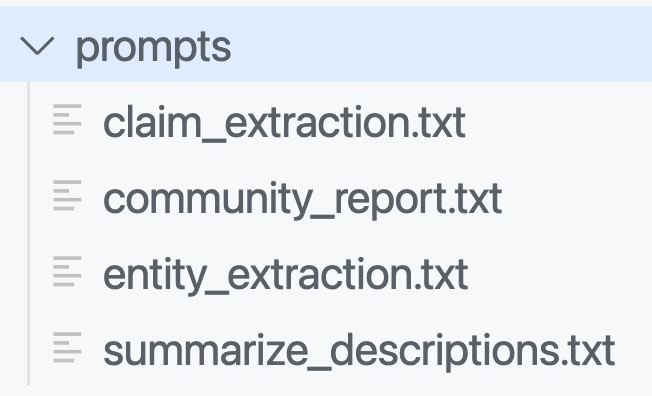
To make all of the above work, a lot of LLM calls have to be made. The prompts that are used can be seen in the prompts folder:
Prompts used to build the graph and community descriptions
You can and probably should modify these prompts to match the domain of your documents. The entity extraction prompt contains examples to teach the LLM about the entities it should extract. By default, entities such as people, places, organizations, etc.. are detected. But if you work with building projects, buildings, bridges, construction materials, the prompt should be adjusted accordingly. The quality of the answers will depend greatly on those adjustments.
In addition to the graph, the solution uses the open source LanceDB to store embeddings for each text chuck. There is only one table in the database with four fields:
id: unique id for the chunk
text: the text in the chunk
vector: the vector of the chunk; by default the text-embedding-3-small model is used
attributes: e.g., {“title”: “\”title here\””}
The graph and related data is stored in parquet files in an artifacts folder inside another folder with a timestamp. For example:
Parquet files that contain the graph structure
If you have a parquet viewer, you can check the create_final_entities.parquet file to check the detected entities. You will find entity types like ORGANIZATION, PERSON, GEO, EVENT, CONCEPT, etc… Every entity has a description and links back to the text unit ids. The text units are the chunks.
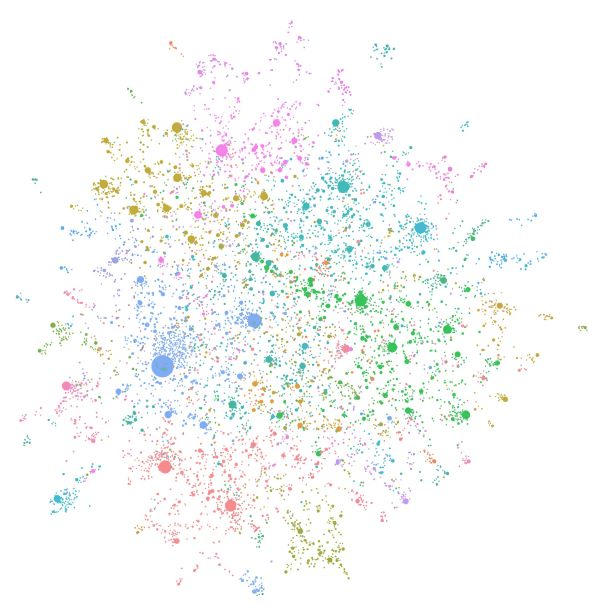
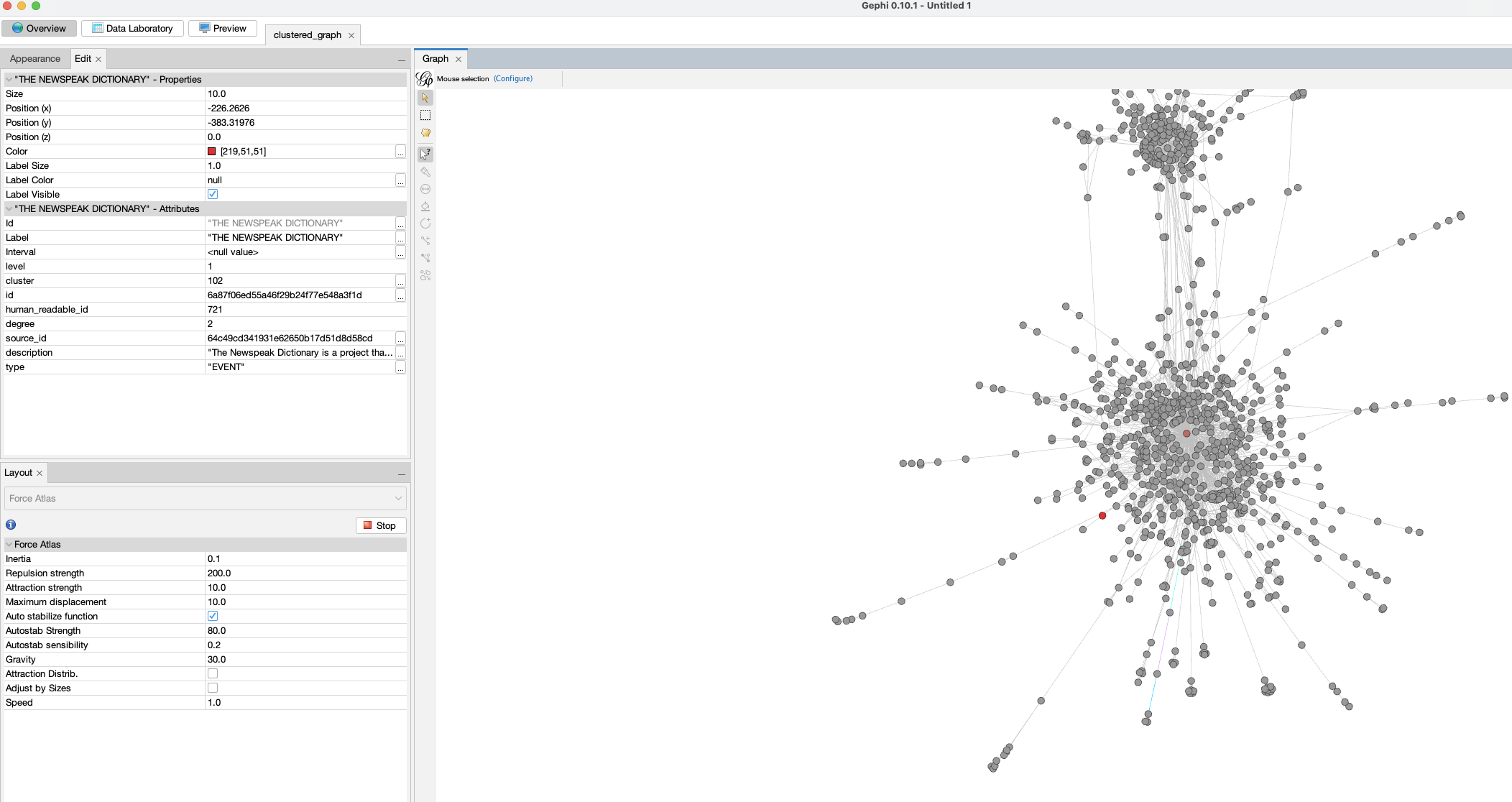
Note that, if you want the graph in GraphML format, set snapshots.graphml to true in settings.yaml. Your artifacts folder will then contain .graphml files. You can load those in a viewer like Gephi:
Loading the graph in a viewer
If you already ran the indexer without setting this value, you can just run it again. Graph RAG has a caching layer so you will not incur costs when you run the indexer again simply to generate the .graphml files.
Global Search
Now let’s do a global query. A global query uses the generated community summaries to answer the question. The intermediate answers are used to generate the final answer.
A global query is not just one LLM call but several ones. The total token cost is relatively high compared to a typical similarity search that uses between 3 to 5 retrieved chunks. It’s not uncommon to see >10 LLM calls with 200K token. You can control the token usage in settings.yaml. See the global_search settings at the bottom.
To do a global query, run the command below. I have the book 1984 in the corpus so let’s ask for the main themes:
python -m graphrag.query \
--root . \
--method global \
"What are the top themes in 1984?"
Note that an LLM can answer this on its own since it knows about 1984. That’s not the point here. The answer you get will come from the index:
### Top Themes in *1984*

**1. Totalitarianism and Absolute Control**

The Party in Oceania exercises absolute control over its citizens, manipulating historical records, maintaining a state of perpetual conflict, and enforcing oppressive policies through purges, arrests, tortures, imprisonments, and vaporizations [Data: Reports (211)]. The regime's control extends to every aspect of life, including personal relationships, sexual behavior, and even thoughts, enforced by the Thought Police and the omnipresent Telescreen [Data: Reports (141, 183, 223, 185, 191, 181, 151, 116, 186)].

**2. Surveillance and Psychological Manipulation**

Surveillance is a pervasive theme, with the Telescreen and the Thought Police constantly monitoring individuals to ensure compliance and suppress dissent [Data: Reports (52, 141, 183, 223, 185, 191, 181, 151, 116, 186)]. The Party uses psychological manipulation techniques such as doublethink, Newspeak, and the alteration of historical records to control and limit the range of thought among its citizens [Data: Reports (141, 175, 183, 181, 215, 149, 179, 177, 178, 165, 58)].

**3. Manipulation of Truth and Reality**

The Party manipulates historical records and information to maintain its narrative and control over reality. This is evident in Winston's work at the Ministry of Truth and the concept of doublethink, which allows individuals to accept two contradictory beliefs simultaneously [Data: Reports (141, 175, 183, 181, 215, 149, 179, 177, 178, 165, 58)]. The Memory Hole is used to destroy documents, ensuring that information is permanently erased, highlighting the Party's control over historical narratives [Data: Reports (52)].

**4. Continuous Warfare**

Oceania is engaged in a perpetual state of war with Eastasia and Eurasia. This continuous warfare serves to maintain the Party's control over the population and justify its oppressive policies [Data: Reports (211, 178, 214)]. The war consumes surplus goods, maintains a hierarchical structure, and impacts the mental states of individuals, ensuring that the populace remains divided and distracted [Data: Reports (211, 178, 214, 208)].

**5. Rebellion and Resistance**

Despite the oppressive regime, themes of rebellion and resistance are present, as seen through characters like Winston and Julia. Winston's clandestine activities, such as his relationship with Julia and his hope in the Proles, reflect his desire to rebel against the Party's oppressive regime [Data: Reports (141, 183, 151, 182, 101, 186)]. The Brotherhood represents an underground network aiming to overthrow the state of Oceania, highlighting the existence of resistance within the oppressive regime [Data: Reports (211, 64, 152)].

**6. Class Struggle and Social Hierarchy**

The distinction between the Inner Party, Outer Party, and Proles highlights the rigid social hierarchy within Oceania. The Party's control over the Proles and the limited privileges of the Outer Party members emphasize the theme of class struggle [Data: Reports (141, 66, 185, 211, 182, 124)]. The Proles, despite their subjugation, are seen as a potential source of hope and rebellion [Data: Reports (182, 64)].

**7. Language as a Tool of Control**

Newspeak, a language created by The Party, is designed to limit the range of thought and eliminate any possibility of rebellious thoughts. By controlling language, The Party effectively controls thought, making it impossible for individuals to conceptualize or express subversive ideas [Data: Reports (177, 179, 181, 149, 114)].

**8. Fear and Psychological Torture**

The Party uses fear and psychological torture to maintain control, exemplified by the use of Room 101, where individuals are subjected to their worst fears. Winston's torture with the cage containing rats demonstrates the regime's ability to break individuals' spirits [Data: Reports (169, 145, 224, 220)].

These themes collectively illustrate the oppressive nature of the regime in *1984* and its impact on personal freedom, truth, and reality. The Party's extensive use of surveillance, psychological manipulation, and control over information ensures its dominance and the suppression of any potential dissent.
To do a local search from the CLI, use the following command:
python -m graphrag.query \
--root . \
--method local \
"Who is Winston? Who does he interact with and why?"
A local search uses similarity search to find entities in the graph as entry points. Once these entry points are found, the graph is used to find further entities of interest. A local search requires the LanceDB embeddings store while a global search does not.
The response to the above question:
### Who is Winston?

Winston is a complex character from George Orwell's novel "Nineteen Eighty-Four." He is a member of the Outer Party and works at the Ministry of Truth, where his job involves altering historical records to fit the Party's propaganda. Winston is deeply resentful of the Party and Big Brother, harboring a sense of intellectual inferiority and mental domination by figures like O'Brien. His life is marked by intense fear, paranoia, and physical and emotional suffering, particularly during his interactions with O'Brien, who tortures and interrogates him [Data: Entities (8, 3)].

Winston's reflections on reality, power, and the nature of suffering are central to his character. He contemplates the symbolic meaning of chess, the principles of Ingsoc, and the dominion of The Party. His dreams and memories, including the tragic death of his mother and sister, the bells of St. Clement's, and his early childhood, provide a poignant backdrop to his internal struggles [Data: Entities (8)].

### Interactions and Relationships

#### Julia
Winston's most significant relationship is with Julia, a fellow Party member. Despite the risks, they engage in a love affair, renting a room from Mr. Charrington for their secret meetings. Julia represents a source of intimacy and rebellion for Winston, as they navigate their dangerous liaison under the watchful eyes of The Party [Data: Entities (8)].

#### O'Brien
O'Brien is another crucial figure in Winston's life. Initially, Winston feels a sense of connection and admiration towards O'Brien, hoping that his political orthodoxy is not perfect. However, O'Brien ultimately becomes his torturer, subjecting Winston to severe psychological and physical pain. Despite this, Winston experiences moments of connection and even a peculiar intimacy with O'Brien [Data: Entities (8)].

#### Mr. Charrington
Mr. Charrington is the shop owner who rents a room to Winston and Julia for their secret meetings. Initially, he appears discreet and non-judgmental, but later reveals a more authoritative and alert persona, indicating his role in the Party's surveillance [Data: Entities (317)].

#### Other Characters
Winston also interacts with various other characters, such as Syme, Parsons, and the old man in the pub. These interactions reveal his curiosity about the past and the changes brought about by The Party. For instance, Syme is a colleague who discusses the principles of Newspeak with Winston, while Parsons is a fellow employee at the Ministry of Truth [Data: Entities (8, 83)].

### Conclusion

Winston is a deeply reflective and observant character, constantly grappling with the oppressive nature of The Party and his own internal conflicts. His interactions with Julia, O'Brien, Mr. Charrington, and others provide a multifaceted view of his struggles and the dystopian world he inhabits. Through these relationships, Winston's character is fleshed out, revealing the complexities of life under totalitarian rule.
Note that the output contains references to entities that were found. For example, the section about Mr. Charrington specifies entity 317. In the Gephi Data Laboratory, we can easily find that entity using the human_readable_id:
Finding referenced entities
When you are building an application, the UI could provide links to the entities for further inspection.
Conclusion
Retrieval-Augmented Generation (RAG) has emerged as a powerful technique for enhancing language models’ ability to answer questions about specific datasets. While baseline RAG excels at answering specific queries by retrieving relevant text chunks, it struggles with global questions that require a comprehensive understanding of the entire dataset. To address this limitation, Microsoft has introduced Graph RAG, an innovative approach that leverages knowledge graphs and community summaries to provide more effective answers to global queries.
Graph RAG’s indexing process involves chunking documents, extracting entities and relationships, building a graph structure, and generating community summaries. This approach allows for more nuanced and context-aware responses to both local and global queries. While Graph RAG offers significant advantages in handling complex, dataset-wide questions, it’s important to note that it comes with higher computational costs and requires careful prompt engineering to achieve optimal results. As the field of AI continues to evolve, techniques like Graph RAG represent an important step towards more comprehensive and insightful information retrieval and generation systems.
In the previous post, we looked at using Azure OpenAI Add your data from the Azure OpenAI Chat Playground. It is an easy-to-follow wizard to add documents to a storage account and start asking questions about them. From the playground, you can deploy a chat app to an Azure web app and you are good to go. The vector search is performed by an Azure Cognitive Search resource via an index that includes a vector next to other fields such as the actual content, the original URL, etc…
In this post, we will look at using this index from code and build a chat app using the Python Streamlit library.
You need an Azure Cognitive Search resource with an index that supports vector search. Use this post to create one. Besides Azure Cognitive Search, you will need Azure OpenAI deployed with both gpt-4 (or 3.5) and the text-embedding-ada-002 embedding model. The embedding model is required to support vector search. In Europe, use France Central as the region.
Next, you need Python installed. I use Python 3.11.4 64-bit on an M1 Mac. You will need to install the following libraries with pip:
streamlit
requests
You do not need the OpenAI library because we will use the Azure OpenAI REST APIs to be able to use the extension that enables the Add your data feature.
Configuration
We need several configuration settings. The can be divided into two big blocks:
Azure Cognitive Search settings: name of the resource, access key, index name, columns, type of search (vector), and more…
Azure OpenAI settings: name of the model (e.g., gpt-4), OpenAI access key, embedding model, and more…
You should create a .env file with the following content:
Now we will create chat.py. The diagram below summarizes the architecture:
Chat app architecture (high level)
Here is the first section of the code with explanations:
import requests
import streamlit as st
from config import *
import json

# Azure OpenAI REST endpoint
endpoint = f"https://{AZURE_OPENAI_RESOURCE}.openai.azure.com/openai/deployments/{AZURE_OPENAI_MODEL}/extensions/chat/completions?api-version={AZURE_OPENAI_PREVIEW_API_VERSION}"

# endpoint headers with Azure OpenAI key
headers = {
    'Content-Type': 'application/json',
    'api-key': AZURE_OPENAI_KEY
}

# Streamlit app title
st.title("🤖 Azure Add Your Data Bot")

# Keep messages array in session state
if "messages" not in st.session_state:
    st.session_state.messages = []

# Display previous chat messages from history on app rerun
# Add your data messages include tool responses and assistant responses
# Exclude the tool responses from the chat display
for message in st.session_state.messages:
    if message["role"] != "tool":
        with st.chat_message(message["role"]):
            st.markdown(message["content"])
A couple of things happen here:
We import all the variables from config.py
We construct the Azure OpenAI REST endpoint and store it in endpoint; we use the extensions/chat endpoint here which supports the Add your data feature in API version 2023-06-01-preview and higher
We configure the HTTP headers to send to the endpoint; the headers include the Azure OpenAI authentication key
We print a title with Streamlit (st.title) and define a messages array that we store in Streamlit’s session state
Because of the way Streamlit works, we have to print the previous messages of the chat each time the page reloads. We do that in the last part but we exclude the tool role. The extensions/chat endpoint returns a tool response that contains the data returned by Azure Cognitive Search. We do not want to print the tool response. Together with the tool response, the endpoint returns an assistant response which is the response from the gpt model. We do want to print that response.
Now we can look at the code that gets executed each time the user asks a question. In the UI, the question box is at the bottom:
Streamlit chat UI
Whenever you type a question, the following code gets executed:
# if user provides chat input, get and display response
# add user question and response to previous chat messages
if user_prompt := st.chat_input():
    st.chat_message("user").write(user_prompt)
    with st.chat_message("assistant"):
        with st.spinner("🧠 thinking..."):
            # add the user query to the messages array
            st.session_state.messages.append({"role": "user", "content": user_prompt})
            body = {
                "messages": st.session_state.messages,
                "temperature": float(AZURE_OPENAI_TEMPERATURE),
                "max_tokens": int(AZURE_OPENAI_MAX_TOKENS),
                "top_p": float(AZURE_OPENAI_TOP_P),
                "stop": AZURE_OPENAI_STOP_SEQUENCE.split("|") if AZURE_OPENAI_STOP_SEQUENCE else None,
                "stream": False,
                "dataSources": [
                    {
                        "type": "AzureCognitiveSearch",
                        "parameters": {
                            "endpoint": f"https://{AZURE_SEARCH_SERVICE}.search.windows.net",
                            "key": AZURE_SEARCH_KEY,
                            "indexName": AZURE_SEARCH_INDEX,
                            "fieldsMapping": {
                                "contentField": AZURE_SEARCH_CONTENT_COLUMNS.split("|") if AZURE_SEARCH_CONTENT_COLUMNS else [],
                                "titleField": AZURE_SEARCH_TITLE_COLUMN if AZURE_SEARCH_TITLE_COLUMN else None,
                                "urlField": AZURE_SEARCH_URL_COLUMN if AZURE_SEARCH_URL_COLUMN else None,
                                "filepathField": AZURE_SEARCH_FILENAME_COLUMN if AZURE_SEARCH_FILENAME_COLUMN else None,
                                "vectorFields": AZURE_SEARCH_VECTOR_COLUMNS.split("|") if AZURE_SEARCH_VECTOR_COLUMNS else []
                            },
                            "inScope": True if AZURE_SEARCH_ENABLE_IN_DOMAIN.lower() == "true" else False,
                            "topNDocuments": AZURE_SEARCH_TOP_K,
                            "queryType":  AZURE_SEARCH_QUERY_TYPE,
                            "roleInformation": AZURE_OPENAI_SYSTEM_MESSAGE,
                            "embeddingEndpoint": AZURE_OPENAI_EMBEDDING_ENDPOINT,
                            "embeddingKey": AZURE_OPENAI_EMBEDDING_KEY
                        }
                    }
                ]
            }

            # send request to chat completion endpoint
            try:
                response = requests.post(endpoint, headers=headers, json=body)

                # there will be a tool response and assistant response
                tool_response = response.json()["choices"][0]["messages"][0]["content"]
                tool_response_json = json.loads(tool_response)
                assistant_response = response.json()["choices"][0]["messages"][1]["content"]

                # get urls for the JSON tool response
                urls = [citation["url"] for citation in tool_response_json["citations"]]


            except Exception as e:
                st.error(e)
                st.stop()


            # replace [docN] with urls and use 0-based indexing
            for i, url in enumerate(urls):
                assistant_response = assistant_response.replace(f"[doc{i+1}]", f"[[{i}]({url})]")


            # write the response to the chat
            st.write(assistant_response)

            # write the urls to the chat; gpt response might not refer to all
            st.write(urls)

            # add both responses to the messages array
            st.session_state.messages.append({"role": "tool", "content": tool_response})
            st.session_state.messages.append({"role": "assistant", "content": assistant_response})
When there is input, we write the input to the chat history on the screen and add it to the messages array. The OpenAI APIs expect a messages array that includes user and assistant roles. In other words, user questions and assistant (here gpt-4) responses.
With a valid messages array, we can send our payload to the Azure OpenAI extensions/chat endpoint. If you have ever worked with the OpenAI or Azure OpenAI APIs, many of the settings in the JSON body will be familiar. For example: temperature, max_tokens, and of course the messages themselves.
What’s new here is the dataSources field. It contains all the information required to perform a vector search in Azure Cognitive Services. The search finds content relevant to the user’s question (that was added last to the messages array). Because queryType is set to vector, we also need to provide the embedding endpoint and key. It’s required because the user question has to be vectorized in order to compare it with the stored vectors.
It’s important to note that the extensions/chat endpoint, together with the dataSources configuration takes care of a lot of the details:
Perform a k-nearest neighbor search (k=5 here) to find 5 documents closely related to the user’s question
It uses vector search for this query (could be combined with keyword and semantic search to perform a hybrid search but that is not used here)
It stuffs the prompt to the GPT model with the relevant content
It returns the GPT model response (assistant response) together with a tool response. The tool response contains citations that include URLs to the original content and the content itself.
In the UI, we print the URLs from these citations after modifying the assistant response to just return hyperlinked numbers like [0] and [1] for the citations instead of unlinked [doc1], [doc2], etc… In the UI, that looks like:
Printing the URLs from the citations
Note that this chat app is a prototype and does not include management of the messages array. Long interactions will reach the model’s token limit!
Although still in preview, you now have an Azure-native solution that enables the RAG pattern with vector search. RAG stands for Retrieval Augmented Generation. Azure Cognitive Search is a fully managed service that stores the vectors and performs similarity searches. There is no need to deploy a 3rd party vector database.
There is no need for specific libraries to implement this feature because it is all part of the Azure OpenAI API. Microsoft simply extended that API to add data sources and takes care of all the behind-the-scenes work that finds relevant content and adds it to your prompt.
If, for some reason, you do not want to use the Azure OpenAI API directly and use something like LangChain or Semantic Kernel, you can of course still do that. Both solutions support Azure Cognitive Search as a vector store.










 baeke.info