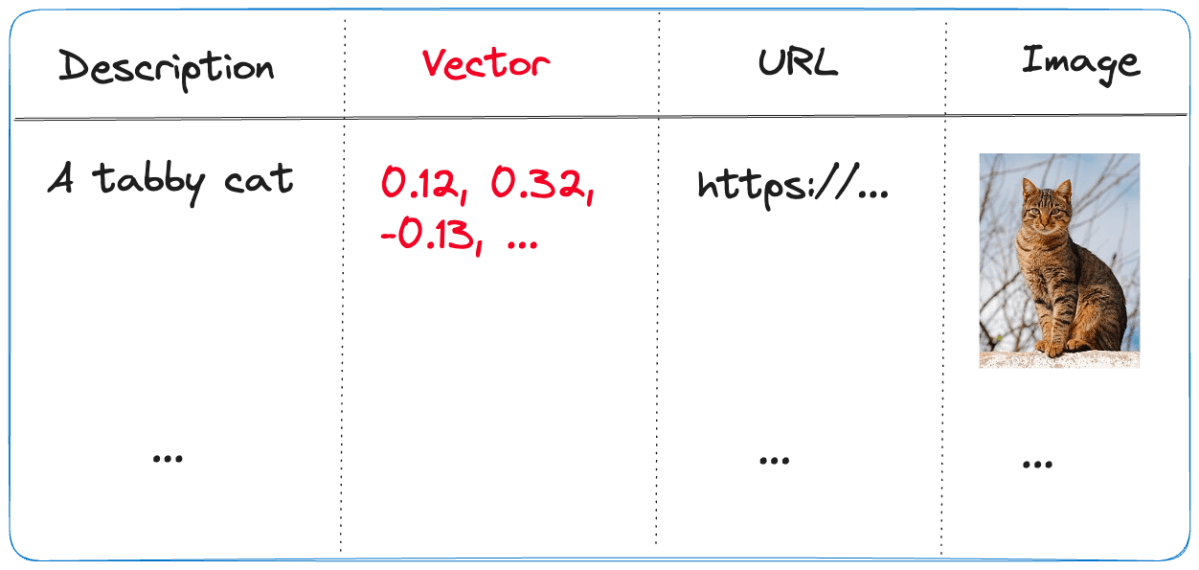
Embedding flows created with Microsoft Prompt Flow in your own applications

A while ago, I wrote about creating your first Prompt Flow in Visual Studio Code. In this post, we will embed such a flow in a Python application built with Streamlit. The application allows you to search for images based on a description. Check the screenshot below:
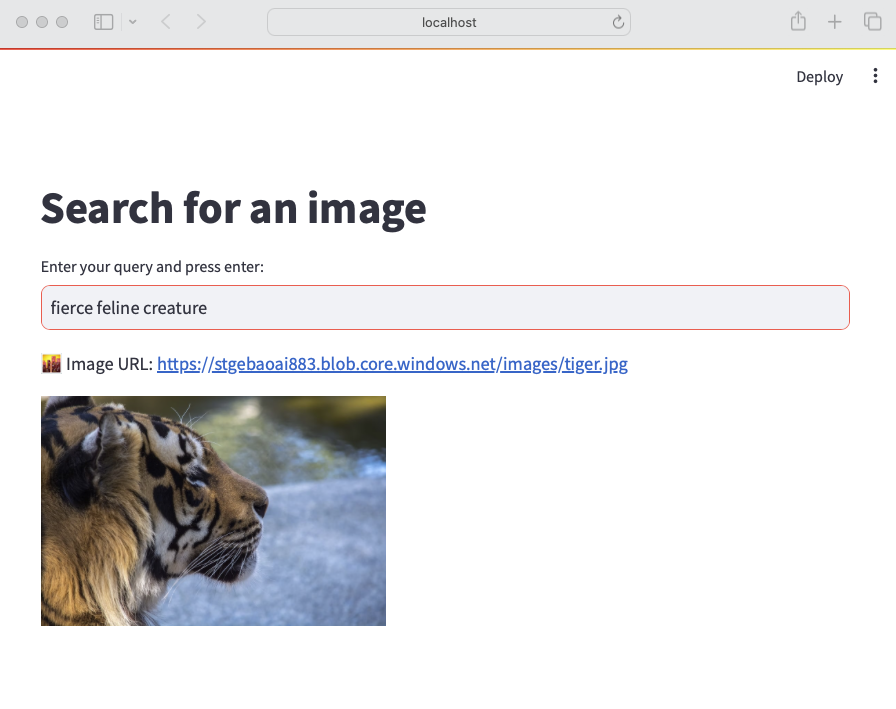
Streamlit app to search for images based on a description

There are a few things we need to make this work:

  • An index in Azure AI Search that contains descriptions of images, a vector of these descriptions and a link to the image
  • A flow in Prompt Flow that takes a description as input and returns the image link or the entire image as output
  • A Python application (the Streamlit app above) that uses the flow to return an image based on the description

Let’s look at each component in turn.

Azure AI Search Index

Azure AI Search is a search index that supports keyword search, vector search and semantic reranking. You can combine keyword and vector search in what is called a hybrid search. The hybrid search results can optionally be reranked further using a state-of-the-art semantic reranker.

The index we use is represented below:
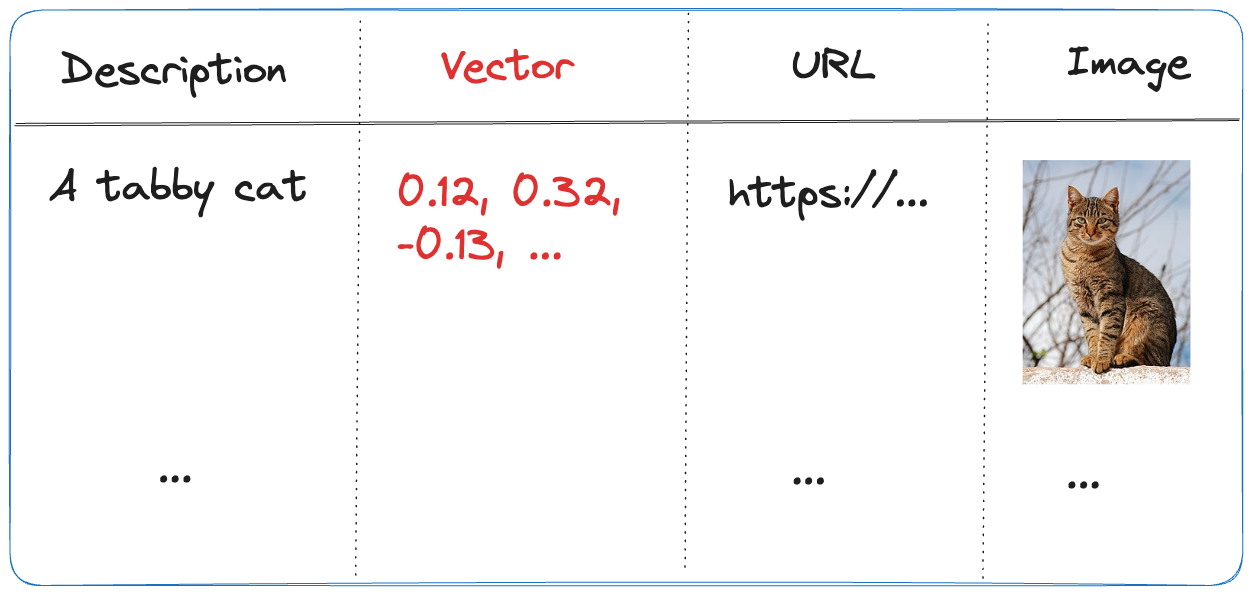
Index in Azure AI Search
  • Description: contains the description of the image; the image description was generated with the gpt-4-vision model and is larger than just a few words
  • URL: the link to the actual image; the image is not stored in the index, it’s just shown for reference
  • Vector: vector generated by the Azure OpenAI embedding model; it generates 1536 floating point numbers that represent the meaning of the description

Using vectors and vector search allows us to search not just for cat but also for words like kat (in Dutch) or even feline creature.

The flow we will create in Prompt Flow uses the Azure AI Search index to find the URL based on the description. However, because Azure AI Search might return images that are not relevant, we also use a GPT model to make the final call about what image to return.

Flow

In Prompt Flow in Visual Studio Code, we will create the flow below:

Flow we will embed in the Streamlit app

It all starts from the input node:

Input node

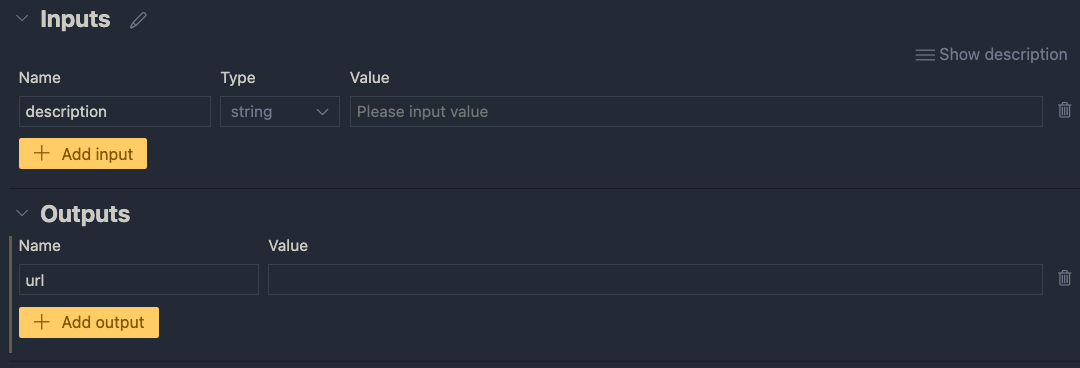
The flow takes one input: description. In order to search for this description, we need to convert it to a vector. Note that we could skip this and just do a text search. However, that will not get us the best results.

To embed the input, we use the embedding node:

Embedding node

The embedding node uses a connection called open_ai_connection. This connection contains connection information to an Azure OpenAI resource that hosts the embedding model. The model deployment’s name is embedding. The input to the embedding node is the description from the input. The output is a vector:
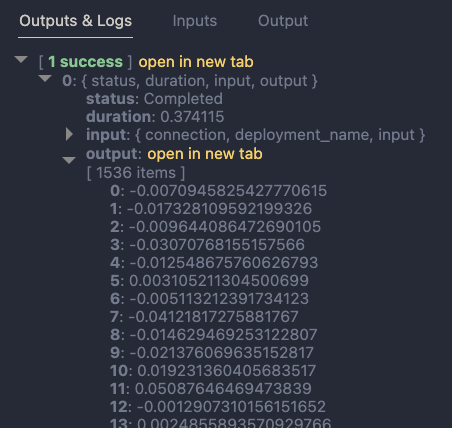
Output of embedding node

Now that we have the embedding, we can use a Vector DB Lookup node to perform a vector search in Azure AI Search:
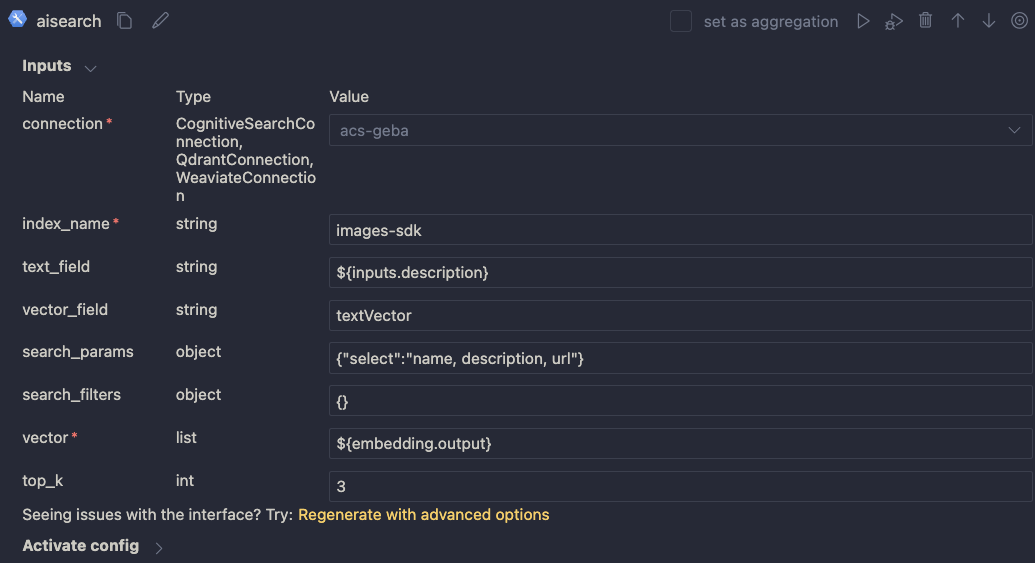
Azure AI Search

Above, we use another connection (acs-geba) that holds the credentials to connect to the Azure AI Search resource. We specify the following to perform the search:

  • index name to search: images-sdk here
  • what text to put in the text_field: the description from the input; this search will be a hybrid search; we search with both text and a vector
  • vector field: the name of the field that holds the vector (textVector field in the images-sdk index)
  • search_params: here we specify the fields we want to return in the search results; name, description and url
  • vector to find similar vectors for: the output from the embedding node
  • the number of similar items to return: top_k is 3

The result of the search node is shown below:
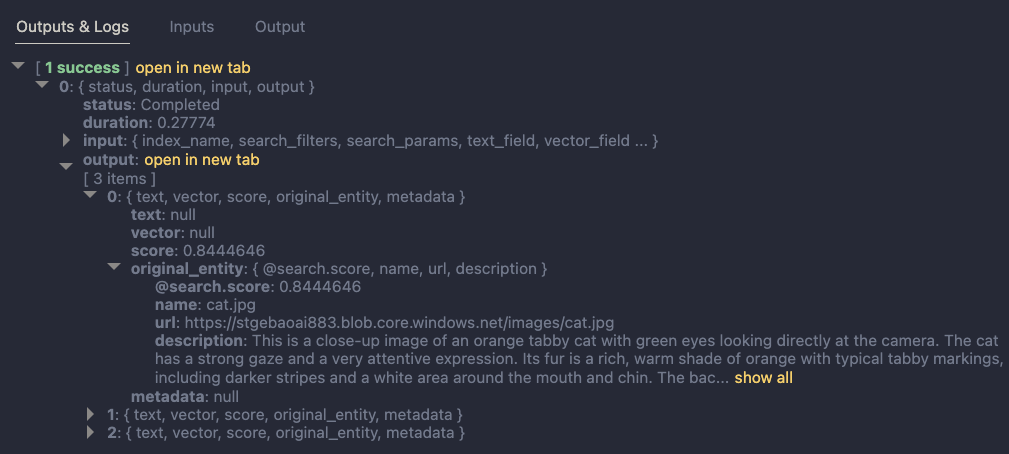
Search results

The result contains three entries from the search index. The first result is the closest to the description from our input node. In this case, we could just take the first result and be done with it. But what if we get results that do not match the description?

To make the final judgement about what picture to return, let’s add an LLM node:

LLM Node

The LLM node uses the same OpenAI connection and is configured to use the chat completions API with the gpt-4 model. We want this node to return proper JSON by setting the response_format to json_object. We also need a prompt, which is a ninja2 template best_image.jinja2:

system:
You return the url to an image that best matches the user's question. Use the provided context to select the image. Return the URL in JSON like so:
{ "url": "the_url_from_search" }

Only return an image when the user question matches the context. If not found, return JSON with the url empty like { "url": "" }

user question:
{{description}}

context : {{search_results}}

The template above sets the system prompt and specifically asks to return JSON. With the response format set to JSON, the word JSON (in uppercase) needs to be in the prompt or you will get an error.

The prompt defines two parameters:

  • description: we connect the description from the input to this parameter
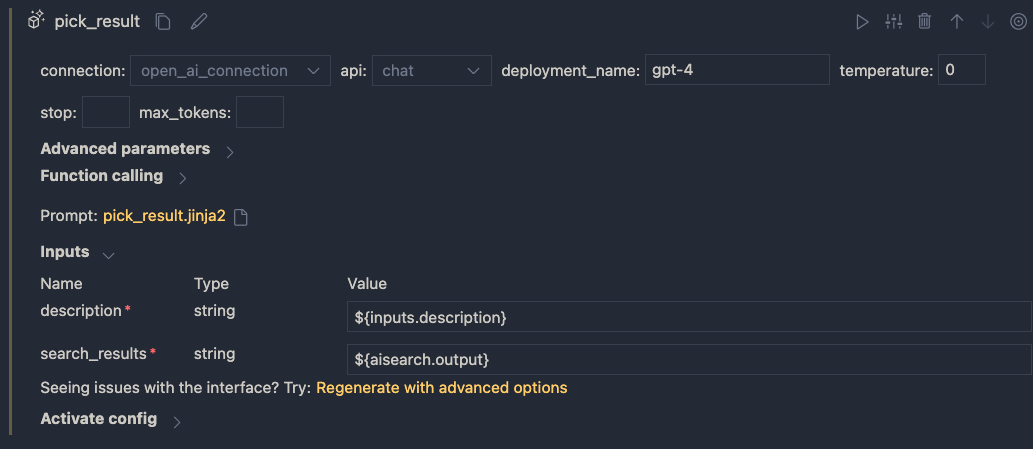
  • search_results: we connect the results from the aisearch node to this parameter

In the screenshot above, you can see this mapping being made. It’s all done in the UI, no code required.

When this node returns an output, it will be in the JSON format we specified. However, that does still not mean that the URL will be correct. The model might still return an incorrect url, although we try to mitigate that in the prompt.

Below is an example of the LLM output when the description is cat:
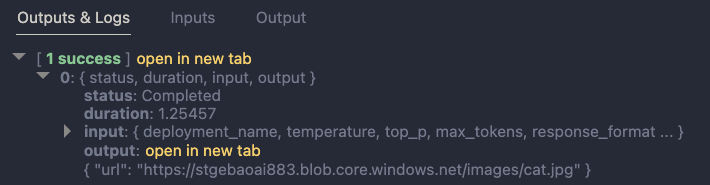
Model picked the cat picture

Now that we have the URL, I want the flow to output two values:

  • the URL: the URL as a string, not wrapped in JSON
  • the base-64 representation of the image that can we used directly in an HTML IMG tag

We use two Python tools for this and bring the results to the output node. Python tools use custom Python code:
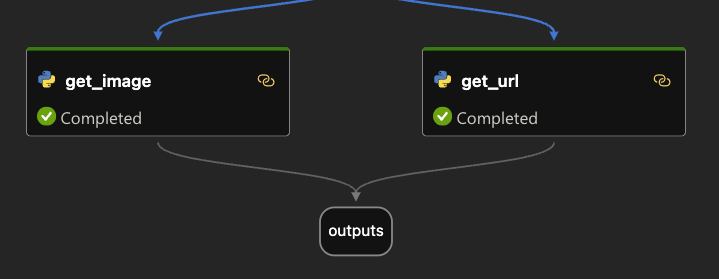
Setting the output

The code in get_image is below:

from promptflow import tool
import json, base64, requests

def url_to_base64(image_url):
    response = requests.get(image_url)
    return 'data:image/jpg;base64,' + base64.b64encode(response.content).decode('utf-8')

@tool
def my_python_tool(image_json: str) -> str:
    url = json.loads(image_json)["url"]

    if url:
        base64_string = url_to_base64(url)
    else:
        base64_string = url_to_base64("https://placehold.co/400/jpg?text=No+image")

    return base64_string

The node executes the function that is marked with the @tool decorator and sends it the output from the LLM node. The code grabs the url and downloads and transforms the image to its base64 representation. You can see how the output from the LLM node is mapped to the image_json parameter below:

linking the function parameter to the LLM output

The code in get_url is similar. It just extracts the url as a string from the input JSON coming from the url.

The output node is the following:

Output node

The output has two properties: data (the base64-encoded image) and the url to the image. Later, in the Python code that uses this flow, the output will be a Python dict with a data and url entry.

Using the flow in your application

Although you can host this flow as an API using either an Azure Machine Learning endpoint or a Docker container, we will simply embed the flow in our Python application and call it like a regular Python function.

Here is the code, which uses Streamlit for the UI:

from promptflow import load_flow
import streamlit as st

# load Prompt Flow from parent folder
flow_path = "../."
f = load_flow(flow_path)

# Streamlit UI
st.title('Search for an image')

# User input
user_query = st.text_input('Enter your query and press enter:')

if user_query:
    # extract url from dict and wrap in img tag
    flow_result = f(description=user_query)
    image = flow_result["data"]
    url = flow_result["url"]

    img_tag = f'<a href="{url}"><img src="{image}" alt="image" width="300"></a>'
     
    # just use markdown to display the image
    st.markdown(f"🌆 Image URL: {url}")
    st.markdown(img_tag, unsafe_allow_html=True)

To load the flow in your Python app as a function:

  • import load_flow from the promptflow module
  • set a path to your flow (relative or absolute): here we load the flow that is in the parent directory that contains flow.dag.yaml.
  • use load_flow to create the function: above the function is called f

When the user enters the query, you can simply use f(description="user's query...") to obtain the output. The output is a Python dict with a data and url entry.

In Streamlit, we can use markdown to display HTML directly using unsafe_allow_html=True. The HTML is simply an <img> tag with the src attribute set to the base64 representation of the image.

Connections

Note that the flow on my system uses two connections: one to connect to OpenAI and one to connect to Azure AI Search. By default, Prompt Flow stores these connections in a SQLite database in the .promptflow folder of your home folder. This means that the Streamlit app work on my machine but will not work anywhere else.

To solve this, you can override the connections in your app. See https://github.com/microsoft/promptflow/blob/main/examples/tutorials/get-started/flow-as-function.ipynb for more information about these overrides.

Conclusion

Embedding a flow as a function in a Python app is one of the easiest ways to use a flow in your applications. Although we used a straightforward Streamlit app here, you could build a FastAPI server that provides endpoints to multiple flows from one API. Such an API can easily be hosted as a container on Container Apps or Kubernetes as part of a larger application.

Give it a try and let me know what you think! 😉
Deploy a flow created in Prompt Flow with Docker

Update: this post used an older version of Prompt Flow at the time. It had some issues with building and running the Docker image without issues. In version 1.5.0, it should work fine because the Dockerfile now also installs gcc.

In the previous post, we created a flow with Prompt Flow in Visual Studio Code. The Prompt Flow extension for VS Code has a visual flow editor to test the flow. You simply provide the input and click the Run button. When the flow is finished, the result can be seen in the Outputs node, including a trace of the flow:

Running a flow in Prompt Flow

Now it’s time to deploy the flow. One of the options is creating a container image with Docker.

Before we start, we will first convert this flow into a chat flow. Chat does not make much sense for this flow. However, the Docker container includes a UI to run your flow via a chat interface. You will also be able to test your flow locally in a web app.

Convert the flow to a chat flow

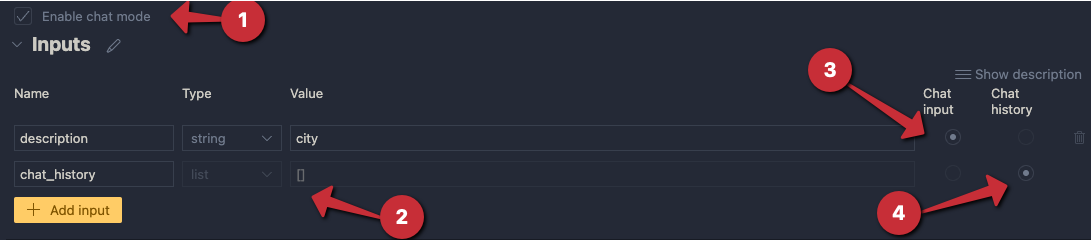
To convert the flow to a chat flow, enable chat mode and add chat_history to the Inputs node:

Enable chat

To include the chat history in your conversations, modify the .jinja2 template in the LLM node:

system:
You return the url to an image that best matches the user's question. Use the provided context to select the image. Only return the url. When no
matching url is found, simply return NO_IMAGE

{% for item in chat_history %}
user:
{{item.inputs.description}}
assistant:
{{item.outputs.url}}
{% endfor %}

user:
{{description}}

context : {{search_results}}

Enabling chat history allows you to loop over its content and reconstruct the user/assistant interactions before adding the most recent description. When you run the flow, you get:

Running a chat flow

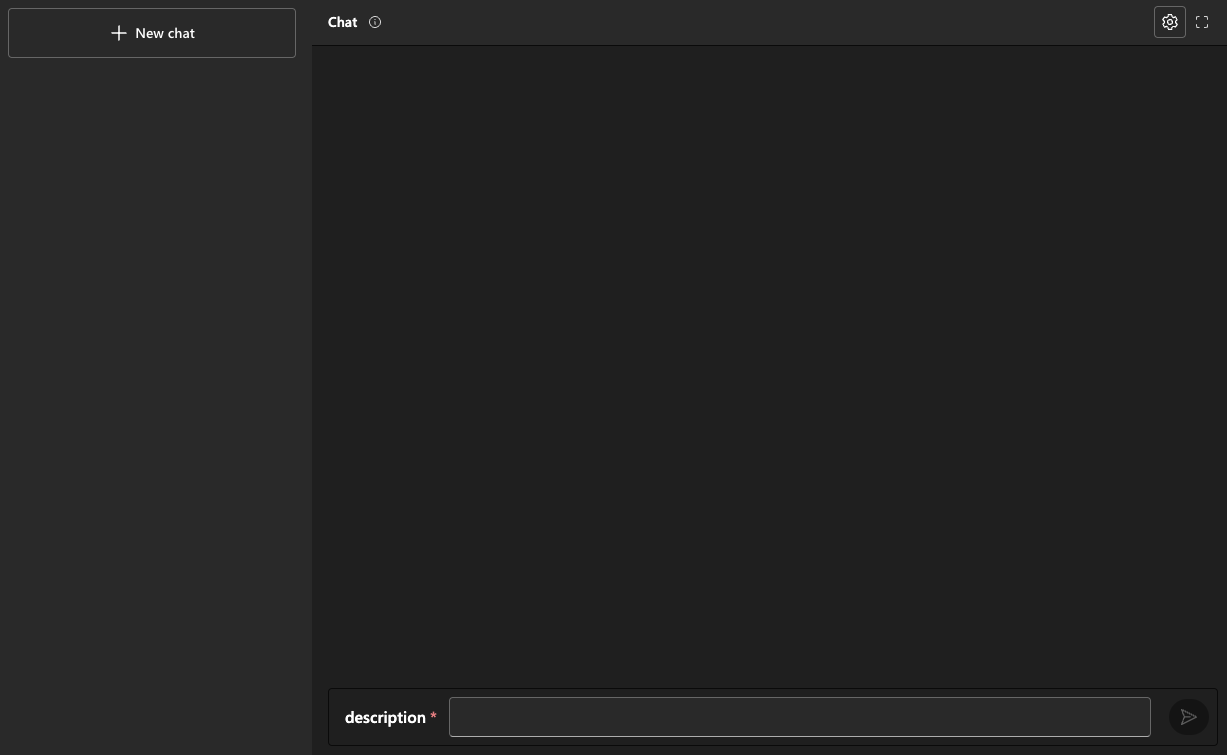
The third option will give you a GUI to test your flow:

Interactive run

As you can probably tell, this requires Streamlit. The first time you run this flow, check the terminal for instructions about the packages to install. When you are finished, press CTRL-C in the terminal.

Now that we know the chat flow works, we can create the Docker image.

⚠️ Important: a chat flow is not required to build the Docker image; we only add it here to illustrate the user interface that the Docker image can present to the user; you can always call your flow using a HTTP endpoint, chat flow or not

Generating the Docker image

Before creating the Docker image, ensure your Python requirements.txt file in your flow’s folder has the following content:

promptflow
promptflow-tools
azure-search-documents

We need promptflow-tools to support tools like the embedding tool in the container. We also need azure-search-documents to use in the custom Python tool.

To build the flow as a Docker image, you should be able to use the build icon and select Build as Docker:

Build icon

However, in my case, that did not result in any output to build a Docker image. This is a temporary issue from the 1.6 version of the extension and will be fixed. For now, I recommend building the image with the command line tool:

pf flow build --source <path-to-your-flow-folder> --output <your-output-dir> --format docker

I ran the following command in my flow folder:

pf flow build --source .  --output ./docker --format docker

That resulted in a docker folder like below:

Output from pf flow build

Note that this copies your flow’s files to a flow folder under the docker folder. Ensure that requirements.txt in the docker/flow folder matches requirements.txt in your original flow folder (it should).

You can now cd into the Docker folder and run the following command. Don’t forget the . at the end:

docker build -t YOURTAG .

In my case, I used:

docker build -t gbaeke/pfimage .

After running the above command, you might get an error. I got: ERROR: failed to solve... I fixed that by modifying the Docker file. Move the RUN apt-get line above the RUN conda create line and add gcc:

# syntax=docker/dockerfile:1
FROM docker.io/continuumio/miniconda3:latest

WORKDIR /

COPY ./flow /flow

RUN apt-get update && apt-get install -y runit gcc

# create conda environment
RUN conda create -n promptflow-serve python=3.9.16 pip=23.0.1 -q -y && \
    conda run -n promptflow-serve \
.......

After this modification, the docker build command ran successfully.

Running the image

The image contains the connections you created. Remember we created an Azure OpenAI connection and a custom connection. Connections contain both config and secrets. Although the config is available in the image, the secrets are not. You need to provide the secrets as environment variables.

You can find the names of the environment variables in the settings.json file:

{
  "OPEN_AI_CONNECTION_API_KEY": "",
  "AZURE_AI_SEARCH_CONNECTION_KEY": ""
}

Run the container as shown below and replace OPENAIKEY and AISEARCHKEY with the key to your Azure OpenAI resource and Azure AI Search resource. In the container, the code listens on port 8080 so we map that port to port 8080 on the host:

docker run -itp 8080:8080 -e OPEN_AI_CONNECTION_API_KEY=OPENAIKEY \
  AZURE_AI_SEARCH_CONNECTION_KEY=AISEARCHKEY

When you run the above command, you get the following output (some parts removed):

finish  run  supervise
Azure_AI_Search_Connection.yaml  open_ai_connection.yaml
{
    "name": "open_ai_connection",
    "module": "promptflow.connections", 
    ......
    "api_type": "azure",
    "api_version": "2023-07-01-preview"
}
{
    "name": "Azure AI Search Connection",
    "module": "promptflow.connections",
    ....
    },
    "secrets": {
        "key": "******"
    }
}
start promptflow serving with worker_num: 8, worker_threads: 1
[2023-12-14 12:55:09 +0000] [51] [INFO] Starting gunicorn 20.1.0
[2023-12-14 12:55:09 +0000] [51] [INFO] Listening at: http://0.0.0.0:8080 (51)
[2023-12-14 12:55:09 +0000] [51] [INFO] Using worker: sync
...

You should now be able to send requests to the score endpoint. The screenshot below shows a .http file with the call config and result:

Calling the flow via the container’s score endpoint

When you browse to http://localhost:8080, you get a chat interface like the one below:

Chat UI served by Docker container

In my case, the chat UI did not work. Although I could enter a description and press ENTER, I did not see the response. In the background, the flow was triggered, just the response was missing. Remember that these features, and Prompt Flow on your local machine are still experimental at the time of writing (December 2023). They will probably change quite a lot in the future or have changed by the time you read this.

Conclusion

Although you can create a flow in the cloud and deploy that flow to an online endpoint, you might want more control over the deployment. Developing the flow locally and building a container image gives you that control. Once the image is built and pushed to a container registry, you can deploy to your environment of choice. That could be Kubernetes, Azure Container Apps or any other environment that supports containers.

Writing your first flow with Prompt Flow in Visual Studio Code

In this blog post, we will create a flow with Prompt Flow in Visual Studio Code. Prompt Flow is a suite of development tools to build LLM-based AI applications. It tries to cover the end-to-end development cycle, including prototyping, testing and deployment to production.

In Prompt Flow, you create flows. Flows link LLMs (large language models), prompts and tools together in an executable workflow. An example of such a flow is show below:

Sample flow

The flow above (basically a distributed acyclical graph – DAG – of functions) sends its input, a description to search for an image, to a tool that embeds the description with an Azure OpenAI embedding model. The embedding is used as input to a Python tool that does a similarity search in Azure AI Search. The search returns three results. The original input, together with the query results, are subsequently handed to an LLM (above, the final_result node) that hopefully picks the correct image url.

Although you could write your own API that does all of the above, Prompt Flow allows you to visually build, run and debug a flow that has input and output. When you are happy with the flow, you can convert it to an API. One of the ways to host the API is via a container.

We will build this flow on our local machine and host it as a container. Note that Prompt Flow can also be used from the portal using Azure Machine Learning or Azure AI Studio.

👉 Another blog post will describe how to build and run the container

Installing Prompt Flow on your machine

To install Prompt Flow you will need Python on your machine. Use Python 3.9 or higher. I use Python 3.11 on an Apple M2. Check the full installation instructions here. Without using a Python virtual environment, you can just run the following command to install Prompt Flow:

pip install promptflow promptflow-tools

Next, run pf -v to check the installation.

⚠️ Do not forget to install promptflow-tools because it enables the embedding tool, llm tool and other tools to be used as nodes in the flow; also ensure this package is installed in the container image that will be created for this flow

In Visual Studio Code, install the Prompt flow for VS Code extension. It has the VS Code Python Extension as a prerequisite. Be sure to check the Prompt Flow Quick Start for full instructions.

We will mainly use the Visual Code extension. Note that the pf command can be used to perform many of the tasks we will discuss below (e.g, creating connections, running a flow, etc…).

Creating an empty flow

In VS Code, ensure you opened an empty folder or create a new folder. Right click and select New flow in this directory. You will get the following question:

Flow selection

Select Empty Flow. This creates a file called flow.dag.yaml with the following content:

Empty flow.dag.yaml

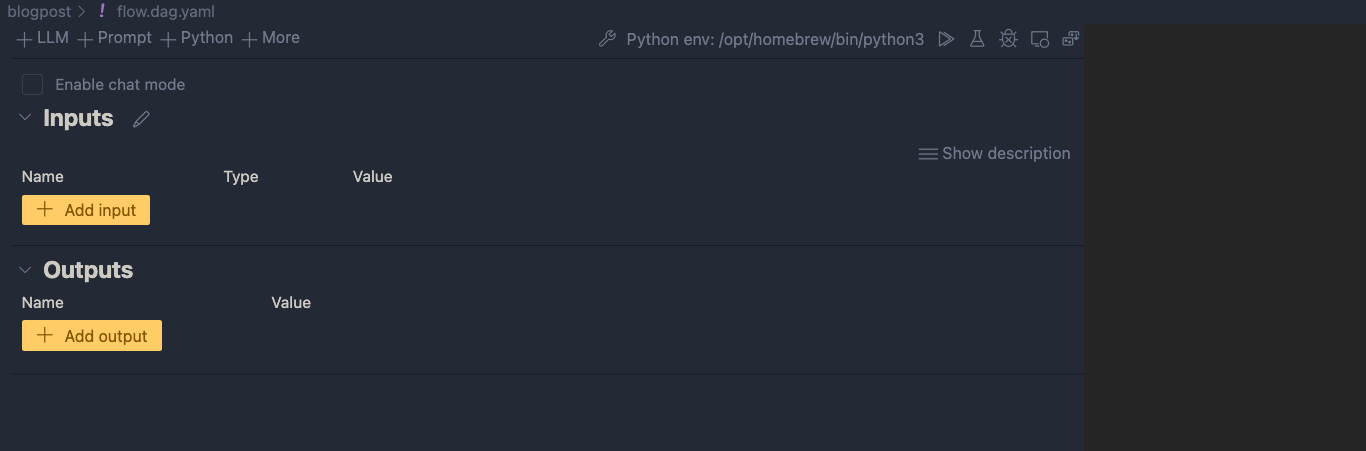
If you look closely, you will see a link to open a Visual editor. Click that link:

Visual editor with empty input and output and blank canvas

We can now add input(s) and output(s) and add the nodes in between.

Inputs and outputs

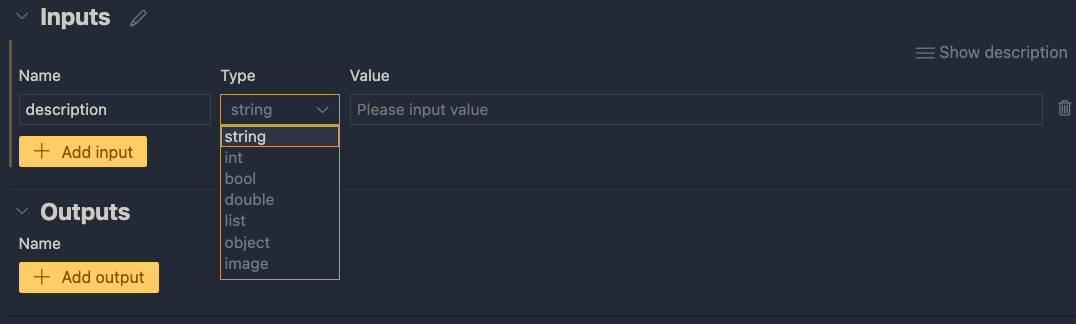
Inputs have a type and a value. Add a string input called description:

One string input: a description (of an image, like creature or fruit)

When you later run the flow, you can type the description in the Value textbox. When the flow is converted to an API, the API will except a description in the POST body.

Next, add an output called url. In the end, the flow returns a url to an image that matches the description:

One output: the url to a matching image

The value of the output will be the coming from another node. We still have to add those. If you click the Value dropdown list, you will only be able to select the input value for now. You can do that and click the run icon. Save your flow before running it.

Running the flow with output set to the input

When you click the run button, a command will be run in the terminal that runs the flow:

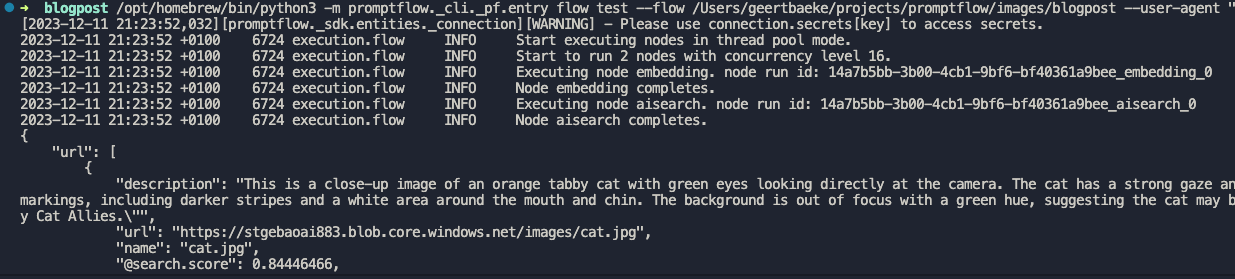
python3 -m promptflow._cli._pf.entry flow test --flow /Users/geertbaeke/projects/promptflow/images/blogpost --user-agent "prompt-flow-extension/1.6.0 (darwin; arm64) VSCode/1.85.0"

The output of this command is:

Output of the flow is JSON, here with just the url

Although this is not very useful, the flow runs and produces a result. The output is our input. We can now add nodes to do something useful.

Creating an embedding from the description

We need to embed the description to search for similar descriptions in an Azure AI Search index. If you are not sure what embeddings are, check Microsoft Learn for a quick intro. It short, it’s a bunch of numbers that represents the meaning of a piece of text. We can use the numbers of the description to compare it to the sets of numbers of image descriptions to see how close they are.

To create an embedding, we need access to an Azure OpenAI embedding model. Such a model takes text as input and returns the bunch of numbers we talked about. This model returns 1536 numbers, aka dimensions.

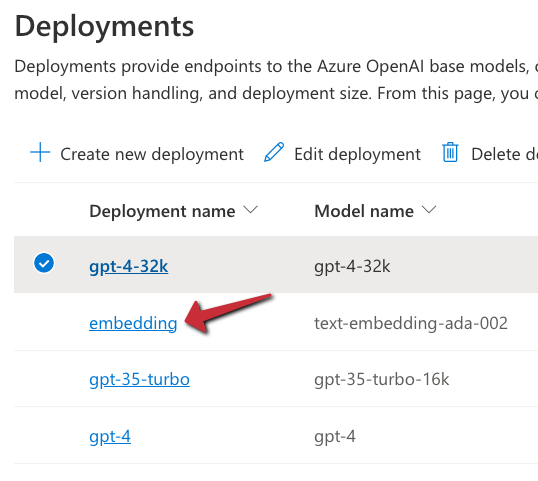
To use the model, we will need an Azure OpenAI resource’s endpoint and key. If you do not have an Azure OpenAI resource in Azure, create one and deploy the text-embedding-ada-002 model. In my example, the deployment is called embedding:

Embedding model in Azure OpenAI

With the Azure resources created, we can add a connection in Prompt Flow that holds the OpenAI endpoint and key:

Click the Prompt Flow extension icon and click + next to Azure OpenAI in the Connections section:

Azure OpenAI connection

A document will open that looks like the one below:

Connection information

Fill in the name and api_base only. The api_base is the https url to your Azure OpenAI instance. It’s something like https://OPENAIRESOURCENAME.openai.azure.com/. Do not provide the api_key. When you click Create connection (the smallish link at the bottom), you will be asked for the key.

After providing the key, the connection should appear under the Azure OpenAI section. You will need this connection in the embedding tool to point to the embedding model to use.

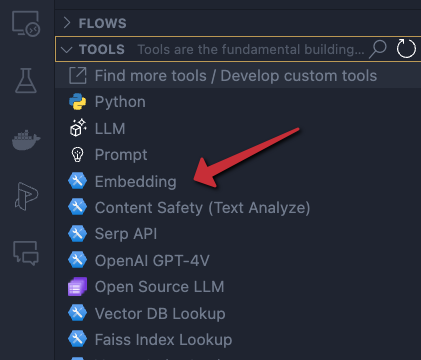
In the Prompt Flow extension pane, now click + next to Embedding in the TOOLS section:

Embedding tool

You will be asked for the tool’s name (top of VS Code window). Provide a name (e.g, embedding) and press enter. Select the connection you just created, the deployment name of your embedding model and the input. The input is the description we configured in the flow’s input node. We want to embed that description. The output of this tool will be a list of floating point numbers, a vector, of 1536 dimensions.

Embedding tool

The moment you set the input of the embedding, the input node will be connected to the embedding node on the canvas. To check if embedding works, you can connect the output of the embedding node to the url output and run the flow. You should then see the vector as output. The canvas looks like:

Show the embedding as output

Of course, we will need to supply the embedding to a vector search engine, not to the output. In our case, that is Azure AI Search. Let’s try that…

⚠️ Instead of connecting the embedding to the output, you can simply debug the embedding by clicking the debug icon in the embedding tool. The tool will be executed with the value of the input. The result should be a bunch of numbers in your terminal:

Debug output of the embedding tool

Searching for similar images

This section is a bit more tricky because you need an Azure AI Search index that allows you to search for images using a description of an image. To create such an index, see https://atomic-temporary-16150886.wpcomstaging.com/2023/12/09/building-an-azure-ai-search-index-with-a-custom-skill/.

Although you can use a Vector DB Lookup tool that supports Azure AI Search, we will create a custom Python tool that does the same thing. The Python tool uses the azure-search-documents Python library to perform the search. Learning how to use Python tools is important to implement logic there is no specific tool for.

First, we will create a custom connection that holds the name of our Azure AI Search instance and a key to authenticate.

Similar to the Azure OpenAI connection, create a custom connection:

Custom connection

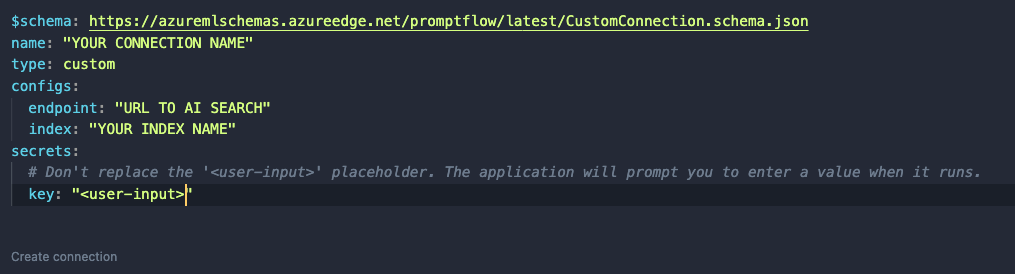
After clicking +, a document opens. Modify it as follows:

Custom connection content

Like before, set a name. In a custom connection, you can have configs and secrets. In configs add the Azure AI Search endpoint and index name. In the secrets set key to <user-input>. When you click Create connection, you will be asked to supply the key.

⚠️ Connection information is saved to a local SQLLite database in the .promtflow folder in your home folder

We can now add a Python tool. In TOOLS, next to Python click +. Give the tool a name and select new file. You should get a new Python file in your code with the filename set to <YOURTOOLNAME>.py. The code without comments is below:

from promptflow import tool

@tool
def my_python_tool(input1: str) -> str:
    return 'hello ' + input1

This tool takes a string input and returns a string. The @tool decorator is required.

We need to change this code to get the custom connection information, query Azure AI Search and return search results as a list. The code is below:

from promptflow import tool
from promptflow.connections import CustomConnection
from azure.core.credentials import AzureKeyCredential
from azure.search.documents import SearchClient
from azure.search.documents.models import VectorizedQuery

@tool
def my_python_tool(vector: list, ai_conn: CustomConnection) -> list:
    ai_conn_dict = dict(ai_conn)
    endpoint = ai_conn_dict['endpoint']
    key = ai_conn_dict['key']
    index = ai_conn_dict['index']

    # query azure ai search
    credential = AzureKeyCredential(key)
    client = SearchClient(endpoint=endpoint,
                          index_name=index,
                          credential=credential)
    vector_query = VectorizedQuery(vector=vector, k_nearest_neighbors=3, fields="textVector", exhaustive=True)
    results = client.search(
        search_text=None,
        vector_queries=[vector_query],
        select=["name", "description", "url"]
    )

    # convert results to json list
    results = [dict(result) for result in results]

    return results

The function has two parameters: a vector of type list to match the output of the embedding tool, and a variable of type CustomConnection. The custom connection can be converted to a dict to retrieve both the configs and the secret.

Next, we use the configs and secret to perform the query with a SearchClient. The query only returns three fields from our index: name, description and url. The result returned from Azure AI Search is converted to a list and returned.

When you save the Python file and go back to your flow, you should see the Python tool (aisearch) with the vector and ai_conn field. If not, click the regenerate link. Set it as below:

Python tool

The input to the Python tool is the output from the embedding tool. We also pass in the custom connection to provide the configs and key to the tool.

You can set the output of the entire flow (url) to the output of the Python tool to check the results of the search when you run the flow:

Running the flow with Python tool’s output as output

I ran the flow with a description equal to cat. A list of three JSON objects is returned.The first search result is the url to cat.jpg but there are other results as well (not shown above).

Adding an LLM tool

Although we could just pick the first result from the search, that would not work very well. Azure AI Search will always return a result, even if it does not make much sense. In a search for nearest neighbors, your nearest neighbor could be very far away! 😀

For example, if I search for person with a hat, I will get a result even though I do not have such a picture in my index. It simply finds vectors that are “closest” but semantically “far” away from my description. That is bound to happen with just a few images in the index.

An LLM can look at the original description and see if it matches one of the search results. It might pick the 3rd result if it fits better. It might also decide to return nothing if there is no match. In order to do so, we will need a good prompt.

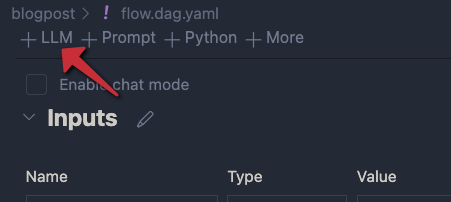
Click + LLM at the top left of the flow to add an LLM tool:

Adding an LLM

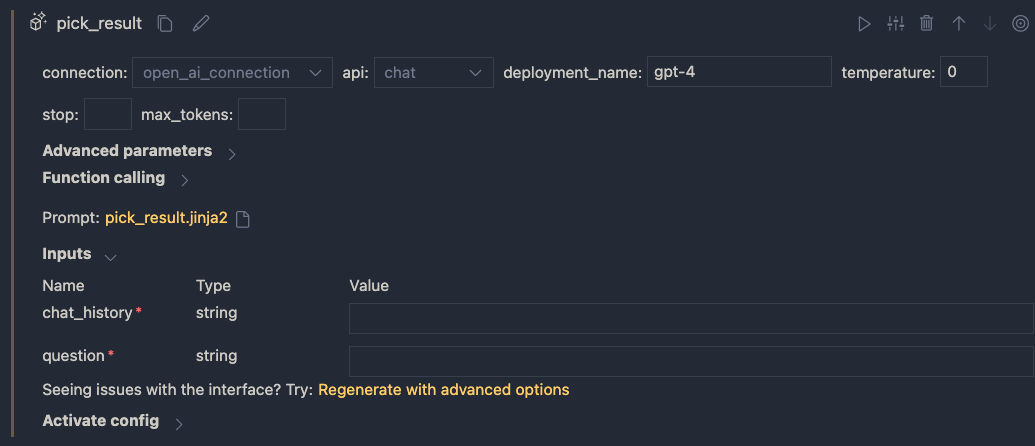
Give the LLM tool a name and select new file. In the flow editor, set the LLM model information:

LLM settings

You can reuse the connection that was used for the embedding. Ensure you have deployed a chat model in your Azure OpenAI resource. I deployed gpt-4 and called the deployment gpt-4 as well. I also set temperature to 0.

The inputs of the node do not make much sense. We do not need chat history for instance. The inputs come from a .jinja2 file that was created for you. The file has the name of the LLM tool. Following the example above, the name is pick_result.jinja2. Open that file and replace it with the following contents and save it:

system:
You return the url to an image that best matches the user's question. Use the provided context to select the image. Only return the url. When no
matching url is found, simply return NO_IMAGE

user:
{{description}}

context : {{search_results}}

The file defines a system message to tell the LLM what to do. The input from the user is the description from the input node. We provide extra context to the LLM as well (the output from search). The {{…}} serve as placeholders to inject data into the prompt.

When you save the file and go back to the flow designer, you should see description and search_results as parameters. Set them as follows:

Inputs to the LLM node

In addition, set the output of the flow output node to the output of the LLM node:

Setting the output

Save your flow and run it. In my case, with a description of cat I get the following output:

Output is just a URL from the LLM node

It I use man with a hat as input, I get:

LLM did not find a URL to match the description

Using a prompt variant

Suppose we want to try a different prompt that returns JSON instead of text. To try that, we can create a prompt variant.

In the LLM node, click the variants icon:

Variants

You will see a + icon to create a new variant. Click it.

New variant

The variant appears under the original variant and is linked to a new file: pick_result_variant_1.jinja2. I have also set the variant as default. Let’s click the new file to open it. Add the following prompt:

system:
You return the url to an image that best matches the user's question. Use the provided context to select the image. 
Return the url and name of the file as JSON. Here is an example of a response. Do not use markdown in the response. Use pure JSON.
{
  "url": "http://www.example.com/images/1.jpg",
  "name": "1.jpg"
}

If there is not matching image, return an empty string in the JSON:
{
  "url": ""
}

user:
{{description}}

context : {{search_results}}

This prompt should return JSON instead of just the url or NO_IMAGE. To test this, run the flow and select Use default variant for all nodes. When I run the flow with description cat, I get the following output:

JSON output

Because the flow’s output is already JSON, the string representation of the JSON result is used. Adding an extra Python tool that parses the JSON and outputs both the URL and file name might be a good idea here.

You can modify and switch between the prompts and see which one works best. This is especially handy when you are prototyping your flow.

Conclusion

On your local machine, Prompt Flow is easy to install and get started with. In this post we built a relatively simple flow that did not require a lot of custom code. We also touched on using variants, to test different prompts and their outcome.

In a follow-up post, we will take a look at turning this flow into a container. Stay tuned! 📺