Durable Execution for AI workflows

If you follow me on LinkedIn, you know I have talked about agentic workflows versus agents. Although everybody talks about agents, workflows are often better suited to many tasks. A workflow is more deterministic, is easier to reason about and to troubleshoot. Anthropic also talked about this a while ago in Building Effective Agents.

In fact, I often see people create tool-calling agents (e.g., in Copilot Studio) with instructions to call the tools in a specific order. For example: check if a mail is a complaint and if so, draft an e-mail response. Although this simple task will probably work with a non-deterministic agent, a workflow is better suited.

The question then becomes, how do you write the workflow? Simple workflows can easily be coded yourself. Instead of writing code, you might use a visual builder like Power Automate, Agent Flows in Copilot Studio, Logic Apps, n8n, make and many others.

But what if you need to write robust workflows that are more complex, need to scale, are long-running and need to pick up where they left off in case of failure? In that case, a durable execution engine might be a good fit. There are many such solutions on the market: restate, Temporal and many others, including several options in Azure.

Before we dive into how we can write such a workflow in Azure, let’s look at how one vendor, restate, defines durable execution:

Durable Execution is the practice of making code execution persistent, so that services recover automatically from crashes and restore the results of already completed operations and code blocks without re-executing them.
(from https://restate.dev/what-is-durable-execution/)

Ok, enough talk. Let’s see who we can write a workflow that uses durable execution. The example we use is kept straightforward to not get lost in the details:

  • I have a list of articles
  • Each article needs to be summarized. The summaries will be used in a later step to create a newsletter. We will use gpt-4.1-mini to create the summaries in parallel.
  • When the summaries are ready, we create a newsletter in HTML.
  • When the newsletter is ready, we will e-mail it to subscribers. There’s only one subscriber here, me! 🤷‍♂️

All code is here: https://github.com/gbaeke/dts_ai

Azure Durable Task Scheduler

There are several options for durable execution in Azure. One option is to use the newer Durable Task Scheduler in combination with the Durable Task SDKs. Another option is Durable Functions. These functions can also use the Durable Task Scheduler as the back-end.

The Durable Task Scheduler is the ❤️ heart of the solution as it keeps track of the different tasks in an orchestration (or workflow). On failure, it retains state, marking completed tasks and queuing pending ones to complete the orchestration. Note that the scheduler does not execute the tasks. That’s the job of a worker. Workers connect to the scheduler in order to complete the orchestration. The code in your worker does the actual processing like making LLM calls or talking to other systems.

The code you write (e.g., for the worker) uses the Durable Task SDK in your language of choice. I will use Python in this example.

For local development, you can use the Durable Task Scheduler emulator by running the following Docker container:

docker run --name dtsemulator -d -p 8080:8080 -p 8082:8082 mcr.microsoft.com/dts/dts-emulator:latest

Your code will connect to the emulator on port 8080. Port 8082 presents an administrative UI to check and interact with orchestrations:

A view on a completed orchestration with summaries in parallel and newletter creation at the end

Later, you can deploy the Durable Task Scheduler in Azure and use that instead of the local emulator.

Let’s build locally

As discussed about, we will create a workflow that takes articles as input, generates summaries, creates a newsletter and sends it via e-mail. With three articles, the following would happen:

Processing three articles to create and email a newsletter

The final newsletter looks something like this:

HTML newsletter generated from one or more articles

Don’t worry, I won’t send actual AI slop newsletters to you! 😊

To get started, we need to start the Durable Task Scheduler locally using this command (requires Docker):

docker run --name dtsemulator -d -p 8080:8080 -p 8082:8082 mcr.microsoft.com/dts/dts-emulator:latest

Next, we need a worker. The worker defines one or more activities in addition to one or more orchestrations that use these activities. Our worker has three activities:

  1. process_article: takes in an article and returns a summary generated by gpt-4.1-mini; no need for a fancy agent framework, we simply use the OpenAI SDK
  2. aggregate_results: takes in a list of summaries and generates the HTML newsletter using gpt-4.1-mini.
  3. send_email: e-mails the newsletter to myself with Resend

These activities are just Python functions. The process_article function is shown below:

def process_article(ctx, text: str) -> str:
    """
    Activity function summarizes the given text.    
    """
    logger.info(f"Summarizing text: {text}")
    wrapper = AgentWrapper()
    summary = wrapper.summarize(text)
    return summary

Easy does it I guess!

Next, the worker defines an orchestration function. The orchestration takes in the list of articles and contains code to run the activities as demanded by your workflow:

def fan_out_fan_in_orchestrator(ctx, articles: list) -> Any:

    # Fan out: Create a task for each article
    parallel_tasks = []
    for article in articles:
        parallel_tasks.append(ctx.call_activity("process_article", input=article))

    # Wait for all tasks to complete
    results = yield task.when_all(parallel_tasks)
    
    # Fan in: Aggregate all the results
    html_mail = yield ctx.call_activity("aggregate_results", input=results)

    # Send email
    email_request = EmailRequest(
        to_email=to_address,
        subject="Newsletter",
        html_content=html_mail,
    )
    email = yield ctx.call_activity("send_email", input=asdict(email_request))

    return "Newsletter sent"

When an orchestration runs an activity with call_activity, a task is returned. For each article, such a task is started with all tasks stored in the parallel_tasks list. The when_all helper yields the results of these tasks to the results lists until all tasks are finished. After that, we can pass results (a list of strings) to the aggregate_results activity and send a mail with the send_email activity.

⚠️ I use a dataclass to provide the send_email activity the required parameters. Check the full source code for more details.

The worker is responsible for connecting to the Durable Task Scheduler and registering activities and orchestrators. The snippet below illustrates this:

with DurableTaskSchedulerWorker(
    host_address=endpoint, 
    secure_channel=endpoint != "http://localhost:8080",
    taskhub=taskhub_name, 
    token_credential=credential
) as worker:
    
    # Register activities and orchestrators
    worker.add_activity(process_article)
    worker.add_activity(aggregate_results)
    worker.add_activity(send_email)
    worker.add_orchestrator(fan_out_fan_in_orchestrator)
    
    # Start the worker (without awaiting)
    worker.start()

When you use the emulator, the default address is http://localhost:8080 with credential set to None. In Azure, you will use the provided endpoint and RBAC to authenticate (e.g., managed identity of a container app).

Full code of the worker is here.

Now we just need a client that starts an orchestration with the input it requires. In this example we use a Python script that reads articles from a JSON file. The client then connects to the Durable Task Scheduler to kick off the orchestration. Here is the core snippet that does the job:

client = DurableTaskSchedulerClient(
    host_address=endpoint, 
    secure_channel=endpoint != "http://localhost:8080",
    taskhub=taskhub_name, 
    token_credential=credential
)

instance_id = client.schedule_new_orchestration(
    "fan_out_fan_in_orchestrator", 
    input=articles # simply a list of strings
)

result = client.wait_for_orchestration_completion(
    instance_id,
    timeout=120
)

# check runtime_status of result, grab serialized_result, etc...

Above, the client waits for 120 seconds before it times out.

⚠️ There are many ways to follow up on the results of an orchestration. This script uses a simple approach with a timeout. When there is a timeout, the script stops but the orchestration continues.

Full code of the client is here.

Checking if it works

Before we can run a test, ensure you started the Durable Task Scheduler emulator. Next, clone this repository:

From the root of the cloned folder, create a Python virtual environment:

python3 -m venv .venv

Activate the environment:

source .venv/bin/activate

cd into the src folder and install from requirements:

pip install -r requirements.txt

Ensure you have a .env in the root:

OPENAI_API_KEY=Your OpenAI API key 
RESEND_API_KEY=Your resend API key
FROM_ADDRESS=Your from address (e.g. NoReply <noreply@domain.com>)
TO_ADDRESS=Your to address

Now run the worker with python worker.py. You should see the following:

INFO:__main__:Starting Fan Out/Fan In pattern worker...
Using taskhub: default
Using endpoint: http://localhost:8080
2025-08-14 22:11:10.851 durabletask-worker INFO: Starting gRPC worker that connects to http://localhost:8080
2025-08-14 22:11:10.882 durabletask-worker INFO: Created fresh connection to http://localhost:8080
2025-08-14 22:11:10.882 durabletask-worker INFO: Successfully connected to http://localhost:8080. Waiting for work items...

The worker is waiting for work items. We will submit them from our client.

From the same folder, in another terminal, run the client with python client.py. It will use the sample articles_short.json file.

INFO:__main__:Starting Fan Out/Fan In pattern client...
Using taskhub: default
Using endpoint: http://localhost:8080
INFO:__main__:Loaded 11 articles from articles.json
INFO:__main__:Starting new fan out/fan in orchestration with 11 articles
2025-08-14 22:25:02.946 durabletask-client INFO: Starting new 'fan_out_fan_in_orchestrator' instance with ID = '3a1bb4d9e3f240dda33daf982a5a3882'.
INFO:__main__:Started orchestration with ID = 3a1bb4d9e3f240dda33daf982a5a3882
INFO:__main__:Waiting for orchestration to complete...
2025-08-14 22:25:02.969 durabletask-client INFO: Waiting 120s for instance '3a1bb4d9e3f240dda33daf982a5a3882' to complete.

When the orchestration completes, the client outputs the result. That is simply Newsletter sent. 🤷‍♂️

You can see the orchestration in action by going to http://localhost:8082. Select the task hub default and click your orchestration at the top. In the screenshot below, the orchestration was still running and busy aggregating results.🤷‍♂️

Orchestration in progress (I used a longer list of articles in articles.json. Check the repo!

An interesting thing to try is to kill the worker while it’s busy processing. When you do that, the client will eventually timeout with a TimeoutError (if you wait long enough). If you check the portal, the orchestration will stay in a running state. However, when you start the worker again, it will restart where it left off:

INFO:__main__:From address: baeke.info <noreply@baeke.info>
INFO:__main__:To address: Geert Baeke <geert@baeke.info>
INFO:__main__:Starting Fan Out/Fan In pattern worker...
Using taskhub: default
Using endpoint: http://localhost:8080
2025-08-14 23:14:22.979 durabletask-worker INFO: Starting gRPC worker that connects to http://localhost:8080
2025-08-14 23:14:23.003 durabletask-worker INFO: Created fresh connection to http://localhost:8080
2025-08-14 23:14:23.004 durabletask-worker INFO: Successfully connected to http://localhost:8080. Waiting for work items...
INFO:__main__:Aggregating 4 summaries

I killed my worker when it was busy aggregating the summaries. When the worker got restarted, the aggregation started again and used the previously saved state to get to work again. Cool! 😎

Wrapping Up!

In this post we created a durable workflow with the Durable Task Scheduler emulator running on a local machine. We used the Durable Task SDK for Python to create a worker that is able to run an orchestration that aggregates multiple summaries into a newsletter. We demonstrated that such a workflow survives worker crashes and that it can pick up where it left off.

However, we have only scratched the surface here. Stay tuned for another post that uses Durable Task Scheduler in Azure together with workers and clients in Azure Container Apps.

Deploying a multi-agent solution with MCP and A2A to Azure Container Apps

In previous posts, we discussed multi-agent scenarios, how A2A servers work (here and here) and how to deploy the infrastructure to host a multi-agent application on Azure with Azure Container Apps and AI Foundry.

In this post, we will take a look at deploying the different components of the solution as containers in Azure Container Apps. This is what we will build:

Multi-agent solution with MCP and A2A

There are four main components:

ComponentDescription
Conversation AgentPresents a chat interface to the user. Built with Chainlit and Semantic Kernel. Uses an OpenAI model. This could be switched to an Azure OpenAI model easily.

The agent uses two tools, rag and web, hosted by the MCP server.
MCP Tools ServerMCP server built with Python FastMCP. It exposes two tools, web and rag. The tools use an A2A client to interact with the A2A servers for the web and rag agents.

Not exposed to the Internet. Used to demonstrate MCP and A2A together. We could have called the A2A servers directly from the conversation agent without MCP.
A2A Server for Foundry Agent (does RAG)This agent uses an Azure AI Foundry Agent with a hosted file-based RAG tool to provide answers about Contoso products.

Not exposed to the Internet. Communicates privately with the Azure AI Foundry project.
A2A Server for OpenAI Agent (does web searches)This agent uses an OpenAI Agent SDK agent with the hosted web search tool.

Not exposed to the Internet. Communicates over the Internet with the OpenAI backend. This could easily be replaced with an Azure AI Foundry Agent that uses Bing Search. As this is an example about A2A, using a different technology makes more sense. 😊

Before delving into the four different components, it is important to know that the mcp, web and rag containers do not use their internal ingresses to communicate over TLS. That means that the mcp container for example, will talk to the web container using http://ca-web instead of something like https://ca-web.internal.ACA_environment_default_domain.

There is something to be said for using messaging to facilitate communication between agents. They are a form of microservices after all. In this example however, all communication is synchronous and uses HTTP.

This is a technical example that could be implemented in a single in-process agent with two tools. However, the emphasis is on multi-agent communication across process boundaries with Google’s Agent2Agent protocol.

Let’s gets started with the Conversation Agent!

Conversation Agent

The conversation agent maintains a conversation with the end user and keeps track of chat history. The agent, written in Semantic Kernel, has two tools:

  • web-search: uses the OpenAI Agent A2A server to search the web via OpenAI’s hosted web search tool
  • rag-search: uses the Azure AI Foundry A2A server to search for Contoso projects via a hosted RAG tool

The user interface to the agent is provided by Chainlit:

Chainlit UI

Above, I asked for information about a project. The agent is configured to use the rag-search tool to find project information. Under the hood, an A2A Server that wraps an Azure AI Foundry Agent is used to obtain this information. Via a filter, Chainlit supports visualizing when tools are called as can be seen at the top of the screen. It basically has hooks into the kernel object that gets created by Semantic Kernel.

The code for this Chainlit-hosted agent is on GitHub. The code in main.py uses an environment variable, MCP_SERVER_URL, that contains the address of the MCP server. As discussed above this will be http://containername/mcp (e.g., http://ca-mcp/mcp).

Following the typical Semantic Kernel approach, a kernel is created . Here is a snippet of code:

# Create the Semantic Kernel
        kernel = Kernel()
        
        # Add AI service to kernel
        ai_service = OpenAIChatCompletion(ai_model_id="gpt-4o")
        kernel.add_service(ai_service)
        logger.debug("Kernel and AI service initialized successfully")
        
        # Add MCP tools plugin to kernel (uses global client)
        tools_plugin = MCPToolsPlugin()
        kernel.add_plugin(tools_plugin, plugin_name="mcp_tools")
        logger.debug("MCP tools plugin added to kernel")

Note that we are not using Semantic Kernel’s built-in support for remote MCP servers that use streamable HTTP. Instead, we create a plugin via the MCPToolsPlugin class. That class defines two kernel functions, rag_search and web_search. In such a function, you can do what you want. I did not have to use MCP and could have called the A2A servers directly using the A2A client.

In our functions, we do use the MCP client from FastMCP to call the appropriate tool on the MCP server. The call to the A2A servers is implemented in the MCP server’s tools.

⚠️ This approach was chosen to illustrate that even if your framework does not natively support MCP, under the hood this is always LLM function calling. Kernel functions in Semantic Kernel are simply an abstraction on top of function calling. If you use Semantic Kernel’s native support for MCP, the tools on the MCP server would automatically be created as kernel functions. This native support requires much less code.

Now that we have the conversation agent up and running with Chainlit and Semantic Kernel, let’s look at the MCP server.

MCP Server

The conversation agent uses an MCP client (from the FastMCP library) to call tools hosted by the MCP server. This illustrates the separation of tool implementation from agent implementation.

The MCP server is implemented in main.py. In its most basic form, an MCP server with a few tools is really simple. This MCP server just defines two tools: a web tool and a rag tool.

The web tool looks like this:

@mcp.tool()
async def web_tool(query: str) -> str:
    """
    Perform a web search for the given query.
    
    Args:
        query: The search query to perform
        
    Returns:
        Search results as a string
    """
    logger.info(f"Web tool called with query: {query}")
    logger.info(f"Using web A2A agent at: {WEB_A2A_BASE_URL}")
    
    try:
        return await _send_a2a_message(query, WEB_A2A_BASE_URL)
    except Exception as e:
        logger.error(f"Error performing web search: {e}")
        return f"Error performing web search: {str(e)}"

This tool only does one thing: send a message to the A2A server on the address in WEB_A2A_BASE_URL. In Azure Container Apps, this URL is http://ca-web. The rag tool is implemented in a similar way. You can check the code of the _send_a2a_message function on GitHub.

⚠️ The addresses of the A2A servers are supplied to the mcp container app via environment variables WEB_A2A_BASE_URL and RAG_A2A_BASE_URL.

We now have the following implemented:

conversation --tool call--> MCP Server --run tool--> A2A Server

All traffic is synchronous and over http (not https)! Everything depends on the correct tool call being made by the conversation agent and the agents in the A2A servers. The rest is just plumbing! No magic! 😊

A2A Servers

You can check my earlier posts about A2A servers for background information:

It is important to note that the A2A server (rag) uses Azure AI Foundry. To authenticate to AI Foundry, we need to use a managed identity.

The rag container needs the following environment variables:

  • RAG_A2A_BASE_URL: required to set the correct url in the agent card
  • INTERNAL_PORT: port to run on (e.g., 80)
  • FOUNDRY_PROJECT: url to the Foundry project (e.g., https://FOUNDRY-RESOURCE.services.ai.azure.com/api/projects/FOUNDRY-PROJECT
  • ASSISTANT_ID: id of the agent you want to use; needs to exist in Foundry project
  • CLIENT_ID: the client id of the user assigned managed identity; this identity is created in the Bicep script; a role is assigned as well

During deployment of the container apps, a managed identity (that has the client id above) is assigned to the container. In the A2A server code that contains the code to talk to Foundry, this identity is used as follows:

if client_id:
            logger.info(f"Using ManagedIdentityCredential with client ID: {client_id}")
            credential = ManagedIdentityCredential(client_id=client_id)
        else:
            logger.info("Using DefaultAzureCredential")
            credential = DefaultAzureCredential()

This allows for the use of the Azure CLI identity when the rag agent is running on you local machine. Full code is in Agent_Executor.py.

⚠️ If you run the rag A2A server on your local machine, ensure you allow your IP address in the firewall settings of the Azure AI Foundry resource.

Full code for the A2A servers:

Deployment

To make it easy to deploy the containers to the Azure Container Apps environment (discussed in previous post), use the following script: https://github.com/gbaeke/multi_agent_aca/blob/main/deploy_containers.sh

At the top of the script, change the variables to match your environment:

ACR_NAME="SHORT_ACR_NAME"
ACR_URL="SHORT_ACR_NAME.azurecr.io"
RESOURCE_GROUP="RESOURCE_GROUP"
CONTAINER_APP_ENV="CONTAINER_APP_ENV_NAME"
MANAGED_IDENTITY="MANAGED_IDENTITY_NAME"

To deploy, simply run deploy_containers.sh --to-build conversation,mcp,web,rag. This does the following:

  • Builds and pushes the four containers using an ACR Task (no local Docker required)
  • Deploys the four containers with appropriate secrets and environment variables; serets are read from a .env file

Ensure that you have this .env in the same folder with the following values:

OPENAI_API_KEY="your_openai_api_key_here"
# Replace with your actual OpenAI API key

FOUNDRY_PROJECT="your_foundry_project_url"
# The URL of the Foundry project endpoint you're connecting to
# Find it in the properties of the AI Foundry project

ASSISTANT_ID="your_assistant_id_here"
# The unique ID of the agent you're referencing

This should deploy the four containers as shown below:

conversation, mcp, web and rag containers

Now grab the ingress URL (aka Application Url) of the conversation container:

Application URL (ingress URL) to the conversation app

Paste that URL in your browser. Hopefully the Chainlit UI is shown. If not, check the following:

  • Chainlit container has the MCP_SERVER_URL set to http://ca-mcp/mcp and also has you OpenAI key in OPENAI_API_KEY
  • MCP container has the WEB_A2A_BASE_URL and RAG_A2A_BASE_URL url set to http://ca-web and http://ca-rag
  • Web container has WEB_A2A_BASE_URL set to http://ca-web and also has an OPENAI_API_KEY
  • Rag container has RAG_A2A_BASE_URL set to http://ca-rag and has environment variables set to use the Azure AI Foundry agent; also check the managed identity of the container has access rights to AI Foundry

Normally these should all be set by both the Bicep and the container deployment script.

Wrapping Up

If you’ve made it this far and tried to implement this yourself, you’ve likely realized how much effort it takes to get everything up and running. About 99% of the work is infrastructure and plumbing; only 1% is actual agent code. In more complex agentic applications, the ratio may shift slightly, but infrastructure will still dominate the effort.

We have not even touched on things like logging, metrics, tracing the end-to-end communication path, load balancing, saving agent state and much, much more.

This brings me back to a key point from an earlier post:


If you can build your multi-agent solution in-process, or use an agent PaaS like Azure AI Foundry, do it.


Only choose the approach I described above when no other viable option exists or when you’re building larger solutions where multiple teams develop agents that must coexist within the same system.

Deploying AI Foundry Agents and Azure Container Apps to support an Agent2Agent solution

In previous posts, I discussed multi-agent solutions and the potential use of Google’s Agent2Agent protocol (A2A). In this post, we will deploy the infrastructure for an end-to-end solution like follows:

Multi-agent solution in Azure

Here’s a short description of the components.

ComponentDescription
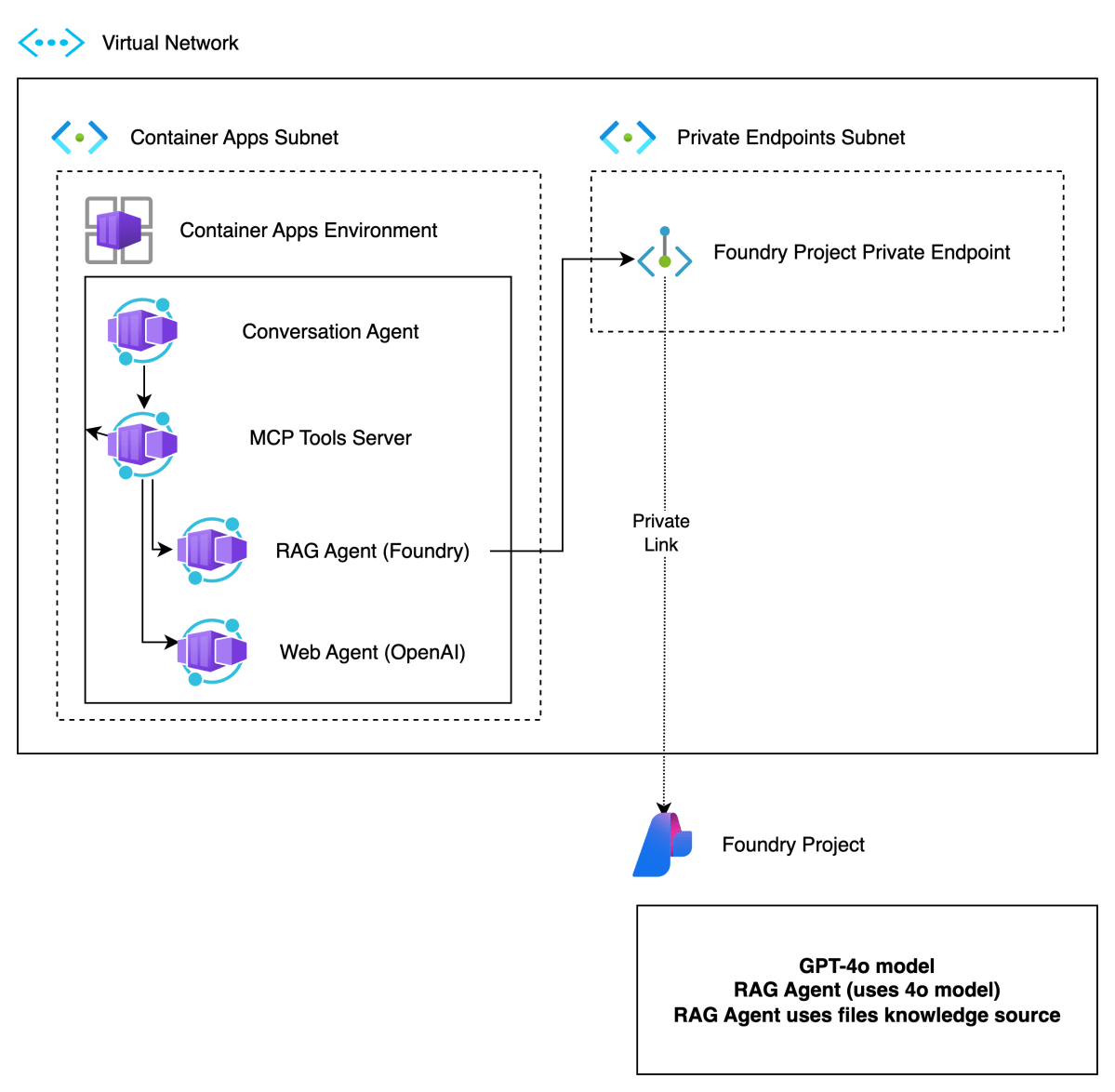
Foundry ProjectBasic Foundry project with a private endpoint. The private endpoint ensures private communication between the RAG Agent container and the Azure Foundry agent.
Virtual NetworkProvides subnet to integrate Azure Container Apps Environment in a private network. This allows container apps to connect to Azure AI Foundry privately.
Container Apps EnvironmentIntegrated in our private network. Hosts Container Apps.
Container AppsContainer apps for conversation agent, MCP server, RAG agent and web agent. Only the conversation agent is publicly available.
Main components of the deployment

In what follows, we will first provide more information about Azure AI Foundry and then proceed to deploy all components except the Azure Container Apps themselves. We will deploy the actual app components in a follow-up post.

Azure AI Foundry Project

Azure AI Foundry is Microsoft’s enterprise platform for building, deploying, and managing AI applications—especially those using large language models (LLMs) and generative AI. It brings together everything you need: production-ready infrastructure, access to powerful models from providers like OpenAI, Mistral, and Meta, and tools for customization, monitoring, and scaling—all in one unified environment.

It’s designed to support the full AI development lifecycle:

  • Explore and test models and services
  • Build and customize applications or agents
  • Deploy to production
  • Monitor, evaluate, and improve performance

You can work either through the Azure AI Foundry portal or directly via SDKs in your preferred development environment.

You will do your work in a project. When you create a project in Azure AI Foundry, you’ll choose between two types:

Foundry Project

This type is recommended for most cases and is what we will use to define our RAG agent. Agents in projects are generally available (GA). You deploy models like gpt-4o directly to the project. There is no need to create a connection to an Azure OpenAI resource. It can be configured with a private endpoint to ensure private communication.

This matches exactly with our needs. Note that we will deploy a basic Foundry environment with a private endpoint and not a standard environment. For more information about basic versus standard, check the Foundry documentation.

Later, when we create the resources via Bicep, two resources will be created:

  • The Azure AI Foundry resource: with private endpoint
  • The Azure AI Foundry Project: used to create our RAG agent

Hub-based Project

This type has some additional options like Prompt Flow. However, agents in hub-based projects are not generally available at the time of writing. A hub-based project is not the best match for our needs here.

⚠️ In general, always use an Foundry Project versus a Hub-based Project unless you need a specific feature that, at the time of creation, is not yet available in Foundry projects.

As explained above, a Foundry project is part of an AI Foundry resource. Here is the resource in the portal (hub-based projects are under AI Hubs):

AI Foundry resource

Inside the resource, you can create a project. The above resource has one project:

Projects in the Foundry resource: your Foundry Project

To work with your project, you can click Go to Azure AI Foundry portal in the Overview tab:

In the Foundry Portal, you can proceed to create agents. However, if you have enabled a private endpoint, ensure you can access your Azure virtual network via a jump host or VPN. If that is not possible, allow your IP to access the Foundry resource in the Networking section of the resource. When you do not have access, you will see the following error:

No access to manage agents in the project

⚠️ Even after giving access, it will take a while for the change to propagate.

If you have access, you will see the following screen to add and configure agents:

Creating and debugging agents in your AI Foundry Project

Deployment with Bicep

You can check https://github.com/gbaeke/multi_agent_aca/tree/main/bicep to find Bicep files together with a shell script to deploy the resources. Also check the README for more information.

In Bicep, you first create an account (type is Microsoft.CognitiveServices/accounts). This matches the fndry-a2a resource in one of the screenshots above. In a later step, you add the project. The snippet below shows how the account gets created:

resource account 'Microsoft.CognitiveServices/accounts@2025-04-01-preview' = {
  name: aiFoundryName
  location: location
  identity: {
    type: 'SystemAssigned'
  }
  kind: 'AIServices'
  sku: {
    name: 'S0'
  }
  properties: {
    // Networking
    publicNetworkAccess: 'Enabled'
    
    networkAcls: {
      bypass: 'AzureServices'
      defaultAction: 'Deny'
      ipRules: [
        {
          value: 'IP address'
        }
      ]
    }

    // Specifies whether this resource support project management as child resources, used as containers for access management, data isolation, and cost in AI Foundry.
    allowProjectManagement: true

    // Defines developer API endpoint subdomain
    customSubDomainName: aiFoundryName

    // Auth
    disableLocalAuth: false
  }
}

It’s at this level you block public network access. The private endpoint and related network resources are created in other sections of the Bicep file.

Once you have this account, you can create the project. This matches with the fndry-a2a-proj project in one of the screenshots above. Here is the Bicep snippet:

resource project 'Microsoft.CognitiveServices/accounts/projects@2025-04-01-preview' = {
  name: defaultProjectName
  parent: account
  location: location
  identity: {
    type: 'SystemAssigned'
  }
  properties: {}
}

Later, we will create agents in this project. However, an agent needs a supported model. In this case, we will use gpt-4o-mini so we need to deploy it:

resource modelDeployment 'Microsoft.CognitiveServices/accounts/deployments@2024-10-01'= {
  parent: account
  name: 'gpt-4o-mini'
  sku : {
    capacity: 1
    name: 'GlobalStandard'
  }
  properties: {
    model:{
      name: 'gpt-4o-mini'
      format: 'OpenAI'
      version: '2024-07-18'
    }
  }
}

⚠️ Above, a capacity of 1 only allows for 1000 tokens per minute. You will probably want to increase that. If not, you run into issues when you test your agents because you will quickly hit the limit.

In the Foundry Portal, the model is shown as follows:

gpt-4o-mini deployment (next to manually deployed gpt-4o)

I will not go into the rest of the Bicep code. Most of it is network related (network, subnets, private endpoint, private DNS, DNS network links, etc..).

Creating the RAG Agent

Although we can create the agent using the Foundry SDK, we will create and test it via the Foundry Portal. As a first step, create or modify an agent. You might get a question first about the model you want to use with your agents.

In your agent, do the following:

  • give the agent a name
  • select a model from the list of deployed models
  • set instructions

I used the following instructions:

You retrieve information about Contoso projects using your knowledge tools. Always use your knowledge tools to answer the user. If you cannot find the answer via tools, respond you do not know.

Name, model and instructions

Next, scroll down and click + Add next to Knowledge. You will see the following screen:

List of agent knowledge tool

Select the Files tool and upload the files from https://github.com/gbaeke/multi_agent_aca/tree/main/project_descriptions. Use git clone https://github.com/gbaeke/multi_agent_aca.git to grab those files.

After selecting the local files, click Upload and Save to upload these files so the agent can search them. Behind the scenes, the files are chunked, chunks are vectorized and stored in a vector database. However, this is all hidden from you. Your agent configuration should now show the knowledge tool:

Knowledge tool added to agent

You should now test your agent. At the top of the configuration section, there is a Try in Playground link.

When I ask about EduForge, I get the following:

Asking about EduForge with a reponse from the files tool (+ annotation)

When you click View Run Info (at the end of the response), the use of the tool should be shown in the trace:

Tracing shows the tool calls and the file_search tool

If this works, you have a simple agent in Foundry that has access to a file_search tool to perform RAG (retrieval-augmented generation).

Wrapping up

We have now deployed the RAG agent with Azure AI Foundry. We created a Foundry resource in Azure with a private endpoint. The Foundry resource has one project within it. The project contains our RAG agent.

But remember, we want to wrap this agent with Google’s Agent2Agent. To achieve that, we will deploy the A2A server that uses the Foundry agent as a container in the Container Apps Environment.

We will take a look at how that works in a next post. In that post, we will use these agents as tools via MCP and provide the MCP tools to our conversation agent. The conversation agent will use Semantic Kernel.

Stay tuned! 😊

Using tasks with streaming in Google Agent2Agent (A2A)

In a previous post we created a simple A2A agent that uses synchronous message exchange. An A2A client sends a message and the A2A server, via the Agent Executor, responds with a message.

But what if you have a longer running task to perform and you want to inform the client that the task in ongoing? In that case, you can enable streaming on the A2A server and use a task that streams updates and the final result to the client.

The sequence diagram illustrates the flow of messages. It is based on the streaming example in the A2A specification.

A2A tasks with streaming updates

In this case, the A2A client needs to perform a streaming request which is sent to the /message/stream endpoint of the A2A server. The code in the AgentExecutor will need to create a task and provide updates to the client at regular intervals.

⚠️ If you want to skip directly to the code, check out the example on GitHub.

Let’s get into the details in the following order:

  • Writing an agent that provides updates while it is doing work: I will use the OpenAI Agents SDK with its support for agent hooks
  • Writing an AgentExecutor that accepts a message, creates a task and provides updates to the client
  • Updating the A2A Server to support streaming
  • Updating the A2A Client to support streaming

AI Agent that provides updates

Although streaming updates is an integral part of A2A, the agent that does the actual work needs to provide feedback about its progress. That work is up to you, the developer.

In my example, I use an agent created with the OpenAI Agents SDK. This SDK supports AgentHooks that execute at certain events:

  • Agent started/finished
  • Tool call started/finished

The agent class in agent.py on GitHub uses an asyncio queue to emit both the hook events and the agent’s reponse to the caller. The A2A AgentExecutor uses the invoke_stream() method which returns an AsyncGenerator.

You can run python agent.py independently. This should result in the following:

The agent has a tool that returns the current date. The hooks emit the events as shown above followed by the final result.

We can now use this agent from the AgentExecutor and stream the events and final result from the agent to the A2A Client.

AgentExecutor Tasks and Streaming

Instead of simply returning a message to the A2A client, we now need to initiate a long-running task that sends intermediate updates to the client.. Under the hood this uses SSE (Server Sent Events) between the A2A Client and A2A Server.

The file agent_executor.py on GitHub contains the code that makes this happen. Let’s step through it:

message_text = context.get_user_input()  # helper method to extract the user input from the context
        logger.info(f"Message text: {message_text}")

        task = context.current_task
        if not task:
            task = new_task(context.message)
            await event_queue.enqueue_event(task)

Above, we extract the user’s input from the incoming message and we check if the context already contains a task. If not, we create the task and we queue it. This informs the client a task was created and that sse can be used to obtain intermediate results.

Now that we have a task (a new or existing one), the following code is used:

updater = TaskUpdater(event_queue, task.id, task.contextId)
async for event in self.agent.invoke_stream(message_text):
    if event.event_type == StreamEventType.RESPONSE:
        # send the result as an artifact
        await updater.add_artifact(
            [Part(root=TextPart(text=event.data['response']))],
            name='calculator_result',
        )

        await updater.complete()
            
    else:
        await updater.update_status(
        TaskState.working,
        new_agent_text_message(
            event.data.get('message', ''),
            task.contextId,
            task.id,
        ),
    )

We first create a TaskUpdater instance that has the event queue, current task Id and contextId. The task updater is used to provide status updates, complete or even cancel a task.

We then call invoke_stream(query) on our agent and grab the events it emits. If we get a event type of RESPONSE, we create an artifact with the agent response as text and mask the task as complete. In all other cases, we send a status event with updater.update_status(). A status update contains a task state (working in this case) and a message about the state. The message we send is part of the event that is emitted from invoke_stream() and includes things like agent started, tool started, etc…

So in short, to send streaming updates:

  • Ensure your agents emit events of some sort
  • Use those events in the AgentExecutor and create a task that sends intermediate updates until the agent has finished

However, our work is not finished. The A2A Server needs to be updated to support streaming.

A2A Server streaming support

The A2A server code in is main.py on GitHub. To support streaming, we need to update the capabilities of the server:

capabilities = AgentCapabilities(streaming=True, pushNotifications=True)

⚠️ pushNotifications=True is not required for streaming. I include it here to show that sending a push notification to a web hook is also an option.

That’s it! The A2A Server now supports streaming. Easy! 😊

Streaming with the A2A Client

Instead of sending a message to the non-streaming endpoint, the client should now use the streaming endpoint. Here is the code to do that (check test_client.py for the full code):

message_payload = Message(
            role=Role.user,
            messageId=str(uuid.uuid4()),
            parts=[Part(root=TextPart(text=question))],
        )
        streaming_request = SendStreamingMessageRequest(
            id=str(uuid.uuid4()),
            params=MessageSendParams(
                message=message_payload,
            ),
        )
        print("Sending message")

        stream_response = client.send_message_streaming(streaming_request)

To send to the streaming endpoint, the SendStreamingMessageRequest() function is your friend, together with client.send_message_streaming()

We can now grab the responses as they come in:

async for chunk in stream_response:
            # Only print status updates and text responses
            chunk_dict = chunk.model_dump(mode='json', exclude_none=True)
            
            if 'result' in chunk_dict:
                result = chunk_dict['result']
                
                # Handle status updates
                if result.get('kind') == 'status-update':
                    status = result.get('status', {})
                    state = status.get('state', 'unknown')
                    
                    if 'message' in status:
                        message = status['message']
                        if 'parts' in message:
                            for part in message['parts']:
                                if part.get('kind') == 'text':
                                    print(f"[{state.upper()}] {part.get('text', '')}")
                    else:
                        print(f"[{state.upper()}]")
                
                # Handle artifact updates (contain actual responses)
                elif result.get('kind') == 'artifact-update':
                    artifact = result.get('artifact', {})
                    if 'parts' in artifact:
                        for part in artifact['parts']:
                            if part.get('kind') == 'text':
                                print(f"[RESPONSE] {part.get('text', '')}")
                
                # Handle initial task submission
                elif result.get('kind') == 'task':
                    print(f"[TASK SUBMITTED] ID: {result.get('id', 'unknown')}")
                    
                # Handle final completion
                elif result.get('final') is True:
                    print("[TASK COMPLETED]")

This code checks the the type of content coming in:

  • status-update: when AgentExecutor sends a status update
  • artifact-update: when AgentExecutor sends an artifact with the agent’s response
  • task: when tasks are submitted and completed

Running the client and asking what today’s date is, results in the following response:

Streaming is working as intended! But what if you use a client that does not support streaming? That actually works and results in a full response with the agent’s answer in the result field. You would also get a history field that contains the initial user question, including all the task updates.

Here’s a snippet of that result:

{
  "id": "...",
  "jsonrpc": "2.0",
  "result": {
    "artifacts": [
      {
        "artifactId": "...",
        "name": "calculator_result",
        "parts": [
          {
            "kind": "text",
            "text": "Today's date is July 13, 2025."
          }
        ]
      }
    ],
    "contextId": "...",
    "history": [
      {
        "role": "user",
        "parts": [
          {
            "kind": "text",
            "text": "What is today's date?"
          }
        ]
      },
      {
        "role": "agent",
        "parts": [
          {
            "kind": "text",
            "text": "Agent 'CalculatorAgent' is starting..."
          }
        ]
      }
    ],
    "id": "...",
    "kind": "task",
    "status": {
      "state": "completed"
    }
  }
}

Wrapping up

You have now seen how to run longer running tasks and provide updates along the way via streaming. As long as your agent code provides status updates, the AgentExecutor can create a task and provide task updates and the task result to the A2A Server which uses SSE to send them to the A2A Client.

In an upcoming post, we will take a look at running a multi-agent solution in the Azure cloud.

Building multi-agent solutions: what are your options?

When we meet with customers, the topic of a “multi-agent solution” often comes up. This isn’t surprising. There’s a lot of excitement around their potential to transform business processes, strengthen customer relationships, and more.

The first question you have to ask yourself though is this: “Do I really need a multi-agent solution?”. Often, we find that a single agent with a range of tools or a workflow is sufficient. If that’s the case, always go for that option!

On the other hand, if you do need a multi-agent solution, there are several things to think about. Suppose you want to build something like this:

Generic multi-agent setup

Users interact with a main agent that maintains the conversation with the user. When the user asks about a project, a RAG agent retrieves project information. If the user also asks to research or explain the technologies used in the project, the web agent is used to retrieve information from the Internet.

⚠️ If I were to follow my own advice, this would be a single agent with tools. There is no need for multiple agents here. However, let’s use this as an example because it’s easy to reason about.

What are some of your options to build this? The list below is not exhaustive but contains common patterns:

  • Choose a framework (or use the lower-level SDKs) and run everything in the same process
  • Choose an Agent PaaS like Azure AI Foundry Agents: the agents can be defined in the platform; they run independently and can be linked together using the connected agents feature
  • Create the agents in your framework of choice, run them as independent processes and establish a method of communication between these agents; in this post, we will use Google’s A2A (Agent-to-Agent) as an example. Other options are ACP (Agent Communication Protocol, IBM) or “roll your own”

Let’s look at these three in a bit more detail.

In-Process Agents

Running multiple agents in the same process and have them work together is relatively easy. Let’s look at how to do this with OpenAI Agents SDK. Other frameworks use similar approaches.

Multi-agent in-process using the OpenAI Agents SDK

Above, all agents are written using the OpenAI Agents SDK. In code, you first define the RAG and Web Agent as agents with their own tools. In the OpenAI Agents SDK, both the RAG tool and the web search tool are hosted tools provided by OpenAI. See https://openai.github.io/openai-agents-python/tools/ for more information about the FileSearchTool and the WebSearchTool.

Next, the Conversation Agent gets created using the same approach. This time however, two tools are addedd: the RAG Agent Tool and the Web Agent Tool. These tools get called by the Conversation Agent based on their description. This simply is tool calling in action where each tool calls another agent and returns the agent result. The way these agents interact with each other is hidden from you. The SDK simply takes care of it for you.

You can find an example of this in my agent_config GitHub repo. The sample code below shows how this works:

rag_agent = create_agent_from_config("rag")
web_agent = create_agent_from_config("web")

agent_as_tools = {
    "rag": {
        "agent": rag_agent,
        "name": "rag",
        "description": "Provides information about projects"
    },
    "web": {
        "agent": web_agent,
        "name": "web",
        "description": "Gets information about technologies"
    }
}

conversation_agent = create_agent_from_config("conversation", agent_as_tools)

result = await Runner.run(conversation_agent, user_question)

Note that I am using a helper function here that creates an agent from a configuration file that contains the agent instructions, model and tools. Check my previous post for more information. The repo used in this post uses slightly different agents but the concept is the same.

Creating a multi-agent solution in a single process, using a framework that supports calling other agents as tools, is relatively straightforward. However, what if you want to use the RAG Agent in other agents or workflows? In other words, you want reusability! Let’s see how to do this with the other approaches.

Using a Agent PaaS: Azure AI Foundry Agents

Azure AI Foundry Agents is a PaaS solution to create and run agents with enterprise-level features such as isolated networking. After creating an Azure AI Foundry resource and project, you can define agents in the portal:

Agents defined in Azure AI Foundry

⚠️ You can also create these agents from code (e.g., Foundry SDK or Semantic Kernel) which gives you extra flexibility in agent design.

The web and rag agents have their own tools, including hosted tools provided by Foundry, and can run on their own. This is already an improvement compared to the previous approach: agents can be reused from other agents, workflows or any other application.

Azure AI Foundry allows you to connect agents to each other. This uses the same approach as in the OpenAI Agents SDK: agents as tools. Below, the Conversation Agent is connected to the other two agents:

Connected Agents for the Conversation Agent

The configuration of a connected agent is shown below and has a name and description:

It all fits together like in the diagram below:

Multi-agent with Azure AI Foundry

As discussed above, each agent is a standalone entity. You can interact with these agents using the AI Foundry Agents protocol, which is an evolution of the OpenAI Assistant’s protocol. You can read more about it here. In short, to talk to an agent you do the following:

  • Create the agent in code or reference an existing agent (e.g., our conversation agent)
  • Create a thread
  • Put a message on the thread (e.g., the user’s question or a question from another agent via the connected agents principle)
  • Run the thread on the agent and grab the response

Below is an example in Python:

from azure.ai.projects import AIProjectClient
from azure.identity import DefaultAzureCredential
from azure.ai.agents.models import ListSortOrder

project = AIProjectClient(
    credential=DefaultAzureCredential(),
    endpoint="https://YOUR_FOUNDRY_ENDPOINT")

agent = project.agents.get_agent("YOUR_ASSISTANT_ID")

thread = project.agents.threads.create()
print(f"Created thread, ID: {thread.id}")

message = project.agents.messages.create(
    thread_id=thread.id,
    role="user",
    content="What tech is used in some of Contoso's projects?"
)

run = project.agents.runs.create_and_process(
    thread_id=thread.id,
    agent_id=agent.id)

if run.status == "failed":
    print(f"Run failed: {run.last_error}")
else:
    messages = project.agents.messages.list(thread_id=thread.id, order=ListSortOrder.ASCENDING)

    for message in messages:
        if message.text_messages:
            print(f"{message.role}: {message.text_messages[-1].text.value}")

The connected agents feature uses the same protocol under the hood. Like in the OpenAI Agents SDK, this is hidden from you.

When you mainly use Azure AI Foundry agents, there is no direct need for agent-to-agent protocols like A2A or ACP. In fact, even when you have an agent that is not created in Azure AI Foundry, you can simply create a tool in that agent. The tool can then use the thread/message/run approach to get a response from the agent hosted in Foundry. This can all run isolated in your own network if you wish.

You could argue that the protocol used by Azure AI Foundry is not an industry standard. You cannot simply use this protocol in combination with other frameworks. Unless you use something like https://pypi.org/project/llamphouse/, a project written by colleagues of mine which is protocol compatible with the OpenAI Assistants API.

Let’s take a look at the third approach which uses a protocol that aspires to be a standard and can be used together with any agent framework: Google’s A2A.

Using Google’s A2A in a multi-agent solution

The basic idea of Google’s A2A is the creation of a standard protocol for agent-to-agent communication. Without going into the details of A2A, that’s for another post, the solution looks like this:

A multi-agent solution with A2A

A2A allows you to wrap any agent, written in any framework, in a standard JSON-RPC API. With an A2A client, you can send messages to the API which uses an Agent Executor around your actual agent. Your agent provides the response and a message is sent back to the client.

Above, there are two A2A-based agents:

  • The RAG Agent uses Azure AI Foundry and its built-in vector store tool
  • The Web Agent uses OpenAI Agent SDK and its hosted web search tool

The conversation agent can be written in any framework as long as you define tools for that agent that use the A2A protocol (via an A2A client) to send messages to the other agents. This again is agents as tools in action.

To illustrate this standards-based approach, let’s use the A2A Inspector to send a message to the RAG Agent. As long as your agent has an A2A wrapper, this inspector will be able to talk to it. First, we connect to the agent to get its agent card:

Connecting to the RAG Agent with A2A

The agent card is defined in code and contains information about what the agent can do via skills. Once connected, I can send a message to the agent using the A2A protocol:

Sending a message which results in a task

The message that got sent was the following (JSON-RPC):

{
  "id": "msg-1752245905034-georiakp8",
  "jsonrpc": "2.0",
  "method": "message/send",
  "params": {
    "configuration": {
      "acceptedOutputModes": [
        "text/plain",
        "video/mp4"
      ]
    },
    "message": {
      "contextId": "27effaaa-98af-44c4-b15f-10d682fd6496",
      "kind": "message",
      "messageId": "60f95a30-535a-454f-8a8d-31f52d7957b5",
      "parts": [
        {
          "kind": "text",
          "text": "What is project Astro (I might have the name wrong though)"
        }
      ],
      "role": "user"
    }
  }
}

This was the response:

{
  "artifacts": [
    {
      "artifactId": "d912666b-f9ff-4fa6-8899-b656adf9f09c",
      "parts": [
        {
          "kind": "text",
          "text": "Project \"Astro\" appears to refer to \"Astro Events,\" which is a web platform designed for users to discover, share, and RSVP to astronomy-related events worldwide. The platform includes features such as interactive sky maps, event notifications, and a community forum for both amateur and professional astronomers. If you were thinking about astronomy or space-related projects, this may be the correct project you had in mind【4:0†astro_events.md】. If you're thinking of something else, let me know!"
        }
      ]
    }
  ],
  "contextId": "27effaaa-98af-44c4-b15f-10d682fd6496",
  "history": [
    HISTORY HERE
  ],
  "id": "d5af08b3-93a0-40ec-8236-4269c1ed866d",
  "kind": "task",
  "status": {
    "state": "completed",
    "timestamp": "2025-07-11T14:58:38.029960+00:00"
  },
  "validation_errors": []
}

If you are building complex multi-agent solutions, where multiple teams write their agents in different frameworks and development languages, establishing communication standards pays off in the long run.

However, this approach is much more complex than the other two approaches. We have only scratched the surface of A2A here and have not touched on the following aspects:

  • How to handle authentication?
  • How to handle long running tasks?
  • How to scale your agents to multiple instances and how to preserve state?
  • How to handle logging and tracing across agent boundaries?

⚠️ Most of the above is simply software engineering and has not much to do with LLM-based agents!

Conclusion

In this article, we discussed three approaches to building a multi-agent solution

ApproachComplexityReusabilityStandardizationBest For
In-processLowLimitedNoSimple, single-team use cases
Agent PaaSMediumGoodNo (vendor-specific)Org-wide, moderate complexity
A2A ProtocolHighExcellentYesCross-team, cross-platform needs

When you really need a multi-agent solution, I strongly believe that the first two approaches should cover 90% of use cases.

In complex cases, the last option can be considered although it should not be underestimated. To make this option a bit more clear, a follow-up article will discuss how to create and connect agents with A2A in more detail.

Building Configurable AI Agents with the OpenAI Agents SDK

In this post, I will demonstrate how to build an AI agent system where agents can collaborate in different ways. The goal is to create agents that can either work independently with their own tools or collaborate with other agents through two distinct patterns: using agents as tools or handing off control to other agents.

In this post, I work directly with OpenAI models. You can also use Azure OpenAI if you want, but there are some caveats. Check this guide on using Azure OpenAI and potentially APIM with the OpenAI Agents SDK for more details.

All code can be found in this repo: https://github.com/gbaeke/agent_config. Not all code is shown in this post so be sure to check the repo.

Agent Factory and Configuration System

The core of this system is an agent factory that creates agents from JSON configurations stored either on the filesystem or in Redis. The factory reads configuration files that define:

  • Agent name and instructions
  • Which AI model to use (e.g., gpt-4o-mini)
  • Available tools from a centralized tool registry
  • Validation against a JSON schema

For example, a weather agent configuration looks like:

{
    "name": "Weather Agent",
    "instructions": "You are a helpful assistant for weather questions...",
    "model": "gpt-4o-mini",
    "tools": ["get_current_weather", "get_current_temperature", "get_seven_day_forecast"]
}

The agent factory validates each configuration against a schema and can load configurations from either JSON files in the configs/ directory or from Redis when USE_REDIS=True (env var). This flexibility allows for dynamic configuration management in a potential production setting. Besides the configuration above, other configuration could be useful such as MCP configuration, settings like temperature, guardrails and much more.

⚠️ Note that this is example code to explore ideas around agent configuration, agent factories, agents-as-tools versus handoffs, etc…

Tool Registry

All available tools are maintained in a centralized tools.py file that exports an all_tools dictionary. This registry includes:

  • Function-based tools decorated with @function_tool
  • External API integrations (like web search): the built-in web search tool from OpenAI is used as an example here
  • Remote service calls: example tool that uses a calculator agent exposes via an API (FastAPI); this is the same as agent-as-tool discussed below but the agent is remote and served as an API.

In a production environment, tool management would likely be handled differently – for example, through a dedicated tool registry service implementing the Model Context Protocol (MCP). This would allow tools to be dynamically registered, versioned, and accessed across multiple services while maintaining consistent interfaces and behaviors. The registry service could handle authentication, rate limiting, and monitoring of tool usage across all agents in the system.

Agent-as-Tool vs Handoff Patterns

The system supports two distinct collaboration patterns:

Agent-as-Tool

With this pattern, one agent uses another agent as if it were a regular tool. The main agent remains in control of the conversation flow. For example:

agent_as_tools = {
    "weather": {
        "agent": weather_agent,
        "name": "weather", 
        "description": "Get weather information based on the user's question"
    }
}
conversation_agent = create_agent_from_config("conversation", agent_as_tools)

When the conversation agent needs weather information, it calls the weather agent as a tool, gets the result, and continues processing the conversation. The main agent simply passes what is deems necessary to the agent used as a tool and uses the agent response to form an output.

The way you describe the tool is important here. It influences what the conversation agents sends to the weather agent as a parameter (the user’s question).

Handoff Pattern

With handoffs, control is transferred to another agent entirely. The receiving agent takes over the conversation until it’s complete or hands control back. This is implemented by passing agents to the handoffs parameter:

agent_handoffs = [simulator_agent]
conversation_agent = create_agent_from_config("conversation", {}, agent_handoffs)

The key difference is control: agent-as-tool keeps the original agent in charge, while handoffs transfer complete control to the receiving agent.

To implement the handoff pattern and to allow transfer back to the original agent, support from the UI is needed. In the code, which uses a simple text-based UI, this is done by using a current_agent variable that refers to the agent currently in charge and by falling back to the base conversation agent when the user types ‘exit`. Note that this pattern is quite tricky to implement correctly. Often, the main agent thinks it can do the simulation on its own. When the user does not type exit but asks to go back to the conversation agent, the simulator agent might seem to comply but in reality, you are still in the simulator. This can be solved by prompting both agents properly but do not expect it to be automatic.

A look at the code

If you look at agent_from_config.py (the main script), you will notice that it is very simple. Most of the agent creation logic is in agent_factory.py which creates the agent from a config file or a config stored in Redis.

# Create specialized agents
weather_agent = create_agent_from_config("weather")
news_agent = create_agent_from_config("news")
simulator_agent = create_agent_from_config("simulator")

# Configure agents as tools
agent_as_tools = {
    "weather": {
        "agent": weather_agent,
        "name": "weather",
        "description": "Get weather information based on the user's full question"
    },
    "news": {
        "agent": news_agent,
        "name": "news", 
        "description": "Get news information based on the user's full question"
    }
}

# Configure handoff agents
agent_handoffs = [simulator_agent]

# Create main agent with both patterns
conversation_agent = create_agent_from_config("conversation", agent_as_tools, agent_handoffs)

Above, we create three agents: weather, news (with OpenAI built-in web search) and simulator. These agents are used by the conversation agent created at the end. To provide the conversation agent with two agents as tools and one agent handoff, the create_agent_from_config function that returns a value of type Agent has two optional parameters:

  • a dictionary that with references to agents and their tool descriptions (used by the main agent to know when to call the agent)
  • a list with agents to handoff to

In this code, you need to build these arrays in code. This could also be done via the configuration system but that was not implemented.

To simulate a chat session, the following code is used:

async def chat():
    current_agent = conversation_agent
    convo: list[TResponseInputItem] = []
    
    while True:
        user_input = input("You: ")
        
        if user_input == "exit":
            if current_agent != conversation_agent:
                current_agent = conversation_agent  # Return to main agent
            else:
                break
        
        convo.append({"content": user_input, "role": "user"})
        result = await Runner.run(current_agent, convo)
        
        convo = result.to_input_list()
        current_agent = result.last_agent  # Track agent changes

We always start with the conversation agent. When the conversation agent decides to do a handoff, the last_agent property of the result of the last run will be the simulation agent. The current agent is then set to that agent so the conversations stays within the simulation agent. Note that the code also implements callbacks to tell you which agent is answering and what tools are called. Those callbacks are defined in agent_factory.py.

Built-in Tracing

The OpenAI Agents SDK includes tracing capabilities that are enabled by default. Every agent interaction, tool call, and handoff is automatically traced and can be viewed in the OpenAI dashboard. This provides visibility into:

  • Which agent handled each part of a conversation
  • What tools were called and when
  • Performance metrics for each interaction
  • The full conversation flow across multiple agents

Tracing can be customized or disabled if needed, but the default implementation provides comprehensive observability out of the box.

This is what the traces look like:

These traces provide detailed insights into a conversation’s flow. Track down issues and adjust agent configs, especially instructions, when things go awry.

Conclusion

In this post, we looked at a simple approach to build multi-agent systems using the OpenAI Agents SDK. The combination of configurable agents, centralized tool management, and flexible collaboration patterns creates a foundation for more complex AI workflows. The agent factory pattern allows for easy deployment and management of different agent configurations, while the built-in tracing provides the observability needed for production systems.

However, much more effort is required to implement this in production with more complex agents. As always keep things as simple as possible and implement the minimum amount of agents possible. You should also ask yourself if you even need multi-agent because state management, chat history, tracing, testing etc… become increasingly complex in a multi-agent world.

Creating an agent with Hugging Face smolagents and Azure OpenAI

Artificial Intelligence (AI) agents have garnered significant attention, with numerous posts discussing them on platforms such as LinkedIn and X/Twitter. In that sense, this post is not different. Instead of theory though, let’s look at building an agent that has a reasoning loop in a very simple way.

Although you can build an agent from scratch, I decided to use the smolagents library from Hugging Face for several reasons:

  • It is very easy to use
  • It uses a reasoning loop similar to ReAct: when it receives a question, it thinks about how to solve it (thought), it performs one or more actions and then observes these actions. These thought-actions-observations steps get repeated until the agent decides the answer is correct or when the maximum amount of steps is reached
  • It is very easy to add tools to the agent
  • There are multiple agent types to choose from, depending on your use case. A Code Agent is the agent of choice.

The reasoning loop is important here. There is no fixed path the agent will take to answer your question or reach its goal. That’s what makes it an agent versus a workflow, which has a predefined path. There is more to that but let’s focus on building the agent.

The agent uses an LLM to reason, act and observe. We will use Azure OpenAI gpt-4o in this post. I assume you have access to Azure and that you are able to deploy an Azure OpenAI services. I use an Azure OpenAI service in the Sweden Central region. To use the service, you need the following:

  • The model endpoint
  • The Azure OpenAI API key

Getting started

Clone the repository at https://github.com/gbaeke/smolagents_post into a folder. In that folder, create a Python virtual environment and run the following command:

pip install -r requirements.txt

This will install several packages in the virtual environement:

  • smolagents: the Hugging Face library
  • litellm: used to support OpenAI, Anthropic and many other LLMs in smolagents
  • arize-phoenix: used to create OpenTelemetry bases traces and spans to inspect the different agent steps

Add a .env file with the following content:

AZURE_OPENAI_API_KEY=your_azure_openai_key
AZURE_API_BASE=https://your_service_name.openai.azure.com/
AZURE_MODEL=name_of_your_deployed_model

In the cloned repo, there is a get_started.py. Before running it, start Phoenix Arize with python -m phoenix.server.main serve in another terminal. This gives you a UI to inspect OpenTelemetry traces at http://localhost:6006/projects. Traces will be in the default project.

Now run get_started.py as follows:

python get_started.py "How to make cookies"

The result is not too exciting. But it does show that the agent works and is able to respond with the help of the Azure OpenAI model that you used. You should find a trace in Phoenix Arize as well:

How to make cookies trace

Above, the agent needed only one step. It’s important to know that we use a CodeAgent here. Such an agent writes code to provide you with an answer. The code it wrote was as follows:

Thought: I will write the answer in plain text detailing the steps to make cookies.

Code:
```py
cookie_recipe = """\
To make cookies, you will need the following ingredients:
- 1 cup of unsalted butter, softened
- 1 cup of granulated sugar
- 1 cup of packed brown sugar
- 2 large eggs
- 1 teaspoon of vanilla extract
- 3 cups of all-purpose flour
- 1/2 teaspoon of baking soda
- 1 teaspoon of baking powder
- 1/2 teaspoon of salt
- 2 cups of chocolate chips (optional)

Steps:
1. Preheat your oven to 350°F (175°C).
2. In a large mixing bowl, cream together the butter, granulated sugar, and brown sugar until light and fluffy.
3. Beat in the eggs one at a time, then stir in the vanilla extract.
4. In a separate bowl, whisk together the flour, baking soda, baking powder, and salt.
5. Gradually blend the dry ingredients into the wet mixture until well combined.
6. Fold in the chocolate chips if desired.
7. Drop spoonfuls of dough onto ungreased baking sheets, spacing them about 2 inches apart.
8. Bake in the preheated oven for about 10-12 minutes, or until the edges are golden brown.
9. Let the cookies cool on the baking sheets for a few minutes before transferring to wire racks to cool completely.

Enjoy your homemade cookies!
"""

final_answer(cookie_recipe)
```

Of course, smolagents uses a prompt to tell the model and specifically the Code Agent how to behave. The code generates a final answer which will be the answer the user sees.

Let’s take a look at get_started.py:

from smolagents import CodeAgent, LiteLLMModel
import os
import sys
from dotenv import load_dotenv

# instrumentation
from opentelemetry import trace
from opentelemetry.sdk.trace import TracerProvider
from opentelemetry.sdk.trace.export import BatchSpanProcessor

from openinference.instrumentation.smolagents import SmolagentsInstrumentor
from opentelemetry.exporter.otlp.proto.http.trace_exporter import OTLPSpanExporter
from opentelemetry.sdk.trace.export import ConsoleSpanExporter, SimpleSpanProcessor

endpoint = "http://0.0.0.0:6006/v1/traces"
trace_provider = TracerProvider()
trace_provider.add_span_processor(SimpleSpanProcessor(OTLPSpanExporter(endpoint)))

SmolagentsInstrumentor().instrument(tracer_provider=trace_provider)


def print_usage():
    print("\nUsage: python app.py \"your question in quotes\"")
    print("\nExample:")
    print("  python app.py \"Find the cheapest laptop\"")
    print("  python app.py \"Find a Python tutorial to write a FastAPI API\"")
    sys.exit(1)

def main():
    # Check if a question was provided
    if len(sys.argv) != 2:
        print("\nError: Please provide a question as a command-line argument.")
        print_usage()

    # Get the question from command line
    question = sys.argv[1]

    # Load environment variables from .env file
    load_dotenv()

    # Check for required environment variables
    if not os.getenv("AZURE_OPENAI_API_KEY"):
        print("\nError: OPENAI_API_KEY not found in .env file")
        sys.exit(1)
    if not os.getenv("BING_SUBSCRIPTION_KEY"):
        print("\nError: BING_SUBSCRIPTION_KEY not found in .env file")
        sys.exit(1)
    if not os.getenv("AZURE_API_BASE"):
        print("\nError: AZURE_API_BASE not found in .env file")
        sys.exit(1)
    if not os.getenv("AZURE_MODEL"):
        print("\nError: AZURE_MODEL not found in .env file")
        sys.exit(1)

    # get keys from .env
    azure_openai_api_key = os.getenv("AZURE_OPENAI_API_KEY")
    azure_api_base = os.getenv("AZURE_API_BASE")
    azure_model = os.getenv("AZURE_MODEL")
    # refer to Azure model as azure/NAME_OF_YOUR_DEPLOYED_MODEL
    model = LiteLLMModel(model_id=f"azure/{azure_model}", api_key=azure_openai_api_key, api_base=azure_api_base, max_tokens=4096)
    
    agent = CodeAgent(
        model=model,
        max_steps=10,
        verbosity_level=2,
        tools=[],
        # additional_authorized_imports=["requests", "bs4"]
    )

    extra_instructions="""
        Answer in plain text. Do not use markdown or JSON.
    """

    result = agent.run(question + " " + extra_instructions)

if __name__ == "__main__":
    main()
    

Most of the code is imports, getting environment variables etc… Let’s focus on the core:

  • Specifying the model the agent should use: smolagents relies on LiteLLM to give you access to many models. One of those is Azure OpenAI. To tell LiteLLM what model we use, we prefix the model name with azure/. You can also use models directly from Hugging Face or local models.
  • Creating the agent: in this case we use a CodeAgent instead of a ToolCallingAgent; as you have seen above, a CodeAgent writes Python code to provide answers and executes that Python code; you will see later how it handles tools
  • Doing an agent run: simply call the run method with your question; append extra instructions to your question as needed

The verbosity level ensures we can see what happens in the console:

Console logging by the agent

In just a few lines of code, you have an agent that can use code to answer your questions. There is no predefined path it takes.

Try asking “What is the last post on https://atomic-temporary-16150886.wpcomstaging.com“. It will try to write code that uses Python libraries that are not allowed by default. By uncommenting the additional_authorized_imports line, the agent will probably be able to answer the question anyway:

Answering “What is the last post on https://atomic-temporary-16150886.wpcomstaging.com?&#8221;

The agent decides to use the requests and BeatifulSoup libraries to scrape this blog and retrieve the latest post. How cool is that? 😉

Adding tools

Although you can let the agent run arbitrary code, you will probably want to give the agent extra tools. Those tools might require API keys and other parameters that the Code Agent will not know how to use. They might query internal knowledge bases or databases and much, much more.

As an example, we will give the agent a Bing Search tool. It can use the tool to search for information on the web. If you enable the additional imports, it can also scrape those URLs for extra content.

Note: smolagents has a default Google Search tool that uses the Serper API.

Note: scraping will not work for dynamically loaded content; use tools such as https://firecrawl.dev or https://jina.ai with those websites; alternatively, write a tool that uses a headless browser

If you cloned the repository, you have the following:

  • search.py: the same code as get_started.py but with the Bing tool included
  • a tools folder: contains bing_search.py that implements the tool

In search.py, you will find the following extra lines throughout the code:

from tools import bing_search  # import the tool

# add the tool to a list of tools
tools = [
  bing_search.BingSearchTool(api_key=bing_subscription_key)
]

# agent with tools
agent = CodeAgent(
     model=model,
     max_steps=10,
     verbosity_level=2,
     tools=tools,
     additional_authorized_imports=["requests", "bs4"]
)

A tool is either a Python class based on the smolagents Tool class, or a function decorated with the @tool decorator. Here, we are using a class:

  • The description field in the class is used by the agent to know what the tool can do
  • The inputs field describes the parameter the tool can accept
  • The output fields sets the type of the output, e.g., string

The most important method of the class is the forward method. When the agent uses the tool, it executes that method. Implement the tool’s behavior in that method. The code below is the Bing tool:

from smolagents import Tool
import requests
from typing import Dict, List

class BingSearchTool(Tool):
    name = "bing_search"
    description = """
    This tool performs a Bing web and image search and returns the top search results for a given query.
    It returns a string containing formatted search results including web pages and images.
    It is best for overview information or to find a url to scrape."""
    
    inputs = {
        "query": {
            "type": "string",
            "description": "The search query to look up on Bing",
        },
        "num_results": {
            "type": "integer",
            "description": "Number of search results to return (default: 5)",
            "default": 5,
            "nullable": True
        },
        "include_images": {
            "type": "boolean",
            "description": "Whether to include image results (default: False)",
            "default": False,
            "nullable": True
        }
    }
    output_type = "string"

    def __init__(self, api_key: str):
        super().__init__()
        self.api_key = api_key
        self.web_endpoint = "https://api.bing.microsoft.com/v7.0/search"
        self.image_endpoint = "https://api.bing.microsoft.com/v7.0/images/search"
        
    def _get_web_results(self, query: str, num_results: int) -> List[str]:
        headers = {"Ocp-Apim-Subscription-Key": self.api_key}
        params = {
            "q": query,
            "count": num_results,
            "textDecorations": False,
            "textFormat": "Raw"
        }
        
        response = requests.get(self.web_endpoint, headers=headers, params=params)
        response.raise_for_status()
        search_results = response.json()
        
        formatted_results = []
        for item in search_results.get("webPages", {}).get("value", []):
            result = f"Title: {item['name']}\nSnippet: {item['snippet']}\nURL: {item['url']}\n"
            formatted_results.append(result)
            
        return formatted_results

    def _get_image_results(self, query: str, num_results: int) -> List[str]:
        headers = {"Ocp-Apim-Subscription-Key": self.api_key}
        params = {
            "q": query,
            "count": num_results,
            "textDecorations": False,
            "textFormat": "Raw"
        }
        
        response = requests.get(self.image_endpoint, headers=headers, params=params)
        response.raise_for_status()
        image_results = response.json()
        
        formatted_results = []
        for item in image_results.get("value", []):
            result = f"Image Title: {item['name']}\nImage URL: {item['contentUrl']}\nThumbnail URL: {item['thumbnailUrl']}\nSource: {item['hostPageDisplayUrl']}\n"
            formatted_results.append(result)
            
        return formatted_results
        
    def forward(self, query: str, num_results: int = 5, include_images: bool = True) -> str:
        try:
            results = []
            
            # Get web results
            web_results = self._get_web_results(query, num_results)
            if web_results:
                results.append("=== Web Results ===")
                results.extend(web_results)
            
            # Get image results if requested
            if include_images:
                image_results = self._get_image_results(query, num_results)
                if image_results:
                    results.append("\n=== Image Results ===")
                    results.extend(image_results)
            
            return "\n".join(results) if results else "No results found."
            
        except requests.exceptions.RequestException as e:
            raise Exception(f"Bing search failed: {str(e)}") 

To try the tool, make sure you create a Bing Search resource in Azure and grab its key. Note that we are using Bing Search and not Bing Custom Search here. When you have the key, add it to the .env file:

BING_SUBSCRIPTION_KEY=your_bing_search_api_key

Now run the following command (or similar):

python search.py "Search the web for information about DeepSeek R1. Summarize and provide links"

The agent should use multiple steps before reaching the final answer:

Trace of the search

In step 0, the agent decides to use the BingSearchTool. It writes the following code and executes it (remember it is a CodeAgent):

results = bing_search(query="DeepSeek R1", num_results=5)
print(results)

The response is a list of web and images results.

Sometimes, there are steps that do not have code to execute. Step 1 and 2 provide LLM output which the CodeAgent cannot execute. In your case, it might not happen or it might be a different number of steps. In Step 3, that is solved as the assistant output is code that uses the final_answer call to provide the final answer and stop. It basically self corrects at the expense of some extra tokens:
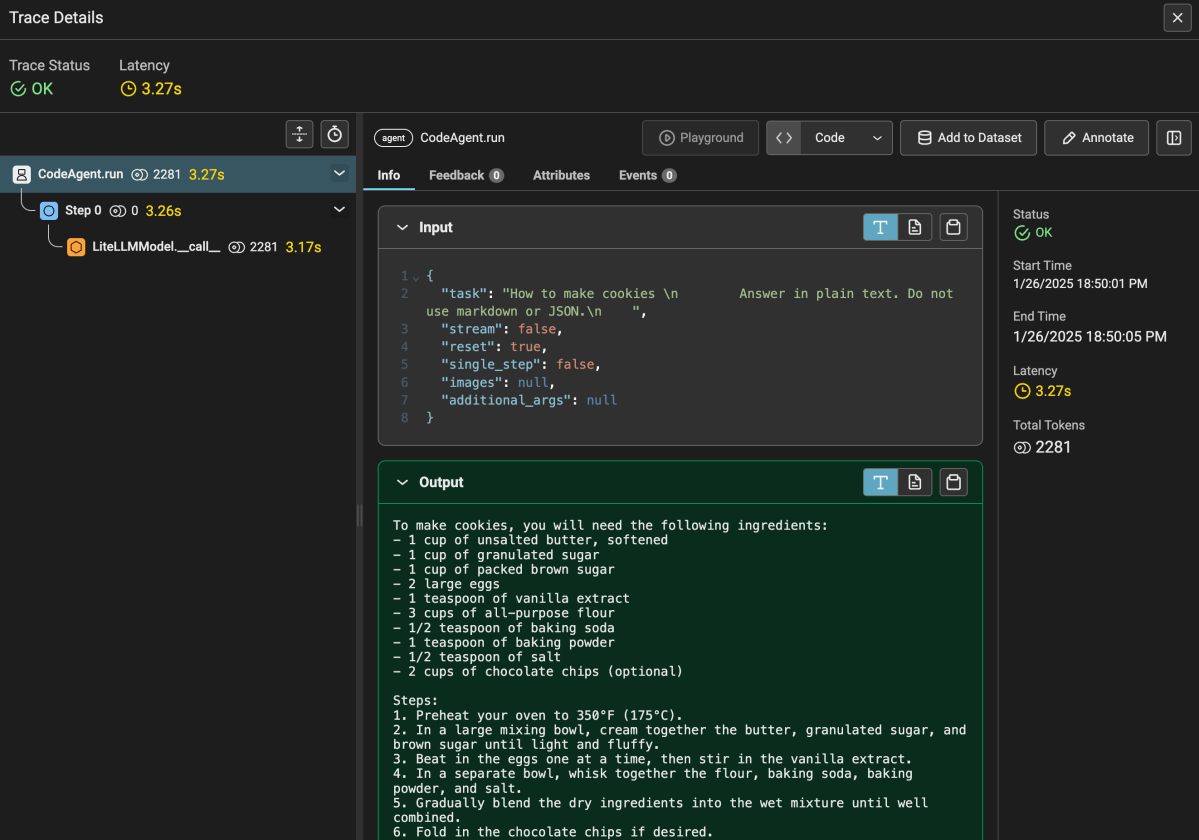
Thought: I will correctly format the plain text summary in the code block to ensure it handles the string properly, and then provide the final answer.

Code:

summary = """
DeepSeek R1 is an advanced AI model developed by DeepSeek-AI. It uses large-scale reinforcement learning (RL) directly on the base model without relying on supervised fine-tuning (SFT) as a preliminary step. The model has been designed to perform a variety of reasoning tasks with high accuracy and speed. DeepSeek R1 and its variants, such as DeepSeek R1-Zero and DeepSeek R1-Lite-Preview, have been launched for web, app, and API usage, competing with other leading AI models like OpenAI's Model o1.

Key Highlights:
1. DeepSeek R1 GitHub Repository: https://github.com/deepseek-ai/DeepSeek-R1
2. DeepSeek Official Website: https://www.deepseek.com/
3. DeepSeek R1 Research Paper on arXiv: https://arxiv.org/abs/2501.12948
4. DeepSeek R1 API Documentation: https://api-docs.deepseek.com/news/news1120
5. Article on Nature about DeepSeek R1: https://www.nature.com/articles/d41586-025-00229-6

DeepSeek R1 is positioned as a powerful AI model with significant advancements in reasoning and inference capabilities, making it a competitive alternative to other leading models in the AI community.
"""
final_answer(summary)

Note: I feel those errors are a bug that might be related to the system prompt of the Code Agent.

Running code securely

Our Code Agent runs the code on the same system as the agent. For extra security, it is recommended to use secure code execution in a remote sandbox environment. To that end, smolagents supports E2B. Check the smolagents docs for more information.

E2B is similar to Azure Container Apps Dynamic Sessions. Sadly, smolagents does not support that yet.

Conclusion

We have barely scratched the surface of what is possible with smolagents. It is a small and simple library with which you can quickly build an agent that reasons, acts and observes in multiple steps until it reaches an answer. It supports a wide range of LLMs and has first-class support for Code Agents. We used the Code Agent in this post. There is another agent, the ToolCallingAgent, which uses the LLM to generate the tool calls using JSON. However, using the Code Agent is the recommended approach and is more flexible.

If you need to build applications where you want the LLM to decide on the course of actions, smolagents is an easy to use library to get started. Give it a go and try it out!

Using WebRTC with the OpenAI Realtime API

In October 2024, OpenAI introduced the Realtime API. It enables developers to integrate low-latency, multimodal conversational experiences into their applications. It supports both text and audio inputs and outputs, facilitating natural speech-to-speech interactions without the need for multiple models.

It addresses the following problems:

  • Simplified Integration: Combines speech recognition, language processing, and speech synthesis into a single API call, eliminating the need for multiple models.
  • Reduced Latency: Streams audio inputs and outputs directly, enabling more natural and responsive conversational experiences.
  • Enhanced Nuance: Preserves emotional tone, emphasis, and accents in speech interactions.

If you have used Advanced Voice Mode in ChatGPT, the Realtime API offers a similar experience for developers to integrate into their applications.

The initial release of the API required WebSockets to support the continuous exchange of messages, including audio. Although that worked, using a protocol like WebRTC is much more interesting:

  • Low latency: WebRTC is optimized for realtime media like audio and video with features such as congestion control and bandwidth optimization built in
  • Proven in the real world: many applications use WebRTC, including Microsoft Teams, Google Meet and many more
  • Native support for audio streaming: compared to WebSockets, as a developer, you don’t have to handle the audio streaming part. WebRTC takes care of that for you.
  • Data channels: suitable for low-latency data exchange between peers; these channels are used to send and receive messages between yourself and the Realtime API.

In December 2024, OpenAI announced support for WebRTC in their Realtime API. It makes using the API much simpler and more robust.

Instead of talking about it, let’s look at an example.

Note: full source code is in https://github.com/gbaeke/realtime-webrtc. It is example code without features like user authentication, robust error handling, etc… It’s meant to get you started.

Helper API

To use the Realtime API from the browser, you need to connect to OpenAI with a token. You do not want to use your OpenAI token in the browser as that is not secure. Instead, you should have an API endpoint in a helper API that gets an ephemeral token. In app.py, the helper API, the endpoint looks as follows:

@app.get("/session")
async def get_session():
    async with httpx.AsyncClient() as client:
        response = await client.post(
            'https://api.openai.com/v1/realtime/sessions',
            headers={
                'Authorization': f'Bearer {OPENAI_API_KEY}',
                'Content-Type': 'application/json'
            },
            json={
                "model": "gpt-4o-realtime-preview-2024-12-17",
                "voice": "echo"
            }
        )
        return response.json()

Above, we ask the realtime’s API sessions endpoint for a session. The session includes the ephemeral token. You need an OpenAI key to ask for that session which is known to the helper API via an environment variable. Note the realtime model and voice are set as options. Other options, such as tools, temperature and others can be set here. In this example we will set some of these settings from the browser client by updating the session.

In index.html, the following JavaScript code is used to obtain the session. The ephemeral key or token is in client_secret.value:

const tokenResponse = await fetch("http://localhost:8888/session");
const data = await tokenResponse.json();
const EPHEMERAL_KEY = data.client_secret.value;

In addition to fetching a token via a session, the helper API has another endpoint called weather. The weather endpoint is called with a location parameter to get the current temperature at that location. This endpoint is called when the model detects a function call is needed. For example, when the user says “What is the weather in Amsterdam?”, code in the client will call the weather endpoint with Amsterdam as a parameter and provide the model with the results.

@app.get("/weather/{location}")
async def get_weather(location: str):
    # First get coordinates for the location
    try:
        async with httpx.AsyncClient() as client:
            # Get coordinates for location
            geocoding_response = await client.get(
                f"https://geocoding-api.open-meteo.com/v1/search?name={location}&count=1"
            )
            geocoding_data = geocoding_response.json()
            
            if not geocoding_data.get("results"):
                return {"error": f"Could not find coordinates for {location}"}
                
            lat = geocoding_data["results"][0]["latitude"]
            lon = geocoding_data["results"][0]["longitude"]
            
            # Get weather data
            weather_response = await client.get(
                f"https://api.open-meteo.com/v1/forecast?latitude={lat}&longitude={lon}&current=temperature_2m"
            )
            weather_data = weather_response.json()
            
            temperature = weather_data["current"]["temperature_2m"]
            return WeatherResponse(temperature=temperature, unit="celsius")
            
    except Exception as e:
        return {"error": f"Could not get weather data: {str(e)}"}

The weather API does not require authentication so we could have called it from the web client as well. I do not consider that a best practice so it is better to call an API separate from the client code.

The client

The client is an HTML web page with plain JavaScript code. The code to interact with the realtime API is all part of the client. Our helper API simply provides the ephemeral secret.

Let’s look at the code step-by-step. Full code is on GitHub. But first, here is the user interface:

The fabulous UI

Whenever you ask a question, the transcript of the audio response is updated in the text box. Only the responses are added, not the user questions. I will leave that as an exercise for you! 😉

When you click the Start button, the init function gets called:

async function init() {
    startButton.disabled = true;
    
    try {
        updateStatus('Initializing...');
        
        const tokenResponse = await fetch("http://localhost:8888/session");
        const data = await tokenResponse.json();
        const EPHEMERAL_KEY = data.client_secret.value;

        peerConnection = new RTCPeerConnection();
        await setupAudio();
        setupDataChannel();

        const offer = await peerConnection.createOffer();
        await peerConnection.setLocalDescription(offer);

        const baseUrl = "https://api.openai.com/v1/realtime";
        const model = "gpt-4o-realtime-preview-2024-12-17";
        const sdpResponse = await fetch(`${baseUrl}?model=${model}`, {
            method: "POST",
            body: offer.sdp,
            headers: {
                Authorization: `Bearer ${EPHEMERAL_KEY}`,
                "Content-Type": "application/sdp"
            },
        });

        const answer = {
            type: "answer",
            sdp: await sdpResponse.text(),
        };
        await peerConnection.setRemoteDescription(answer);

        updateStatus('Connected');
        stopButton.disabled = false;
        hideError();

    } catch (error) {
        startButton.disabled = false;
        stopButton.disabled = true;
        showError('Error: ' + error.message);
        console.error('Initialization error:', error);
        updateStatus('Failed to connect');
    }
}

In the init function, we get the ephemeral key as explained before and then setup the WebRTC peer-to-peer connection. The setupAudio function creates an autoplay audio element and connects the audio stream to the peer-to-peer connection.

The setupDataChannel function sets up a data channel for the peer-to-peer connection and gives it a name. The name is oai-events. Once we have a data channel, we can use it to connect an onopen handler and add an event listener to handle messages sent by the remote peer.

Below are the setupAudio and setupDataChannel functions:

async function setupAudio() {
    const audioEl = document.createElement("audio");
    audioEl.autoplay = true;
    peerConnection.ontrack = e => audioEl.srcObject = e.streams[0];
    
    audioStream = await navigator.mediaDevices.getUserMedia({ audio: true });
    peerConnection.addTrack(audioStream.getTracks()[0]);
}

function setupDataChannel() {
    dataChannel = peerConnection.createDataChannel("oai-events");
    dataChannel.onopen = onDataChannelOpen;
    dataChannel.addEventListener("message", handleMessage);
}

When the audio and data channel is setup, we can now proceed to negotiate communication parameters between the two peers: your client and OpenAI. WebRTC uses the session description protocol (SDP) to do so. First, an offer is created describing the local peer capabilities like audio codecs etc… The offer is then sent to the server over at OpenAI. Authentication is with the ephemeral key. The response is a description of the remote peer’s capabilities, which is needed to complete the handshake process. With the handshake complete, the peers can now exchange audio and messages. The code below does the handshake:

const offer = await peerConnection.createOffer();
await peerConnection.setLocalDescription(offer);

const baseUrl = "https://api.openai.com/v1/realtime";
const model = "gpt-4o-realtime-preview-2024-12-17";
const sdpResponse = await fetch(`${baseUrl}?model=${model}`, {
    method: "POST",
    body: offer.sdp,
    headers: {
        Authorization: `Bearer ${EPHEMERAL_KEY}`,
        "Content-Type": "application/sdp"
    },
});

const answer = {
    type: "answer",
    sdp: await sdpResponse.text(),
};
await peerConnection.setRemoteDescription(answer);

The diagram below summarizes the steps:

Simplified overview of the setup process

What happens when the channel opens?

After the creation of the data channel, we set up an onopen handler. In this case, the handler does two things:

  • Update the session
  • Send an initial message

The session is updated with a description of available functions. This is very similar to function calling in the chat completion API. To update the session, you need to send a message of type session.update. The sendMessage helper functions sends messages to the remote peer:

function sendSessionUpdate() {
    const sessionUpdateEvent = {
        "event_id": "event_" + Date.now(),
        "type": "session.update",
        "session": {
            "tools": [{
                "type": "function",
                "name": "get_weather",
                "description": "Get the current weather. Works only for Earth",
                "parameters": {
                    "type": "object",
                    "properties": {
                        "location": { "type": "string" }
                    },
                    "required": ["location"]
                }
            }],
            "tool_choice": "auto"
        }
    };
    sendMessage(sessionUpdateEvent);
}

Although I added an event_id above, that is optional. In the session property we can update the list of tools and set the tool_choice to auto. In this case, that means that the model will select a function if it thinks it is needed. If you ask something like “What is the weather?”, it will first ask for a location and then indicate that the function get_weather needs to be called.

We also send an initial message when the channel opens. The message is of type conversation.item.create and says “MY NAME IS GEERT”.

Check the session update and conversation item code below:

function sendSessionUpdate() {
    const sessionUpdateEvent = {
        "event_id": "event_" + Date.now(),
        "type": "session.update",
        "session": {
            "tools": [{
                "type": "function",
                "name": "get_weather",
                "description": "Get the current weather. Works only for Earth",
                "parameters": {
                    "type": "object",
                    "properties": {
                        "location": { "type": "string" }
                    },
                    "required": ["location"]
                }
            }],
            "tool_choice": "auto"
        }
    };
    sendMessage(sessionUpdateEvent);
}

function sendInitialMessage() {
    const conversationMessage = {
        "event_id": "event_" + Date.now(),
        "type": "conversation.item.create",
        "previous_item_id": null,
        "item": {
            "id": "msg_" + Date.now(),
            "type": "message",
            "role": "user",
            "content": [{
                "type": "input_text",
                "text": "MY NAME IS GEERT"
            }]
        }
    };
    sendMessage(conversationMessage);
}

Note that the above is optional. Without that code, we could start talking with the model. However, it’s a bit more interesting to add function calling to the mix. That does mean we have to check incoming messages from the data channel to find out if we need to call a function.

Handling messages

The function handleMessage is called whenever a new message is sent on the data channel. In that function, we log all messages and check for a specific type of message: response.done.

We do two different things:

  • if there is a transcript of the audio: display it
  • if the response is a function call, handle the function call

To handle the function call, we check the payload of the response for an output of type function_call and also check the function name and call_id of the message that identified the function call in the first place.

If the function with name get_weather is identified, the weather endpoint of the API is called and the response is sent to the model.

The message handler is shown below:

function handleMessage(event) {
    try {
        const message = JSON.parse(event.data);
        console.log('Received message:', message);
        
        switch (message.type) {
            case "response.done":
                handleTranscript(message);
                const output = message.response?.output?.[0];
                if (output) handleFunctionCall(output);
                break;
            default:
                console.log('Unhandled message type:', message.type);
        }
    } catch (error) {
        showError('Error processing message: ' + error.message);
    }
}

The function call check is in handleFunctionCall:

function handleFunctionCall(output) {
    if (output?.type === "function_call" && 
        output?.name === "get_weather" && 
        output?.call_id) {
        console.log('Function call found:', output);
        handleWeatherFunction(output);
    }
}

You can check the full source code for the code of handleWeatherFunction and its helpers sendFunctionOutput and sendResponseCreate. They are responsible for:

  • parsing the arguments from the function call output and calling the API
  • sending the output of the function back to the model and linking it to the message that identified the function call in the first place
  • getting a response from the model to tell us about the result of the function call

Conclusion

With WebRTC support, a W3C standard, it has become significantly easier to utilize the OpenAI Realtime API from a browser that natively supports it. All widely recognized desktop and mobile browsers, including Chrome, Safari, Firefox, and Edge, provide WebRTC capabilities.

WebRTC has become the preferred method for browser-based realtime API usage. WebSockets are exclusively recommended for server-to-server applications.

The advent of WebRTC has the potential to catalyze the development of numerous applications that leverage this API. What interesting applications do you intend to build?

Using the Azure AI Inference Service

If you are a generative AI developer that works with different LLMs, it can be cumbersome to make sure your code works with your LLM of choice. You might start with Azure OpenAI models and the OpenAI APIs but later decide you want to use a Phi-3 model. What do you do in that case? Ideally, you would want your code to work with either model. The Azure AI Inference Services allows you to do just that.

The API is available via SDKs in Python, JavaScript, C# and as a generic REST service. In this post, we will look at the Python SDK. Note that the API does not work with all models in the Azure AI Foundry model catalog. Below are some of the supported models:

  • Via serverless endpoints: Cohere, Llama, Mistral, Phi-3 and some others
  • Via managed inference (on VMs): Mistral, Mixtral, Phi-3 and Llama 3 instruct

In this post, we will use the serverless endpoints. Let’s stop talking about it and look at some code. Although you can use the inferencing services fully on its own, I will focus on some other ways to use it:

  • From GitHub Marketplace: for experimentation; authenticate with GitHub
  • From Azure AI Foundry: towards production quality code; authenticate with Entra ID

Getting started from GitHub Marketplace

Perhaps somewhat unexpectedly, an easy way to start exploring these APIs is via models in GitHub Marketplace. GitHub supports the inferencing service and allows you to authenticate via your GitHub personal access token (PAT).

If you have a GitHub account, even as a free user, simply go to the GitHub model catalog at https://github.com/marketplace/models/catalog. Select any model from the list and click Get API key:

Ministral 3B in the GitHub model catalog

In the Get API key screen, you can select your language and SDK. Below, I selected Python and Azure AI Inference SDK:

Steps to get started with Ministral and the AI Inference SDK

Instead of setting this up on you workstation, you can click on Run codespace. A codespace will be opened with lots of sample code:

Codespace with sample code for different SDKs, including the AI Inference

Above, I opened the Getting Started notebook for the Azure AI Inference SDK. You can run the cells in that notebook to see the results. To create a client, the following code is used:

import os
import dotenv
from azure.ai.inference import ChatCompletionsClient
from azure.ai.inference.models import SystemMessage, UserMessage
from azure.core.credentials import AzureKeyCredential

dotenv.load_dotenv()

if not os.getenv("GITHUB_TOKEN"):
    raise ValueError("GITHUB_TOKEN is not set")

github_token = os.environ["GITHUB_TOKEN"]
endpoint = "https://models.inference.ai.azure.com"


# Create a client
client = ChatCompletionsClient(
    endpoint=endpoint,
    credential=AzureKeyCredential(github_token),
)

The endpoint above is similar to the endpoint you would use without GitHub. The SDK, however, supports authenticating with your GITHUB_TOKEN which is available to the codespace as an environment variable.

When you have the ChatCompletionsClient, you can start using the client as if this was an OpenAI model. Indeed, the AI Inference SDK work similarly to the OpenAI SDK:

response = client.complete(
    messages=[
        SystemMessage(content="You are a helpful assistant."),
        UserMessage(content="What is the capital of France?"),
    ],
    model=model_name,
    # Optional parameters
    temperature=1.,
    max_tokens=1000,
    top_p=1.    
)

print(response.choices[0].message.content)

The code above is indeed similar to the OpenAI SDK. The model is set via the model_name variable. Model name can be any of the supported GitHub models:

  • AI21 Labs: `AI21-Jamba-Instruct`
  • Cohere: `Cohere-command-r`, `Cohere-command-r-plus`
  • Meta: `Meta-Llama-3-70B-Instruct`, `Meta-Llama-3-8B-Instruct` and others
  • Mistral AI: `Mistral-large`, `Mistral-large-2407`, `Mistral-Nemo`, `Mistral-small`
  • Azure OpenAI: `gpt-4o-mini`, `gpt-4o`
  • Microsoft: `Phi-3-medium-128k-instruct`, `Phi-3-medium-4k-instruct`, and others

The full list of models is in the notebook. It’s easy to get started with GitHub models to evaluate and try out models. Do note that these models are for experimentation only and heavily throttled. In production, use models deployed in Azure. One of the ways to do that is with Azure AI Foundry.

Azure AI Foundry and its SDK

Another way to use the inferencing service is via Azure AI Foundry and its SDK. To use the inferencing service via Azure AI Foundry, simply create a project. If this is the first time you create a project, a hub will be created as well. Check Microsoft Learn for more information.

Project in AI Foundry with the inference endpoint

The endpoint above can be used directly with the Azure AI Inference SDK. There is no need to use the Azure AI Foundry SDK in that case. In what follows, I will focus on the Azure AI Foundry SDK and not use the inference SDK on its own.

Unlike GitHub models, you need to deploy models in Azure before you can use them:

Deployment of Mistral Large and Phi-3 small 128k instruct

To deploy a model, simply click on Deploy model and follow the steps. Take the serverless deployment when asked. Above, I deployed Mistral Large and Phi-3 small 128k.

The Azure AI Foundry SDK makes it easy to work with services available to your project. A service can be a model via the inferencing SDK but also Azure AI Search and other services.

In code, you connect to your project with a connection string and authenticate with Entra ID. From a project client, you then obtain a generic chat completion client. Under the hood, the correct AI inferencing endpoint is used.

from azure.identity import DefaultAzureCredential
from azure.ai.projects import AIProjectClient

project_connection_string="your_conn_str"

project = AIProjectClient.from_connection_string(
  conn_str=project_connection_string,
  credential=DefaultAzureCredential())

model_name ="Phi-3-small-128k-instruct"

client = project.inference.get_chat_completions_client()

response = client.complete(
    model=model_name,
    messages=[
        {"role": "system", "content": "You are a helpful writing assistant"},
        {"role": "user", "content": "Write me a poem about flowers"},
    ]
)

print(response.choices[0].message.content)

Above, replace your_conn_str with the connection string from your project:

AI Foundry project connection string

Now, if you want to run your code with another model, simply deploy it and switch the model name in your code. Note that you do not use the deployment name. Instead, use the model name.

Note that these models are typically deployed with content filtering. If the filter is triggered, you will get a HttpResponseError 400. This will also happen if you use GitHub because they use the same models and content filters.

Other capabilities of the inferencing service

Below, some of the other capabilities of the inferencing service are listed:

  • Next to chat completions, text completions, text embeddings and image embeddings are supported
  • If the underlying model supports parameters not supported by the inferencing service, use model_extras. The properties you put in model extras are passed to the API that is specific to the model. One example is the safe_mode parameter in Mistral.
  • You can configure the API to give you an error when you use a parameter the underlying model does not support
  • The API supports images as input with select models
  • Streaming is supported
  • Tools and function calling is supported
  • Prompt templates are supported, including Prompty.

Should you use it?

Whether or not you should use the AI inferencing services is not easy to answer. If you use frameworks such as LangChain or Semantic Kernel, they already have abstractions to work with multiple models. They also make it easier to work with functions and tool calling and also support prompt templates. If you use those, stick with them.

If you do not use those frameworks and you simply want to use an OpenAI-compatible API, the inferencing service in combination with Azure AI Foundry is a good fit! There are many developers that prefer using the OpenAI API directly without the abstractions of a higher-level framework. If you do, you can easily switch models.

It’s important to note that if you use more advanced features such as tool calling, not all models support that. In practice, that means that the amount of models you can switch between are limited. In my experience, even with models that support tool calling, if can go wrong easily. If your application is heavily dependent on function calling, it’s best to use frameworks like Semantic Kernel.

The service in general is useful in other ways though. Copilot Studio for example, can use custom models to answer questions and uses the inferencing service under the hood to make that happen!

Create a Copilot declarative agent that calls an API with authentication

In a previous post, we looked at creating a Copilot declarative agent. The agent had one custom action that called the JSONPlaceholder API. Check that post for an introduction to what these agents can do. Using a dummy, unauthenticated API is not much fun so let’s take a look at doing the same for a custom API that requires authentication.

Python API with authentication

The API we will create has one endpoint: GET /sales. It’s implemented as follows:

@app.get("/sales/", dependencies=[Depends(verify_token)])
async def get_sales():
    """
    Retrieve sales data.
    Requires Bearer token authentication.
    """
    return {
        "status": "success",
        "data": generate_sample_sales_data()
    }

The data is generated by the generate_sample_sales_data function. It just generates random sales data. You can check the full code on GitHub. The important thing here is that we use bearer authentication with a key.

When I hit the /sales endpoint with a wrong key, a 401 Unauthorized is raised:

401 Unauthorized (via REST client VS Code plugin)

With the correct key, the /sales endpoint returns the random data:

GET /sales returns random data

Running the API

To make things easy, we will run the API on the local machine and expose it with ngrok. Install ngrok using the instructions on their website. If you cloned the repo, go to the api folder and run the commands below. Run the last command from a different terminal window.

pip install -r requirements.txt
python app.py
ngrok http 8000

Note: you can also use local port forwarding in VS Code. I prefer ngrok but if you do not want to install it, simply use the VS Code feature.

In the terminal where you ran ngrok, you should see something like below:

ngrok tunnel is active

Ngrok has a nice UI to inspect the calls via the web interface at http://localhost:4040:

ngrok web interface

Before continuing, ensure that the ngrok forwarding URL (https://xyz.ngrok-free.app) responds when you hit the /sales endpoint.

Getting the OpenAPI document

When you create a FastAPI API, it generates OpenAPI documentation that describes all the endpoints. The declarative agent needs that documentation to configure actions.

For the above API, that looks like below. Note that this is not the default document. It was changed in code.

{
  "openapi": "3.0.0",
  "info": {
    "title": "Sales API",
    "description": "API for retrieving sales data",
    "version": "1.0.0"
  },
  "paths": {
    "/sales/": {
      "get": {
        "summary": "Get Sales",
        "description": "Retrieve sales data.\nRequires Bearer token authentication.",
        "operationId": "get_sales_sales__get",
        "responses": {
          "200": {
            "description": "Successful Response",
            "content": {
              "application/json": {
                "schema": {

                }
              }
            }
          }
        }
      }
    },
    "/": {
      "get": {
        "summary": "Root",
        "description": "Root endpoint - provides API information",
        "operationId": "root__get",
        "responses": {
          "200": {
            "description": "Successful Response",
            "content": {
              "application/json": {
                "schema": {

                }
              }
            }
          }
        }
      }
    }
  },
  "components": {
    "securitySchemes": {
      "BearerAuth": {
        "type": "http",
        "scheme": "bearer"
      }
    }
  },
  "servers": [
    {
      "url": "https://627d-94-143-189-241.ngrok-free.app",
      "description": "Production server"
    }
  ]
}

The Teams Toolkit requires OpenAPI 3.0.x instead of 3.1.x. By default, recent versions of FastAPI generate 3.1.x docs. You can change that in the API’s code by adding the following:

def custom_openapi():
    if app.openapi_schema:
        return app.openapi_schema
    
    openapi_schema = get_openapi(
        title="Sales API",
        version="1.0.0",
        description="API for retrieving sales data",
        routes=app.routes,
    )
    
    # Set OpenAPI version
    openapi_schema["openapi"] = "3.0.0"
    
    # Add servers
    openapi_schema["servers"] = [
        {
            "url": "https://REPLACE_THIS.ngrok-free.app",  # Replace with your production URL
            "description": "Production server"
        }
    ]
    
    # Add security scheme
    openapi_schema["components"] = {
        "securitySchemes": {
            "BearerAuth": {
                "type": "http",
                "scheme": "bearer"
            }
        }
    }
    
    # Remove endpoint-specific security requirements
    for path in openapi_schema["paths"].values():
        for operation in path.values():
            if "security" in operation:
                del operation["security"]
    
    app.openapi_schema = openapi_schema
    return app.openapi_schema

app.openapi = custom_openapi

In the code, we switch to OpenAPI 3.0.0, add our server (the ngrok forwarding URL), add the security scheme and more. Now, when you go to https://your_ngrok_url/openapi.json, the JSON shown above should be returned.

Creating the Copilot Agent

Now we can create a new declarative agent like we did in the previous post. When you are asked for the OpenAPI document, you can retrieve it from the live server via the ngrok forwarding URL.

After creating the agent, declarativeAgent.json should contain the following action:

"actions": [
    {
        "id": "action_1",
        "file": "ai-plugin.json"
    }

In ai-plugin.json, in functions and runtimes, you should see the function description and a reference to the OpenAPI operation.

That’s all fine but of course, but the API will not work because a key needs to be provided. You create the key in the Teams developer portal at https://dev.teams.microsoft.com/tools:

Adding an API key for Bearer auth

You create the key by clicking New API key and filling in the form. Ensure you add a key that matches the key in the API. Also ensure that the URL to your API is correct (the ngrok forwarding URL). With an incorrect URL, the key will not be accepted.

Now we need to add a reference to the key. The agent can use that reference to retrieve the key and use it when it calls your API. Copy the key’s registration ID and then open ai-plugin.json. Add the following to the runtimes array:

"runtimes": [
    {
        "type": "OpenApi",
        "auth": {
            "type": "ApiKeyPluginVault",
            "reference_id": "KEY_REGISTRATION_ID"
        },
        "spec": {
            "url": "apiSpecificationFile/openapi.json"
        },
        "run_for_functions": [
            "get_sales_sales__get"
        ]
    }
]

The above code ensures that HTTP bearer authentication is used with the stored key when the agent calls the get_sales_sales__get endpoint.

Now you are ready to provision your agent. After provisioning, locate the agent in Teams:

Find the agent

Now either use a starter (if you added some; above that is (2)) or type the question in the chat box.

Getting laptop sales in 2024

Note that I did not do anything fancy with the adaptive card. It just says success.

If you turned on developer mode in Copilot, you can check the raw response:

Viewing the raw response, right from within Microsoft 365 Chat

Conclusion

In this post, we created a Copilot agent that calls a custom API secured with HTTP bearer authentication. The “trick” to get this to work is to add the key to the Teams dev portal and reference it in the json file that defines the API call.

HTTP bearer authentication is the easiest to implement. In another post, we will look at using OAuth to protect the API. There’s a bit more to that, as expected.