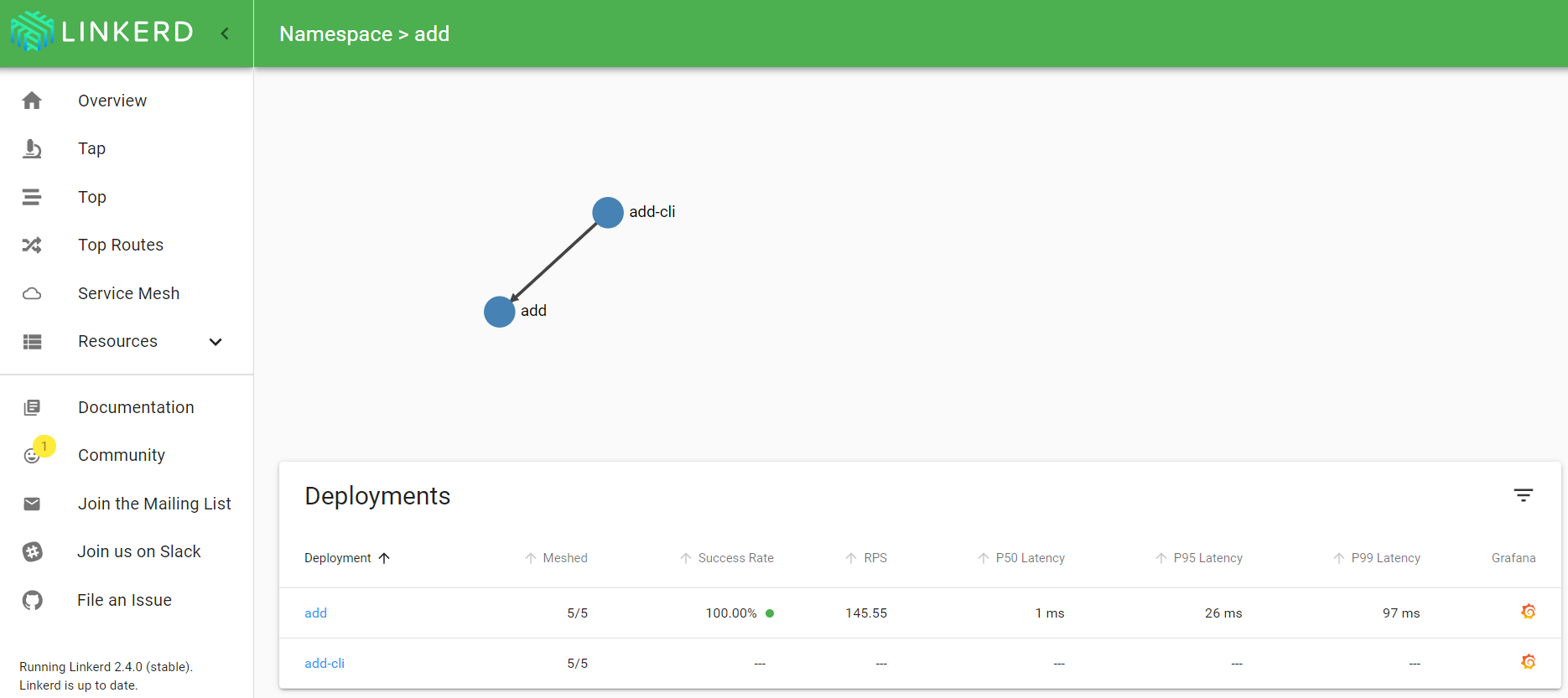
A while ago, I blogged about Linkerd 2.x. In that post, I used a simple calculator API, reachable via an Azure Load Balancer. When you look at that traffic in Linkerd, you see the following:
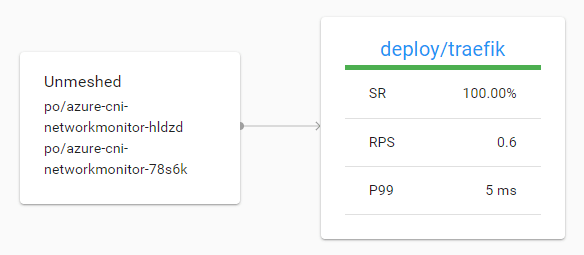
Above, you do not see this is Azure Load Balancer traffic. The traffic reaches the meshed service via the Azure CNI pods.
In this post, we will install Traefik 2.0, mesh the Traefik deployment and make the calculator service reachable via Traefik and the new IngressRoute. Let’s get started!
Install Traefik 2.0
We will install Traefik 2.0 with http support only. There’s an excellent blog that covers the installation over here. In short, you do the following:
- deploy prerequisites such as custom resource definitions (CRDs), ClusterRole, ClusterRoleBinding, ServiceAccount
- deploy Traefik 2.0: it’s just a Kubernetes deployment
- deploy a service to expose the Traefik HTTP endpoint via a Load Balancer; I used an Azure Load Balancer automatically deployed via Azure Kubernetes Service (AKS)
- deploy a service to expose the Traefik admin endpoint via an IngressRoute
Here are the prerequisites for easy copy and pasting:
apiVersion: apiextensions.k8s.io/v1beta1
kind: CustomResourceDefinition
metadata:
  name: ingressroutes.traefik.containo.us

spec:
  group: traefik.containo.us
  version: v1alpha1
  names:
    kind: IngressRoute
    plural: ingressroutes
    singular: ingressroute
  scope: Namespaced

---
apiVersion: apiextensions.k8s.io/v1beta1
kind: CustomResourceDefinition
metadata:
  name: ingressroutetcps.traefik.containo.us

spec:
  group: traefik.containo.us
  version: v1alpha1
  names:
    kind: IngressRouteTCP
    plural: ingressroutetcps
    singular: ingressroutetcp
  scope: Namespaced

---
apiVersion: apiextensions.k8s.io/v1beta1
kind: CustomResourceDefinition
metadata:
  name: middlewares.traefik.containo.us

spec:
  group: traefik.containo.us
  version: v1alpha1
  names:
    kind: Middleware
    plural: middlewares
    singular: middleware
  scope: Namespaced

---
apiVersion: apiextensions.k8s.io/v1beta1
kind: CustomResourceDefinition
metadata:
  name: tlsoptions.traefik.containo.us

spec:
  group: traefik.containo.us
  version: v1alpha1
  names:
    kind: TLSOption
    plural: tlsoptions
    singular: tlsoption
  scope: Namespaced

---
kind: ClusterRole
apiVersion: rbac.authorization.k8s.io/v1beta1
metadata:
  name: traefik-ingress-controller

rules:
  - apiGroups:
      - ""
    resources:
      - services
      - endpoints
      - secrets
    verbs:
      - get
      - list
      - watch
  - apiGroups:
      - extensions
    resources:
      - ingresses
    verbs:
      - get
      - list
      - watch
  - apiGroups:
      - extensions
    resources:
      - ingresses/status
    verbs:
      - update
  - apiGroups:
      - traefik.containo.us
    resources:
      - middlewares
    verbs:
      - get
      - list
      - watch
  - apiGroups:
      - traefik.containo.us
    resources:
      - ingressroutes
    verbs:
      - get
      - list
      - watch
  - apiGroups:
      - traefik.containo.us
    resources:
      - ingressroutetcps
    verbs:
      - get
      - list
      - watch
  - apiGroups:
      - traefik.containo.us
    resources:
      - tlsoptions
    verbs:
      - get
      - list
      - watch

---
kind: ClusterRoleBinding
apiVersion: rbac.authorization.k8s.io/v1beta1
metadata:
  name: traefik-ingress-controller

roleRef:
  apiGroup: rbac.authorization.k8s.io
  kind: ClusterRole
  name: traefik-ingress-controller
subjects:
  - kind: ServiceAccount
    name: traefik-ingress-controller
    namespace: default

---
apiVersion: v1
kind: ServiceAccount
metadata:
  namespace: default
  name: traefik-ingress-controller
Save this to a file and then use kubectl apply -f filename.yaml. Here’s the deployment:
kind: Deployment
apiVersion: extensions/v1beta1
metadata:
  namespace: default
  name: traefik
  labels:
    app: traefik

spec:
  replicas: 2
  selector:
    matchLabels:
      app: traefik
  template:
    metadata:
      labels:
        app: traefik
    spec:
      serviceAccountName: traefik-ingress-controller
      containers:
        - name: traefik
          image: traefik:v2.0
          args:
            - --api
            - --accesslog
            - --entrypoints.web.Address=:8000
            - --entrypoints.web.forwardedheaders.insecure=true
            - --providers.kubernetescrd
            - --ping
            - --accesslog=true
            - --log=true
          ports:
            - name: web
              containerPort: 8000
            - name: admin
              containerPort: 8080
Here’s the service to expose Traefik’s web endpoint. This is different from the post I referred to because that post used DigitalOcean. I am using Azure here.
apiVersion: v1
kind: Service
metadata:
  name: traefik
spec:
  type: LoadBalancer
  ports:
    - protocol: TCP
      name: web
      port: 80
      targetPort: 8000
  selector:
    app: traefik
The above service definition will give you a public IP. Traffic destined to port 80 on that IP goes to the Traefik pods on port 8000.
Now we can expose the Traefik admin interface via Traefik itself. Note that I am not using any security here. Check the original post for basic auth config via middleware.
apiVersion: v1
kind: Service
metadata:
  name: traefik-admin
spec:
  type: ClusterIP
  ports:
    - protocol: TCP
      name: admin
      port: 8080
  selector:
    app: traefik
---
apiVersion: traefik.containo.us/v1alpha1
kind: IngressRoute
metadata:
  name: traefik-admin
spec:
  entryPoints:
    - web
  routes:
  - match: Host(`somehost.somedomain.com`) && PathPrefix(`/`)
    kind: Rule
    priority: 1
    services:
    - name: traefik-admin
      port: 8080
Traefik’s admin site is first exposed as a ClusterIP service on port 8080. Next, an object of kind IngressRoute is defined, which is new for Traefik 2.0. You don’t need to create standard Ingress objects and configure Traefik with custom annotations. This new approach is cleaner. Of course, substitute the host with a host that points to the public IP of the load balancer. Or use the IP address with the xip.io domain. If your IP would be 1.1.1.1 then you could use something like admin.1.1.1.1.xip.io. That name automatically resolves to the IP in the name.
Let’s see if we can reach the admin interface:

Traefik 2.0 is now installed in a basic way and working properly. We exposed the admin interface but now it is time to expose the calculator API.
Exposing the calculator API
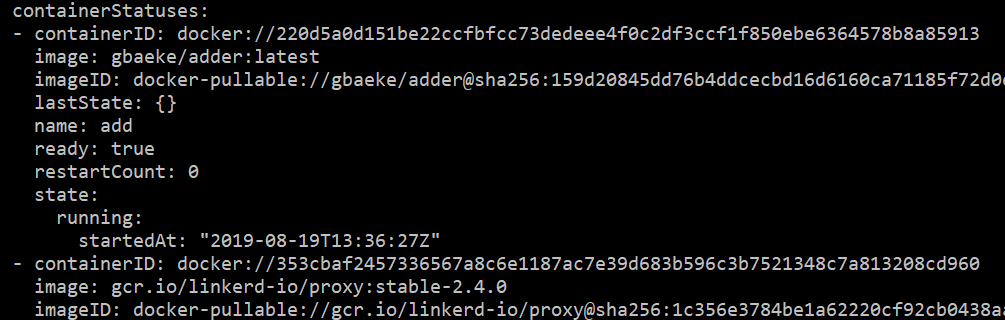
The API is deployed as 5 pods in the add namespace:

The API is exposed as a service of type ClusterIP with only an internal Kubernetes IP. To expose it via Traefik, we create the following object in the add namespace:
apiVersion: traefik.containo.us/v1alpha1
kind: IngressRoute
metadata:
  name: calc-svc
  namespace: add
spec:
  entryPoints:
    - web
  routes:
  - match: Host(`calc.1.1.1.1.xip.io`) && PathPrefix(`/`)
    kind: Rule
    priority: 1
    middlewares:
      - name: calcheader
    services:
    - name: add-svc
      port: 80
I am using xip.io above. Change 1.1.1.1 to the public IP of Traefik’s Azure Load Balancer. The add-svc that exposes the calculator API on port 80 is exposed via Traefik. We can easily call the service via:
curl http://calc.1.1.1.1.xip.io/add/10/10

20
Great! But what is that calcheader middleware? Middlewares modify the requests and responses to and from Traefik 2.0. There are all sorts of middelwares as explained here. You can set headers, configure authentication, perform rate limiting and much much more. In this case we create the following middleware object in the add namespace:
apiVersion: traefik.containo.us/v1alpha1
kind: Middleware
metadata:
  name: calcheader
  namespace: add
spec:
  headers:
    customRequestHeaders:
      l5d-dst-override: "add-svc.add.svc.cluster.local:80"
This middleware adds a header to the request before it comes in to Traefik. The header overrides the destination and sets it to the internal DNS name of the add-svc service that exposes the calculator API. This requirement is documented by Linkerd here.
Meshing the Traefik deployment
Because we want to mesh Traefik to get Linkerd metrics and more, we need to inject the Linkerd proxy in the Traefik pods. In my case, Traefik is deployed in the default namespace so the command below can be used:
kubectl get deploy -o yaml | linkerd inject - | kubectl apply -f -
Make sure you run the command on a system with the linkerd executable in your path and kubectl homed to the cluster that has Linkerd installed.
Checking the traffic in the Linkerd dashboard
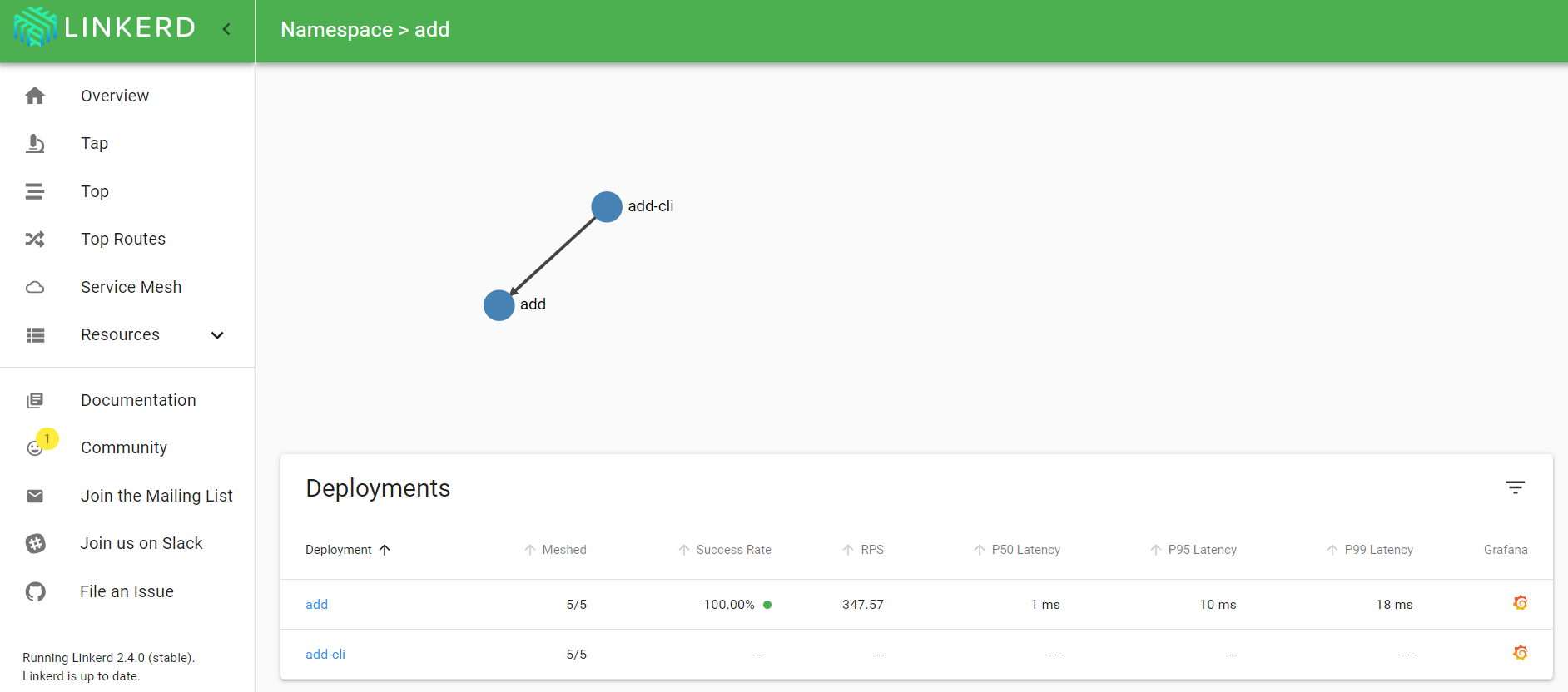
With some traffic generated, this is what you should see when you check the meshed deployment that runs the calculator API (deploy/add):

If you are wondering what these services are and do, check this post. In the above diagram, we can clearly see we are receiving traffic to the calculator API from Traefik. When I click on Traefik, I see the following:
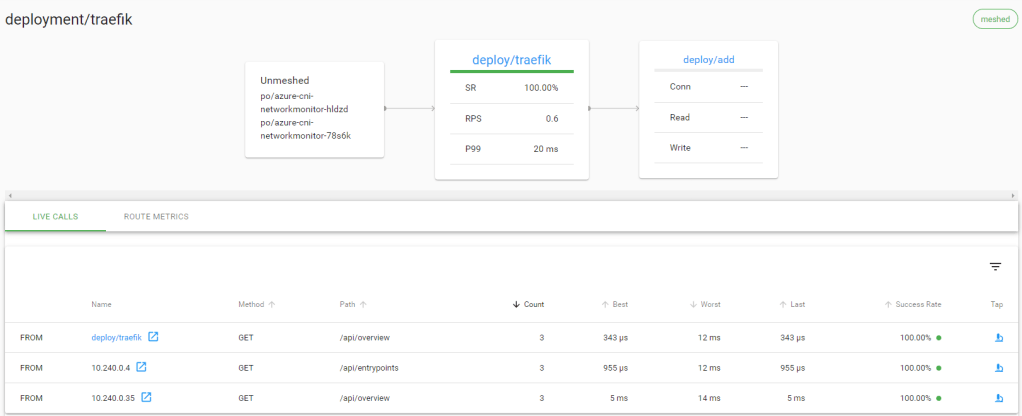
From the above, we see Traefik receives traffic via the Azure Load Balancer and that it forwards traffic to the calculator service. The live calls are coming from the admin UI which refreshes regularly.
In Grafana, we can get more information about the Traefik deployment:


Conclusion
This was just a brief look at both Traefik 2 and “meshing” Traefik with Linkerd. There is much more to say and I have much more to explore. Hopefully, this can get you started!






 baeke.info