In my previous blog post, I looked at Azure API Management in combination with private APIs hosted on Kubernetes. The APIs were exposed via Traefik and an internal load balancer. To make that scenario work, the Azure API Management premium SKU is required, which is quite costly.
This post describes another approach where the APIs are exposed on the public Internet via an Ingress Controller that requires HTTPS in addition to restricting the API caller to the IP address of the Azure API Management instance. Something like this:
Internet client -> Azure API Management --> Ingress Controller (with IP whitelisting per ingress) --> API service (Kubernetes) --> API pods (Kubernetes, part of a Deployment)
Let’s see how this works, shall we?
API Management
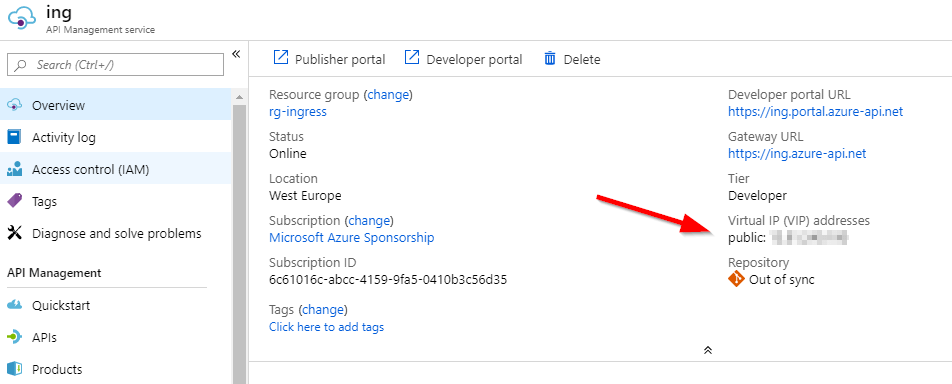
Deploy Azure API management from the portal. In this case, you can use the other SKUs such as Basic and Standard. Note the IP address of the Azure API Management instance on the Overview page:
IP address of API Management
Ingress Controller
As usual, let’s use Traefik. When you have Helm installed, use the following command:
Note the use of externalTrafficPolicy=Local. This lets Traefik know the IP address of the actual caller, which is required because we want to restrict access to the IP address of API Management.
Ingress object
When your API is deployed via a deployment and a service of type ClusterIP, use the following ingress definition:
The above ingress object, exposes the internal service func via Traefik. The whitelist-source-range annotation is used to limit access to this resource to the IP address of Azure API Management. Replace YOURIP with that IP address. Obviously, replace the host api.domain.com with a host that resolves to the external IP of the load balancer that provides access to Traefik. The Let’s Encrypt configuration automatically provisions a valid certificate to the service.
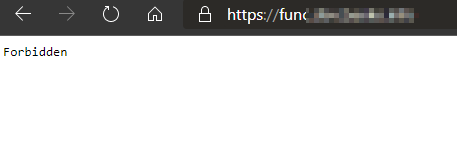
When I navigate to the API on my local computer, the following happens:
No access to the API if the request does not come from API management
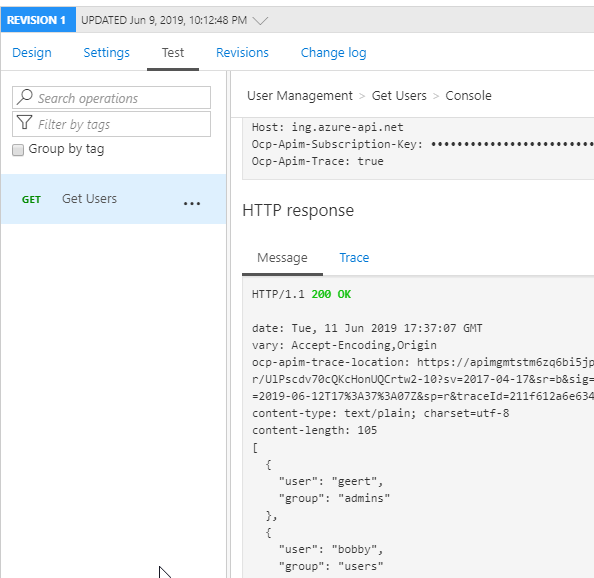
When I test the API from API Management (after setting the back-end correctly):
API management can call the back-end API
Conclusion
What do you do when you do not want to spend money on the premium SKU? The answer is clear: use the lower SKUs if possible and restrict access to the back-end APIs with other means such as IP whitelisting. Other possibilities include using some form of authentication such as basic authentication etc…
A while ago, the Azure DevOps blog posted an update about multi-stage YAML pipelines. The concept is straightforward: define both your build (CI) and release (CD) pipelines in a YAML file and stick that file in your source code repository.
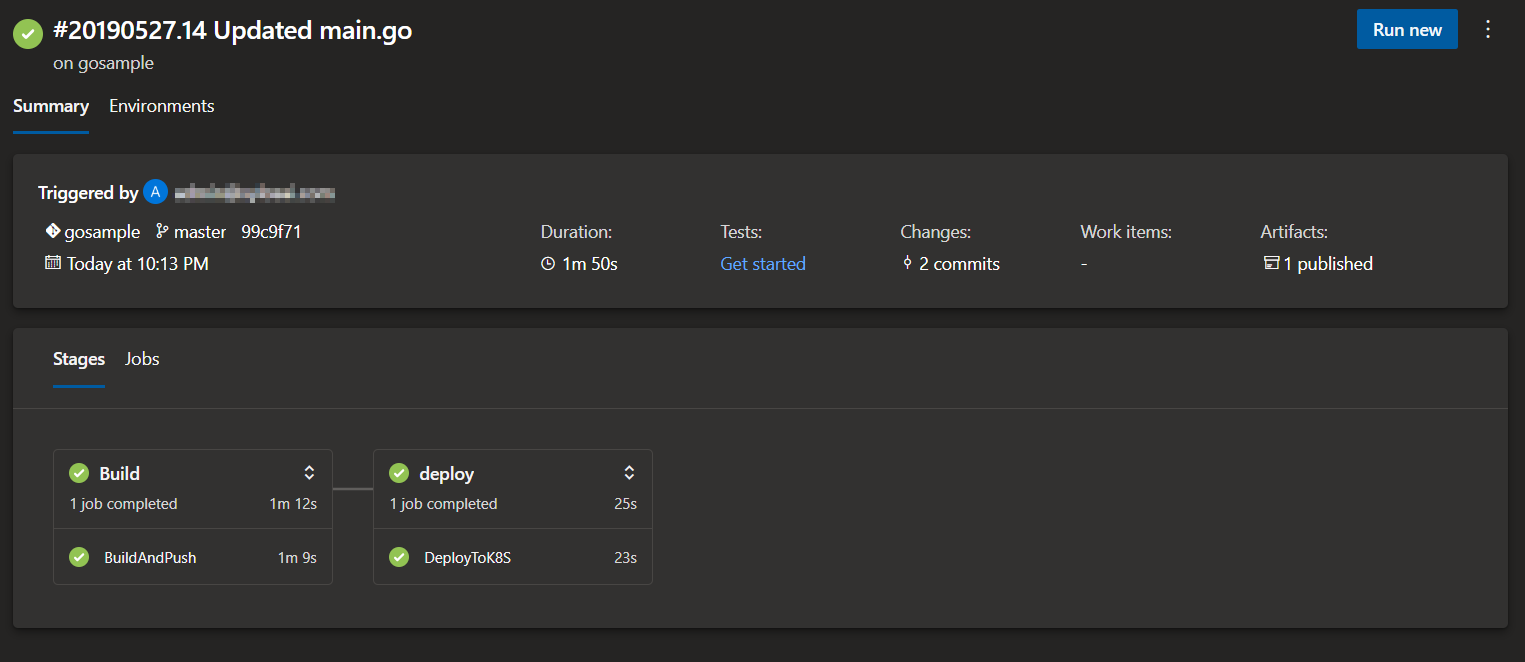
In this post, we will look at a simple build and release pipeline that builds a container, pushes it to ACR, deploys it to Kubernetes linked to an environment. Something like this:
Two stages in the pipeline – build and deploy (as simple as it can get, almost)
Note: I used a simple go app, a Dockerfile and a Kubernetes manifest as source files, check them out here.
Note: there is also a video version 😉
Note: if you start from a repository without manifests and azure-pipelines.yaml, the pipeline build wizard will propose Deploy to Azure Kubernetes Service. The wizard that follows will ask you some questions but in the end you will end up with a configured environment, the necessary service connections to AKS and ACR and even a service.yaml and deployment.yaml with the bare minimum to deploy your container!
“Show me the YAML!!!”
The file, azure-pipelines.yaml contains the two stages. Check out the first stage (plus trigger and variables) below:
The pipeline runs on a commit to the master branch. The variables imageName and registry are referenced later using $(imageName) and $(registry). Replace REGNAME with the name of your Azure Container Registry.
It’s a multi-stage pipeline, so we start with stages: and then define the first stage build. That stage has one job which consists of two steps:
Docker task (v2): build a Docker image based on the Dockerfile in the source code repository and push it to the container registry called ACR; ACR is a reference to a service connection defined in the project settings
PublishPipelineArtifact: the source code repository contains Kubernetes deployment manifests in YAML format in the manifests folder; the contents of that folder is published as a pipeline artifact, to be picked up in a later stage
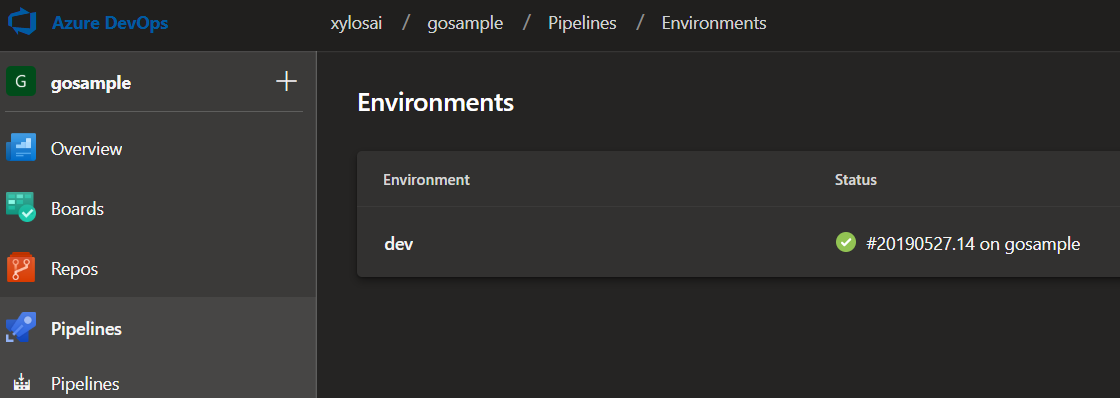
The second stage uses a deployment job (quite new; see this). In a deployment job, you can specify an environment to link to. In the above job, the environment is called dev. In Azure DevOps, the environment is shown as below:
dev environment
The environment functionality has Kubernetes integration which is pretty neat. You can drill down to the deployed objects such as deployments and services:
Kubernetes deployment in an Azure DevOps environment
The deployment has two tasks:
DownloadPipelineArtifact: download the artifact published in the first stage to $(System.ArtifactsDirectory)/manifests
KubernetesManifest: this task can deploy Kubernetes manifests; it uses an AKS service connection that was created during creation of the environment; a service account was created in a specific namespace and with access rights to that namespace only; the manifests property will look for an image name in the Kubernetes YAML files and append the tag which is the build id here
Note that the release stage will actually download the pipeline artifact automatically. The explicit DownloadPipelineArtifact task gives additional control over the download location.
The KubernetesManifest task is relatively new at the time of this writing (end of May 2019). Its image substitution functionality could be enough in many cases, without having to revert to Helm or manual text substitution tasks. There is more to this task than what I have described here. Check out the docs for more info.
Conclusion
If you are just starting out building CI/CD pipelines in YAML, you will probably have a hard time getting uses to the schema. I know I had! 😡 In the end though, doing it this way with the pipeline stored in source control will pay off in the long run. After some time, you will have built up a useful library of these pipelines to quickly get up and running in new projects. Recommended!!! 😉🚀🚀🚀
We will install Traefik with Helm and I assume the cluster has rbac enabled. If you deploy clusters with AKS, that is the default although you can turn it off. With rbac enabled, you need to install the server-side component of Helm, tiller, using the following commands:
The above command uses Helm to install the stable/traefik chart. Note that the chart is maintained by the community and not by the folks at Traefik. Traefik itself is exposed via a service of type LoadBalancer, which results in a public IP address. Use kubectl get svc traefik -n kube-system to check. There are ways to make sure the service uses a static IP but that is not discussed in this post. Check out this doc for AKS. The other settings do the following:
ssl.enabled: yes, SSL 😉
ssl.enforced: redirect to https when user uses http
acme.enabled: enable Let’s Encrypt
acme.email: set the e-mail address to use with Let’s Encrypt; you will get certificate expiry mails on that address
onHostRule: issue certificates based on the host setting in the ingress definition
acme.challengeType: method used by Let’s Encrypt to issue the certificate; use this one for regular certs; use DNS verification for wildcard certs
acme.staging: set to false to issue fully trusted certs; beware of rate limiting
dashboard.enabled: enable the Traefik dashboard; you can expose the service via an ingress object as well
Note: to specify a specific version of Traefik, use the imageTag parameter as part of –set; for instance imageTag=1.7.12
When the installation is finished, run the following commands:
# check installation
helm ls

# check traefik service
kubectl get svc traefik --namespace kube-system -w
The first command should show that Traefik is installed. The second command returns the traefik service, which we configured with serviceType LoadBalancer. The external IP of the service will be pending for a while. When you have an address and you browse it, you should get a 404. Result from curl -v below:
 Rebuilt URL to: http://IP/
 Trying 137.117.140.116…
 Connected to 137.117.140.116 (IP) port 80 (#0)
 GET / HTTP/1.1
 Host: IP
 User-Agent: curl/7.47.0
 Accept: /
 < HTTP/1.1 404 Not Found
 < Content-Type: text/plain; charset=utf-8
 < Vary: Accept-Encoding
 < X-Content-Type-Options: nosniff
 < Date: Fri, 24 May 2019 17:00:29 GMT
 < Content-Length: 19
 <
 404 page not found
Next, install nginx just to have a simple website to securely publish. Yes I know, kubectl run… 🤷
kubectl run nginx --image nginx --expose --port 80
The above command installs nginx but also creates an nginx service of type ClusterIP. We can expose that service via an ingress definition:
Replace your.domain.com with a host that resolves to the external IP address of the Traefik service. The annotation is not technically required if Traefik is the only Ingress Controller in your cluster. I prefer being explicit though. Save the above contents to a file and then run:
kubectl apply -f yourfile.yaml
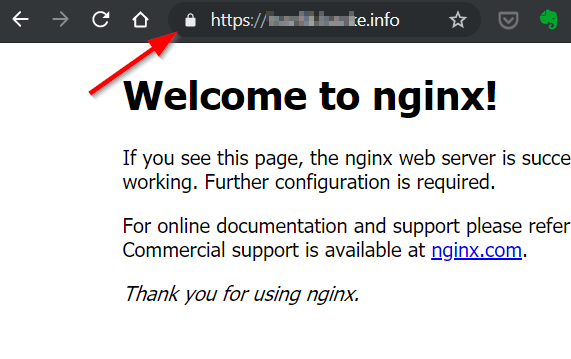
Now browse to whatever you used as domain. The result should be:
Yes… nginx exposed via Traefik and a Let’s Encrypt certificate
To expose the Traefik dashboard, use the yaml below. Note that we explicitly installed the dashboard by setting dashboard.enabled to true.
Put the above contents in a file and create the ingress object in the same namespace as the traefik-dashboard service. Use kubectl apply -f yourfile.yaml -n kube-system. You should then be able to access the dashboard with the host name you provided:
Traefik dashboard
Note: if you do not want to mess with DNS records that map to the IP address of the Ingress Controller, just use a xip.io address. In the ingress object’s host setting, use something like web.w.x.y.z.xip.io where web is just something you choose and w.x.y.z is the IP address of the Ingress Controller. Traefik will also request a certificate for such a name. For more information, check xip.io. Simple for testing purposes!
Now that the public preview of Windows containers on AKS is available, let’s look at the basics. You need a couple of things to get started, including a couple of subscription-wide settings. I recommend using a subscription that is not used to roll out production AKS clusters. Make sure the Azure CLI (az) is homed to the subscription. Use Azure Cloud Shell to make your life easier:
Install the aks-preview extension
Register the Windows preview feature
Check that the feature is active; this will take a few minutes
Register the Microsoft.ContainerService resource provider again (only if the Windows preview feature is active)
The following commands make the above happen:
az extension add --name aks-preview

az feature register --name WindowsPreview --namespace Microsoft.ContainerService

az feature list -o table --query "[?contains(name, 'Microsoft.ContainerService/WindowsPreview')].{Name:name,State:properties.state}"

az provider register --namespace Microsoft.ContainerService
With that out of the way, deploy a new AKS cluster:
Replace RESOURCEGROUP with an ARM resource group and replace APASSWORDHERE with a complex password. If you have ever deployed clusters that support multiple node pools with virtual machine scale sets, the above command will be very familiar. The only real difference here is –windows-admin-password and –windows-admin-username which are required to deploy the Windows hosts that will run your containers.
You can use the Windows user name and password to RDP into the Kubernetes nodes. You will need to deploy a jump host that has a route to the Kubernetes virtual network to make this happen as the Kubernetes hosts are not exposed with a public IP address. As they shouldn’t… 😉
Note that you need to deploy a node pool with Linux first (as in the above command). That is why the number of nodes has been set to the minimum. You cannot delete this node pool after adding a Windows node pool.
After deployment, you will see the cluster in the portal with the Linux node pool with one node:
node pool with one node
When you click Add node pool, you will be able to select the OS type of a new pool:
Both Linux and Windows as OS type for the node pool
We will add a Windows node pool via the CLI. The node pool will use the Standard_D2s_v3 virtual machine size by default, which is also the recommended minimum.
az aks nodepool add \
     --resource-group RESOURCEGROUP \
     --cluster-name winclu \
     --os-type Windows \
     --name winpl \
     --node-count 1 \
     --kubernetes-version 1.13.5
Note: the name of the Windows node pool cannot be longer than 6 characters
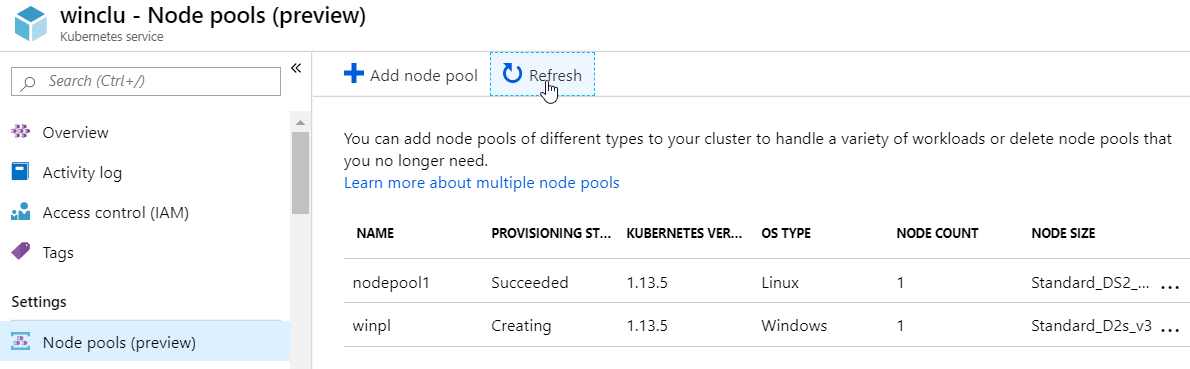
The node pool is now being added and will soon be ready:
windows node pool being added
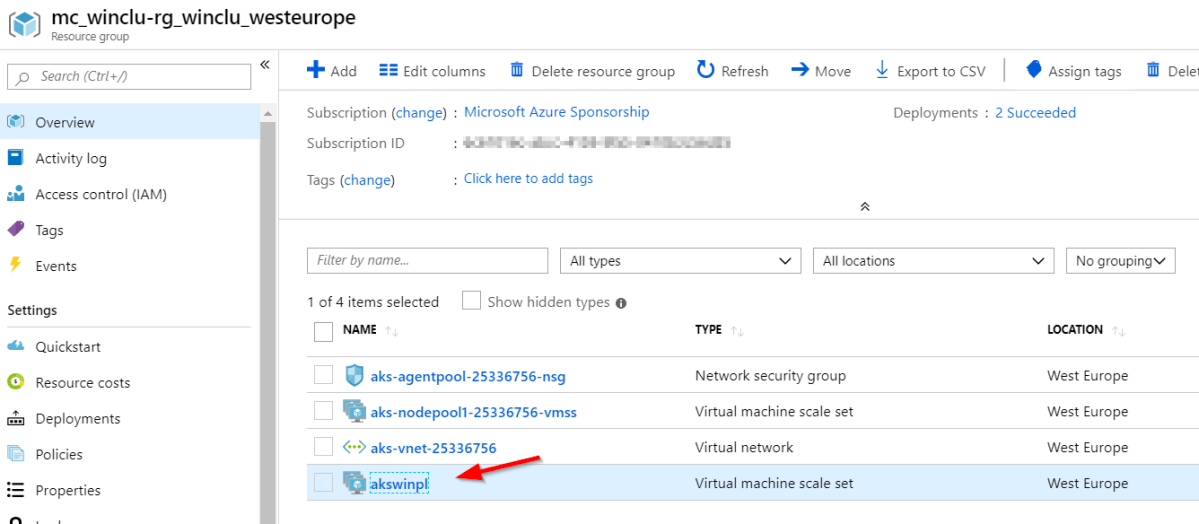
When ready, you will see an additional scale set in the resource group that backs this AKS deployment:
additional scale set for the Windows node pool
We can now schedule pods on the Windows node pool. You can schedule a pod on a Windows node by adding a nodeSelector to the pod spec:
nodeSelector:
  "beta.kubernetes.io/os": windows
To try this, let’s deploy a Windows version of my realtime-go app with the following command. The gist contains the YAML required to deploy the app and a service. It uses the gbaeke/realtime-go-win image on Docker Hub. The base image is mcr.microsoft.com/windows/nanoserver:1809. You need to use the 1809 version because the hosts use 1809 as well. With Hyper-V isolation, the kernel match would not be required.
This should deploy the app but sadly, it will error out. It needs a running redis server. Let’s deploy that the quick and dirty way (command on one line below):
I realize it’s ugly with the override but it does the trick. The above command creates a deployment called redis that sets the nodeSelector to target Linux nodes. It also creates a service of type ClusterIP that exposes port 6379. The ClusterIP allows the realtime-go-win container to connect to redis over the Kubernetes network. Now delete the realtime-go container and recreate it:
Note that I could not get DNS resolution to work in the Windows container. Normally, the realtime-go container should be able to find the redis service via the name redis or the complete FQDN of redis.default.svc.cluster.local. Because that did not work, the code in the realtime-go-win container was modified to use environment variables injected by Kubernetes:
Deploying an AKS cluster with both Linux and Windows node pools is a simple matter. Because you can now deploy both Windows and Linux containers, you have some additional work to make sure Windows containers go to Windows hosts and Linux containers to Linux hosts. Using a nodeSelector is an easy way to do that. There are other methods as well such as node taints. Sadly, I had an issue with Kubernetes DNS in the Windows container so I switched to injected environment variables.
As explained on https://github.com/rancher/rio, Rancher Rio is a MicroPaaS that can be layered on top of any standard Kubernetes cluster. It makes it easier to deploy, scale, version and expose services. In this post, we will take a quick look at some of its basic capabilities.
To follow along, make sure you have a Kubernetes cluster running. I deployed a standard AKS cluster with three nodes. In your shell (I used Ubuntu Bash on Windows), install Rio:
curl -sfL https://get.rio.io | sh -
After installation, check the version of Rio with:
rio --version
rio version v0.1.1-rc1 (cdb75cf1)
With v0.1.1 there was an issue with deploying the registry component. v0.1.1-rc1 fixes that.
Make sure you have kubectl installed and that its context points to the cluster in which you want to deploy Rio. If that is the case, just run the following command:
rio install
The above command will install a bunch of components in the rio-system namespace. After a while, running kubectl get po -n rio-system should show the list below:
Rio installed
Rio will install Istio and expose a service mesh gateway via a service of type load balancer. With AKS, this will result in an Azure load balancer that sends traffic to the service mesh gateway. When you deploy Rio services, you can automatically get a DNS name that will resolve to the external IP of the Azure load balancer.
Let’s install such a Rio service. We will use the following application: https://github.com/gbaeke/realtime-go. Instead of the master branch, we will deploy the httponly branch. The repo contains a Dockerfile with a two-stage build that results in a web application that displays messages published to redis in real time. Before we deploy the application, deploy redis with the following command:
kubectl run redis --image redis --port 6379 --expose
Now deploy the realtime-go app with Rio:
rio run -p 8080/http -n realtime --build-branch httponly --env REDISHOST=redis:6379 https://github.com/gbaeke/realtime-go.git
Rio makes it easy to deploy the application because it will pull the specified branch of the git repo and build the container image based on the Dockerfile. The above command also sets an environment variable that is used by the realtime-go code to find the redis host.
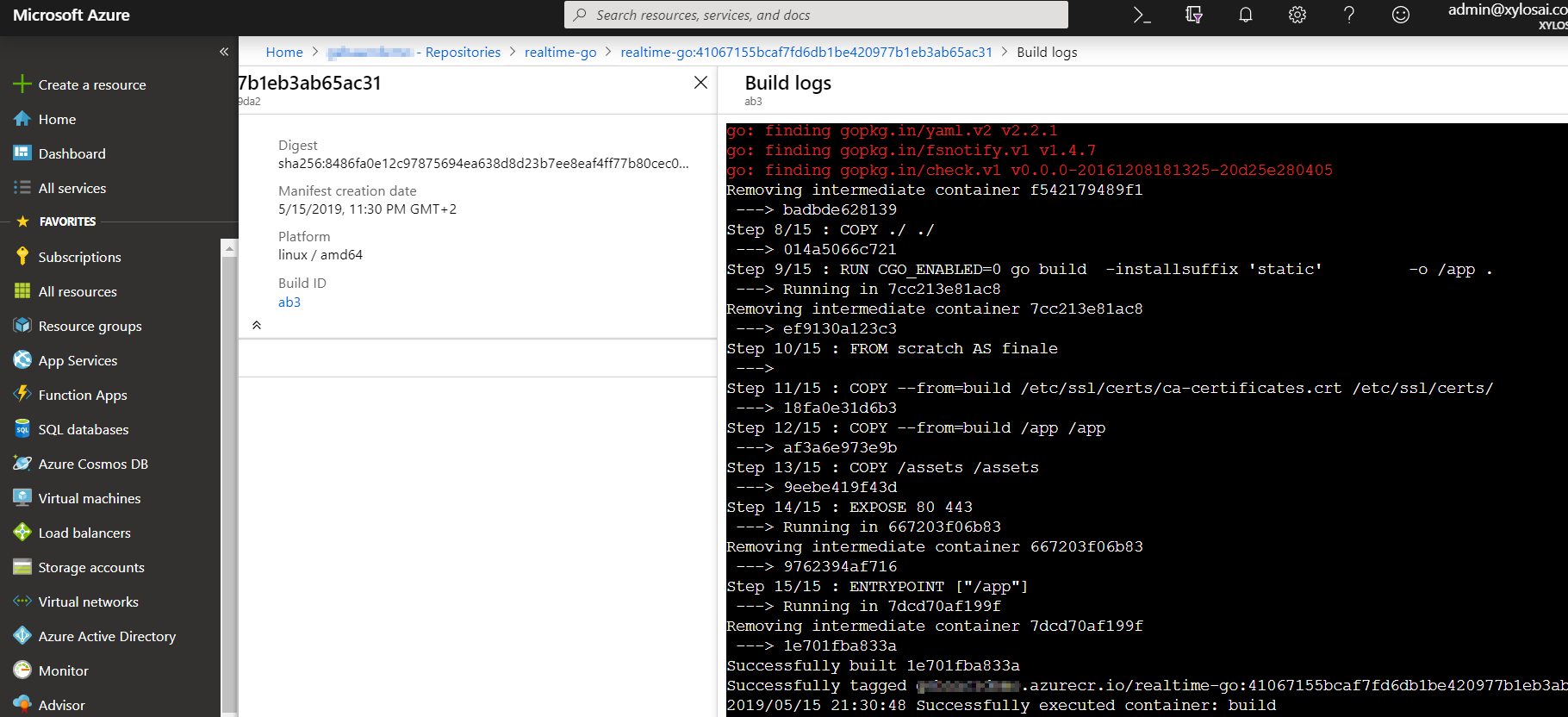
When the build is finished, the image is stored in the internal registry. You can check builds with rio builds. Get the build logs with rio build logsimagename. For example:
rio build logs default/realtime:7acdc6dfed59c1b93f2def1a84376a880aac9f5d
The result would be something like:
build logs
The rio run command results in a deployed service. Run rio ps to check this:
rio ps displays the deployed service
Notice that you also get a URL which is publicly accessible over SSL via a Let’s Encrypt certificate:
Application on public endpoint using a staging Let’s Encrypt cert
Just for fun, you can publish a message to the redis channel that this app checks for:
The above commands should display the message in the web app:
Great success!!!
To check the logs of the deployed service, run rio logs servicename. The result should be:
Logs from the realtime-go service
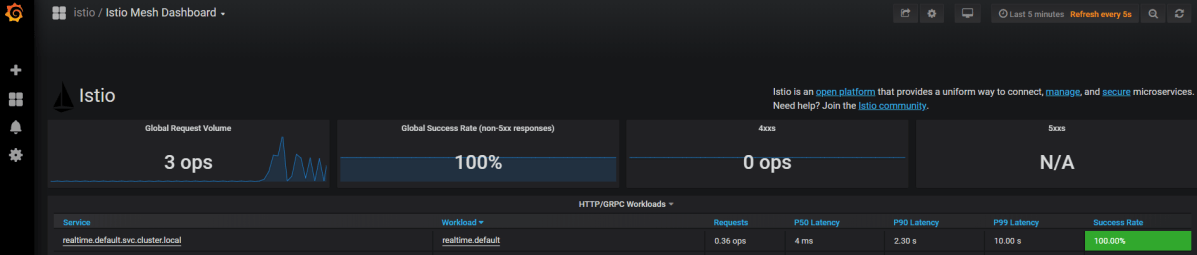
When you run rio –system ps you will see the rio system services. One of the services is Grafana, which contains Istio dashboards. Grab the URL of that service to access the dashboards:
One of the Istio dashboards
Even in this early version, Rio works quite well. It is very simple to install and it takes the grunt work out of deploying services on Kubernetes. Going from source code repository to a published service is just a single command, which is a bit similar to OpenShift. Highly recommended to give it a go when you have some time!
A longer time ago, I wrote a post about draft. Draft is a tool to streamline your Kubernetes development experience. It basically automates, based on your code, the creation of a container image, storing the image in a registry and installing a container based on that image using a Helm chart. Draft is meant to be used during the development process while you are still messing around with your code. It is not meant as a deployment mechanism in production.
The typical workflow is the following:
in the folder with your source files, run draft create
to build, push and install the container run draft up; in the background a Helm chart is used
to see the logs and connect to the app in your container over an SSH tunnel, run draft connect
modify your code and run draft up again
rinse and repeat…
Let’s take a look at how it works in a bit more detail, shall we?
Prerequisites
Naturally, you need a Kubernetes cluster with kubectl, the Kubernetes cli, configured to use that cluster.
Next, install Helm on your system and install Tiller, the server-side component of Helm on the cluster. Full installation instructions are here. If your cluster uses rbac, check out how to configure the proper service account and role binding. Run helm init to initialize Helm locally and install Tiller at the same time.
Now install draft on your system. Check out the quickstart for installation instructions. Run draftinit to initialize it.
Getting some source code
Let’s use a small Go program to play with draft. You can use the realtime-go repository. Clone it to your system and checkout the httponly branch:
You will need a redis server as a back-end for the realtime server. Let’s install that the quick and dirty way:
kubectl run redis --image=redis --replicas=1
kubectl expose deploy/redis –port 6379
Running draft create
In the realtime-go folder, run draft create. You should get the following output:
draft create output
The command tries to detect the language and it found several. In this case, because there is no pack for Coq (what is that? 😉) and HTML, it used Go. Knowing the language, draft creates a simple Dockerfile if there is no such file in the folder:
FROM golang
ENV PORT 8080
EXPOSE 8080

WORKDIR /go/src/app
COPY . .

RUN go get -d -v ./...
RUN go install -v ./...

CMD ["app"]
Usually, I do not use the Dockerfile created by draft. If there already is a Dockerfile in the folder, draft will use that one. That’s what happened in our case because the folder contains a 2-stage Dockerfile.
Draft created some other files as well:
draft.toml: configuration file (more info); can be used to create environments like staging and production with different settings such as the Kubernetes namespace to deploy to or the Dockerfile to use
draft.tasks.toml: run commands before or after you deploy your container with draft (more info); we could have used this to install and remove the redis container
.draftignore: yes, to ignore stuff
Draft also created a charts folder that contains the Helm chart that draft will use to deploy your container. It can be modified to suit your particular needs as we will see later.
Helm charts folder and a partial view on the deployment.yaml file in the chart
Setting the container registry
In older versions of draft, the source files were compressed and sent to a sever-side component that created the container. At present though, the container is built locally and then pushed to a registry of your choice. If you want to use Azure Container Registry (ACR), run the following commands (set and login):
draft config set registry REGISTRYNAME.azurecr.io
az acr login -n REGISTRYNAME
Note that you need the Azure CLI for the last command. You also need to set the subscription to the one that contains the registry you reference.
With this configuration, you need Docker on your system. Docker will build and push the container. If you want to build in the cloud, you can use ACR Build Tasks. To do that, use these commands:
draft config set container-builder acrbuild
draft config set registry REGISTRYNAME.azurecr.io
draft config set resource-group-name RESOURCEGROUPNAME
Make sure your are logged in to the subscription (az login) and login to ACR as well before continuing. In this example, I used ACR build tasks.
Note: because ACR build tasks do not cache intermediate layers, this approach can lead to longer build times; when the image is small as in this case, doing a local build and push is preferred!
Running draft up
We are now ready to run draft up. Let’s do so and see what happens:
results of draft up
YES!!!! Draft built the container image and released it. Run helm ls to check the release. It did not have to push the image because it was built in ACR and pushed from there. Let’s check the ACR build logs in the portal (you can also use the draft logs command):
acr build log for the 2-stage Docker build
Fixing issues
Although the container is properly deployed (check it with helm ls), if you run kubectl get pods you will notice an error:
container error
In this case, the container errors out because it cannot find the redis host, which is a dependency. We can tell the container to look for redis via a REDISHOST environment variable. You can add it to deployment.yaml in the chart like so:
environment variable in deployment.yaml
After this change, just run draft up again and hope for the best!
Running draft connect
With the realtime-go container up and running, run draft connect:
output of draft connect
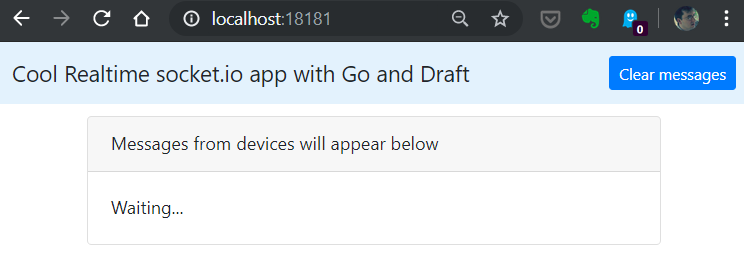
This maps a local port on your system to the remote port over an ssh tunnel. In addition, it streams the logs from the container. You can now connect to http://localhost:18181 (or whatever port you’ll get):
Great success! The app is running
If you want a public IP for your service, you can modify the Helm chart. In values.yaml, set service.type to LoadBalancer instead of ClusterIP and run draft up again. You can verify the external IP by running kubectl get svc.
Conclusion
Working with draft while your are working on one or more containers and still hacking away at your code really is smooth sailing. If you are not using it yet, give it a go and see if you like it. I bet you will!
Deploying Azure Kubernetes Service (AKS) is, like most other Kubernetes-as-a-service offerings such as those from DigitalOcean and Google, very straightforward. It’s either a few clicks in the portal or one or two command lines and you are finished.
Using these services properly and in a secure fashion is another matter though. I am often asked how to secure access to the cluster and its applications. In addition, customers also want visibility and control of incoming and outgoing traffic. Combining Azure Firewall with AKS is one way of achieving those objectives.
This post will take a look at the combination of Azure Firewall and AKS. It is inspired by this post by Dennis Zielke. In that post, Dennis provides all the necessary Azure CLI commands to get to the following setup:
In what follows, I will keep referring to the subnet names and IP addresses as in the above diagram.
Azure Firewall
Azure Firewall is a stateful firewall, provided as a service with built-in high availability. You deploy it in a subnet of a virtual network. The subnet should have the name AzureFirewallSubnet. The firewall will get two IP addresses:
Internal IP: the first IP address in the subnet (here 10.0.3.4)
Public IP: a public IP address; in the above setup we will use it to provide access to a Kubernetes Ingress controller via a DNAT rule
As in the physical world, you will need to instruct systems to route traffic through the firewall. In Azure, this is done via a route table. The following route table was created:
Route table
In (1) a route to 0.0.0.0/0 is defined that routes to the private IP of the firewall. The route will be used when no other route applies! The route table is associated with just the aks-5-subnet (2), which is the subnet where AKS (with advanced networking) is deployed. It’s important to note that now, all external traffic originating from the Kubernetes cluster passes through the firewall.
When you compare Azure Firewall to the Network Virtual Appliances (NVAs) from vendors such as CheckPoint, you will notice that the capabilities are somewhat limited. On the flip side though, Azure Firewall is super simple to deploy when compared with a highly available NVA setup.
Before we look at the firewall rules, let’s take a look at the Kubernetes Ingress Controller.
Kubernetes Ingress Controller
In this example, I will deploy nginx-ingress as an Ingress Controller. It will provide access to HTTP-based workloads running in the cluster and it can route to various workloads based on the URL. I will deploy the nginx-ingress with Helm.
Think of an nginx-ingress as a reverse proxy. It receives http requests, looks at the hostname and path (e.g. mydomain.com/api/user) and routes the request to the appropriate Kubernetes service (e.g. the user service).
Normally, the nginx-ingress service is accessed via an Azure external load balancer. Behind the scenes, this is the result of the service object having spec.type set to the value LoadBalancer. If we want external traffic to nginx-ingress to pass through the firewall, we will need to tell Kubernetes to create an internal load balancer via an annotation. Let’s do that with Helm. First, you will need to install tiller, the server-side component of Helm. Use the following procedure from the Microsoft documentation:
The second command installs nginx-ingress in the ingress namespace. The two –set parameters add the following annotations to the service object (yes I know, the Helm annotation parameters are ugly 🤢):
This ensures an internal load balancer gets created. It gets created in the mc-* resource group that backs your AKS deployment:
Internal load balancer created by the Kubernetes cloud integration components
Note that Kubernetes creates the load balancer, including the rules and probes for port 80 and 443 as defined in the service object that comes with the Helm chart. The load balancer is created in the ing-4-subnet as instructed by the service annotation. Its private IP address is 10.0.4.4 as in the diagram at the top of this post
DNAT Rule to Load Balancer
To provide access to internal resources, Azure Firewall uses DNAT rules which stands for destination network address translation. The concept is simple: traffic to the firewall’s public IP on some port can be forwarded to an internal IP on the same or another port. In our case, traffic to the firewall’s public IP on port 80 and 443 is forwarded to the internal load balancer’s private IP on port 80 and 443. The load balancer will forward the request to nginx-ingress:
DNAT rule forwarding port 80 and 443 traffic to the internal load balancer
If the installation of nginx-ingress was successful, you should end up at the default back-end when you go to http://firewallPublicIP.
nginx-ingress default backend when browsing to public IP of firewall
If you configured Log Analytics and installed the Azure Firewall solution, you can look at the firewall logs. DNAT actions are logged and can be inspected:
Firewall logs via Log Analytics
Application and Network Rules
Azure Firewall application rules are rules that allow or deny outgoing HTTP/HTTPS traffic based on the URL. The following rules were defined:
Application rules
The above rules allow http and https traffic to destinations such as docker.io, cloudflare and more.
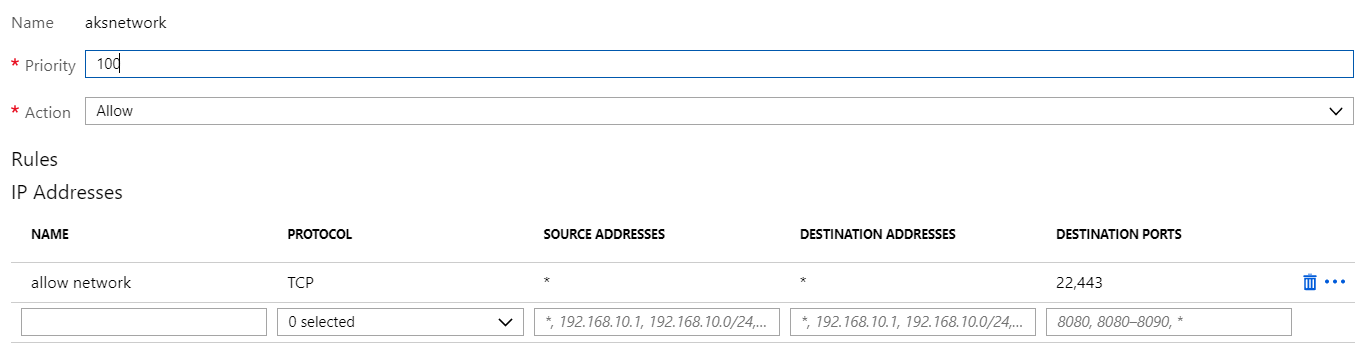
Note that another Azure Firewall rule type, network rules, are evaluated first. If a match is found, rule evaluation is stopped. Suppose you have these network rules:
Network rules
The above network rule allows port 22 and 443 for all sources and destinations. This means that Kubernetes can actually connect to any https-enabled site on the default port, regardless of the defined application rules. See rule processing for more information.
Threat Intelligence
This feature alerts on and/or denies network traffic coming from known bad IP addresses or domains. You can track this via Log Analytics:
Threat Intelligence Alerts and Denies on Azure Firewall
Above, you see denied port scans, traffic from botnets or brute force credentials attacks all being blocked by Azure Firewall. This feature is currently in preview.
Best Practices
The AKS documentation has a best practices section that discusses networking. It contains useful information about the networking model (Kubenet vs Azure CNI), ingresses and WAF. It does not, at this point in time (May 2019), desicribe how to use Azure Firewall with AKS. It would be great if that were added in the near future.
Here are a couple of key points to think about:
WAF (Web Application Firewall): Azure Firewall threat intelligence is not WAF; to enable WAF, there are several options:
you can use cloud-native WAFs such as TwistLock (WAF is one of the features of this product; it also provides firewall and vulnerability assessment)
remote access to Kubernetes API: today, the API server is exposed via a public IP address; having the API server on a local IP will be available soon
remote access to Kubernetes hosts using SSH: only allow SSH on the private IP addresses; use a bastion host to enable connectivity
Conclusion
Azure Kubernetes Service (AKS) can be combined with Azure Firewall to control network traffic to and from your Kubernetes cluster. Log Analytics provides the dashboard and logs to report and alert on traffic patterns. Features such as threat intelligence provide an extra layer of defense. For HTTP/HTTPS workloads (so most workloads), you should complement the deployment with a WAF such as Azure Application Gateway or 3rd party.
Several years ago, when we started our first adventures in the wonderful world of IoT, we created an application for visualizing real-time streams of sensor data. The sensor data came from custom-built devices that used 2G for connectivity. IoT networks and protocols such as SigFox, NB-IoT or Lora were not mainstream at that time. We leveraged what were then new and often preview-level Azure services such as IoT Hub, Stream Analytics, etc… The architecture was loosely based on lambda architecture with a hot and cold path and stateful window-based stream processing. Fun stuff!
Kubernetes already existed but had not taken off yet. Managed Kubernetes services such as Azure Kubernetes Service (AKS) weren’t a thing.
The application (end-user UI and management) was loosely based on a micro-services pattern and we decided to run the services as Docker containers. At that time, Karim Vaes, now a Program Manager for Azure Storage, worked at our company and was very enthusiastic about Rancher. , Rancher was still v1 and we decided to use it in combination with their own container orchestration framework called Cattle.
Our experience with Rancher was very positive. It was easy to deploy and run in production. The combination of GitHub, Shippable and the Rancher CLI made it extremely easy to deploy our code. Rancher, including Cattle, was very stable for our needs.
In recent years though, the growth of Kubernetes as a container orchestrator platform has far outpaced the others. Using an alternative orchestrator such as Cattle made less sense. Rancher 2.0 is now built around Kubernetes but maintains the same experience as earlier versions such as simple deployment and flexible configuration and management.
In this post, I will look at deploying Rancher 2.0 and importing an existing AKS cluster. This is a basic scenario but it allows you to get a feel for how it works. Indeed, besides deploying your cluster with Rancher from scratch (even on-premises on VMware), you can import existing Kubernetes clusters including managed clusters from Google, Amazon and Azure.
Installing Rancher
For evaluation purposes, it is best to just run Rancher on a single machine. I deployed an Azure virtual machine with the following properties:
Operating system: Ubuntu 16.04 LTS
Size: DS2v3 (2 vCPUs, 8GB of RAM)
Public IP with open ports 22, 80 and 443
DNS name: somename.westeurope.cloudapp.azure.com
In my personal DNS zone on CloudFlare, I created a CNAME record for the above DNS name. Later, when you install Rancher you can use the custom DNS name in combination with Let’s Encrypt support.
On the virtual machine, install Docker. Use the guide here. You can use the convenience script as a quick way to install Docker.
With Docker installed, install Rancher with the following command:
More details about the single node installation can be found here. Note that Rancher uses etcd as a datastore. With the command above, the data will be in /var/lib/rancher inside the container. This is ok if you are just doing a test drive. In other cases, use external storage and mount it on /var/lib/rancher.
A single-node install is great for test and development. For production, use the HA install. This will actually run Rancher on Kubernetes. Rancher recommends a dedicated cluster in this scenario.
After installation, just connect https://your-custom-domain and provide a password for the default admin user.
Adding a cluster
To get started, I added an existing three-node AKS cluster to Rancher. After you add the cluster and turn on monitoring, you will see the following screen when you navigate to Clusters and select the imported cluster:
Dashboard for a cluster
To demonstrate the functionality, I deployed a 3-node cluster (1.11.9) with RBAC enabled and standard networking. After deployment, open up Azure Cloud shell and get your credentials:
az aks list -o table
az aks get-credentials -n cluster-name -g cluster-resource-group
kubectl cluster-info
The first command lists the clusters in your subscription, including their name and resource group. The second command configures kubectl, the Kubernetes command line admin tool, which is pre-installed in Azure Cloud Shell. To verify you are connected, the last command simply displays cluster information.
Now that the cluster is deployed, let’s try to import it. In Rancher, navigate to Global – Clusters and click Add Cluster:
Add cluster via Import
Click Import, type a name and click Create. You will get a screen with a command to run:
Running the command to prepare the cluster for import
Continue on in Rancher, the cluster will be added (by the components you deployed above):
Cluster appears in the list
Click on the cluster:
Top of the cluster dashboard
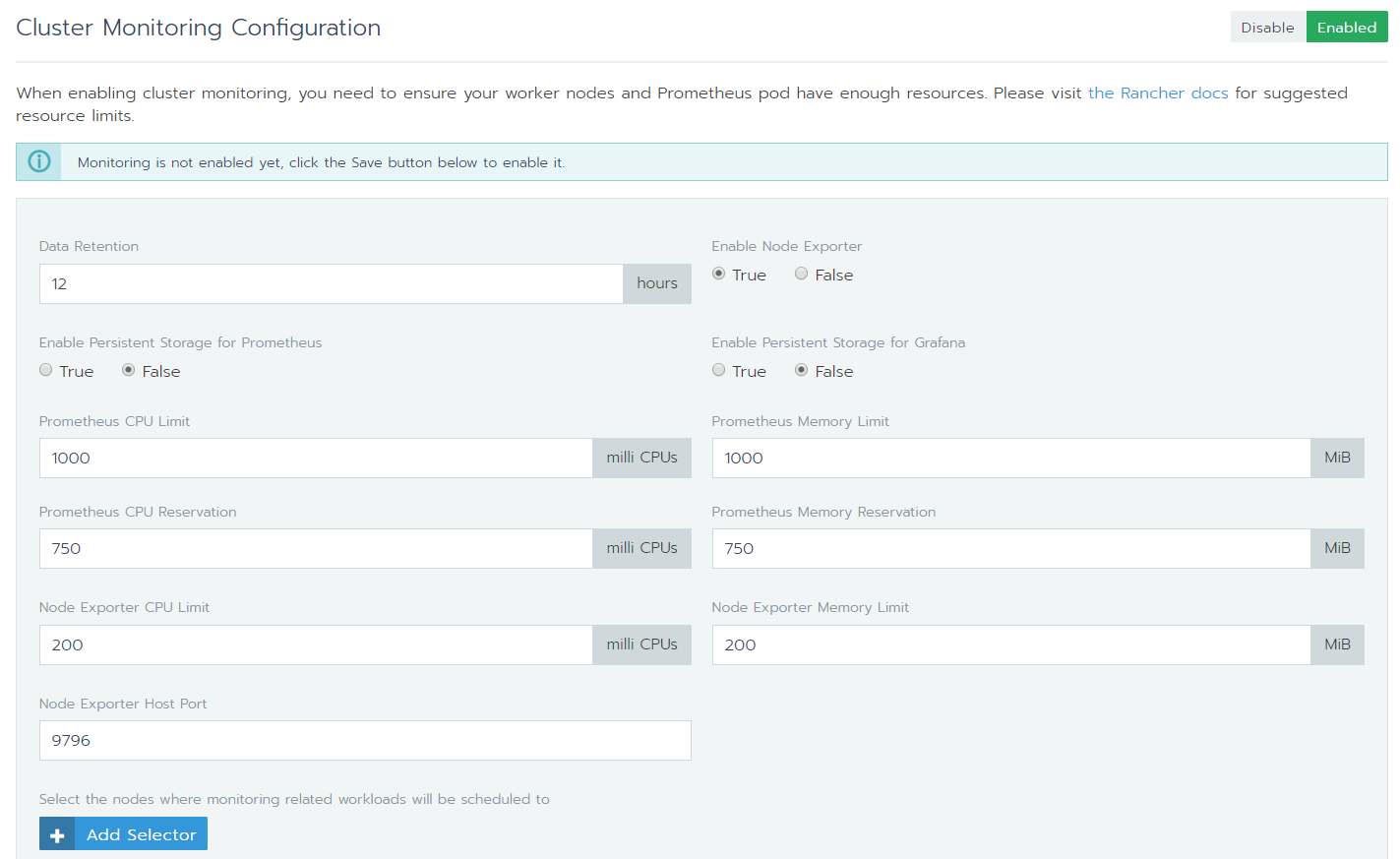
To see live metrics, you can click Enable Monitoring. This will install and configure Prometheus and Grafana. You can control several parameters of the deployment such as data retention:
Enabling monitoring
Notice that by default, persistent storage for Grafana and Prometheus is not configured.
Note: with monitoring enabled or not, you will notice the following error in the dashboard:
Controller manager and scheduler unhealthy?
The error is described here. In short, the components are probably healthy. The error is not related to a Rancher issue but an upstream Kubernetes issue.
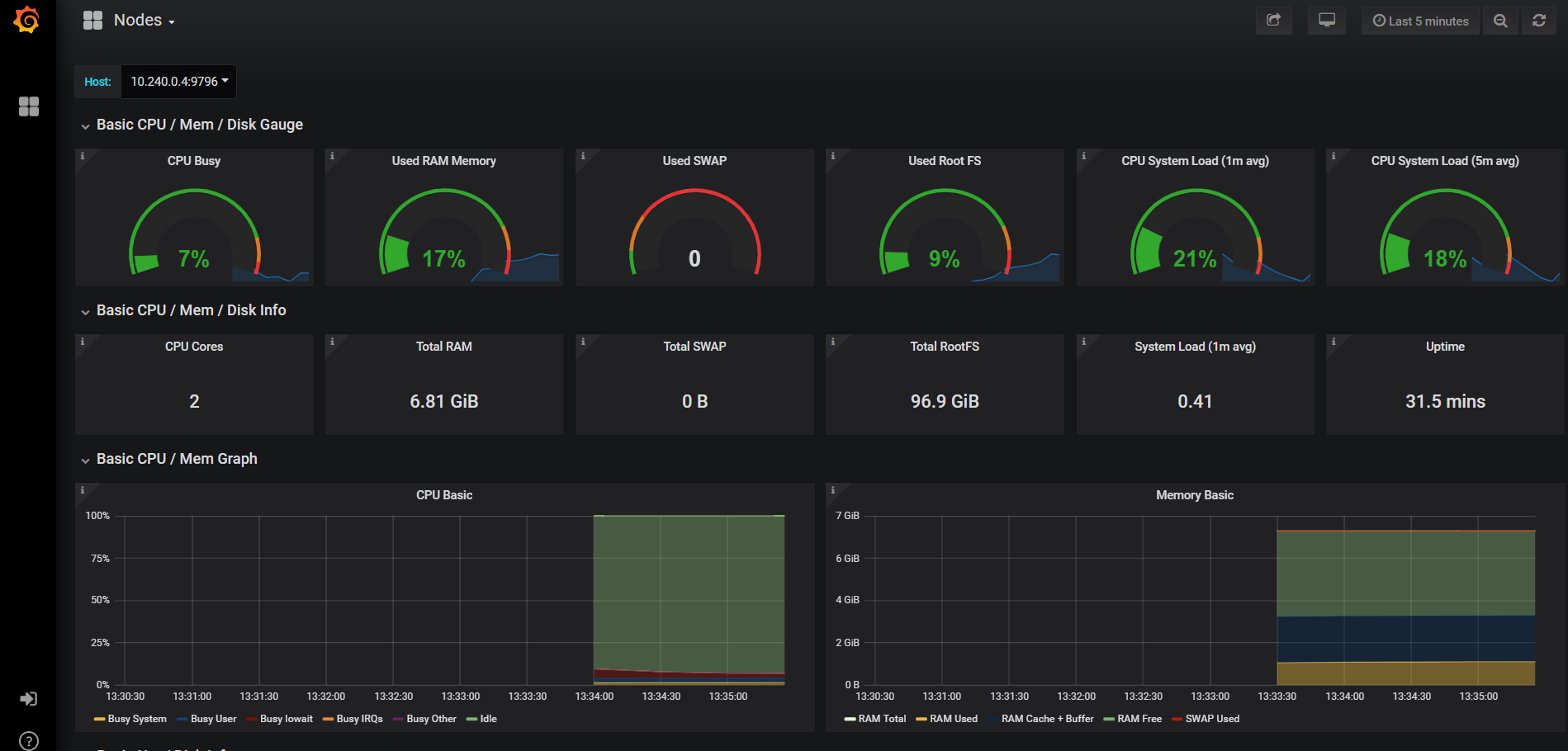
When the monitoring API is ready, you will see live metrics and Grafana icons. Clicking on the Graphana icon next to Nodes gives you this:
Node monitoring with Prometheus and Grafana
Of course, Azure provides Container Insights for monitoring. The Grafana dashboards are richer though. On the other hand, querying and alerting on logs and metrics from Container Insights is powerful as well. You can of course enable them all and use the best of both worlds.
Conclusion
We briefly looked at Rancher 2.0 and how it can interact with a existing AKS cluster. An existing cluster is easy to add. Once it is added, adding monitoring is “easy peasy lemon squeezy” as my daughter would call it! 😉 As with Rancher 1.x, I am again pleasantly surprised at how Rancher is able to make complex matters simpler and more fun to work with. There is much more to explore and do of course. That’s for some follow-up posts!
We recently had to deploy an Angular application to Kubernetes in three different environments: development, acceptance and production. The application is not accessed via the browser directly. Instead, it’s accessed via a Microsoft Office add-in.
The next sections will provide you with some tips to make this work. In practice, I do not recommend hosting static sites in Kubernetes. Instead, host such sites in a storage account with a CDN or use Azure FrontDoor.
Build and release pipelines
We keep our build and release pipelines as simple as possible. The build pipeline builds and pushes a Docker image and creates a Helm package:
Build pipeline
The Helm Package task merely packages the Helm chart in the linked git repository in a .tgz file. The .tgz file is published as an artifact, to be picked up by the release pipeline.
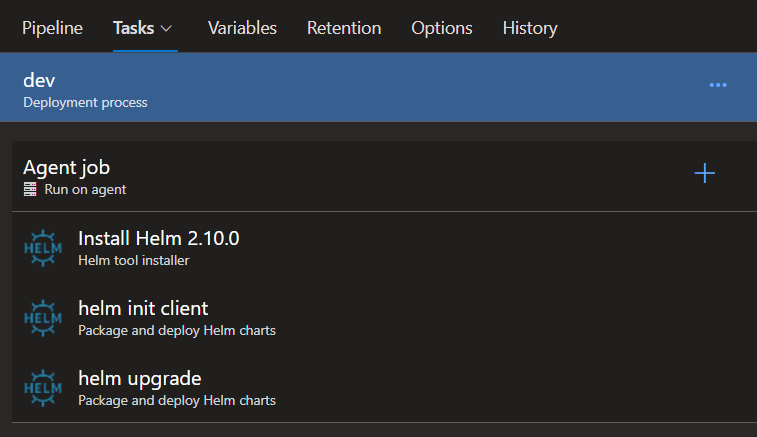
The release pipeline simply uses the helm upgrade command via a Helm task provided by Azure DevOps:
Release pipeline
Before we continue: these build and release steps actually just build an image to use as an initContainer in a Kubernetes pod. Why? Read on… 😉
initContainer
Although we build the Angular app in the build pipeline, we actually don’t use the build output. We merely build the app provisionally to cancel the build and subsequent release when there is an error during the Angular build.
In the release pipeline, we again build the Angular app after we updated environment.prod.ts to match the release environment. First read up on the use of environment.ts files to understand their use in an Angular app.
In the development environment for instance, we need to update the environment.prod.ts file with URLs that match the development environment URLs before we build:
The actual update is done by a shell script with trusty old sed:
#!/bin/bash

cd /app/src/environments
sed -i "s|#{apiUrl}#|$apiUrl|g" environment.prod.ts
sed -i "s|#{adUrl}#|$adUrl|g" environment.prod.ts

mkdir /usr/share/nginx/html/addin -p

npm install typescript@">=2.4.2 <2.7"
npm run build -- --output-path=/app/dist/out --configuration production --aot

cp /app/dist/out/* /usr/share/nginx/html/addin -r
The shell script expects environment variables $apiUrl and $adUrl to be set. After environment.prod.ts is updated, we build the Angular app with the correct settings for apiUrl and adUrl to end up in the transpiled and minified output.
The actual build happens in a Kubernetes initContainer. We build the initContainer in the Azure DevOps build pipeline. We don’t build the final container because that is just default nginx hosting static content.
Let’s look at the template in the Helm chart (just the initContainers section):
image: set by the release pipeline via a Helm parameter; the image tag is retrieved from the build pipeline via $(Build.BuildId)
command: the deploy.sh Bash script as discussed above; it is copied to the image during the build phase via the Dockerfile
environment variables (env): inserted via a Helm parameter in the release pipeline; for instance env.apiUrl=$(apiUrl) where $(apiUrl) is an Azure DevOps variable
volumeMounts: in another section of the YAML file, an emptyDir volume called officeaddin-files is created; that volume is mounted on the initContainer as /usr/share/nginx/html; deploy.sh actually copies the Angular build output to that location so the files end up in the volume; later, we can map that volume to the nginx container that hosts the website
After the initContainer successfully builds and copies the output, the main nginx container can start. Here is the Helm YAML (with some stuff left out for brevity):
The officeaddin-files volume with the build output from the initContainer is mounted on /usr/share/nginx/html, which is where nginx expects your files by default.
Nginx config for Angular
The default nginx config will not work. That is the reason you see an additional volume being mounted. The volume actually mounts a configMap on /etc/nginx/conf.d. Here is the configMap:
The above configMap, combined with the volumeMount, results in a file /etc/nginx/conf.d/default.conf. The default nginx configuration in /etc/nginx/nginx.conf will inlude all files in /etc/nginx/conf.d. The nginx configuration in that file maps all requests to /addin/index.html, which is exactly what we want for an Angular app (or React etc…).
Ingress Controller
The Angular app is published via a Kubernetes Ingress Controller. In this case, we use Voyager. We only need to add a rule to the Ingress definition that routes request to the appropriate NodePort service:
When you need to access Azure Storage (or other Azure resources) from a container in AKS (Kubernetes on Azure), you have many options. You can put credentials in your code (nooooo!), pass credentials via environment variables, use Kubernetes secrets, obtain secrets from Key Vault and so on. Usually, the credentials are keys but you can also connect to a Storage Account with an Azure AD account. Instead of a regular account, you can use a managed identity that you set up specifically for the purpose of accessing the storage account or a specific container.
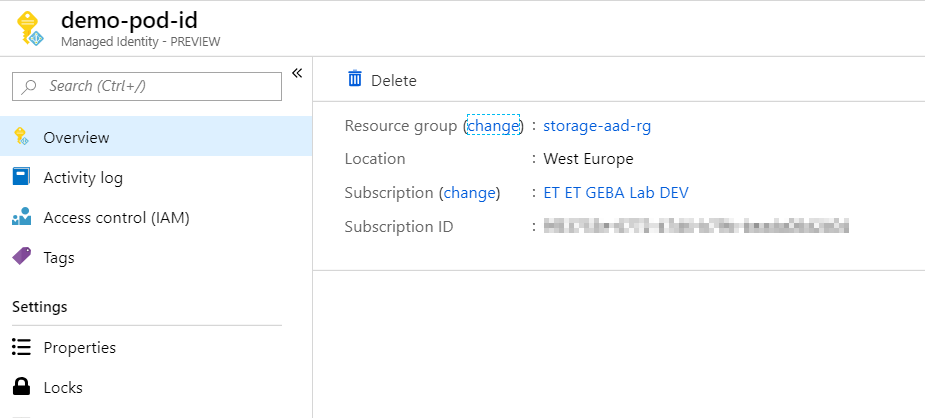
A managed identity is created as an Azure resource and will appear in the resource group where it was created:
User assigned managed identity
This managed identity can be created from the Azure Portal but also with the Azure CLI:
az identity create -g storage-aad-rg -n demo-pod-id -o json
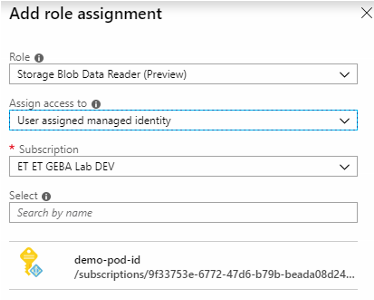
The managed identity can subsequently be granted access rights, for instance, on a storage account. Storage accounts now also support Azure AD accounts (in preview). You can assign roles such as Blob Data Reader, Blob Data Contributor and Blob Data Owner. The screenshot below shows the managed identity getting the Blob Data Reader role on the entire storage account:
Granting the managed identity access to a storage account
When you want to use this specific identity from a Kubernetes pod, you can use the aad-pod-identity project. Note that this is an open source project and that it is not quite finished. The project’s README contains all the instructions you need but here are the highlights:
Deploy the infrastructure required to support managed identities in pods; these are the MIC and NMI containers plus some custom resource definitions (CRDs)
Assign the AKS service principle the role of Managed Identity Operator over the scope of the managed identity created above (you would use the resource id of the managed identity in the scope such as /subscriptions/YOURSUBID/resourcegroups/YOURRESOURCEGROUP/providers/Microsoft.ManagedIdentity/userAssignedIdentities/YOURMANAGEDIDENTITY
Define the pod identity via the AzureIdentity custom resource definition (CRD); in the YAML file you will refer to the managed identity by its resource id (/subscr…) and client id
Define the identity binding via the AzureIdentityBinding custom resource definition (CRD); in the YAML file you will setup a selector that you will use later in a pod definition to associate the managed identity with the pod; I defined a selector called myapp
Here is the identity definition (uses one of the CRDs defined earlier):
Note that the installation of the infrastructure containers depends on RBAC being enabled or not. To check if RBAC is enabled on your AKS cluster, you can use https://resources.azure.com and search for your cluster. Check for the enableRBAC. In my cluster, RBAC was enabled:
Yep, RBAC enabled so make sure you use the RBAC YAML files
With everything configured, we can spin up a container with a label that matches the selector defined earlier:
Save the above to a file called ubuntu.yaml and use kubectl apply -f ubuntu.yaml to launch the pod. The pod will keep running because of the forever while loop. The pod can use the managed identity because of the aadpodidbinding label of myapp. Next, get a shell to the container:
kubectl exec -it ubuntu /bin/bash
To check if it works, we have to know how to obtain an access token (which is a JWT or JSON Web Token). We can obtain it via curl. First use apt-get update and then use apt-get install curl to install it. Then issue the following command to obtain a token for https://azure.storage.com:
TIP: if you are not very familiar with curl, use https://curlbuilder.com. As a precaution, do not paste your access token in the command builder.
The request to 169.254.169.254 goes to the Azure Instance Metadata Service which provides, among other things, an API to obtain a token. The result will be in the following form:
{"access_token":"THE ACTUAL ACCESS TOKEN","refresh_token":"", "expires_in":"28800","expires_on":"1549083688","not_before":"1549054588","resource":"https://storage.azure.com/","token_type":"Bearer"
Note that many of the SDKs that Microsoft provides, have support for managed identities baked in. That means that the SDK takes care of calling the Instance Metadata Service for you and presents you a token to use in subsequent calls to Azure APIs.
Now that you have the access token, you can use it in a request to the storage account, for instance to list containers:
curl -XGET -H 'Authorization: Bearer THE ACTUAL ACCESS TOKEN' -H 'x-ms-version: 2017-11-09' -H "Content-type: application/json" 'https://storageaadgeba.blob.core.windows.net/?comp=list
The result of the call is some XML with the container names. I only had a container called test:
OMG… XML
Wrap up
You have seen how to bind an Azure managed identity to a Kubernetes pod running on AKS. The aad-pod-identity project provides the necessary infrastructure and resources to bind the identity to a pod using a label in its YAML file. From there, you can work with the managed identity as you would on a virtual machine, calling the Instance Metadata Service to obtain the token (a JWT). Once you have the token, you can include it in REST calls to the Azure APIs by adding an authorization header. In this post we have used the storage APIs as an example.
Note that Microsoft has AKS Pod Identity marked as in development on the updates site. I am not aware if this is based on the aad-pod-identity project but it does mean that the feature will become an official part of AKS pretty soon!






























 baeke.info