Durable Execution for AI workflows

If you follow me on LinkedIn, you know I have talked about agentic workflows versus agents. Although everybody talks about agents, workflows are often better suited to many tasks. A workflow is more deterministic, is easier to reason about and to troubleshoot. Anthropic also talked about this a while ago in Building Effective Agents.

In fact, I often see people create tool-calling agents (e.g., in Copilot Studio) with instructions to call the tools in a specific order. For example: check if a mail is a complaint and if so, draft an e-mail response. Although this simple task will probably work with a non-deterministic agent, a workflow is better suited.

The question then becomes, how do you write the workflow? Simple workflows can easily be coded yourself. Instead of writing code, you might use a visual builder like Power Automate, Agent Flows in Copilot Studio, Logic Apps, n8n, make and many others.

But what if you need to write robust workflows that are more complex, need to scale, are long-running and need to pick up where they left off in case of failure? In that case, a durable execution engine might be a good fit. There are many such solutions on the market: restate, Temporal and many others, including several options in Azure.

Before we dive into how we can write such a workflow in Azure, let’s look at how one vendor, restate, defines durable execution:

Durable Execution is the practice of making code execution persistent, so that services recover automatically from crashes and restore the results of already completed operations and code blocks without re-executing them.
(from https://restate.dev/what-is-durable-execution/)

Ok, enough talk. Let’s see who we can write a workflow that uses durable execution. The example we use is kept straightforward to not get lost in the details:

  • I have a list of articles
  • Each article needs to be summarized. The summaries will be used in a later step to create a newsletter. We will use gpt-4.1-mini to create the summaries in parallel.
  • When the summaries are ready, we create a newsletter in HTML.
  • When the newsletter is ready, we will e-mail it to subscribers. There’s only one subscriber here, me! 🤷‍♂️

All code is here: https://github.com/gbaeke/dts_ai

Azure Durable Task Scheduler

There are several options for durable execution in Azure. One option is to use the newer Durable Task Scheduler in combination with the Durable Task SDKs. Another option is Durable Functions. These functions can also use the Durable Task Scheduler as the back-end.

The Durable Task Scheduler is the ❤️ heart of the solution as it keeps track of the different tasks in an orchestration (or workflow). On failure, it retains state, marking completed tasks and queuing pending ones to complete the orchestration. Note that the scheduler does not execute the tasks. That’s the job of a worker. Workers connect to the scheduler in order to complete the orchestration. The code in your worker does the actual processing like making LLM calls or talking to other systems.

The code you write (e.g., for the worker) uses the Durable Task SDK in your language of choice. I will use Python in this example.

For local development, you can use the Durable Task Scheduler emulator by running the following Docker container:

docker run --name dtsemulator -d -p 8080:8080 -p 8082:8082 mcr.microsoft.com/dts/dts-emulator:latest

Your code will connect to the emulator on port 8080. Port 8082 presents an administrative UI to check and interact with orchestrations:

A view on a completed orchestration with summaries in parallel and newletter creation at the end

Later, you can deploy the Durable Task Scheduler in Azure and use that instead of the local emulator.

Let’s build locally

As discussed about, we will create a workflow that takes articles as input, generates summaries, creates a newsletter and sends it via e-mail. With three articles, the following would happen:

Processing three articles to create and email a newsletter

The final newsletter looks something like this:

HTML newsletter generated from one or more articles

Don’t worry, I won’t send actual AI slop newsletters to you! 😊

To get started, we need to start the Durable Task Scheduler locally using this command (requires Docker):

docker run --name dtsemulator -d -p 8080:8080 -p 8082:8082 mcr.microsoft.com/dts/dts-emulator:latest

Next, we need a worker. The worker defines one or more activities in addition to one or more orchestrations that use these activities. Our worker has three activities:

  1. process_article: takes in an article and returns a summary generated by gpt-4.1-mini; no need for a fancy agent framework, we simply use the OpenAI SDK
  2. aggregate_results: takes in a list of summaries and generates the HTML newsletter using gpt-4.1-mini.
  3. send_email: e-mails the newsletter to myself with Resend

These activities are just Python functions. The process_article function is shown below:

def process_article(ctx, text: str) -> str:
    """
    Activity function summarizes the given text.    
    """
    logger.info(f"Summarizing text: {text}")
    wrapper = AgentWrapper()
    summary = wrapper.summarize(text)
    return summary

Easy does it I guess!

Next, the worker defines an orchestration function. The orchestration takes in the list of articles and contains code to run the activities as demanded by your workflow:

def fan_out_fan_in_orchestrator(ctx, articles: list) -> Any:

    # Fan out: Create a task for each article
    parallel_tasks = []
    for article in articles:
        parallel_tasks.append(ctx.call_activity("process_article", input=article))

    # Wait for all tasks to complete
    results = yield task.when_all(parallel_tasks)
    
    # Fan in: Aggregate all the results
    html_mail = yield ctx.call_activity("aggregate_results", input=results)

    # Send email
    email_request = EmailRequest(
        to_email=to_address,
        subject="Newsletter",
        html_content=html_mail,
    )
    email = yield ctx.call_activity("send_email", input=asdict(email_request))

    return "Newsletter sent"

When an orchestration runs an activity with call_activity, a task is returned. For each article, such a task is started with all tasks stored in the parallel_tasks list. The when_all helper yields the results of these tasks to the results lists until all tasks are finished. After that, we can pass results (a list of strings) to the aggregate_results activity and send a mail with the send_email activity.

⚠️ I use a dataclass to provide the send_email activity the required parameters. Check the full source code for more details.

The worker is responsible for connecting to the Durable Task Scheduler and registering activities and orchestrators. The snippet below illustrates this:

with DurableTaskSchedulerWorker(
    host_address=endpoint, 
    secure_channel=endpoint != "http://localhost:8080",
    taskhub=taskhub_name, 
    token_credential=credential
) as worker:
    
    # Register activities and orchestrators
    worker.add_activity(process_article)
    worker.add_activity(aggregate_results)
    worker.add_activity(send_email)
    worker.add_orchestrator(fan_out_fan_in_orchestrator)
    
    # Start the worker (without awaiting)
    worker.start()

When you use the emulator, the default address is http://localhost:8080 with credential set to None. In Azure, you will use the provided endpoint and RBAC to authenticate (e.g., managed identity of a container app).

Full code of the worker is here.

Now we just need a client that starts an orchestration with the input it requires. In this example we use a Python script that reads articles from a JSON file. The client then connects to the Durable Task Scheduler to kick off the orchestration. Here is the core snippet that does the job:

client = DurableTaskSchedulerClient(
    host_address=endpoint, 
    secure_channel=endpoint != "http://localhost:8080",
    taskhub=taskhub_name, 
    token_credential=credential
)

instance_id = client.schedule_new_orchestration(
    "fan_out_fan_in_orchestrator", 
    input=articles # simply a list of strings
)

result = client.wait_for_orchestration_completion(
    instance_id,
    timeout=120
)

# check runtime_status of result, grab serialized_result, etc...

Above, the client waits for 120 seconds before it times out.

⚠️ There are many ways to follow up on the results of an orchestration. This script uses a simple approach with a timeout. When there is a timeout, the script stops but the orchestration continues.

Full code of the client is here.

Checking if it works

Before we can run a test, ensure you started the Durable Task Scheduler emulator. Next, clone this repository:

From the root of the cloned folder, create a Python virtual environment:

python3 -m venv .venv

Activate the environment:

source .venv/bin/activate

cd into the src folder and install from requirements:

pip install -r requirements.txt

Ensure you have a .env in the root:

OPENAI_API_KEY=Your OpenAI API key 
RESEND_API_KEY=Your resend API key
FROM_ADDRESS=Your from address (e.g. NoReply <noreply@domain.com>)
TO_ADDRESS=Your to address

Now run the worker with python worker.py. You should see the following:

INFO:__main__:Starting Fan Out/Fan In pattern worker...
Using taskhub: default
Using endpoint: http://localhost:8080
2025-08-14 22:11:10.851 durabletask-worker INFO: Starting gRPC worker that connects to http://localhost:8080
2025-08-14 22:11:10.882 durabletask-worker INFO: Created fresh connection to http://localhost:8080
2025-08-14 22:11:10.882 durabletask-worker INFO: Successfully connected to http://localhost:8080. Waiting for work items...

The worker is waiting for work items. We will submit them from our client.

From the same folder, in another terminal, run the client with python client.py. It will use the sample articles_short.json file.

INFO:__main__:Starting Fan Out/Fan In pattern client...
Using taskhub: default
Using endpoint: http://localhost:8080
INFO:__main__:Loaded 11 articles from articles.json
INFO:__main__:Starting new fan out/fan in orchestration with 11 articles
2025-08-14 22:25:02.946 durabletask-client INFO: Starting new 'fan_out_fan_in_orchestrator' instance with ID = '3a1bb4d9e3f240dda33daf982a5a3882'.
INFO:__main__:Started orchestration with ID = 3a1bb4d9e3f240dda33daf982a5a3882
INFO:__main__:Waiting for orchestration to complete...
2025-08-14 22:25:02.969 durabletask-client INFO: Waiting 120s for instance '3a1bb4d9e3f240dda33daf982a5a3882' to complete.

When the orchestration completes, the client outputs the result. That is simply Newsletter sent. 🤷‍♂️

You can see the orchestration in action by going to http://localhost:8082. Select the task hub default and click your orchestration at the top. In the screenshot below, the orchestration was still running and busy aggregating results.🤷‍♂️

Orchestration in progress (I used a longer list of articles in articles.json. Check the repo!

An interesting thing to try is to kill the worker while it’s busy processing. When you do that, the client will eventually timeout with a TimeoutError (if you wait long enough). If you check the portal, the orchestration will stay in a running state. However, when you start the worker again, it will restart where it left off:

INFO:__main__:From address: baeke.info <noreply@baeke.info>
INFO:__main__:To address: Geert Baeke <geert@baeke.info>
INFO:__main__:Starting Fan Out/Fan In pattern worker...
Using taskhub: default
Using endpoint: http://localhost:8080
2025-08-14 23:14:22.979 durabletask-worker INFO: Starting gRPC worker that connects to http://localhost:8080
2025-08-14 23:14:23.003 durabletask-worker INFO: Created fresh connection to http://localhost:8080
2025-08-14 23:14:23.004 durabletask-worker INFO: Successfully connected to http://localhost:8080. Waiting for work items...
INFO:__main__:Aggregating 4 summaries

I killed my worker when it was busy aggregating the summaries. When the worker got restarted, the aggregation started again and used the previously saved state to get to work again. Cool! 😎

Wrapping Up!

In this post we created a durable workflow with the Durable Task Scheduler emulator running on a local machine. We used the Durable Task SDK for Python to create a worker that is able to run an orchestration that aggregates multiple summaries into a newsletter. We demonstrated that such a workflow survives worker crashes and that it can pick up where it left off.

However, we have only scratched the surface here. Stay tuned for another post that uses Durable Task Scheduler in Azure together with workers and clients in Azure Container Apps.

Writing your first flow with Prompt Flow in Visual Studio Code

In this blog post, we will create a flow with Prompt Flow in Visual Studio Code. Prompt Flow is a suite of development tools to build LLM-based AI applications. It tries to cover the end-to-end development cycle, including prototyping, testing and deployment to production.

In Prompt Flow, you create flows. Flows link LLMs (large language models), prompts and tools together in an executable workflow. An example of such a flow is show below:

Sample flow

The flow above (basically a distributed acyclical graph – DAG – of functions) sends its input, a description to search for an image, to a tool that embeds the description with an Azure OpenAI embedding model. The embedding is used as input to a Python tool that does a similarity search in Azure AI Search. The search returns three results. The original input, together with the query results, are subsequently handed to an LLM (above, the final_result node) that hopefully picks the correct image url.

Although you could write your own API that does all of the above, Prompt Flow allows you to visually build, run and debug a flow that has input and output. When you are happy with the flow, you can convert it to an API. One of the ways to host the API is via a container.

We will build this flow on our local machine and host it as a container. Note that Prompt Flow can also be used from the portal using Azure Machine Learning or Azure AI Studio.

👉 Another blog post will describe how to build and run the container

Installing Prompt Flow on your machine

To install Prompt Flow you will need Python on your machine. Use Python 3.9 or higher. I use Python 3.11 on an Apple M2. Check the full installation instructions here. Without using a Python virtual environment, you can just run the following command to install Prompt Flow:

pip install promptflow promptflow-tools

Next, run pf -v to check the installation.

⚠️ Do not forget to install promptflow-tools because it enables the embedding tool, llm tool and other tools to be used as nodes in the flow; also ensure this package is installed in the container image that will be created for this flow

In Visual Studio Code, install the Prompt flow for VS Code extension. It has the VS Code Python Extension as a prerequisite. Be sure to check the Prompt Flow Quick Start for full instructions.

We will mainly use the Visual Code extension. Note that the pf command can be used to perform many of the tasks we will discuss below (e.g, creating connections, running a flow, etc…).

Creating an empty flow

In VS Code, ensure you opened an empty folder or create a new folder. Right click and select New flow in this directory. You will get the following question:

Flow selection

Select Empty Flow. This creates a file called flow.dag.yaml with the following content:

Empty flow.dag.yaml

If you look closely, you will see a link to open a Visual editor. Click that link:

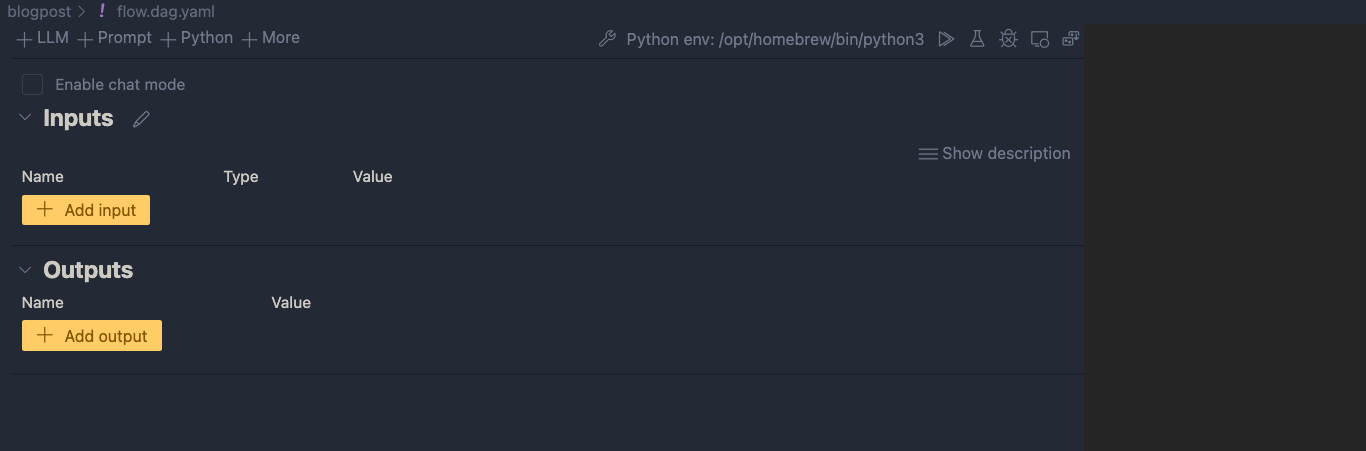
Visual editor with empty input and output and blank canvas

We can now add input(s) and output(s) and add the nodes in between.

Inputs and outputs

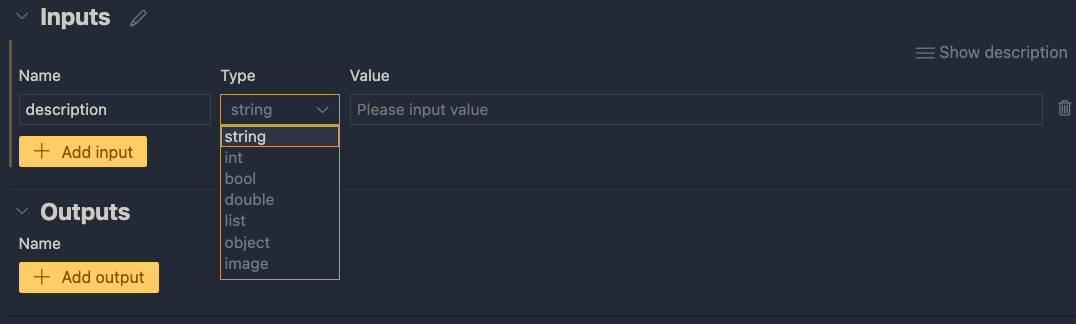
Inputs have a type and a value. Add a string input called description:

One string input: a description (of an image, like creature or fruit)

When you later run the flow, you can type the description in the Value textbox. When the flow is converted to an API, the API will except a description in the POST body.

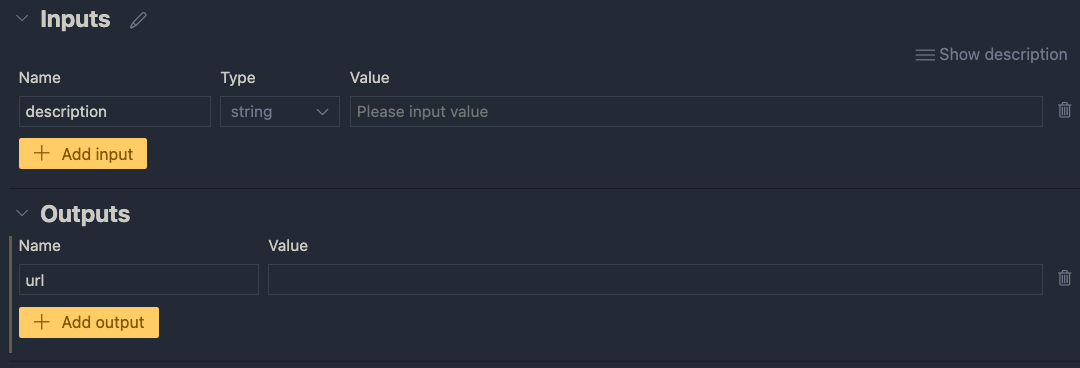
Next, add an output called url. In the end, the flow returns a url to an image that matches the description:

One output: the url to a matching image

The value of the output will be the coming from another node. We still have to add those. If you click the Value dropdown list, you will only be able to select the input value for now. You can do that and click the run icon. Save your flow before running it.

Running the flow with output set to the input

When you click the run button, a command will be run in the terminal that runs the flow:

python3 -m promptflow._cli._pf.entry flow test --flow /Users/geertbaeke/projects/promptflow/images/blogpost --user-agent "prompt-flow-extension/1.6.0 (darwin; arm64) VSCode/1.85.0"

The output of this command is:

Output of the flow is JSON, here with just the url

Although this is not very useful, the flow runs and produces a result. The output is our input. We can now add nodes to do something useful.

Creating an embedding from the description

We need to embed the description to search for similar descriptions in an Azure AI Search index. If you are not sure what embeddings are, check Microsoft Learn for a quick intro. It short, it’s a bunch of numbers that represents the meaning of a piece of text. We can use the numbers of the description to compare it to the sets of numbers of image descriptions to see how close they are.

To create an embedding, we need access to an Azure OpenAI embedding model. Such a model takes text as input and returns the bunch of numbers we talked about. This model returns 1536 numbers, aka dimensions.

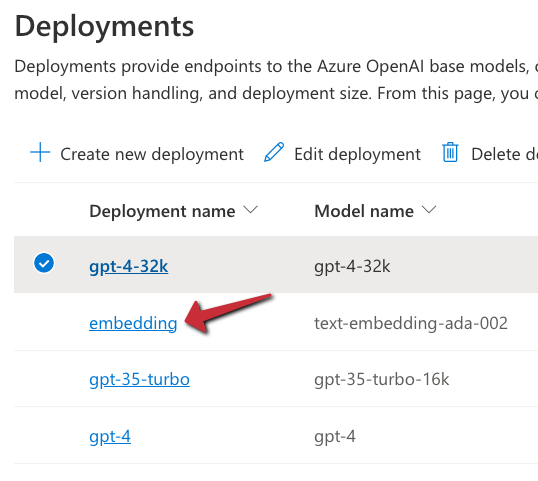
To use the model, we will need an Azure OpenAI resource’s endpoint and key. If you do not have an Azure OpenAI resource in Azure, create one and deploy the text-embedding-ada-002 model. In my example, the deployment is called embedding:

Embedding model in Azure OpenAI

With the Azure resources created, we can add a connection in Prompt Flow that holds the OpenAI endpoint and key:

Click the Prompt Flow extension icon and click + next to Azure OpenAI in the Connections section:

Azure OpenAI connection

A document will open that looks like the one below:

Connection information

Fill in the name and api_base only. The api_base is the https url to your Azure OpenAI instance. It’s something like https://OPENAIRESOURCENAME.openai.azure.com/. Do not provide the api_key. When you click Create connection (the smallish link at the bottom), you will be asked for the key.

After providing the key, the connection should appear under the Azure OpenAI section. You will need this connection in the embedding tool to point to the embedding model to use.

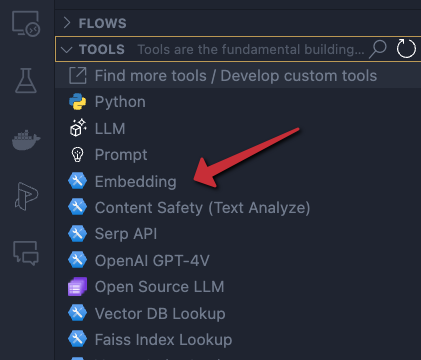
In the Prompt Flow extension pane, now click + next to Embedding in the TOOLS section:

Embedding tool

You will be asked for the tool’s name (top of VS Code window). Provide a name (e.g, embedding) and press enter. Select the connection you just created, the deployment name of your embedding model and the input. The input is the description we configured in the flow’s input node. We want to embed that description. The output of this tool will be a list of floating point numbers, a vector, of 1536 dimensions.

Embedding tool

The moment you set the input of the embedding, the input node will be connected to the embedding node on the canvas. To check if embedding works, you can connect the output of the embedding node to the url output and run the flow. You should then see the vector as output. The canvas looks like:

Show the embedding as output

Of course, we will need to supply the embedding to a vector search engine, not to the output. In our case, that is Azure AI Search. Let’s try that…

⚠️ Instead of connecting the embedding to the output, you can simply debug the embedding by clicking the debug icon in the embedding tool. The tool will be executed with the value of the input. The result should be a bunch of numbers in your terminal:

Debug output of the embedding tool

Searching for similar images

This section is a bit more tricky because you need an Azure AI Search index that allows you to search for images using a description of an image. To create such an index, see https://atomic-temporary-16150886.wpcomstaging.com/2023/12/09/building-an-azure-ai-search-index-with-a-custom-skill/.

Although you can use a Vector DB Lookup tool that supports Azure AI Search, we will create a custom Python tool that does the same thing. The Python tool uses the azure-search-documents Python library to perform the search. Learning how to use Python tools is important to implement logic there is no specific tool for.

First, we will create a custom connection that holds the name of our Azure AI Search instance and a key to authenticate.

Similar to the Azure OpenAI connection, create a custom connection:

Custom connection

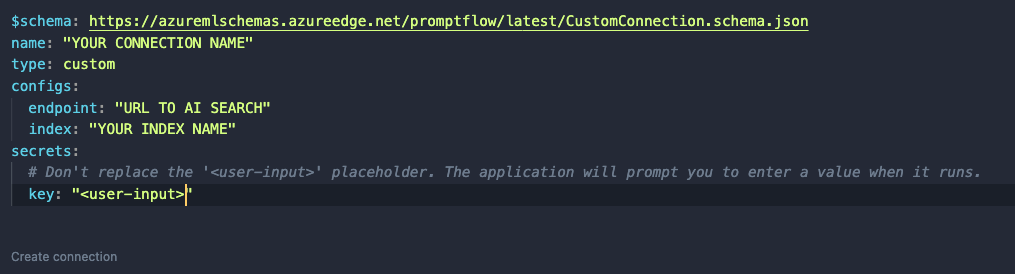
After clicking +, a document opens. Modify it as follows:

Custom connection content

Like before, set a name. In a custom connection, you can have configs and secrets. In configs add the Azure AI Search endpoint and index name. In the secrets set key to <user-input>. When you click Create connection, you will be asked to supply the key.

⚠️ Connection information is saved to a local SQLLite database in the .promtflow folder in your home folder

We can now add a Python tool. In TOOLS, next to Python click +. Give the tool a name and select new file. You should get a new Python file in your code with the filename set to <YOURTOOLNAME>.py. The code without comments is below:

from promptflow import tool

@tool
def my_python_tool(input1: str) -> str:
    return 'hello ' + input1

This tool takes a string input and returns a string. The @tool decorator is required.

We need to change this code to get the custom connection information, query Azure AI Search and return search results as a list. The code is below:

from promptflow import tool
from promptflow.connections import CustomConnection
from azure.core.credentials import AzureKeyCredential
from azure.search.documents import SearchClient
from azure.search.documents.models import VectorizedQuery

@tool
def my_python_tool(vector: list, ai_conn: CustomConnection) -> list:
    ai_conn_dict = dict(ai_conn)
    endpoint = ai_conn_dict['endpoint']
    key = ai_conn_dict['key']
    index = ai_conn_dict['index']

    # query azure ai search
    credential = AzureKeyCredential(key)
    client = SearchClient(endpoint=endpoint,
                          index_name=index,
                          credential=credential)
    vector_query = VectorizedQuery(vector=vector, k_nearest_neighbors=3, fields="textVector", exhaustive=True)
    results = client.search(
        search_text=None,
        vector_queries=[vector_query],
        select=["name", "description", "url"]
    )

    # convert results to json list
    results = [dict(result) for result in results]

    return results

The function has two parameters: a vector of type list to match the output of the embedding tool, and a variable of type CustomConnection. The custom connection can be converted to a dict to retrieve both the configs and the secret.

Next, we use the configs and secret to perform the query with a SearchClient. The query only returns three fields from our index: name, description and url. The result returned from Azure AI Search is converted to a list and returned.

When you save the Python file and go back to your flow, you should see the Python tool (aisearch) with the vector and ai_conn field. If not, click the regenerate link. Set it as below:

Python tool

The input to the Python tool is the output from the embedding tool. We also pass in the custom connection to provide the configs and key to the tool.

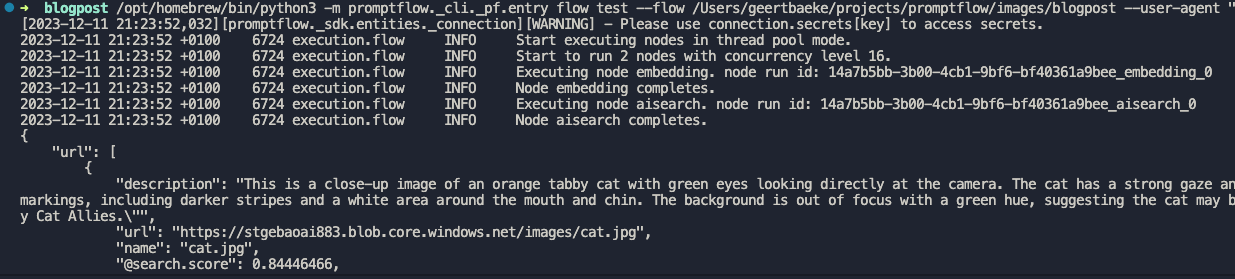
You can set the output of the entire flow (url) to the output of the Python tool to check the results of the search when you run the flow:

Running the flow with Python tool’s output as output

I ran the flow with a description equal to cat. A list of three JSON objects is returned.The first search result is the url to cat.jpg but there are other results as well (not shown above).

Adding an LLM tool

Although we could just pick the first result from the search, that would not work very well. Azure AI Search will always return a result, even if it does not make much sense. In a search for nearest neighbors, your nearest neighbor could be very far away! 😀

For example, if I search for person with a hat, I will get a result even though I do not have such a picture in my index. It simply finds vectors that are “closest” but semantically “far” away from my description. That is bound to happen with just a few images in the index.

An LLM can look at the original description and see if it matches one of the search results. It might pick the 3rd result if it fits better. It might also decide to return nothing if there is no match. In order to do so, we will need a good prompt.

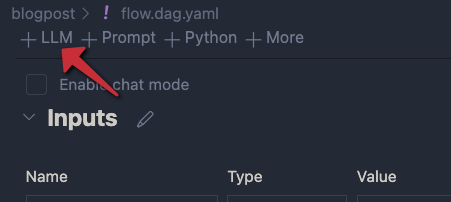
Click + LLM at the top left of the flow to add an LLM tool:

Adding an LLM

Give the LLM tool a name and select new file. In the flow editor, set the LLM model information:

LLM settings

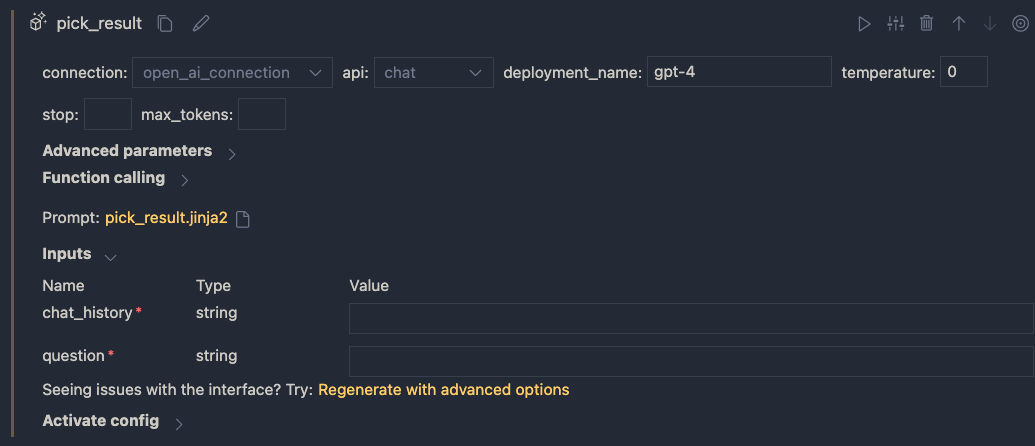
You can reuse the connection that was used for the embedding. Ensure you have deployed a chat model in your Azure OpenAI resource. I deployed gpt-4 and called the deployment gpt-4 as well. I also set temperature to 0.

The inputs of the node do not make much sense. We do not need chat history for instance. The inputs come from a .jinja2 file that was created for you. The file has the name of the LLM tool. Following the example above, the name is pick_result.jinja2. Open that file and replace it with the following contents and save it:

system:
You return the url to an image that best matches the user's question. Use the provided context to select the image. Only return the url. When no
matching url is found, simply return NO_IMAGE

user:
{{description}}

context : {{search_results}}

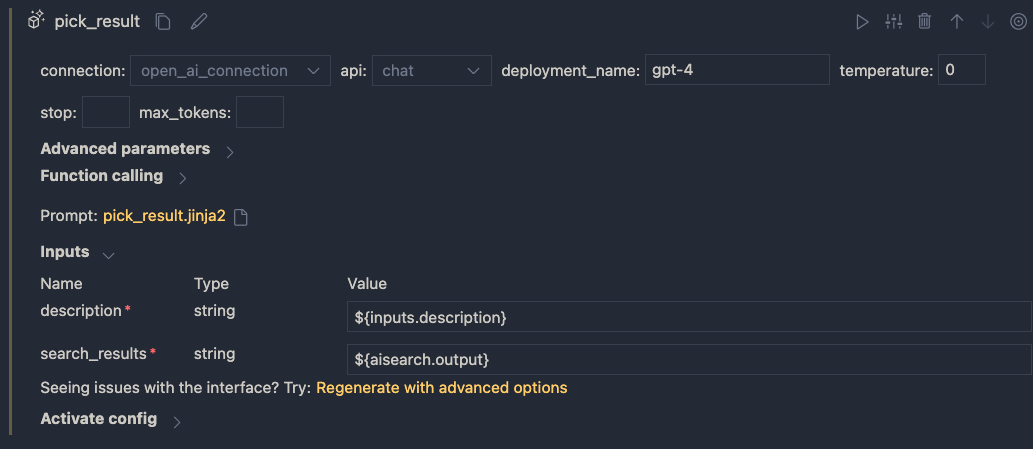
The file defines a system message to tell the LLM what to do. The input from the user is the description from the input node. We provide extra context to the LLM as well (the output from search). The {{…}} serve as placeholders to inject data into the prompt.

When you save the file and go back to the flow designer, you should see description and search_results as parameters. Set them as follows:

Inputs to the LLM node

In addition, set the output of the flow output node to the output of the LLM node:

Setting the output

Save your flow and run it. In my case, with a description of cat I get the following output:

Output is just a URL from the LLM node

It I use man with a hat as input, I get:

LLM did not find a URL to match the description

Using a prompt variant

Suppose we want to try a different prompt that returns JSON instead of text. To try that, we can create a prompt variant.

In the LLM node, click the variants icon:

Variants

You will see a + icon to create a new variant. Click it.

New variant

The variant appears under the original variant and is linked to a new file: pick_result_variant_1.jinja2. I have also set the variant as default. Let’s click the new file to open it. Add the following prompt:

system:
You return the url to an image that best matches the user's question. Use the provided context to select the image. 
Return the url and name of the file as JSON. Here is an example of a response. Do not use markdown in the response. Use pure JSON.
{
  "url": "http://www.example.com/images/1.jpg",
  "name": "1.jpg"
}

If there is not matching image, return an empty string in the JSON:
{
  "url": ""
}

user:
{{description}}

context : {{search_results}}

This prompt should return JSON instead of just the url or NO_IMAGE. To test this, run the flow and select Use default variant for all nodes. When I run the flow with description cat, I get the following output:

JSON output

Because the flow’s output is already JSON, the string representation of the JSON result is used. Adding an extra Python tool that parses the JSON and outputs both the URL and file name might be a good idea here.

You can modify and switch between the prompts and see which one works best. This is especially handy when you are prototyping your flow.

Conclusion

On your local machine, Prompt Flow is easy to install and get started with. In this post we built a relatively simple flow that did not require a lot of custom code. We also touched on using variants, to test different prompts and their outcome.

In a follow-up post, we will take a look at turning this flow into a container. Stay tuned! 📺

A quick look at Azure App Configuration and the Python Provider

When developing an application, it is highly likely that it needs to be configured with all sorts of settings. A simple list of key/value pairs is usually all you need. Some of the values can be read by anyone (e.g., a public URL) while some values should be treated as secrets (e.g., a connection string).

Azure App Configuration is a service to centrally manage these settings in addition to feature flags. In this post, we will look at storing and retrieving application settings and keeping feature flags for another time. I will also say App Config instead of App Configuration to save some keystrokes. 😉

We will do the following:

  • Retrieve key-value pairs for multiple applications and environments from one App Config instance
  • Use Key Vault references in App Config and retrieve these from Key Vault directly
  • Use the Python provider client to retrieve key-value pairs and store them in a Python dictionary

Why use App Configuration at all?

App Configuration helps by providing a fully managed service to store configuration settings for your applications separately from your code. Storing configuration separate from code is a best practice that most developers should follow.

Although you could store configuration values in files, using a service like App Config provides some standardization within or across developer teams.

Some developers store both configuration values and secrets in Key Vault. Although that works, App Config is way more flexible in organizing the settings and retrieving lists of settings with key and label filters. If you need to work with more than a few settings, I would recommend using a combination of App Config and Key Vault.

In what follows, I will show how we store settings for multiple applications and environments in the same App Config instance. Some of these settings will be Key Vault references.

Read https://learn.microsoft.com/en-us/azure/azure-app-configuration/overview before continuing to know more about App Config.

Provisioning App Config

Provisioning App Configuration is very easy from the portal or the Azure CLI. With the Azure CLI, use the following commands to create a resource group and an App Configuration instance in that group:

az group create -n RESOURCEGROUP -l LOCATION
az appconfig create -g RESOURCEGROUP  -n APPCONFIGNAME -l LOCATION

After deployment, we can check the portal and navigate to Configuration Explorer.

App Configuration in the Azure Portal

In Configuration Explorer, you can add the configuration values for your apps. They are just key/value pairs but they can be further enriched with labels, content types, and tags.

Note that there is a Free and a Standard tier of App Config. See https://azure.microsoft.com/en-us/pricing/details/app-configuration/ for more information. In production, you should use the Standard tier.
Storing configuration and secrets for multiple apps and environments

To store configuration values for multiple applications, you will have to identify the application in the key. App Configuration, oddly, has no knowledge of applications. For example, a key could be app1:setting1. You decide on the separator between the app name (app1 here) and its setting (setting1). In your code, you can easily query all settings for your app with a key filter (e.g. “app1:”. I will show an example of using a key filter later with the Python provider.

If you want to have different values for a key per environment (like dev, prd, etc…), you can add a label for each environment. To retrieve all settings for an environment, you can use a label filter. I will show an example of using a label filter later.

Suppose you want to use app1:setting1 in two environments: dev and prd. How do you create the key-value pairs? One way is to use the Azure CLI. You can also create them with the portal or from Python, C#, etc… With the CLI:

az appconfig kv set --name APPCONFIGNAME  --key app1:setting1 --value "value1" --label dev

APPCONFIG name is the name of your App Config instance. Just the name, not the full URL. For the prd environment:

az appconfig kv set --name APPCONFIGNAME  --key app1:setting1 --value "value2" --label prd

In Configuration Explorer, you will now see:

app1:setting1 for two environments (via labels)

For more examples of using the Azure CLI, see https://learn.microsoft.com/en-us/azure/azure-app-configuration/scripts/cli-work-with-keys.

In addition to these plain key-value pairs, you can also create Key Vault references. Let’s create one from the portal. In Configuration Explorer, click + Create and select Key Vault reference. You will get the following UI that allows you to create the reference. Make sure you have a Key Vault with a secret called dev-mysecret if you want to follow along. Below, set the label to dev. I forgot that in the screenshot below:

Creating a Key Vault Reference

Above, I am using the same naming convention for the key in App Config: app1:mysecret. Notice though that the secret I am referencing in Key Vault contains the environment and a dash (-) before the actual secret name. If you use one Key Vault per app instead of a Key Vault per app and environment, you will have to identify the environment in the secret name in some way.

After creating the reference, you will see the following in Configuration explorer:

Configuration explorer with one Key Vault reference

Note that the Key Vault reference has a content type. The content type is application/vnd.microsoft.appconfig.keyvaultref+json;charset=utf-8. You can use the content type in your code to know if the key contains a reference to a Key Vault secret. That reference will be something like https://kv-app1-geba.vault.azure.net/secrets/dev-mysecret. You can then use the Python SDK for Azure Key Vault to retrieve the secret from your code. Azure App Config will not do that for you.

You can use content types in other ways as well. For example, you could store a link to a storage account blob and use a content type that informs your code it needs to retrieve the blob from the account. Of course, you will need to write code to retrieve the blob. App Config only contains the reference.

Reading settings

There are many ways to read settings from App Config. If you need them in an Azure Pipeline, for instance, you can use the Azure App Configuration task to pull keys and values from App Config and set them as Azure pipeline variables.

If you deploy your app to Kubernetes and you do not want to read the settings from your code, you can integrate App Configuration with Helm. See https://learn.microsoft.com/en-us/azure/azure-app-configuration/integrate-kubernetes-deployment-helm for more information.

In most cases though, you will want to read the settings directly from your code. There is an SDK for several languages, including Python. The SDK has all the functionality you need to read and write settings.

Next to the Python SDK, there is also a Python provider which is optimized to read settings from App Config and store them in a Python dictionary. The provider has several options to automatically trim app names from keys and to automatically retrieve a secret from Key Vault if the setting in App Config is a Key Vault reference.

To authenticate to App Config, the default is access keys with a connection string. You can find the connection string in the Portal:

App Config Connection string for read/write or just read

You can also use Azure AD (it’s always enabled) and disable access keys. In this example, I will use a connection string to start with:

Before we connect and retrieve the values, ensure you install the provider first:

pip install azure-appconfiguration-provider

Above, use pip or pip3 depending on your installation of Python.

In your code, ensure the proper imports:

from azure.appconfiguration.provider import (
    AzureAppConfigurationProvider,
    SettingSelector,
    AzureAppConfigurationKeyVaultOptions
)
from azure.keyvault.secrets import SecretClient
from azure.identity import DefaultAzureCredential

To authenticate to Azure Key Vault with Azure AD, we can use DefaultAzureCredential():

try:
    CREDENTIAL = DefaultAzureCredential(exclude_visual_studio_code_credential=True)
except Exception as ex:
    print(f"error setting credentials: {ex}")

Note: on my machine, I had an issue with the VS Code credential feature so I turned that off.

Next, use a SettingSelector from the provider to provide a key filter and label filter. I want to retrieve key-value pairs for an app called app1 and an environment called dev:

app = 'app1'
env = 'dev'
selects = {SettingSelector(key_filter=f"{app}:*", label_filter=env)}

Next, when I retrieve the key-value pairs, I want to strip app1: from the keys:

trimmed_key_prefixes = {f"{app}:"}

In addition, I want the provider to automatically go to Key Vault and retrieve the secret:

key_vault_options = AzureAppConfigurationKeyVaultOptions(secret_resolver=retrieve_secret)

retrieve_secret refers to a function you need to write to retrieve the secret and add custom logic. There are other options as well.

def retrieve_secret(uri):
    try:
        # uri is in format: https://<keyvaultname>.vault.azure.net/secrets/<secretname>
        # retrieve key vault uri and secret name from uri
        vault_uri = "https://" + uri.split('/')[2]
        secret_name = uri.split('/')[-1]
        print(f"Retrieving secret {secret_name} from {vault_uri}...")
 
        # retrieve the secret from Key Vault; CREDENTIAL was set globally
        secret_client = SecretClient(vault_url=vault_uri, credential=CREDENTIAL)
 
        # get secret value from Key Vault
        secret_value = secret_client.get_secret(secret_name).value
 
    except Exception as ex:
        print(f"retrieving secret: {ex}", 1)

    return secret_value

Now that we have all the options, we can retrieve the key-value pairs.

connection_string = 'YOURCONNSTR'
app_config = AzureAppConfigurationProvider.load(
    connection_string=connection_string, selects=selects, key_vault_options=key_vault_options, 
    trimmed_key_prefixes=trimmed_key_prefixes)

print(app_config)

Now we have a Python dictionary app_config with all key-value pairs for app1 and environment dev. The key-value pairs are a mix of plain values from App Config and Key Vault.

You can now use this dictionary in your app in whatever way you like.

If you would like to use the same CREDENTIAL to connect to App Config, you can also use:

endpoint = 'APPCONFIGNAME.azconfig.io' # no https://
app_config = AzureAppConfigurationProvider.load(
    endpoint=endpoint, credential=CREDENTIAL, selects=selects, key_vault_options=key_vault_options, 
    trimmed_key_prefixes=trimmed_key_prefixes)

Ensure the credential you use has the App Configuration Data Reader role to read the key-value pairs.

Here’s all the code in a gist: https://gist.github.com/gbaeke/9b075a87a1198cdcbcc2b2028492085b. Ensure you have the key-value pairs as above and provide the connection string to the connection_string variable.

Conclusion

In this post, we showed how to retrieve key-value pairs with the Python provider from one App Config instance for multiple applications and environments.

The application is stored as a prefix in the key (app1:). The environment is a label (e.g., dev), allowing us to have the same setting with different values per environment.

Some keys can contain a reference to Key Vault to allow your application to retrieve secrets from Key Vault as well. I like this approach to have a list of all settings for an app and environment, where the value of the key can be an actual value or a reference to some other entity like a secret, a blob, or anything else.

Draft 2 and Ingress with Web Application Routing

If you read the previous article on Draft 2, we went from source code to deployed application in a few steps:

  • az aks draft create: creates a Dockerfile and Kubernetes manifests (deployment and service manifests)
  • az aks draft setup-gh: setup GitHub OIDC
  • az aks draft generate-workflow: create a GitHub workflow that builds and pushes the container image and deploys the application to Kubernetes

If you answer the questions from the commands above correctly, you should be up and running fairly quickly! 🚀

The manifests default to a Kubernetes service that uses the type LoadBalancer to configure an Azure public load balancer to access your app. But maybe you want to test your app with TLS and you do not want to configure a certificate in your container image? That is where the ingress configuration comes in.

You will need to do two things:

  • Configure web application routing: configures Ingress Nginx Controller and relies on Open Service Mesh (OSM) and the Secret Store CSI Driver for Azure Key Vault. That way, you are shielded from having to do all that yourself. I did have some issues with web application routing as described below.
  • Use az aks draft update to configure the your service to work with web application routing; this command will ask you for two things:
    • the hostname for your service: you decide this but the name should resolve to the public IP of the Nginx Ingress Controller installed by web application routing
    • a URI to a certificate on Azure Key Vault: you will need to deploy a Key Vault and upload or create the certificate

Configure web application routing

Although it should be supported, I could not enable the add-on on one of my existing clusters. On another one, it did work. I decided to create a new cluster with the add-on by running the following command:

az aks create --resource-group myResourceGroup --name myAKSCluster --enable-addons web_application_routing

⚠️ Make sure you use the most recent version of the Azure CLI aks-preview extension.

On my cluster, that gave me a namespace app-routing-system with two pods:

Nginx in app-routing-system

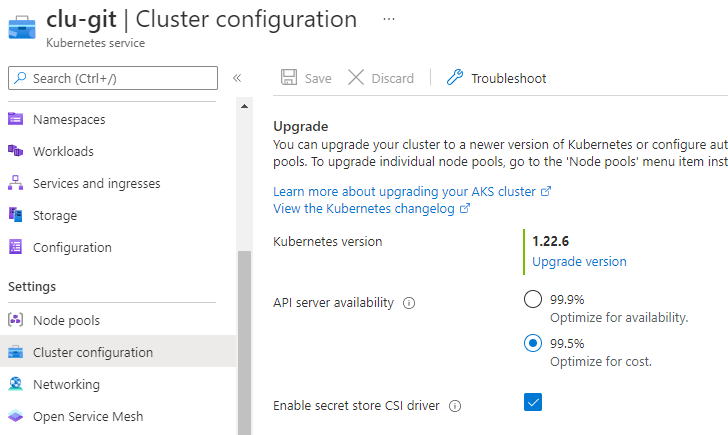
Although the add-on should also install Secrets Store CSI Driver, Open Service Mesh, and External DNS, that did not happen in my case. I installed the first two from the portal. I did not bother installing External DNS.

Enabling OSM
Enabling secret store CSI driver

Create a certificate

I created a Key Vault in the same resource group as my AKS cluster. I configured the access policies to use Azure RBAC (role-based access control). It did not work with the traditional access policies. I granted myself and the identity used by web application routing full access:

Key Vault Administrator for myself and the user-assigned managed id of web app routing add-on

You need to grant the user-assigned managed identity of web application routing access because a SecretProviderClass will be created automatically for that identity. The Secret Store CSI Driver uses that SecretProviderClass to grab a certificate from Key Vault and generate a Kubernetes secret for it. The secret will later be used by the Kubernetes Ingress resource to encrypt HTTP traffic. How you link the Ingress resource to the certificate is for a later step.

Now, in Key Vault, generate a certificate:

In Key Vault, click Certificates and create a new one

Above, I use nip.io with the IP address of the Ingress Controller to generate a name that resolves to the IP. For example, 10.2.3.4.nip.io will resolve to 10.2.3.4. Try it with ping. It’s truly a handy service. Use kubectl get svc -n app-routing-system to find the Ingress Controller public (external) IP.

Now we have everything in place for draft to modify our Kubernetes service to use the ingress controller and certificate.

Using az aks draft update

Back on your machine, in the repo that you used in the previous article, run az aks draft update. You will be asked two questions:

  • Hostname: use <IP Address of Nginx>.nip.io (same as in the common name of the cert without CN=)
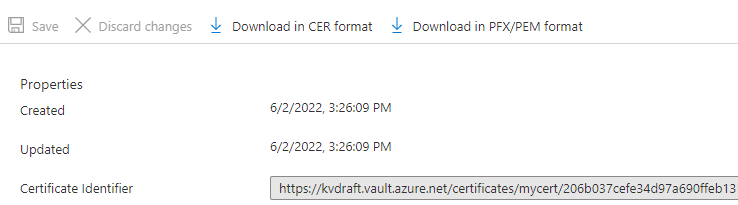
  • URI to the certificate in Key Vault: you can find the URI in the properties of the certificate
There will be a copy button at the right of the certificate identifier

Draft will now update your service to something like:

apiVersion: v1
kind: Service
metadata:
  annotations:
    kubernetes.azure.com/ingress-host: IPADDRESS.nip.io
    kubernetes.azure.com/tls-cert-keyvault-uri: https://kvdraft.vault.azure.net/certificates/mycert/IDENTIFIER
  creationTimestamp: null
  name: super-api
spec:
  ports:
  - port: 80
    protocol: TCP
    targetPort: 8080
  selector:
    app: super-api
  type: ClusterIP
status:
  loadBalancer: {}

The service type is now ClusterIP. The annotations will be used for several things:

  • to create a placeholder deployment that mounts the certificate from Key Vault in a volume AND creates a secret from the certificate; the Secret Store CSI Driver always needs to mount secrets and certs in a volume; rather than using your application pod, they use a placeholder pod to create the secret
  • to create an Ingress resource that routes to the service and uses the certificate in the secret created via the placeholder pod
  • to create an IngressBackend resource in Open Service Mesh

In my default namespace, I see two pods after deployment:

the placeholder pod starts with keyvault and creates the secret; the other pod is my app

Note that above, I actually used a Helm deployment instead of a manifest-based deployment. That’s why you see release-name in the pod names.

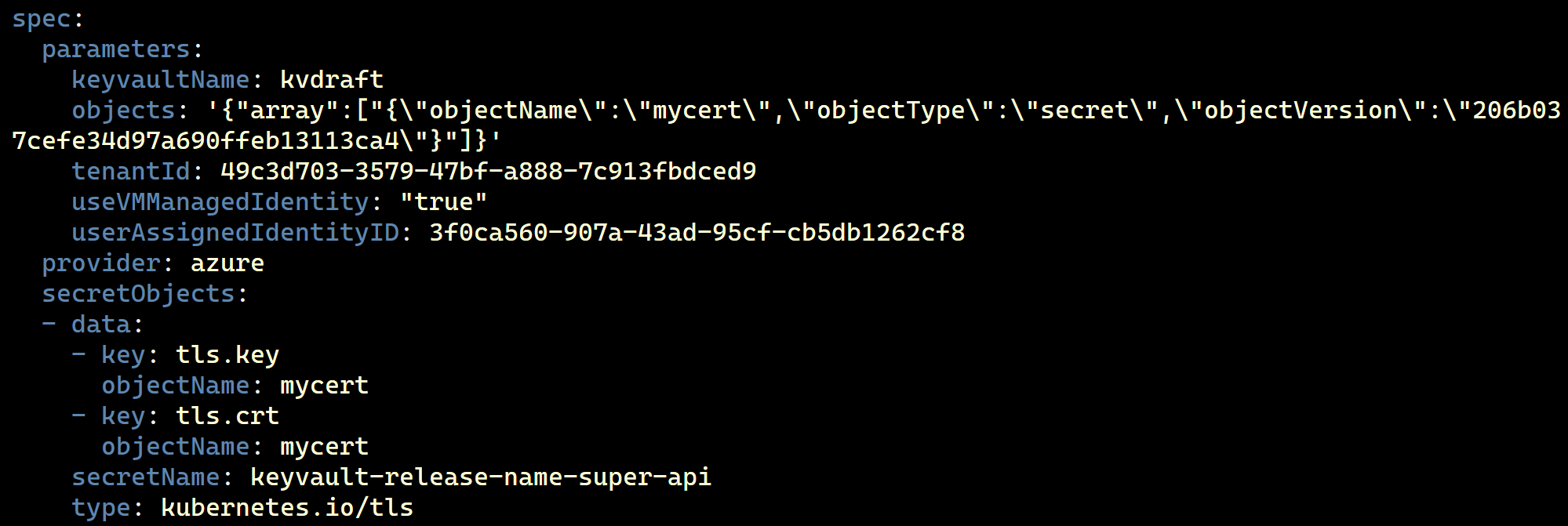
The placeholder pod creates a csi volume that uses a SecretProviderClass to mount the certificate:

SecretProviderClass

The SecretProviderClass references your Key Vault and managed identity to access the Key Vault:

spec of SecretProviderClass

If you have not assigned the correct access policy on Key Vault for the userAssignedIdentityID, the certificate cannot be retrieved and the pod will not start. The secret will not be created either.

I also have a secret with the cert inside:

Secret created by Secret Store CSI Driver; referenced by the Ingress

And here is the Ingress:

Ingress; note it says 8080 instead of the service port 80; do not change it! Never mind the app. in front of the IP; your config will not have that if you followed the instructions

All of this gets created for you but only after running az aks draft update and when you commit the changes to GitHub, triggering the workflow.

Did all this work smoothly from the first time?

The short answer is NO! 😉At first I thought Draft would take care of installing the Ingress components for me. That is not the case. You need to install and configure web application routing on your cluster and configure the necessary access rights.

I also thought web application routing would install and configure Open Service Mesh and Secret Store CSI driver. That did not happen although that is easily fixed by installing them yourself.

I thought there would be some help with certificate generation. That is not the case. Generating a self-signed certificate with Key Vault is easy enough though.

Once you have web application routing installed and you have a Key Vault and certificate, it is simple to run az aks draft update. That changes your Kubernetes service definition. After pushing that change to your repo, the updated service with the web application routing annotations can be deployed.

I got some 502 Bad Gateway errors from Nginx at first. I removed the OSM-related annotations from the Ingress object and tried some other things. Finally, I just redeployed the entire app and then it just started working. I did not spend more time trying to find out why it did not work from the start. The fact that Open Service Mesh is used, which has extra configuration like IngressBackends, will complicate troubleshooting somewhat. Especially if you have never worked with OSM, which is what I expect for most people.

Conclusion

Although this looks promising, it’s all still a bit rough around the edges. Adding OSM to the mix makes things somewhat more complicated.

Remember that all of this is in preview and we are meant to test drive it and provide feedback. However, I fear that, because of the complexity of Kubernetes, these tools will never truly make it super simple to get started as a developer. It’s just a tough nut to crack!

My own point of view here is that Draft v2 without az aks draft update is very useful. In most cases though, it’s enough to use standard Kubernetes services. And if you do need an ingress controller, most are easy to install and configure, even with TLS.

Trying out Draft 2 on AKS

Sadly no post about good Belgian beer 🍺.

Draft 2 is an open-source project that aims 🎯 to make things easier for developers that build Kubernetes applications. It can improve the inner dev loop, where the developers code and test their apps, in the following ways:

  • Automate the creation of a Dockerfile
  • Automate the creation of Kubernetes manifests, Helm charts, or Kustomize configs
  • Generate a GitHub Action workflow to build and deploy the application when you push changes

I have worked with Draft 1 in the past, and it worked quite well. Now Microsoft has integrated Draft 2 in the Azure CLI to make it part of the Kubernetes on Azure experience. A big difference with Draft 1 is that Draft 2 makes use of GitHub Actions (Wait? No Azure DevOps? 😲) to build and push your images to the development cluster. It uses GitHub OpenID Connect (OIDC) for Azure authentication.

That is quite a change and lots of bits and pieces that have to be just right. Make sure you know about Azure AD App Registrations, GitHub, GitHub Actions, Docker, etc… when the time comes to troubleshoot.

Let’s see what we can do? 👀

Prerequisites

At this point in time (June 2022), Draft for Azure Kubernetes Service is in preview. Draft itself can be found here: https://github.com/Azure/draft

The only thing you need to do is to install or upgrade the aks-preview extension:

az extension add --name aks-preview --upgrade

Next, type az aks draft -h to check if the command is available. You should see the following options:

create           
generate-workflow
setup-gh
up
update

We will look at the first four commands in this post.

Running draft create

With az aks draft create, you can generate a Dockerfile for your app, Kubernetes manifests, Helm charts, and Kustomize configurations. You should fork the following repository and clone it to your machine: https://github.com/gbaeke/draft-super

After cloning it, cd into draft-super and run the following command (requires go version 1.16.4 or higher):

CGO_ENABLED=0 go build -installsuffix 'static' -o app cmd/app/*
./app

The executable runs a web server on port 8080 by default. If that conflicts with another app on your system set the port with the port environment variable: run PORT=9999 ./app instead of just ./app. Now we know the app works, we need a Dockerfile to containerize it.

You will notice that there is no Dockerfile. Although you could create one manually, you can use draft for this. Draft will try to recognize your code and generate the Dockerfile. We will keep it simple and just create Kubernetes manifests. When you run draft without parameters, it will ask you what you want to create. You can also use parameters to specify what you want, like a Helm chart or Kustomize configs. Run the command below:

az aks draft create

The above command will download the draft CLI for your platform and run it for you. It will ask several questions and display what it is doing.

[Draft] --- Detecting Language ---
✔ yes
[Draft] --> Draft detected Go Checksums (72.289458%)

[Draft] --> Could not find a pack for Go Checksums. Trying to find the next likely language match...
[Draft] --> Draft detected Go (23.101180%)

[Draft] --- Dockerfile Creation ---
Please Enter the port exposed in the application: 8080
[Draft] --> Creating Dockerfile...

[Draft] --- Deployment File Creation ---
✔ manifests
Please Enter the port exposed in the application: 8080
Please Enter the name of the application: super-api
[Draft] --> Creating manifests Kubernetes resources...

[Draft] Draft has successfully created deployment resources for your project 😃
[Draft] Use 'draft setup-gh' to set up Github OIDC.

In your folder you will now see extra files and folders:

  • A manifests folder with two files: deployment.yaml and service.yaml
  • A Dockerfile

The manifests are pretty basic and just get things done:

  • create a Kubernetes deployment that deploys 1 pod
  • create a Kubernetes service of type LoadBalancer; that gives you a public IP to reach the app

The app name and port you specified after running az aks draft create is used to create the deployment and service.

The Dockerfile looks like the one below:

FROM golang
ENV PORT 8080
EXPOSE 8080

WORKDIR /go/src/app
COPY . .

RUN go mod vendor
RUN go build -v -o app  
RUN mv ./app /go/bin/

CMD ["app"]

This is not terribly optimized but it gets the job done. I would highly recommend using a two-stage Dockerfile that results in a much smaller image based on alpine, scratch, or distroless (depending on your programming language).

For my code, the Dockerfile will not work because the source files are not in the root of the repo. Draft cannot know everything. Replace the line that says RUN go build -v -o app with RUN CGO_ENABLED=0 go build -installsuffix 'static' -o app cmd/app/*

To check that the Dockerfile works, if you have Docker installed, run docker build -t draft-super . It will take some time for the base Golang image to be pulled and to download all the dependencies of the app.

When the build is finished, run docker run draft-super to check. The container should run properly.

The az aks draft create command did a pretty good job detecting the programming language and creating the Dockerfile. As we have seen, minor adjustments might be required and the Dockerfile will probably not be production-level quality.

GitHub OIDC setup

At the end of the create command, draft suggested using setup-gh to setup GitHub. Let’s run that command:

az aks draft setup-gh

Draft will ask for the name of an Azure AD app registration to create. Make sure you are allowed to create those. I used draft-super for the name. Draft will also ask you to confirm the Azure subscription ID and a name of a resource group.

⚠️Although not entirely clear from the question, use the resource group of your AKS cluster (not the MC_ group that contains your nodes!). The setup-gh command will grant the service principal that it creates the Contributor role on the group. This ensures that the GitHub Action azure/aks-set-context@v2.0 works.

Next, draft will ask for the GitHub organization and repo. In my case, that was gbaeke/draft-super. Make sure you have admin access to the repo. GitHub secrets will need to be created. When completed, you should see something like below:

Enter app registration name: draft-super
✔ <YOUR SUB ID>
Enter resource group name: rg-aks
✔ Enter github organization and repo (organization/repoName): gbaeke/draft-super█
[Draft] Draft has successfully set up Github OIDC for your project 😃
[Draft] Use 'draft generate-workflow' to generate a Github workflow to build and deploy an application on AKS.

Draft has done several things:

  • created an app registration (check Azure AD)
  • the app registration has federated credentials configured to allow a GitHub workflow to request an Azure AD token when you do pull requests, or push to main or master
  • secrets in your GitHub repo:AZURE_CLIENT_ID, AZURE_SUBSCRIPTION_ID,AZURE_TENANT_ID; these secrets are used by the workflow to request a token from Azure AD using federated credentials
  • granted the app registration contributor role on the resource group that you specified; that is why you should use the resource group of AKS!

The GitHub workflow you will create in the next step will use the OIDC configuration to request an Azure AD token. The main advantage of this is that you do not need to store Azure secrets in GitHub. The action that does the OIDC-based login is azure/login@v1.4.3.

Draft is now ready to create a GitHub workflow.

Creating the GitHub workflow

Use az aks draft generate-workflow to create the workflow file. This workflow needs the following information as shown below:

Please enter container registry name: draftsuper767
✔ Please enter container name: draft-super█
Please enter cluster resource group name: rg-aks
Please enter AKS cluster name: clu-git
Please enter name of the repository branch to deploy from, usually main: master
[Draft] --> Generating Github workflow
[Draft] Draft has successfully generated a Github workflow for your project 😃

⚠️ Important: use the short name of ACR. Do not append azurecr.io!

⚠️ The container registry needs to be created. Draft does not do that. For best results, create the ACR in the resource group of the AKS cluster because that ensures the service principal created earlier has access to ACR to build images and to enable admin access.

Draft has now created the workflow. As expected, it lives in the .github/workflows local folder.

The workflow runs the following actions:

  • Login to Azure using only the client, subscription, and tenant id. No secrets required! 👏 OIDC in action here!
  • Run az acr build to build the container image. The image is not built on the GitHub runner. The workflow expects ACR to be in the AKS resource group.
  • Get a Kubernetes context to our AKS cluster and create a secret to allow pulling from ACR; it will also enable the admin user on ACR
  • Deploy the application with the Azure/k8s-deploy@v3.1 action. It uses the manifests that were generated with az aks draft create but modifies the image and tag to match the newly built image.

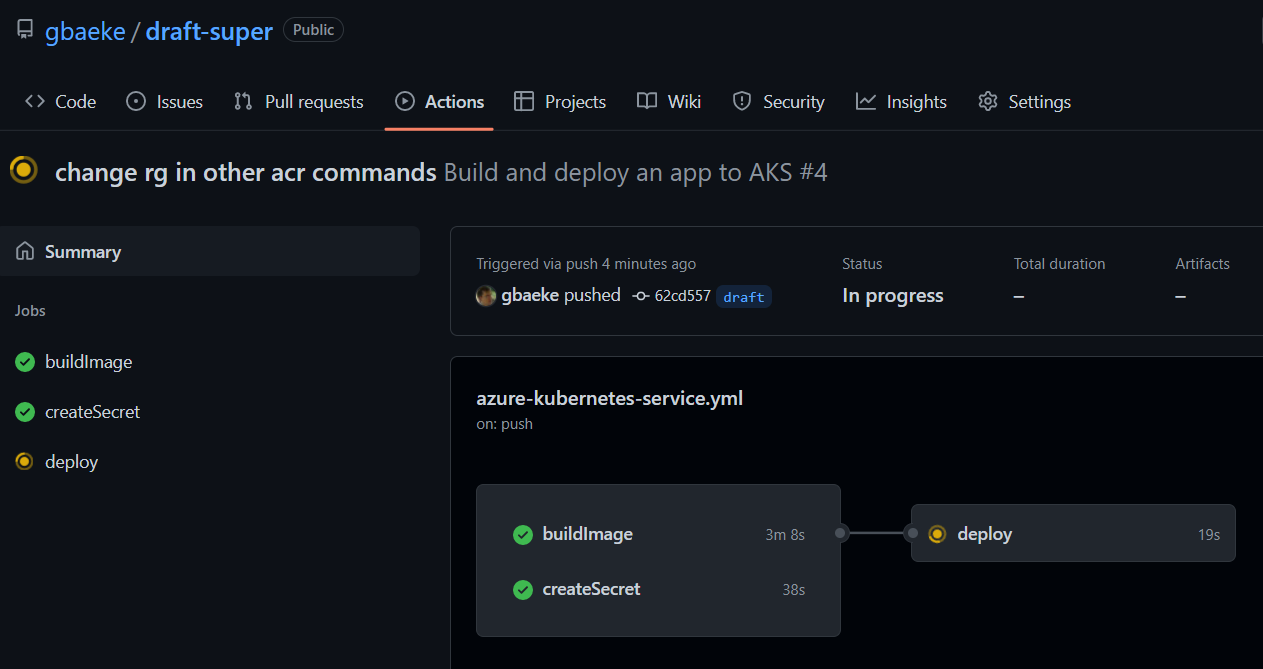
Now it is time to commit our code and check the workflow result:

Looks fine at first glance…

Houston, we have a problem 🚀

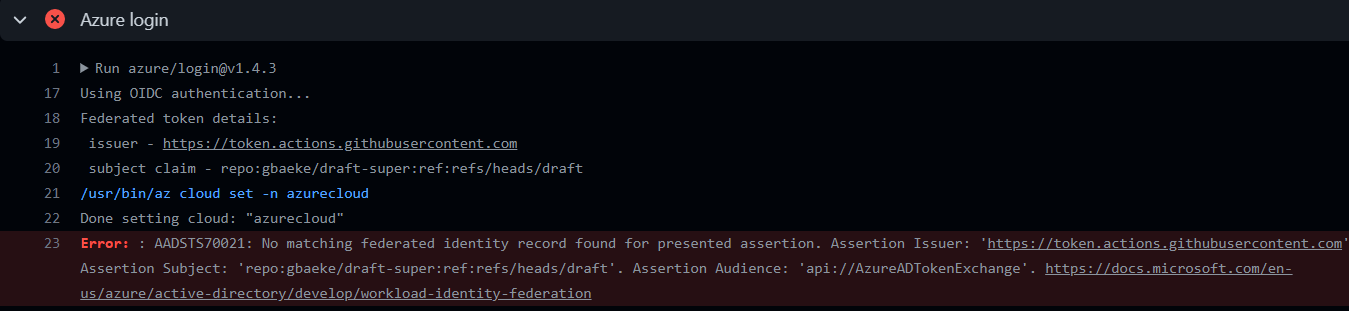
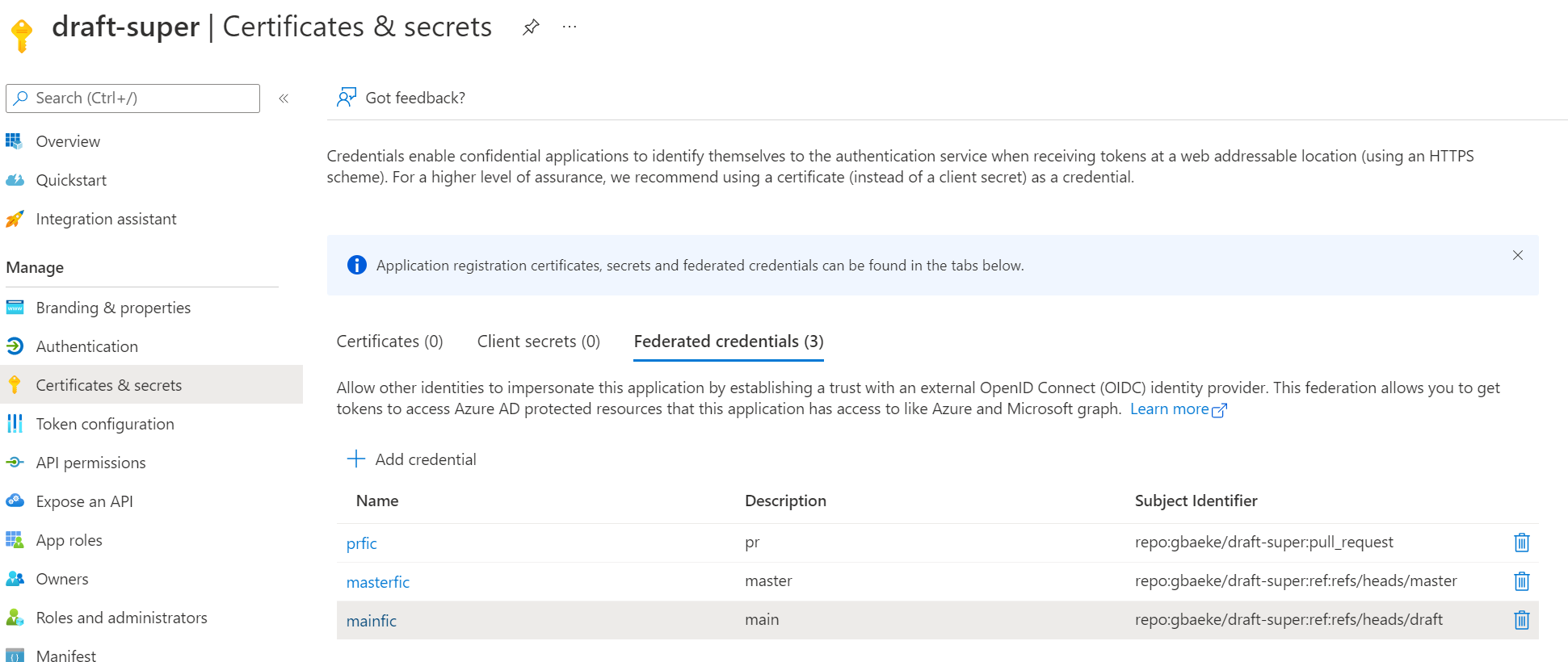
For this blog post, I was working in a branch called draft, not main or master. I also changed the workflow file to run on pushes to the draft branch. Of course, the federated tokens in our app registration are not configured for that branch, only master and main. You have to be specific here or you will not get a token. This is the error on GitHub:

Oops

To fix this, just modify the app registration and run the workflow again:

Quick and dirty fix: update mainfic with a subject identifier for draft; you can also add a new credential

After running the workflow again, if buildImage fails, check that ACR is in the AKS resource group and that the service principal has Contributor access to the group. I ran az role assignment list -g rg-aks to see the directly assigned roles and checked that the principalName matched the client ID (application ID) of the draft-super app registration.

If you used the FQDN of ACR instead of just the short name. you can update the workflow environment variable accordingly:

ACR name should be the short name

After this change, the image build should be successful.

Looking better

If you used the wrong ACR name, the deploy step will fail. The image property in deployment.yaml will be wrong. Make the following change in deployment.yaml:

- image: draftsuper767.azurecr.io.azurecr.io/draft-super

to

- image: draftsuper767.azurecr.io/draft-super

Commit to re-run the workflow. You might need to cancel the previous one because it uses kubectl rollout to check the health of the deployment.

And finally, we have a winner…

🍾🍾🍾

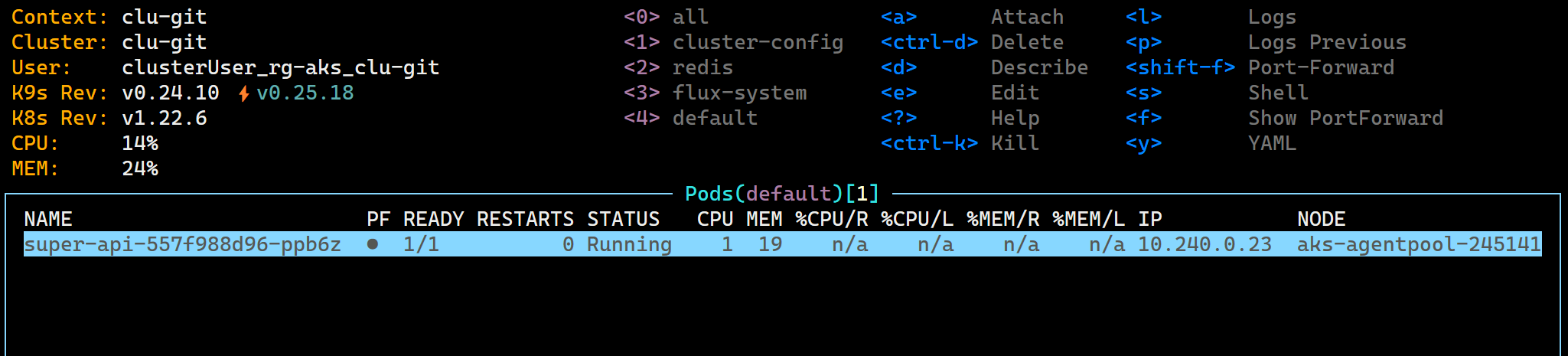
In k9s:

super-api deployed to default namespace

You can now make changes to your app and commit your changes to GitHub to deploy new versions or iterations of your app. Note that any change will result in a new image build.

What about the az aks draft up command? It simply combines the setup of GitHub OIDC and the creation of the workflow. So basically, all you ever need to do is:

  • create a resource group
  • deploy AKS to the resource group
  • deploy ACR to the resource group
  • Optionally run az aks update -n -g --attach-acr (this gives the kubelet on each node access to ACR; as we have seen, draft can also create a pull secret)
  • run az aks draft create followed by az aks draft up

Conclusion

When working with Draft 2, ensure you first deploy an AKS cluster and Azure Container Registry in the same resource group. You need the Owner role because you will change role-based access control settings.

During OIDC setup, when asked for a resource group, type the AKS resource group. Draft will ensure the service principal it creates, has proper access to the resource group. With that access, it will interact with ACR and log on to AKS.

When asked for the ACR name, use the short name. Do not append azurecr.io! From that point on, it should be smooth sailing! ⛵

In a follow-up post, we will take a look at the draft update command.

From MQTT to InfluxDB with Dapr

In a previous post, we looked at using the Dapr InfluxDB component to write data to InfluxDB Cloud. In this post, we will take a look at reading data from an MQTT topic and storing it in InfluxDB. We will use Dapr 0.10, which includes both components.

To get up to speed with Dapr, please read the previous post and make sure you have an InfluxDB instance up and running in the cloud.

If you want to see a video instead:

MQTT to Influx with Dapr

Note that the video sends output to both InfluxDB and Azure SignalR. In addition, the video uses Dapr 0.8 with a custom compiled Dapr because I was still developing and testing the InfluxDB component.

MQTT Server

Although there are cloud-based MQTT servers you can use, let’s mix it up a little and run the MQTT server from Docker. If you have Docker installed, type the following:

docker run -it -p 1883:1883 -p 9001:9001 eclipse-mosquitto

The above command runs Mosquitto and exposes port 1883 on your local machine. You can use a tool such as MQTT Explorer to send data. Install MQTT Explorer on your local machine and run it. Create a connection like in the below screenshot:

MQTT Explorer connection

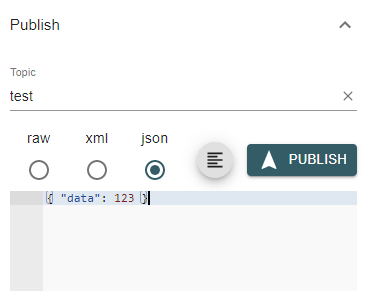
Now, click Connect to connect to Mosquitto. With MQTT, you send data to topics of your choice. Publish a json message to a topic called test as shown below:

Publish json data to the test topic

You can now click the topic in the list of topics and see its most recent value:

Subscribing to the test topic

Using MQTT with Dapr

You are now ready to read data from an MQTT topic with Dapr. If you have Dapr installed, you can run the following code to read from the test topic and store the data in InfluxDB:

const express = require('express');
const bodyParser = require('body-parser');

const app = express();
app.use(bodyParser.json());

const port = 3000;

// mqtt component will post messages from influx topic here
app.post('/mqtt', (req, res) => {
    console.log("MQTT Binding Trigger");
    console.log(req.body)

    // body is expected to contain room and temperature
    room = req.body.room
    temperature = req.body.temperature

    // room should not contain spaces
    room = room.split(" ").join("_")

    // create message for influx component
    message = {
        "measurement": "stat",
        "tags": `room=${room}`,
        "values": `temperature=${temperature}`
    };
    
    // send the message to influx output binding
    res.send({
        "to": ["influx"],
        "data": message
    });
});

app.listen(port, () => console.log(`Node App listening on port ${port}!`));

In this example, we use Node.js instead of Python to illustrate that Dapr works with any language. You will also need this package.json and run npm install:

{
  "name": "mqttapp",
  "version": "1.0.0",
  "description": "",
  "main": "app.js",
  "scripts": {
    "test": "echo \"Error: no test specified\" && exit 1"
  },
  "author": "",
  "license": "ISC",
  "dependencies": {
    "body-parser": "^1.18.3",
    "express": "^4.16.4"
  }
}

In the previous post about InfluxDB, we used an output binding. You use an output binding by posting data to a Dapr HTTP URI.

To use an input binding like MQTT, you will need to create an HTTP server. Above, we create an HTTP server with Express, and listen on port 3000 for incoming requests. Later, we will instruct Dapr to listen for messages on an MQTT topic and, when a message arrives, post it to our server. We can then retrieve the message from the request body.

To tell Dapr what to do, we’ll create a components folder in the same folder that holds the Node.js code. Put a file in that folder with the following contents:

apiVersion: dapr.io/v1alpha1
kind: Component
metadata:
  name: mqtt
spec:
  type: bindings.mqtt
  metadata:
  - name: url
    value: mqtt://localhost:1883
  - name: topic
    value: test

Above, we configure the MQTT component to list to topic test on mqtt://localhost:1883. The name we use (in metadata) is important because that needs to correspond to our HTTP handler (/mqtt).

Like in the previous post, there’s another file that configures the InfluxDB component:

apiVersion: dapr.io/v1alpha1
kind: Component
metadata:
  name: influx
spec:
  type: bindings.influx
  metadata:
  - name: Url
    value: http://localhost:9999
  - name: Token
    value: ""
  - name: Org
    value: ""
  - name: Bucket
    value: ""

Replace the parameters in the file above with your own.

Saving the MQTT request body to InfluxDB

If you look at the Node.js code, you have probably noticed that we send a response body in the /mqtt handler:

res.send({
        "to": ["influx"],
        "data": message
    });

Dapr is written to accept responses that include a to and a data field in the JSON response. The above response simply tells Dapr to send the message in the data field to the configured influx component.

Does it work?

Let’s run the code with Dapr to see if it works:

dapr run --app-id mqqtinflux --app-port 3000 --components-path=./components node app.js

In dapr run, we also need to specify the port our app uses. Remember that Dapr will post JSON data to our /mqtt handler!

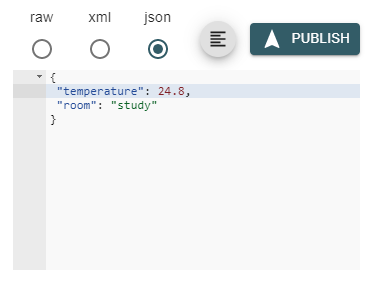
Let’s post some JSON with the expected fields of temperature and room to our MQTT server:

Posting data to the test topic

The Dapr logs show the following:

Logs from the APP (appear alongside the Dapr logs)

In InfluxDB Cloud table view:

Data stored in InfluxDB Cloud (posted some other data points before)

Conclusion

Dapr makes it really easy to retrieve data with input bindings and send that data somewhere else with output bindings. There are many other input and output bindings so make sure you check them out on GitHub!