Create a Copilot declarative agent that calls an API with authentication

In a previous post, we looked at creating a Copilot declarative agent. The agent had one custom action that called the JSONPlaceholder API. Check that post for an introduction to what these agents can do. Using a dummy, unauthenticated API is not much fun so let’s take a look at doing the same for a custom API that requires authentication.

Python API with authentication

The API we will create has one endpoint: GET /sales. It’s implemented as follows:

@app.get("/sales/", dependencies=[Depends(verify_token)])
async def get_sales():
    """
    Retrieve sales data.
    Requires Bearer token authentication.
    """
    return {
        "status": "success",
        "data": generate_sample_sales_data()
    }

The data is generated by the generate_sample_sales_data function. It just generates random sales data. You can check the full code on GitHub. The important thing here is that we use bearer authentication with a key.

When I hit the /sales endpoint with a wrong key, a 401 Unauthorized is raised:

401 Unauthorized (via REST client VS Code plugin)

With the correct key, the /sales endpoint returns the random data:

GET /sales returns random data

Running the API

To make things easy, we will run the API on the local machine and expose it with ngrok. Install ngrok using the instructions on their website. If you cloned the repo, go to the api folder and run the commands below. Run the last command from a different terminal window.

pip install -r requirements.txt
python app.py
ngrok http 8000

Note: you can also use local port forwarding in VS Code. I prefer ngrok but if you do not want to install it, simply use the VS Code feature.

In the terminal where you ran ngrok, you should see something like below:

ngrok tunnel is active

Ngrok has a nice UI to inspect the calls via the web interface at http://localhost:4040:

ngrok web interface

Before continuing, ensure that the ngrok forwarding URL (https://xyz.ngrok-free.app) responds when you hit the /sales endpoint.

Getting the OpenAPI document

When you create a FastAPI API, it generates OpenAPI documentation that describes all the endpoints. The declarative agent needs that documentation to configure actions.

For the above API, that looks like below. Note that this is not the default document. It was changed in code.

{
  "openapi": "3.0.0",
  "info": {
    "title": "Sales API",
    "description": "API for retrieving sales data",
    "version": "1.0.0"
  },
  "paths": {
    "/sales/": {
      "get": {
        "summary": "Get Sales",
        "description": "Retrieve sales data.\nRequires Bearer token authentication.",
        "operationId": "get_sales_sales__get",
        "responses": {
          "200": {
            "description": "Successful Response",
            "content": {
              "application/json": {
                "schema": {

                }
              }
            }
          }
        }
      }
    },
    "/": {
      "get": {
        "summary": "Root",
        "description": "Root endpoint - provides API information",
        "operationId": "root__get",
        "responses": {
          "200": {
            "description": "Successful Response",
            "content": {
              "application/json": {
                "schema": {

                }
              }
            }
          }
        }
      }
    }
  },
  "components": {
    "securitySchemes": {
      "BearerAuth": {
        "type": "http",
        "scheme": "bearer"
      }
    }
  },
  "servers": [
    {
      "url": "https://627d-94-143-189-241.ngrok-free.app",
      "description": "Production server"
    }
  ]
}

The Teams Toolkit requires OpenAPI 3.0.x instead of 3.1.x. By default, recent versions of FastAPI generate 3.1.x docs. You can change that in the API’s code by adding the following:

def custom_openapi():
    if app.openapi_schema:
        return app.openapi_schema
    
    openapi_schema = get_openapi(
        title="Sales API",
        version="1.0.0",
        description="API for retrieving sales data",
        routes=app.routes,
    )
    
    # Set OpenAPI version
    openapi_schema["openapi"] = "3.0.0"
    
    # Add servers
    openapi_schema["servers"] = [
        {
            "url": "https://REPLACE_THIS.ngrok-free.app",  # Replace with your production URL
            "description": "Production server"
        }
    ]
    
    # Add security scheme
    openapi_schema["components"] = {
        "securitySchemes": {
            "BearerAuth": {
                "type": "http",
                "scheme": "bearer"
            }
        }
    }
    
    # Remove endpoint-specific security requirements
    for path in openapi_schema["paths"].values():
        for operation in path.values():
            if "security" in operation:
                del operation["security"]
    
    app.openapi_schema = openapi_schema
    return app.openapi_schema

app.openapi = custom_openapi

In the code, we switch to OpenAPI 3.0.0, add our server (the ngrok forwarding URL), add the security scheme and more. Now, when you go to https://your_ngrok_url/openapi.json, the JSON shown above should be returned.

Creating the Copilot Agent

Now we can create a new declarative agent like we did in the previous post. When you are asked for the OpenAPI document, you can retrieve it from the live server via the ngrok forwarding URL.

After creating the agent, declarativeAgent.json should contain the following action:

"actions": [
    {
        "id": "action_1",
        "file": "ai-plugin.json"
    }

In ai-plugin.json, in functions and runtimes, you should see the function description and a reference to the OpenAPI operation.

That’s all fine but of course, but the API will not work because a key needs to be provided. You create the key in the Teams developer portal at https://dev.teams.microsoft.com/tools:

Adding an API key for Bearer auth

You create the key by clicking New API key and filling in the form. Ensure you add a key that matches the key in the API. Also ensure that the URL to your API is correct (the ngrok forwarding URL). With an incorrect URL, the key will not be accepted.

Now we need to add a reference to the key. The agent can use that reference to retrieve the key and use it when it calls your API. Copy the key’s registration ID and then open ai-plugin.json. Add the following to the runtimes array:

"runtimes": [
    {
        "type": "OpenApi",
        "auth": {
            "type": "ApiKeyPluginVault",
            "reference_id": "KEY_REGISTRATION_ID"
        },
        "spec": {
            "url": "apiSpecificationFile/openapi.json"
        },
        "run_for_functions": [
            "get_sales_sales__get"
        ]
    }
]

The above code ensures that HTTP bearer authentication is used with the stored key when the agent calls the get_sales_sales__get endpoint.

Now you are ready to provision your agent. After provisioning, locate the agent in Teams:
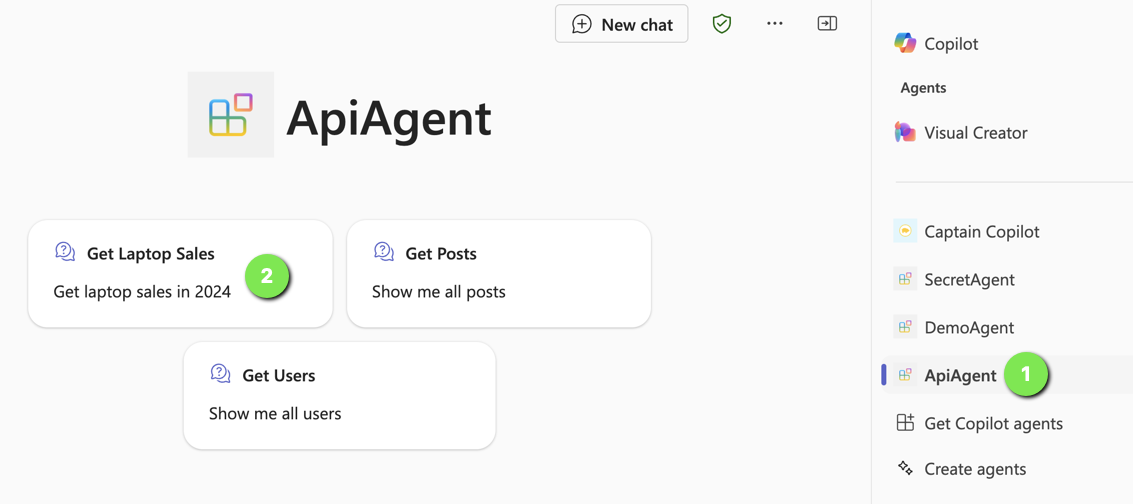
Find the agent

Now either use a starter (if you added some; above that is (2)) or type the question in the chat box.

Getting laptop sales in 2024

Note that I did not do anything fancy with the adaptive card. It just says success.

If you turned on developer mode in Copilot, you can check the raw response:
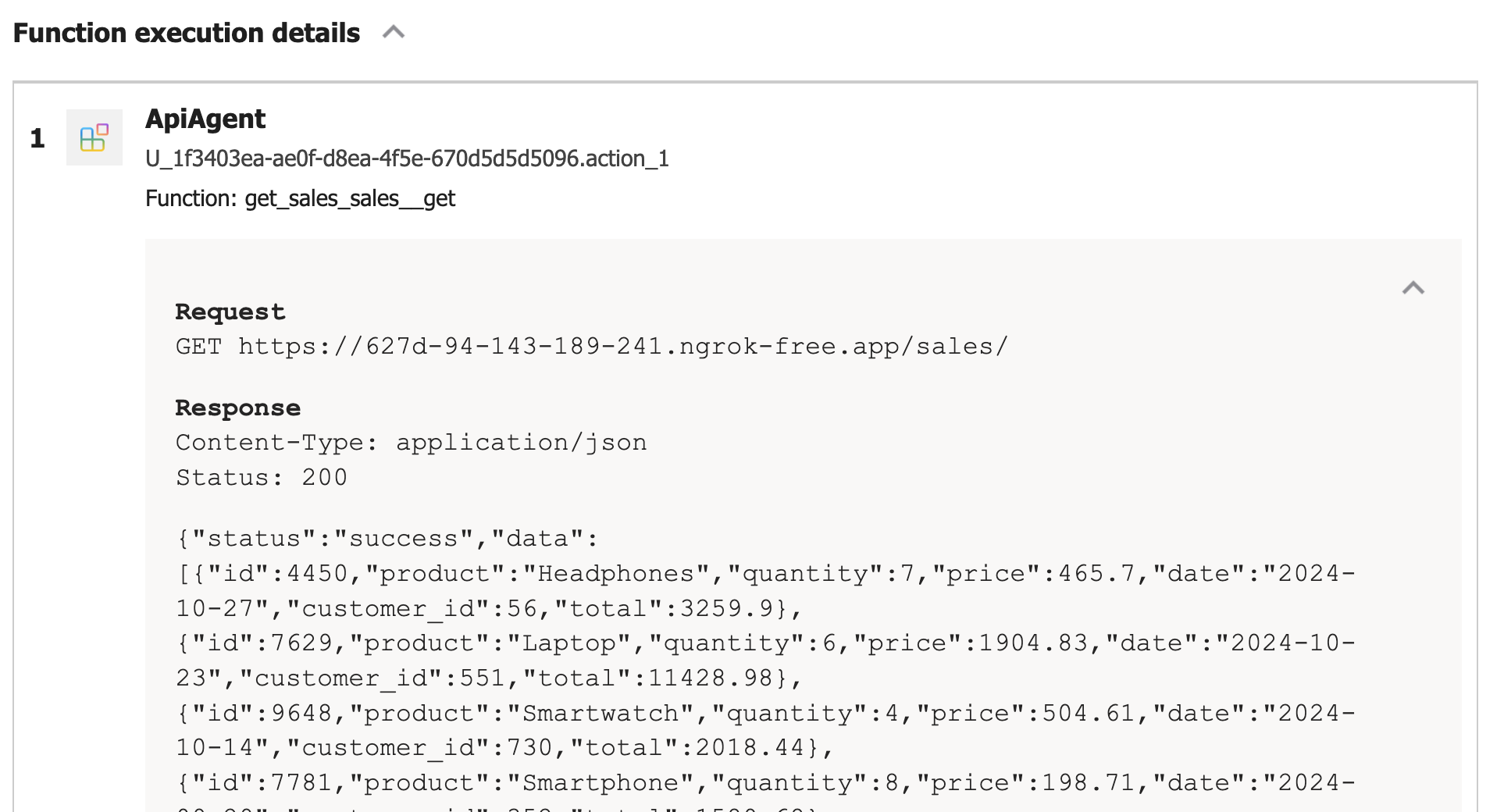
Viewing the raw response, right from within Microsoft 365 Chat

Conclusion

In this post, we created a Copilot agent that calls a custom API secured with HTTP bearer authentication. The “trick” to get this to work is to add the key to the Teams dev portal and reference it in the json file that defines the API call.

HTTP bearer authentication is the easiest to implement. In another post, we will look at using OAuth to protect the API. There’s a bit more to that, as expected.

Creating a Copilot declarative agent with VS Code and the Teams Toolkit

If you are a Microsoft 365 Copilot user, you have probably seen that the words “agent” and “Copilot agent” are popping up here and there. For example, if you chat with Copilot there is an Agents section in the top right corner:

Copilot Chat with agents

Above, there is a Visual Creator agent that’s built-in. It’s an agent dedicated to generating images. Below Visual Creator, there are agents deployed to your organisation and ways to add and create agents.

A Copilot agent in this context, runs on top of Microsoft 365 Copilot and uses the Copilot orchestrator and underlying model. An agent is dedicated to a specific task and has the following properties. Some of these properties are optional:

  • Name: name of the agent
  • Description: you guessed it, the description of the agent
  • Instructions: instructions for the agent about how to do its work and respond to the user; you can compare this to a system prompt you give an LLM to guide its responses
  • Conversation starters: prompts to get started like the Learn More and Generate Ideas in the screenshot above
  • Documents: documents the agent can use to provide the user with answers; this will typically be a SharePoint site or a OneDrive location
  • Actions: actions the agents can take to provide the user with an answer; these actions will be API calls that can fetch information from databases, create tickets in a ticketing system and much more…

There are several ways to create these agents:

  • Start from SharePoint and create an agent based on the documents you select
  • Start from Microsoft 365 Copilot chat
  • Start from Copilot Studio
  • Start from Visual Studio Code

Whatever you choose, you are creating the agent declaratively. You do not have to write code to create the agent. Depending on the tool you use, not all capabilities are exposed. For example, if you want to add actions to your agent, you need Copilot Studio or Visual Studio Code. You could start creating the agent from SharePoint and then add actions with Copilot Studio.

In this post, we will focus on creating a declarative agent with Visual Studio Code.

Getting Started

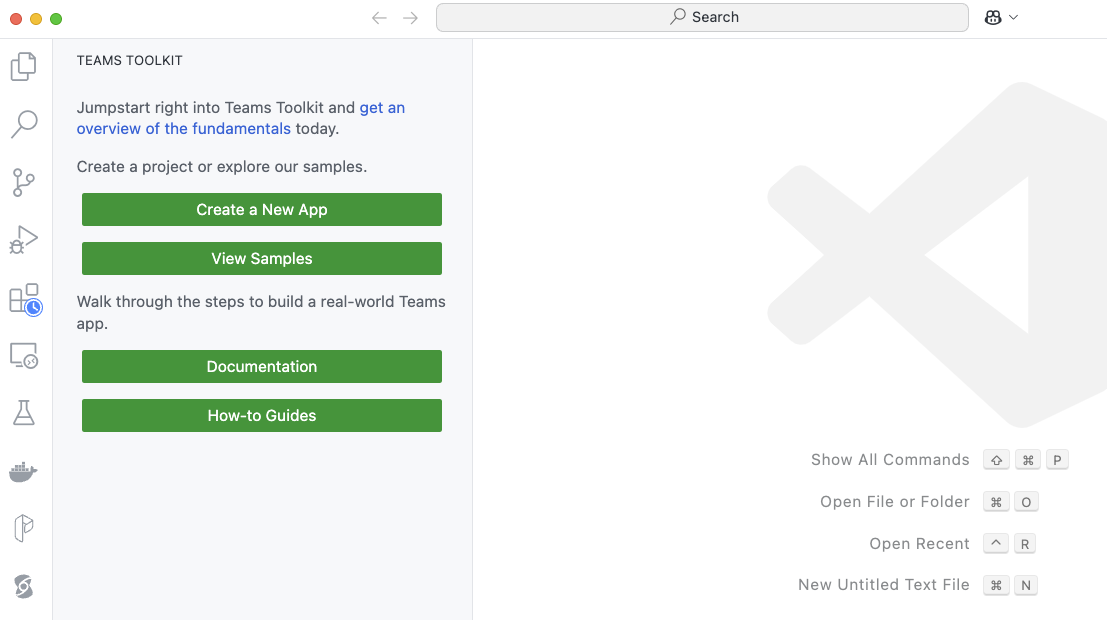
You need Visual Studio Code or a compatible editor and add the Teams Toolkit extension. Check Microsoft Learn to learn about all requirements. After installing it in VS Code, click the extension. You will be presented with the options below:

Teams Toolkit extension in VS Code

To create a declarative agent, click Create a New App. Select Copilot Agent.

Copilot Agent in Teams Toolkit

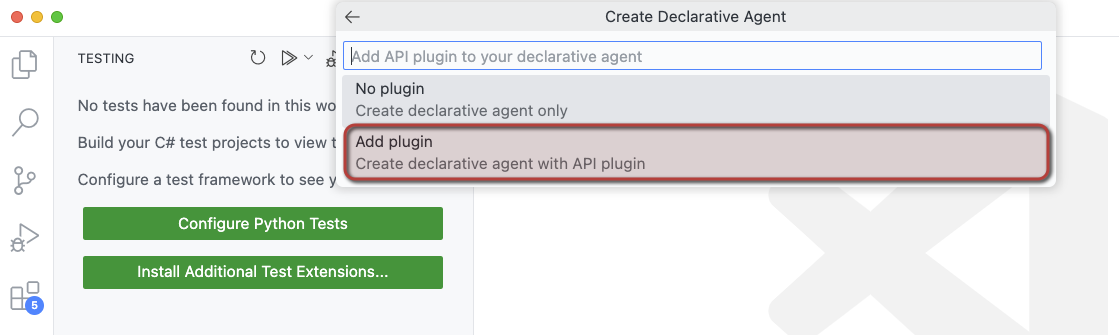
Next, select Declarative Agent. You will be presented with the choices below:

Creating an agent with API plugin so we can call APIs

To make this post more useful, we will add actions to the agent. Although the word “action” is not mentioned above, selecting Add plugin will give us that functionality.

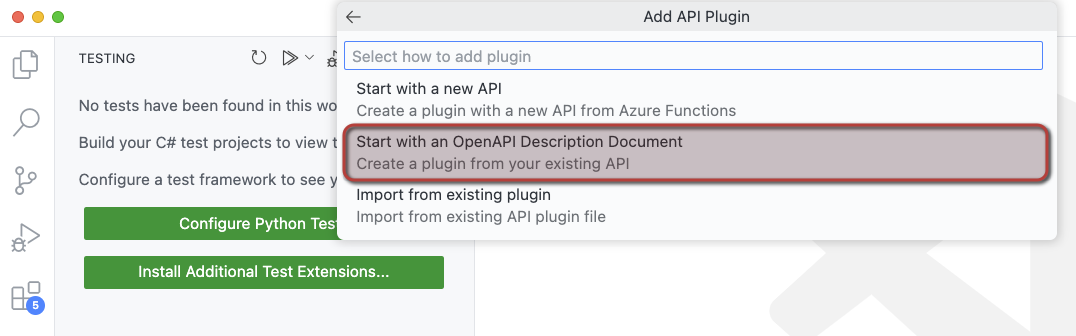
We will create our actions from an OpenAPI 3.0.x specification. Select Start with an OpenAPI Description Document as shown below.

When you select the above option, you can either:

  • Use a URL that returns the OpenAPI document
  • Browse for an OpenAPI file (json or yaml) on your file system

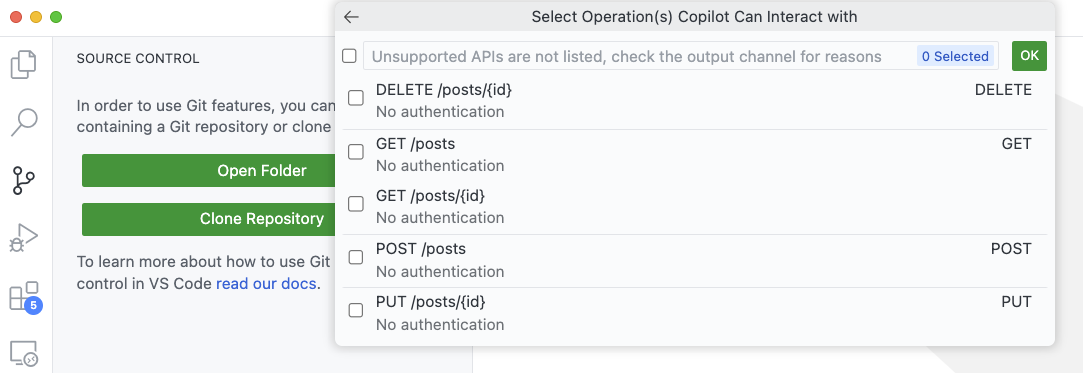
I downloaded the OpenAPI specification for JSON Placeholder from https://arnu515.github.io/jsonplaceholder-api-docs/. JSON Placeholder is an online dummy API that provides information about blog posts. After downloading the OpenAPI spec, browse for the swagger.json file via the Browse for an OpenAPI file option. In the next screen, you can select the API operations you want to expose:

Select the operations you want the agent to use

I only selected the GET /posts operation (getPosts). Next, you will be asked for a folder location and a name for your project. I called mine DemoAgent. After specifying the name, a new VS Code window will pop up:

Declarative Agent opens in a new Window

You might get questions about installing additional extensions and even to provision the app.

How does it work?

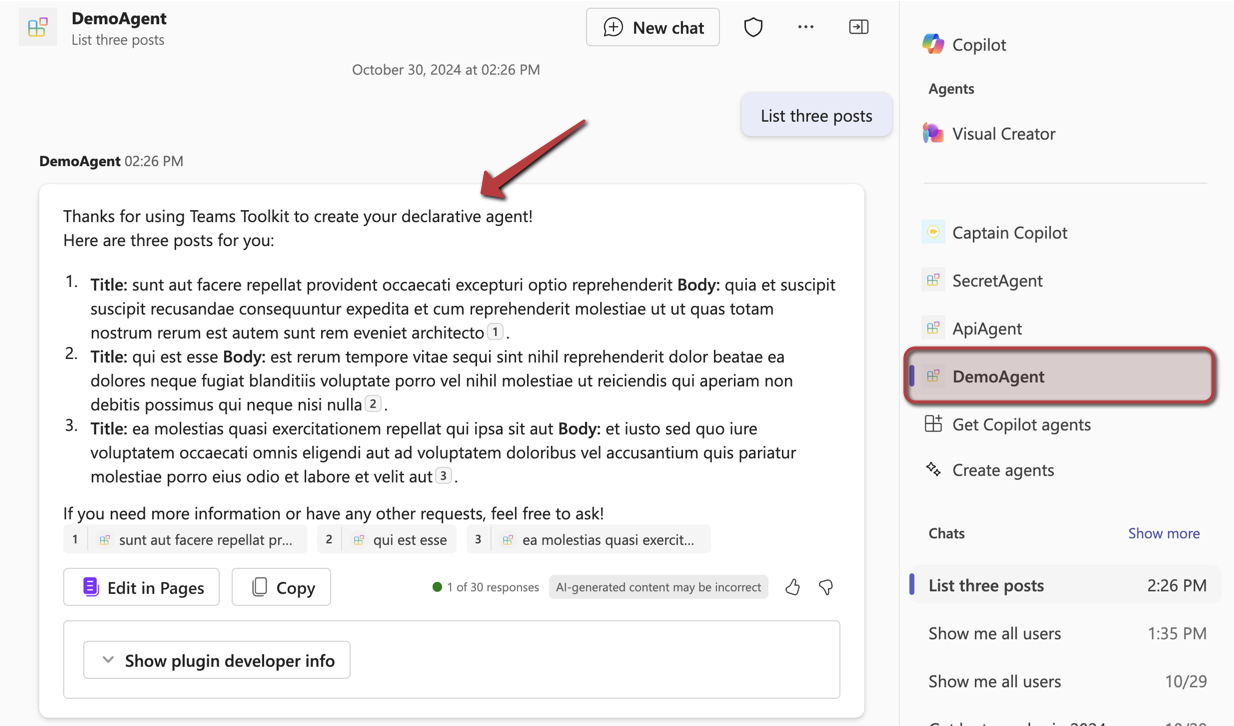
Before explaining some of the internals, let’s look at the end result in Copilot chat. Below is the provisioned app, provisioned only to my own account. This is the app as created by the extension, without modifications on my part.

Agent in Copilot Chat; sample API we use returns Latin 😉

Above, I have asked for three posts. Copilot matches my intent to the GET /posts API call and makes the call. The JSONPlaceholder API does not require authentication so that’s easy. Authentication is supported but that’s for another post. If it’s the first time the API is used, you will be asked for permission to use it.

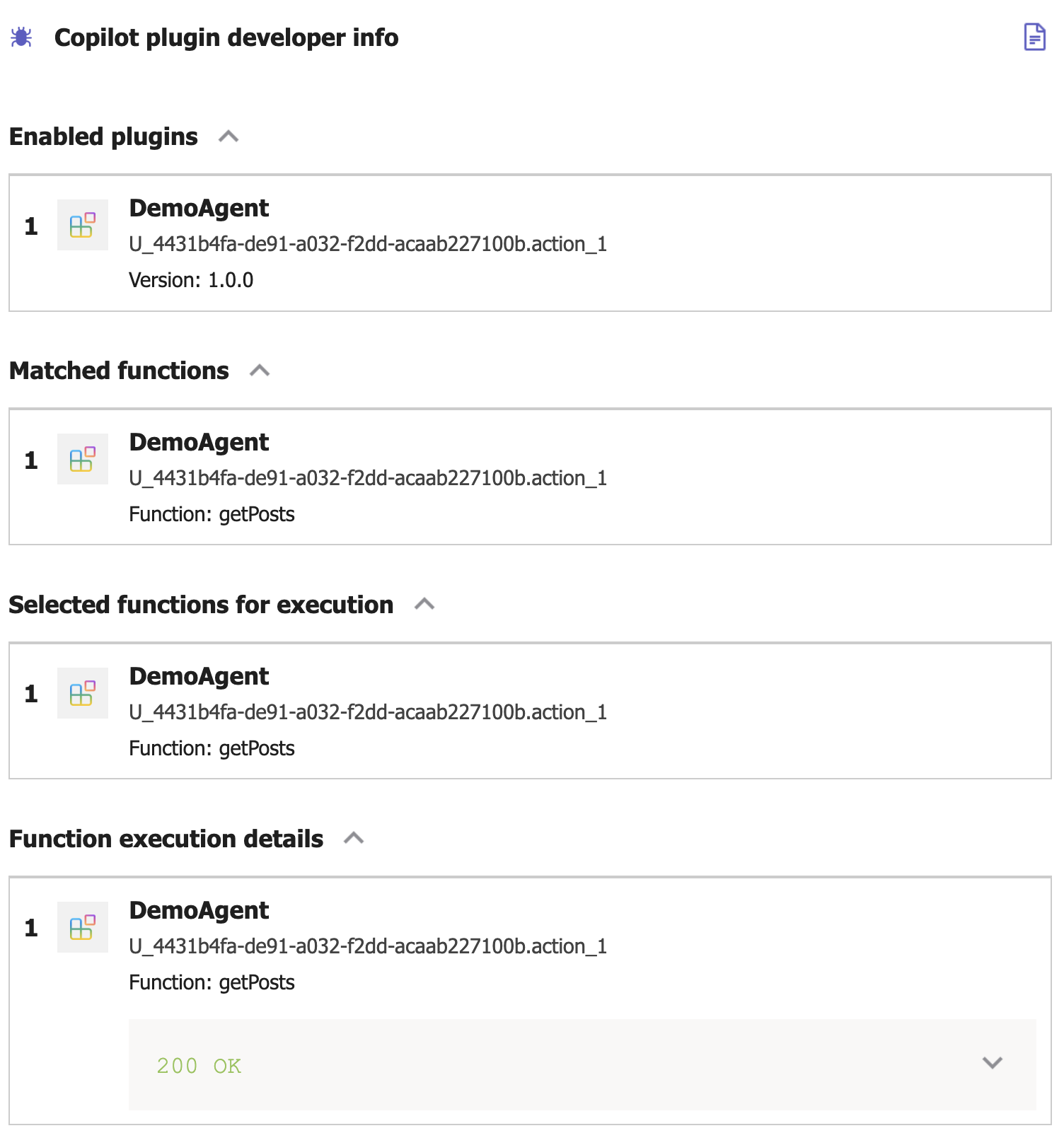
In Copilot, I turned on developer mode by typing -developer on in the chat box. When you click Show plugin developer info, you will see something like the below screenshot:

Copilot developer mode

Above, the Copilot orchestrator has matched the function getPosts from the DemoAgent plugin. Plugin is just the general name for Copilot extensions that can perform actions (or functions). Yes, naming is hard. The Copilot orchestrator selected the getPosts function to execute. The result was a 200 OK from the underlying API. If you click the 200 OK message, you see the raw results returned from the API.

Now let’s look at some of the files that are used to create this agent. The main file, from the agent’s point of view, is declarativeAgent.json in the appPackage folder. It contains the name, description, instructions and actions of the agent:

{
    "$schema": "https://developer.microsoft.com/json-schemas/copilot/declarative-agent/v1.0/schema.json",
    "version": "v1.0",
    "name": "DemoAgent",
    "description": "Declarative agent created with Teams Toolkit",
    "instructions": "$[file('instruction.txt')]",
    "actions": [
        {
            "id": "action_1",
            "file": "ai-plugin.json"
        }
    ]
}

The instructions property references another file which contains the instructions for the agent. One of the instructions is: You should start every response and answer to the user with “Thanks for using Teams Toolkit to create your declarative agent!”. That’s the reason why my question had that in the response to start with.

Of course, the actions are where the magic is. You can provide your agent with multiple actions. Here, we only have one. These actions are defined in a file that references the OpenAPI spec. Above, that file is ai-plugin.json. This file tells the agent what API call to make. It contains a functions array with only one function in this case: getPosts. It’s important you provide a good description for the function because Copilot selects the function to call based on its description. See the Matched functions list in the plugin developer info section.

Below the functions array is a runtimes array. It specifies what operation to call from the referenced OpenAPI specification. In here, you also specify the authentication to the API. In this case, the auth type is None but agents support HTTP bearer authentication with a simple key or OAuth.

Here’s the entire file:

{
    "$schema": "https://developer.microsoft.com/json-schemas/copilot/plugin/v2.1/schema.json",
    "schema_version": "v2.1",
    "name_for_human": "DemoAgent",
    "description_for_human": "Free fake API for testing and prototyping.",
    "namespace": "demoagent",
    "functions": [
        {
            "name": "getPosts",
            "description": "Returns all posts",
            "capabilities": {
                "response_semantics": {
                    "data_path": "$",
                    "properties": {
                        "title": "$.title",
                        "subtitle": "$.id"
                    },
                    "static_template": {
                        "type": "AdaptiveCard",
                        "$schema": "http://adaptivecards.io/schemas/adaptive-card.json",
                        "version": "1.5",
                        "body": [
                            {
                                "type": "TextBlock",
                                "text": "id: ${if(id, id, 'N/A')}",
                                "wrap": true
                            },
                            {
                                "type": "TextBlock",
                                "text": "title: ${if(title, title, 'N/A')}",
                                "wrap": true
                            },
                            {
                                "type": "TextBlock",
                                "text": "body: ${if(body, body, 'N/A')}",
                                "wrap": true
                            },
                            {
                                "type": "TextBlock",
                                "text": "userId: ${if(userId, userId, 'N/A')}",
                                "wrap": true
                            }
                        ]
                    }
                }
            }
        }
    ],
    "runtimes": [
        {
            "type": "OpenApi",
            "auth": {
                "type": "None"
            },
            "spec": {
                "url": "apiSpecificationFile/openapi.json"
            },
            "run_for_functions": [
                "getPosts"
            ]
        }
    ],
    "capabilities": {
        "localization": {},
        "conversation_starters": [
            {
                "text": "Returns all posts"
            }
        ]
    }
}

As you can see, you can also control how the agent responds by providing an adaptive card. Teams toolkit decided on the format above based on the API specification and the data returned by the getPosts operation. In this case, the card looks like this:

Addaptive card showing the response from the API: id, title, body and userId of the fake blog post

Adding extra capabilities

You can add conversation starters to the agent in declarativeAgent.json. They are shown in the opening screen of your agent:

Conversation Starters

These starters are added to declarativeAgent.json:

{
    "$schema": "https://developer.microsoft.com/json-schemas/copilot/declarative-agent/v1.0/schema.json",
    "version": "v1.0",
    "name": "DemoAgent",
    "description": "Declarative agent created with Teams Toolkit",
    "instructions": "$[file('instruction.txt')]",
    "actions": [
        ...
    ],
    "conversation_starters": [
    {
        "title": "Recent posts",
        "text": "Show me recent posts"
    },
    {
        "title": "Last post",
        "text": "Show me the last post"
    }
]
}

In addition to conversation starters, you can also enable web searches. Simply add the following to the file above,

"capabilities": [
    {
        "name": "WebSearch"
    }
]

With this feature enabled, the agent can search the web for answers via Bing. It will do so when it thinks it needs to or when you tell it to. For instance: “Search the web for recent news about AI” gets you something like this:

Agent with WebSearch turned on

In the plugin developer info, you will see that none of your functions were executed. Developer info does not provide additional information about the web search.

Next to starter prompts and WebSearch, here are some of the other things you can do:

  • Add OneDrive and SharePoint content: extra capability with name OneDriveAndSharePoint; the user using the agent needs access to these files or they cannot be used to generate an answer
  • Add Microsoft Graph Connectors content: extra capability with name GraphConnectors; Graph Connectors pull in data from other sources in Microsoft Graph; by specifying the connector Ids, that data can then be retrieved by the agent

More information about the above settings can be found here: https://learn.microsoft.com/en-us/microsoft-365-copilot/extensibility/declarative-agent-manifest.

Provisioning

To provision the agent just for you, open VS Code’s command palette and search for Teams: Provision. You will be asked to log on to Microsoft 365. When all goes well, you should see the messages below in the Output pane:

Output after provisioning an app

If you are familiar with app deployment to Teams in general, you will notice that this is the same.

When the app is provisioned, it should appear in the developer portal at https://dev.teams.microsoft.com/apps:

DemoAgent in the Teams dev portal

Note that the extension adds dev to the agent when you provision the app. When you publish the app, this is different. You can also see this in VS Code in the build folder:

App package for provisioning in VS Code

Note: we did not discuss the manifest.json file which is used to configure the Teams app as a whole. Use it to set developer info, icons, name, description and more.

There are more steps to take to publish the app and make it available to your organisation. See https://learn.microsoft.com/en-us/microsoftteams/platform/toolkit/publish for more information

Conclusion

The goal of this blogpost was to show how easy it is to create a declarative agent on top of Microsoft 365 Copilot in VS Code. Remember that these agents use the underlying Copilot orchestrator and model and that is something you cannot change. If you need more freedom (e.g., control over LLM, its parameters, advanced prompting techniques etc…) and you want to create such an app in Teams, there’s always the Custom Engine Agent.

Declarative agents don’t require you to code although you do need to edit multiple files to get it to work?

In a follow-up post, we will take a look at adding a custom API with authentication. I will also show you how to easily add additional actions to an agent without too much manual editing. Stay tuned!

Embracing the Age of AI Transformation: A New Era for Innovation and Expertise

⚠️ This is an AI-generated article based on a video to transcript generator I created to summarise Microsoft Build sessions. This article is used as an example for a LinkedIn post.

This article is based on the Microsoft Build keynote delivered on Tuesday, May 21st, 2024. It was created with gpt-4o. The post is unedited and as such contains errors such as PHY models instead of Phi etc… Most errors come from errors in the transcription phase.

Here’s the generated content ⬇️

As the digital age advances, we’re witnessing an unprecedented transformation powered by artificial intelligence (AI). Three decades ago, the vision was “information at your fingertips.” Today, we stand on the cusp of a new era: “expertise at your fingertips.” This shift from mere access to information to access to actionable expertise is revolutionizing industries across the globe. From farms to classrooms, boardrooms to labs, AI is proving to be a universal tool for everyone, everywhere.

The Evolution of AI: From Information to Expertise

In the early days of computing, the primary challenge was to make computers understand us rather than us having to understand them. We dreamed of a world where vast amounts of data could be harnessed to help us reason, plan, and act more effectively. Fast forward 70 years, and we’re seeing those dreams realized through groundbreaking advancements in AI. This new generation of AI is reshaping every layer of technology, from data center infrastructures to edge devices, enabling distributed, synchronous data parallel workloads.

Scaling Laws: Driving the Intelligence Revolution

Much like Moore’s Law propelled the information revolution, the scaling laws of deep neural networks (DNNs) are now driving the intelligence revolution. These laws, combined with innovative model architectures and data utilization methods, are leading to rapid advancements in AI. The result is a natural, multimodal user interface that supports text, speech, images, and video, along with memory and reasoning capabilities that reduce cognitive load and enhance productivity.

AI in Action: Real-World Impact

The transformative power of AI is not just theoretical. Real-world applications are demonstrating its potential to change lives. Consider the rural Indian farmer who used AI to navigate government farm subsidies, or the developer in Thailand leveraging the latest AI models to optimize workflows. These examples highlight the democratization of AI, where cutting-edge technology developed on one side of the world can directly benefit individuals on the other.

Microsoft Copilot: Your Everyday AI Companion

One of the most exciting developments in this AI revolution is Microsoft Copilot. This platform brings knowledge and expertise directly to users, helping them act on it effectively. Microsoft has introduced several key components to enhance Copilot’s capabilities:

  1. Copilot Plus PCs: The fastest AI-first PCs, equipped with powerful NPUs for lightning-fast local inference, offering unprecedented speed and efficiency.
  2. Windows Copilot Runtime: Making Windows the best platform for building AI applications with local APIs, no-code integrations, and support for over 40 models out of the box.
  3. Azure AI Studio: An end-to-end development environment for building, training, and fine-tuning AI models, now generally available with built-in safety features.

Expanding Horizons: AI Infrastructure and Models

Microsoft is building the most comprehensive AI infrastructure with Azure, scaling AI capacity globally while ensuring sustainability. This includes partnerships with industry leaders like NVIDIA and AMD to provide the best performance and cost-efficiency for AI workloads. Additionally, Microsoft offers a broad selection of foundation models, including GPT-4, trained on Azure, and the new PHY family of small language models designed for efficient on-device inferencing.

Real-Time Intelligence and Fabric Integration

Microsoft Fabric is another game-changer, offering an integrated SaaS platform for data analytics and AI capabilities. With real-time intelligence, Fabric enables instant, actionable insights from streaming data, helping businesses stay proactive and make informed decisions. This platform’s seamless integration with tools like Esri for spatial analytics and Azure AI Search for retrieval-augmented generation (RAG) applications further extends its utility.

Empowering Developers: From Idea to Code

GitHub Copilot, the first major product of the generative AI age, is revolutionizing software development. With over 1.8 million subscribers, Copilot assists developers in their native languages, streamlining the coding process. The new GitHub Copilot extensions allow developers to customize and integrate third-party services, enhancing the overall development experience.

The Future of AI: A Call to Innovate

The advancements in AI are opening up new possibilities for innovation and transformation. As we continue to build and refine these platforms, the real impact will come from the developers and innovators who leverage this technology to create meaningful solutions. This is a call to all developers: embrace this special moment in history, take advantage of the tools at your disposal, and build the future.

Conclusion

The age of AI transformation is here, and it’s redefining how we interact with technology. From personal assistants to team collaborators, from education to healthcare, AI is poised to make a significant impact. Microsoft’s commitment to providing the infrastructure, tools, and platforms necessary for this revolution is clear. Now, it’s up to us to harness this power and drive the next wave of innovation. Welcome to the new era of AI.

So you want a chat bot to talk to your SharePoint data?

It’s a common request we hear from clients: “We want a chatbot that can interact with our data in SharePoint!” The idea is compelling – instead of relying on traditional search methods or sifting through hundreds of pages and documents, users could simply ask the bot a question and receive an instant, accurate answer. It promises to be a much more efficient and user-friendly experience.

The appeal is clear:

  • Improved user experience
  • Time savings
  • Increased productivity

But how easy is it to implement a chatbot for SharePoint and what are some of the challenges? Let’s try and find out.

The easy way: Copilot Studio

I have talked about Copilot Studio in previous blog posts. One of the features of Copilot Studio is generative answers. With generative answers, your copilot can find and present information for different sources like web sites or SharePoint data. The high level steps to work with SharePoint data are below:

  • Configure your copilot to use Microsoft Entra ID authentication
  • In the Create generative answers node, in the Data sources field, add the SharePoint URLs you want to work with

From a high level, this is all you need to start asking questions. One advantage of using this feature is that the SharePoint data is accessed on behalf of the user. When generative answers searches for SharePoint data, it only returns information that the user has access to.

It is important to note that the search relies on a call to the Graph API search endpoint (https://graph.microsoft.com/v1.0/search/query) and that only the top three results that come back from this call are used. Generative answers only works with files up to 3MB in size. It is possible that the search returns documents that are larger than 3MB. They would not be processed. If all results are above 3MB, generative answers will return an empty response.

In addition, the user’s question is rewritten to only send the main keywords to the search. The type of search is a keyword search. It is not a similarity search based on vectors.

Note: the type of search will change when Microsoft enables Semantic Index for Copilot for your tenant. Other limitations, like the 3MB size limit, will be removed as well.

Pros:

  • easy to configure (UI)
  • uses only documents the user has access to (Entra ID integration)
  • no need to create a pipeline to process SharePoint data; simply point at SharePoint URLs 🔥
  • an LLM is used “under the hood”; there is no need to setup an Azure OpenAI instance

Cons:

  • uses keyword search which can result in less relevant results
  • does not use vector search and/or semantic reranking (e.g., like in Azure AI Search)
  • number of search results that can provide context is not configurable (maximum 3)
  • documents are not chunked; search can not retrieve relevant pieces of text from a document
  • maximum size is 3MB; if the document is highly relevant to answer the user’s query, it might be dropped because of its size

Although your mileage may vary, the limitations make it hard to build a chat bot that provides relevant and qualitative answers. What can we do to fix that?

Copilot Studio with Azure OpenAI on your data

Copilot Studio has integration with Azure OpenAI on your data. Azure OpenAI on your data makes it easy to create an Azure AI Search index based on your documents. Such an index creates chunks of larger documents and uses vectors to match a user’s query to similar chunks. Such queries usually result in more relevant pieces of text from multiple documents. In addition to vector search, you can combine vector search with keyword search and optionally rerank the search results semantically. In most cases, you want these advanced search options because relevant context is key for the LLM to work with!

The diagram below shows the big picture:

Using AI Search to query documents with vectors

The diagram above shows documents in a storage account (not SharePoint, we will get to that). With Azure OpenAI on your data, you simply point to the storage account, allowing Azure AI Search to build an index that contains one or more document chunks per document. The index contains the text in the chunk and a vector of that text. Via the Azure OpenAI APIs, chat applications (including Copilot Studio) can send user questions to the service together with information about the index that contains relevant content. Behind the scenes, the API searches for similar chunks and uses them in the prompt to answer the user’s question. You can configure the number of chunks that should be put in the prompt. The number is only limited by the OpenAI model’s context limit (8k, 16k, 32k or 128k tokens).

You do not need to write code to create this index. Azure OpenAI on your data provides a wizard to create the index. The image below shows the wizard in Azure AI Studio (https://ai.azure.com):

Azure OpenAI add your data

Above, instead of pointing to a storage account, I selected the Upload files/folder feature. This allows you to upload files to a storage account first, and then create the index from that storage account.

Azure OpenAI on your data is great, but there is this one tiny issue: there is no easy way to point it to your SharePoint data!

It would be fantastic if SharePoint was a supported datasource. However, it is important to realise that SharePoint is not a simple datasource:

  • What credentials are used to create the index?
  • How do you ensure that queries use only the data the user has access to?
  • How do you keep the SharePoint data in sync with the Azure AI Search index? And not just the data, the ACLs (access control lists) too.
  • What SharePoint data do you support? Just documents? List items? Web pages?

The question now becomes: “How do you get SharePoint data into AI Search to improve search results?” Let’s find out.

Creating an AI Search index with SharePoint data

Azure AI Search offers support for SharePoint as a data source. However, it’s important to note that this feature is currently in preview and has been in that state for an extended period of time. Additionally, there are several limitations associated with this functionality:

  • SharePoint .ASPX site content is not supported.
  • Permissions are not automatically ingested into the index. To enable security trimming, you will need to add permission-related information to the index manually, which is a non-trivial task.

In the official documentation, Microsoft clearly states that if you require SharePoint content indexing in a production environment, you should consider creating a custom connector that utilizes SharePoint webhooks in conjunction with the Microsoft Graph API to export data to an Azure Blob container. Subsequently, you can leverage the Azure Blob indexer to index the exported content. This approach essentially means that you are responsible for developing and maintaining your own custom solution.

Note: we do not follow the approach with webhooks because of its limitations

What to do?

When developing chat applications that leverage retrieval-augmented generation (RAG) with SharePoint data, we typically use a Logic App or custom job to process the SharePoint data in bulk. This Logic App or job ingests various types of content, including documents and site pages.

To maintain data integrity and ensure that the system remains up-to-date, we also utilize a separate Logic App or job that monitors for changes within the SharePoint environment and updates the index accordingly.

However, implementing this solution in a production environment is not a trivial task, as there are numerous factors to consider:

  • Logic Apps have limitations when it comes to processing large volumes of data. Custom code can be used as a workaround.
  • Determining the appropriate account credentials for retrieving the data securely.
  • Identifying the types of changes to monitor: file modifications, additions, deletions, metadata updates, access control list (ACL) changes, and more.
  • Ensuring that the index is updated correctly based on the detected changes.
  • Implementing a mechanism to completely rebuild the index when the data chunking strategy changes, typically involving the creation of a new index and updating the bot to utilize the new index. Index aliases can be helpful in this regard.

In summary, building a custom solution to index SharePoint data for chat applications with RAG capabilities is a complex undertaking that requires careful consideration of various technical and operational aspects.

Security trimming

Azure AI Search does not provide document-level permissions. There is also no concept of user authentication. This means that you have to add security information to an Azure AI Search index yourself and, in code, ensure that AI Search only returns results that the logged on user has access to.

Full details are here with the gist of it below:

  • add a security field of type collection of strings to your index; the field should allow filtering
  • in that field, store group Ids (e.g., Entra ID group oid’s) in the array
  • while creating the index, retrieve the group Ids that have at least read access to the document you are indexing; add each group Id to the security field

When you query the index, retrieve the logged on user’s list of groups. In your query, use a filter like the one below:

{
"filter":"group_ids/any(g:search.in(g, 'group_id1, group_id2'))"
}

Above, group_ids is the security field and group_id1 etc… are the groups the user belongs to.

For more detailed steps and example C# code, see https://learn.microsoft.com/en-us/azure/search/search-security-trimming-for-azure-search-with-aad.

If you want changes in ACLs in SharePoint to be reflected in your index as quickly as possible, you need a process to update the security field in your index that is triggered by ACL changes.

Conclusion

Crafting a chat bot that seamlessly works with SharePoint data to deliver precise answers is no simple feat. Should you manage to obtain satisfactory outcomes leveraging generative responses within Copilot Studio, it’s advisable to proceed with that route. Even if you do not use Copilot Studio, you can use Graph API search within custom code.

If you want more accurate search results and switch to Azure AI Search, be mindful that establishing and maintaining the Azure AI Search index, encompassing both SharePoint data and access control lists, can be quite involved.

It seems Microsoft is relying on the upcoming Semantic Index capability to tackle these hurdles, potentially in combination with Copilot for Microsoft 365. When Semantic Index ultimately becomes available, executing a search through the Graph API could potentially fulfill your requirements.