Deploying a multi-agent solution with MCP and A2A to Azure Container Apps

In previous posts, we discussed multi-agent scenarios, how A2A servers work (here and here) and how to deploy the infrastructure to host a multi-agent application on Azure with Azure Container Apps and AI Foundry.

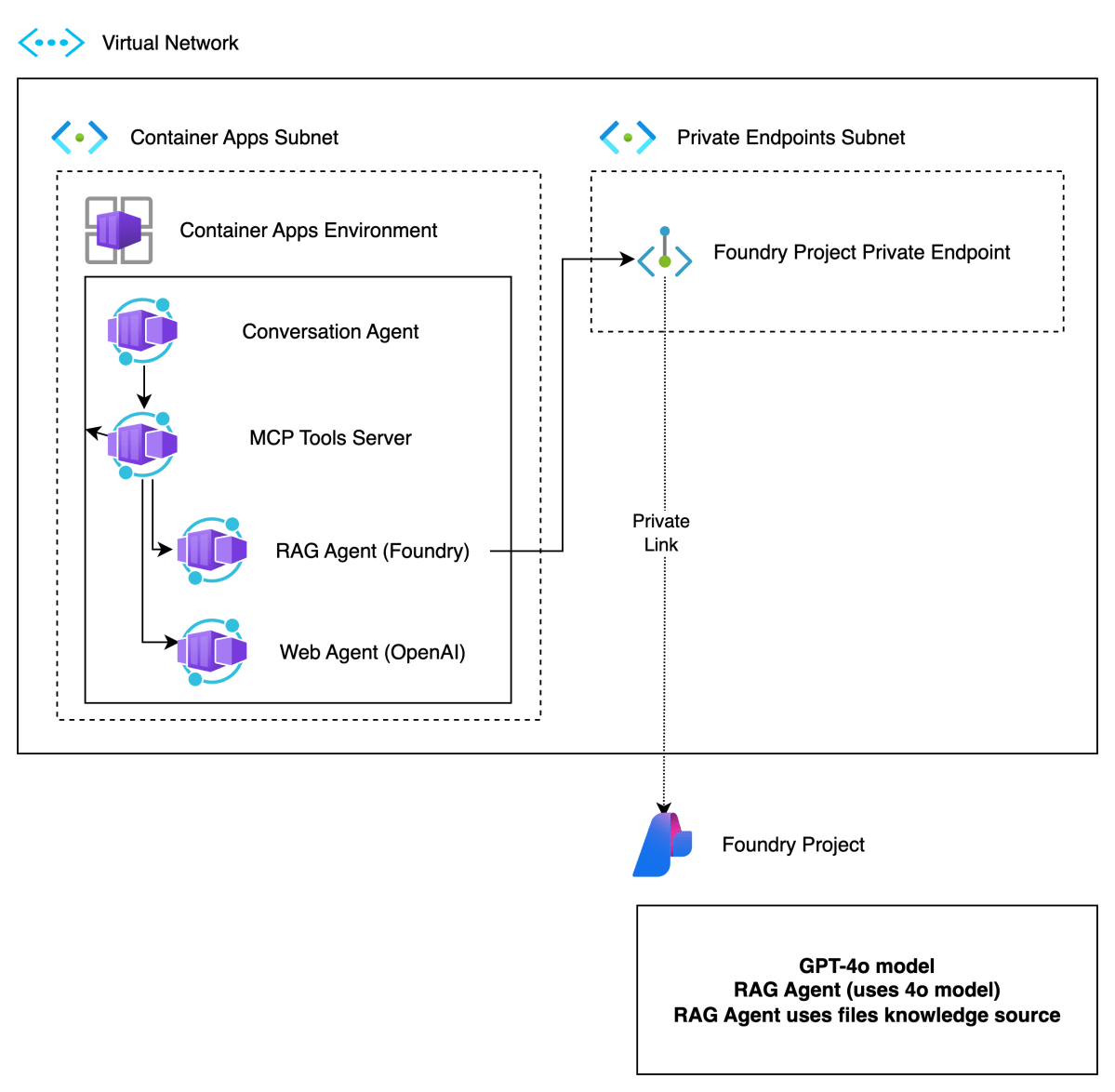
In this post, we will take a look at deploying the different components of the solution as containers in Azure Container Apps. This is what we will build:

Multi-agent solution with MCP and A2A

There are four main components:

ComponentDescription
Conversation AgentPresents a chat interface to the user. Built with Chainlit and Semantic Kernel. Uses an OpenAI model. This could be switched to an Azure OpenAI model easily.

The agent uses two tools, rag and web, hosted by the MCP server.
MCP Tools ServerMCP server built with Python FastMCP. It exposes two tools, web and rag. The tools use an A2A client to interact with the A2A servers for the web and rag agents.

Not exposed to the Internet. Used to demonstrate MCP and A2A together. We could have called the A2A servers directly from the conversation agent without MCP.
A2A Server for Foundry Agent (does RAG)This agent uses an Azure AI Foundry Agent with a hosted file-based RAG tool to provide answers about Contoso products.

Not exposed to the Internet. Communicates privately with the Azure AI Foundry project.
A2A Server for OpenAI Agent (does web searches)This agent uses an OpenAI Agent SDK agent with the hosted web search tool.

Not exposed to the Internet. Communicates over the Internet with the OpenAI backend. This could easily be replaced with an Azure AI Foundry Agent that uses Bing Search. As this is an example about A2A, using a different technology makes more sense. 😊

Before delving into the four different components, it is important to know that the mcp, web and rag containers do not use their internal ingresses to communicate over TLS. That means that the mcp container for example, will talk to the web container using http://ca-web instead of something like https://ca-web.internal.ACA_environment_default_domain.

There is something to be said for using messaging to facilitate communication between agents. They are a form of microservices after all. In this example however, all communication is synchronous and uses HTTP.

This is a technical example that could be implemented in a single in-process agent with two tools. However, the emphasis is on multi-agent communication across process boundaries with Google’s Agent2Agent protocol.

Let’s gets started with the Conversation Agent!

Conversation Agent

The conversation agent maintains a conversation with the end user and keeps track of chat history. The agent, written in Semantic Kernel, has two tools:

  • web-search: uses the OpenAI Agent A2A server to search the web via OpenAI’s hosted web search tool
  • rag-search: uses the Azure AI Foundry A2A server to search for Contoso projects via a hosted RAG tool

The user interface to the agent is provided by Chainlit:

Chainlit UI

Above, I asked for information about a project. The agent is configured to use the rag-search tool to find project information. Under the hood, an A2A Server that wraps an Azure AI Foundry Agent is used to obtain this information. Via a filter, Chainlit supports visualizing when tools are called as can be seen at the top of the screen. It basically has hooks into the kernel object that gets created by Semantic Kernel.

The code for this Chainlit-hosted agent is on GitHub. The code in main.py uses an environment variable, MCP_SERVER_URL, that contains the address of the MCP server. As discussed above this will be http://containername/mcp (e.g., http://ca-mcp/mcp).

Following the typical Semantic Kernel approach, a kernel is created . Here is a snippet of code:

# Create the Semantic Kernel
        kernel = Kernel()
        
        # Add AI service to kernel
        ai_service = OpenAIChatCompletion(ai_model_id="gpt-4o")
        kernel.add_service(ai_service)
        logger.debug("Kernel and AI service initialized successfully")
        
        # Add MCP tools plugin to kernel (uses global client)
        tools_plugin = MCPToolsPlugin()
        kernel.add_plugin(tools_plugin, plugin_name="mcp_tools")
        logger.debug("MCP tools plugin added to kernel")

Note that we are not using Semantic Kernel’s built-in support for remote MCP servers that use streamable HTTP. Instead, we create a plugin via the MCPToolsPlugin class. That class defines two kernel functions, rag_search and web_search. In such a function, you can do what you want. I did not have to use MCP and could have called the A2A servers directly using the A2A client.

In our functions, we do use the MCP client from FastMCP to call the appropriate tool on the MCP server. The call to the A2A servers is implemented in the MCP server’s tools.

⚠️ This approach was chosen to illustrate that even if your framework does not natively support MCP, under the hood this is always LLM function calling. Kernel functions in Semantic Kernel are simply an abstraction on top of function calling. If you use Semantic Kernel’s native support for MCP, the tools on the MCP server would automatically be created as kernel functions. This native support requires much less code.

Now that we have the conversation agent up and running with Chainlit and Semantic Kernel, let’s look at the MCP server.

MCP Server

The conversation agent uses an MCP client (from the FastMCP library) to call tools hosted by the MCP server. This illustrates the separation of tool implementation from agent implementation.

The MCP server is implemented in main.py. In its most basic form, an MCP server with a few tools is really simple. This MCP server just defines two tools: a web tool and a rag tool.

The web tool looks like this:

@mcp.tool()
async def web_tool(query: str) -> str:
    """
    Perform a web search for the given query.
    
    Args:
        query: The search query to perform
        
    Returns:
        Search results as a string
    """
    logger.info(f"Web tool called with query: {query}")
    logger.info(f"Using web A2A agent at: {WEB_A2A_BASE_URL}")
    
    try:
        return await _send_a2a_message(query, WEB_A2A_BASE_URL)
    except Exception as e:
        logger.error(f"Error performing web search: {e}")
        return f"Error performing web search: {str(e)}"

This tool only does one thing: send a message to the A2A server on the address in WEB_A2A_BASE_URL. In Azure Container Apps, this URL is http://ca-web. The rag tool is implemented in a similar way. You can check the code of the _send_a2a_message function on GitHub.

⚠️ The addresses of the A2A servers are supplied to the mcp container app via environment variables WEB_A2A_BASE_URL and RAG_A2A_BASE_URL.

We now have the following implemented:

conversation --tool call--> MCP Server --run tool--> A2A Server

All traffic is synchronous and over http (not https)! Everything depends on the correct tool call being made by the conversation agent and the agents in the A2A servers. The rest is just plumbing! No magic! 😊

A2A Servers

You can check my earlier posts about A2A servers for background information:

It is important to note that the A2A server (rag) uses Azure AI Foundry. To authenticate to AI Foundry, we need to use a managed identity.

The rag container needs the following environment variables:

  • RAG_A2A_BASE_URL: required to set the correct url in the agent card
  • INTERNAL_PORT: port to run on (e.g., 80)
  • FOUNDRY_PROJECT: url to the Foundry project (e.g., https://FOUNDRY-RESOURCE.services.ai.azure.com/api/projects/FOUNDRY-PROJECT
  • ASSISTANT_ID: id of the agent you want to use; needs to exist in Foundry project
  • CLIENT_ID: the client id of the user assigned managed identity; this identity is created in the Bicep script; a role is assigned as well

During deployment of the container apps, a managed identity (that has the client id above) is assigned to the container. In the A2A server code that contains the code to talk to Foundry, this identity is used as follows:

if client_id:
            logger.info(f"Using ManagedIdentityCredential with client ID: {client_id}")
            credential = ManagedIdentityCredential(client_id=client_id)
        else:
            logger.info("Using DefaultAzureCredential")
            credential = DefaultAzureCredential()

This allows for the use of the Azure CLI identity when the rag agent is running on you local machine. Full code is in Agent_Executor.py.

⚠️ If you run the rag A2A server on your local machine, ensure you allow your IP address in the firewall settings of the Azure AI Foundry resource.

Full code for the A2A servers:

Deployment

To make it easy to deploy the containers to the Azure Container Apps environment (discussed in previous post), use the following script: https://github.com/gbaeke/multi_agent_aca/blob/main/deploy_containers.sh

At the top of the script, change the variables to match your environment:

ACR_NAME="SHORT_ACR_NAME"
ACR_URL="SHORT_ACR_NAME.azurecr.io"
RESOURCE_GROUP="RESOURCE_GROUP"
CONTAINER_APP_ENV="CONTAINER_APP_ENV_NAME"
MANAGED_IDENTITY="MANAGED_IDENTITY_NAME"

To deploy, simply run deploy_containers.sh --to-build conversation,mcp,web,rag. This does the following:

  • Builds and pushes the four containers using an ACR Task (no local Docker required)
  • Deploys the four containers with appropriate secrets and environment variables; serets are read from a .env file

Ensure that you have this .env in the same folder with the following values:

OPENAI_API_KEY="your_openai_api_key_here"
# Replace with your actual OpenAI API key

FOUNDRY_PROJECT="your_foundry_project_url"
# The URL of the Foundry project endpoint you're connecting to
# Find it in the properties of the AI Foundry project

ASSISTANT_ID="your_assistant_id_here"
# The unique ID of the agent you're referencing

This should deploy the four containers as shown below:

conversation, mcp, web and rag containers

Now grab the ingress URL (aka Application Url) of the conversation container:

Application URL (ingress URL) to the conversation app

Paste that URL in your browser. Hopefully the Chainlit UI is shown. If not, check the following:

  • Chainlit container has the MCP_SERVER_URL set to http://ca-mcp/mcp and also has you OpenAI key in OPENAI_API_KEY
  • MCP container has the WEB_A2A_BASE_URL and RAG_A2A_BASE_URL url set to http://ca-web and http://ca-rag
  • Web container has WEB_A2A_BASE_URL set to http://ca-web and also has an OPENAI_API_KEY
  • Rag container has RAG_A2A_BASE_URL set to http://ca-rag and has environment variables set to use the Azure AI Foundry agent; also check the managed identity of the container has access rights to AI Foundry

Normally these should all be set by both the Bicep and the container deployment script.

Wrapping Up

If you’ve made it this far and tried to implement this yourself, you’ve likely realized how much effort it takes to get everything up and running. About 99% of the work is infrastructure and plumbing; only 1% is actual agent code. In more complex agentic applications, the ratio may shift slightly, but infrastructure will still dominate the effort.

We have not even touched on things like logging, metrics, tracing the end-to-end communication path, load balancing, saving agent state and much, much more.

This brings me back to a key point from an earlier post:


If you can build your multi-agent solution in-process, or use an agent PaaS like Azure AI Foundry, do it.


Only choose the approach I described above when no other viable option exists or when you’re building larger solutions where multiple teams develop agents that must coexist within the same system.
Deploying AI Foundry Agents and Azure Container Apps to support an Agent2Agent solution

In previous posts, I discussed multi-agent solutions and the potential use of Google’s Agent2Agent protocol (A2A). In this post, we will deploy the infrastructure for an end-to-end solution like follows:

Multi-agent solution in Azure

Here’s a short description of the components.

ComponentDescription
Foundry ProjectBasic Foundry project with a private endpoint. The private endpoint ensures private communication between the RAG Agent container and the Azure Foundry agent.
Virtual NetworkProvides subnet to integrate Azure Container Apps Environment in a private network. This allows container apps to connect to Azure AI Foundry privately.
Container Apps EnvironmentIntegrated in our private network. Hosts Container Apps.
Container AppsContainer apps for conversation agent, MCP server, RAG agent and web agent. Only the conversation agent is publicly available.
Main components of the deployment

In what follows, we will first provide more information about Azure AI Foundry and then proceed to deploy all components except the Azure Container Apps themselves. We will deploy the actual app components in a follow-up post.

Azure AI Foundry Project

Azure AI Foundry is Microsoft’s enterprise platform for building, deploying, and managing AI applications—especially those using large language models (LLMs) and generative AI. It brings together everything you need: production-ready infrastructure, access to powerful models from providers like OpenAI, Mistral, and Meta, and tools for customization, monitoring, and scaling—all in one unified environment.

It’s designed to support the full AI development lifecycle:

  • Explore and test models and services
  • Build and customize applications or agents
  • Deploy to production
  • Monitor, evaluate, and improve performance

You can work either through the Azure AI Foundry portal or directly via SDKs in your preferred development environment.

You will do your work in a project. When you create a project in Azure AI Foundry, you’ll choose between two types:

Foundry Project

This type is recommended for most cases and is what we will use to define our RAG agent. Agents in projects are generally available (GA). You deploy models like gpt-4o directly to the project. There is no need to create a connection to an Azure OpenAI resource. It can be configured with a private endpoint to ensure private communication.

This matches exactly with our needs. Note that we will deploy a basic Foundry environment with a private endpoint and not a standard environment. For more information about basic versus standard, check the Foundry documentation.

Later, when we create the resources via Bicep, two resources will be created:

  • The Azure AI Foundry resource: with private endpoint
  • The Azure AI Foundry Project: used to create our RAG agent

Hub-based Project

This type has some additional options like Prompt Flow. However, agents in hub-based projects are not generally available at the time of writing. A hub-based project is not the best match for our needs here.

⚠️ In general, always use an Foundry Project versus a Hub-based Project unless you need a specific feature that, at the time of creation, is not yet available in Foundry projects.

As explained above, a Foundry project is part of an AI Foundry resource. Here is the resource in the portal (hub-based projects are under AI Hubs):

AI Foundry resource

Inside the resource, you can create a project. The above resource has one project:

Projects in the Foundry resource: your Foundry Project

To work with your project, you can click Go to Azure AI Foundry portal in the Overview tab:

In the Foundry Portal, you can proceed to create agents. However, if you have enabled a private endpoint, ensure you can access your Azure virtual network via a jump host or VPN. If that is not possible, allow your IP to access the Foundry resource in the Networking section of the resource. When you do not have access, you will see the following error:

No access to manage agents in the project

⚠️ Even after giving access, it will take a while for the change to propagate.

If you have access, you will see the following screen to add and configure agents:

Creating and debugging agents in your AI Foundry Project

Deployment with Bicep

You can check https://github.com/gbaeke/multi_agent_aca/tree/main/bicep to find Bicep files together with a shell script to deploy the resources. Also check the README for more information.

In Bicep, you first create an account (type is Microsoft.CognitiveServices/accounts). This matches the fndry-a2a resource in one of the screenshots above. In a later step, you add the project. The snippet below shows how the account gets created:

resource account 'Microsoft.CognitiveServices/accounts@2025-04-01-preview' = {
  name: aiFoundryName
  location: location
  identity: {
    type: 'SystemAssigned'
  }
  kind: 'AIServices'
  sku: {
    name: 'S0'
  }
  properties: {
    // Networking
    publicNetworkAccess: 'Enabled'
    
    networkAcls: {
      bypass: 'AzureServices'
      defaultAction: 'Deny'
      ipRules: [
        {
          value: 'IP address'
        }
      ]
    }

    // Specifies whether this resource support project management as child resources, used as containers for access management, data isolation, and cost in AI Foundry.
    allowProjectManagement: true

    // Defines developer API endpoint subdomain
    customSubDomainName: aiFoundryName

    // Auth
    disableLocalAuth: false
  }
}

It’s at this level you block public network access. The private endpoint and related network resources are created in other sections of the Bicep file.

Once you have this account, you can create the project. This matches with the fndry-a2a-proj project in one of the screenshots above. Here is the Bicep snippet:

resource project 'Microsoft.CognitiveServices/accounts/projects@2025-04-01-preview' = {
  name: defaultProjectName
  parent: account
  location: location
  identity: {
    type: 'SystemAssigned'
  }
  properties: {}
}

Later, we will create agents in this project. However, an agent needs a supported model. In this case, we will use gpt-4o-mini so we need to deploy it:

resource modelDeployment 'Microsoft.CognitiveServices/accounts/deployments@2024-10-01'= {
  parent: account
  name: 'gpt-4o-mini'
  sku : {
    capacity: 1
    name: 'GlobalStandard'
  }
  properties: {
    model:{
      name: 'gpt-4o-mini'
      format: 'OpenAI'
      version: '2024-07-18'
    }
  }
}

⚠️ Above, a capacity of 1 only allows for 1000 tokens per minute. You will probably want to increase that. If not, you run into issues when you test your agents because you will quickly hit the limit.

In the Foundry Portal, the model is shown as follows:

gpt-4o-mini deployment (next to manually deployed gpt-4o)

I will not go into the rest of the Bicep code. Most of it is network related (network, subnets, private endpoint, private DNS, DNS network links, etc..).

Creating the RAG Agent

Although we can create the agent using the Foundry SDK, we will create and test it via the Foundry Portal. As a first step, create or modify an agent. You might get a question first about the model you want to use with your agents.

In your agent, do the following:

  • give the agent a name
  • select a model from the list of deployed models
  • set instructions

I used the following instructions:

You retrieve information about Contoso projects using your knowledge tools. Always use your knowledge tools to answer the user. If you cannot find the answer via tools, respond you do not know.

Name, model and instructions

Next, scroll down and click + Add next to Knowledge. You will see the following screen:

List of agent knowledge tool

Select the Files tool and upload the files from https://github.com/gbaeke/multi_agent_aca/tree/main/project_descriptions. Use git clone https://github.com/gbaeke/multi_agent_aca.git to grab those files.

After selecting the local files, click Upload and Save to upload these files so the agent can search them. Behind the scenes, the files are chunked, chunks are vectorized and stored in a vector database. However, this is all hidden from you. Your agent configuration should now show the knowledge tool:

Knowledge tool added to agent

You should now test your agent. At the top of the configuration section, there is a Try in Playground link.

When I ask about EduForge, I get the following:

Asking about EduForge with a reponse from the files tool (+ annotation)

When you click View Run Info (at the end of the response), the use of the tool should be shown in the trace:

Tracing shows the tool calls and the file_search tool

If this works, you have a simple agent in Foundry that has access to a file_search tool to perform RAG (retrieval-augmented generation).

Wrapping up

We have now deployed the RAG agent with Azure AI Foundry. We created a Foundry resource in Azure with a private endpoint. The Foundry resource has one project within it. The project contains our RAG agent.

But remember, we want to wrap this agent with Google’s Agent2Agent. To achieve that, we will deploy the A2A server that uses the Foundry agent as a container in the Container Apps Environment.

We will take a look at how that works in a next post. In that post, we will use these agents as tools via MCP and provide the MCP tools to our conversation agent. The conversation agent will use Semantic Kernel.

Stay tuned! 😊

A look at some of Azure Container App’s new features

A while ago, I created a YouTube playlist about Azure Container Apps. The videos were based on the first public preview. At the time, several features were missing or still needed to be improved (as expected with a preview release):

  • An easy way to create a container app, similar to az webapp up
  • Managed Identity support (system and user assigned)
  • Authentication support with identity providers like Microsoft, Google, Twitter
  • An easy way to follow the logs of a container from your terminal (instead of using Log Analytics queries)
  • Getting a shell to your container for troubleshooting purposes

Let’s take a look at some of these features.

az containerapp up

To manage Container Apps, you can use the containerapp Azure CLI extension. Add it with the following command:

az extension add --name containerapp --upgrade

One of the commands of this extension is up. It lets you create a container app from local source files or from GitHub. With your sources in the current folder, the simplest form of this command is:

az containerapp up --name YOURAPPNAME --source .

The command above creates the following resources:

  • a resource group: mine was called geert_baeke_rg_3837
  • a Log Analytics workspace
  • a Container Apps environment: its name is YOURAPPNAME-env
  • an Azure Container Registry: used to build the container image from a Dockerfile in your source folder
  • the container app: its name is YOURAPPNAME

The great thing here is that you do not need Docker on your local machine for this to work. Building and pushing the container image is done by an ACR task. You only need a Dockerfile in your source folder.

When you change your source code, simply run the same command to deploy your changes. A new image build and push will be started by ACR and a revision of your container app will be published.

⚠️TIP: by default, the container app does not enable ingress from the Internet. To do so, include an EXPOSE command in your Dockerfile.

If you want to try az containerapp up, you can use my super-api sample from GitHub: https://github.com/gbaeke/super-api

Use the following commands to clone the source code and create the container app:

git clone https://github.com/gbaeke/super-api.git
cd super-api
az containerapp up --name super-api --source . --ingress external --target-port 8080

Above, we added the –ingress and –target-port parameters to enable ingress. You will get a URL like https://super-api.livelyplant-fa0ceet5.eastus.azurecontainerapps.io to access the app. In your browser, you will just get: Hello from Super API. If you want a different message, you can run this command:

az containerapp up --name super-api --source . --ingress external --target-port 8080 --env-vars WELCOME=YOURMESSAGE

Running the above command will result in a new revision. Use az containerapp revision list -n super-api -g RESOURCEGROUP -o table to see the revisions of your container app.

There is much more you can do with az containerapp up:

  • Deploy directly from a container image in a registry (with the option to supply registry authentication if the registry is private)
  • Deploy to an existing container app environment
  • Deploy to an existing resource group
  • Use a GitHub repo instead of local sources which uses a workflow to deploy changes as you push them

Managed Identity

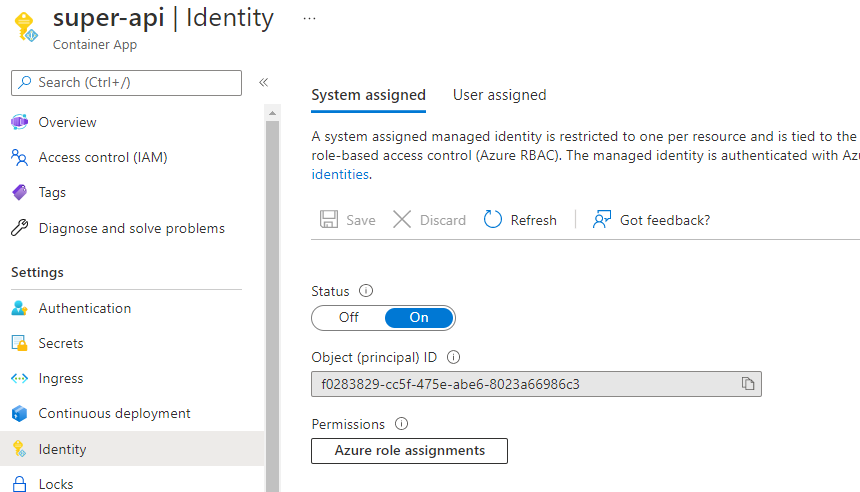
You can now easily enable managed identity on a container app. Both System assigned and User assigned are supported. Below, system assigned managed identity was enabled on super-api:

System assigned identity on super-api

Next, I granted the managed identity Reader role on my subscription:

Enabling managed identity is easy enough. In your code, however, you need to obtain a token to do the things you want to do. At a low level, you can use an HTTP call to fetch the token to access a resource like Azure Key Vault. Let’s try that and introduce a new command to get a shell to a container app:

az containerapp exec  -n super-api -g geert_baeke_rg_3837 --command sh

The above command gets a shell to the super-api container. If you want to try this, first modify the Dockerfile and remove the USER command. Otherwise, you are not root and will not be able to install curl. You will also need to use an alpine base image in the second stage instead of scratch (the scratch image does not offer a shell).

In the shell, run the following commands:

apk add curl
curl -H "X-IDENTITY-HEADER: $IDENTITY_HEADER" \
  "$IDENTITY_ENDPOINT?resource=https://vault.azure.net&api-version=2019-08-01"

The response to the above curl command will include an access token for the Azure Key Vault resource.

A container app with managed identity has several environment variables:

  • IDENTITY_ENDPOINT: http://localhost:42356/msi/token (the endpoint to request the token from)
  • IDENTITY_HEADER: used to protect against server-side request forgery (SSRF) attacks

Instead of using these values to create raw HTTP requests, you can use SDK’s instead. The documentation provides information for .NET, JavaScript, Python, Java, and PowerShell. To try something different, I used the Azure SDK for Go. Here’s a code snippet:

func (s *Server) authHandler(w http.ResponseWriter, r *http.Request) {
	// parse subscription id from request
	subscriptionId := r.URL.Query().Get("subscriptionId")
	if subscriptionId == "" {
		s.logger.Infow("Failed to get subscriptionId from request")
		w.WriteHeader(http.StatusBadRequest)
		return
	}

	client := resources.NewGroupsClient(subscriptionId)
	authorizer, err := auth.NewAuthorizerFromEnvironment()
	if err != nil {
		s.logger.Error("Error: ", zap.Error(err))
		return
	}
	client.Authorizer = authorizer

Although the NewAuthorizerFromEnvironment() call above supports managed identity, it seems it does not support the endpoint used in Container Apps and Azure Web App. The code above works fine on a virtual machine and even pod identity (v1) on AKS.

We can use another feature of az containerapp to check the logs:

az containerapp logs show -n super-api -g geert_baeke_rg_3837 --follow

"TimeStamp":"2022-05-05T10:49:59.83885","Log":"Connected to Logstream. Revision: super-api--0yp202c, Replica: super-api--0yp202c-64746cc57b-pf8xh, Container: super-api"}
{"TimeStamp":"2022-05-04T22:02:10.4278442+00:00","Log":"to super api"}
{"TimeStamp":"2022-05-04T22:02:10.427863+00:00","Log":""}
{"TimeStamp":"2022-05-04T22:02:10.4279478+00:00","Log":"read config error Config File "config" Not Found in "[/config]""}
{"TimeStamp":"2022-05-04T22:02:10.4280241+00:00","Log":"logger"}"}
{"TimeStamp":"2022-05-04T22:02:10.4282641+00:00","Log":"client initializing for: 127.0.0.1:50001"}
{"TimeStamp":"2022-05-04T22:02:10.4282792+00:00","Log":"values","welcome":"Hello from Super API","port":8080,"log":false,"timeout":15}"}
...

When I try to execute the code that’s supposed to get the token, I get the following error:

{"TimeStamp":"2022-05-05T10:51:58.9469835+00:00","Log":"{error 26 0  MSI not available}","stacktrace":"..."}

As always, it is easy to enable managed identity but tricky to do from code (sometimes 😉). With the new feature that lets you easily grab the logs, it is simpler to check the errors you get back at runtime. Using Log Analytics queries was just not intuitive.

Conclusion

The az container up command makes it extremely simple to deploy a container app from your local machine or GitHub. It greatly enhances the inner loop experience before you start deploying your app to other environments.

The tooling now makes it easy to exec into containers and troubleshoot. Checking runtime errors from logs is now much easier as well.

Managed Identity is something we all were looking forward to. As always, it is easy to implement but do check if the SDKs you use support it. When all else fails, you can always use HTTP! 😉

GitOps with Kubernetes: a better way to deploy?

I recently gave a talk at TechTrain, a monthly event in Mechelen (Belgium), hosted by Cronos. The talk is called “GitOps with Kubernetes: a better way to deploy” and is an introduction to GitOps with Weaveworks Flux as an example.

You can find a re-recording of the presentation on Youtube:

GitOps with Weaveworks Flux – Installing and Updating Applications

In a previous post, we installed Weaveworks Flux. Flux synchronizes the contents of a git repository with your Kubernetes cluster. Flux can easily be installed via a Helm chart. As an example, we installed Traefik by adding the following yaml to the synced repository:

apiVersion: helm.fluxcd.io/v1
kind: HelmRelease
metadata:
  name: traefik
  namespace: default
  annotations:
    fluxcd.io/ignore: "false"
spec:
  releaseName: traefik
  chart:
    repository: https://kubernetes-charts.storage.googleapis.com/
    name: traefik
    version: 1.78.0
  values:
    serviceType: LoadBalancer
    rbac:
      enabled: true
    dashboard:
      enabled: true   

It does not matter where you put this file because Flux scans the complete repository. I added the file to a folder called traefik.

If you look more closely at the YAML file, you’ll notice its kind is HelmRelease. You need an operator that can handle this type of file, which is this one. In the previous post, we installed the custom resource definition and the operator manually.

Adding a custom application

Now it’s time to add our own application. You do not need to use Helm packages or the Helm operator to install applications. Regular yaml will do just fine.

The application we will deploy needs a Redis backend. Let’s deploy that first. Add the following yaml file to your repository:

---
apiVersion: apps/v1
kind: Deployment
metadata:
  name: redis
  labels:
    app: redis       
spec:
  selector:
    matchLabels:     
      app: redis
  replicas: 1        
  template:          
    metadata:
      labels:        
        app: redis
    spec:            
      containers:
      - name: redis
        image: redis
        resources:
          requests:
            cpu: 200m
            memory: 100Mi
        ports:
        - containerPort: 6379
---        
apiVersion: v1
kind: Service        
metadata:
  name: redis
  labels:            
    app: redis
spec:
  ports:
  - port: 6379       
    targetPort: 6379
  selector:          
    app: redis

After committing this file, wait a moment or run fluxctl sync. When you run kubectl get pods for the default namespace, you should see the Redis pod:

Redis is running — yay!!!

Now it’s time to add the application. I will use an image, based on the following code: https://github.com/gbaeke/realtime-go (httponly branch because master contains code to automatically request a certificate with Let’s Encrypt). I pushed the image to Docker Hub as gbaeke/fluxapp:1.0.0. Now let’s deploy the app with the following yaml:

---
apiVersion: apps/v1
kind: Deployment
metadata:
  name: realtime
  labels:
    app: realtime       
spec:
  selector:
    matchLabels:     
      app: realtime
  replicas: 1        
  template:          
    metadata:
      labels:        
        app: realtime
    spec:            
      containers:
      - name: realtime
        image: gbaeke/fluxapp:1.0.0
        env:
        - name: REDISHOST
          value: "redis:6379"
        resources:
          requests:
            cpu: 50m
            memory: 50Mi
          limits:
            cpu: 150m
            memory: 150Mi
        ports:
        - containerPort: 8080
---        
apiVersion: v1
kind: Service        
metadata:
  name: realtime
  labels:            
    app: realtime
spec:
  ports:
  - port: 80       
    targetPort: 8080
  selector:          
    app: realtime
---
apiVersion: networking.k8s.io/v1beta1
kind: Ingress
metadata:
  name: realtime-ingress
spec:
  rules:
  - host: realtime.IP.xip.io
    http:
      paths:
      - path: /
        backend:
          serviceName: realtime
          servicePort: 80

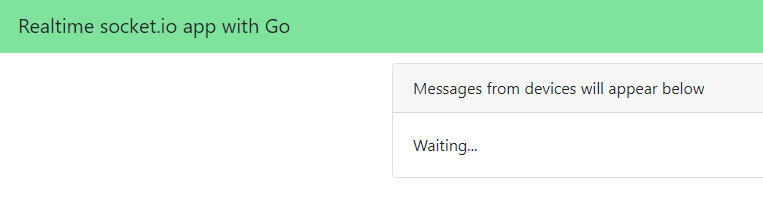
In the above yaml, replace IP in the Ingress specification to the IP of the external load balancer used by your Ingress Controller. Once you add the yaml to the git repository and you run fluxctl sync the application should be deployed. You see the following page when you browse to http://realtime.IP.xip.io:

Web app deployed via Flux and standard yaml

Great, v1.0.0 of the app is deployed using the gbaeke/fluxapp:1.0.0 image. But what if I have a new version of the image and the yaml specification does not change? Read on…

Upgrading the application

If you have been following along, you can now run the following command:

fluxctl list-workloads -a

This will list all workloads on the cluster, including the ones that were not installed by Flux. If you check the list, none of the workloads are automated. When a workload is automated, it can automatically upgrade the application when a new image appears. Let’s try to automate the fluxapp. To do so, you can either add annotations to your yaml or use fluxctl. Let’s use the yaml approach by adding the following to our deployment:

annotations:
    flux.weave.works/automated: "true"
    flux.weave.works/tag.realtime: semver:~1.0

Note: Flux only works with immutable tags; do not use latest

After committing the file and running fluxctl sync, you can run fluxctl list-workloads -a again. The deployment should now be automated:

fluxapp is now automated

Now let’s see what happens when we add a new version of the image with tag 1.0.1. That image uses a different header color to show the difference. Flux monitors the repository for changes. When it detects a new version of the image that matches the semver filter, it will modify the deployment. Let’s check with fluxctl list-workloads -a:

new image deployed

And here’s the new color:

New color in version 1.0.1. Exciting! 😊

But wait… what about the git repo?

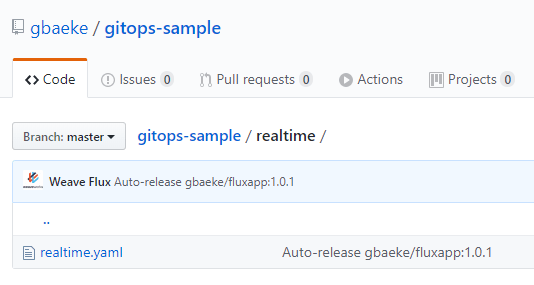
With the configuration of a deploy key, Flux has access to the git repository. When a deployment is automated and the image is changed, that change is also reflected in the git repo:

Weave Flux updated the realtime yaml file

In the yaml, version 1.0.1 is now used:

Flux updated the yaml file

What if I don’t like this release? With fluxctl, you can rollback to a previous version like so:

Rolling back a release – will also update the git repo

Although this works, the deployment will be updated to 1.0.1 again since it is automated. To avoid that, first lock the deployment (or workload) and then force the release of the old image:

fluxctl lock -w=deployment/realtime

fluxctl release -n default --workload=deployment/realtime --update-image=gbaeke/fluxapp:1.0.0 --force

In your yaml, there will be an additional annotation: fluxcd.io/locked: ‘true’ and the image will be set to 1.0.0.

Conclusion

In this post, we looked at deploying and updating an application via Flux automation. You only need a couple of annotations to make this work. This was just a simple example. For an example with dev, staging and production branches and promotion from staging to production, be sure to look at https://github.com/fluxcd/helm-operator-get-started as well.

A first look at Rancher Rio

As explained on https://github.com/rancher/rio, Rancher Rio is a MicroPaaS that can be layered on top of any standard Kubernetes cluster. It makes it easier to deploy, scale, version and expose services. In this post, we will take a quick look at some of its basic capabilities.

To follow along, make sure you have a Kubernetes cluster running. I deployed a standard AKS cluster with three nodes. In your shell (I used Ubuntu Bash on Windows), install Rio:

curl -sfL https://get.rio.io | sh - 

After installation, check the version of Rio with:

rio --version
rio version v0.1.1-rc1 (cdb75cf1)

With v0.1.1 there was an issue with deploying the registry component. v0.1.1-rc1 fixes that.

Make sure you have kubectl installed and that its context points to the cluster in which you want to deploy Rio. If that is the case, just run the following command:

rio install

The above command will install a bunch of components in the rio-system namespace. After a while, running kubectl get po -n rio-system should show the list below:

Rio installed

Rio will install Istio and expose a service mesh gateway via a service of type load balancer. With AKS, this will result in an Azure load balancer that sends traffic to the service mesh gateway. When you deploy Rio services, you can automatically get a DNS name that will resolve to the external IP of the Azure load balancer.

Let’s install such a Rio service. We will use the following application: https://github.com/gbaeke/realtime-go. Instead of the master branch, we will deploy the httponly branch. The repo contains a Dockerfile with a two-stage build that results in a web application that displays messages published to redis in real time. Before we deploy the application, deploy redis with the following command:

kubectl run redis --image redis --port 6379 --expose

Now deploy the realtime-go app with Rio:

rio run -p 8080/http -n realtime --build-branch httponly --env REDISHOST=redis:6379 https://github.com/gbaeke/realtime-go.git

Rio makes it easy to deploy the application because it will pull the specified branch of the git repo and build the container image based on the Dockerfile. The above command also sets an environment variable that is used by the realtime-go code to find the redis host.

When the build is finished, the image is stored in the internal registry. You can check builds with rio builds. Get the build logs with rio build logs imagename. For example:

rio build logs default/realtime:7acdc6dfed59c1b93f2def1a84376a880aac9f5d

The result would be something like:

build logs

The rio run command results in a deployed service. Run rio ps to check this:

rio ps displays the deployed service

Notice that you also get a URL which is publicly accessible over SSL via a Let’s Encrypt certificate:

Application on public endpoint using a staging Let’s Encrypt cert

Just for fun, you can publish a message to the redis channel that this app checks for:

kubectl exec -it redis-pod /bin/sh
redis-cli
127.0.0.1:6379> publish device01 Hello

The above commands should display the message in the web app:

Great success!!!

To check the logs of the deployed service, run rio logs servicename. The result should be:

Logs from the realtime-go service

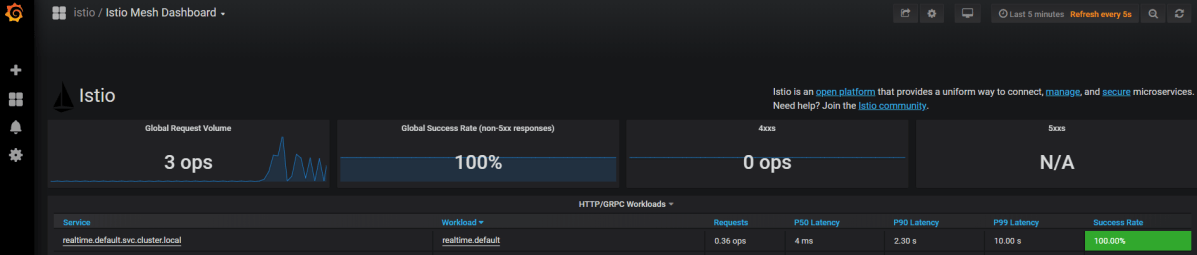
When you run rio –system ps you will see the rio system services. One of the services is Grafana, which contains Istio dashboards. Grab the URL of that service to access the dashboards:

One of the Istio dashboards

Even in this early version, Rio works quite well. It is very simple to install and it takes the grunt work out of deploying services on Kubernetes. Going from source code repository to a published service is just a single command, which is a bit similar to OpenShift. Highly recommended to give it a go when you have some time!

Running a GoCV application in a container

In earlier posts (like here and here) I mentioned GoCV. GoCV allows you to use the popular OpenCV library from your Go programs. To avoid installing OpenCV and having to compile it from source, a container that runs your GoCV app can be beneficial. This post provides information about doing just that.

The following GitHub repository, https://github.com/denismakogon/gocv-alpine, contains all you need to get started. It’s for OpenCV 3.4.2 so you will run into issues when you want to use OpenCV 4.0. The pull request, https://github.com/denismakogon/gocv-alpine/pull/7, contains the update to 4.0 but it has not been merged yet. I used the proposed changes in the pull request to build two containers:

  • the build container: gbaeke/gocv-4.0.0-build
  • the run container: gbaeke/gocv-4.0.0-run

They are over on Docker Hub, ready for use. To actually use the above images in a typical two-step build, I used the following Dockerfile:

FROM gbaeke/gocv-4.0.0-build as build       
RUN go get -u -d gocv.io/x/gocv
RUN go get -u -d github.com/disintegration/imaging
RUN go get -u -d github.com/gbaeke/emotion
RUN cd $GOPATH/src/github.com/gbaeke/emotion && go build -o $GOPATH/bin/emo ./main.go

FROM gbaeke/gocv-4.0.0-run
COPY --from=build /go/bin/emo /emo
ADD haarcascade_frontalface_default.xml /

ENTRYPOINT ["/emo"]

The above Dockerfile uses the webcam emotion detection program from https://github.com/gbaeke/emotion. To run it on a Linux system, use the following command:

docker run -it --rm --device=/dev/video0 --env SCOREURI="YOUR-SCORE-URI" --env VIDEO=0 gbaeke/emo

The SCOREURI environment variable needs to refer to the score URI offered by the ONNX FER+ container as discussed in Detecting Emotions with FER+. With VIDEO=0 the GUI window that shows the webcam video stream is turned off (required). Detected emotions will be logged to the console.

To be able to use the actual webcam of the host, the –device flag is used to map /dev/video0 from the host to the container. That works well on a Linux host and was tested on a laptop running Ubuntu 16.04.

Recognizing images with Azure Machine Learning and the ONNX ResNet50v2 model

Featured image from: https://medium.com/comet-app/review-of-deep-learning-algorithms-for-object-detection-c1f3d437b852

In a previous post, I discussed the creation of a container image that uses the ResNet50v2 model for image classification. If you want to perform tasks such as localization or segmentation, there are other models that serve that purpose. The image was built with GPU support. Adding GPU support was pretty easy:

  • Use the enable_gpu flag in the Azure Machine Learning SDK or check the GPU box in the Azure Portal; the service will build an image that supports NVIDIA cuda
  • Add GPU support in your score.py file and/or conda dependencies file (scoring script uses the ONNX runtime, so we added the onnxruntime-gpu package)

In this post, we will deploy the image to a Kubernetes cluster with GPU nodes. We will use Azure Kubernetes Service (AKS) for this purpose. Check my previous post if you want to use NVIDIA V100 GPUs. In this post, I use hosts with one V100 GPU.

To get started, make sure you have the Kubernetes cluster deployed and that you followed the steps in my previous post to create the GPU container image. Make sure you attached the cluster to the workspace’s compute.

Deploy image to Kubernetes

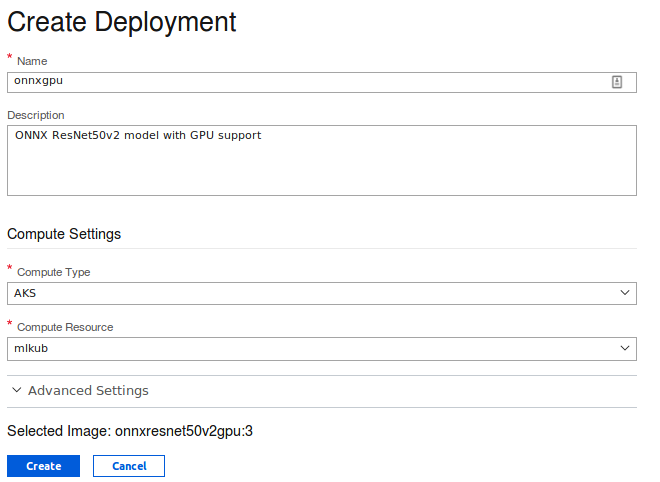
Click the container image you created from the previous post and deploy it to the Kubernetes cluster you attached to the workspace by clicking + Create Deployment:

Starting the deployment from the image in the workspace

The Create Deployment screen is shown. Select AKS as deployment target and select the Kubernetes cluster you attached. Then press Create.

Azure Machine Learning now deploys the containers to Kubernetes. Note that I said containers in plural. In addition to the scoring container, another frontend container is added as well. You send your requests to the front-end container using HTTP POST. The front-end container talks to the scoring container over TCP port 5001 and passes the result back. The front-end container can be configured with certificates to support SSL.

Check the deployment and wait until it is healthy. We did not specify advanced settings during deployment so the default settings were chosen. Click the deployment to see the settings:

Deployment settings including authentication keys and scoring URI

As you can see, the deployment has authentication enabled. When you send your HTTP POST request to the scoring URI, make sure you pass an authentication header like so: bearer primary-or-secondary-key. The primary and secondary key are in the settings above. You can regenerate those keys at any time.

Checking the deployment

From the Azure Cloud Shell, issue the following commands in order to list the pods deployed to your Kubernetes cluster:

  • az aks list -o table
  • az aks get-credentials -g RESOURCEGROUP -n CLUSTERNAME
  • kubectl get pods
Listing the deployed pods

Azure Machine Learning has deployed three front-ends (default; can be changed via Advanced Settings during deployment) and one scoring container. Let’s check the container with: kubectl get pod onnxgpu-5d6c65789b-rnc56 -o yaml. Replace the container name with yours. In the output, you should find the following:

resources:
limits:
nvidia.com/gpu: "1"
requests:
cpu: 100m
memory: 500m
nvidia.com/gpu: "1"

The above allows the pod to use the GPU on the host. The nvidia drivers on the host are mapped to the pod with a volume:

volumeMounts:
- mountPath: /usr/local/nvidia
name: nvidia

Great! We did not have to bother with doing this ourselves. Let’s now try to recognize an image by sending requests to the front-end pods.

Recognizing images

To recognize an image, we need to POST a JSON payload to the scoring URI. The scoring URI can be found in the deployment properties in the workspace. In my case, the URI is:

http://23.97.218.34/api/v1/service/onnxgpu/score

The JSON payload needs to be in the below format:

{"data": [[[[143.06100463867188, 130.22100830078125, 122.31999969482422, ... ]]]]} 

The data field is a multi-dimensional array, serialized to JSON. The shape of the array is (1,3,224,224). The dimensions correspond to the batch size, channels (RGB), height and width.

You only have to read an image and put the pixel values in the array! Easy right? Well, as usual the answer is: “it depends”! The easiest way to do it, according to me, is with Python and a collection of helper packages. The code is in the following GitHub gist: https://gist.github.com/gbaeke/b25849f3813e9eb984ee691659d1d05a. You need to run the code on a machine with Python 3 installed. Make sure you also install Keras and NumPy (pip3 install keras / pip3 install numpy). The code uses two images, cat.jpg and car.jpg but you can use your own. When I run the code, I get the following result:

Using TensorFlow backend.
channels_last
Loading and preprocessing image… cat.jpg
Array shape (224, 224, 3)
Array shape afer moveaxis: (3, 224, 224)
Array shape after expand_dims (1, 3, 224, 224)
prediction time (as measured by the scoring container) 0.025304794311523438
Probably a: Egyptian_cat 0.9460222125053406
Loading and preprocessing image… car.jpg
Array shape (224, 224, 3)
Array shape afer moveaxis: (3, 224, 224)
Array shape after expand_dims (1, 3, 224, 224)
prediction time (as measured by the scoring container) 0.02526378631591797
Probably a: sports_car 0.948998749256134

It takes about 25 milliseconds to classify an image, or 40 images/second. By increasing the number of GPUs and scoring containers (we only deployed one), we can easily scale out the solution.

With a bit of help from Keras and NumPy, the code does the following:

  • check the image format reported by the keras back-end: it reports channels_last which means that, by default, the RGB channels are the last dimensions of the image array
  • load the image; the resulting array has a (224,224,3) shape
  • our container expects the channels_first format; we use moveaxis to move the last axis to the front; the array now has a (3,224,224) shape
  • our container expects a first dimension with a batch size; we use expand_dims to end up with a (1,3,224,224) shape
  • we convert the 4D array to a list and construct the JSON payload
  • we send the payload to the scoring URI and pass an authorization header
  • we get a JSON response with two fields: result and time; we print the inference time as reported by the container
  • from keras.applications.resnet50, we use the decode_predictions class to process the result field; result contains the 1000 values computed by the softmax function in the container; decode_predictions knows the categories and returns the first five
  • we print the name and probability of the category with the highest probability (item 0)

What happens when you use a scoring container that uses the CPU? In that case, you could run the container in Azure Container Instances (ACI). Using ACI is much less costly! In ACI with the default setting of 0.1 CPU, it will take around 2 seconds to score an image. Ouch! With a full CPU (in ACI), the scoring time goes down to around 180-220ms per image. To achieve better results, simply increase the number of CPUs. On the Standard_NC6s_v3 Kubernetes node with 6 cores, scoring time with CPU hovers around 60ms.

Conclusion

In this post, you have seen how Azure Machine Learning makes it straightforward to deploy GPU scoring images to a Kubernetes cluster with GPU nodes. The service automatically configures the resource requests for the GPU and maps the NVIDIA drivers to the scoring container. The only thing left to do is to start scoring images with the service. We have seen how easy that is with a bit of help from Keras and NumPy. In practice, always start with CPU scoring and scale out that solution to match your requirements. But if you do need GPUs for scoring, Azure Machine Learning makes it pretty easy to do so!