Durable Execution for AI workflows

If you follow me on LinkedIn, you know I have talked about agentic workflows versus agents. Although everybody talks about agents, workflows are often better suited to many tasks. A workflow is more deterministic, is easier to reason about and to troubleshoot. Anthropic also talked about this a while ago in Building Effective Agents.

In fact, I often see people create tool-calling agents (e.g., in Copilot Studio) with instructions to call the tools in a specific order. For example: check if a mail is a complaint and if so, draft an e-mail response. Although this simple task will probably work with a non-deterministic agent, a workflow is better suited.

The question then becomes, how do you write the workflow? Simple workflows can easily be coded yourself. Instead of writing code, you might use a visual builder like Power Automate, Agent Flows in Copilot Studio, Logic Apps, n8n, make and many others.

But what if you need to write robust workflows that are more complex, need to scale, are long-running and need to pick up where they left off in case of failure? In that case, a durable execution engine might be a good fit. There are many such solutions on the market: restate, Temporal and many others, including several options in Azure.

Before we dive into how we can write such a workflow in Azure, let’s look at how one vendor, restate, defines durable execution:

Durable Execution is the practice of making code execution persistent, so that services recover automatically from crashes and restore the results of already completed operations and code blocks without re-executing them.
(from https://restate.dev/what-is-durable-execution/)

Ok, enough talk. Let’s see who we can write a workflow that uses durable execution. The example we use is kept straightforward to not get lost in the details:

  • I have a list of articles
  • Each article needs to be summarized. The summaries will be used in a later step to create a newsletter. We will use gpt-4.1-mini to create the summaries in parallel.
  • When the summaries are ready, we create a newsletter in HTML.
  • When the newsletter is ready, we will e-mail it to subscribers. There’s only one subscriber here, me! 🤷‍♂️

All code is here: https://github.com/gbaeke/dts_ai

Azure Durable Task Scheduler

There are several options for durable execution in Azure. One option is to use the newer Durable Task Scheduler in combination with the Durable Task SDKs. Another option is Durable Functions. These functions can also use the Durable Task Scheduler as the back-end.

The Durable Task Scheduler is the ❤️ heart of the solution as it keeps track of the different tasks in an orchestration (or workflow). On failure, it retains state, marking completed tasks and queuing pending ones to complete the orchestration. Note that the scheduler does not execute the tasks. That’s the job of a worker. Workers connect to the scheduler in order to complete the orchestration. The code in your worker does the actual processing like making LLM calls or talking to other systems.

The code you write (e.g., for the worker) uses the Durable Task SDK in your language of choice. I will use Python in this example.

For local development, you can use the Durable Task Scheduler emulator by running the following Docker container:

docker run --name dtsemulator -d -p 8080:8080 -p 8082:8082 mcr.microsoft.com/dts/dts-emulator:latest

Your code will connect to the emulator on port 8080. Port 8082 presents an administrative UI to check and interact with orchestrations:

A view on a completed orchestration with summaries in parallel and newletter creation at the end

Later, you can deploy the Durable Task Scheduler in Azure and use that instead of the local emulator.

Let’s build locally

As discussed about, we will create a workflow that takes articles as input, generates summaries, creates a newsletter and sends it via e-mail. With three articles, the following would happen:

Processing three articles to create and email a newsletter

The final newsletter looks something like this:

HTML newsletter generated from one or more articles

Don’t worry, I won’t send actual AI slop newsletters to you! 😊

To get started, we need to start the Durable Task Scheduler locally using this command (requires Docker):

docker run --name dtsemulator -d -p 8080:8080 -p 8082:8082 mcr.microsoft.com/dts/dts-emulator:latest

Next, we need a worker. The worker defines one or more activities in addition to one or more orchestrations that use these activities. Our worker has three activities:

  1. process_article: takes in an article and returns a summary generated by gpt-4.1-mini; no need for a fancy agent framework, we simply use the OpenAI SDK
  2. aggregate_results: takes in a list of summaries and generates the HTML newsletter using gpt-4.1-mini.
  3. send_email: e-mails the newsletter to myself with Resend

These activities are just Python functions. The process_article function is shown below:

def process_article(ctx, text: str) -> str:
    """
    Activity function summarizes the given text.    
    """
    logger.info(f"Summarizing text: {text}")
    wrapper = AgentWrapper()
    summary = wrapper.summarize(text)
    return summary

Easy does it I guess!

Next, the worker defines an orchestration function. The orchestration takes in the list of articles and contains code to run the activities as demanded by your workflow:

def fan_out_fan_in_orchestrator(ctx, articles: list) -> Any:

    # Fan out: Create a task for each article
    parallel_tasks = []
    for article in articles:
        parallel_tasks.append(ctx.call_activity("process_article", input=article))

    # Wait for all tasks to complete
    results = yield task.when_all(parallel_tasks)
    
    # Fan in: Aggregate all the results
    html_mail = yield ctx.call_activity("aggregate_results", input=results)

    # Send email
    email_request = EmailRequest(
        to_email=to_address,
        subject="Newsletter",
        html_content=html_mail,
    )
    email = yield ctx.call_activity("send_email", input=asdict(email_request))

    return "Newsletter sent"

When an orchestration runs an activity with call_activity, a task is returned. For each article, such a task is started with all tasks stored in the parallel_tasks list. The when_all helper yields the results of these tasks to the results lists until all tasks are finished. After that, we can pass results (a list of strings) to the aggregate_results activity and send a mail with the send_email activity.

⚠️ I use a dataclass to provide the send_email activity the required parameters. Check the full source code for more details.

The worker is responsible for connecting to the Durable Task Scheduler and registering activities and orchestrators. The snippet below illustrates this:

with DurableTaskSchedulerWorker(
    host_address=endpoint, 
    secure_channel=endpoint != "http://localhost:8080",
    taskhub=taskhub_name, 
    token_credential=credential
) as worker:
    
    # Register activities and orchestrators
    worker.add_activity(process_article)
    worker.add_activity(aggregate_results)
    worker.add_activity(send_email)
    worker.add_orchestrator(fan_out_fan_in_orchestrator)
    
    # Start the worker (without awaiting)
    worker.start()

When you use the emulator, the default address is http://localhost:8080 with credential set to None. In Azure, you will use the provided endpoint and RBAC to authenticate (e.g., managed identity of a container app).

Full code of the worker is here.

Now we just need a client that starts an orchestration with the input it requires. In this example we use a Python script that reads articles from a JSON file. The client then connects to the Durable Task Scheduler to kick off the orchestration. Here is the core snippet that does the job:

client = DurableTaskSchedulerClient(
    host_address=endpoint, 
    secure_channel=endpoint != "http://localhost:8080",
    taskhub=taskhub_name, 
    token_credential=credential
)

instance_id = client.schedule_new_orchestration(
    "fan_out_fan_in_orchestrator", 
    input=articles # simply a list of strings
)

result = client.wait_for_orchestration_completion(
    instance_id,
    timeout=120
)

# check runtime_status of result, grab serialized_result, etc...

Above, the client waits for 120 seconds before it times out.

⚠️ There are many ways to follow up on the results of an orchestration. This script uses a simple approach with a timeout. When there is a timeout, the script stops but the orchestration continues.

Full code of the client is here.

Checking if it works

Before we can run a test, ensure you started the Durable Task Scheduler emulator. Next, clone this repository:

From the root of the cloned folder, create a Python virtual environment:

python3 -m venv .venv

Activate the environment:

source .venv/bin/activate

cd into the src folder and install from requirements:

pip install -r requirements.txt

Ensure you have a .env in the root:

OPENAI_API_KEY=Your OpenAI API key 
RESEND_API_KEY=Your resend API key
FROM_ADDRESS=Your from address (e.g. NoReply <noreply@domain.com>)
TO_ADDRESS=Your to address

Now run the worker with python worker.py. You should see the following:

INFO:__main__:Starting Fan Out/Fan In pattern worker...
Using taskhub: default
Using endpoint: http://localhost:8080
2025-08-14 22:11:10.851 durabletask-worker INFO: Starting gRPC worker that connects to http://localhost:8080
2025-08-14 22:11:10.882 durabletask-worker INFO: Created fresh connection to http://localhost:8080
2025-08-14 22:11:10.882 durabletask-worker INFO: Successfully connected to http://localhost:8080. Waiting for work items...

The worker is waiting for work items. We will submit them from our client.

From the same folder, in another terminal, run the client with python client.py. It will use the sample articles_short.json file.

INFO:__main__:Starting Fan Out/Fan In pattern client...
Using taskhub: default
Using endpoint: http://localhost:8080
INFO:__main__:Loaded 11 articles from articles.json
INFO:__main__:Starting new fan out/fan in orchestration with 11 articles
2025-08-14 22:25:02.946 durabletask-client INFO: Starting new 'fan_out_fan_in_orchestrator' instance with ID = '3a1bb4d9e3f240dda33daf982a5a3882'.
INFO:__main__:Started orchestration with ID = 3a1bb4d9e3f240dda33daf982a5a3882
INFO:__main__:Waiting for orchestration to complete...
2025-08-14 22:25:02.969 durabletask-client INFO: Waiting 120s for instance '3a1bb4d9e3f240dda33daf982a5a3882' to complete.

When the orchestration completes, the client outputs the result. That is simply Newsletter sent. 🤷‍♂️

You can see the orchestration in action by going to http://localhost:8082. Select the task hub default and click your orchestration at the top. In the screenshot below, the orchestration was still running and busy aggregating results.🤷‍♂️

Orchestration in progress (I used a longer list of articles in articles.json. Check the repo!

An interesting thing to try is to kill the worker while it’s busy processing. When you do that, the client will eventually timeout with a TimeoutError (if you wait long enough). If you check the portal, the orchestration will stay in a running state. However, when you start the worker again, it will restart where it left off:

INFO:__main__:From address: baeke.info <noreply@baeke.info>
INFO:__main__:To address: Geert Baeke <geert@baeke.info>
INFO:__main__:Starting Fan Out/Fan In pattern worker...
Using taskhub: default
Using endpoint: http://localhost:8080
2025-08-14 23:14:22.979 durabletask-worker INFO: Starting gRPC worker that connects to http://localhost:8080
2025-08-14 23:14:23.003 durabletask-worker INFO: Created fresh connection to http://localhost:8080
2025-08-14 23:14:23.004 durabletask-worker INFO: Successfully connected to http://localhost:8080. Waiting for work items...
INFO:__main__:Aggregating 4 summaries

I killed my worker when it was busy aggregating the summaries. When the worker got restarted, the aggregation started again and used the previously saved state to get to work again. Cool! 😎

Wrapping Up!

In this post we created a durable workflow with the Durable Task Scheduler emulator running on a local machine. We used the Durable Task SDK for Python to create a worker that is able to run an orchestration that aggregates multiple summaries into a newsletter. We demonstrated that such a workflow survives worker crashes and that it can pick up where it left off.

However, we have only scratched the surface here. Stay tuned for another post that uses Durable Task Scheduler in Azure together with workers and clients in Azure Container Apps.
Deploying AI Foundry Agents and Azure Container Apps to support an Agent2Agent solution

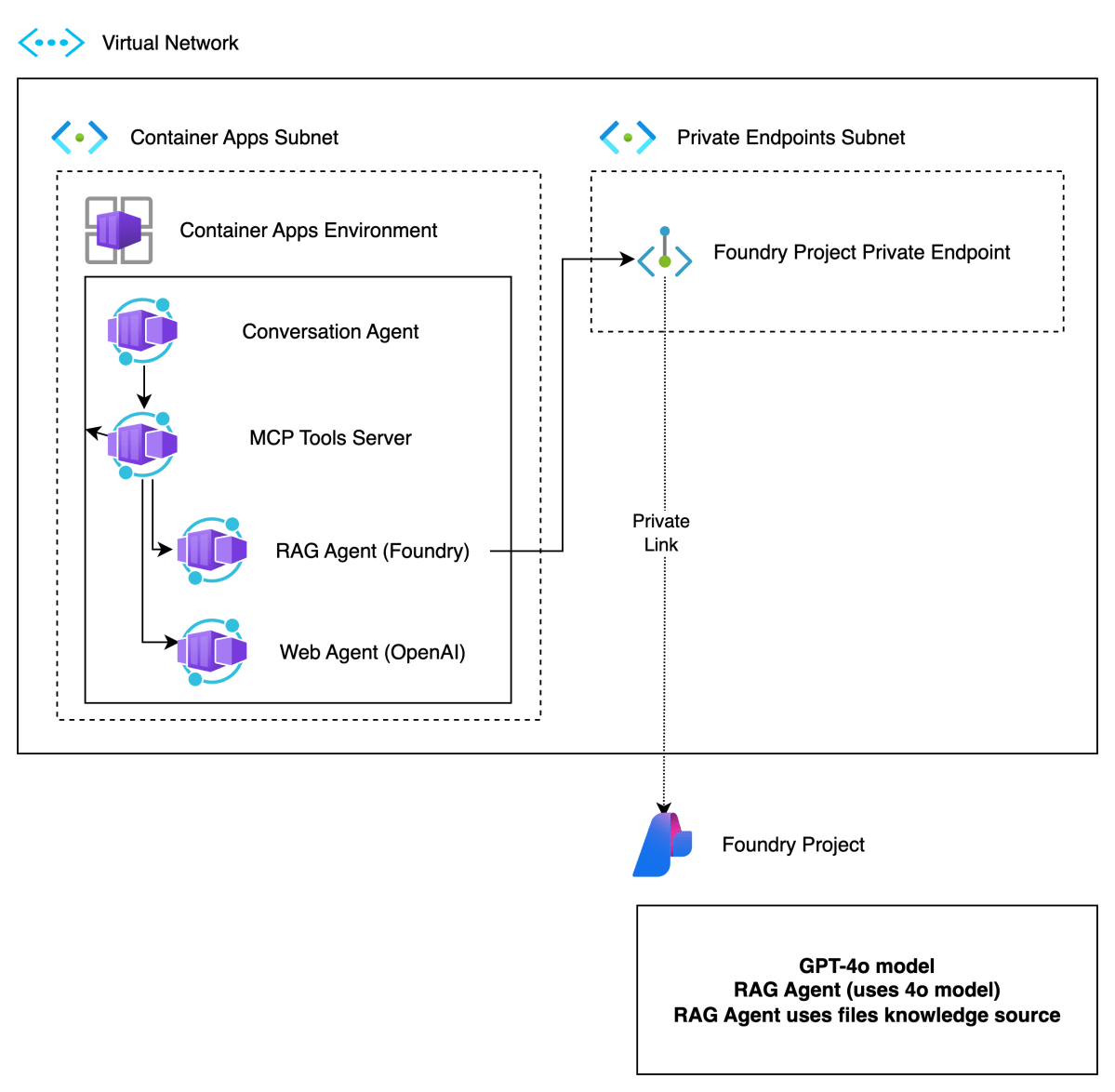
In previous posts, I discussed multi-agent solutions and the potential use of Google’s Agent2Agent protocol (A2A). In this post, we will deploy the infrastructure for an end-to-end solution like follows:

Multi-agent solution in Azure

Here’s a short description of the components.

ComponentDescription
Foundry ProjectBasic Foundry project with a private endpoint. The private endpoint ensures private communication between the RAG Agent container and the Azure Foundry agent.
Virtual NetworkProvides subnet to integrate Azure Container Apps Environment in a private network. This allows container apps to connect to Azure AI Foundry privately.
Container Apps EnvironmentIntegrated in our private network. Hosts Container Apps.
Container AppsContainer apps for conversation agent, MCP server, RAG agent and web agent. Only the conversation agent is publicly available.
Main components of the deployment

In what follows, we will first provide more information about Azure AI Foundry and then proceed to deploy all components except the Azure Container Apps themselves. We will deploy the actual app components in a follow-up post.

Azure AI Foundry Project

Azure AI Foundry is Microsoft’s enterprise platform for building, deploying, and managing AI applications—especially those using large language models (LLMs) and generative AI. It brings together everything you need: production-ready infrastructure, access to powerful models from providers like OpenAI, Mistral, and Meta, and tools for customization, monitoring, and scaling—all in one unified environment.

It’s designed to support the full AI development lifecycle:

  • Explore and test models and services
  • Build and customize applications or agents
  • Deploy to production
  • Monitor, evaluate, and improve performance

You can work either through the Azure AI Foundry portal or directly via SDKs in your preferred development environment.

You will do your work in a project. When you create a project in Azure AI Foundry, you’ll choose between two types:

Foundry Project

This type is recommended for most cases and is what we will use to define our RAG agent. Agents in projects are generally available (GA). You deploy models like gpt-4o directly to the project. There is no need to create a connection to an Azure OpenAI resource. It can be configured with a private endpoint to ensure private communication.

This matches exactly with our needs. Note that we will deploy a basic Foundry environment with a private endpoint and not a standard environment. For more information about basic versus standard, check the Foundry documentation.

Later, when we create the resources via Bicep, two resources will be created:

  • The Azure AI Foundry resource: with private endpoint
  • The Azure AI Foundry Project: used to create our RAG agent

Hub-based Project

This type has some additional options like Prompt Flow. However, agents in hub-based projects are not generally available at the time of writing. A hub-based project is not the best match for our needs here.

⚠️ In general, always use an Foundry Project versus a Hub-based Project unless you need a specific feature that, at the time of creation, is not yet available in Foundry projects.

As explained above, a Foundry project is part of an AI Foundry resource. Here is the resource in the portal (hub-based projects are under AI Hubs):

AI Foundry resource

Inside the resource, you can create a project. The above resource has one project:

Projects in the Foundry resource: your Foundry Project

To work with your project, you can click Go to Azure AI Foundry portal in the Overview tab:

In the Foundry Portal, you can proceed to create agents. However, if you have enabled a private endpoint, ensure you can access your Azure virtual network via a jump host or VPN. If that is not possible, allow your IP to access the Foundry resource in the Networking section of the resource. When you do not have access, you will see the following error:

No access to manage agents in the project

⚠️ Even after giving access, it will take a while for the change to propagate.

If you have access, you will see the following screen to add and configure agents:

Creating and debugging agents in your AI Foundry Project

Deployment with Bicep

You can check https://github.com/gbaeke/multi_agent_aca/tree/main/bicep to find Bicep files together with a shell script to deploy the resources. Also check the README for more information.

In Bicep, you first create an account (type is Microsoft.CognitiveServices/accounts). This matches the fndry-a2a resource in one of the screenshots above. In a later step, you add the project. The snippet below shows how the account gets created:

resource account 'Microsoft.CognitiveServices/accounts@2025-04-01-preview' = {
  name: aiFoundryName
  location: location
  identity: {
    type: 'SystemAssigned'
  }
  kind: 'AIServices'
  sku: {
    name: 'S0'
  }
  properties: {
    // Networking
    publicNetworkAccess: 'Enabled'
    
    networkAcls: {
      bypass: 'AzureServices'
      defaultAction: 'Deny'
      ipRules: [
        {
          value: 'IP address'
        }
      ]
    }

    // Specifies whether this resource support project management as child resources, used as containers for access management, data isolation, and cost in AI Foundry.
    allowProjectManagement: true

    // Defines developer API endpoint subdomain
    customSubDomainName: aiFoundryName

    // Auth
    disableLocalAuth: false
  }
}

It’s at this level you block public network access. The private endpoint and related network resources are created in other sections of the Bicep file.

Once you have this account, you can create the project. This matches with the fndry-a2a-proj project in one of the screenshots above. Here is the Bicep snippet:

resource project 'Microsoft.CognitiveServices/accounts/projects@2025-04-01-preview' = {
  name: defaultProjectName
  parent: account
  location: location
  identity: {
    type: 'SystemAssigned'
  }
  properties: {}
}

Later, we will create agents in this project. However, an agent needs a supported model. In this case, we will use gpt-4o-mini so we need to deploy it:

resource modelDeployment 'Microsoft.CognitiveServices/accounts/deployments@2024-10-01'= {
  parent: account
  name: 'gpt-4o-mini'
  sku : {
    capacity: 1
    name: 'GlobalStandard'
  }
  properties: {
    model:{
      name: 'gpt-4o-mini'
      format: 'OpenAI'
      version: '2024-07-18'
    }
  }
}

⚠️ Above, a capacity of 1 only allows for 1000 tokens per minute. You will probably want to increase that. If not, you run into issues when you test your agents because you will quickly hit the limit.

In the Foundry Portal, the model is shown as follows:

gpt-4o-mini deployment (next to manually deployed gpt-4o)

I will not go into the rest of the Bicep code. Most of it is network related (network, subnets, private endpoint, private DNS, DNS network links, etc..).

Creating the RAG Agent

Although we can create the agent using the Foundry SDK, we will create and test it via the Foundry Portal. As a first step, create or modify an agent. You might get a question first about the model you want to use with your agents.

In your agent, do the following:

  • give the agent a name
  • select a model from the list of deployed models
  • set instructions

I used the following instructions:

You retrieve information about Contoso projects using your knowledge tools. Always use your knowledge tools to answer the user. If you cannot find the answer via tools, respond you do not know.

Name, model and instructions

Next, scroll down and click + Add next to Knowledge. You will see the following screen:

List of agent knowledge tool

Select the Files tool and upload the files from https://github.com/gbaeke/multi_agent_aca/tree/main/project_descriptions. Use git clone https://github.com/gbaeke/multi_agent_aca.git to grab those files.

After selecting the local files, click Upload and Save to upload these files so the agent can search them. Behind the scenes, the files are chunked, chunks are vectorized and stored in a vector database. However, this is all hidden from you. Your agent configuration should now show the knowledge tool:

Knowledge tool added to agent

You should now test your agent. At the top of the configuration section, there is a Try in Playground link.

When I ask about EduForge, I get the following:

Asking about EduForge with a reponse from the files tool (+ annotation)

When you click View Run Info (at the end of the response), the use of the tool should be shown in the trace:

Tracing shows the tool calls and the file_search tool

If this works, you have a simple agent in Foundry that has access to a file_search tool to perform RAG (retrieval-augmented generation).

Wrapping up

We have now deployed the RAG agent with Azure AI Foundry. We created a Foundry resource in Azure with a private endpoint. The Foundry resource has one project within it. The project contains our RAG agent.

But remember, we want to wrap this agent with Google’s Agent2Agent. To achieve that, we will deploy the A2A server that uses the Foundry agent as a container in the Container Apps Environment.

We will take a look at how that works in a next post. In that post, we will use these agents as tools via MCP and provide the MCP tools to our conversation agent. The conversation agent will use Semantic Kernel.

Stay tuned! 😊

Authenticate to Azure Resources with Azure Managed Identities

In this post, we will take a look at managed identities in general and system-assigned managed identity in particular. Managed identities can be used by your code to authenticate to Azure AD resources from Azure compute resources that support it, like virtual machines and containers.

But first, let’s look at the other option and why you should avoid it if you can: service principals.

Service Principals

If you have code that needs to authenticate to Azure AD-protected resources such as Azure Key Vault, you can always create a service principal. It’s the option that always works. It has some caveats that will be explained further in this post.

The easiest way to create a service principal is with the single Azure CLI command below:

az ad sp create-for-rbac

The command results in the following output:

{
  "appId": "APP_ID",
  "displayName": "azure-cli-2023-01-06-11-18-45",
  "password": "PASSWORD",
  "tenant": "TENANT_ID"
}

If the service principal needs access to, let’s say, Azure Key Vault, you could use the following command to grant that access:

APP_ID="appId from output above"
$SUBSCRIPTION_ID="your subscription id"
$RESOURCE_GROUP="your resource group"
$KEYVAULT_NAME="short name of your key vault"

az role assignment create --assignee $APP_ID \
  --role "Key Vault Secrets User" \
  --scope "/subscriptions/$SUBSCRIPTION_ID/resourceGroups/$RESOURCE_GROUP/providers/Microsoft.KeyVault/vaults/$KEYVAULT_NAME"

The next step is to configure your application to use the service principal and its secret to obtain an Azure AD token (or credential) that can be passed to Azure Key Vault to retrieve secrets or keys. That means you need to find a secure way to store the service principal secret with your application, which is something you want to avoid.

In a Python app, you can use the ClientSecretCredential class and pass your Azure tenant id, the service principal appId (or client Id) and the secret. You can then use the secret with a SecretClient like in the snippet below.

# Create a credential object
credential = ClientSecretCredential(tenant_id, client_id, client_secret)

# Create a SecretClient using the credential
client = SecretClient(vault_url=VAULT_URL, credential=credential)

Other languages and frameworks have similar libraries to reach the same result. For instance JavaScript and C#.

This is quite easy to do but again, where do you store the service principal’s secret securely?

The command az ad sp create-for-rbac also creates an App Registration (and Enterprise application) in Azure AD:

Azure AD App Registration

The secret (or password) for our service principal is partly displayed above. As you can see, it expires a year from now (blog post written on January 6th, 2023). You will need to update the secret and your application when that time comes, preferably before that. We all know what expiring secrets and certificates give us: an app that’s not working because we forgot to update the secret or certificate!

💡 Note that one year is the default. You can set the number of years with the --years parameter in az ad sp create-for-rbac.

💡 There will always be cases where managed identities are not supported such as connecting 3rd party systems to Azure. However, it should be clear that whenever managed identity is supported, use it to provide your app with the credentials it needs.

In what follows, we will explain managed identities in general, and system-assigned managed identity in particular. Another blog post will discuss user-assigned managed identity.

Managed Identities Explained

Azure Managed Identities allow you to authenticate to Azure resources without the need to store credentials or secrets in your code or configuration files.

There are two types of Managed Identities:

  • system-assigned
  • user-assigned

System-assigned Managed Identities are tied to a specific Azure resource, such as a virtual machine or Azure Container App. When you enable a system-assigned identity for a resource, Azure creates a corresponding identity in the Azure Active Directory (AD) for that resource, similar to what you have seen above. This identity can be used to authenticate to any service that supports Azure AD authentication. The lifecycle of a system-assigned identity is tied to the lifecycle of the Azure resource. When the resource is deleted, the corresponding identity is also deleted. Via a special token endpoint, your code can request an access token for the resource it wants to access.

User-assigned Managed Identities, on the other hand, are standalone identities that can be associated with one or more Azure resources. This allows you to use the same identity across multiple resources and manage the identity’s lifecycle independently from the resources it is associated with. In your code, you can request an access token via the same special token endpoint. You will have to specify the appId (client Id) of the user-managed identity when you request the token because multiple identities could be assigned to your Azure resource.

In summary, system-assigned Managed Identities are tied to a specific resource and are deleted when the resource is deleted, while user-assigned Managed Identities are standalone identities that can be associated with multiple resources and have a separate lifecycle.

System-assigned managed identity

Virtual machines support system and user-assigned managed identity and make it easy to demonstrate some of the internals.

Let’s create a Linux virtual machine and enable a system-assigned managed identity. You will need an Azure subscription and be logged on with the Azure CLI. I use a Linux virtual machine here to demonstrate how it works with bash. Remember that this also works on Windows VMs and many other Azure resources such as App Services, Container Apps, and more.

Run the code below. Adapt the variables for your environment.

RG="rg-mi"
LOCATION="westeurope"
PASSWORD="oE2@pl9hwmtM"

az group create --name $RG --location $LOCATION

az vm create \
  --name vm-demo \
  --resource-group $RG \
  --image UbuntuLTS \
  --size Standard_B1s \
  --admin-username azureuser \
  --admin-password $PASSWORD \
  --assign-identity


After the creation of the resource group and virtual machine, the portal shows the system assigned managed identity in the virtual machine’s Identity section:

System assigned managed identity

We can now run some code on the virtual machine to obtain an Azure AD token for this identity that allows access to a Key Vault. Key Vault is just an example here.

We will first need to create a Key Vault and a secret. After that we will grant the managed identity access to this Key Vault. Run these commands on your own machine, not the virtual machine you just created:

# generate a somewhat random name for the key vault
KVNAME=kvdemo$RANDOM

# create with vault access policy which grants creator full access
az keyvault create --name $KVNAME --resource-group $RG

# with full access, current user can create a secret
az keyvault secret set --vault-name $KVNAME --name mysecret --value "TOPSECRET"

# show the secret; should reveal TOPSECRET
az keyvault secret show --vault-name $KVNAME --name mysecret

# switch the Key Vault to AAD authentication
az keyvault update --name $KVNAME --enable-rbac-authorization

Now we can grant the system assigned managed identity access to Key Vault via Azure RBAC. Let’s look at the identity with the command below:

az vm identity show --resource-group $RG --name vm-demo

This returns the information below. Note that principalId was also visible in the portal as Object (principal) ID. Yes, not confusing at all… 🤷‍♂️

{
  "principalId": "YOUR_PRINCIPAL_ID",
  "tenantId": "YOUR_TENANT_ID",
  "type": "SystemAssigned",
  "userAssignedIdentities": null
}

Now assign the Key Vault Secrets User role to this identity:

PRI_ID="principal ID above"
SUB_ID="Azure subscription ID"

# below, scope is the Azure Id of the Key Vault 

az role assignment create --assignee $PRI_ID \
  --role "Key Vault Secrets User" \
  --scope "/subscriptions/$SUB_ID/resourceGroups/$RG/providers/Micr
osoft.KeyVault/vaults/$KVNAME"

If you check the Key Vault in the portal, in IAM, you should see:

System assigned identity of VM has Secrets User role

Now we can run some code on the VM to obtain an Azure AD token to read the secret from Key Vault. SSH into the virtual machine using its public IP address with ssh azureuser@IPADDRESS. Next, use the commands below:

# install jq on the vm for better formatting; you will be asked for your password
sudo snap install jq

curl 'http://169.254.169.254/metadata/identity/oauth2/token?api-version=2018-02-01&resource=https%3A%2F%2Fvault.azure.net' -H Metadata:true | jq

It might look weird but by sending the curl request to that special IP address on the VM, you actually request an access token to access Key Vault resources (in this case, it could also be another type of resource). There’s more to know about this special IP address and the other services it provides. Check Microsoft Learn for more information.

The result of the curl command is JSON below (nicely formatted with jq):

{
  "access_token": "ACCESS_TOKEN",
  "client_id": "CLIENT_ID",
  "expires_in": "86038",
  "expires_on": "1673095093",
  "ext_expires_in": "86399",
  "not_before": "1673008393",
  "resource": "https://vault.azure.net",
  "token_type": "Bearer"
}

Note that you did not need any secret to obtain the token. Great!

Now run the following code but first replace <YOUR VAULT NAME> with the short name of your Key Vault:

# build full URL to your Key Vault
VAULTURL="https://<YOUR VAULT NAME>.vault.azure.net"

ACCESS_TOKEN=$(curl 'http://169.254.169.254/metadata/identity/oauth2/token?api-version=2018-02-01&resource=https%3A%2F%2Fvault.azure.net' -H Metadata:true | jq -r .access_token)

curl -s "$VAULTURL/secrets/mysecret?api-version=2016-10-01" -H "Authorization: Bearer $ACCESS_TOKEN" | jq -r .value

First, we set the vault URL to the full URL including https://. Next, we retrieve the full JSON token response but use jq to only grab the access token. The -r option strips the " from the response. Next, we use the Azure Key Vault REST API to read the secret with the access token for authorization. The result should be TOPSECRET! 😀

Instead of this raw curl code, which is great for understanding how it works under the hood, you can use Microsoft’s identity libraries for many popular languages. For example in Python:

from azure.identity import DefaultAzureCredential
from azure.keyvault.secrets import SecretClient

# Authenticate using a system-assigned managed identity
credential = DefaultAzureCredential()

# Create a SecretClient using the credential and the key vault URL
secret_client = SecretClient(vault_url="https://YOURKVNAME.vault.azure.net", credential=credential)

# Retrieve the secret
secret = secret_client.get_secret("mysecret")

# Print the value of the secret
print(secret.value)

If you are somewhat used to Python, you know you will need to install azure-identity and azure-keyvault-secrets with pip. The DefaultAzureCredential class used in the code automatically works with system managed identity in virtual machines but also other compute such as Azure Container Apps. The capabilities of this class are well explained in the docs: https://learn.microsoft.com/en-us/python/api/overview/azure/identity-readme?view=azure-python. The identity libraries for other languages work similarly.

What about Azure Arc-enabled servers?

Azure Arc-enabled servers also have a managed identity. It is used to update the properties of the Azure Arc resource in the portal. You can grant this identity access to other Azure resources such as Key Vault and then grab the token in a similar way. Similar but not quite identical. The code with curl looks like this (from the docs):

ChallengeTokenPath=$(curl -s -D - -H Metadata:true "http://127.0.0.1:40342/metadata/identity/oauth2/token?api-version=2019-11-01&resource=https%3A%2F%2Fvault.azure.net" | grep Www-Authenticate | cut -d "=" -f 2 | tr -d "[:cntrl:]")

ChallengeToken=$(cat $ChallengeTokenPath)

if [ $? -ne 0 ]; then
    echo "Could not retrieve challenge token, double check that this command is run with root privileges."
else
    curl -s -H Metadata:true -H "Authorization: Basic $ChallengeToken" "http://127.0.0.1:40342/metadata/identity/oauth2/token?api-version=2019-11-01&resource=https%3A%2F%2Fvault.azure.net"
fi

On an Azure Arc-enabled machine that runs on-premises or in other clouds, the special IP address 169.254.169.254 is not available. Instead, the token request is sent to http://localhost:40342. The call is designed to fail and respond with a Www-Authenticate header that contains the path to a file on the machine (created dynamically). Only specific users and groups on the machine are allowed to read the contents of that file. This step was added for extra security so that not every process can read the contents of this file.

The second command retrieves the contents of the file and uses it for basic authentication purposes in the second curl request. It’s the second curl request that will return the access token.

Note that this works for both Linux and Windows Azure Arc-enabled systems. It is further explained here: https://learn.microsoft.com/en-us/azure/azure-arc/servers/managed-identity-authentication.

In contrast with managed identity on Azure compute, I am not aware of support for Azure Arc in the Microsoft identity libraries. To obtain a token with Python, check the following gist with some sample code: https://gist.github.com/gbaeke/343b14305e468aa433fe90441da0cabd.

The great thing about this is that managed identity can work on servers not in Azure as long if you enable Azure Arc on them! 🎉

Conclusion

In this post, we looked at what managed identities are and zoomed in on system-assigned managed identity. Azure Managed Identities are a secure and convenient way to authenticate to Azure resources without having to store credentials in code or configuration files. Whenever you can, use managed identity instead of service principals. And as you have seen, it even works with compute that’s not in Azure, such as Azure Arc-enabled servers.

Stay tuned for the next post about user-assigned managed identity.

Infrastructure as Code: exploring Pulumi

Image: from the Pulumi website

In my Twitter feed, I often come across Pulumi so I decided to try it out. Pulumi is an Infrastructure as Code solution that allows you to use familiar development languages such as JavaScript, Python and Go. The idea is that you define your infrastructure in the language that you prefer, versus some domain specific language. When ready, you merely use pulumi up to deploy your resources (and pulumi update, pulumi destroy, etc…). The screenshot below shows the deployment of an Azure resource group, storage account, file share and a container group on Azure Container Instances. The file share is mapped as a volume to one of the containers in the container group:

Deploying infrastructure with pulumi up

Installation is extremely straightforward. I chose to write the code in JavaScript as I had all the tools already installed on my Windows box. It is also more polished than the Go option (for now). I installed Pulumi per their instructions over at https://pulumi.io/quickstart/install.html.

Next, I used their cloud console to create a new project. Eventually, you will need to run a pulumi new command on your local machine. The cloud console will provide you with the command to use which is handy when you are just getting started. The cloud console provides a great overview of all your activities:

Nice and green (because I did not include the failed ones 😉)

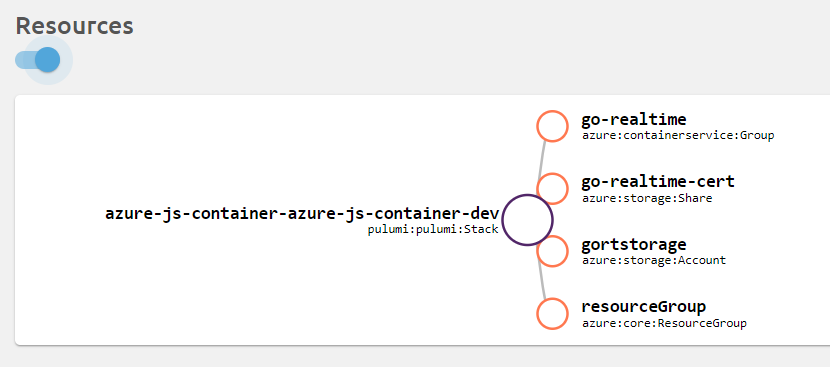
In Resources, you can obtain a graph of the deployed resources:

Don’t you just love pretty graphs like this?

Let’s take a look at the code. The complete code is in the following gist: https://gist.github.com/gbaeke/30ae42dd10836881e7d5410743e4897c.

Resource group, storage account and share

The above code creates the resource group, storage account and file share. It is so straightforward that there is no need to explain it, especially if you know how it works with ARM. The simplicity of just referring to properties of resources you just created is awesome!

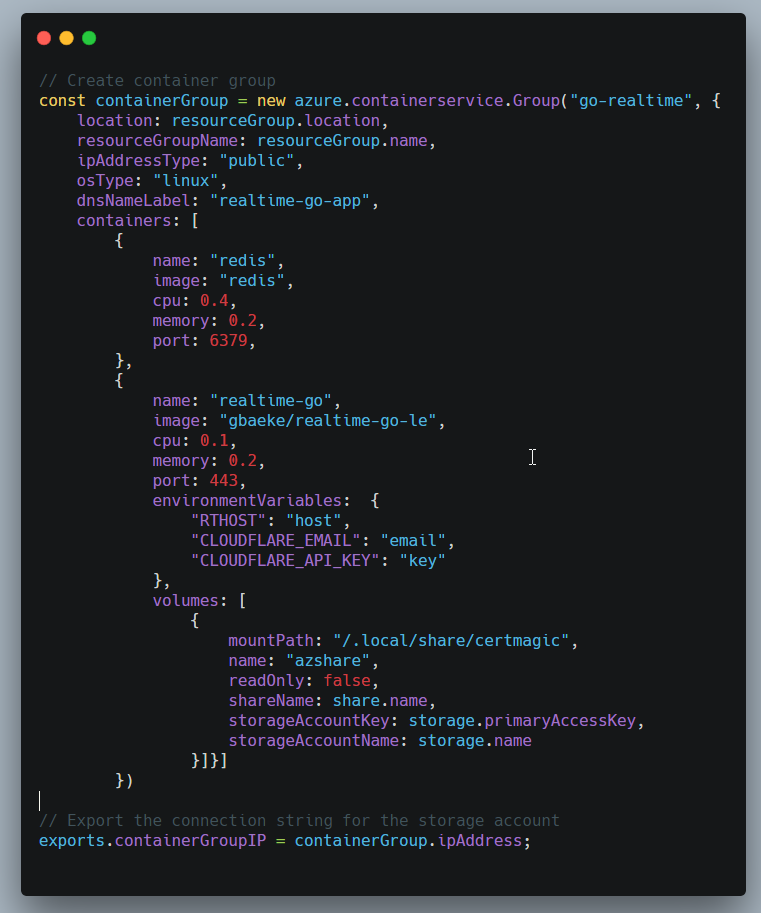
Next, we create a container group with two containers:

Creating the container group

If you have ever created a container group with a YAML file or ARM template, the above code will be very familiar. It defines a DNS label for the group and sets the type to Linux (ACI also supports Windows). Then two containers are added. The realtime-go container uses CertMagic to obtain Let’s Encrypt certificates. The certificates should be stored in persistent storage and that is what the Azure File Share is used for. It is mounted on /.local/share/certmagic because that is where the files will be placed in a scratch container.

I did run into a small issue with the container group. The realtime-go container should expose both port 80 and 443 but the port setting is a single numeric value. In YAML or ARM, multiple ports can be specified which makes total sense. Pulumi has another cross-cloud option to deploy containers which might do the trick.

All in all, I am pleasantly surprised with Pulumi. It’s definitely worth a more in-depth investigation!

Draft: a simpler way to deploy to Kubernetes during development

If you work with containers and work with Kubernetes, Draft makes it easier to deploy your code while you are in the earlier development stages. You use Draft while you are working on your code but before you commit it to version control. The idea is simple:

  • You have some code written in something like Node.js, Go or another supported language
  • You then use draft create to containerize the application based on Draft packs; several packs come with the tool and provide a Dockerfile and a Helm chart depending on the development language
  • You then use draft up to deploy the application to Kubernetes; the application is made accessible via a public URL

Let’s demonstrate how Draft is used, based on a simple Go application that is just a bit more complex than the Go example that comes with Draft. I will use the go-data service that I blogged about earlier. You can find the source code on GitHub. The go-data service is a very simple REST API. By calling the endpoint /data/{deviceid}, it will check if a “device” exists and then actually return no data. Hey, it’s just a sample! The service uses the Gorilla router but also Go Micro to call a device service running in the Kubernetes cluster. If the device service does not run, the data service will just report that the device does not exist.

Note that this post does not cover how to install Draft and its prerequisites like Helm and a Kubernetes Ingress Controller. You will also need a Kubernetes cluster (I used Azure ACS) and a container registry (I used Docker Hub). I installed all client-side components in the Windows 10 Linux shell which works great!

The only thing you need on your development box that has Helm and Draft installed is main.go and an empty glide.yaml file. The first command to run is draft create

This results in several files and folders being created, based on the Golang Draft pack. Draft detected you used Go because of glide.yaml. No Docker container is created at this point.

  • Dockerfile: a simple Dockerfile that builds an image based on the golang:onbuild image
  • draft.toml: the Draft configuration file that contains the name of the application (set randomly), the namespace to deploy to and if the folder needs to be watched for changes after you do draft up
  • chart folder: contains the Helm chart for your application; you might need to make changes here if you want to modify the Kubernetes deployment as we will do soon

When you deploy, Draft will do several things. It will package up the chart and your code and send it to the Draft server-side component running in Kubernetes. It will then instruct Draft to build your container, push it to a configured registry and then install the application in Kubernetes. All those tasks are performed by the Draft server component, not your client!

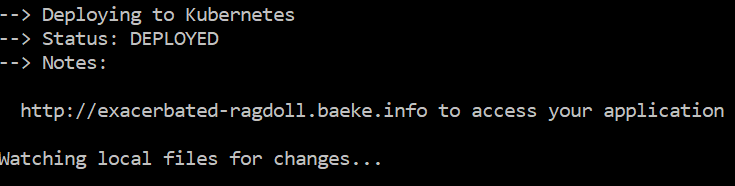
In my case, after running draft up, I get the following on my prompt (after the build, push and deploy steps):

image

In my case, the name of the application was set to exacerbated-ragdoll (in draft.toml). Part of what makes Draft so great is that it then makes the service available using that name and the configured domain. That works because of the following:

  • During installation of Draft, you need to configure an Ingress Controller in Kubernetes; you can use a Helm chart to make that easy; the Ingress Controller does the magic of mapping the incoming request to the correct application
  • When you configure Draft for the first time with draft init you can pass the domain (in my case baeke.info); this requires a wildcard A record (e.g. *.baeke.info) that points to the public IP of the Ingress Controller; note that in my case, I used Azure Container Services which makes that IP the public IP of an Azure load balancer that load balances traffic between the Ingress Controller instances (ngnix)

So, with only my source code and a few simple commands, the application was deployed to Kubernetes and made available on the Internet! There is only one small problem here. If you check my source code, you will see that there is no route for /. The Draft pack for Golang includes a livenessProbe on / and a readinessProbe on /. The probes are in deployment.yaml which is the file that defines the Kubernetes deployment. You will need to change the path in livenessProbe and readinessProbe to point to /data/device like so:

- containerPort: {{ .Values.service.internalPort }}
livenessProbe:
  httpGet:
   path: /data/device
   port: {{ .Values.service.internalPort }}
  readinessProbe:
   httpGet:
   path: /data/device
   port: {{ .Values.service.internalPort }}

If you already deployed the application but Draft is still watching the folder, you can simply make the above changes and save the deployment.yaml file (in chart/templates). The container will then be rebuilt and the deployment will be updated. When you now check the service with curl, you should get something like:

curl http://exacerbated-ragdoll.baeke.info/data/device1

Device active:  false
Oh and, no data for you!

To actually make the Go Micro features work, we will have to make another change to deployment.yaml. We will need to add an environment variable that instructs our code to find other services developed with Go Micro using the kubernetes registry:

- name: {{ .Chart.Name }}
  image: "{{ .Values.image.registry }}/{{ .Values.image.org }}/{{ .Values.image.name }}:{{ .Values.image.tag }}"
  imagePullPolicy: {{ .Values.image.pullPolicy }}
  env:
   - name: MICRO_REGISTRY
     value: kubernetes

To actually test this, use the following command to deploy the device service.

kubectl create -f https://raw.githubusercontent.com/gbaeke/go-device/master/go-device-dep.yaml

You can then check if it works by running the curl command again. It should now return the following:

Device active:  true
Oh and, no data for you!

Hopefully, you have seen how you can work with Draft from your development box and that you can modify the files generated by Draft to control how your application gets deployed. In our case, we had to modify the health checks to make sure the service can be reached. In addition, we had to add an environment variable because the code uses the Go Micro microservices framework.

IoT Hub Scaling

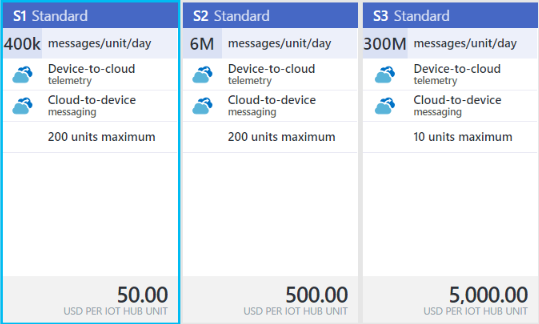
When you work with Azure IoT Hub, it is not always easy to tell what will happen when you reach the limits of IoT Hub and what to do when you reach those limits. As a reminder, recall that the scale of IoT Hub is defined by its tier and the number of units in the tier. There are three paying tiers, besides the free tier:

image

Although these tiers make it clear how many messages you can send, other limits such as the amount of messages per second cannot be seen here. To have an idea about the amount of messages you can send and the sustained throughput see https://azure.microsoft.com/en-us/documentation/articles/iot-hub-scaling/#device-to-cloud-and-cloud-to-device-message-throughput

The specific burst performance numbers can be found here: https://azure.microsoft.com/en-us/documentation/articles/iot-hub-devguide-quotas-throttling/. Typically, the limit you are concerned with is the amount of device-to-cloud sends which are as follows:

  • S1: 12/sec/unit (but you get at least 100/sec in total; not per unit obviously); 10 units give you 120/sec and not 100+120/sec
  • S2: 120/sec/unit
  • S3: 6000/sec/unit

Now suppose you think about deploying 300 devices which send data every half a second. What tier should you use and how many units? It is clear that you need to send 600 messages per second so 5 units of S2 will suffice. You could also take 50 units of S1 for the same performance and price. With 5 units of S2 though, you can send more messages.

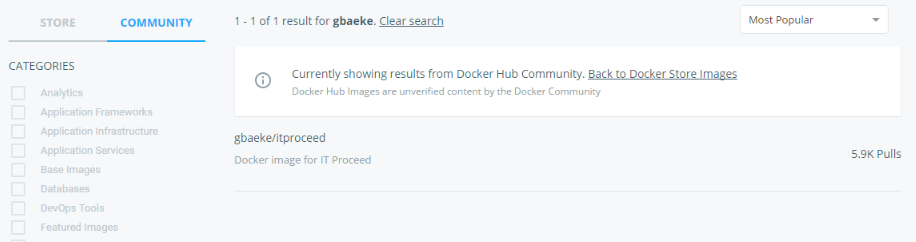
Now it would be nice to test the above in advance. At ThingTank we use Docker containers for this and we schedule them with Rancher, a great and easy to use Docker orchestration tool. If you want to try it, just use the container you can find on Docker Hub or the new Docker Store (still in beta). Just search for gbaeke and you will find the following container:

image

If you want to check out the code (warning: written hastily!), you can find it on GitHub here: https://github.com/xyloscloudservices/docker-itproceed. It is a simple NodeJs script that uses the Azure IoT Hub libraries to create a new device in the registry with a GUID for the name. Afterwards, the code sends a simple JSON payload to IoT Hub every half a second.

To use the script, start it as follows with three parameters:

app.js IoT_Hub_Short_Name IoT_Hub_Connection_String millis

Note: the millis parameter is the amount of milliseconds to wait between each send

Now you can run the containers in Rancher (for instance). I won’t go into the details how to add Docker Hosts to Rancher and how to create a new Stack (as they call it). Alternatively, you can run the containers on Azure Container Service or similar solutions.

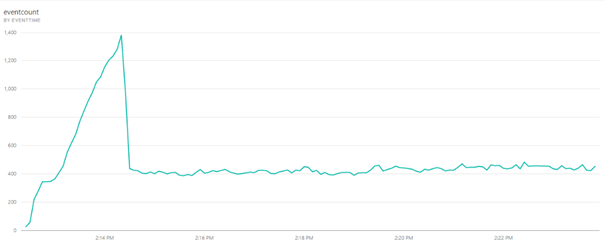
In the PowerBI chart below, you see the eventcount every five seconds which is around 420-440 events which is a bit lower than expected for one S1 unit:

image

Note: the spike you see happens after the launch of 300 containers; throttling quickly kicks in

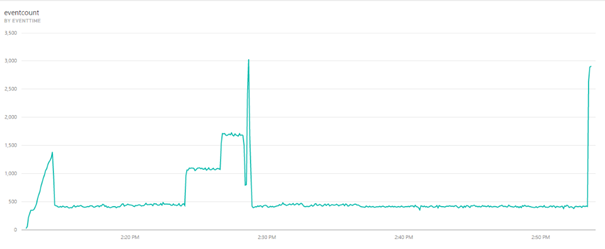
When switched to 5 S2 units, the graph looks as follows:

image

You see the eventcount jump to 3000 (near the end) which is what you would expect (300 containers send 600 messages per second = 3000 messages per 5 seconds which is possible with 5 S2 units that deliver 120 messages/sec/unit)

You really need to think if you want to send data every half a second or second. For our ThingTank Air Quality solution, we take measurements every second but aggregate them over a minute at the edge. Sending every minute with 5 S2 units would amount to thousands of devices before you reach the limits of IoT Hub!

Fault Domains in Azure IaaSv2

With the availability of IaaSv2 in Microsoft Azure, several new features are available that dramatically change the way resources are deployed and maintained. One profound change is the introduction of three fault domains for IaaSv2 virtual machines as opposed to two fault domains for IaaSv1 virtual machines. In the case of Azure, a fault domain is basically a rack of servers. A power failure at the rack level will impact all servers in the rack or fault domain. To make sure your application can survive a fault domain failure, you will need to spread your application’s components, for instance front-end web servers, across fault domains. The way to do this in Azure is to assign virtual machines to an availability set. Upon deployment but also during service healing, Azure’s fabric controller will spread the virtual machines that belong to the same availability set across the fault domains automatically. As an administrator, you cannot control this assignment.

If you deploy virtual machines in cloud services (IaaSv1 style), the maximum amount of fault domains is two which can present a problem. For instance, when you deploy a majority node set cluster with three nodes across two fault domains, it is entirely possible that the fault domain that hosts two of the three nodes fails. When that happens, the surviving node does not have majority and will go offline as well. For such deployments, three fault domains are a requirement to survive a failure in one fault domain.

Now that you understand what a fault domain is and the requirement for three fault domains, how do you get three fault domains in Azure? Well, you will need to deploy virtual machines using the IaaSv2 model. This model is based on Azure Resource Manager which also enables rich template based deployment of virtual machines, network interfaces, IP addresses, load balancers, web sites and more. Many Microsoft and community templates can be found at http://azure.microsoft.com/en-us/documentation/templates/

To get a feel for how such a deployment works and to check if your resources are spread across three fault domains, take a look at our Cloud Chat video:

Office 365 SharePoint Online Storage

imageMicrosoft has recently published updated Office 365 Service Descriptions at http://www.microsoft.com/downloads/en/details.aspx?FamilyID=6c6ecc6c-64f5-490a-bca3-8835c9a4a2ea.

The SharePoint Online service description contains some interesting information, some of which I did not know yet. We typically receive a lot of questions about SharePoint online and storage. The list below summarizes the storage related features:

  • The storage pool starts at 10GB with 500MB of extra storage per user account (talking about enterprise user accounts here).
  • Maximum amount of storage is 5TB.
  • File upload limit is 250MB.
  • Storage can be allocated to a maximum of 300 site collections. The maximum amount of storage for a site collection is 100GB.
  • My Sites are available and each My Site is set at 500MB (this is not the 500MB noted above, in essence this is extra storage for each user’s personal data).
  • A My Site is not counted as a site collection. In other words, you can have 300 normal site collections and many more My Sites.
  • Extra storage can be purchased (as before) at $2,5USD/GB per month.

When it comes to external users (for extranet scenarios), the document states that final cost information is not available yet. It is the intention of Microsoft to sell these licenses in packs.

Check out the SharePoint Online service description for full details.