Particle and Azure IoT Hub: forward events for storage and analysis

In a previous post about Partice published events, you have seen how to publish custom events to the Particle Cloud. Other devices or applications can subscribe to these events and act upon them. What if you want to do more and connect these events to custom applications? In that case, Particle has a couple of integrations that might help:

image

In this post, I will take a look at Azure IoT Hub integration which, at the moment of writing, is still in beta. Note that this integration works with events you publish from your device with Particle.publish and not with Particle Variables or Functions. Remember that in the post about events, we published a lights on and lights out event. For simplicity, we will build upon those events here.

To configure the IoT Hub integration, you will need a few things:

  • An Azure Subscription so you can logon to the portal at https://portal.azure.com (see https://azure.microsoft.com/en-us/free/ to get started)
  • An IoT Hub that you create from the portal; to get started, use the free tier which allows you to publish 8000 events per day (give or take; depends on message size as well); in the portal, use the + button

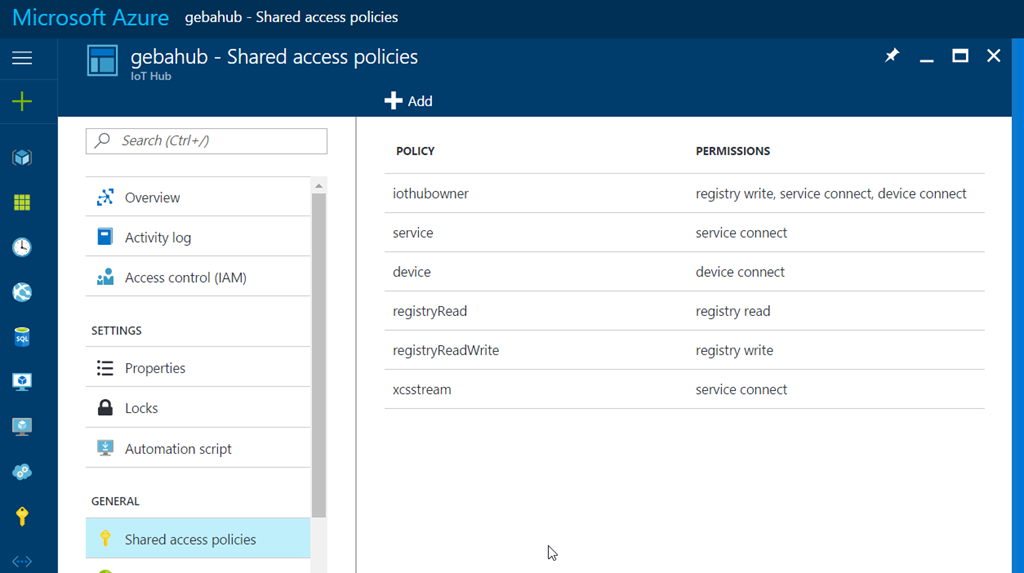
An IoT Hub has a name and works with shared access policies and access keys to be able to control the IoT Hub and send messages. To get to the policies, just click Shared Access Policies.

image

Although considered bad practice, I will use the iothubowner policy which has all required rights. Click iothubowner to view the access keys and note the primary access key. You will need that key in a moment.

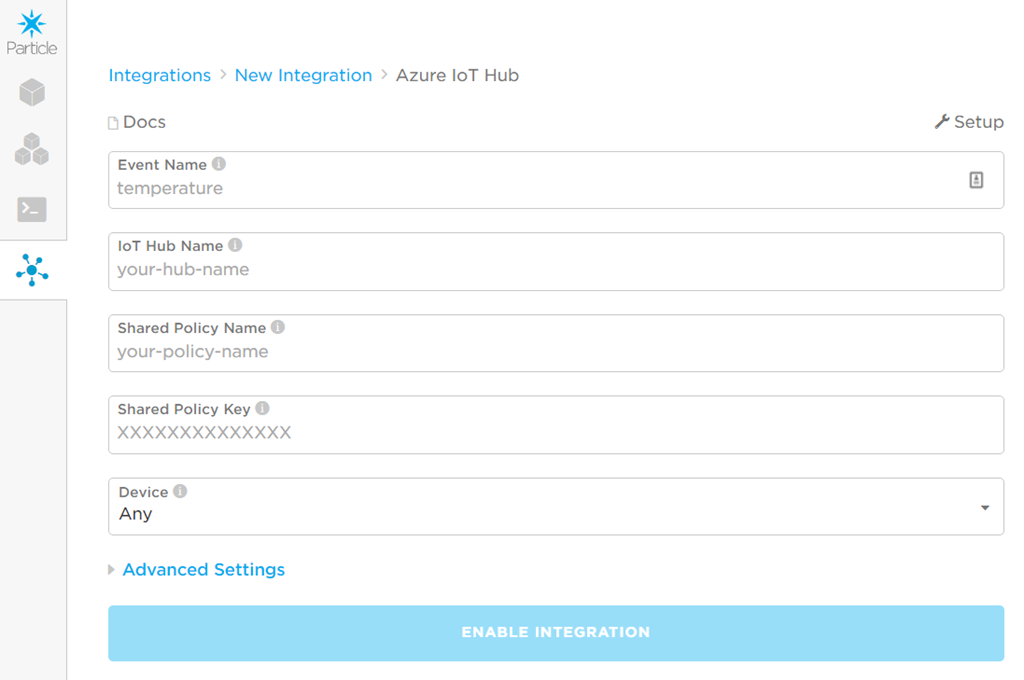
In Particle Console, click the Integrations icon and click new integration. In the configuration screen, you will see:

image

It’s pretty self explanatory once you have your IoT Hub created in Azure. Just fill in the required information and note that the event name is the name of the event you have given in the call to Particle.publish. My events are called lights on and lights out and I will use lights as Event Name. This will catch both events!

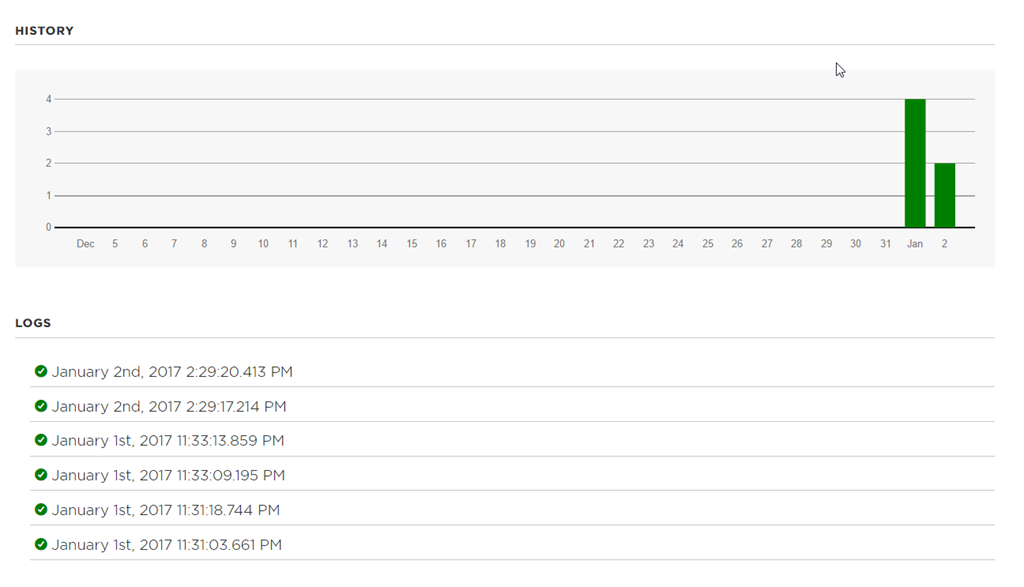
To test this, the photoresistor was given enough light to fire the events. This is the result when you click on the integration after it was created:

image

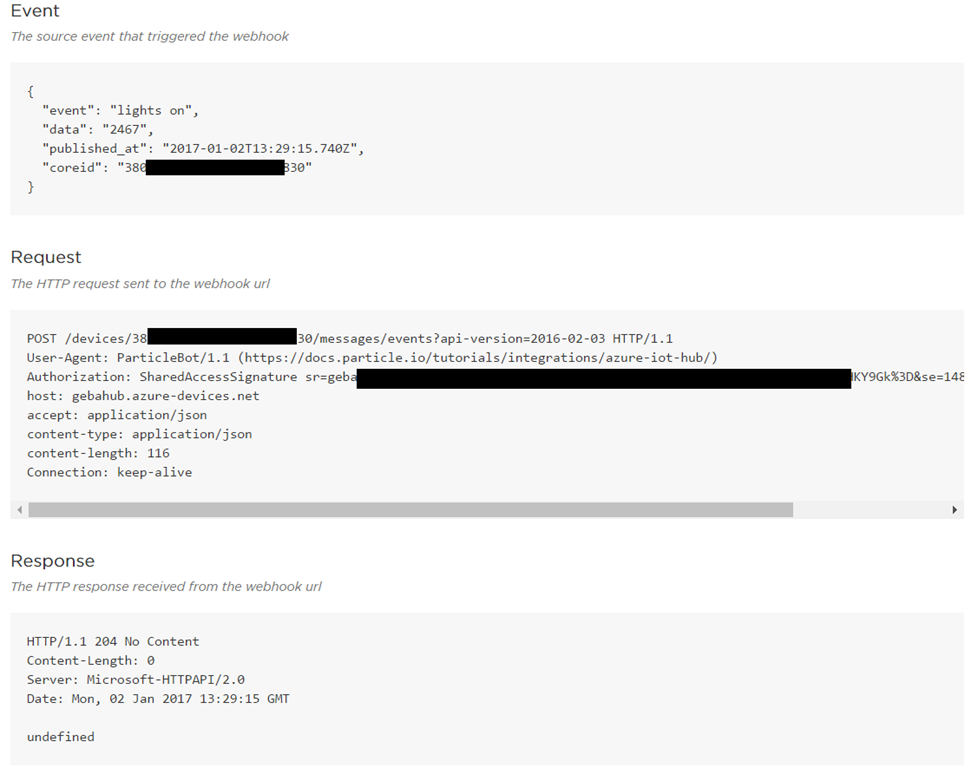
When you click on one of the log entries, you will see more details:

image

You see the event payload that was sent to IoT Hub plus details about the call to IoT Hub using HTTP POST.

In IoT Hub, you will see a couple of things as well. First of all, the events:

image

In the list of devices, you will find a device with the id of the Particle Photon:

image

Note: Azure IoT Hub requires devices to authenticate but this is taken care of automatically by Particle Cloud

What you do now with these messages is up to you. You can use the new endpoints and routes feature of IoT Hub to forward events to Event Hubs or Service Bus. Or you could connect Stream Analytics to IoT Hub and save your events to Azure Storage, Data Lake, SQL, Document DB or stream the data to a real-time Power BI dashboard.

Note that although an Azure Subscription is free, not all services have free tiers. For instance, IoT Hub has a free tier but Stream Analytics does not. And although IoT Hub’s free tier is great to get started, it can only process a limited amount of events. It’s up to you to control the rate of events sent from your devices. For home use or small PoCs you should not run into issues though!

IoT with Particle and Porter

In an earlier article, we took a look at Particle Functions and Variables. We wrote a simple application that can blink an LED with a function and read the value of a photoresistor with a variable.

Although you can easily call the function or read the variable with the Particle CLI or with a REST call (using cURL for instance), you might want an easy web-based experience to work with your device. Porter (http://porterapp.com/) might be the answer!

I’ll quickly describe how Porter works. It’s so easy to use though that it doesn’t need much describing. After signing up and linking to Particle, you can add your devices. In the screenshot below, you can see my device:

image

The cool thing is that Porter automatically finds all your functions and variables and exposes them to you. Using the Customize option, you have some control over the UI elements. In the above screen, I changed the Led function to use on and off buttons instead of the default text input field where you need to type the parameter to the function (on or off). The variable is exposed as well and you can obtain the most recent value with the refresh icon.

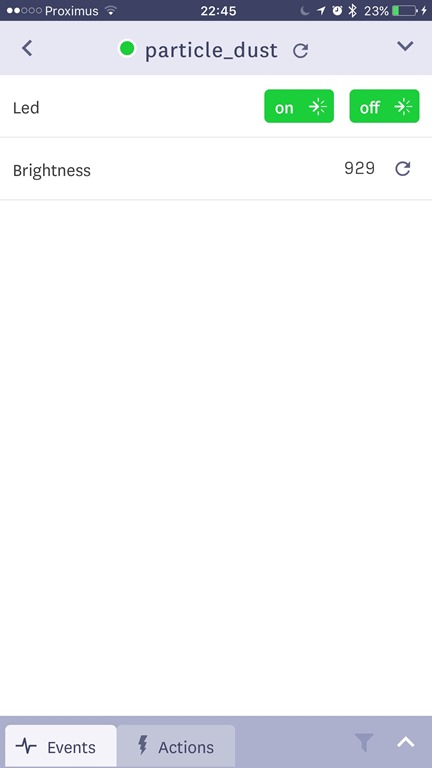
Porter also has a mobile app that exposes the same functionality:

file-3

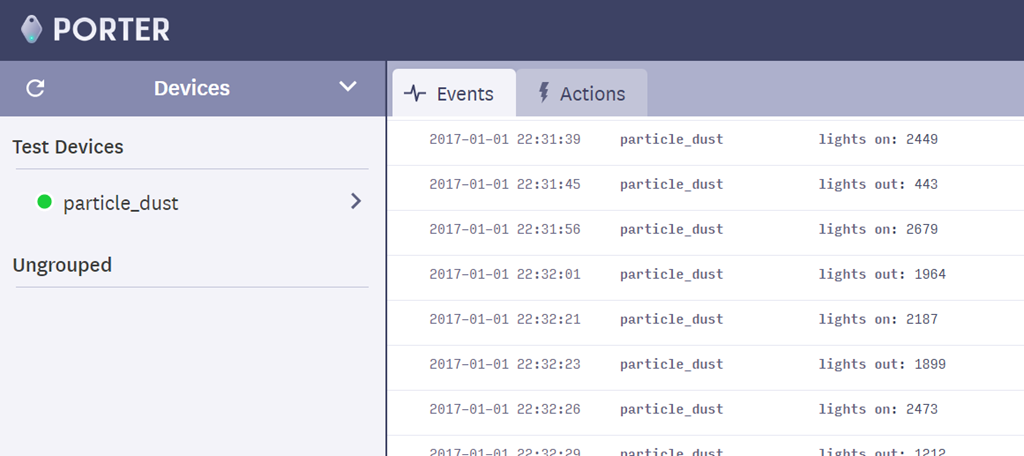
You can also work with Particle events. We discussed events in a previous post where we published events based on a threshold of 2000 for the photoresistor value. The events will show up in the Events tab (Web UI shown below):

image

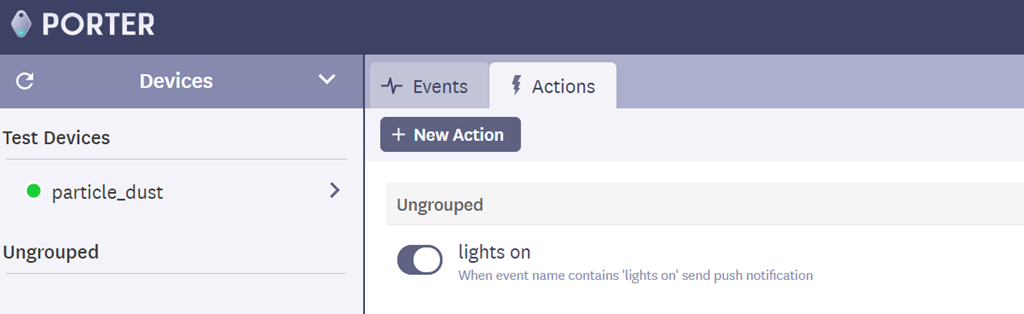
Based on these events, you can define all sorts of Actions:

image

In the above screen, an action is defined that sends a notification when the lights on event is received. This noticification works together with the Porter app on your phone to notify you of the event. Other actions are:

  • Web Request: HTTP PUT or GET with variable request data using tokens such as [data], [time], [device_name] and so on
  • Send an e-mail
  • Send an SMS

Note that Porter is a paying service and that e-mails and SMSs require a specific plan. They have a 30-day trial.

As you can see, it’s very easy to use Porter and for quick access and control of your prototypes, it’s a great service. It’s not very difficult to build a quick web UI for your device yourself but it all comes down to gettng off the ground quickly and focusing on what matters in the early stages.

IoT with Particle: publishing events

In the two previous posts, we discussed setup and talked about triggering actions and reading sensor data. Particle also allows you to publish events. You can subscribe to these events or pass them to other systems such as Azure IoT Hub.

Let’s build on the previous example with the LED and the photoresistor. When we read a high value from the photoresistor (yes, more light) we will publish a lights on event including the value we have read. When we read a low value, we will publish a lights out event.

In code, this is easily done. The setup part:

image

This is not very different from the earlier post. I added a boolean (true/false) variable called bright to maintain the state (is it bright or not) and we initialise the variable depending on the amount of light we measure at the start.

In the loop() part:

image

Above you see Particle.publish in action. We read the brightness every second. When it was not bright and brightness is above or equal to 2000, we send an event to the Particle Cloud. This way, you only publish the event when the state changes. Particle Publish takes 4 parameters:

  • The name of the event
  • The data you want to send along; here it’s the brightness value converted to a string with the built in String class and its constructor which can take an integer and returns it as a string
  • 60 is the TTL (default and cannot be changed for now)
  • PRIVATE: this is a private event that only authorized subscribers can subscribe to

Lastly, we still implement the Particle Function to turn the LED on or off remotely:

image

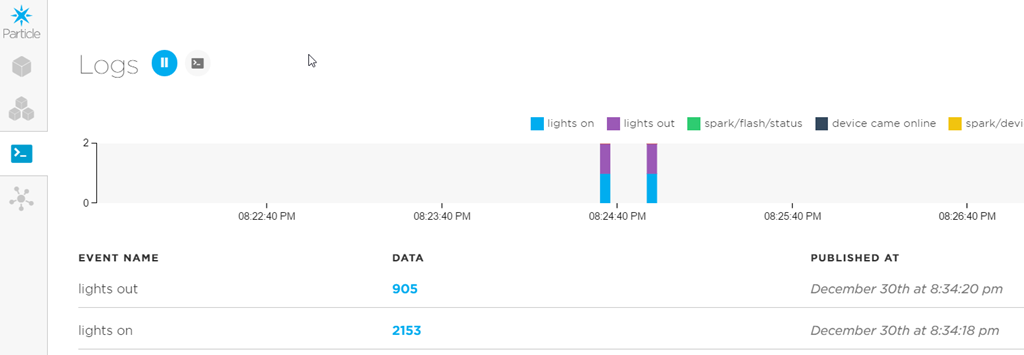
The events can be tracked from the Particle Console:

image

The question of course is, what can you do with published events? One course of action is to use these events for communication between your IoT devices. Another Particle device can use Particle.subscribe to subscribe to the events published by other devices. Using Particle.subscribe is very simple and somewhat analogous to a Particle Function. You can find out more about it here: https://docs.particle.io/reference/firmware/photon/#particle-subscribe-

Another course of action is to use Particle’s IFTTT integration to use IFTTTs rich ecosystem of connected services. Particle is one of these services so just provide IFTTT with credentials to Particle and you are set!

Do know that the published events are not stored by Particle. If you want to do that, one way of achieving this is with the Azure IoT Hub integration. In a later post, I’ll talk more about that.

IoT with Particle: Functions and Variables using the Build IDE

In yesterday’s post, I talked a bit about the setup process and initial configuration of a Particle Photon. To start quickly, we used the Tinker firmware and the Particle iOS app to light up a LED using digitalWrite to light it up with full brightness (full 3.3V) but also with analogWrite to vary the brightness depending on the value you write (between 0-255 using the PWM port D0).

Today, we’ll add a photoresistor and a LED with the LED positioned above the photoresistor. We’ll turn on the LED from the Particle Cloud using a Particle Function and we’ll read out the photoresistor value using a Particle Variable.

For the photoresistor, I only had a Grove Light Sensor lying around. If you don’t know the Grove system, it’s a a collection of sensors with simple four-wire connectors that typically work with an add-on board for these connectors. For the Photon, there is such a solution as well. To get started easily you could go for the starter kit: https://www.seeedstudio.com/Grove-Starter-Kit-for-Photon-p-2179.html. Since I do not have the Grove add-on board for the Photon, I connected the sensor using three male-to-female (two for power and ground and one for the signal) wires and connected the signal pin to port A0 on the Photon. Indeed, the photoresistor will output a value to read using analogRead. The value rises with increasing brightness.

So how do we turn on the LED from the Particle Cloud? That’s where Particle Functions come in. Particle Functions make it extremely easy to control your device from anywhere. In fact, it’s one of the easiest solutions I have found to date. But first, you have to know something about the integrated development environment called Build.

Particle’s web-based IDE: Build

You access the IDE from https://build.particle.io. The screenshot below shows the IDE with a new app ready to be coded:

image

If you are used to Arduino, it all looks pretty similar here but beware there are many subtle differences. The cool thing is that you can code your app here and flash the device from the Web using the flash icon in the top left. Let’s write a simple app to flash a led at port D1:

image

Okay, cool but not very interesting. Let’s put this LED under cloud control with a function.

Particle Functions

Let’s write a Particle Function that can turn the LED on or off remotely.

image

With the simple code above you have registered a Particle Function, led, that you can call remotely (with proper credentials of course). When you call the led function and you pass a parameter (always a string) the function ledToggler is executed on the device. Great, but how do you call the led function? There are several options:

  • use the Particle CLI
  • send an HTTP POST to a Particle API endpoint

The CLI is easy. After installing it (see https://docs.particle.io/guide/tools-and-features/cli/photon/), just execute the following command to see your devices and their functions: particle list (note: use particle login first to login with your Particle account)

image

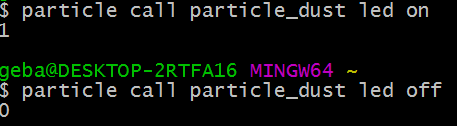
Now call the function using particle call

image

Above you see two calls to turn the LED on and off. After each call, you also see the return value of the function.

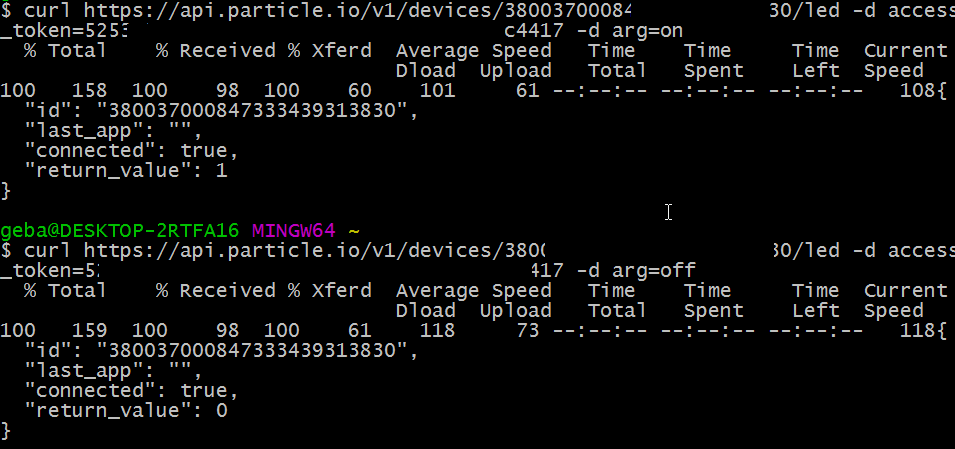
To use the HTTP POST method, there’s a myriad of tools and frameworks to do so. From the command line, you can use cURL but you could also use Postman. I use cURL on Windows, which is part of Git Bash. You can also try https://curl.haxx.se/download.html. With cURLyou need to supply your device ID + an access token you can get from the IDE:

image

Above you see the same two calls to turn the LED on or off. The HTTP POST returns some JSON with the return_value from the function.

Particle Variables

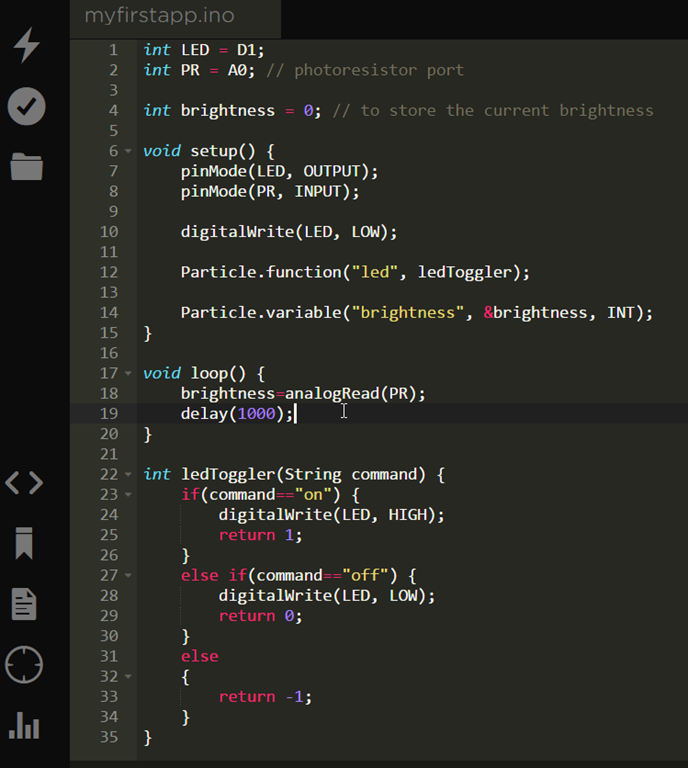
Functions are great to trigger actions on your devices, but how do we read data from a sensor like the photoresistor in our case? That’s surprisingly easy again: just use a Particle Variable. Modify the code as follows:

image

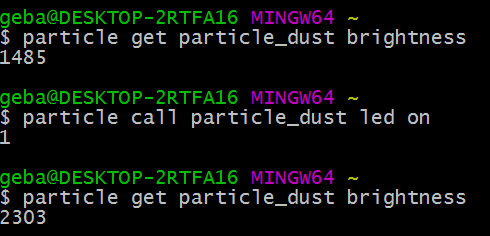
Above, the A0 pin (called PR) is setup for reading values. In the loop, we keep reading the brightness from the photoresistor using analogRead followed by a delay of 1 second. A Particle Variable is defined that you can read from the cloud using the CLI or HTTP GET. With the CLI:

image

Without the LED above the photo resistor, inside the house, we get 1485 as a brightness value. With the LED turned on right above it, the value is 2303. Great!!! By the way, the LED is not too bright because I used a 1000 Ohm resistor.

Using cURL:

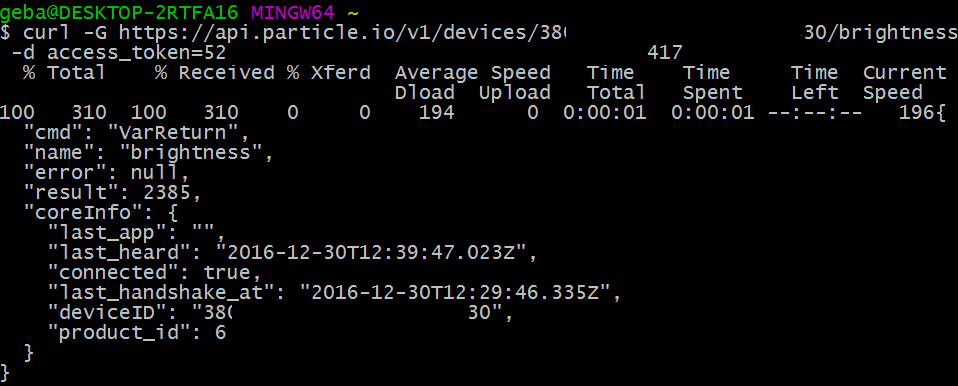
image

Wrap Up

You have now seen how easy it is to trigger actions with Particle Functions and read sensor data using Particle Variables. This functionality automatically comes with your Particle device at no extra cost and is completely driven from code. There is no need to use other services to post sensor data which keeps things simple. And I like simple, don’t you?

In a subsequent post, we’ll take a look at publishing event data using Particle Publish! Stay tuned!

IoT with Particle: a smooth experience

At ThingTank, the IoT brand of Xylos, we make our own IoT hardware which can be quite complex if you need to connect multiple sensors efficiently, or even multiple MCUs where each MCU has its own set of sensors. Most people that want to start with IoT (typically at home or for a small company proof of concept) use either Arduino or Raspberry Pi with one or two sensors connected. Both solutions are great in their own right but there are others! One such solution is Particle, a combination of both hardware, software and cloud. Let’s take a look at what they offer from a hardware and configuration perspective. Future posts will discuss their cloud offering and how to connect to other systems such as Azure IoT Hub.

Hardware

Particle sell their own hardware (like the Photon and Electron) but they also work with other hardware such as a Raspberry Pi. I bought a Photon from https://www.antratek.be/photon. It costs around 25€ which is not as cheap as some alternatives but still well worth the money.

image

After unpacking, I mounted it on a breadboard and gave it power from a wall socket using an adapter I had lying around that I used in the past to power a Raspberry Pi. Although you can, you do not have to connect the Photon to a computer to configure it. Yes, you heard that right! You can configure the Photon using a mobile app and you can flash new firmware OTA (over the air) right from a web-based IDE called Build. Let’s see how initial configuration works…

Configuration

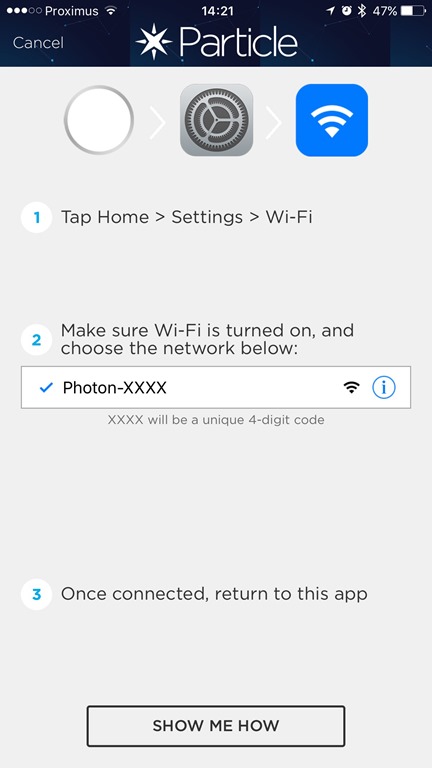
The Photon only comes with WiFi, compared to the Electron which comes with 2G/3G and a global SIM card. To connect the Photon to WiFi (one of five connections the device can remember), use the Particle app for iOS or Android (the easiest method):

file9

To configure a new device, the app guides you through the whole process. The Photon will create its own WiFi network. After connecting your phone to that network, you can configure the network you want the Photon to connect to:

file10

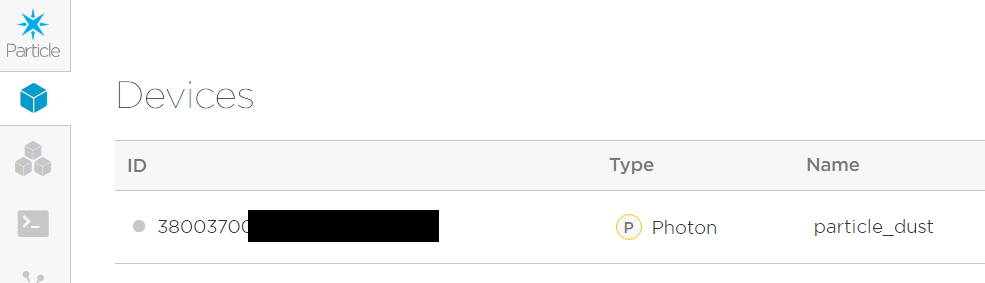
When the process is finished, the device can be seen in the Particle Console:

image

As part of the configuration process, you can give the device a name. The device name (or device id) can later be used in HTTP calls or from the Particle CLI.

Tinker

This post will not discuss how to flash the device with a custom firmware (that’s for a later post). But even without a custom firmware, you can still start exploring the device and do useful things with the digital and analog ports using the mobile app and the out-of-the-box Tinker firmware. The Tinker firmware can always be flashed back to the device if needed.

In the mobile app, after selecting the device, you will see the port layout of the device:

file-4


Without going into details here, know that there is an onboard LED connected to digital port D7. When you select D7, you will be asked what you want to do:

file-5

In this case, we want to turn on the onboard LED so we obviously want to write to the port. After selecting digitalWrite, you can select D7 to set the port HIGH (3.3V) or LOW (GND). When the port is set to HIGH, the on-board LED will light up in blue. Cool no? Although not very useful, you have now configured the Photon to connect to the Particle back-end in the cloud and you can use their app to control the ports from the cloud as well.

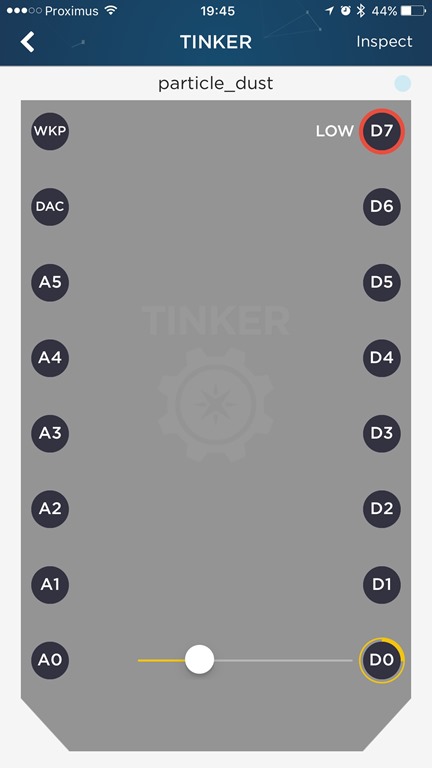
Tinker works just a well with analogWrite. If you have an LED connected to D0, and a resistor from the other side of the LED to GND, you can send a value between 0 and 255 to the port which will light up the LED with varying brightness:

file-6

image

Note: D0-D7 are digital ports but D0~D3 may also be used as a PWM output (PWM = pulse width modulaton); that’s why you can send values ranging from 0 to 255 to those ports as well (analogWrite)

Summary

Particle has gone out of its way to make it as easy as possible to get started. Setting up the device is super simple and getting started with the built-in Tinker firmware makes it easier for beginners to understand how to use the ports without having to start coding. In follow-up posts, we’ll have a look at some of the cloud functionality and we’ll connect some more useful sensors like a photoresistor and a PIR sensor… Stay tuned!!!

Have some fun with Slash Webtasks and Slack

At ThingTank we really love a tool like Slack because of its simplicity and extensibility. Like so many, we use it to get notifications from all sorts of systems. A lot of websites and tools integrate with Slack such as Azure Logic Apps or CI systems like Shippable. Those types of integrations are very easy to configure.

But what if you want to send commands from Slack? You would typically use a slash command for that. Some common commands are /giphy to insert an animated GIF or /hangouts to start a Google Hangouts session.

In this case, we wanted to create a slash command to tell our CI system (Shippable) to run a build for a project. We found that one of the simplest ways to do that, is to use Slash Webtasks from those clever guys at Auth0. We already use Auth0 for securing our back-end APIs and we really love the way they think about developer productivity. You will first have to install the Webtasks app from https://webtask.io/slack. After that, you will have a new slash command in Slack: /wt.

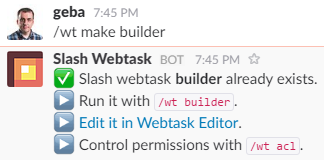
After installation, you use the /wt command to start creating Slash Webtasks. First, create a new Slash Webtask like so (we’ll call it builder):

image

Just click Edit it in Webtask Editor to start editing the task. The tasks are programmed in Node.js and lots of packages are available to you. No need for package.json or manual npm install commands. The sample code will look like this:

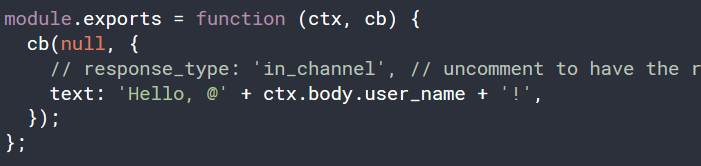
image

This is just a Hello World example that says hello to you in Slack. You can invoke it with /wt builder and you will get a response like Hello @geba. The context object provides access to all sorts of goodies like in this case your user name in Slack.

Some sample code to run a build in Shippable can be found in this gist: https://gist.github.com/gbaeke/9e92b4a33e41793f1d6c454cfc496bd6. Open it up and take a look at the code. In short, this is what happens:

  • Require the request package (https://www.npmjs.com/package/request) to be used later to send the POST to the Shippable API that performs the build
  • Retrieve the Shippable API key from the secrets you can store in Slash Webtasks.
  • Retrieve the text after your command /wt builder. So if I use /wt builder realtime, the variable “project” will contain the string “realtime”
  • Internally, we keep a small dictionary of project names and their corresponding id that we require in the API; we could have done other API requests to retrieve the id but this is simpler and meets our needs
  • Use request, to perform a POST request to https://api.shippable.com/projects/projectid/newBuild and specify the API token in the authorization header
  • Give some feedback to the user; the CI process in Shippable is configured to report back to Slack in its shippable.yml configuration file

A note about those secrets, these are configured right in the editor:

image

We’ve only touched on the basics here but there is not much more to it. If you are looking for a simple way to create custom slash commands in Slack, give Slash Webtasks a try. It’s really fun to work with and it’s very elegant. And by the way, Webtasks on its own can do much more. It’s one of those serverless solutions but it has some nifty features such as Express integration etc… Maybe I’ll cover that in another post!

Azure Automation and PowerApps

One of our applications in our “test playground” is running some code in an Azure WebApp that needs to be restarted once in a while. Rather than trying to fix the underlying problem (no fun in that right?), I decided to create a small mobile app to restart the WebApp when needed. To make it a bit more fun, I used the following “code-less” solutions to make it work:

  • Azure Automation: Graphical Runbook to restart the WebApp; use a Webhook to call the Runbook using a simple HTTP POST
  • Microsoft Flow: calls the Azure Automation Webhook when a control is selected in a PowerApp
  • PowerApp: simple app with a button that calls the above Flow

Azure Automation

I created an Azure Automation account with the option to create a service principal. This results in an account that is added as Contributor for the subscription in which the Azure Automation account was created. This also means that a runbook that uses this account is allowed to restart a WebApp in the same subscription. In my case, the Automation Account and the WebApp are in the same subscription.

Now, before you can use the Restart-AzureRMWebApp cmdlet, you need to add the AzureRM.Websites module to the Automation Account. To do so, navigate to https://www.powershellgallery.com/packages/AzureRM.Websites/1.1.2 and use the Deploy to Azure Automation button. Follow the instructions to add the module to an existing Azure Automation account. When you are finished, click Assets in the Automation Account’s main pane and then click Modules. You should see the following:

 image

Now you can duplicate the AzureAutomationTutorial graphical runbook. In Runbooks, click that Runbook and use the Export option to export the definition to a local file on your computer. Now add a new Runbook and use the Import an existing runbook option together with the export file you just created. Your copied Runbook will look like below:

image

You can remove everything after Login to Azure (that’s the login with the Service Principal that has Contributor rights). Just add the Restart-AzureRMWebApp cmdlet like so:

image

The Restart-AzureRmWebApp only needs two parameters: the name of the WebApp and the resource group of the WebApp. To be able to call the Runbook using HTTP POST, create a Webhook for it. In the properties of the Runbook, click Webhooks and then add a Webhook. Note that there is no authentication for these Webhooks. It’s just a long, unique URL with an expiration date that you set. Make sure you copy the URL before you save the Webhook because it will not be shown later. I created a RunFromPowerApps webhook like so:

image

You can try the Webhook with Postman (https://www.getpostman.com/) or curl and see if a job gets started.

Microsoft Flow

Well, this could not be simpler. Go to https://flow.microsoft.com and login with your credentials (the same credentials for PowerApps, in my case they are Azure AD organization credentials). From My flows create a new flow that looks like this:

image

In the URI, enter the Webhook address from Azure Automation. Save the flow. We will now use this flow in PowerApps.

PowerApps

To create a PowerApp, install the Windows PowerApp application (a Windows Store app) and logon with the same credentials you used with Flow. I created a blank app with a simple button, nothing fancy. With the button selected, click Flows from the Action menu. You should see the flow you created. Just select it to link it to the button selection. You should see something like:

image

Note that it is possible to pass data to the flow as parameters to the Run() command. You could for instance create a list of WebApps to restart and pass the WebApp to be restarted to the Flow and the Webhook.

Test the PowerApp with the play button in the menu bar. When you click Restart, check that the Automation Job fired properly:

image

Now you can run the PowerApp on your iOS or Android device with the PowerApp app for those platforms. Enjoy!

This simple example shows that a lot can be accomplished with tools like Azure Automation, Flow and PowerApps for prototyping or even actual applications with a quick time to value.

Fault Domains in Azure IaaSv2

With the availability of IaaSv2 in Microsoft Azure, several new features are available that dramatically change the way resources are deployed and maintained. One profound change is the introduction of three fault domains for IaaSv2 virtual machines as opposed to two fault domains for IaaSv1 virtual machines. In the case of Azure, a fault domain is basically a rack of servers. A power failure at the rack level will impact all servers in the rack or fault domain. To make sure your application can survive a fault domain failure, you will need to spread your application’s components, for instance front-end web servers, across fault domains. The way to do this in Azure is to assign virtual machines to an availability set. Upon deployment but also during service healing, Azure’s fabric controller will spread the virtual machines that belong to the same availability set across the fault domains automatically. As an administrator, you cannot control this assignment.

If you deploy virtual machines in cloud services (IaaSv1 style), the maximum amount of fault domains is two which can present a problem. For instance, when you deploy a majority node set cluster with three nodes across two fault domains, it is entirely possible that the fault domain that hosts two of the three nodes fails. When that happens, the surviving node does not have majority and will go offline as well. For such deployments, three fault domains are a requirement to survive a failure in one fault domain.

Now that you understand what a fault domain is and the requirement for three fault domains, how do you get three fault domains in Azure? Well, you will need to deploy virtual machines using the IaaSv2 model. This model is based on Azure Resource Manager which also enables rich template based deployment of virtual machines, network interfaces, IP addresses, load balancers, web sites and more. Many Microsoft and community templates can be found at http://azure.microsoft.com/en-us/documentation/templates/

To get a feel for how such a deployment works and to check if your resources are spread across three fault domains, take a look at our Cloud Chat video:

Windows Azure Point-to-Site Networking

If you are having trouble with the point-to-site VPN configuration in Windows Azure, here are some tips about the procedure:

  • Follow the procedure located at http://msdn.microsoft.com/en-us/library/windowsazure/dn133792.aspx for creating the virtual network and the gateway.
  • When configuring the certificates for the VPN connection, first create the self-signed root certificate with the following command:  

    makecert -sky exchange -r -n "CN=RootCertificateName" –pe -a sha1 -len 2048 -ss My

  • The above command creates a self-signed root certificate and stores it in your certificate store (Certificates – Current User\Personal\Certificates). Next, export that certificate to a .cer file and upload it to Azure from the dashboard of the virtual network using the Upload client certificate link (the name of that link will probably be changed in the future Smile) I also stored the root certificate in my Trusted Roots.
  • Now create a client certificate with the self-signed root certificate as the issuer. The command I used is different from the one in the documentation because it did not work for me. I used:

    makecert -n "CN=ClientCertificateName" -pe -sky exchange -m 96 -ss
    my -a sha1 -is my -in "RootCertificateName"

  • The above command creates the client certificate in the same store as the root certificate and uses the root certificate previously generated as the issuer. Be sure to check that the issuer is the root certificate you uploaded to Azure.

In the dashboard of the virtual network, download the x64 or x86 client VPN package and install it. There will be an extra network connection that uses SSTP to connect to your Azure gateway:

image


In Azure the dashboard should show connected clients:

image

Office 365 Identity Management with DirSync without Exchange Server On-Premises

This post describes how users, groups and contact are provisioned in Office 365 from the on-premises Active Directory. By using DirSync, these objects are created in and synchronized to Office 365. Without an Exchange Server and Exchange Management tools in place, it is not always obvious how these objects should be created.

The following sections describe the procedures you can follow without Exchange or the Exchange management tools in place.

IMPORTANT NOTE
The sections below only specify the basic actions you need to perform in Active Directory to have the object appear in the right place in Office 365 (user, security group, mailbox, distribution group, contact). Note that almost all properties of these objects need to be set in Active Directory. If you want to hide a distribution group from the address book or you want to configure moderation for a distribution group, you have to know the property in Active Directory that’s responsible for the setting, set the value and perform directory synchronization. You will also need to upgrade the Active Directory schema with Exchange Server 2010 schema updates. You cannot use the Exchange Server 2010 System Manager without having at least one Exchange Server 2010 role installed on-premises.

Create a user account

Create a regular user account in Active Directory. This user account will be replicated by DirSync and it will appear in the Users list in the portal (https://portal.microsoftonline.com).

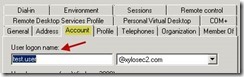
Important: set the user logon name to a value with a suffix that matches the suffix used for logging on to Office 365. For instance, if you logon with first.last@xylos.com in Office 365, set the UPN to that value:
clip_image002

User accounts without a mailbox (or any other license) can be used in Office 365 to grant permissions such as Billing Administrator or Global Administrator. A user account like this is typically used to create a DirSync service account.

Create a user account for a user that needs a mailbox

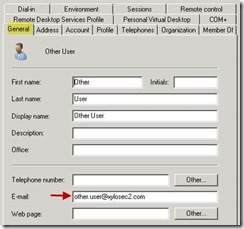
Create a user account as above. Set the user’s primary e-mail address in the email attribute or you will get an onmicrosoft.com address only:
clip_image004

When this user is synchronized and an Exchange Online license is added in the portal, a mailbox will be created that has the E-mail address in the E-mail field as primary SMTP address. Automatically, a secondary SMTP address is created with prefix@tenantid.onmicrosoft.com:

clip_image006

What if the user needs extra SMTP addresses?

  • You cannot set extra SMTP addresses in Exchange Control Panel (or Remote PowerShell) because the object is synchronized with DirSync.
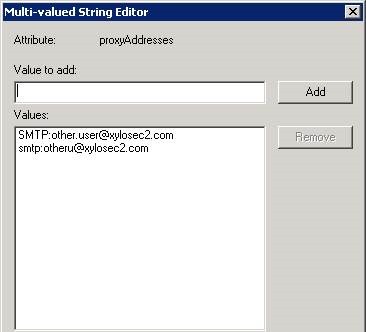
  • In the on-premises Active Directory you need to populate the proxyAddresses attribute of the user object. You can set the values in this field with ADSIEdit or Active Directory Users and Computers (Windows Server 2008 ADUC and higher with Advanced Features turned on)
  • In the proxyAddresses field, make sure that you also list the primary SMTP address with SMTP: (in uppercase) in front of the address. Secondary addresses need smtp: (in lowercase) in front of the address.
    clip_image008

Note: instead of editing the proxyAddresses field directly, you can use a free (but at this point in time beta) product: http://www.messageops.com/software/office-365-tools-and-utilities/office-365-active-directory-addin. The tool adds the following tabs to Active Directory Users and Computers:

  • O365 Exchange General: set display name, Email address, additional Email addresses and even a Target Email Address (for mail redirection)
  • O365 Custom Attributes: set custom attributes in AD for replication to Office 365
  • O365 Delivery Restrictions: accept messages from, reject messages from
  • O365 Photo: this photo will appear on the user’s profile and will be used by Lync Online as well
  • O365 Delegates: to set the publicDelegates property

When a user is created in AD, you can use the additional tabs this tool provides to set all needed properties at once.

To summarize the actions for a mailbox:

  • Create a user in ADUC with the user logon name (UPN) and e-mail address to the primary e-mail address of the user (UPN and e-mail address do not have to match but it’s the most common case)
  • Make sure the user has a display name (done automatically for users if you specify first, last and full name in the AD wizard)
  • Set proxyAddresses manually or with the MessageOps add-in to specify additional e-mail addresses (with smtp: in the front) and make sure you also specify the primary e-mail address with SMTP: in the front.
  • Let DirSync create and sync the user to Office 365
  • Assign an Exchange Online license to the user. A mailbox will be created with the correct e-mail addresses.

Create a security group

Create a security group in Active Directory. The group will be synchronized by DirSync and appear in the Security Groups in the portal. The group will not appear in the Distribution Groups in Exchange Online (obviously).

Create a distribution group

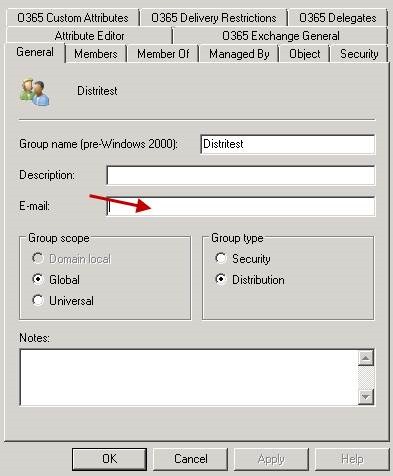
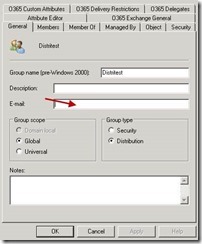
Create a distribution group in Active Directory. In the properties of the group set the primary e-mail address in the E-mail address field:
clip_image010

In addition to the e-mail address, the group object also needs a display name (displayname attribute). If the distribution group in AD has an e-mail address and a display name, the group will appear in the Distribution Groups list in Exchange Online after synchronization.

Note that specifying members and alternate e-mail addresses has to be done in the local Active Directory as well. If you have installed the MessageOps add-in, you can set easily set those properties.

Create a mail-enabled distribution group

You can add a display name and e-mail address to a standard security group to mail-enable the group. After stamping those two properties, the group will appear in the list of Distribution Groups in Exchange Online. When you list groups with the Get-Group cmdlet, you will see the following:

clip_image012

You can stamp the properties manually or use the MessageOps add-in to set these properties easily.

Create a contact

Create a contact object in Active Directory. In the properties of the created object, fill in the E-mail field in the General tab.

Conclusion

Although DirSync makes it easy to create directory objects in Office 365, without an Exchange Server and the Exchange management tools it is not always obvious how to set the needed properties in order to correctly synch these objects. If you find it too much of a hassle to set the required properties on your local Active Directory objects, there are basically two things you can do:
  • Turn off Directory Synchronization and start mastering directory objects in the cloud
  • Install at least one Exchange Server 2010 SP1 so that you can use the Exchange management tools