Working with Recipes and Gateways in Microsoft’s Radius

In a previous post, we looked at the basics of deploying a multi-container app that uses Dapr with Radius. In this post, we will add two things:

  • a recipe that deploys Redis
  • a gateway: to make the app available to the outside world

Find the full code and app.bicep in the following branch: https://github.com/gbaeke/raddemo/tree/radius-step1.

Recipes

When a developer chooses a resource they would like to use in their app, like a database or queue, that type of resource needs to be deployed somehow. In my sample app, the api saves data to Redis.

From an operator point of view, and possibly depending on the environment, Redis needs to be deployed and configured properly. For instance in dev, you could opt for Redis in a container without a password. In production, you could go for Azure Redis Cache instead with TLS and authentication.

This is where recipes come in. They deploy the needed resources and provide the proper connections to allow applications to connect. Let’s look at a recipe that deploys Redis in Kubernetes:

resource redis 'Applications.Datastores/redisCaches@2023-10-01-preview' = {
  name: 'redis'
  properties: {
    application: app.id
    environment: environment
  }
}

Note: you can get a list of recipes with rad recipe list; next to Redis, there are recipes for sqlDatabases, rabbitMQQueues and more; depending on how you initialised Radius, the recipe list might be empty

The above recipe deploys Redis as a container to the underlying Kubernetes cluster. The deployment is linked to an environment. Just like in the previous blog post, we just use the default environment. Working with environments and workspaces will be for another post.

In fact, this recipe does not specify the recipe explicitly. This means that the default recipe is used, which in this case is a Redis container in Kubernetes.

Note that the above recipe actually deploys the resource. It is quite possible that your Redis Cache is already deployed without a recipe. In that case, you can set resourceProvisioning to manual and set hostname, port and other properties manually, via secret integration or with references to another Bicep resource. For example:

resource redis 'Applications.Datastores/redisCaches@2023-10-01-preview' = {
  name: 'redis'
  properties: {
    environment: environment
    application:app.id
    resourceProvisioning: 'manual'
    resources: [{
      id: azureRedis.id
    }]
    username: 'myusername'
    host: azureRedis.properties.hostName
    port: azureRedis.properties.port
    secrets: {
      password: azureRedis.listKeys().primaryKey
    }
  }
}

Note: above, references are made to azureRedis, a symbolic name for a Bicep resource, implying that Azure Redis Cache is deployed from the same Bicep file but without a recipe

In either case (deployment or reference), when a connection from a container is made to this Redis resource, a number of environment variables are set inside the container. For example:

  • CONNECTION_CONNECTIONNAME_HOSTNAME
  • CONNECTION_CONNECTIONNAME_PORT

Connecting the api to Redis

To connect the api container to Redis, we use the following app.bicep (please read the previous article for the full context):

import radius as radius

@description('Specifies the environment for resources.')
param environment string

resource app 'Applications.Core/applications@2023-10-01-preview' = {
  name: 'raddemo'
  properties: {
    environment: environment
  }
}

resource redis 'Applications.Datastores/redisCaches@2023-10-01-preview' = {
  name: 'redis'
  properties: {
    application: app.id
    environment: environment
  }
}

resource ui 'Applications.Core/containers@2023-10-01-preview' = {
  name: 'ui'
  properties: {
    application: app.id
    container: {
      image: 'gbaeke/radius-ui:latest'
      ports: {
        web: {
          containerPort: 8001
        }
      }
      env: {
        DAPR_APP: api.name  // api name is the same as the Dapr app id here
      }
    }
    extensions: [
      {
        kind: 'daprSidecar'
        appId: 'ui'
      }
    ]
  }
}

resource api 'Applications.Core/containers@2023-10-01-preview' = {
  name: 'api'
  properties: {
    application: app.id
    container: {
      image: 'gbaeke/radius-api:latest'
      ports: {
        web: {
          containerPort: 8000
        }
      }
      env: {
          REDIS_HOST: redis.properties.host
          REDIS_PORT: string(redis.properties.port)
      }
    }
    extensions: [
      {
        kind: 'daprSidecar'
        appId: 'api'
        appPort: 8000
      }
    ]
    connections: {
      redis: {
        source: redis.id  // this creates environment variables in the container
      }
    }
  }
}

Note the connections array in the api resource. In that array, we added redis and we reference the redis recipe’s id.

Because our api expects the Redis host and port in environment variables different from the ones provided by the connection, we set the variables the api expects ourselves and reference the Redis recipe’s properties.

The environment variables in the api container set by the connection will be CONNECTION_REDIS_HOSTNAME etc… but we do not use them here because that would require a code change.

When you run this app with rad run app.bicep, Redis will be deployed. When the user submits a question via the ui, the logs will show that the Redis call succeeded:

api-c8686c8ff-bwf7l api INFO:root:Stored result for question Hello in Redis

redis-hjo6ha3uqagio-64949758b7-td7c8 redis-monitor 1698071908.381740 [0 10.244.0.24:59750] "SET" "Hello" "This is a fake result for question Hello"

Because rad run streams all logs, the redis-monitor logs are also shown. They clearly state a Redis SET operation was performed.

There is much more to say about recipes. You can even create your own recipes. They are just bicep (or Terraform) modules you publish to a registry. See authoring recipes for more information.

Adding a gateway

So far, we have accessed the ui of our application via port forwarding. The ui listens on port 8001 which is mapped to http://localhost:8001 by rad run. What if we want to make the application available to the outside world?

To make the ui available to the outside world, we can add the following to app.bicep:

resource gateway 'Applications.Core/gateways@2023-10-01-preview' = {
  name: 'gateway'
  properties: {
    application: app.id
    routes: [
      {
        path: '/'
        destination: 'http://ui:8001'
      }
    ]
  }
}

The above adds a gateway to our app and adds one route: http://ui:8001.

During deployment of the Radius control plane, Radius deployed Contour. Contour uses Envoy as the data plane and a service of type LoadBalancer makes the data plane available to the outside world.

In k9s, you should see the following pods in the Radius control plane namespace (radius-system):

Contour

You will also find the service of type LoadBalancer:

LoadBalancer with public IP address

When you create a gateway with Radius, it creates a Kubernetes resource of kind HTTPProxy with apiVersion projectcontour.io/v1 in the same namespace as your app. The spec of the resource refers to another HTTPProxy (ui here) and sets the fqdn (fully qualified domain name) to gateway.raddemo.4.175.112.144.nip.io.

nip.io is a service that resolves a name to the IP address in that name, in this case 4.175.122.144. That IP address is the IP address used by the Azure Load Balancer.

The HTTPProxy ui defines the service and port it routes to. Here that is a service called ui and port 8001.

gateway and ui Contour HTTPProxy resources

You can set your own fully qualified domain name if you wish, in addition to specifying a certificate to enable TLS.

The HTTPProxy resources instruct Contour to configure itself to accept traffic on the configured FQDN and forward it to the ui service.

The full Bicep code to deploy the containers, Redis and the gateway is below:

import radius as radius

@description('Specifies the environment for resources.')
param environment string

resource app 'Applications.Core/applications@2023-10-01-preview' = {
  name: 'raddemo'
  properties: {
    environment: environment
  }
}

resource redis 'Applications.Datastores/redisCaches@2023-10-01-preview' = {
  name: 'redis'
  properties: {
    application: app.id
    environment: environment
  }
}

resource gateway 'Applications.Core/gateways@2023-10-01-preview' = {
  name: 'gateway'
  properties: {
    application: app.id
    routes: [
      {
        path: '/'
        destination: 'http://ui:8001'
      }
    ]
  }
}


resource ui 'Applications.Core/containers@2023-10-01-preview' = {
  name: 'ui'
  properties: {
    application: app.id
    container: {
      image: 'gbaeke/radius-ui:latest'
      ports: {
        web: {
          containerPort: 8001
        }
      }
      env: {
        DAPR_APP: api.name  // api name is the same as the Dapr app id here
      }
    }
    extensions: [
      {
        kind: 'daprSidecar'
        appId: 'ui'
      }
    ]
  }
}

resource api 'Applications.Core/containers@2023-10-01-preview' = {
  name: 'api'
  properties: {
    application: app.id
    container: {
      image: 'gbaeke/radius-api:latest'
      ports: {
        web: {
          containerPort: 8000
        }
      }
      env: {
          REDIS_HOST: redis.properties.host
          REDIS_PORT: string(redis.properties.port)
      }
    }
    extensions: [
      {
        kind: 'daprSidecar'
        appId: 'api'
        appPort: 8000
      }
    ]
    connections: {
      redis: {
        source: redis.id  // this creates environment variables in the container
      }
    }
  }
}

To see the app’s URL, use rad app status.

Note: there is a discussion ongoing to use recipes instead of a pre-installed ingress controller like Contour. With recipes, you could install the ingress solution you prefer such as nginx ingress or any other solution.

Conclusion

In this post we added a Redis database and connected the api to Redis via a connection. We did not use the environment variables that the connection creates. Instead, we provided values for the Redis host name and port to the environment variables the api expects.

To make the application available via the built-in Contour ingress, we created a gateway resource that routes to the ui service on port 8001. The gateway creates a nip.io hostname but you can set the hostname to something different as long as that name resolves to the IP address of the Contour LoadBalancer service.

Giving Microsoft’s Radius a spin

Microsoft recently announced Radius. As stated in their inaugural blog post, it is “a tool to describe, deploy, and manage your entire application”. With Radius, you describe your application in a bicep file. This can include containers, databases, the connections between those and much more. Radius is an open-source solution started from within Microsoft. The name is somewhat confusing because of RADIUS, a network authentication solution developed in 1991!

Starting point: app running locally

Instead of talking about it, let’s start with an application that runs locally on a development workstation and uses Dapr:

The ui is a Flask app that presents a text area and a button. When the user clicks the button, the code that handles the event calls the api using Dapr invoke. If you do not know what Dapr is, have a look at docs.dapr.io. The api saves the user’s question and a fake response to Redis. If Redis cannot be found, the api will simply log it could not save the data. The response is returned to the ui.

To run the application with Dapr on a development machine, I use a dapr.yaml file in combination with dapr run -f . See multi-app run for more details.

Here’s the yaml file:

version: 1
apps:
  - appID: ui
    appDirPath: ./ui
    appPort: 8001
    daprHTTPPort: 3510
    env:
      DAPR_APP: api
    command: ["python3","app.py"]
  - appID: api
    appDirPath: ./api
    appPort: 8000
    daprHTTPPort: 3511
    env:
      REDIS_HOST: localhost
      REDIS_PORT: 6379
      REDIS_DB: 0
    command: ["python3","app.py"]

Note that the api needs a couple of environment variables to find the Redis instance. The ui needs one environment variable DAPR_APP that holds the Dapr appId of the api. The Dapr invoke call needs this appId in order to find the api on the network.

In Python, the Dapr invoke call looks like this:

with DaprClient() as d:
        log.info(f"Making call to {dapr_app}")
        resp = d.invoke_method(dapr_app, 'generate', data=bytes_data,
                                 http_verb='POST', content_type='application/json')
        log.info(f"Response from API: {resp}")

The app runs fine locally if you have Python and the dependencies as listed in both the ui’s and api’s requirements.txt file. Let’s try to deploy the app with Radius.

Deploying the app with Radius

Before we can deploy the app with Radius, you need to install a couple of things:

  • rad CLI: I installed the CLI on MacOS; see the installation instructions for more details
  • VS Code extension: Radius uses a forked version of Bicep that is older than the current version of Bicep. The two will eventually converge but for now, you need to disable the official Bicep extension in VS Code and install the Radius Bicep extension. This is needed to support code like import radius as radius, which is not supported in the current version of Bicep.
  • Kubernetes cluster: Radius uses Kubernetes and requires the installation of the Radius control plane on that cluster. I deployed a test & dev AKS cluster in Azure and ensured it was set as my current context. Use kubectl config current-context to check that.
  • Install Dapr: our app uses Dapr and Radius supports it; however, Dapr needs to be manually installed on the cluster; if you have Dapr on your local machine, run dapr init -k to install it on Kubernetes

Now you can clone my raddemo repo. Use git clone https://github.com/gbaeke/raddemo.git. In the raddemo folder, you will see two folders: api and ui. In the root folder, run the following command:

rad init

Select Yes to use the current folder.

Running rad init does the following:

  • Installs Radius to the cluster in the radius-system namespace
  • Creates a new environment and workspace (called default)
  • Sets up a local-dev recipe pack: recipes allow you to install resources your app needs like Redis, MySQL, etc…

After installation, this is the view on the radius-system Kubernetes namespace with k9s:

Pods in the radius-system namespace

There should also be a .rad folder with a rad.yaml file:

workspace:
  application: "raddemo"

The file defines a workspace with our application name raddemo. raddemo is the name of the folder where I ran rad init. You can have multiple workspaces defined with one selected as the default. For instance, you could have a dev and prod workspace where each workspace uses a different Kubernetes cluster and environment. The default could be set to dev but you can easily switch to prod using the rad CLI. Check this overview of workspaces for more information. I am going to work with just one workspace called default, which uses an environment called default. When you just run rad init, those are the defaults.

You also get a default app.bicep file:

import radius as radius
param application string

resource demo 'Applications.Core/containers@2023-10-01-preview' = {
  name: 'demo'
  properties: {
    application: application
    container: {
      image: 'radius.azurecr.io/samples/demo:latest'
      ports: {
        web: {
          containerPort: 3000
        }
      }
    }
  }
}

This is deployable code. If you run rad run app.bicep, a Kubernetes pod will be deployed to your cluster, using the image above. Radius would also setup port forwarding to access the app on it’s containerPort (3000).

We will change this file to deploy the ui. We will remove the application parameter and define our own application. That application needs an environment which we will pass in via a parameter:

import radius as radius

@description('Specifies the environment for resources.')
param environment string

resource app 'Applications.Core/applications@2023-10-01-preview' = {
  name: 'raddemo'
  properties: {
    environment: environment
  }
}

resource ui 'Applications.Core/containers@2023-10-01-preview' = {
  name: 'ui'
  properties: {
    application: app.id
    container: {
      image: 'gbaeke/radius-ui:latest'
      ports: {
        web: {
          containerPort: 8001
        }
      }
    }
    extensions: [
      {
        kind: 'daprSidecar'
        appId: 'ui'
      }
    ]
  }
}

Above, we define the following:

  • a resource of type Applications.Core/applications: because applications run on Kubernetes, you can use a different namespace than the default and also set labels and annotations. All labels and annotations would be set on all resources belonging to the app, such as containers
  • the app resource needs an environment: the environment parameter is defined in the Bicep file and is set automatically by the rad CLI; it will match the environment used by your current workspace; environments can also have cloud credentials attached to deploy resources in Azure or AWS; we are not using that here
  • a resource of type Applications.Core/containers: this will create a pod in a Kubernetes namespace; the container belongs to the app we defined (application property) and uses the image gbaeke/ui-radius:latest on Docker Hub. Radius supports Dapr via extensions. The Dapr sidecar is added via these extensions with the app Id of ui.

In Kubernetes, this results in a pod with two containers: the ui container and the Dapr sidecar.

ui and Dapr sidecar

When you run rad run app.bicep, you should see the resources in namespace default-raddemo. The logs of all containers should stream to your console and local port 8001 should be mapped to the pod’s port 8001. http://localhost:8001 should show:

ui accessed via http://localhost:8001

We will end this post by also deploying the api. It also needs Dapr and we need to update the definition of the ui container by adding an environment variable:

import radius as radius

@description('Specifies the environment for resources.')
param environment string

resource app 'Applications.Core/applications@2023-10-01-preview' = {
  name: 'raddemo'
  properties: {
    environment: environment
  }
}

resource ui 'Applications.Core/containers@2023-10-01-preview' = {
  name: 'ui'
  properties: {
    application: app.id
    container: {
      image: 'gbaeke/radius-ui:latest'
      ports: {
        web: {
          containerPort: 8001
        }
      }
      env: {
        DAPR_APP: api.name  // api name is the same as the Dapr app id here
      }
    }
    extensions: [
      {
        kind: 'daprSidecar'
        appId: 'ui'
      }
    ]
  }
}

resource api 'Applications.Core/containers@2023-10-01-preview' = {
  name: 'api'
  properties: {
    application: app.id
    container: {
      image: 'gbaeke/radius-api:latest'
      ports: {
        web: {
          containerPort: 8000
        }
      }
    }
    extensions: [
      {
        kind: 'daprSidecar'
        appId: 'api'
        appPort: 8000
      }
    ]
  }
}

Above, we added the api container, enabled Dapr, and set the Dapr appId to api. In the ui, we set environment variable DAPR_APP to api.name. We can do this because the name of the api resource is the same as the appId. This also makes Radius deploy the api before the ui. Note that the api does not have Redis environment variables. It will default to finding Redis at localhost, which will fail. But that’s ok.

You now have two pods in your namespace:

Yes, there are three here but Redis will be added in a later post.

Note that instead of running rad run app.bicep, you can also run rad deploy app.bicep. The latter simply deploys the application. It does not forward ports or stream logs.

Summary

In this post, we touched on the basics of using Radius to deploy an application that uses Dapr. Under the hood, Radius uses Kubernetes to deploy container resources specified in the Bicep file. To run the application, simply run rad run app.bicep to deploy the app, stream all logs and set up port forwarding.

We barely scratched the surface here so in a next post, we will add Redis via a recipe, and make the application available publicly via a gateway. Stay tuned!

Use the Azure Add your data feature from code

In a previous post, we looked at Azure Add your data (preview) that can be configured from the Azure OpenAI Chat playground. In a couple of steps, you can point to or upload files of a supported file type (PDF, Word, …) and create an Azure Cognitive Search index. That index can subsequently be queried to find relevant content to inject in the prompt of an Azure OpenAI model such as gtp-35-turbo or gpt-4. The injection is done for you by the Add your data feature!

Although this feature is fantastic and easy to configure in the portal, you probably want to use it in a custom application. So in this post, we will take a look at how to use this feature in code.

You can find a notebook with some sample code here: https://github.com/gbaeke/azure-cog-search. The code is a subset of the code used by Microsoft to create a web application from the Azure OpenAI playground. That code can be found here. Although the code is written in Python, it does not use specific OpenAI or Azure OpenAI libraries. The code uses the Azure OpenAI REST APIs only, which means you can easily replicate this in any other language or framework.

Before you run the code, make sure you clone the repo and add a .env file as described in README.md. The code itself is in a Python notebook so make sure you can run these notebooks. I use Visual Studio Code to do that:

Running the notebook in VS Code

To configure Visual Studio Code, check https://code.visualstudio.com/docs/datascience/jupyter-notebooks.

The code itself does the following:

  • create Python variables from environment variables to configure both Azure Cognitive Search and Azure OpenAI. Make sure you have read the previous blog post and/or looked at the video to have both of these resources. You will need to add the short names of these services and the authentication keys to these services. The video at the end of this post discusses the options in some more detail.
  • Prepare a messages array with a user question: I am an Azure architect. Is there a job for me? In the previous post, I added documents with job descriptions. You can add any documents you want and modify the user question accordingly.
  • Prepare the JSON body for an HTTP POST. The JSON body will be sent to the Azure OpenAI chat completion (extensions) API and will include information about the Azure Cognitive Search data source.
  • Create the endpoint URL and HTTP headers to send to the chat completion API. The headers contain the Azure OpenAI API key.
  • Send the JSON body to the chat completion endpoint with the Python requests module and extract the full response (that includes citations) and the response by the OpenAI model. In this code, gpt-4 is used.

To see the response from the code, check https://github.com/gbaeke/azure-cog-search/blob/main/cog-search-openai.ipynb. If you have worked with the OpenAI APIs before, you will notice that the response in the choices field contains two messages:

  • a message with the role of tool that includes content from Azure Cognitive Services including metadata like URL and file path
  • a message with the role of assistant that contains the actual answer from the OpenAI model (here gpt-4)

It’s important to note that you need to use the chat completions extensions API with the correct API version of 2023-06-01-preview. This is reflected in the constructed endpoint. Also, note it’s extensions/chat/completions in the URL!

endpoint = f"https://{AZURE_OPENAI_RESOURCE}.openai.azure.com/openai/deployments/{AZURE_OPENAI_MODEL}/extensions/chat/completions?api-version={AZURE_OPENAI_PREVIEW_API_VERSION}"

If you are used to LangChain or other libraries that are supposed to make it easy to work with large language models, prompts, vector databases, etc… you know that the document queries are separated from the actual call to the LLM and that the retrieved documents are injected into the prompt. Of course, LangChain and other tools have higher-level APIs that make it easy to do in just a few lines of code.

Microsoft has gone for direct integration of Azure Cognitive Search in the Azure OpenAI APIs version 2023-06-01-preview and above. You can find the OpenAPI specification (swagger) here. One API call is all that is needed!

Note that in this code, we are not using semantic search. In the sample .env file, AZURE_SEARCH_USE_SEMANTIC_SEARCH is set to false. You cannot simply turn on that setting because it also requires turning on the feature in Azure Cognitive Search. The feature is also in preview:

Semantic search in Azure Cognitive Search (preview)

To understand the differences between lexical search and semantic search, see this article. In general, semantic search should return better results when using natural language queries. By turning on the feature in Cognitive Search (Free tier) and setting AZURE_SEARCH_USE_SEMANTIC_SEARCH to true, you should be good to go.

⚠️ Note that semantic search is not the same as vector search in the context of Azure Cognitive Search. With vector search, you have to generate vectors (embeddings) using an embedding model and store these vectors in your index together with your content. Although Azure Cognitive Search supports vector search, it is not used here. It’s kind of confusing because vector search enables semantic search in a general context.

Here’s a video with more information about this blog post:

Enhancing Blog Post Search with Chunk-based Embeddings and Pinecone

In this blog post, we’ll show you a different approach to searching through a large database of blog posts. The previous approach involved creating a single embedding for the entire article and storing it in a vector database. The new approach is much more effective, and in this post, we’ll explain why and how to implement it.

The new approach involves the following steps:

  1. Chunk the article into pieces of about 400 tokens using LangChain
  2. Create an embedding for each chunk
  3. Store each embedding, along with its metadata such as the URL and the original text, in Pinecone
  4. Store the original text in Pinecone, but not indexed
  5. To search the blog posts, find the 5 best matching chunks and add them to the ChatCompletion prompt

We’ll explain each step in more detail below, but first, let’s start with a brief overview of the previous approach.

The previous approach used OpenAI’s embeddings API to vectorize the blog post articles and Pinecone, a vector database, to store and query the vectors. The article was vectorized as a whole, and the resulting vector was stored in Pinecone. To search the blog posts, cosine similarity was used to find the closest matching article, and the contents of the article were retrieved using the Python requests library and the BeautifulSoup library. Finally, a prompt was created for the ChatCompletion API, including the retrieved article.

The problem with this approach was that the entire article was vectorized as one piece. This meant that if the article was long, the vector might not represent the article accurately, as it would be too general. Moreover, if the article was too long, the ChatCompletion API call might fail because too many tokens were used.

The new approach solves these problems by chunking the article into smaller pieces, creating an embedding for each chunk, and storing each embedding in Pinecone. This way, we have a much more accurate representation of the article, as each chunk represents a smaller, more specific part of the article. And because each chunk is smaller, there is less risk of using too many tokens in the ChatCompletion API call.

To implement the new approach, we’ll use LangChain to chunk the article into pieces of about 400 tokens. LangChain is a library aimed at assisting in the development of applications that use LLMs, or large language models.

Next, we’ll create an embedding for each chunk using OpenAI’s embeddings API. As before, we will use the text-embedding-ada-002 model. And once we have the embeddings, we’ll store each one, along with its metadata, in Pinecone. The key for each embedding will be a hash of the URL, combined with the chunk number.

The original text will also be stored in Pinecone, but not indexed, so that it can be retrieved later. With this approach, we do not need to retrieve a blog article from the web. Instead, we just get the text from Pinecone directly.

To search the blog posts, we’ll use cosine similarity to find the 5 best-matching chunks. The 5 best matching chunks will be added to the ChatCompletion prompt, allowing us to ask questions based on the article’s contents.

Uploading the embeddings

The code to upload the embeddings is shown below. You will need to set the following environment variables:

export OPENAI_API_KEY=your_openai_api_key
export PINECONE_API_KEY=your_pinecone_api_key
export PINECONE_ENVIRONMENT=your_pinecone_environment
import feedparser
import os
import pinecone
import openai
import requests
from bs4 import BeautifulSoup
from retrying import retry
from langchain.text_splitter import RecursiveCharacterTextSplitter
import tiktoken
import hashlib

# use cl100k_base tokenizer for gpt-3.5-turbo and gpt-4
tokenizer = tiktoken.get_encoding('cl100k_base')

# create the length function used by the RecursiveCharacterTextSplitter
def tiktoken_len(text):
    tokens = tokenizer.encode(
        text,
        disallowed_special=()
    )
    return len(tokens)

@retry(wait_exponential_multiplier=1000, wait_exponential_max=10000)
def create_embedding(article):
    # vectorize with OpenAI text-emebdding-ada-002
    embedding = openai.Embedding.create(
        input=article,
        model="text-embedding-ada-002"
    )

    return embedding["data"][0]["embedding"]

# OpenAI API key
openai.api_key = os.getenv('OPENAI_API_KEY')

# get the Pinecone API key and environment
pinecone_api = os.getenv('PINECONE_API_KEY')
pinecone_env = os.getenv('PINECONE_ENVIRONMENT')

pinecone.init(api_key=pinecone_api, environment=pinecone_env)

if "blog-index" not in pinecone.list_indexes():
    print("Index does not exist. Creating...")
    pinecone.create_index("blog-index", 1536, metadata_config= {"indexed": ["url", "chunk-id"]})
else:
    print("Index already exists. Deleting...")
    pinecone.delete_index("blog-index")
    print("Creating new index...")
    pinecone.create_index("blog-index", 1536, metadata_config= {"indexed": ["url", "chunk-id"]})

# set index; must exist
index = pinecone.Index('blog-index')

# URL of the RSS feed to parse
url = 'https://atomic-temporary-16150886.wpcomstaging.com/feed/'

# Parse the RSS feed with feedparser
print("Parsing RSS feed: ", url)
feed = feedparser.parse(url)

# get number of entries in feed
entries = len(feed.entries)
print("Number of entries: ", entries)

# create recursive text splitter
text_splitter = RecursiveCharacterTextSplitter(
    chunk_size=400,
    chunk_overlap=20,  # number of tokens overlap between chunks
    length_function=tiktoken_len,
    separators=['\n\n', '\n', ' ', '']
)

pinecone_vectors = []
for i, entry in enumerate(feed.entries[:50]):
    # report progress
    print("Create embeddings for entry ", i, " of ", entries, " (", entry.link, ")")

    r = requests.get(entry.link)
    soup = BeautifulSoup(r.text, 'html.parser')
    article = soup.find('div', {'class': 'entry-content'}).text

    # create chunks
    chunks = text_splitter.split_text(article)

    # create md5 hash of entry.link
    url = entry.link
    url_hash = hashlib.md5(url.encode("utf-8"))
    url_hash = url_hash.hexdigest()
        
    # create embeddings for each chunk
    for j, chunk in enumerate(chunks):
        print("\tCreating embedding for chunk ", j, " of ", len(chunks))
        vector = create_embedding(chunk)

        # concatenate hash and j
        hash_j = url_hash + str(j)

        # add vector to pinecone_vectors list
        print("\tAdding vector to pinecone_vectors list for chunk ", j, " of ", len(chunks))
        pinecone_vectors.append((hash_j, vector, {"url": entry.link, "chunk-id": j, "text": chunk}))

        # upsert every 100 vectors
        if len(pinecone_vectors) % 100 == 0:
            print("Upserting batch of 100 vectors...")
            upsert_response = index.upsert(vectors=pinecone_vectors)
            pinecone_vectors = []

# if there are any vectors left, upsert them
if len(pinecone_vectors) > 0:
    print("Upserting remaining vectors...")
    upsert_response = index.upsert(vectors=pinecone_vectors)
    pinecone_vectors = []

print("Vector upload complete.")

Searching for blog posts

The code below is used to search blog posts:

import os
import pinecone
import openai
import tiktoken

# use cl100k_base tokenizer for gpt-3.5-turbo and gpt-4
tokenizer = tiktoken.get_encoding('cl100k_base')


def tiktoken_len(text):
    tokens = tokenizer.encode(
        text,
        disallowed_special=()
    )
    return len(tokens)

# get the Pinecone API key and environment
pinecone_api = os.getenv('PINECONE_API_KEY')
pinecone_env = os.getenv('PINECONE_ENVIRONMENT')

pinecone.init(api_key=pinecone_api, environment=pinecone_env)

# set index
index = pinecone.Index('blog-index')

while True:
    # set query
    your_query = input("\nWhat would you like to know? ")
    
    # vectorize your query with openai
    try:
        query_vector = openai.Embedding.create(
            input=your_query,
            model="text-embedding-ada-002"
        )["data"][0]["embedding"]
    except Exception as e:
        print("Error calling OpenAI Embedding API: ", e)
        continue

    # search for the most similar vector in Pinecone
    search_response = index.query(
        top_k=5,
        vector=query_vector,
        include_metadata=True)

    # create a list of urls from search_response['matches']['metadata']['url']
    urls = [item["metadata"]['url'] for item in search_response['matches']]

    # make urls unique
    urls = list(set(urls))

    # create a list of texts from search_response['matches']['metadata']['text']
    chunks = [item["metadata"]['text'] for item in search_response['matches']]

    # combine texts into one string to insert in prompt
    all_chunks = "\n".join(chunks)

    # print urls of the chunks
    print("URLs:\n\n", urls)

    # print the text number and first 50 characters of each text
    print("\nChunks:\n")
    for i, t in enumerate(chunks):
        print(f"\nChunk {i}: {t[:50]}...")

    try:
        # openai chatgpt with article as context
        # chat api is cheaper than gpt: 0.002 / 1000 tokens
        response = openai.ChatCompletion.create(
            model="gpt-3.5-turbo",
            messages=[
                { "role": "system", "content":  "You are a thruthful assistant!" },
                { "role": "user", "content": f"""Answer the following query based on the context below ---: {your_query}
                                                    Do not answer beyond this context!
                                                    ---
                                                    {all_chunks}""" }
            ],
            temperature=0,
            max_tokens=750
        )

        print(f"\n{response.choices[0]['message']['content']}")
    except Exception as e:
        print(f"Error with OpenAI Completion: {e}")

In Action

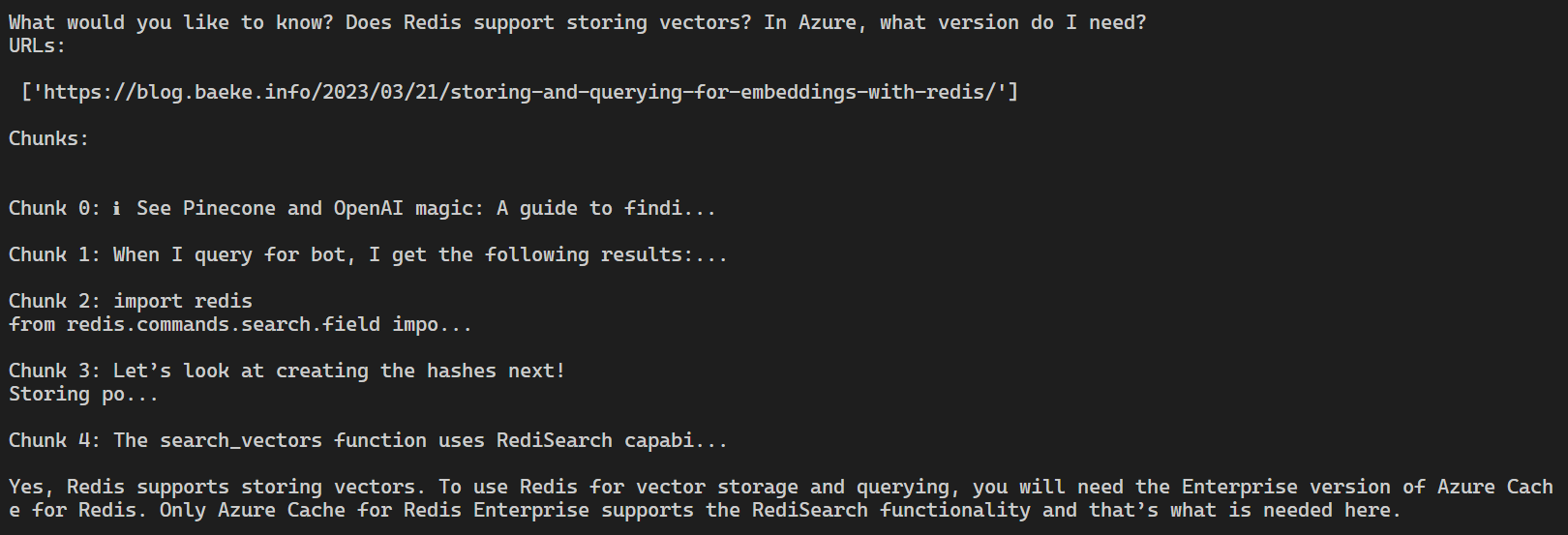
Below, we ask if Redis supports storing vectors and what version of Redis we need in Azure. The Pinecone vector search found 5 chunks, all from the same blog post (there is only one URL). The five chunks are combined and sent to ChatGPT, together with the original question. The response from the ChatCompletion API is clear!

Example question and response

Conclusion

In conclusion, the “chunked” approach to searching through a database of blog posts is much more effective and solves many of the problems associated with the previous approach. We hope you found this post helpful, and we encourage you to try out the new approach in your own projects!

Storing and querying for embeddings with Redis

In a previous post, we wrote about using vectorized search and cosine similarity to quickly query a database of blog posts and retrieve the most relevant content to a natural language query. This is achieved using OpenAI’s embeddings API, Pinecone (a vector database), and OpenAI ChatCompletions. For reference, here’s the rough architecture:

Vectorized search with Pinecone

The steps above do the following:

  1. A console app retrieves blog post URLs from an RSS feed and reads all the posts one by one
  2. For each post, create an embedding with OpenAI which results in a vector of 1536 dimensions to store in Pinecone
  3. After the embedding is created, store the embedding in a Pinecone index; we created the index from the Pinecone portal
  4. A web app asks the user for a query (e.g., “How do I create a chat bot?”) and creates an embedding for the query
  5. Perform a vectorized search, finding the closest post vectors to the query vector using cosine similarity and keep the one with the highest score
  6. Use the ChatCompletion API and submit the same query but add the highest scoring post as context to the user question. The post text is injected into the prompt

ℹ️ See Pinecone and OpenAI magic: A guide to finding your long lost blog posts with vectorized search and ChatGPT – baeke.info for more information.

We can replace Pinecone with Redis, a popular open-source, in-memory data store that can be used as a database, cache, and message broker. Redis is well-suited for this task as it can also store vector representations of our blog posts and has the capability to perform vector queries efficiently.

You can easily run Redis with Docker for local development. In addition, Redis is available in Azure, although you will need the Enterprise version. Only Azure Cache for Redis Enterprise supports the RediSearch functionality and that’s what we need here! Note that the Enterprise version is quite costly.

By leveraging Redis for vector storage and querying, we can harness its high performance, flexibility, and reliability in our solution while maintaining the core functionality of quickly querying and retrieving the most relevant blog post content using vectorized search and similarity queries.

ℹ️ The code below shows snippets. Full samples (yes, samples 😀) are on GitHub: check upload_vectors_redis.py to upload posts to a local Redis instance and search_vectors_redis.py to test the query functionality.

Run Redis with Docker

If you have Docker on your machine, use the following command:

docker run --name redis-stack-server -p 6380:6379 redis/redis-stack-server:latest

ℹ️ I already had another instance of Redis running on port 6379 so I mapped port 6380 on localhost to port 6379 of the redis-stack-server container.

If you want a GUI to explore your Redis instance, install RedisInsight. The screenshot below shows the blog posts after uploading them as Redis hashes.

RedisInsight in action

Let’s look at creating the hashes next!

Storing post data in Redis hashes

We will create several Redis hashes, one for each post. Hashes are records structured as collections of field-value pairs. Each hash we store, has the following fields:

  • url: url to the blog post
  • embedding: embedding of the blog post (a vector), created with the OpenAI embeddings API and the text-embedding-ada-002 model

We need the URL to retrieve the entire post after a closest match has been found. In Pinecone, the URL would be metadata to the vector. In Redis, it’s just a field in a hash, just like the vector itself.

In RedisInsight, a hash is shown as below:

Redis hash for post 0 with url and embedding fields

The embedding field in the hash has no special properties. The vector is simply stored as a series of bytes. To store the urls and embeddings of posts, we can use the following code:

import redis
import openai
import os
import requests
from bs4 import BeautifulSoup
import feedparser


# OpenAI API key
openai.api_key = os.getenv('OPENAI_API_KEY')

# Redis connection details
redis_host = os.getenv('REDIS_HOST')
redis_port = os.getenv('REDIS_PORT')
redis_password = os.getenv('REDIS_PASSWORD')

# Connect to the Redis server
conn = redis.Redis(host=redis_host, port=redis_port, password=redis_password, encoding='utf-8', decode_responses=True)

# URL of the RSS feed to parse
url = 'https://atomic-temporary-16150886.wpcomstaging.com/feed/'

# Parse the RSS feed with feedparser
feed = feedparser.parse(url)

p = conn.pipeline(transaction=False)
for i, entry in enumerate(feed.entries[:50]):
    # report progress
    print("Create embedding and save for entry ", i, " of ", entries)

    r = requests.get(entry.link)
    soup = BeautifulSoup(r.text, 'html.parser')
    article = soup.find('div', {'class': 'entry-content'}).text

    # vectorize with OpenAI text-emebdding-ada-002
    embedding = openai.Embedding.create(
        input=article,
        model="text-embedding-ada-002"
    )

    # print the embedding (length = 1536)
    vector = embedding["data"][0]["embedding"]

    # convert to numpy array and bytes
    vector = np.array(vector).astype(np.float32).tobytes()

    # Create a new hash with url and embedding
    post_hash = {
        "url": entry.link,
        "embedding": vector
    }

    # create hash
    conn.hset(name=f"post:{i}", mapping=post_hash)

p.execute()

In the above code, note the following:

  • The OpenAI embeddings API returns a JSON document that contains the embedding for each post; the embedding is retrieved with vector = embedding["data"][0]["embedding"]
  • The resulting vector is converted to bytes with vector = np.array(vector).astype(np.float32).tobytes(); serializing the vector this way is required to store the vector in the Redis hash
  • the Redis hset command is used to store the field-value pairs (these pairs are in a Python dictionary called post_hash) with a key that is prefixed with post: followed by the document number. The prefix will be used later by the search index we will create

Now we have our post information in Redis hashes, we want to use RediSearch functionality to match an input query with one or more of our posts. RediSearch supports vector similarity semantic search. For such a search to work, we will need to create an index that knows there is a vector field. On such indexes, we can perform vector similarity searches.

Creating an index

To create an index with Python code, check the code below:

import redis
from redis.commands.search.field import VectorField, TextField
from redis.commands.search.query import Query
from redis.commands.search.indexDefinition import IndexDefinition, IndexType

# Redis connection details
redis_host = os.getenv('REDIS_HOST')
redis_port = os.getenv('REDIS_PORT')
redis_password = os.getenv('REDIS_PASSWORD')

# Connect to the Redis server
conn = redis.Redis(host=redis_host, port=redis_port, password=redis_password, encoding='utf-8', decode_responses=True)


SCHEMA = [
    TextField("url"),
    VectorField("embedding", "HNSW", {"TYPE": "FLOAT32", "DIM": 1536, "DISTANCE_METRIC": "COSINE"}),
]

# Create the index
try:
    conn.ft("posts").create_index(fields=SCHEMA, definition=IndexDefinition(prefix=["post:"], index_type=IndexType.HASH))
except Exception as e:
    print("Index already exists")


When creating an index, you define the fields to index based on a schema. Above, we include both the text field (url) and the vector field (embedding). The VectorField class is used to construct the vector field and takes several parameters:

  • Name: the name of the field (“embedding” here but could be anything)
  • Algorithm: “FLAT” or “HNSW”; use “FLAT” when search quality is of high priority and search speed is less important; “HNSW” gives you faster querying; for more information see this article
  • Attributes: a Python dictionary that specifies the data type, the number of dimensions of the vector (1536 for text-embedding-ada-002) and the distance metric; here we use COSINE for cosine similarity, which is recommended by OpenAI with their embedding model

ℹ️ It’s important to get the dimensions right or your index will fail to build properly. It will not be immediately clear that it failed, unless you run FT.INFO <indexname> with redis-cli.

With the schema out of the way, we can now create the index with:

conn.ft("posts").create_index(fields=SCHEMA, definition=IndexDefinition(prefix=["post:"], index_type=IndexType.HASH))

The index we create is called posts. We index the fields defined in SCHEMA and only index hashes with a key prefix of post:. The hashes we created earlier, all have this prefix. With the index created and our existing hashes, the index should be populated with them. Ensure you can see that in RedisInsight:

posts index populated with hashes that were added earlier

Redis vector queries

With the hashes and the index created, we can now perform a similarity search. We will ask the user for a query string (use natural language) and then check the posts that are similar to the query string. The query string will need to be vectorized as well. We will return several post and rank them.

import numpy as np
from redis.commands.search.query import Query
import redis
import openai
import os

openai.api_key = os.getenv('OPENAI_API_KEY')

def search_vectors(query_vector, client, top_k=5):
    base_query = "*=>[KNN 5 @embedding $vector AS vector_score]"
    query = Query(base_query).return_fields("url", "vector_score").sort_by("vector_score").dialect(2)    

    try:
        results = client.ft("posts").search(query, query_params={"vector": query_vector})
    except Exception as e:
        print("Error calling Redis search: ", e)
        return None

    return results

# Redis connection details
redis_host = os.getenv('REDIS_HOST')
redis_port = os.getenv('REDIS_PORT')
redis_password = os.getenv('REDIS_PASSWORD')

# Connect to the Redis server
conn = redis.Redis(host=redis_host, port=redis_port, password=redis_password, encoding='utf-8', decode_responses=True)

if conn.ping():
    print("Connected to Redis")

# Enter a query
query = input("Enter your query: ")

# Vectorize the query using OpenAI's text-embedding-ada-002 model
print("Vectorizing query...")
embedding = openai.Embedding.create(input=query, model="text-embedding-ada-002")
query_vector = embedding["data"][0]["embedding"]

# Convert the vector to a numpy array
query_vector = np.array(query_vector).astype(np.float32).tobytes()

# Perform the similarity search
print("Searching for similar posts...")
results = search_vectors(query_vector, conn)

if results:
    print(f"Found {results.total} results:")
    for i, post in enumerate(results.docs):
        score = 1 - float(post.vector_score)
        print(f"\t{i}. {post.url} (Score: {round(score ,3) })")
else:
    print("No results found")

In the above code, the following happens:

  • Set OpenAI API key: needed to create the embedding for the query typed by the user
  • Connect to Redis based on the environment variables and check the connection with ping().
  • Ask the user for a query
  • Create the embedding from the query string and convert the array to bytes
  • Call the search_vectors function with the vectorized query string and Redis connection as parameters

The search_vectors function uses RediSearch capabilities to query over our hashes and calculate the 5 nearest neighbors to our query vector. Querying is explained in detail in the Redis documentation but it can be a bit dense. You start with the base query:

 base_query = "*=>[KNN 5 @embedding $vector AS vector_score]"

This is just a string with the query format that Redis expects to pass to the Query class in the next step. We are looking for the 5 nearest neighbors of $vector in the embedding fields of the hashes. You use @ to denote the embedding field and $ to denote the vector we will pass in later. That vector is our vectorized query string. With AS vector_score, we add the score to later rank the results from high to low.

The actual query is built with the Query class (one line):

query = Query(base_query).return_fields("url", "vector_score").sort_by("vector_score").dialect(2)    

We return the url and the vector_score and sort on this score. Dialect is just the version of the query language. Here we use dialect 2 as that matches the query syntax. Using an earlier dialect would not work here.

Of course, this still does not pass the query vector to the query. That only happens when we run the query in Redis with:

results = client.ft("posts").search(query, query_params={"vector": query_vector})

The above code performs a search query on the posts index. In the call to the search method, we pass the query we built earlier and a list of query parameters. We only have one parameter, the vector parameter ($vector in base_query) and the value for this parameter is the embedding created from the user query string.

When I query for bot, I get the following results:

Our 5 query results

The results are ranked with the closest match first. We could use that match to grab the post from the URL and send the query to OpenAI ChatCompletion API to answer the question more precisely. For better results, use a better query like “How do I build a chat bot in Python with OpenAI?”. To get an idea of how to do that, check my previous post.

Conclusion

In this post we discussed storing embeddings in Redis and querying embeddings with a similarity search. If you combine this with my previous post, you can use Redis instead of Pinecone as the vector database and query engine. This can be useful for Azure customers because Azure has Azure Cache for Redis Enterprise, a fully managed service that supports the functionality discussed in this post. In addition, it is useful for local development purposes because you can easily run Redis with Docker.

Authenticate to Azure Resources with Azure Managed Identities

In this post, we will take a look at managed identities in general and system-assigned managed identity in particular. Managed identities can be used by your code to authenticate to Azure AD resources from Azure compute resources that support it, like virtual machines and containers.

But first, let’s look at the other option and why you should avoid it if you can: service principals.

Service Principals

If you have code that needs to authenticate to Azure AD-protected resources such as Azure Key Vault, you can always create a service principal. It’s the option that always works. It has some caveats that will be explained further in this post.

The easiest way to create a service principal is with the single Azure CLI command below:

az ad sp create-for-rbac

The command results in the following output:

{
  "appId": "APP_ID",
  "displayName": "azure-cli-2023-01-06-11-18-45",
  "password": "PASSWORD",
  "tenant": "TENANT_ID"
}

If the service principal needs access to, let’s say, Azure Key Vault, you could use the following command to grant that access:

APP_ID="appId from output above"
$SUBSCRIPTION_ID="your subscription id"
$RESOURCE_GROUP="your resource group"
$KEYVAULT_NAME="short name of your key vault"

az role assignment create --assignee $APP_ID \
  --role "Key Vault Secrets User" \
  --scope "/subscriptions/$SUBSCRIPTION_ID/resourceGroups/$RESOURCE_GROUP/providers/Microsoft.KeyVault/vaults/$KEYVAULT_NAME"

The next step is to configure your application to use the service principal and its secret to obtain an Azure AD token (or credential) that can be passed to Azure Key Vault to retrieve secrets or keys. That means you need to find a secure way to store the service principal secret with your application, which is something you want to avoid.

In a Python app, you can use the ClientSecretCredential class and pass your Azure tenant id, the service principal appId (or client Id) and the secret. You can then use the secret with a SecretClient like in the snippet below.

# Create a credential object
credential = ClientSecretCredential(tenant_id, client_id, client_secret)

# Create a SecretClient using the credential
client = SecretClient(vault_url=VAULT_URL, credential=credential)

Other languages and frameworks have similar libraries to reach the same result. For instance JavaScript and C#.

This is quite easy to do but again, where do you store the service principal’s secret securely?

The command az ad sp create-for-rbac also creates an App Registration (and Enterprise application) in Azure AD:

Azure AD App Registration

The secret (or password) for our service principal is partly displayed above. As you can see, it expires a year from now (blog post written on January 6th, 2023). You will need to update the secret and your application when that time comes, preferably before that. We all know what expiring secrets and certificates give us: an app that’s not working because we forgot to update the secret or certificate!

💡 Note that one year is the default. You can set the number of years with the --years parameter in az ad sp create-for-rbac.

💡 There will always be cases where managed identities are not supported such as connecting 3rd party systems to Azure. However, it should be clear that whenever managed identity is supported, use it to provide your app with the credentials it needs.

In what follows, we will explain managed identities in general, and system-assigned managed identity in particular. Another blog post will discuss user-assigned managed identity.

Managed Identities Explained

Azure Managed Identities allow you to authenticate to Azure resources without the need to store credentials or secrets in your code or configuration files.

There are two types of Managed Identities:

  • system-assigned
  • user-assigned

System-assigned Managed Identities are tied to a specific Azure resource, such as a virtual machine or Azure Container App. When you enable a system-assigned identity for a resource, Azure creates a corresponding identity in the Azure Active Directory (AD) for that resource, similar to what you have seen above. This identity can be used to authenticate to any service that supports Azure AD authentication. The lifecycle of a system-assigned identity is tied to the lifecycle of the Azure resource. When the resource is deleted, the corresponding identity is also deleted. Via a special token endpoint, your code can request an access token for the resource it wants to access.

User-assigned Managed Identities, on the other hand, are standalone identities that can be associated with one or more Azure resources. This allows you to use the same identity across multiple resources and manage the identity’s lifecycle independently from the resources it is associated with. In your code, you can request an access token via the same special token endpoint. You will have to specify the appId (client Id) of the user-managed identity when you request the token because multiple identities could be assigned to your Azure resource.

In summary, system-assigned Managed Identities are tied to a specific resource and are deleted when the resource is deleted, while user-assigned Managed Identities are standalone identities that can be associated with multiple resources and have a separate lifecycle.

System-assigned managed identity

Virtual machines support system and user-assigned managed identity and make it easy to demonstrate some of the internals.

Let’s create a Linux virtual machine and enable a system-assigned managed identity. You will need an Azure subscription and be logged on with the Azure CLI. I use a Linux virtual machine here to demonstrate how it works with bash. Remember that this also works on Windows VMs and many other Azure resources such as App Services, Container Apps, and more.

Run the code below. Adapt the variables for your environment.

RG="rg-mi"
LOCATION="westeurope"
PASSWORD="oE2@pl9hwmtM"

az group create --name $RG --location $LOCATION

az vm create \
  --name vm-demo \
  --resource-group $RG \
  --image UbuntuLTS \
  --size Standard_B1s \
  --admin-username azureuser \
  --admin-password $PASSWORD \
  --assign-identity


After the creation of the resource group and virtual machine, the portal shows the system assigned managed identity in the virtual machine’s Identity section:

System assigned managed identity

We can now run some code on the virtual machine to obtain an Azure AD token for this identity that allows access to a Key Vault. Key Vault is just an example here.

We will first need to create a Key Vault and a secret. After that we will grant the managed identity access to this Key Vault. Run these commands on your own machine, not the virtual machine you just created:

# generate a somewhat random name for the key vault
KVNAME=kvdemo$RANDOM

# create with vault access policy which grants creator full access
az keyvault create --name $KVNAME --resource-group $RG

# with full access, current user can create a secret
az keyvault secret set --vault-name $KVNAME --name mysecret --value "TOPSECRET"

# show the secret; should reveal TOPSECRET
az keyvault secret show --vault-name $KVNAME --name mysecret

# switch the Key Vault to AAD authentication
az keyvault update --name $KVNAME --enable-rbac-authorization

Now we can grant the system assigned managed identity access to Key Vault via Azure RBAC. Let’s look at the identity with the command below:

az vm identity show --resource-group $RG --name vm-demo

This returns the information below. Note that principalId was also visible in the portal as Object (principal) ID. Yes, not confusing at all… 🤷‍♂️

{
  "principalId": "YOUR_PRINCIPAL_ID",
  "tenantId": "YOUR_TENANT_ID",
  "type": "SystemAssigned",
  "userAssignedIdentities": null
}

Now assign the Key Vault Secrets User role to this identity:

PRI_ID="principal ID above"
SUB_ID="Azure subscription ID"

# below, scope is the Azure Id of the Key Vault 

az role assignment create --assignee $PRI_ID \
  --role "Key Vault Secrets User" \
  --scope "/subscriptions/$SUB_ID/resourceGroups/$RG/providers/Micr
osoft.KeyVault/vaults/$KVNAME"

If you check the Key Vault in the portal, in IAM, you should see:

System assigned identity of VM has Secrets User role

Now we can run some code on the VM to obtain an Azure AD token to read the secret from Key Vault. SSH into the virtual machine using its public IP address with ssh azureuser@IPADDRESS. Next, use the commands below:

# install jq on the vm for better formatting; you will be asked for your password
sudo snap install jq

curl 'http://169.254.169.254/metadata/identity/oauth2/token?api-version=2018-02-01&resource=https%3A%2F%2Fvault.azure.net' -H Metadata:true | jq

It might look weird but by sending the curl request to that special IP address on the VM, you actually request an access token to access Key Vault resources (in this case, it could also be another type of resource). There’s more to know about this special IP address and the other services it provides. Check Microsoft Learn for more information.

The result of the curl command is JSON below (nicely formatted with jq):

{
  "access_token": "ACCESS_TOKEN",
  "client_id": "CLIENT_ID",
  "expires_in": "86038",
  "expires_on": "1673095093",
  "ext_expires_in": "86399",
  "not_before": "1673008393",
  "resource": "https://vault.azure.net",
  "token_type": "Bearer"
}

Note that you did not need any secret to obtain the token. Great!

Now run the following code but first replace <YOUR VAULT NAME> with the short name of your Key Vault:

# build full URL to your Key Vault
VAULTURL="https://<YOUR VAULT NAME>.vault.azure.net"

ACCESS_TOKEN=$(curl 'http://169.254.169.254/metadata/identity/oauth2/token?api-version=2018-02-01&resource=https%3A%2F%2Fvault.azure.net' -H Metadata:true | jq -r .access_token)

curl -s "$VAULTURL/secrets/mysecret?api-version=2016-10-01" -H "Authorization: Bearer $ACCESS_TOKEN" | jq -r .value

First, we set the vault URL to the full URL including https://. Next, we retrieve the full JSON token response but use jq to only grab the access token. The -r option strips the " from the response. Next, we use the Azure Key Vault REST API to read the secret with the access token for authorization. The result should be TOPSECRET! 😀

Instead of this raw curl code, which is great for understanding how it works under the hood, you can use Microsoft’s identity libraries for many popular languages. For example in Python:

from azure.identity import DefaultAzureCredential
from azure.keyvault.secrets import SecretClient

# Authenticate using a system-assigned managed identity
credential = DefaultAzureCredential()

# Create a SecretClient using the credential and the key vault URL
secret_client = SecretClient(vault_url="https://YOURKVNAME.vault.azure.net", credential=credential)

# Retrieve the secret
secret = secret_client.get_secret("mysecret")

# Print the value of the secret
print(secret.value)

If you are somewhat used to Python, you know you will need to install azure-identity and azure-keyvault-secrets with pip. The DefaultAzureCredential class used in the code automatically works with system managed identity in virtual machines but also other compute such as Azure Container Apps. The capabilities of this class are well explained in the docs: https://learn.microsoft.com/en-us/python/api/overview/azure/identity-readme?view=azure-python. The identity libraries for other languages work similarly.

What about Azure Arc-enabled servers?

Azure Arc-enabled servers also have a managed identity. It is used to update the properties of the Azure Arc resource in the portal. You can grant this identity access to other Azure resources such as Key Vault and then grab the token in a similar way. Similar but not quite identical. The code with curl looks like this (from the docs):

ChallengeTokenPath=$(curl -s -D - -H Metadata:true "http://127.0.0.1:40342/metadata/identity/oauth2/token?api-version=2019-11-01&resource=https%3A%2F%2Fvault.azure.net" | grep Www-Authenticate | cut -d "=" -f 2 | tr -d "[:cntrl:]")

ChallengeToken=$(cat $ChallengeTokenPath)

if [ $? -ne 0 ]; then
    echo "Could not retrieve challenge token, double check that this command is run with root privileges."
else
    curl -s -H Metadata:true -H "Authorization: Basic $ChallengeToken" "http://127.0.0.1:40342/metadata/identity/oauth2/token?api-version=2019-11-01&resource=https%3A%2F%2Fvault.azure.net"
fi

On an Azure Arc-enabled machine that runs on-premises or in other clouds, the special IP address 169.254.169.254 is not available. Instead, the token request is sent to http://localhost:40342. The call is designed to fail and respond with a Www-Authenticate header that contains the path to a file on the machine (created dynamically). Only specific users and groups on the machine are allowed to read the contents of that file. This step was added for extra security so that not every process can read the contents of this file.

The second command retrieves the contents of the file and uses it for basic authentication purposes in the second curl request. It’s the second curl request that will return the access token.

Note that this works for both Linux and Windows Azure Arc-enabled systems. It is further explained here: https://learn.microsoft.com/en-us/azure/azure-arc/servers/managed-identity-authentication.

In contrast with managed identity on Azure compute, I am not aware of support for Azure Arc in the Microsoft identity libraries. To obtain a token with Python, check the following gist with some sample code: https://gist.github.com/gbaeke/343b14305e468aa433fe90441da0cabd.

The great thing about this is that managed identity can work on servers not in Azure as long if you enable Azure Arc on them! 🎉

Conclusion

In this post, we looked at what managed identities are and zoomed in on system-assigned managed identity. Azure Managed Identities are a secure and convenient way to authenticate to Azure resources without having to store credentials in code or configuration files. Whenever you can, use managed identity instead of service principals. And as you have seen, it even works with compute that’s not in Azure, such as Azure Arc-enabled servers.

Stay tuned for the next post about user-assigned managed identity.

AKS Workload Identity Revisited

A while ago, I blogged about Workload Identity. Since then, Microsoft simplified the configuration steps and enabled Managed Identity, in addition to app registrations.

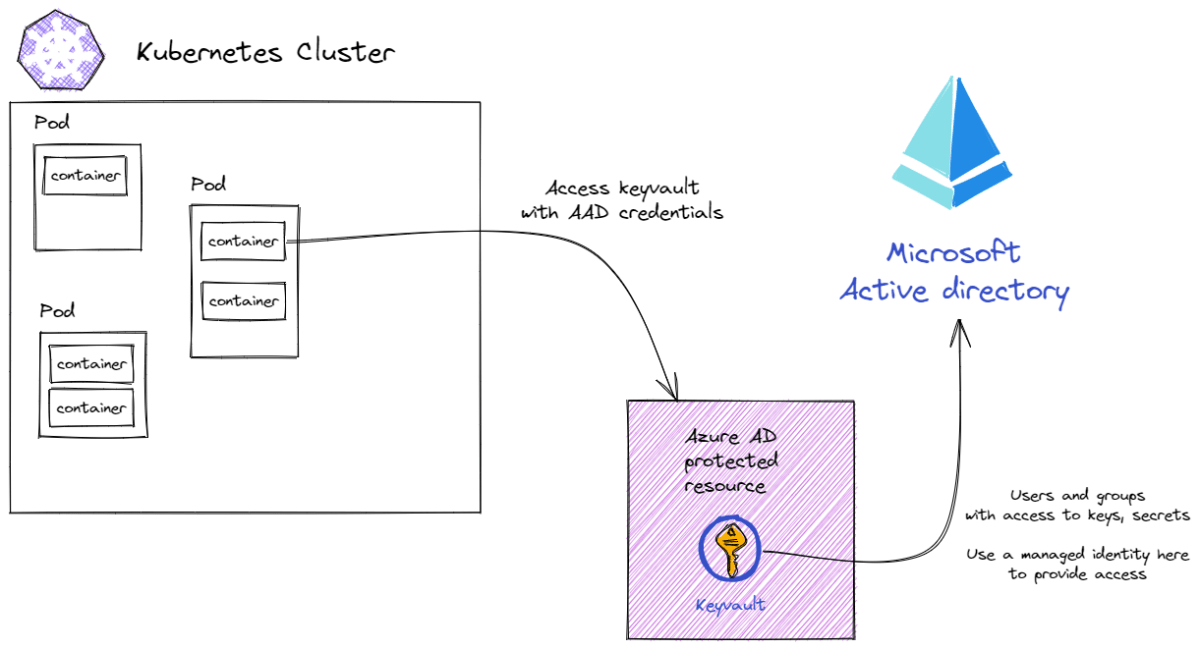
But first, let’s take a step back. Why do you need something like workload identity in the first place? Take a look at the diagram below.

Workloads (deployed in a container or not) often need to access Azure AD protected resources. In the diagram, the workload in the container wants to read secrets from Azure Key Vault. The recommended option is to use managed identity and grant that identity the required role in Azure Key Vault. Now your code just needs to obtain credentials for that managed identity.

In Kubernetes, that last part presents a challenge. There needs to be a mechanism to map such a managed identity to a pod and allow code in the container to obtain an Azure AD authentication token. The Azure AD Pod Identity project was a way to solve this but as of 24/10/2022, AAD Pod Identity is deprecated. It is now replaced by Workload Identity. It integrates with native Kubernetes capabilities to federate with external identity providers such as Azure AD. It has the following advantages:

  • Not an AKS feature, it’s a Kubernetes feature (other cloud, on-premises, edge); similar functionality exists for GKE for instance
  • Scales better than AAD Pod Identity
  • No need for custom resource definitions
  • No need to run pods that intercept IMDS (instance metadata service) traffic; instead, there are webhook pods that run when pods are created/updated

If the above does not make much sense, check https://learn.microsoft.com/en-us/azure/aks/use-azure-ad-pod-identity. But don’t use it OK? 😉

At a basic level, Workload Identity works as follows:

  • Your AKS cluster is configured to issue tokens. Via an OIDC (OpenID Connect) discovery document, published by AKS, Azure AD can validate the tokens it receives from the cluster.
  • A Kubernetes service account is created and properly annotated and labeled. Pods are configured to use the service account via the serviceAccount field.
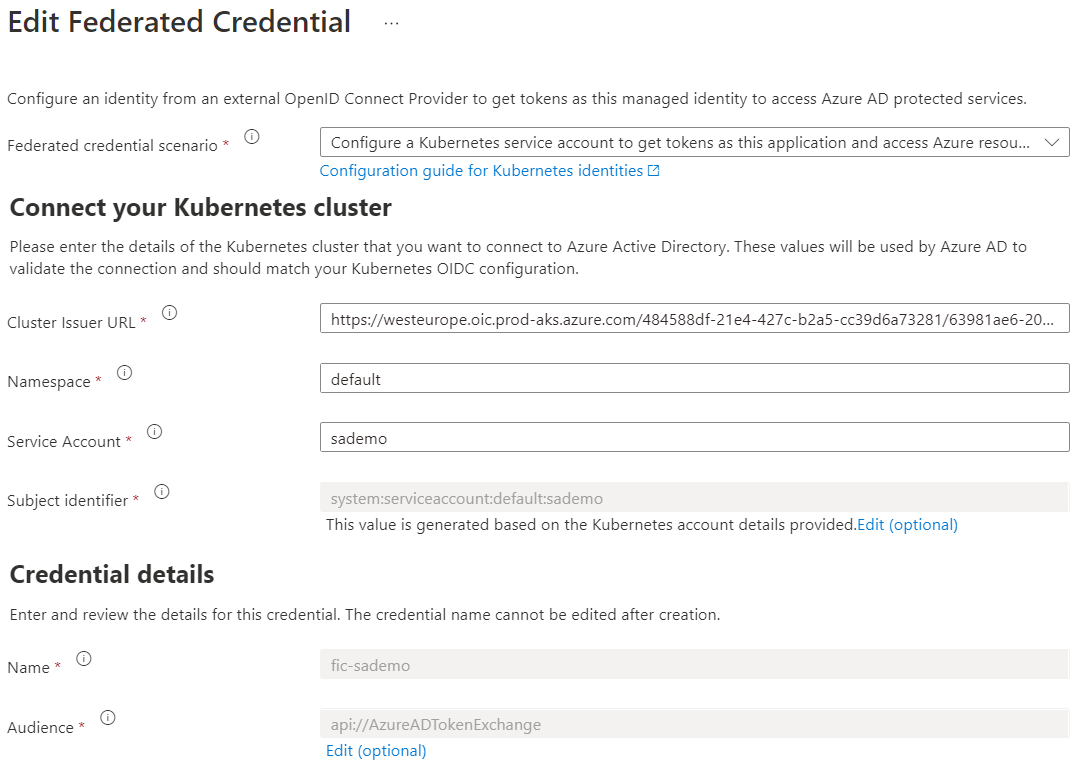
  • The Azure Managed Identity is configured with Federated credentials. The federated credential contains a link to the OIDC discovery document (Cluster Issuer URL) and configures the namespace and service account used by the Kubernetes pod. That generates a subject identifier like system:serviceaccount:namespace_name:service_account_name.
  • Tokens can now be generated for the configured service account and swapped for an Azure AD token that can be picked up by your workload.
  • A Kubernetes mutating webhook is the glue that makes all of this work. It ensures the token is mapped to a file in your container and sets needed environment variables.

Creating a cluster with OIDC and Workload Identity

Create a basic cluster with one worker node and both features enabled. You need an Azure subscription and the Azure CLI. Ensure the prerequisites are met and that you are logged in with az login. Run the following in a Linux shell:

RG=your_resource_group
CLUSTER=your_cluster_name

az aks create -g $RG -n $CLUSTER --node-count 1 --enable-oidc-issuer \
  --enable-workload-identity --generate-ssh-keys

After deployment, find the OIDC Issuer URL with:

export AKS_OIDC_ISSUER="$(az aks show -n $CLUSTER -g $RG --query "oidcIssuerProfile.issuerUrl" -otsv)"

When you add /.well-known/openid-configuration to that URL, you will see something like:

OIDC discovery document

The field jwks_uri contains a link to key information, used by AAD to verify the tokens issued by Kubernetes.

In earlier versions of Workload Identity, you had to install a mutating admission webhook to project the Kubernetes token to a volume in your workload. In addition, the webhook also injected several environment variables:

  • AZURE_CLIENT_ID: client ID of an AAD application or user-assigned managed identity
  • AZURE_TENANT_ID: tenant ID of Azure subscription
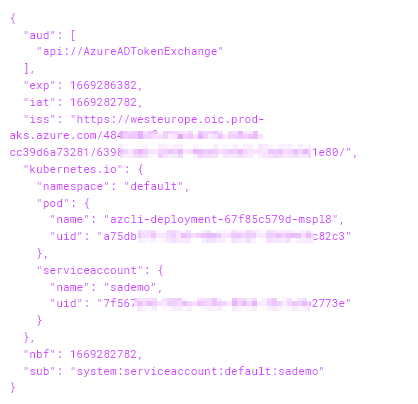
  • AZURE_FEDERATED_TOKEN_FILE: the path to the federated token file; you can do cat $AZURE_FEDERATED_TOKEN_FILE to see the token. Note that this is the token issued by Kubernetes, not the exchanged AAD token (exchanging the token happens in your code). The token is a jwt. You can use https://jwt.io to examine it:
Decoded jwt issued by Kubernetes

But I am digressing… In the current implementation, you do not have to install the mutating webhook yourself. When you enable workload identity with the CLI, the webhook is installed automatically. In kube-system, you will find pods starting with azure-wi-webhook-controller-manager. The webhook kicks in whenever you create or update a pod. The end result is the same. You get the projected token + the environment variables.

Creating a service account

Ok, now we have a cluster with OIDC and workload identity enabled. We know how to retrieve the issuer URL and we learned we do not have to install anything else to make this work.

You will have to configure the pods you want a token for. Not every pod has containers that need to authenticate to Azure AD. To configure your pods, you first create a Kubernetes service account. This is a standard service account. To learn about service accounts, check my YouTube video.

apiVersion: v1
kind: ServiceAccount
metadata:
  annotations:
    azure.workload.identity/client-id: CLIENT ID OF MANAGED IDENTITY
  labels:
    azure.workload.identity/use: "true"
  name: sademo
  namespace: default

The label ensures that the mutating webhook will do its thing when a pod uses this service account. We also indicate the managed identity we want a token for by specifying its client ID in the annotation.

Note: you need to create the managed identity yourself and grab its client id. Use the following commands:

RG=your_resource_group
IDENTITY=your_chosen_identity_name
LOCATION=your_azure_location (e.g. westeurope)

export SUBSCRIPTION_ID="$(az account show --query "id" -otsv)"

az identity create --name $IDENTITY --resource-group $RG \
  --location $LOCATION --subscription $SUBSCRIPTION_ID

export USER_ASSIGNED_CLIENT_ID="$(az identity show -n $IDENTITY -g $RG --query "clientId" -otsv)"

echo $USER_ASSIGNED_CLIENT_ID

The last command prints the id to use in the service account azure.workload.identity/client-id annotation.

Creating a pod that uses the service account

Let’s create a deployment that deploys pods with an Azure CLI image:

apiVersion: apps/v1
kind: Deployment
metadata:
  name: azcli-deployment
  namespace: default
  labels:
    app: azcli
spec:
  replicas: 1
  selector:
    matchLabels:
      app: azcli
  template:
    metadata:
      labels:
        app: azcli
    spec:
      # needs to refer to service account used with federation
      serviceAccount: sademo
      containers:
        - name: azcli
          image: mcr.microsoft.com/azure-cli:latest
          command:
            - "/bin/bash"
            - "-c"
            - "sleep infinity"

Above, the important line is serviceAccount: sademo. When the pod is created or modified, the mutating webhook will check the service account and its annotations. If it is configured for workload identity, the webhook will do its thing: projecting the Kubernetes token file and setting the environment variables:

The webhook did its work 😉

How to verify it works?

We can use the Azure CLI support for federated tokens as follows:

az login --federated-token "$(cat $AZURE_FEDERATED_TOKEN_FILE)" \
--service-principal -u $AZURE_CLIENT_ID -t $AZURE_TENANT_ID

After running the command, the error below appears:

Oh no…

Clearly, something is wrong and there is. We have forgotten to configure the managed identity for federation. In other words, when we present our Kubernetes token, Azure AD needs information to validate it and return an AAD token.

Use the following command to create a federated credential on the user-assigned managed identity you created earlier:

RG=your_resource_group
IDENTITY=your_chosen_identity_name
AKD_OIDC_ISSUER=your_oidc_issuer
SANAME=sademo

az identity federated-credential create --name fic-sademo \
  --identity-name $IDENTITY \
  --resource-group $RG --issuer ${AKS_OIDC_ISSUER} \
  --subject system:serviceaccount:default:$SANAME

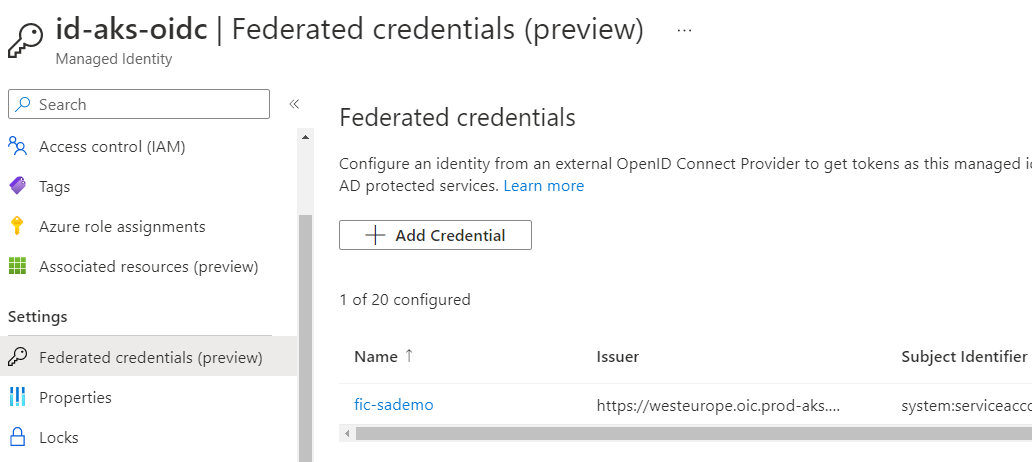
After running the above command, the Azure Managed Identity has the following configuration:

Federated credentials on the Managed Identity

More than one credential is possible. Click on the name of the federated credential. You will see:

Details of the federated credential

Above, the OIDC Issuer URL is set to point to our cluster. We expect a token with a subject identifier (sub) of system:serviceaccount:default:sademo. You can check the decoded jwt earlier in this post to see that the sub field in the token issued by Kubernetes matches the one above. It needs to match or the process will fail.

Now we can run the command again:

az login --federated-token "$(cat $AZURE_FEDERATED_TOKEN_FILE)" \
--service-principal -u $AZURE_CLIENT_ID -t $AZURE_TENANT_ID

You will be logged in to the Azure CLI with the managed identity credentials:

But what about your own apps?

Above, we used the Azure CLI. The most recent versions (>= 2.30.0) support federated credentials and use MSAL. But what about your custom code?

The code below is written in Python and uses the Python Azure identity client library with DefaultAzureCredential. This code works with managed identity in Azure Container Apps or Azure App Service and was not modified. Here’s the code for reference:

import threading
import os
import logging
import time
import signal
from azure.keyvault.secrets import SecretClient
from azure.identity import DefaultAzureCredential

from azure.appconfiguration.provider import (
    AzureAppConfigurationProvider,
    SettingSelector,
    AzureAppConfigurationKeyVaultOptions
)

logging.basicConfig(encoding='utf-8', level=logging.WARNING)

def get_config(endpoint):
  selects = {SettingSelector(key_filter=f"myapp:*", label_filter="prd")}
  trimmed_key_prefixes = {f"myapp:"}
  key_vault_options = AzureAppConfigurationKeyVaultOptions(secret_resolver=retrieve_secret)
  app_config = {}
  try:
    app_config = AzureAppConfigurationProvider.load(
            endpoint=endpoint, credential=CREDENTIAL, selects=selects, key_vault_options=key_vault_options, 
            trimmed_key_prefixes=trimmed_key_prefixes)
  except Exception as ex:
    logging.error(f"error loading app config: {ex}")

  return app_config

def run():
    try:
      global CREDENTIAL 
      CREDENTIAL = DefaultAzureCredential(exclude_visual_studio_code_credential=True)
    except Exception as ex:
      logging.error(f"error setting credentials: {ex}")

    endpoint = os.getenv('AZURE_APPCONFIGURATION_ENDPOINT')

    if not endpoint:
        logging.error("Environment variable 'AZURE_APPCONFIGURATION_ENDPOINT' not set")

    app_config =  {}
    while True:
        if not app_config:
            logging.warning("trying to load app config")
            app_config = get_config(endpoint)
        else:
            config_value=app_config['appkey']
            logging.warning(f"doing useful work with {config_value}")
            # if key exists in app_config, do something with it
            if 'mysecret' in app_config:
                logging.warning(f"and hush hush, there's a secret: {app_config['mysecret']}")
        time.sleep(5)


class GracefulKiller:
  kill_now = False
  def __init__(self):
    signal.signal(signal.SIGINT, self.exit_gracefully)
    signal.signal(signal.SIGTERM, self.exit_gracefully)

  def exit_gracefully(self, *args):
    self.kill_now = True


def retrieve_secret(uri):
    try:
        # uri is in format: https://<keyvaultname>.vault.azure.net/secrets/<secretname>
        # retrieve key vault uri and secret name from uri
        vault_uri = "https://" + uri.split('/')[2]
        secret_name = uri.split('/')[-1]
        logging.warning(f"Retrieving secret {secret_name} from {vault_uri}...")

        # retrieve the secret from Key Vault; CREDENTIAL was set globally
        secret_client = SecretClient(vault_url=vault_uri, credential=CREDENTIAL)

        # get secret value from Key Vault
        secret_value = secret_client.get_secret(secret_name).value

    except Exception as ex:
        print(f"retrieving secret: {ex}")
    
    return secret_value

# main function
def main():
    # create a Daemon tread
    t = threading.Thread(daemon=True, target=run, name="worker")
    t.start()
    

    killer = GracefulKiller()
    while not killer.kill_now:
        time.sleep(1)

    logging.info("Doing some important cleanup before exiting")
    logging.info("Gracefully exiting")


if __name__ == "__main__":
    main()

On Docker Hub, the gbaeke/worker:1.0.0 image runs this code. The following manifest runs the code on Kubernetes with the same managed identity as the Azure CLI example (same service account):

apiVersion: apps/v1
kind: Deployment
metadata:
  name: worker
  namespace: default
  labels:
    app: worker
spec:
  replicas: 1
  selector:
    matchLabels:
      app: worker
  template:
    metadata:
      labels:
        app: worker
    spec:
      # needs to refer to service account used with federation
      serviceAccount: sademo
      containers:
        - name: worker
          image: gbaeke/worker:1.0.0
          env:
            - name: AZURE_APPCONFIGURATION_ENDPOINT
              value: https://ac-appconfig-vr6774lz3bh4i.azconfig.io

Note that the code tries to connect to Azure App Configuration. The managed identity has been given the App Configuration Data Reader role on a specific instance. The code tries to read the value of key myapp:appkey with label prd from that instance:

App Config key and values

To make the code work, the environment variable AZURE_APPCONFIGURATION_ENDPOINT is set to the URL of the App Config instance.

In the container logs, we can see that the value was successfully retrieved:

Log stream of worker

And yes, the code just works! It successfully connected to App Config and retrieved the value. The environment variables, set by the webhook discussed earlier, make this work, together with the Python Azure identity library!

Conclusion

Workload Identity works like a charm and is relatively easy to configure. At the time of writing (end of November 2022), I guess we are pretty close to general availability and we finally will have a fully supported managed identity solution for AKS and beyond!

A quick look at Azure App Configuration and the Python Provider

When developing an application, it is highly likely that it needs to be configured with all sorts of settings. A simple list of key/value pairs is usually all you need. Some of the values can be read by anyone (e.g., a public URL) while some values should be treated as secrets (e.g., a connection string).

Azure App Configuration is a service to centrally manage these settings in addition to feature flags. In this post, we will look at storing and retrieving application settings and keeping feature flags for another time. I will also say App Config instead of App Configuration to save some keystrokes. 😉

We will do the following:

  • Retrieve key-value pairs for multiple applications and environments from one App Config instance
  • Use Key Vault references in App Config and retrieve these from Key Vault directly
  • Use the Python provider client to retrieve key-value pairs and store them in a Python dictionary

Why use App Configuration at all?

App Configuration helps by providing a fully managed service to store configuration settings for your applications separately from your code. Storing configuration separate from code is a best practice that most developers should follow.

Although you could store configuration values in files, using a service like App Config provides some standardization within or across developer teams.

Some developers store both configuration values and secrets in Key Vault. Although that works, App Config is way more flexible in organizing the settings and retrieving lists of settings with key and label filters. If you need to work with more than a few settings, I would recommend using a combination of App Config and Key Vault.

In what follows, I will show how we store settings for multiple applications and environments in the same App Config instance. Some of these settings will be Key Vault references.

Read https://learn.microsoft.com/en-us/azure/azure-app-configuration/overview before continuing to know more about App Config.

Provisioning App Config

Provisioning App Configuration is very easy from the portal or the Azure CLI. With the Azure CLI, use the following commands to create a resource group and an App Configuration instance in that group:

az group create -n RESOURCEGROUP -l LOCATION
az appconfig create -g RESOURCEGROUP  -n APPCONFIGNAME -l LOCATION

After deployment, we can check the portal and navigate to Configuration Explorer.

App Configuration in the Azure Portal

In Configuration Explorer, you can add the configuration values for your apps. They are just key/value pairs but they can be further enriched with labels, content types, and tags.

Note that there is a Free and a Standard tier of App Config. See https://azure.microsoft.com/en-us/pricing/details/app-configuration/ for more information. In production, you should use the Standard tier.

Storing configuration and secrets for multiple apps and environments

To store configuration values for multiple applications, you will have to identify the application in the key. App Configuration, oddly, has no knowledge of applications. For example, a key could be app1:setting1. You decide on the separator between the app name (app1 here) and its setting (setting1). In your code, you can easily query all settings for your app with a key filter (e.g. “app1:”. I will show an example of using a key filter later with the Python provider.

If you want to have different values for a key per environment (like dev, prd, etc…), you can add a label for each environment. To retrieve all settings for an environment, you can use a label filter. I will show an example of using a label filter later.

Suppose you want to use app1:setting1 in two environments: dev and prd. How do you create the key-value pairs? One way is to use the Azure CLI. You can also create them with the portal or from Python, C#, etc… With the CLI:

az appconfig kv set --name APPCONFIGNAME  --key app1:setting1 --value "value1" --label dev

APPCONFIG name is the name of your App Config instance. Just the name, not the full URL. For the prd environment:

az appconfig kv set --name APPCONFIGNAME  --key app1:setting1 --value "value2" --label prd

In Configuration Explorer, you will now see:

app1:setting1 for two environments (via labels)

For more examples of using the Azure CLI, see https://learn.microsoft.com/en-us/azure/azure-app-configuration/scripts/cli-work-with-keys.

In addition to these plain key-value pairs, you can also create Key Vault references. Let’s create one from the portal. In Configuration Explorer, click + Create and select Key Vault reference. You will get the following UI that allows you to create the reference. Make sure you have a Key Vault with a secret called dev-mysecret if you want to follow along. Below, set the label to dev. I forgot that in the screenshot below:

Creating a Key Vault Reference

Above, I am using the same naming convention for the key in App Config: app1:mysecret. Notice though that the secret I am referencing in Key Vault contains the environment and a dash (-) before the actual secret name. If you use one Key Vault per app instead of a Key Vault per app and environment, you will have to identify the environment in the secret name in some way.

After creating the reference, you will see the following in Configuration explorer:

Configuration explorer with one Key Vault reference

Note that the Key Vault reference has a content type. The content type is application/vnd.microsoft.appconfig.keyvaultref+json;charset=utf-8. You can use the content type in your code to know if the key contains a reference to a Key Vault secret. That reference will be something like https://kv-app1-geba.vault.azure.net/secrets/dev-mysecret. You can then use the Python SDK for Azure Key Vault to retrieve the secret from your code. Azure App Config will not do that for you.

You can use content types in other ways as well. For example, you could store a link to a storage account blob and use a content type that informs your code it needs to retrieve the blob from the account. Of course, you will need to write code to retrieve the blob. App Config only contains the reference.

Reading settings

There are many ways to read settings from App Config. If you need them in an Azure Pipeline, for instance, you can use the Azure App Configuration task to pull keys and values from App Config and set them as Azure pipeline variables.

If you deploy your app to Kubernetes and you do not want to read the settings from your code, you can integrate App Configuration with Helm. See https://learn.microsoft.com/en-us/azure/azure-app-configuration/integrate-kubernetes-deployment-helm for more information.

In most cases though, you will want to read the settings directly from your code. There is an SDK for several languages, including Python. The SDK has all the functionality you need to read and write settings.

Next to the Python SDK, there is also a Python provider which is optimized to read settings from App Config and store them in a Python dictionary. The provider has several options to automatically trim app names from keys and to automatically retrieve a secret from Key Vault if the setting in App Config is a Key Vault reference.

To authenticate to App Config, the default is access keys with a connection string. You can find the connection string in the Portal:

App Config Connection string for read/write or just read

You can also use Azure AD (it’s always enabled) and disable access keys. In this example, I will use a connection string to start with:

Before we connect and retrieve the values, ensure you install the provider first:

pip install azure-appconfiguration-provider

Above, use pip or pip3 depending on your installation of Python.

In your code, ensure the proper imports:

from azure.appconfiguration.provider import (
    AzureAppConfigurationProvider,
    SettingSelector,
    AzureAppConfigurationKeyVaultOptions
)
from azure.keyvault.secrets import SecretClient
from azure.identity import DefaultAzureCredential

To authenticate to Azure Key Vault with Azure AD, we can use DefaultAzureCredential():

try:
    CREDENTIAL = DefaultAzureCredential(exclude_visual_studio_code_credential=True)
except Exception as ex:
    print(f"error setting credentials: {ex}")

Note: on my machine, I had an issue with the VS Code credential feature so I turned that off.

Next, use a SettingSelector from the provider to provide a key filter and label filter. I want to retrieve key-value pairs for an app called app1 and an environment called dev:

app = 'app1'
env = 'dev'
selects = {SettingSelector(key_filter=f"{app}:*", label_filter=env)}

Next, when I retrieve the key-value pairs, I want to strip app1: from the keys:

trimmed_key_prefixes = {f"{app}:"}

In addition, I want the provider to automatically go to Key Vault and retrieve the secret:

key_vault_options = AzureAppConfigurationKeyVaultOptions(secret_resolver=retrieve_secret)

retrieve_secret refers to a function you need to write to retrieve the secret and add custom logic. There are other options as well.

def retrieve_secret(uri):
    try:
        # uri is in format: https://<keyvaultname>.vault.azure.net/secrets/<secretname>
        # retrieve key vault uri and secret name from uri
        vault_uri = "https://" + uri.split('/')[2]
        secret_name = uri.split('/')[-1]
        print(f"Retrieving secret {secret_name} from {vault_uri}...")
 
        # retrieve the secret from Key Vault; CREDENTIAL was set globally
        secret_client = SecretClient(vault_url=vault_uri, credential=CREDENTIAL)
 
        # get secret value from Key Vault
        secret_value = secret_client.get_secret(secret_name).value
 
    except Exception as ex:
        print(f"retrieving secret: {ex}", 1)

    return secret_value

Now that we have all the options, we can retrieve the key-value pairs.

connection_string = 'YOURCONNSTR'
app_config = AzureAppConfigurationProvider.load(
    connection_string=connection_string, selects=selects, key_vault_options=key_vault_options, 
    trimmed_key_prefixes=trimmed_key_prefixes)

print(app_config)

Now we have a Python dictionary app_config with all key-value pairs for app1 and environment dev. The key-value pairs are a mix of plain values from App Config and Key Vault.

You can now use this dictionary in your app in whatever way you like.

If you would like to use the same CREDENTIAL to connect to App Config, you can also use:

endpoint = 'APPCONFIGNAME.azconfig.io' # no https://
app_config = AzureAppConfigurationProvider.load(
    endpoint=endpoint, credential=CREDENTIAL, selects=selects, key_vault_options=key_vault_options, 
    trimmed_key_prefixes=trimmed_key_prefixes)

Ensure the credential you use has the App Configuration Data Reader role to read the key-value pairs.

Here’s all the code in a gist: https://gist.github.com/gbaeke/9b075a87a1198cdcbcc2b2028492085b. Ensure you have the key-value pairs as above and provide the connection string to the connection_string variable.

Conclusion

In this post, we showed how to retrieve key-value pairs with the Python provider from one App Config instance for multiple applications and environments.

The application is stored as a prefix in the key (app1:). The environment is a label (e.g., dev), allowing us to have the same setting with different values per environment.

Some keys can contain a reference to Key Vault to allow your application to retrieve secrets from Key Vault as well. I like this approach to have a list of all settings for an app and environment, where the value of the key can be an actual value or a reference to some other entity like a secret, a blob, or anything else.

First steps with Crossplane

Image Source: crossplane.io

Although Crossplane has been around for a while, I never got around to trying it. Crossplane has many capabilities. However, in this post, I will focus on the following aspects:

  • Installing Crossplane on a Kubernetes cluster (AKS); you can install on a local cluster as well (e.g., k3s, kind, minikube, …) but then you would need Azure Arc for Kubernetes to install the microsoft.flux extension (I will be using GitOps with Flux via that extension)
  • Adding and configuring providers for Azure and Kubernetes: providers allow you to deploy to Azure and Kubernetes (and much more) from Crossplane
  • Deploying Azure infrastructure with Crossplane using a fully declarative GitOps approach

Introduction

Crossplane basically allows you to build a control plane that you or your teams can use to deploy infrastructure and applications. This control plane is built on Kubernetes. In short, suppose I want to deploy an Azure resource group with Crossplane, I would create the below YAML file and apply it with kubectl apply -f filename.yaml.

This is, in essence, a fully declarative approach to deploying Azure infrastructure using Kubernetes. There are other projects, such as the Azure Service Operator v2, that do something similar.

apiVersion: azure.jet.crossplane.io/v1alpha2
kind: ResourceGroup
metadata:
  name: rg-crossplane
spec:
  forProvider:
    location: "westeurope"
    tags:
      provisioner: crossplane
  providerConfigRef:
    name: default

In order to enable this functionality, you need the following:

  • Install Crossplane on your Kubernetes cluster
  • Add a provider that can create Azure resources; above the jet provider for Azure is used; more about providers later
  • Configure the provider with credentials; in this case Azure credentials

In a diagram:

Install Crossplane from git with Flux on AKS; deploy an Azure resource group and another AKS cluster from Crossplane; create a namespace on that new cluster

Combination with GitOps

Although you can install and configure Crossplane manually and just use kubectl to add custom resources, I wanted to add Crossplane and custom resources using GitOps. To that end, I am using Azure Kubernetes Service (AKS) with the microsoft.flux extension. For more information to enable and install the extension, see my Flux v2 quick guide.

⚠️ The git repository I am using with Flux v2 and Crossplane is here: https://github.com/gbaeke/crossplane/tree/blogpost. This refers to the blogpost branch, which should match the content of this post. Tbe main branch might be different.

The repo contains several folders that match Flux kustomizations:

  • infra folder: installs Crossplane and Azure Key Vault to Kubernetes; an infra kustomization will point to this folder
  • secrets folder: creates a secret with Azure Key Vault to Kubernetes from Azure Key Vault; the secrets kustomization will point to this folder
  • crossplane-apps folder: installs Azure resources and Kubernetes resources with the respective Crossplane providers; the apps kustomization will point to this folder

Note: if you do not know what Flux kustomizations are and how Flux works, do check my Flux playlist: https://www.youtube.com/playlist?list=PLG9qZAczREKmCq6on_LG8D0uiHMx1h3yn. The videos look at the open source version of Flux and not the microsoft.flux extension. To learn more about that extension, see https://www.youtube.com/watch?v=w_eoJbgDs3g.

Installing Crossplane

The infra customization installs Crossplane and Azure Key Vault to Kubernetes. The latter is used to sync a secret from Key Vault that contains credentials for the Crossplane Azure provider. More details are in the diagram below:

As noted above, the installation of Crossplane is done with Flux. First, there is the HelmRepository resource that adds the Crossplane Helm repository to Flux.

apiVersion: source.toolkit.fluxcd.io/v1beta2
kind: HelmRepository
metadata:
  namespace: config-infra
  name: crossplane
spec:
  interval: 1m0s
  url: https://charts.crossplane.io/stable

Next, there is the HelmRelease that installs Crossplane. Important: target namespace is crossplane-system (bottom line):

apiVersion: helm.toolkit.fluxcd.io/v2beta1
kind: HelmRelease
metadata:
  name: crossplane
  namespace: config-infra
spec:
  chart:
    spec:
      chart: crossplane
      reconcileStrategy: ChartVersion
      sourceRef:
        kind: HelmRepository
        name: crossplane
        namespace: config-infra
  install:
    createNamespace: true
  interval: 1m0s
  targetNamespace: crossplane-system

For best results, in the YAML above, set the namespace of the resource to the namespace you use with the AKS k8s-configuration. The resources to install Azure Key Vault to Kubernetes are similar.

To install the Crossplane jet provider for Azure:

---
apiVersion: pkg.crossplane.io/v1alpha1
kind: ControllerConfig
metadata:
  name: jet-azure-config
  labels:
    app: crossplane-provider-jet-azure
spec:
  image: crossplane/provider-jet-azure-controller:v0.9.0
  args: ["-d"]
---
apiVersion: pkg.crossplane.io/v1
kind: Provider
metadata:
  name: crossplane-provider-jet-azure
spec:
  package: crossplane/provider-jet-azure:v0.9.0
  controllerConfigRef:
    name: jet-azure-config

Above, debugging is turned on for the provider. This is optional. The provider actually runs in the crossplane-system namespace:

jet provider

The provider is added via the Provider resource (second resource in the YAML manifest).

We can now create the AKS k8s-configuration, which creates a Flux source and a kustomization:

RG=your AKS resource group
CLUSTER=your AKS cluster name (to install Crossplane to)

az k8s-configuration flux create -g $RG -c $CLUSTER \
  -n cluster-config --namespace config-infra -t managedClusters \
  --scope cluster -u https://github.com/gbaeke/crossplane \
  --branch main  \
  --kustomization name=infra path=./infra prune=true

The Flux source will be the repo specified with -u. There is one kustomization: infra. Pruning is turned on. With pruning, removing manifests from the repo results is removing them from Kubernetes.

The k8s-configuration should result in:

Don’t mind the other Kustomizations; will be added later; this is the GitOps view in the properties of the cluster in the Azure Portal

Crossplane is now installed with two providers. We can now configure the Azure provider with credentials.

Configuring Azure Credentials

You need to create a service principal by following the steps in https://crossplane.io/docs/v1.9/cloud-providers/azure/azure-provider.html. I compacted the resulting JSON with:

cat <path-to-JSON> | jq -c

The output of the above command was added to Key Vault:

Azure creds in Key Vault

The Key Vault I am using uses the Azure RBAC permission model. Ensure that the AKS cluster’s kubelet identity has at least the Key Vault Secrets User role. It is a user-assigned managed identity with a name like clustername-agentpool.

To actually create a Kubernetes secret from this Key Vault secret, the secrets folder in the git repo contains the manifest below:

apiVersion: spv.no/v2beta1
kind: AzureKeyVaultSecret
metadata:
  name: azure-creds 
  namespace: crossplane-system
spec:
  vault:
    name: kvgebadefault # name of key vault
    object:
      name: azure-creds # name of the akv object
      type: secret # akv object type
  output: 
    secret: 
      name: azure-creds # kubernetes secret name
      dataKey: creds # key to store object value in kubernetes secret

This creates a Kubernetes secret in the crossplane-system namespace with name azure-creds and a key creds that holds the credentials JSON.

Secret as seen in k9s
the decoded secret as shown in k9s

To add the secret(s) as an extra kustomization, run:

RG=your AKS resource group
CLUSTER=your AKS cluster name

az k8s-configuration flux create -g $RG -c $CLUSTER \
  -n cluster-config --namespace config-infra -t managedClusters \
  --scope cluster -u https://github.com/gbaeke/crossplane \
  --branch main  \
  --kustomization name=infra path=./infra prune=true \
  --kustomization name=secrets path=./secrets prune=true dependsOn=["infra"]

Note that the secrets kustomization is dependent on the infra kustomization. After running this command, ensure the secret is in the crossplane-system namespace. The k8s-configuration uses the same source but now has two kustomizations.

Deploying resources with the Jet provider for Azure

Before explaining how to create Azure resources, a note on providers. As a novice Crossplane user, I started with the following Azure provider: https://github.com/crossplane-contrib/provider-azure. This works well but it is not so simple for contributors to ensure the provider is up-to-date with the latest and greatest Azure features. For example, if you deploy AKS, you cannot use managed identity, the cluster uses availability sets etc…

To improve this, Terrajet was created. It is a code generation framework that can generate Crossplane CRDs (custom resource definitions) and sets up the provider to use Terraform. Building on top of Terraform is an advantage because it is more up-to-date with new cloud features. That is the reason why this post uses the jet provider. When we later create an AKS cluster, it will take advantage of managed identity and other newer features.

Note: there is also a Terraform provider that can take Terraform HCL to do anything you want; we are not using that in this post

Ok, let’s create a resource group and deploy AKS. First, we have to configure the provider with Azure credentials. The crossplane-apps folder contains a file called jet-provider-config.yaml:

apiVersion: azure.jet.crossplane.io/v1alpha1
kind: ProviderConfig
metadata:
  name: default
spec:
  credentials:
    source: Secret
    secretRef:
      namespace: crossplane-system
      name: azure-creds
      key: creds

The above ProviderConfig tells the provider to use the credentials in the Kubernetes secret we created earlier. We know we are configuring the jet provider from the apiVersion: azure.jet.crossplane.io/v1alpha1.

With that out of the way, we can create the resource group and AKS cluster. Earlier in this post, the YAML to create the resource group was already shown. To create a basic AKS cluster called clu-cp in this group, aks.yaml is used:

apiVersion: containerservice.azure.jet.crossplane.io/v1alpha2
kind: KubernetesCluster
metadata:
  name: clu-cp
spec:
  writeConnectionSecretToRef:
    name: example-kubeconfig
    namespace: crossplane-system
  forProvider:
    location: "westeurope"
    resourceGroupNameRef:
      name: rg-crossplane
    dnsPrefix: "clu-cp"
    defaultNodePool:
      - name: default
        nodeCount: 1
        vmSize: "Standard_D2_v2"
    identity:
      - type: "SystemAssigned"
    tags:
      environment: dev
  providerConfigRef:
    name: default

Above, we refer to our resource group by name (resourceGroupNameRef) and we write the credentials to our cluster to a secret (writeConnectionSecretToRef). That secret will contain keys with the certificate and private key, but also a kubeconfig key with a valid kubeconfig file. We can use that later to connect and deploy to the cluster.

To see an example of connecting to the deployed cluster and creating a namespace, see k8s-provider-config.yaml and k8s-namespace.yaml in the repo. The resource k8s-provider-config.yaml will use the example-kubeconfig secret created above to connect to the AKS cluster that we created in the previous steps.

To create a kustomization for the crossplane-apps folder, run the following command:

RG=your AKS resource group
CLUSTER=your AKS cluster name

az k8s-configuration flux create -g $RG -c $CLUSTER \
  -n cluster-config --namespace config-infra -t managedClusters \
  --scope cluster -u https://github.com/gbaeke/crossplane \
  --branch main  \
  --kustomization name=infra path=./infra prune=true \
  --kustomization name=secrets path=./secrets prune=true dependsOn=["infra"] \
  --kustomization name=apps path=./crossplane-apps prune=true dependsOn=["secrets"]

This folder does not contain a kustomization.yaml file. Any manifest you drop in it will be applied to the cluster! The k8s-kustomization now has the same source but three kustomizations:

infra, secrets and apps kustomizations

After a while, an AKS cluster clu-cp should be deployed to resource group rg-crossplane:

AKS deployed by Crossplane running on another AKS cluster

To play around with this, I recommend using Visual Studio Code and the GitOps extension. When you make a change locally and push to main, to speed things up, you can reconcile the git repository and the apps kustomization manually:

Reconcile the GitRepository source and kustomization from the GitOps extension for Visual Studio Code

Conclusion

In this post, we looked at installing and configuring Crossplane on AKS via GitOps and the microsoft.flux extension. In addition, we deployed a few Azure resources with Crossplane and its jet provider for Azure. We only scratched the surface here but I hope this gets you started quickly when evaluating Crossplane for yourself.

Publish your AKS Ingress Controller over Azure Private Link

In a previous article, I wrote about the AKS Azure Cloud Provider and its support for Azure Private Link. In summary, the functionality allows for the following:

  • creation of a Kubernetes service of type LoadBalancer
  • via an annotation on the service, the Azure Cloud Provider creates an internal load balancer (ILB) instead of a public one
  • via extra annotations on the service, the Azure Cloud Provider creates an Azure Private Link Service for the Internal Load Balancer (🆕)

In the article, I used Azure Front Door as an example to securely publish the Kubernetes service to the Internet via private link.

Although you could publish all your services using the approach above, that would not be very efficient. In the real world, you would use an Ingress Controller like ingress-nginx to avoid the overhead of one service of type LoadBalancer per application.

Publish the Ingress Controller with Private Link Service

In combination with the Private Link Service functionality, you can just publish an Ingress Controller like ingress-nginx. That would look like the diagram below:

In the above diagram, our app does not use a LoadBalancer service. Instead, the service is of the ClusterIP type. To publish the app externally, an ingress resource is created to publish the app via ingress-nginx. The ingress resource refers to the ClusterIP service super-api. There is nothing new about this. This is Kubernetes ingress as usual:
apiVersion: networking.k8s.io/v1
kind: Ingress
metadata:
  name: super-api-ingress
spec:
  ingressClassName: nginx
  rules:
  - host: www.myingress.com
    http:
      paths:
      - pathType: Prefix
        path: "/"
        backend:
          service:
            name: super-api
            port: 
              number: 80

Note that I am using the host http://www.myingress.com as an example here. In Front Door, I will need to configure a custom host header that matches the ingress host. Whenever Front Door connects to the Ingress Controller via Private Link Service, the host header will be sent to allow ingress-nginx to route traffic to the super-api service.

In the diagram, you can see that it is the ingress-nginx service that needs the annotations to create a private link service. When you install ingress-nginx with Helm, just supply a values file with the following content:

controller:
 service:
    annotations:
      service.beta.kubernetes.io/azure-load-balancer-internal: "true"
      service.beta.kubernetes.io/azure-pls-create: "true"
      service.beta.kubernetes.io/azure-pls-ip-configuration-ip-address: IP_IN_SUBNET
      service.beta.kubernetes.io/azure-pls-ip-configuration-ip-address-count: "1"
      service.beta.kubernetes.io/azure-pls-ip-configuration-subnet: SUBNET_NAME
      service.beta.kubernetes.io/azure-pls-name: PLS_NAME
      service.beta.kubernetes.io/azure-pls-proxy-protocol: "false"
      service.beta.kubernetes.io/azure-pls-visibility: '*'

Via the above annotations, the service created by the ingress-nginx Helm chart will use an internal load balancer. In addition, a private link service for the load balancer will be created.

Front Door Config

The Front Door configuration is almost the same as before, except that we need to configure a host header on the origin:

Host header config in Front Door origin

When I issue the command below (FQDN is the Front Door endpoint):

 curl https://aks-agbyhedaggfpf5bs.z01.azurefd.net/source

the response is the following:

Hello from Super API
Source IP and port: 10.244.0.12:40244
X-Forwarded-For header: 10.224.10.20

All headers:

HTTP header: X-Real-Ip: [10.224.10.20]
HTTP header: X-Forwarded-Scheme: [http]
HTTP header: Via: [2.0 Azure]
HTTP header: X-Azure-Socketip: [MY HOME IP]
HTTP header: X-Forwarded-Host: [www.myingress.com]
HTTP header: Accept: [*/*]
HTTP header: X-Azure-Clientip: [MY HOME IP]
HTTP header: X-Azure-Fdid: [f76ca0ce-32ed-8754-98a9-e6c02a7765543]
HTTP header: X-Request-Id: [5fd6bb9c1a4adf4834be34ce606d980e]
HTTP header: X-Forwarded-For: [10.224.10.20]
HTTP header: X-Forwarded-Port: [80]
HTTP header: X-Original-Forwarded-For: [MY HOME IP, 147.243.113.173]
HTTP header: User-Agent: [curl/7.58.0]
HTTP header: X-Azure-Requestchain: [hops=2]
HTTP header: X-Forwarded-Proto: [http]
HTTP header: X-Scheme: [http]
HTTP header: X-Azure-Ref: [0nPGlYgAAAABefORrczaWQ52AJa/JqbBAQlJVMzBFREdFMDcxMgBmNzZjYTBjZS0yOWVkLTQ1NzUtOThhOS1lNmMwMmE5NDM0Mzk=, 20220612T140100Z-nqz5dv28ch6b76vb4pnq0fu7r40000001td0000000002u0a]

The /source endpoint of super-api dumps all the HTTP headers. Note the following:

  • X-Real-Ip: is the address used for NATting by the private link service
  • X-Azure-Fdid: is the Front Door Id that allows us to verify that the request indeed passed Front Door
  • X-Azure-Clientip: my home IP address; this is the result of setting externalTrafficPolicy: Local on the ingress-nginx service; the script I used to install ingress-nginx happened to have this value set; it is not required unless you want the actual client IP address to be reported
  • X-Forwarded-Host: the host header; the original FQDN aks-agbyhedaggfpf5bs.z01.azurefd.net cannot be seen

In the real world, you would configure a custom domain in Front Door to match the configured host header.

Conclusion

In this post, we published a Kubernetes Ingress Controller (ingress-nginx) via an internal load balancer and Azure Private Link. A service like Azure Front Door can use this functionality to provide external connectivity to the internal Ingress Controller with extra security features such as Azure WAF. You do not have to use Front Door. You can provide access to the Ingress Controller from a Private Endpoint in any network and any subscription, including subscriptions you do not control.

Although this functionality is interesting, it is not automated and integrated with Kubernetes ingress functionality. For that reason alone, I would not recommend using this. It does provide the foundation to create an alternative to Application Gateway Ingress Controller. The only thing that is required is to write a controller that integrates Kubernetes ingress with Front Door instead of Application Gateway. 😉