Creating an agent with the Azure AI Agent SDK

Source: Microsoft

Azure AI Agents Service simplifies building intelligent agents by combining advanced AI models, tools, and technology from Microsoft, OpenAI, and partners like Meta and Cohere. It enables integration with knowledge sources such as Bing, SharePoint, and Azure AI Search, and lets agents perform actions across Microsoft and third-party applications using Logic Apps, Azure Functions, and Code Interpreter. With Azure AI Foundry, you get an intuitive agent-building experience, backed by enterprise-grade features like customizable storage, private networking, secure authentication, and detailed observability through OpenTelemetry.

At the time of this writing (December 2024), Azure AI Foundry did not provide a user interface yet to create these agents in the portal. In this post, we will use the Azure AI Foundry SDK to create the agent from code.

You can find the code in this repository: https://github.com/gbaeke/agent_service/tree/main/agentui

How does it work?

The agent service uses the same wire protocol as the Azure OpenAI Assistants API. The Assistants API was developed as an alternative to the chat completions API. The big difference is that the Assistants API is stateful: your interactions with the AI model are saved as messages on a thread. You simply add messages to the thread for the model to respond.

For more information, check this video:

To get started, you need three things:

  • An agent: the agent uses a model and instructions about how it should behave. In addition, you add knowledge sources and tools. Knowledge sources can be files you upload to the agent or existing sources such as files on SharePoint. Tools can be built-in tools like code interpreter or custom tools like any API or custom functions that you write.
  • A thread: threads receive messages from users and the assistant (the model) responds with assistant messages. In a chat application, each of the user’s conversations can be a thread. Note that threads are created, independent of an agent. The thread is associated with the agent when you add a message.
  • Messages: you add messages to a thread and check the thread for new messages. Messages can contain both text and images. For example, if you use the code interpreter tool and you asked for a chart, the chart will be created and handed to you as a file id. To render the chart, you would need to download it first based on its id.

Creating the agent

Before we create the agent, we need to connect to our Azure AI Foundry project. To do that (and more), we need the following imports:

import os
from azure.ai.projects import AIProjectClient
from azure.ai.projects.models import CodeInterpreterTool
from azure.identity import DefaultAzureCredential
from fastapi import FastAPI
from typing import Dict
from azure.ai.projects.models import FunctionTool, ToolSet
from typing import Any, Callable, Set, Dict
from fastapi.middleware.cors import CORSMiddleware
from pydantic import BaseModel
import requests
import base64

We will use the AIProjectClient to get a reference to an Azure AI Foundry project. We do that with the following code:

# Set up credentials and project client
credential = DefaultAzureCredential()
conn_str = os.environ["PROJECT_CONNECTION_STRING"]
project_client = AIProjectClient.from_connection_string(
    credential=credential, conn_str=conn_str
)

Note that we authenticate with Entra ID. On your local machine, ensure you are logged on via the Azure CLI with az login. Your account needs at least AI Developer access to the Foundry project.

You also need the connection string to your project. The code requires it in the PROJECT_CONNECTION_STRING environment variable. You can find the connection string in Azure AI Foundry:

AI Foundry project connection string

We can now create the agent with the following code:

agent = project_client.agents.create_agent(
    model="gpt-4o-mini",
    name="my-agent",
    instructions="You are helpful agent with functions to turn on/off light and get temperature in a location. If location is not specified, ask the user.",
    toolset=toolset
)

Above, the agent uses gpt-4o-mini. You need to ensure that model is deployed in your Azure AI Foundry Hub. In our example, we also provide the assistant with tools. We will not provide it with knowledge.

What’s inside the toolset?

  • built-in code interpreter tool: provides a way for the model to write Python code, execute it and provide the result back to the model; the result can be text and/or images.
  • custom tools: in our case, custom Python functions to turn on/off lights and look up weather information in a location.

There are other tool types that we will not discuss in this post.

Adding tools

Let’s look at adding our own custom functions first. In the code, three functions are used as tools:

def turn_on_light(room: str) -> str:
    return f"Light in room {room} turned on"

def turn_off_light(room: str) -> str:
    return f"Light in room {room} turned off"

def get_temperature(location: str) -> str:
    # check the github repo for the code

The SDK provides helpers to turn these functions into tools the assistant understands:

user_functions: Set[Callable[..., Any]] = {
    turn_on_light,
    turn_off_light,
    get_temperature
}
functions = FunctionTool(user_functions)
toolset = ToolSet()
toolset.add(functions)

Now we need to add the built-in code interpreter:

code_interpreter = CodeInterpreterTool()
toolset.add(code_interpreter)

Now we have a toolset with three custom functions and the code interpreter. This toolset is given to the agent via the toolset parameter.

Now that we have an agent, we need to provide a way to create a thread and add messages to the thread.

Creating a thread

We are creating an API so we will create and endpoint to create a thread:

@app.post("/threads")
def create_thread() -> Dict[str, str]:
    thread = project_client.agents.create_thread()
    return {"thread_id": thread.id}

As discussed earlier, a thread is created as a separate entity. It is not associated with the agent when you create it. When we later add a message, the thread will be associated with the agent that should process the message.

Working with messages

Next, we will provide an endpoint that accepts a thread id and a message you want to add to it:

@app.post("/threads/{thread_id}/messages")
def send_message(thread_id: str, request: MessageRequest):
    created_msg = project_client.agents.create_message(
        thread_id=thread_id,
        role="user",
        content=request.message  # Now accessing message from the request model
    )
    run = project_client.agents.create_and_process_run(
        thread_id=thread_id,
        assistant_id=agent.id
    )
    if run.status == "failed":
        return {"error": run.last_error or "Unknown error"}

    messages = project_client.agents.list_messages(thread_id=thread_id)
    last_msg = messages.get_last_message_by_sender("assistant")
    
    last_msg_text = last_msg.text_messages[0].text.value if last_msg.text_messages else None
    last_msg_image = last_msg.image_contents[0].image_file if last_msg.image_contents else None
    
    last_msg_image_b64 = None
    if last_msg_image:
        file_stream = project_client.agents.get_file_content(file_id=last_msg_image.file_id)
        base64_encoder = base64.b64encode
        byte_chunks = b"".join(file_stream)  # Concatenate all bytes from the iterator.
        last_msg_image_b64 = base64_encoder(byte_chunks).decode("utf-8")
        
    return {"assistant_text": last_msg_text, 
            "assistant_image": last_msg_image_b64}

The code is pretty self-explanatory. In summary, here is what happens:

  • a message is created with the create_message method; the message is added to the specified thread_id as a user message
  • the thread is run on the agent specified by the agent.id
  • to know if the run is finished, polling is used; the create_and_process_run hides that complexity for you
  • messages are retrieved from the thread but only the last assistant message is used
  • we extract the text and image from the message if it is present
  • when there is an image, we use get_file_content to retrieve the file content from the API; that functions returns an Iterator of bytes that are joined together and base64 encoded
  • the message and image are returned

Testing the API

When we POST to the threads enpoint, this is the response:

{
  "thread_id": "thread_meYRMrkRtUiI1u0ZGH0z7PEN"
}

We can use that id to post to the messages endpoint. For example in a .http file:

POST http://localhost:8000/threads/thread_meYRMrkRtUiI1u0ZGH0z7PEN/messages
Content-Type: application/json

{
    "message": "Create a sample bar chart"
}

The response to the above request should be something like below:

{
  "assistant_text": "Here is a sample bar chart displaying four categories (A to D) with their corresponding values. If you need any modifications or another type of chart, just let me know!",
  "assistant_image": "iVBORw0KGgoAAAANSUhEUgAABpYAAARNCAYAAABYAnNeAAAAOXRFWHRTb2Z0d2FyZQBNYXRwbG90bGliIHZlcnNpb24zLjQuMywgaHR0cHM6Ly9tYXRwbG90bGliLm9yZy/MnkTPAAAACXBIWXMAAB7CAAAewgFu0HU+AADWf0lEQ..."
}

In this case, the model determined that the code interpreter should be used to create the sample bar chart. When you ask for something simpler, like the weather, you get the following response:

{
  "assistant_text": "The current temperature in London is 11.4°C. If you need more information or updates, feel free to ask!",
  "assistant_image": null
}

In this case, our custom weather function was used to answer. The assistant determines what tools should be used to provide an answer.

Integration in a web app

The GitHub repository contains a sample UI to try the API:

Sample UI and a chat combining weather and plotting

Beautiful, is it not? 😂

Conclusion

The Azure AI Agent service makes it relatively easy to create an agent that has access to knowledge and tools. The assistant decides on its own how to use the knowledge and tools. However, you can steer the assistant via its instructions and influence how the assistant behaves.

The SDK makes it easy to add your own custom functions as tools, next to the built-in tools that it supports. Soon, there will be an Agent Service user interface in Azure AI Foundry. You will be able to create agents in code that reference the agents you have built in Foundry.

To try it for yourself, use the code in the GitHub repo. Note that the code is demo code with limited error handling. It’s merely meant to demonstrate first steps.

Enjoy and let me know what you build with it! 😉

Using WebRTC with the OpenAI Realtime API

In October 2024, OpenAI introduced the Realtime API. It enables developers to integrate low-latency, multimodal conversational experiences into their applications. It supports both text and audio inputs and outputs, facilitating natural speech-to-speech interactions without the need for multiple models.

It addresses the following problems:

  • Simplified Integration: Combines speech recognition, language processing, and speech synthesis into a single API call, eliminating the need for multiple models.
  • Reduced Latency: Streams audio inputs and outputs directly, enabling more natural and responsive conversational experiences.
  • Enhanced Nuance: Preserves emotional tone, emphasis, and accents in speech interactions.

If you have used Advanced Voice Mode in ChatGPT, the Realtime API offers a similar experience for developers to integrate into their applications.

The initial release of the API required WebSockets to support the continuous exchange of messages, including audio. Although that worked, using a protocol like WebRTC is much more interesting:

  • Low latency: WebRTC is optimized for realtime media like audio and video with features such as congestion control and bandwidth optimization built in
  • Proven in the real world: many applications use WebRTC, including Microsoft Teams, Google Meet and many more
  • Native support for audio streaming: compared to WebSockets, as a developer, you don’t have to handle the audio streaming part. WebRTC takes care of that for you.
  • Data channels: suitable for low-latency data exchange between peers; these channels are used to send and receive messages between yourself and the Realtime API.

In December 2024, OpenAI announced support for WebRTC in their Realtime API. It makes using the API much simpler and more robust.

Instead of talking about it, let’s look at an example.

Note: full source code is in https://github.com/gbaeke/realtime-webrtc. It is example code without features like user authentication, robust error handling, etc… It’s meant to get you started.

Helper API

To use the Realtime API from the browser, you need to connect to OpenAI with a token. You do not want to use your OpenAI token in the browser as that is not secure. Instead, you should have an API endpoint in a helper API that gets an ephemeral token. In app.py, the helper API, the endpoint looks as follows:

@app.get("/session")
async def get_session():
    async with httpx.AsyncClient() as client:
        response = await client.post(
            'https://api.openai.com/v1/realtime/sessions',
            headers={
                'Authorization': f'Bearer {OPENAI_API_KEY}',
                'Content-Type': 'application/json'
            },
            json={
                "model": "gpt-4o-realtime-preview-2024-12-17",
                "voice": "echo"
            }
        )
        return response.json()

Above, we ask the realtime’s API sessions endpoint for a session. The session includes the ephemeral token. You need an OpenAI key to ask for that session which is known to the helper API via an environment variable. Note the realtime model and voice are set as options. Other options, such as tools, temperature and others can be set here. In this example we will set some of these settings from the browser client by updating the session.

In index.html, the following JavaScript code is used to obtain the session. The ephemeral key or token is in client_secret.value:

const tokenResponse = await fetch("http://localhost:8888/session");
const data = await tokenResponse.json();
const EPHEMERAL_KEY = data.client_secret.value;

In addition to fetching a token via a session, the helper API has another endpoint called weather. The weather endpoint is called with a location parameter to get the current temperature at that location. This endpoint is called when the model detects a function call is needed. For example, when the user says “What is the weather in Amsterdam?”, code in the client will call the weather endpoint with Amsterdam as a parameter and provide the model with the results.

@app.get("/weather/{location}")
async def get_weather(location: str):
    # First get coordinates for the location
    try:
        async with httpx.AsyncClient() as client:
            # Get coordinates for location
            geocoding_response = await client.get(
                f"https://geocoding-api.open-meteo.com/v1/search?name={location}&count=1"
            )
            geocoding_data = geocoding_response.json()
            
            if not geocoding_data.get("results"):
                return {"error": f"Could not find coordinates for {location}"}
                
            lat = geocoding_data["results"][0]["latitude"]
            lon = geocoding_data["results"][0]["longitude"]
            
            # Get weather data
            weather_response = await client.get(
                f"https://api.open-meteo.com/v1/forecast?latitude={lat}&longitude={lon}&current=temperature_2m"
            )
            weather_data = weather_response.json()
            
            temperature = weather_data["current"]["temperature_2m"]
            return WeatherResponse(temperature=temperature, unit="celsius")
            
    except Exception as e:
        return {"error": f"Could not get weather data: {str(e)}"}

The weather API does not require authentication so we could have called it from the web client as well. I do not consider that a best practice so it is better to call an API separate from the client code.

The client

The client is an HTML web page with plain JavaScript code. The code to interact with the realtime API is all part of the client. Our helper API simply provides the ephemeral secret.

Let’s look at the code step-by-step. Full code is on GitHub. But first, here is the user interface:

The fabulous UI

Whenever you ask a question, the transcript of the audio response is updated in the text box. Only the responses are added, not the user questions. I will leave that as an exercise for you! 😉

When you click the Start button, the init function gets called:

async function init() {
    startButton.disabled = true;
    
    try {
        updateStatus('Initializing...');
        
        const tokenResponse = await fetch("http://localhost:8888/session");
        const data = await tokenResponse.json();
        const EPHEMERAL_KEY = data.client_secret.value;

        peerConnection = new RTCPeerConnection();
        await setupAudio();
        setupDataChannel();

        const offer = await peerConnection.createOffer();
        await peerConnection.setLocalDescription(offer);

        const baseUrl = "https://api.openai.com/v1/realtime";
        const model = "gpt-4o-realtime-preview-2024-12-17";
        const sdpResponse = await fetch(`${baseUrl}?model=${model}`, {
            method: "POST",
            body: offer.sdp,
            headers: {
                Authorization: `Bearer ${EPHEMERAL_KEY}`,
                "Content-Type": "application/sdp"
            },
        });

        const answer = {
            type: "answer",
            sdp: await sdpResponse.text(),
        };
        await peerConnection.setRemoteDescription(answer);

        updateStatus('Connected');
        stopButton.disabled = false;
        hideError();

    } catch (error) {
        startButton.disabled = false;
        stopButton.disabled = true;
        showError('Error: ' + error.message);
        console.error('Initialization error:', error);
        updateStatus('Failed to connect');
    }
}

In the init function, we get the ephemeral key as explained before and then setup the WebRTC peer-to-peer connection. The setupAudio function creates an autoplay audio element and connects the audio stream to the peer-to-peer connection.

The setupDataChannel function sets up a data channel for the peer-to-peer connection and gives it a name. The name is oai-events. Once we have a data channel, we can use it to connect an onopen handler and add an event listener to handle messages sent by the remote peer.

Below are the setupAudio and setupDataChannel functions:

async function setupAudio() {
    const audioEl = document.createElement("audio");
    audioEl.autoplay = true;
    peerConnection.ontrack = e => audioEl.srcObject = e.streams[0];
    
    audioStream = await navigator.mediaDevices.getUserMedia({ audio: true });
    peerConnection.addTrack(audioStream.getTracks()[0]);
}

function setupDataChannel() {
    dataChannel = peerConnection.createDataChannel("oai-events");
    dataChannel.onopen = onDataChannelOpen;
    dataChannel.addEventListener("message", handleMessage);
}

When the audio and data channel is setup, we can now proceed to negotiate communication parameters between the two peers: your client and OpenAI. WebRTC uses the session description protocol (SDP) to do so. First, an offer is created describing the local peer capabilities like audio codecs etc… The offer is then sent to the server over at OpenAI. Authentication is with the ephemeral key. The response is a description of the remote peer’s capabilities, which is needed to complete the handshake process. With the handshake complete, the peers can now exchange audio and messages. The code below does the handshake:

const offer = await peerConnection.createOffer();
await peerConnection.setLocalDescription(offer);

const baseUrl = "https://api.openai.com/v1/realtime";
const model = "gpt-4o-realtime-preview-2024-12-17";
const sdpResponse = await fetch(`${baseUrl}?model=${model}`, {
    method: "POST",
    body: offer.sdp,
    headers: {
        Authorization: `Bearer ${EPHEMERAL_KEY}`,
        "Content-Type": "application/sdp"
    },
});

const answer = {
    type: "answer",
    sdp: await sdpResponse.text(),
};
await peerConnection.setRemoteDescription(answer);

The diagram below summarizes the steps:

Simplified overview of the setup process

What happens when the channel opens?

After the creation of the data channel, we set up an onopen handler. In this case, the handler does two things:

  • Update the session
  • Send an initial message

The session is updated with a description of available functions. This is very similar to function calling in the chat completion API. To update the session, you need to send a message of type session.update. The sendMessage helper functions sends messages to the remote peer:

function sendSessionUpdate() {
    const sessionUpdateEvent = {
        "event_id": "event_" + Date.now(),
        "type": "session.update",
        "session": {
            "tools": [{
                "type": "function",
                "name": "get_weather",
                "description": "Get the current weather. Works only for Earth",
                "parameters": {
                    "type": "object",
                    "properties": {
                        "location": { "type": "string" }
                    },
                    "required": ["location"]
                }
            }],
            "tool_choice": "auto"
        }
    };
    sendMessage(sessionUpdateEvent);
}

Although I added an event_id above, that is optional. In the session property we can update the list of tools and set the tool_choice to auto. In this case, that means that the model will select a function if it thinks it is needed. If you ask something like “What is the weather?”, it will first ask for a location and then indicate that the function get_weather needs to be called.

We also send an initial message when the channel opens. The message is of type conversation.item.create and says “MY NAME IS GEERT”.

Check the session update and conversation item code below:

function sendSessionUpdate() {
    const sessionUpdateEvent = {
        "event_id": "event_" + Date.now(),
        "type": "session.update",
        "session": {
            "tools": [{
                "type": "function",
                "name": "get_weather",
                "description": "Get the current weather. Works only for Earth",
                "parameters": {
                    "type": "object",
                    "properties": {
                        "location": { "type": "string" }
                    },
                    "required": ["location"]
                }
            }],
            "tool_choice": "auto"
        }
    };
    sendMessage(sessionUpdateEvent);
}

function sendInitialMessage() {
    const conversationMessage = {
        "event_id": "event_" + Date.now(),
        "type": "conversation.item.create",
        "previous_item_id": null,
        "item": {
            "id": "msg_" + Date.now(),
            "type": "message",
            "role": "user",
            "content": [{
                "type": "input_text",
                "text": "MY NAME IS GEERT"
            }]
        }
    };
    sendMessage(conversationMessage);
}

Note that the above is optional. Without that code, we could start talking with the model. However, it’s a bit more interesting to add function calling to the mix. That does mean we have to check incoming messages from the data channel to find out if we need to call a function.

Handling messages

The function handleMessage is called whenever a new message is sent on the data channel. In that function, we log all messages and check for a specific type of message: response.done.

We do two different things:

  • if there is a transcript of the audio: display it
  • if the response is a function call, handle the function call

To handle the function call, we check the payload of the response for an output of type function_call and also check the function name and call_id of the message that identified the function call in the first place.

If the function with name get_weather is identified, the weather endpoint of the API is called and the response is sent to the model.

The message handler is shown below:

function handleMessage(event) {
    try {
        const message = JSON.parse(event.data);
        console.log('Received message:', message);
        
        switch (message.type) {
            case "response.done":
                handleTranscript(message);
                const output = message.response?.output?.[0];
                if (output) handleFunctionCall(output);
                break;
            default:
                console.log('Unhandled message type:', message.type);
        }
    } catch (error) {
        showError('Error processing message: ' + error.message);
    }
}

The function call check is in handleFunctionCall:

function handleFunctionCall(output) {
    if (output?.type === "function_call" && 
        output?.name === "get_weather" && 
        output?.call_id) {
        console.log('Function call found:', output);
        handleWeatherFunction(output);
    }
}

You can check the full source code for the code of handleWeatherFunction and its helpers sendFunctionOutput and sendResponseCreate. They are responsible for:

  • parsing the arguments from the function call output and calling the API
  • sending the output of the function back to the model and linking it to the message that identified the function call in the first place
  • getting a response from the model to tell us about the result of the function call

Conclusion

With WebRTC support, a W3C standard, it has become significantly easier to utilize the OpenAI Realtime API from a browser that natively supports it. All widely recognized desktop and mobile browsers, including Chrome, Safari, Firefox, and Edge, provide WebRTC capabilities.

WebRTC has become the preferred method for browser-based realtime API usage. WebSockets are exclusively recommended for server-to-server applications.

The advent of WebRTC has the potential to catalyze the development of numerous applications that leverage this API. What interesting applications do you intend to build?

Using the Azure AI Inference Service

If you are a generative AI developer that works with different LLMs, it can be cumbersome to make sure your code works with your LLM of choice. You might start with Azure OpenAI models and the OpenAI APIs but later decide you want to use a Phi-3 model. What do you do in that case? Ideally, you would want your code to work with either model. The Azure AI Inference Services allows you to do just that.

The API is available via SDKs in Python, JavaScript, C# and as a generic REST service. In this post, we will look at the Python SDK. Note that the API does not work with all models in the Azure AI Foundry model catalog. Below are some of the supported models:

  • Via serverless endpoints: Cohere, Llama, Mistral, Phi-3 and some others
  • Via managed inference (on VMs): Mistral, Mixtral, Phi-3 and Llama 3 instruct

In this post, we will use the serverless endpoints. Let’s stop talking about it and look at some code. Although you can use the inferencing services fully on its own, I will focus on some other ways to use it:

  • From GitHub Marketplace: for experimentation; authenticate with GitHub
  • From Azure AI Foundry: towards production quality code; authenticate with Entra ID

Getting started from GitHub Marketplace

Perhaps somewhat unexpectedly, an easy way to start exploring these APIs is via models in GitHub Marketplace. GitHub supports the inferencing service and allows you to authenticate via your GitHub personal access token (PAT).

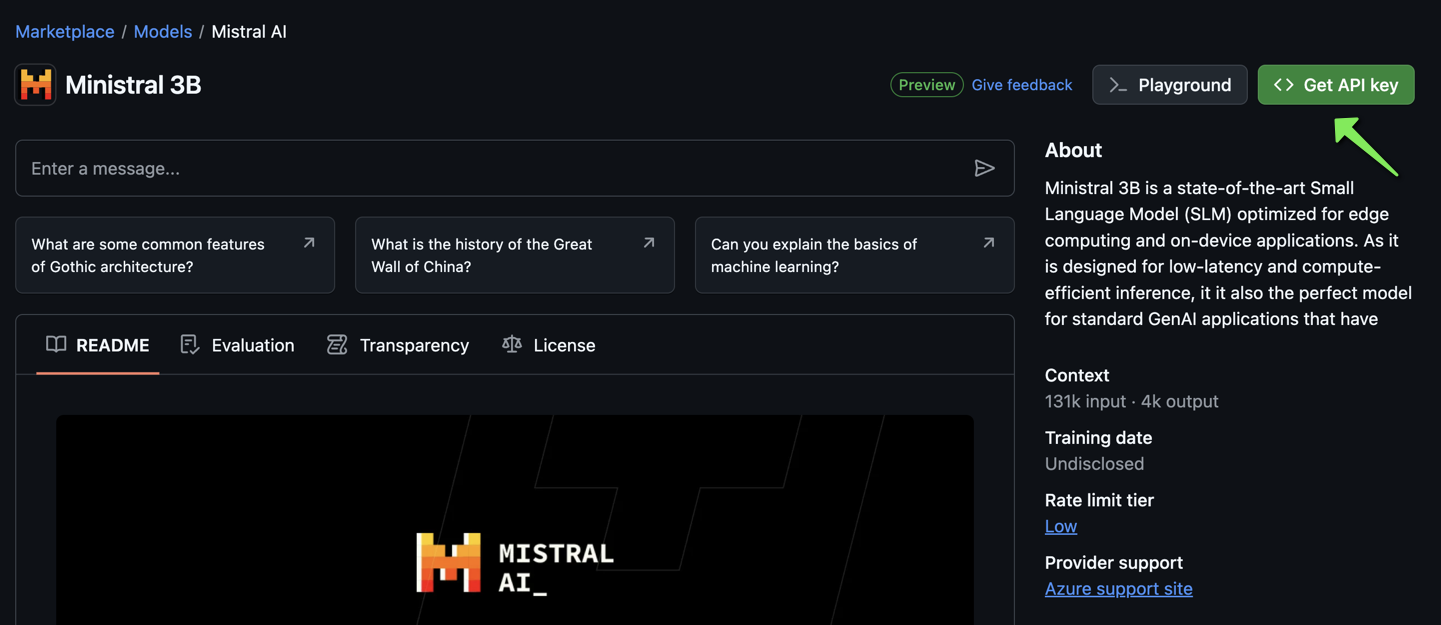
If you have a GitHub account, even as a free user, simply go to the GitHub model catalog at https://github.com/marketplace/models/catalog. Select any model from the list and click Get API key:

Ministral 3B in the GitHub model catalog

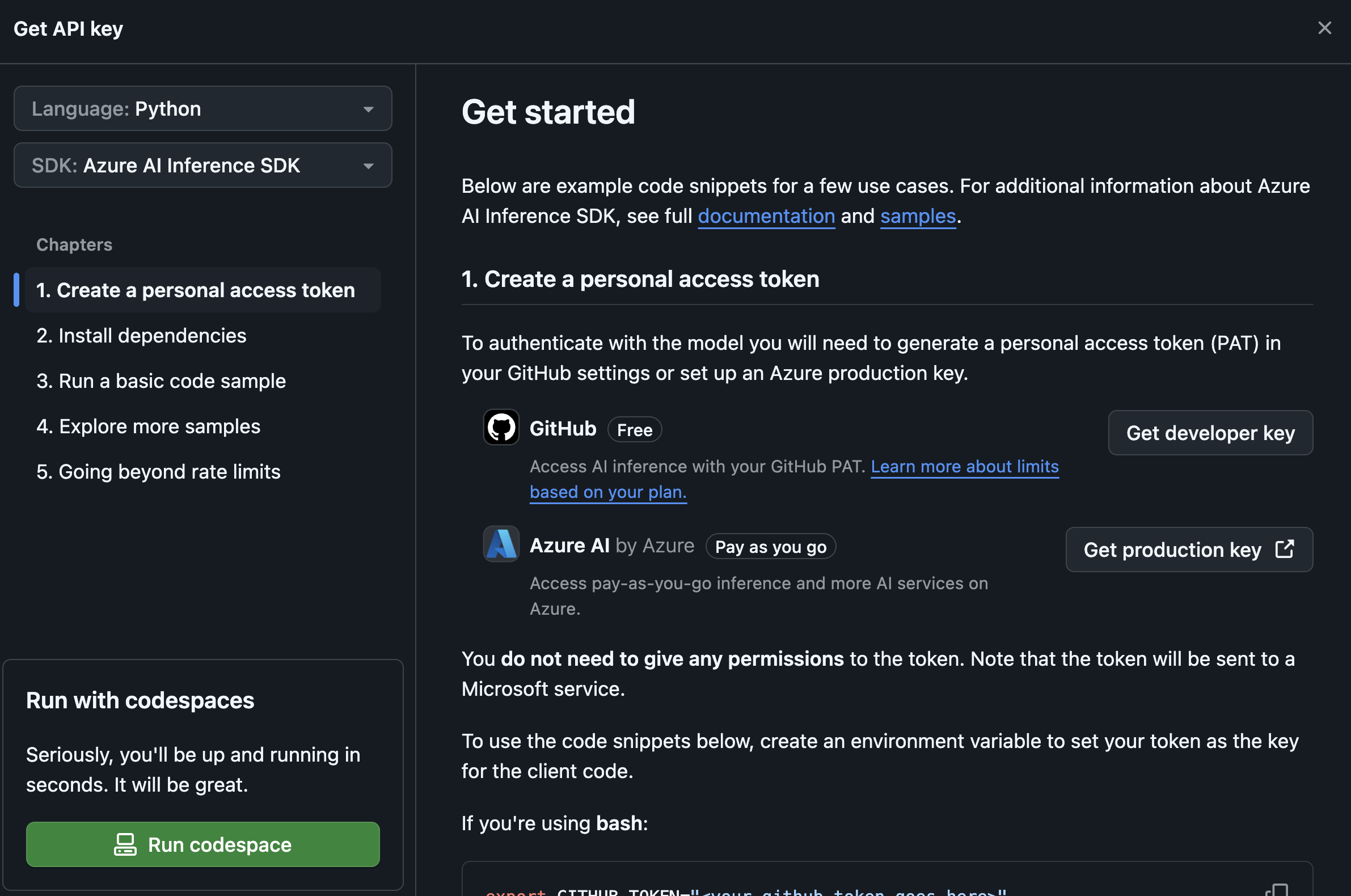
In the Get API key screen, you can select your language and SDK. Below, I selected Python and Azure AI Inference SDK:

Steps to get started with Ministral and the AI Inference SDK

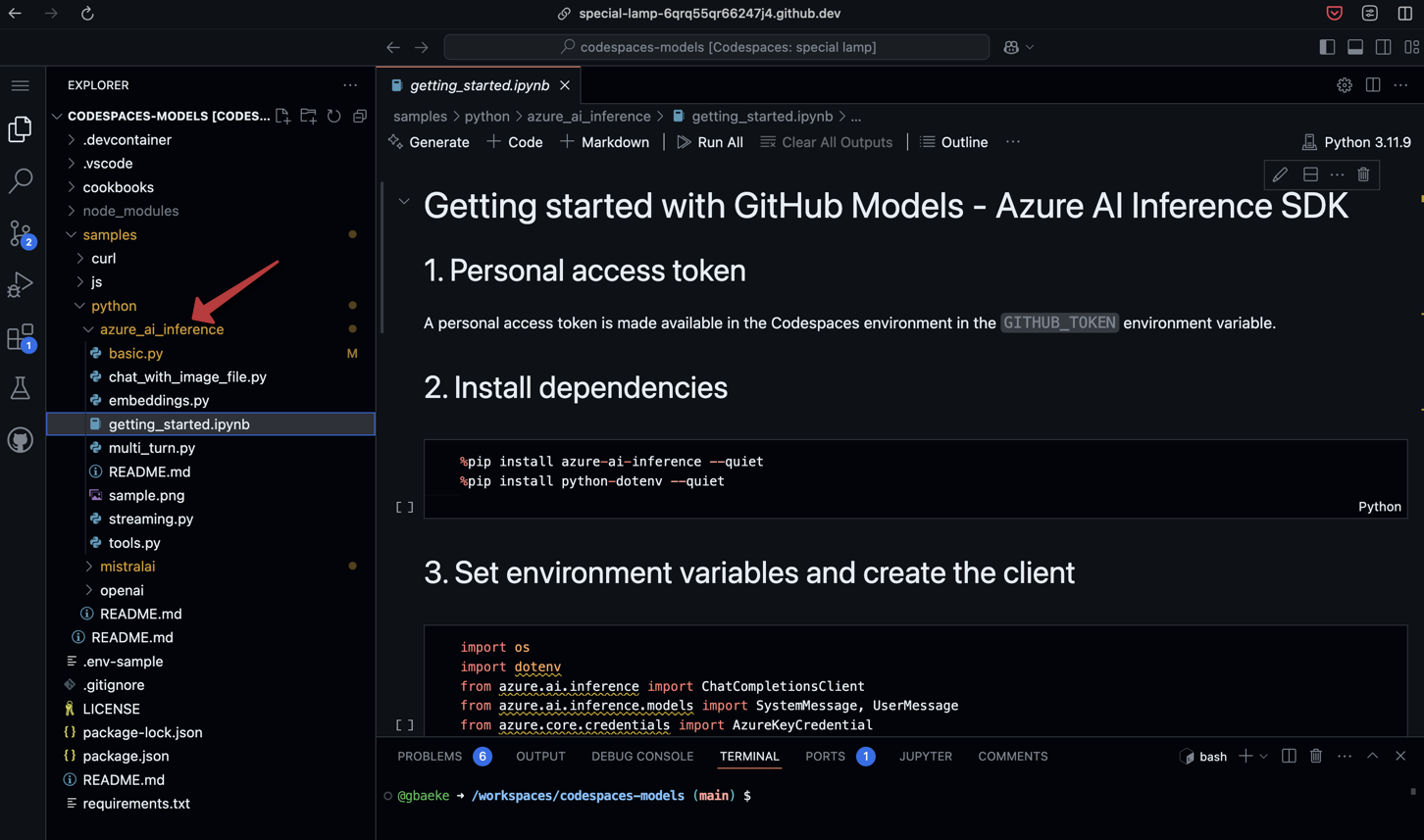
Instead of setting this up on you workstation, you can click on Run codespace. A codespace will be opened with lots of sample code:

Codespace with sample code for different SDKs, including the AI Inference

Above, I opened the Getting Started notebook for the Azure AI Inference SDK. You can run the cells in that notebook to see the results. To create a client, the following code is used:

import os
import dotenv
from azure.ai.inference import ChatCompletionsClient
from azure.ai.inference.models import SystemMessage, UserMessage
from azure.core.credentials import AzureKeyCredential

dotenv.load_dotenv()

if not os.getenv("GITHUB_TOKEN"):
    raise ValueError("GITHUB_TOKEN is not set")

github_token = os.environ["GITHUB_TOKEN"]
endpoint = "https://models.inference.ai.azure.com"


# Create a client
client = ChatCompletionsClient(
    endpoint=endpoint,
    credential=AzureKeyCredential(github_token),
)

The endpoint above is similar to the endpoint you would use without GitHub. The SDK, however, supports authenticating with your GITHUB_TOKEN which is available to the codespace as an environment variable.

When you have the ChatCompletionsClient, you can start using the client as if this was an OpenAI model. Indeed, the AI Inference SDK work similarly to the OpenAI SDK:

response = client.complete(
    messages=[
        SystemMessage(content="You are a helpful assistant."),
        UserMessage(content="What is the capital of France?"),
    ],
    model=model_name,
    # Optional parameters
    temperature=1.,
    max_tokens=1000,
    top_p=1.    
)

print(response.choices[0].message.content)

The code above is indeed similar to the OpenAI SDK. The model is set via the model_name variable. Model name can be any of the supported GitHub models:

  • AI21 Labs: `AI21-Jamba-Instruct`
  • Cohere: `Cohere-command-r`, `Cohere-command-r-plus`
  • Meta: `Meta-Llama-3-70B-Instruct`, `Meta-Llama-3-8B-Instruct` and others
  • Mistral AI: `Mistral-large`, `Mistral-large-2407`, `Mistral-Nemo`, `Mistral-small`
  • Azure OpenAI: `gpt-4o-mini`, `gpt-4o`
  • Microsoft: `Phi-3-medium-128k-instruct`, `Phi-3-medium-4k-instruct`, and others

The full list of models is in the notebook. It’s easy to get started with GitHub models to evaluate and try out models. Do note that these models are for experimentation only and heavily throttled. In production, use models deployed in Azure. One of the ways to do that is with Azure AI Foundry.

Azure AI Foundry and its SDK

Another way to use the inferencing service is via Azure AI Foundry and its SDK. To use the inferencing service via Azure AI Foundry, simply create a project. If this is the first time you create a project, a hub will be created as well. Check Microsoft Learn for more information.

Project in AI Foundry with the inference endpoint

The endpoint above can be used directly with the Azure AI Inference SDK. There is no need to use the Azure AI Foundry SDK in that case. In what follows, I will focus on the Azure AI Foundry SDK and not use the inference SDK on its own.

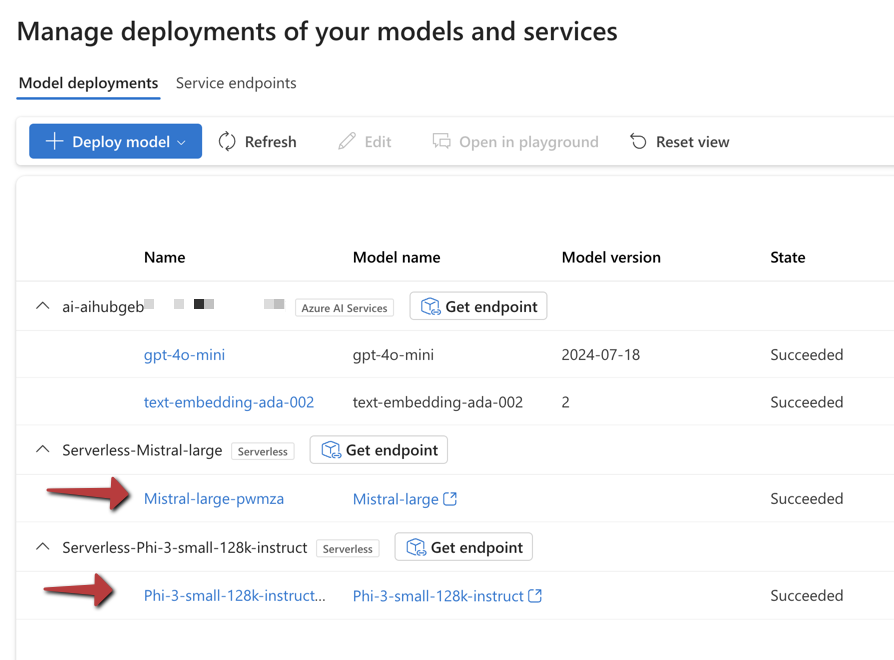
Unlike GitHub models, you need to deploy models in Azure before you can use them:

Deployment of Mistral Large and Phi-3 small 128k instruct

To deploy a model, simply click on Deploy model and follow the steps. Take the serverless deployment when asked. Above, I deployed Mistral Large and Phi-3 small 128k.

The Azure AI Foundry SDK makes it easy to work with services available to your project. A service can be a model via the inferencing SDK but also Azure AI Search and other services.

In code, you connect to your project with a connection string and authenticate with Entra ID. From a project client, you then obtain a generic chat completion client. Under the hood, the correct AI inferencing endpoint is used.

from azure.identity import DefaultAzureCredential
from azure.ai.projects import AIProjectClient

project_connection_string="your_conn_str"

project = AIProjectClient.from_connection_string(
  conn_str=project_connection_string,
  credential=DefaultAzureCredential())

model_name ="Phi-3-small-128k-instruct"

client = project.inference.get_chat_completions_client()

response = client.complete(
    model=model_name,
    messages=[
        {"role": "system", "content": "You are a helpful writing assistant"},
        {"role": "user", "content": "Write me a poem about flowers"},
    ]
)

print(response.choices[0].message.content)

Above, replace your_conn_str with the connection string from your project:

AI Foundry project connection string

Now, if you want to run your code with another model, simply deploy it and switch the model name in your code. Note that you do not use the deployment name. Instead, use the model name.

Note that these models are typically deployed with content filtering. If the filter is triggered, you will get a HttpResponseError 400. This will also happen if you use GitHub because they use the same models and content filters.

Other capabilities of the inferencing service

Below, some of the other capabilities of the inferencing service are listed:

  • Next to chat completions, text completions, text embeddings and image embeddings are supported
  • If the underlying model supports parameters not supported by the inferencing service, use model_extras. The properties you put in model extras are passed to the API that is specific to the model. One example is the safe_mode parameter in Mistral.
  • You can configure the API to give you an error when you use a parameter the underlying model does not support
  • The API supports images as input with select models
  • Streaming is supported
  • Tools and function calling is supported
  • Prompt templates are supported, including Prompty.

Should you use it?

Whether or not you should use the AI inferencing services is not easy to answer. If you use frameworks such as LangChain or Semantic Kernel, they already have abstractions to work with multiple models. They also make it easier to work with functions and tool calling and also support prompt templates. If you use those, stick with them.

If you do not use those frameworks and you simply want to use an OpenAI-compatible API, the inferencing service in combination with Azure AI Foundry is a good fit! There are many developers that prefer using the OpenAI API directly without the abstractions of a higher-level framework. If you do, you can easily switch models.

It’s important to note that if you use more advanced features such as tool calling, not all models support that. In practice, that means that the amount of models you can switch between are limited. In my experience, even with models that support tool calling, if can go wrong easily. If your application is heavily dependent on function calling, it’s best to use frameworks like Semantic Kernel.

The service in general is useful in other ways though. Copilot Studio for example, can use custom models to answer questions and uses the inferencing service under the hood to make that happen!